












WordPress powers millions of websites worldwide—from personal blogs to major company sites. But if you land on a website and wonder, “Is this built with WordPress?”, how do you actually confirm it? Whether you’re doing competitive research, building client sites, or simply curious, this guide will walk you through simple and effective ways to check if a WordPress website is using the platform — without needing deep technical skills.
In this article, we’ll explain both manual and automated methods, why they work, and what tools you can use so you can tell the difference like a pro.
What Is WordPress (Quick Overview)
Before we jump into the detection methods, let’s clarify what we mean by a WordPress website.
WordPress is a content management system (CMS) that makes building websites easier. It handles page creation, blogging tools, menus, plugins, themes, and more. Because it’s so flexible, many sites use WordPress either as a full frontend system or behind a custom design. But unlike site builders like Wix or Squarespace, WordPress leaves subtle technical fingerprints you can detect.
1. Check the Footer for WordPress Mentions
One of the simplest ways to check if a website is a WordPress site is to scroll down to the bottom and look at the footer text.
Many WordPress themes — especially free or default ones — include a credit line such as:
- “Powered by WordPress”
- “Built with WordPress”
- “Theme by [Developer Name]”
If you see one of these lines, that’s a strong clue the site is running WordPress. However, many professional sites remove this text, so not seeing it doesn’t automatically mean it isn’t WordPress.
2. Try the Standard WordPress Admin URLs
Another quick test is to modify the website’s URL and try to access common WordPress login pages.
In most WordPress installs, the login and admin pages are located at:
example.com/wp-login.php
example.com/wp-admin
Just replace example.com with the website’s domain and hit enter. If you’re redirected to a WordPress login screen, chances are high that WordPress powers the site. Even if the site has a custom branded login, WordPress often still shows familiar input fields behind the scenes.
👉 Note: Some sites mask or change these paths for security, so this method isn’t always guaranteed — but it’s a quick first check.
3. View the Page Source for WordPress Clues
This is one of the most reliable manual techniques — and anyone can do it with a web browser.
How to do it:
- Right-click on the page.
- Select “View Page Source” (sometimes called Inspect).
- In the code window, press Ctrl + F (Windows) or Cmd + F (Mac) to open the search box.
- Look for these common WordPress strings:
wp-contentwp-includeswp-admin<meta name="generator" content="WordPress">
These terms are part of the default WordPress directory structure. If you find them in the source code, it’s almost certain the site is WordPress-based.
4. Look at the Image or File Paths
Here’s another source code trick that’s less technical but very effective.
Right-click an image on the page, then choose something like “Open image in new tab”. Look at the image’s URL in the browser’s address bar.
If the URL includes something like:
/wp-content/uploads/…
that’s a classic WordPress media file path, because WordPress stores images and files in a wp-content folder by default.
This method works even if WordPress references are hidden elsewhere.
5. Use Browser Extensions and Online Tools
If you want a one-click check, there are tools designed to detect the technologies powering a website — including whether it’s WordPress.
Popular Options
🔹 Wappalyzer: Browser extension that shows CMS, frameworks, analytics, and more in real time.
🔹 BuiltWith: Online scanner where you enter a URL and get a detailed technology report.
🔹 IsItWP: WordPress-focused detector that checks if a site runs WordPress and often lists themes/plugins.
🔹 ScanWP / WPThemeDetector: Helps not only confirm WordPress but also reveals theme and plugin info.
These tools are especially useful for heavily customized sites, where the WordPress footprint might be minimized.
6. Spot Common WordPress Plugin or Theme Signs
Some visual or structural elements on a site can hint toward WordPress:
- CSS classes like elementor, woocommerce, or yoast-schema
- Scripts like admin-ajax.php or wp-emoji
- Widgets, sliders, or modules common to page builders like Elementor or Beaver Builder
Even if a site doesn’t clearly say “WordPress” anywhere, these clues often point to WordPress-based structure behind the scenes.
7. Check RSS Feed URLs
WordPress automatically produces RSS feeds — even if they’re not linked anywhere on the site.
Try adding one of these to the URL:
example.com/feed
example.com/?feed=rss2
If you see a structured XML page that includes WordPress tags, that’s another confirmation it’s a WordPress site.
8. Check With CMS Detector Sites
If you want a dedicated CMS detection service, websites like WhatCMS.org scan sites and tell you which content management system they detect — WordPress, Drupal, Joomla, etc. — based on patterns, meta tags, headers, and more. They usually support batch testing for multiple sites too.
Putting It All Together: What Does This Mean?
Let’s summarize how to check if a WordPress website:
✔️ Start with the easy checks
Check the footer and WordPress login URLs first — these are quick and require no tools.
✔️ Next, look under the hood
View the page source and image paths for wp- patterns.
✔️ Use smart tools
Browser extensions and online scanners save time and give tech insights.
✔️ Combine clues
If most or all signals point to WordPress, it’s very likely the site uses WordPress — even if customized.
By learning these techniques, you’ll not only confirm a site’s CMS but also gain insights into how sites are built — perfect for web designers, SEO specialists, and digital strategists.
Why Knowing This Matters
Understanding how to check if a website is built with WordPress can help you:
- Analyze competitors’ technology stack
- Prepare client proposals
- Benchmark features and plugins
- Discover design patterns worth emulating
- Plan migrations or rebuilds more effectively
WordPress’s ubiquity means it’s often the first platform professionals learn to identify and work with.
Looking to Build or Redesign a WordPress Website?
If you’re exploring WordPress, Shopify, or custom CMS development for your business — especially in international or cross-border eCommerce — you’re in the right place.
At AIRSANG, we specialize in cross-border website design and development, including WordPress builds that are SEO-optimized, responsive, and tailored to your target audience. Whether you need a portfolio site, blog, marketplace, or full eCommerce experience, we help businesses create impactful, high-performance digital experiences that drive growth.


Design and build a WordPress website or corporate site with a full eCommerce system for you.
Price range: $200.00 through $2,500.00custom-requirements-or-special-quotations
Original price was: $2.00.$1.00Current price is: $1.00. Are 50 Plugins Too Many for a WordPress eCommerce Store?
Understanding the Real Performance Impact Having 50 plugins on a WordPress eCommerce site isn’t automatically a problem. In fact, the number alone rarely determines performance....

Main Image Design for Amazon Lipstick Conversion
Introduction: Designing a Lipstick Main Image That Sells on Amazon When we design a Main image for an Amazon lipstick, our responsibility goes far beyond...

How Hackers Steal WordPress Admin Emails (And How to Stop Them)
Let’s start with an uncomfortable truth: Your WordPress admin email is probably way more public than you think.And hackers? They love that. To them, your...

What Makes an Amazon Liquid Foundation Main Image Convert
Introduction Designing a Main image design for Amazon Liquid foundation is never just about making a product look beautiful. On Amazon, the main image and...

Designing an Effective Amazon Main Image for Filter Cartridges
Introduction Designing a Main image for Amazon is never just about making a product look attractive. It is about clarity, trust, and instant understanding—especially for...

Replay Attacks on WordPress: Real Threat or Overhyped Myth?
Let’s clear something up first. Replay attacks don’t look scary.They don’t smash passwords.They don’t inject evil code with green hacker text flying everywhere. They’re sneaky....

How to Duplicate WordPress Pages Without Breaking Anything
Let’s face it. Sometimes you don’t want to create a new page.You just want the same page… but slightly different. Same layout.Same blocks.Same settings. Because...

Five Pet WordPress Themes Compared
Introduction Choosing the right pet-related WordPress theme is more than a design decision—it directly affects usability, scalability, and long-term business growth. Pet care and pet...

Comparing Five Swimwear eCommerce Themes
Introduction Choosing the right theme for a swimwear or lingerie independent store is not just a visual decision—it directly affects conversion rates, scalability, and long-term...

How to Turn Off Comments in WordPress (Without Losing Your Mind)
Let’s talk about WordPress comments. In theory, comments are great.They encourage discussion.They build community.They make your website feel “alive.” In reality? They’re often a magnet...

WordPress 500 Error: When Your Website Decides to Panic
Your WordPress site was fine a minute ago.You refreshed the page.And suddenly—boom 💥—500 Internal Server Error. No explanation.No apology.Just a cold, confusing message that basically...

How to Contact Shopify Support: Simple, Stress-Free Guide
Running a Shopify store should feel exciting—not confusing. When questions pop up or issues slow you down, Shopify offers several support paths depending on what...

How to Deactivate a Shopify Store: A Clear, Practical Guide
Deactivating a Shopify store isn’t complicated, but it does come with consequences many merchants overlook. This guide breaks the process down in a simple, educational...
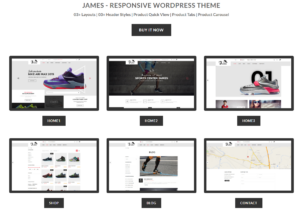
Five Shoe Store Themes Compared
Introduction Choosing the right theme for a footwear-focused independent store is not just a visual decision—it directly affects scalability, daily operations, and long-term conversion performance....

Shopify vs Etsy: The Ultimate Online Selling Showdown
Introduction: Two Platforms Walk Into a Bar… If Shopify and Etsy were people, Etsy would be that charming friend who already has a booth at...

Is Your Shopify or WordPress Site Hacked? Here’s What to Do
Introduction: The Digital Equivalent of Waking Up to a Broken Window Imagine waking up, grabbing your morning coffee, opening your laptop… and discovering your website...
How to Start a Shopify Store Without Losing Your Mind
Starting a Shopify store sounds glamorous. You picture yourself sipping coffee at noon, checking sales notifications, and casually telling friends,“Yeah, my store did pretty well...

Is Shopify Legit? A Clear Guide for New Online Sellers
If you’re researching eCommerce platforms, chances are you’ve typed one very specific question into Google: is Shopify legit? That question is completely reasonable. Launching an...