Let’s face it.
Sometimes you don’t want to create a new page.
You just want the same page… but slightly different.
Same layout.
Same blocks.
Same settings.
Because rebuilding a page from scratch is nobody’s idea of a good time.
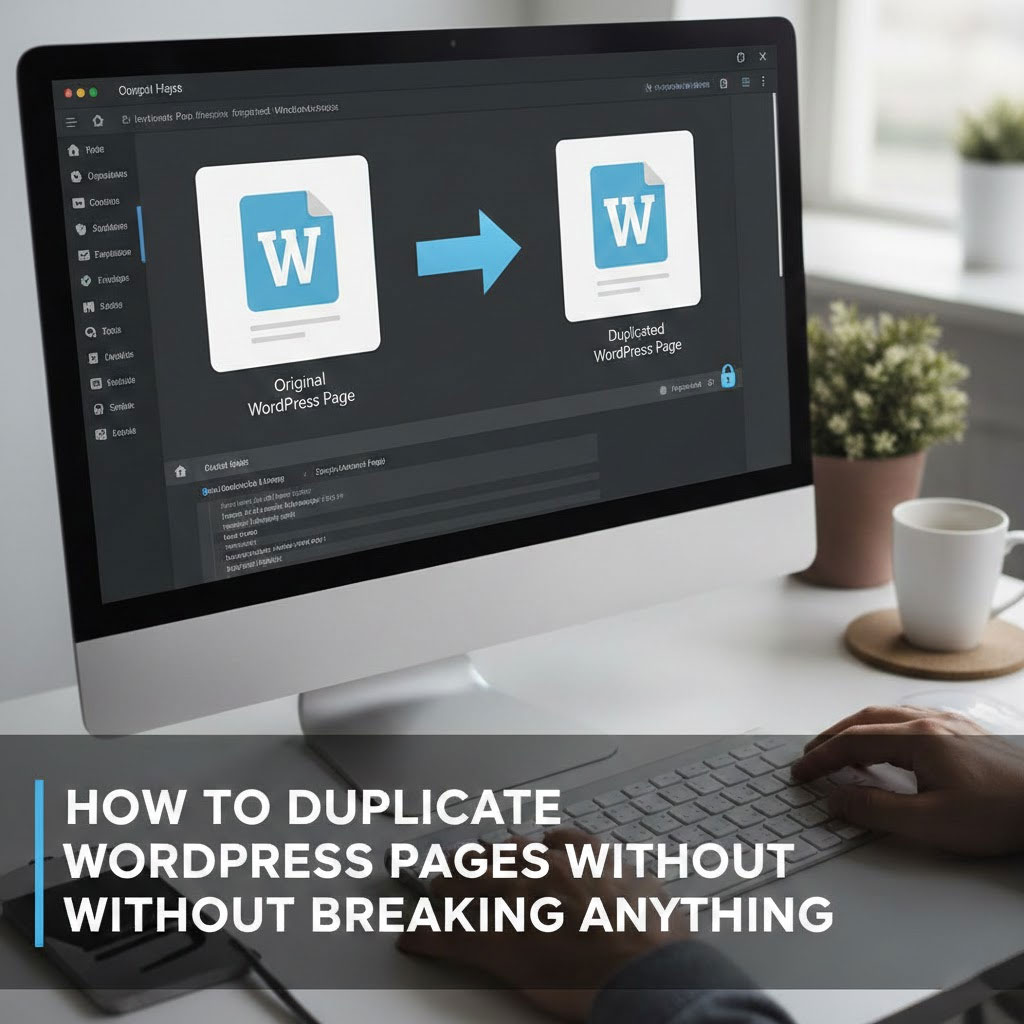
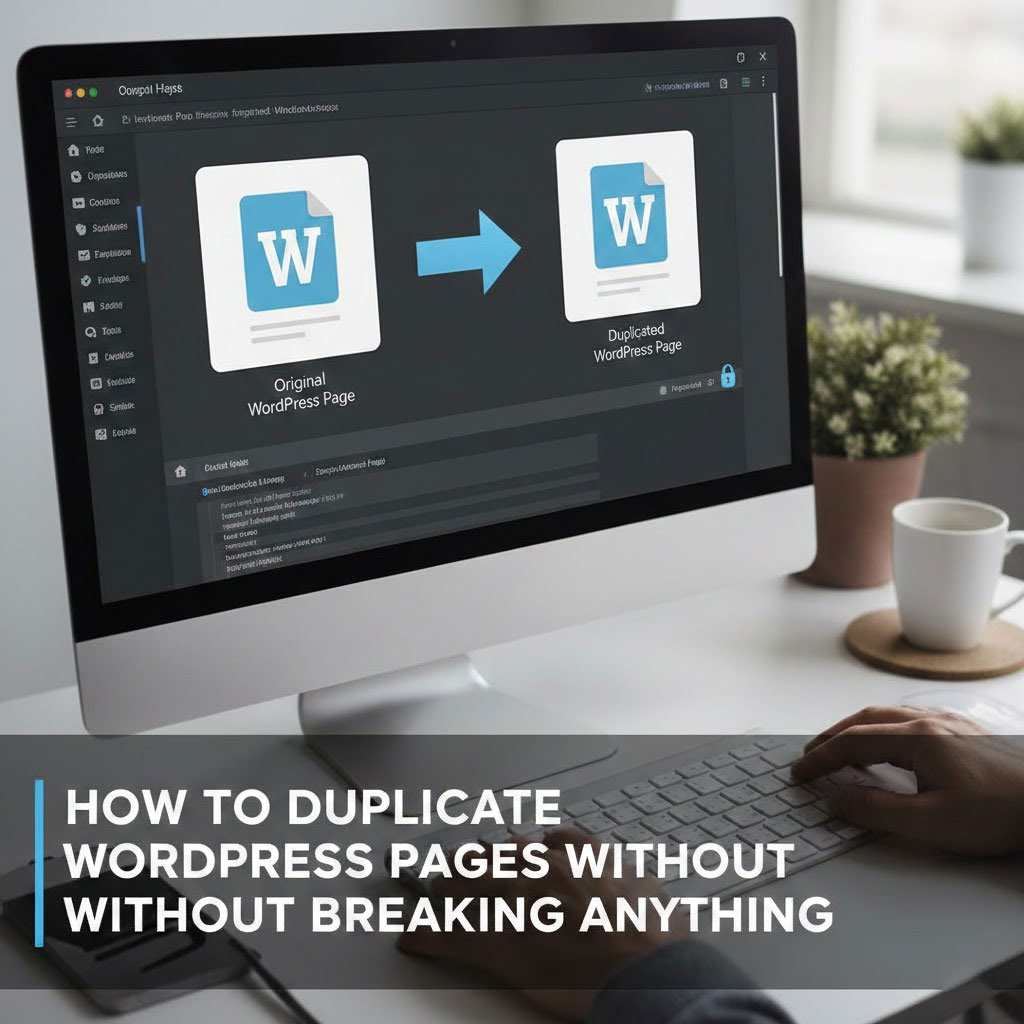
Good news: WordPress makes copying pages and posts surprisingly easy—once you know where to click.
What You Need Before You Start

Before we duplicate anything, make sure your setup qualifies.
You’ll need one of these:
- A website hosted on WordPress.com, or
- A self-hosted WordPress site with the free Jetpack plugin activated
If that box is checked, you’re good to go.
The Classic Way: Duplicate From the Dashboard
This is the fastest and most popular method.
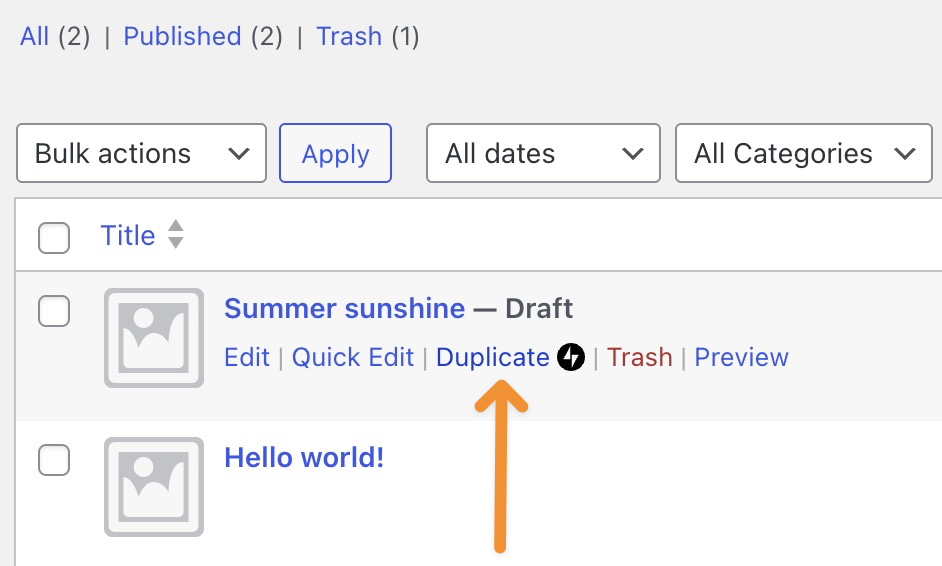
- Go to Posts or Pages in your WordPress dashboard
- Hover your mouse over the page or post you want to clone
- Click Duplicate when it magically appears
That’s it. WordPress opens a new draft that already includes:
- Title
- Content
- Excerpt
- Featured image
- Categories and tags
- Comment and sharing settings
- Custom post type data
Basically, it’s a perfect twin—minus the existential crisis.
Already Editing? Duplicate From Inside the Editor
Mid-edit and suddenly think, “I should make a copy of this”?
WordPress has your back.
- Open the page or post in the editor
- Make sure the Settings sidebar is visible (top-right icon)
- Click the three dots next to the title
- Choose Duplicate
- Give the new page a title and confirm
Boom. Copy created. Productivity preserved.
Don’t See the Duplicate Option? Here’s Why
No duplicate button usually means one of three things:
- Jetpack isn’t active
- The feature isn’t enabled
- Your page builder is doing its own thing
If you’re using Jetpack:
- Go to Jetpack → Settings → Writing
- Enable “Copy entire posts and pages, including tags and settings”
Once enabled, the duplicate option will appear like it was always there.
Backup Plan: Copy All Blocks (The Old-School Way)
If all else fails, there’s always the manual-but-reliable method.
- Open the page or post
- Click the three dots in the top-right corner
- Select Copy all blocks
- Create a new post or page
- Paste (Ctrl + V or Cmd + V)
Not fancy—but effective.
Final Thoughts
Duplicating pages isn’t cheating.
It’s called working smarter.
Whether you’re creating landing page variations, A/B testing layouts, or building multilingual versions, page duplication saves time and sanity.
At AIRSANG, this is exactly how we build and scale cross-border WordPress and Shopify websites—efficiently, cleanly, and without unnecessary repetition. Website design isn’t just about visuals; it’s about structure, workflow, and long-term growth.
If you’re planning to redesign your site, expand internationally, or want a WordPress setup that actually works with you, follow AIRSANG.
We don’t just design pages—we design systems that scale.