












Introduction
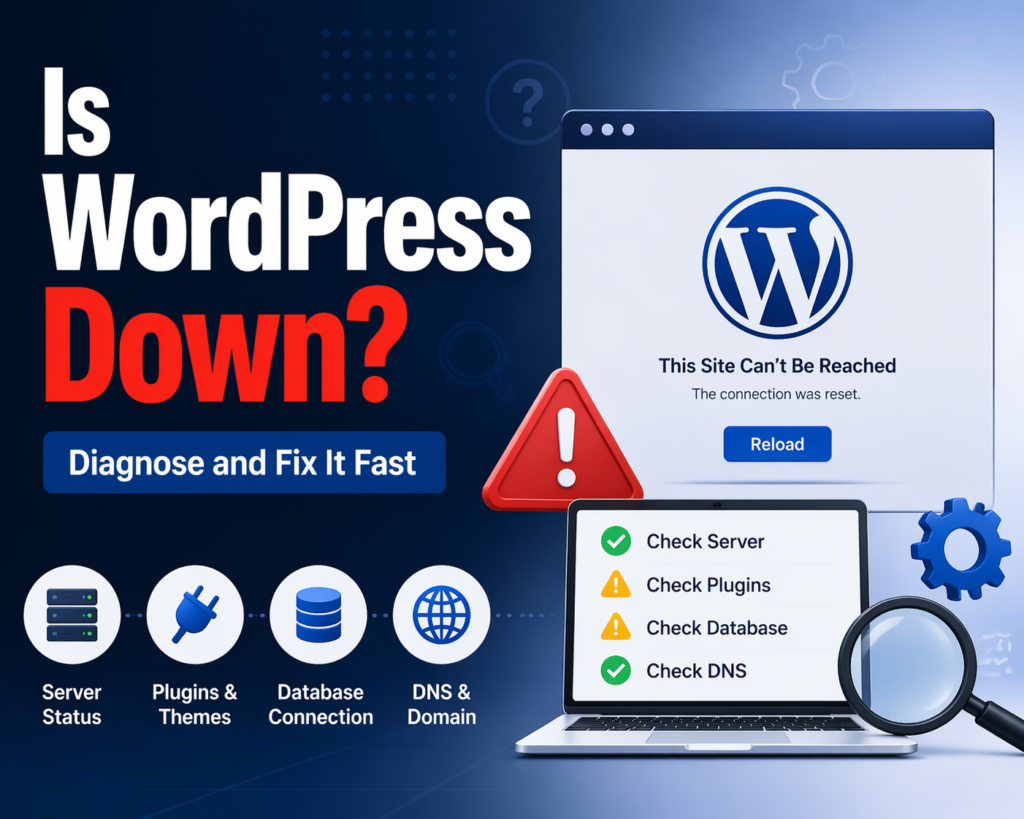
If you’ve ever tried to open your website and suddenly found it inaccessible, your first reaction is probably: “Is WordPress down?”
This question is incredibly common among website owners, bloggers, and online store operators. However, the truth is a bit more nuanced. WordPress itself rarely “goes down” as a platform. Instead, the issue usually lies somewhere within your hosting environment, website configuration, or external services.
In this guide, we’ll break down what “WordPress down” actually means, how to quickly diagnose the problem, and the most effective ways to fix it. Whether you’re a beginner or managing multiple sites, this article will help you understand what’s happening and what to do next.
What Does “Is WordPress Down” Actually Mean?

Before jumping into troubleshooting, it’s important to understand what people mean when they ask this question.
WordPress exists in two main forms:
- WordPress.com – A hosted platform managed for you
- WordPress.org – Self-hosted WordPress installed on your own server
When your website becomes unavailable, it’s rarely because WordPress itself is down. Instead, the issue usually falls into one of these categories:
- Your hosting server is offline
- A plugin or theme is causing a crash
- Your domain or DNS is misconfigured
- There is a temporary network or browser issue
So when asking “is WordPress down?”, what you’re really asking is:
“Why is my WordPress website not loading?”
Common Signs Your WordPress Site Is Down
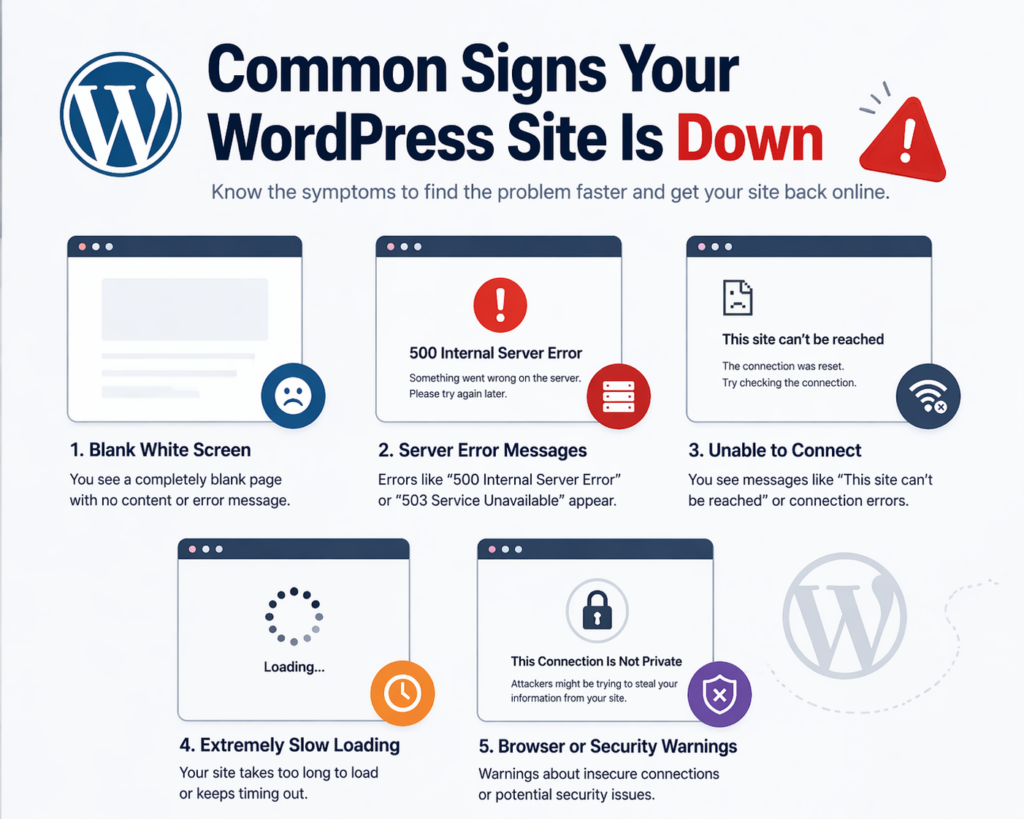
Before diagnosing, you should recognize the typical symptoms of a down website. These include:
- A blank white screen (often called the “White Screen of Death”)
- Error messages like:
- “500 Internal Server Error”
- “Error establishing a database connection”
- Extremely slow loading or timeouts
- Your site works for you but not for others (or vice versa)
Understanding these symptoms helps narrow down the root cause faster.
Step 1: Check If It’s Really Down for Everyone
The first thing you should do is confirm whether your website is down globally or just for you.
Quick checks:
- Open your site in a different browser
- Use incognito/private mode
- Try accessing from another device or network
If your site loads elsewhere, the issue may be local (browser cache, DNS, or network).
If it’s down everywhere, then the problem is more serious and likely server-side.
Step 2: Check Your Hosting Server Status
Your hosting provider plays a major role in your website’s availability. If their servers go down, your WordPress site goes down with them.
What to look for:
- Hosting provider status page
- Maintenance announcements
- Outage reports
Common hosting-related issues:
- Server overload
- Scheduled maintenance
- Hardware failure
- Misconfigured server settings
If your host is experiencing downtime, there’s little you can do except wait or contact support.
Step 3: Identify Plugin or Theme Conflicts
Plugins and themes are powerful—but they can also break your site.
Typical scenarios:
- You installed a new plugin and the site crashed
- You updated a plugin or theme and things stopped working
- Multiple plugins conflict with each other
How to fix it:
- Access your site via FTP or hosting file manager
- Navigate to
/wp-content/plugins/ - Rename the plugins folder (e.g.,
plugins_old) - Check if your site comes back online
If it does, a plugin is the issue. Then:
- Reactivate plugins one by one
- Identify the problematic one
You can do the same with themes by switching to a default theme.
Step 4: Look for Database Connection Errors
One of the most common WordPress issues is:
“Error establishing a database connection”
This means your website cannot communicate with its database.
Possible causes:
- Incorrect database credentials
- Database server down
- Corrupted database
- Hosting issues
What to check:
- Open your
wp-config.phpfile - Verify:
- Database name
- Username
- Password
- Host
If everything looks correct, contact your hosting provider to check database status.
Step 5: Check for Server Errors (500, 503, etc.)
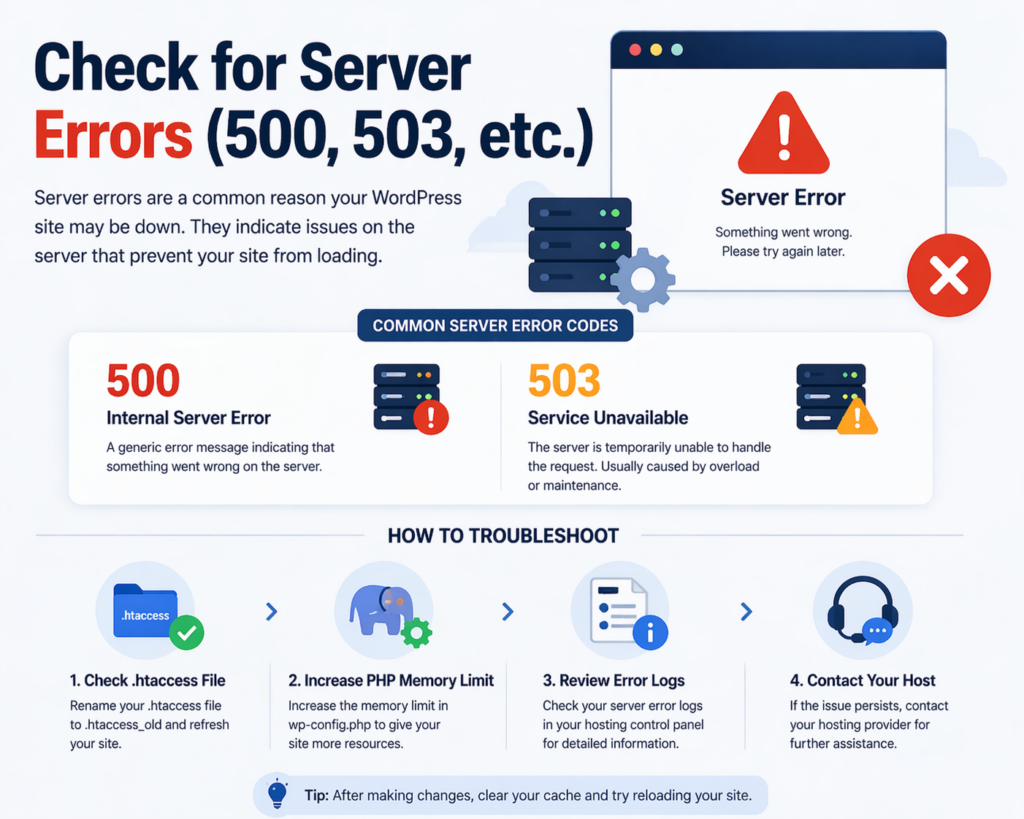
Server errors are another major reason people think WordPress is down.
Common error codes:
- 500 Internal Server Error – Generic server issue
- 503 Service Unavailable – Server overloaded or under maintenance
How to troubleshoot:
- Check
.htaccessfile (rename it temporarily) - Increase PHP memory limit
- Review error logs from your hosting panel
These errors are usually fixable once you identify the underlying cause.
Step 6: Clear Cache and CDN Issues
Sometimes your site isn’t actually down—it just appears that way due to caching problems.
Possible culprits:
- Browser cache
- WordPress caching plugins
- CDN (Content Delivery Network)
Solutions:
- Clear your browser cache
- Disable caching plugins temporarily
- Purge CDN cache
Caching issues can make a live site look broken or outdated.
Step 7: DNS and Domain Problems
If your domain settings are incorrect, your website may become unreachable.
Common DNS issues:
- Domain expired
- Nameservers misconfigured
- DNS propagation delay
How to check:
- Verify your domain is active
- Check nameserver settings
- Wait for DNS changes to propagate (can take up to 48 hours)
Step 8: Security Issues and Malware
Security problems can also take your site offline.
Examples:
- Malware infection
- Hacked website
- Hosting suspension due to security risks
Signs:
- Redirects to strange websites
- Warnings from browsers
- Hosting account suspended
What to do:
- Scan your site for malware
- Restore from backup
- Contact your hosting provider
Security issues should be handled immediately to avoid further damage.
Step 9: Resource Limits and Traffic Spikes
If your website suddenly receives a lot of traffic, your server may not handle the load.
Symptoms:
- Slow loading
- Timeouts
- Temporary downtime
Causes:
- Viral content
- Marketing campaigns
- Bots or attacks
Solutions:
- Upgrade hosting plan
- Use caching
- Implement a CDN
Step 10: Maintenance Mode Problems
Sometimes your site gets stuck in maintenance mode after an update.
Message:
“Briefly unavailable for scheduled maintenance.”
Fix:
- Delete the
.maintenancefile in your root directory
This is a quick and common fix.
Preventing Future Downtime
Once your site is back online, it’s important to reduce the risk of future issues.
Best practices:
- Choose reliable hosting
- Keep plugins and themes updated
- Use only necessary plugins
- Set up regular backups
- Monitor uptime with tools
- Implement security measures
Prevention is always better than emergency fixes.
When Should You Contact Support?
If you’ve tried everything and your site is still down, it’s time to reach out.
Contact your hosting provider if:
- Server is unresponsive
- Database is inaccessible
- You see repeated server errors
Contact a developer if:
- Code issues are involved
- Complex plugin conflicts occur
- You’re unsure about technical fixes
Final Thoughts
So, is WordPress down?
In most cases, the answer is no—WordPress itself is rarely the problem. What appears to be a platform outage is usually caused by hosting issues, plugin conflicts, server errors, or configuration problems.
By following a structured troubleshooting process—checking server status, disabling plugins, verifying database connections, and reviewing DNS settings—you can quickly identify and resolve the issue.
Understanding these common causes not only helps you fix problems faster but also makes you more confident in managing your website.
FAQ
WordPress itself is rarely down. If your site isn’t loading, the issue is usually related to your hosting server, plugins, or configuration rather than the WordPress platform.
Common reasons include server downtime, plugin or theme conflicts, database connection errors, DNS issues, or excessive traffic overwhelming your hosting resources.
You can try accessing your site from different devices, browsers, or networks. If it doesn’t load anywhere, it’s likely a server-side issue.
One of the most common errors is “Error establishing a database connection,” which happens when your site cannot connect to its database.
You can fix it by checking your .htaccess file, increasing PHP memory limits, disabling plugins, or reviewing server error logs to identify the root cause.
Yes, incompatible or poorly coded plugins can crash your site. Deactivating plugins and reactivating them one by one can help identify the problematic one.


Design and build a WordPress website or corporate site with a full eCommerce system for you.
Price range: $200.00 through $2,500.00custom-requirements-or-special-quotations
Original price was: $2.00.$1.00Current price is: $1.00. Are 50 Plugins Too Many for a WordPress eCommerce Store?
Understanding the Real Performance Impact Having 50 plugins on a WordPress eCommerce site isn’t automatically a problem. In fact, the number alone rarely determines performance....

Main Image Design for Amazon Home Physiotherapy Device Explained
Introduction: Building a Trustworthy Image for Home Therapy Devices on Amazon When designing the main image for a home therapy device on Amazon, our primary...

Main Image Design for Amazon Lipstick Conversion
Introduction: Designing a Lipstick Main Image That Sells on Amazon When we design a Main image for an Amazon lipstick, our responsibility goes far beyond...

How Hackers Steal WordPress Admin Emails (And How to Stop Them)
Let’s start with an uncomfortable truth: Your WordPress admin email is probably way more public than you think.And hackers? They love that. To them, your...

What Makes an Amazon Liquid Foundation Main Image Convert
Introduction Designing a Main image design for Amazon Liquid foundation is never just about making a product look beautiful. On Amazon, the main image and...

Designing an Effective Amazon Main Image for Filter Cartridges
Introduction Designing a Main image for Amazon is never just about making a product look attractive. It is about clarity, trust, and instant understanding—especially for...

Replay Attacks on WordPress: Real Threat or Overhyped Myth?
Let’s clear something up first. Replay attacks don’t look scary.They don’t smash passwords.They don’t inject evil code with green hacker text flying everywhere. They’re sneaky....

How to Duplicate WordPress Pages Without Breaking Anything
Let’s face it. Sometimes you don’t want to create a new page.You just want the same page… but slightly different. Same layout.Same blocks.Same settings. Because...

Five Pet WordPress Themes Compared
Introduction Choosing the right pet-related WordPress theme is more than a design decision—it directly affects usability, scalability, and long-term business growth. Pet care and pet...

Comparing Five Swimwear eCommerce Themes
Introduction Choosing the right theme for a swimwear or lingerie independent store is not just a visual decision—it directly affects conversion rates, scalability, and long-term...

How to Turn Off Comments in WordPress (Without Losing Your Mind)
Let’s talk about WordPress comments. In theory, comments are great.They encourage discussion.They build community.They make your website feel “alive.” In reality? They’re often a magnet...

WordPress 500 Error: When Your Website Decides to Panic
Your WordPress site was fine a minute ago.You refreshed the page.And suddenly—boom 💥—500 Internal Server Error. No explanation.No apology.Just a cold, confusing message that basically...

Building a Scalable WordPress Website for a Science-Driven Brand: The AminoUSA Project
Introduction In today’s digital landscape, a website is more than a place to list products. For science-driven brands operating in regulated or research-focused industries, a...

Building a Scalable Shopify Store for a Global Blade Brand: The CoolKatana Project
Introduction In cross-border eCommerce, a Shopify website is more than a storefront.For brands operating in niche, culture-driven categories, the website must do far more than...

Designing a High-Conversion Shopify Store for Pokémon Cards
Introduction In the world of collectible eCommerce, especially within the Pokémon Trading Card Game (TCG) market, a website must do more than simply list products....

High-Converting Shopify Design for a Custom Brick Brand
Introduction In today’s competitive eCommerce landscape, especially in the personalized gift and collectible space, a Shopify website must do far more than display products. It...

How to Contact Shopify Support: Simple, Stress-Free Guide
Running a Shopify store should feel exciting—not confusing. When questions pop up or issues slow you down, Shopify offers several support paths depending on what...

How to Deactivate a Shopify Store: A Clear, Practical Guide
Deactivating a Shopify store isn’t complicated, but it does come with consequences many merchants overlook. This guide breaks the process down in a simple, educational...