












소개
If you’ve ever tried to open your website and suddenly found it inaccessible, your first reaction is probably: “Is WordPress down?”
This question is incredibly common among website owners, bloggers, and online store operators. However, the truth is a bit more nuanced. WordPress itself rarely “goes down” as a platform. Instead, the issue usually lies somewhere within your hosting environment, website configuration, or external services.
In this guide, we’ll break down what “WordPress down” actually means, how to quickly diagnose the problem, and the most effective ways to fix it. Whether you’re a beginner or managing multiple sites, this article will help you understand what’s happening and what to do next.
What Does “Is WordPress Down” Actually Mean?

Before jumping into troubleshooting, it’s important to understand what people mean when they ask this question.
WordPress exists in two main forms:
- WordPress.com – A hosted platform managed for you
- WordPress.org – Self-hosted WordPress installed on your own server
When your website becomes unavailable, it’s rarely because WordPress itself is down. Instead, the issue usually falls into one of these categories:
- Your hosting server is offline
- A plugin or theme is causing a crash
- Your domain or DNS is misconfigured
- There is a temporary network or browser issue
So when asking “is WordPress down?”, what you’re really asking is:
“Why is my WordPress website not loading?”
Common Signs Your WordPress Site Is Down
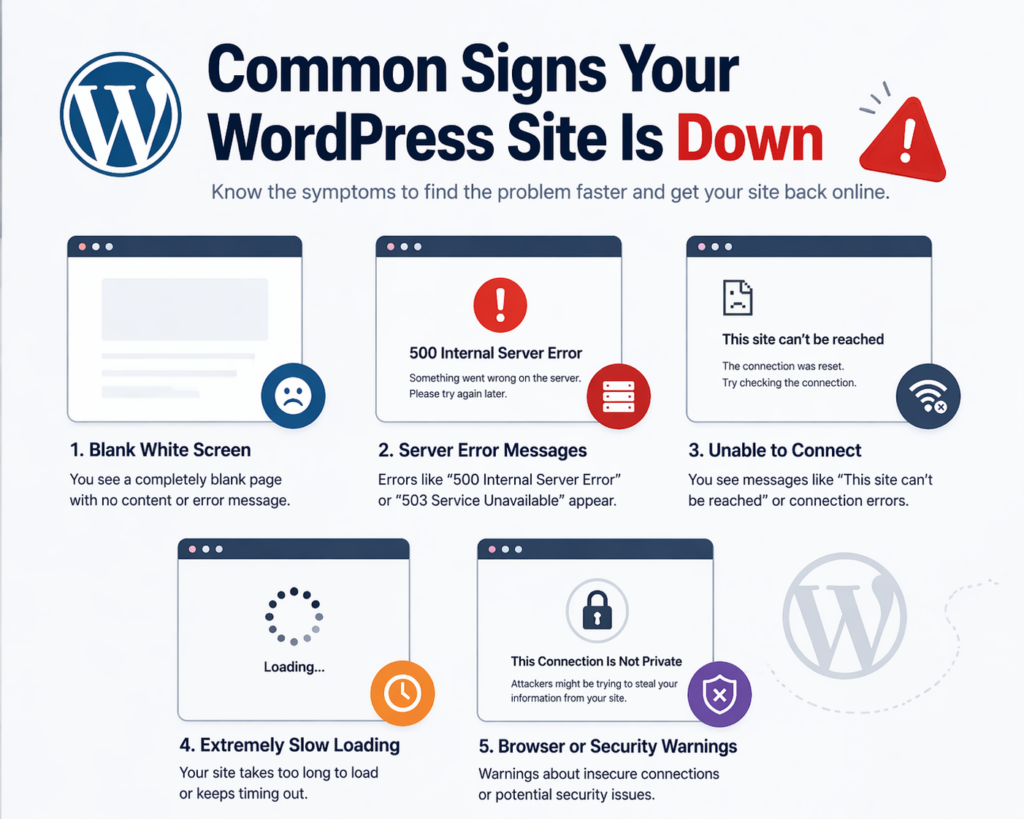
Before diagnosing, you should recognize the typical symptoms of a down website. These include:
- A blank white screen (often called the “White Screen of Death”)
- Error messages like:
- “500 Internal Server Error”
- “Error establishing a database connection”
- Extremely slow loading or timeouts
- Your site works for you but not for others (or vice versa)
Understanding these symptoms helps narrow down the root cause faster.
Step 1: Check If It’s Really Down for Everyone
The first thing you should do is confirm whether your website is down globally or just for you.
Quick checks:
- Open your site in a different browser
- Use incognito/private mode
- Try accessing from another device or network
If your site loads elsewhere, the issue may be local (browser cache, DNS, or network).
If it’s down everywhere, then the problem is more serious and likely server-side.
Step 2: Check Your Hosting Server Status
Your hosting provider plays a major role in your website’s availability. If their servers go down, your WordPress site goes down with them.
What to look for:
- Hosting provider status page
- Maintenance announcements
- Outage reports
Common hosting-related issues:
- Server overload
- Scheduled maintenance
- Hardware failure
- Misconfigured server settings
If your host is experiencing downtime, there’s little you can do except wait or contact support.
Step 3: Identify Plugin or Theme Conflicts
Plugins and themes are powerful—but they can also break your site.
Typical scenarios:
- You installed a new plugin and the site crashed
- You updated a plugin or theme and things stopped working
- Multiple plugins conflict with each other
How to fix it:
- Access your site via FTP or hosting file manager
- Navigate to
/wp-content/plugins/ - Rename the plugins folder (e.g.,
플러그인_구형) - Check if your site comes back online
If it does, a plugin is the issue. Then:
- 플러그인을 하나씩 다시 활성화하세요
- Identify the problematic one
You can do the same with themes by switching to a default theme.
Step 4: Look for Database Connection Errors
One of the most common WordPress issues is:
“Error establishing a database connection”
This means your website cannot communicate with its database.
Possible causes:
- Incorrect database credentials
- Database server down
- Corrupted database
- Hosting issues
What to check:
- Open your
wp-config.php파일 - Verify:
- 데이터베이스 이름
- Username
- Password
- Host
If everything looks correct, contact your hosting provider to check database status.
Step 5: Check for Server Errors (500, 503, etc.)
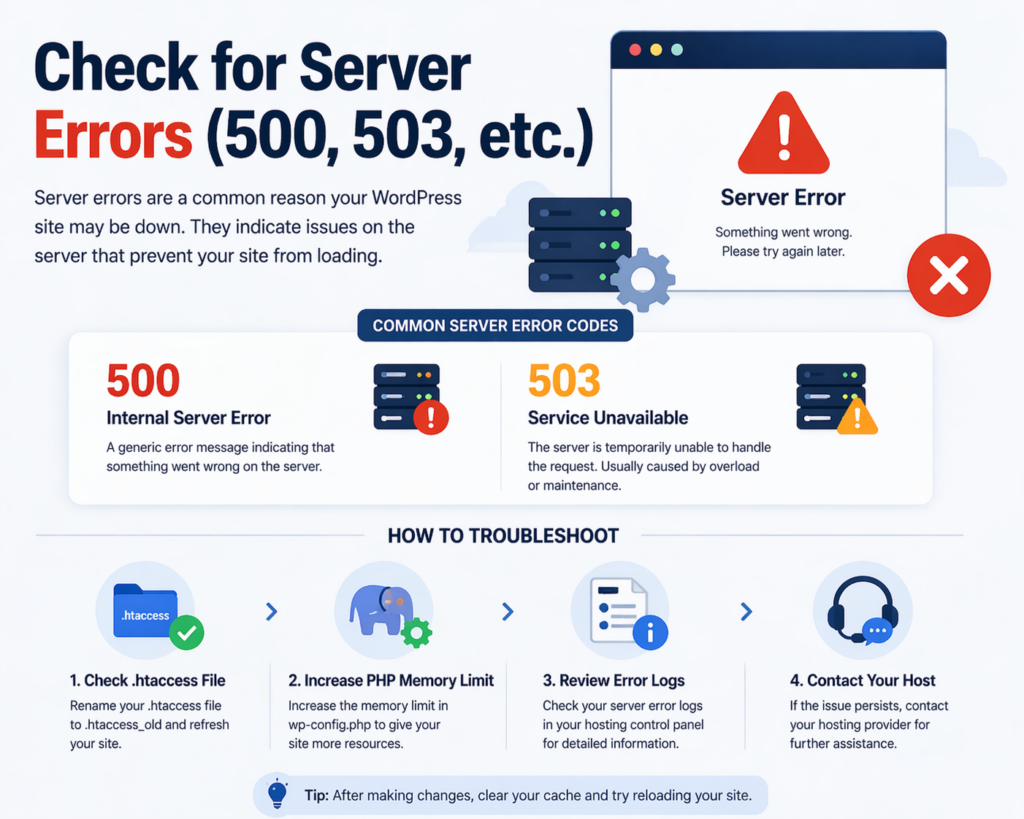
Server errors are another major reason people think WordPress is down.
Common error codes:
- 500 내부 서버 오류 – Generic server issue
- 503 Service Unavailable – Server overloaded or under maintenance
How to troubleshoot:
- 확인하다
.htaccessfile (rename it temporarily) - Increase PHP memory limit
- Review error logs from your hosting panel
These errors are usually fixable once you identify the underlying cause.
Step 6: Clear Cache and CDN Issues
Sometimes your site isn’t actually down—it just appears that way due to caching problems.
Possible culprits:
- Browser cache
- WordPress caching plugins
- CDN (Content Delivery Network)
Solutions:
- 브라우저 캐시를 삭제하세요
- Disable caching plugins temporarily
- Purge CDN cache
Caching issues can make a live site look broken or outdated.
Step 7: DNS and Domain Problems
If your domain settings are incorrect, your website may become unreachable.
Common DNS issues:
- Domain expired
- Nameservers misconfigured
- DNS propagation delay
How to check:
- Verify your domain is active
- Check nameserver settings
- Wait for DNS changes to propagate (can take up to 48 hours)
Step 8: Security Issues and Malware
Security problems can also take your site offline.
예시:
- Malware infection
- Hacked website
- Hosting suspension due to security risks
Signs:
- Redirects to strange websites
- Warnings from browsers
- Hosting account suspended
해야 할 일:
- Scan your site for malware
- Restore from backup
- 호스팅 제공업체에 문의하세요.
Security issues should be handled immediately to avoid further damage.
Step 9: Resource Limits and Traffic Spikes
If your website suddenly receives a lot of traffic, your server may not handle the load.
Symptoms:
- Slow loading
- Timeouts
- Temporary downtime
Causes:
- Viral content
- Marketing campaigns
- Bots or attacks
Solutions:
- Upgrade hosting plan
- Use caching
- Implement a CDN
Step 10: Maintenance Mode Problems
Sometimes your site gets stuck in maintenance mode after an update.
Message:
“Briefly unavailable for scheduled maintenance.”
Fix:
- Delete the
.maintenancefile in your root directory
This is a quick and common fix.
Preventing Future Downtime
Once your site is back online, it’s important to reduce the risk of future issues.
모범 사례:
- Choose reliable hosting
- 플러그인과 테마를 최신 버전으로 유지하세요.
- 필요한 플러그인만 사용하세요
- Set up regular backups
- Monitor uptime with tools
- Implement security measures
Prevention is always better than emergency fixes.
When Should You Contact Support?
If you’ve tried everything and your site is still down, it’s time to reach out.
Contact your hosting provider if:
- Server is unresponsive
- Database is inaccessible
- You see repeated server errors
Contact a developer if:
- Code issues are involved
- Complex plugin conflicts occur
- You’re unsure about technical fixes
마지막으로
So, is WordPress down?
In most cases, the answer is no—WordPress itself is rarely the problem. What appears to be a platform outage is usually caused by hosting issues, plugin conflicts, server errors, or configuration problems.
By following a structured troubleshooting process—checking server status, disabling plugins, verifying database connections, and reviewing DNS settings—you can quickly identify and resolve the issue.
Understanding these common causes not only helps you fix problems faster but also makes you more confident in managing your website.
자주 묻는 질문
WordPress itself is rarely down. If your site isn’t loading, the issue is usually related to your hosting server, plugins, or configuration rather than the WordPress platform.
Common reasons include server downtime, plugin or theme conflicts, database connection errors, DNS issues, or excessive traffic overwhelming your hosting resources.
You can try accessing your site from different devices, browsers, or networks. If it doesn’t load anywhere, it’s likely a server-side issue.
One of the most common errors is “Error establishing a database connection,” which happens when your site cannot connect to its database.
You can fix it by checking your .htaccess file, increasing PHP memory limits, disabling plugins, or reviewing server error logs to identify the root cause.
Yes, incompatible or poorly coded plugins can crash your site. Deactivating plugins and reactivating them one by one can help identify the problematic one.


완전한 전자상거래 시스템을 갖춘 워드프레스 웹사이트 또는 기업 사이트를 디자인하고 구축하세요.
가격 범위: $200.00~$2,500.00custom-requirements-or-special-quotations
원래 가격: $2.00.$1.00현재 가격: $1.00. 워드프레스 전자상거래 쇼핑몰에 플러그인 50개는 너무 많은 걸까요?
실제 성능에 미치는 영향 이해하기 워드프레스 전자상거래 사이트에 50개의 플러그인이 있다고 해서 자동으로 문제가 되는 것은 아닙니다. 사실 그 숫자만으로 성능이 결정되는 경우는 거의 없습니다....

아마존 가정용 물리치료 기기 메인 이미지 디자인 설명
소개 소개: 아마존에서 홈 테라피 기기의 신뢰할 수 있는 이미지 구축 아마존에서 홈 테라피 기기의 기본 이미지를 디자인할 때 기본 ...

아마존 립스틱 전환을 위한 메인 이미지 디자인
소개: 소개: 아마존에서 판매되는 립스틱 메인 이미지 디자인하기 아마존 립스틱의 메인 이미지를 디자인할 때 우리의 책임은 그 이상입니다.

해커들이 워드프레스 관리자 이메일을 훔치는 방법(그리고 이를 막는 방법)
불편한 진실부터 말씀드리자면, 워드프레스 관리자 이메일은 생각보다 훨씬 더 많이 공개되어 있습니다. 그들은 그것을 좋아합니다. 해커에게 여러분의...

아마존 리퀴드 파운데이션 메인 이미지 변환의 특징은 무엇일까요?
서론 아마존 리퀴드 파운데이션의 메인 이미지 디자인은 단순히 제품을 아름답게 보이게 하는 것만이 아닙니다. 아마존에서 메인 이미지와...

필터 카트리지 제품을 위한 효과적인 아마존 메인 이미지 디자인하기
서론 아마존 메인 이미지 디자인은 단순히 제품을 매력적으로 보이게 하는 것만이 아닙니다. 명확성, 신뢰, 그리고 즉각적인 이해를 제공하는 것이 중요합니다. 특히...

워드프레스에 대한 리플레이 공격: 실제 위협인가, 과장된 신화인가?
먼저 한 가지를 분명히 해두죠. 리플레이 공격은 겉보기에 무섭지 않습니다. 비밀번호를 날려버리지도 않고, 초록색 해커 텍스트가 사방에 흩날리는 악성 코드를 주입하지도 않습니다. 그저 교묘하게 이루어질 뿐입니다.

WordPress 페이지를 손상 없이 복제하는 방법
솔직히 말해봅시다. 때로는 새 페이지를 만들고 싶지 않을 때가 있죠. 그냥 기존 페이지를 약간만 다르게 하고 싶을 때가 있어요. 레이아웃도, 블록도, 설정도 그대로요. 왜냐하면...

반려동물 관련 워드프레스 테마 5가지 비교
서론 반려동물 관련 워드프레스 테마를 선택하는 것은 단순한 디자인 결정 이상의 의미를 지닙니다. 사용성, 확장성, 그리고 장기적인 비즈니스 성장에 직접적인 영향을 미치기 때문입니다. 반려동물 관리 및 관련...

수영복 온라인 쇼핑몰 테마 5가지 비교
서론 수영복이나 란제리 독립 매장에 적합한 테마를 선택하는 것은 단순히 시각적인 결정에 그치는 것이 아니라, 전환율, 확장성, 그리고 장기적인 성공에 직접적인 영향을 미칩니다.

워드프레스에서 댓글 기능을 끄는 방법 (정신줄 놓지 않고)
워드프레스 댓글에 대해 이야기해 봅시다. 이론적으로 댓글은 훌륭합니다. 토론을 장려하고, 커뮤니티를 형성하며, 웹사이트에 생동감을 불어넣습니다. 하지만 현실은 어떨까요? 댓글은 종종 문제를 야기하기도 합니다...

워드프레스 500 오류: 웹사이트가 갑자기 오류를 일으킬 때
방금 전까지만 해도 워드프레스 사이트는 아무 문제 없었는데, 페이지를 새로고침하자마자 갑자기 💥 500 내부 서버 오류가 발생했습니다. 아무런 설명도, 사과도 없이 그저 차갑고 혼란스러운 메시지만 남았습니다.

과학 중심 브랜드를 위한 확장 가능한 워드프레스 웹사이트 구축: 아미노USA 프로젝트
서론 오늘날의 디지털 환경에서 웹사이트는 단순히 제품을 나열하는 공간 이상의 의미를 지닙니다. 규제 산업이나 연구 중심 산업에서 활동하는 과학 기반 브랜드에게 웹사이트는 더욱 중요한 역할을 합니다.

글로벌 블레이드 브랜드를 위한 확장 가능한 쇼피파이 스토어 구축: 쿨카타나 프로젝트
서론: 국경을 넘나드는 전자상거래에서 Shopify 웹사이트는 단순한 매장 이상의 의미를 지닙니다. 특정 문화권에서 사업을 운영하는 브랜드의 경우, 웹사이트는 단순한 판매 공간을 넘어 훨씬 더 많은 기능을 수행해야 합니다.

포켓몬 카드 판매를 위한 높은 전환율을 자랑하는 쇼피파이 스토어 디자인하기
서론 수집품 전자상거래, 특히 포켓몬 트레이딩 카드 게임(TCG) 시장에서 웹사이트는 단순히 제품 목록을 나열하는 것 이상의 역할을 해야 합니다.

맞춤형 오프라인 브랜드에 최적화된 전환율 높은 쇼피파이 디자인
서론 오늘날 경쟁이 치열한 전자상거래 환경, 특히 맞춤형 선물 및 수집품 분야에서 Shopify 웹사이트는 단순히 제품을 전시하는 것 이상의 역할을 해야 합니다. ...

Shopify 고객 지원팀에 문의하는 방법: 간단하고 스트레스 없는 가이드
쇼피파이 스토어 운영은 흥미진진해야지 혼란스러워서는 안 됩니다. 궁금한 점이 생기거나 문제가 발생하여 진행이 늦어질 때, 쇼피파이는 상황에 따라 다양한 지원 경로를 제공합니다.

쇼피파이 스토어 비활성화 방법: 명확하고 실용적인 가이드
쇼피파이 스토어를 비활성화하는 것은 복잡하지 않지만, 많은 판매자가 간과하는 몇 가지 결과가 따릅니다. 이 가이드에서는 비활성화 과정을 간단하고 유익하게 설명합니다.