












Introduction
Making changes in the WordPress Theme Editor can feel empowering—until something breaks.
A small tweak to a template file, a misplaced line of CSS, or an accidental deletion can quickly turn a clean website into a confusing mess. For beginners and even experienced site owners, this leads to one common question:
How to undo theme editor change WordPress—safely and correctly?
This guide is written as a practical, beginner-friendly explanation of how WordPress handles theme changes, what can and cannot be undone, and the most reliable ways to restore your site without panic. Whether you modified PHP files, CSS styles, or theme templates, this article will walk you through the right recovery methods step by step—without diving into heavy development jargon.
Understanding the WordPress Theme Editor
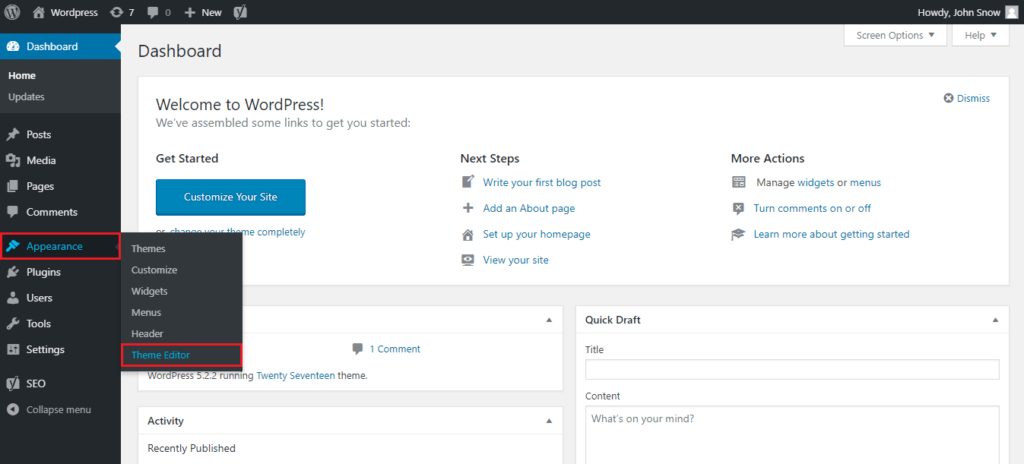
Before learning how to undo changes, it’s important to understand what the Theme Editor actually does.
The WordPress Theme Editor allows you to directly edit theme files—such as:
style.cssfunctions.php- Template files like
header.php,footer.php, orsingle.php
These edits are made directly on the server. Unlike posts or pages, theme editor changes are not stored as revisions by default. Once you click Update File, the previous version is overwritten.
This is why undoing theme editor changes in WordPress requires a different approach than simply clicking “Revisions.”
Why Undoing Theme Editor Changes Can Be Tricky
When users ask how to undo theme editor change WordPress, they often expect a simple undo button. Unfortunately, WordPress does not offer one for theme files.
Common reasons include:
- Theme files are considered core structural files
- Changes take effect immediately
- No built-in version history unless backups or external tools exist
That said, you are not helpless. WordPress offers several indirect but effective ways to restore your theme safely.
Method 1: Restore from a Website Backup (Recommended)

The safest and most reliable way to undo theme editor changes is restoring a backup.
When This Works Best
- Your hosting provider offers automatic daily backups
- You use a WordPress backup plugin
- The change was made recently
What Gets Restored
- Theme files
- CSS changes
- PHP template edits
- Site layout and styling
Most modern hosts allow you to restore only theme files, without affecting content or orders.
Pro tip: Always restore to a staging environment first if possible.
Method 2: Reinstall the Theme (Best for Default or Purchased Themes)
If your theme is a default WordPress theme or a premium theme from a marketplace, reinstalling it can instantly undo all editor changes.
How It Works
- Delete the current theme files
- Reinstall a fresh copy of the same theme
- Original files replace modified ones
Important Notes
- Customizations made inside theme files will be lost
- Customizer settings usually remain
- Child themes are NOT affected
This method is ideal when:
- You edited core theme files by mistake
- You want a clean reset
Method 3: Use a Child Theme to Recover Safely
If you edited files in the parent theme, you can undo changes by restoring the parent theme and moving your custom logic into a child theme.
Why this matters:
- Parent themes get overwritten during updates
- Child themes preserve custom changes
- You can selectively rebuild only what you need
Using a child theme is not just a recovery tactic—it’s a best practice for long-term WordPress stability.
Method 4: Undo CSS Changes via the Customizer
Not all theme edits happen in the Theme Editor.
If your changes were made in:
- Appearance → Customize → Additional CSS
Good news: WordPress automatically stores CSS revisions.
How to Undo
- Open the Customizer
- Click “Additional CSS”
- Use the revision history icon
- Restore a previous version
This is one of the few places WordPress offers built-in undo functionality.
Method 5: Restore Files via FTP or File Manager
If you have access to:
- FTP
- Hosting file manager
- SSH (advanced users)
You can manually undo theme editor changes by replacing files.
Common Scenarios
- You downloaded the theme earlier
- You can copy files from staging
- You want to restore a single file only
This method is precise but requires attention. Uploading the wrong file or folder can cause errors if not done carefully.
Method 6: Roll Back Using a Plugin (If Available)
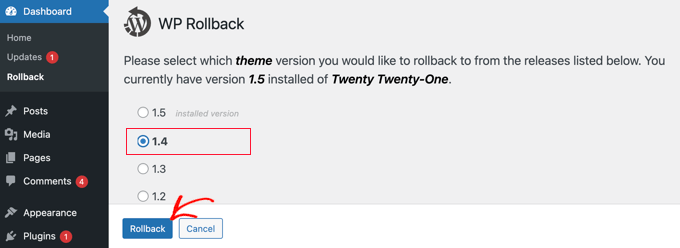
Some plugins track file changes or create backups automatically.
Examples include:
- Backup plugins
- Activity log plugins
- Security plugins with file monitoring
If installed before the mistake, these tools may allow you to restore previous file versions.
However, plugins cannot help if:
- They were installed after the change
- File tracking was disabled
What If Your Site Is Broken Right Now?
Sometimes a theme editor change causes:
- White screen of death
- 500 server error
- Dashboard inaccessible
In this case, the priority is regaining access, not perfection.
Quick recovery steps:
- Disable the theme via file manager
- Switch to a default theme
- Restore or reinstall safely
Once the site is stable, you can reapply design changes correctly.
Common Mistakes to Avoid
When trying to undo theme editor changes in WordPress, avoid these errors:
- Editing live sites without backups
- Making changes directly to parent themes
- Guessing which file caused the issue
- Repeating changes without understanding the root problem
WordPress is flexible—but that flexibility requires structure and discipline.
Best Practices to Prevent Future Issues
If you want to never panic again when editing a WordPress theme:
- Always use a staging environment
- Enable automatic backups
- Use child themes
- Avoid editing PHP on live sites
- Document major changes
These habits save time, money, and stress—especially for business websites.
How This Relates to Cross-Border Websites
For cross-border businesses, WordPress websites often handle:
- Multiple languages
- Payment systems
- Product catalogs
- SEO and performance optimization
A broken theme can mean:
- Lost traffic
- Lower trust
- Interrupted conversions
That’s why professional theme structure and safe customization matter far more than quick fixes.
Final Thoughts
Understanding how to undo theme editor change WordPress is not just about fixing mistakes—it’s about building websites the right way.
When changes are made without a clear structure, even small edits can lead to major problems. With the right recovery methods, backups, and workflows, WordPress becomes a powerful and safe platform for long-term growth.
At AIRSANG, we specialize in cross-border website design and structure planning, helping global brands build WordPress and Shopify sites that are not only visually strong—but also stable, scalable, and easy to manage.
If you’re running an international business and need help with:
- WordPress theme customization
- Safe design workflows
- Website structure for conversions
- Long-term site stability
We’d be happy to help you build it right—from the start.
AIRSANG — Designing websites that grow with your business.


Design and build a WordPress website or corporate site with a full eCommerce system for you.
Price range: $200.00 through $2,500.00custom-requirements-or-special-quotations
Original price was: $2.00.$1.00Current price is: $1.00. Are 50 Plugins Too Many for a WordPress eCommerce Store?
Understanding the Real Performance Impact Having 50 plugins on a WordPress eCommerce site isn’t automatically a problem. In fact, the number alone rarely determines performance....

Main Image Design for Amazon Lipstick Conversion
Introduction: Designing a Lipstick Main Image That Sells on Amazon When we design a Main image for an Amazon lipstick, our responsibility goes far beyond...

How Hackers Steal WordPress Admin Emails (And How to Stop Them)
Let’s start with an uncomfortable truth: Your WordPress admin email is probably way more public than you think.And hackers? They love that. To them, your...

What Makes an Amazon Liquid Foundation Main Image Convert
Introduction Designing a Main image design for Amazon Liquid foundation is never just about making a product look beautiful. On Amazon, the main image and...

Designing an Effective Amazon Main Image for Filter Cartridges
Introduction Designing a Main image for Amazon is never just about making a product look attractive. It is about clarity, trust, and instant understanding—especially for...

Replay Attacks on WordPress: Real Threat or Overhyped Myth?
Let’s clear something up first. Replay attacks don’t look scary.They don’t smash passwords.They don’t inject evil code with green hacker text flying everywhere. They’re sneaky....

How to Duplicate WordPress Pages Without Breaking Anything
Let’s face it. Sometimes you don’t want to create a new page.You just want the same page… but slightly different. Same layout.Same blocks.Same settings. Because...

Five Pet WordPress Themes Compared
Introduction Choosing the right pet-related WordPress theme is more than a design decision—it directly affects usability, scalability, and long-term business growth. Pet care and pet...

Comparing Five Swimwear eCommerce Themes
Introduction Choosing the right theme for a swimwear or lingerie independent store is not just a visual decision—it directly affects conversion rates, scalability, and long-term...

How to Turn Off Comments in WordPress (Without Losing Your Mind)
Let’s talk about WordPress comments. In theory, comments are great.They encourage discussion.They build community.They make your website feel “alive.” In reality? They’re often a magnet...

WordPress 500 Error: When Your Website Decides to Panic
Your WordPress site was fine a minute ago.You refreshed the page.And suddenly—boom 💥—500 Internal Server Error. No explanation.No apology.Just a cold, confusing message that basically...

How to Contact Shopify Support: Simple, Stress-Free Guide
Running a Shopify store should feel exciting—not confusing. When questions pop up or issues slow you down, Shopify offers several support paths depending on what...

How to Deactivate a Shopify Store: A Clear, Practical Guide
Deactivating a Shopify store isn’t complicated, but it does come with consequences many merchants overlook. This guide breaks the process down in a simple, educational...
Five Shoe Store Themes Compared
Introduction Choosing the right theme for a footwear-focused independent store is not just a visual decision—it directly affects scalability, daily operations, and long-term conversion performance....

Shopify vs Etsy: The Ultimate Online Selling Showdown
Introduction: Two Platforms Walk Into a Bar… If Shopify and Etsy were people, Etsy would be that charming friend who already has a booth at...

Is Your Shopify or WordPress Site Hacked? Here’s What to Do
Introduction: The Digital Equivalent of Waking Up to a Broken Window Imagine waking up, grabbing your morning coffee, opening your laptop… and discovering your website...

How to Start a Shopify Store Without Losing Your Mind
Starting a Shopify store sounds glamorous. You picture yourself sipping coffee at noon, checking sales notifications, and casually telling friends,“Yeah, my store did pretty well...

Is Shopify Legit? A Clear Guide for New Online Sellers
If you’re researching eCommerce platforms, chances are you’ve typed one very specific question into Google: is Shopify legit? That question is completely reasonable. Launching an...