Giỏ hàng hiện không có sản phẩm nào.

How to Use WordPress with GoDaddy: Beginner Guide

Giới thiệu

If you’re planning to build a website, combining WordPress with GoDaddy is one of the most accessible and popular ways to get started. WordPress powers a large portion of the internet thanks to its flexibility and ease of use, while GoDaddy provides domain registration and hosting services that make launching a website straightforward—even for beginners.

This guide explains how to use WordPress with GoDaddy in a clear, educational way. Whether you’re building a business site, blog, or eCommerce store, you’ll learn how everything fits together—from domain setup to site management—without diving into complex technical details.
What Does It Mean to Use WordPress with GoDaddy?

How to Use WordPress with GoDaddy: Beginner Guide-What Does It Mean to Use WordPress with GoDaddy?

Before getting started, it’s important to understand how these two work together.

  • WordPress is a content management system (CMS) that lets you design, manage, and publish website content.
  • GoDaddy provides:
    • Domain names (your website address)
    • Hosting (where your website files live)
    • Optional tools like email and security features

When you use WordPress with GoDaddy, you’re essentially installing WordPress on GoDaddy’s hosting environment and using it to build your website.

Step 1: Register a Domain with GoDaddy

How to Use WordPress with GoDaddy: Beginner Guide-Register a Domain with GoDaddy

Your domain is your website’s identity online (like yourbrand.com).

Key considerations when choosing a domain:

  • Keep it short and easy to remember
  • Avoid numbers or hyphens
  • Match your brand name if possible
  • Prefer common extensions like .com

Once you purchase a domain through GoDaddy, it will automatically connect to your hosting if both are under the same account.

Step 2: Choose a Hosting Plan

To run WordPress, you need hosting. GoDaddy offers several options, but for beginners, these are the most common:

Shared Hosting

  • Budget-friendly
  • Suitable for small websites or blogs

Managed WordPress Hosting

  • Optimized specifically for WordPress
  • Includes automatic updates, backups, and better performance

VPS or Dedicated Hosting

  • More control and power
  • Suitable for large-scale or high-traffic websites

For most users learning how to use WordPress with GoDaddy, managed WordPress hosting is the easiest option.
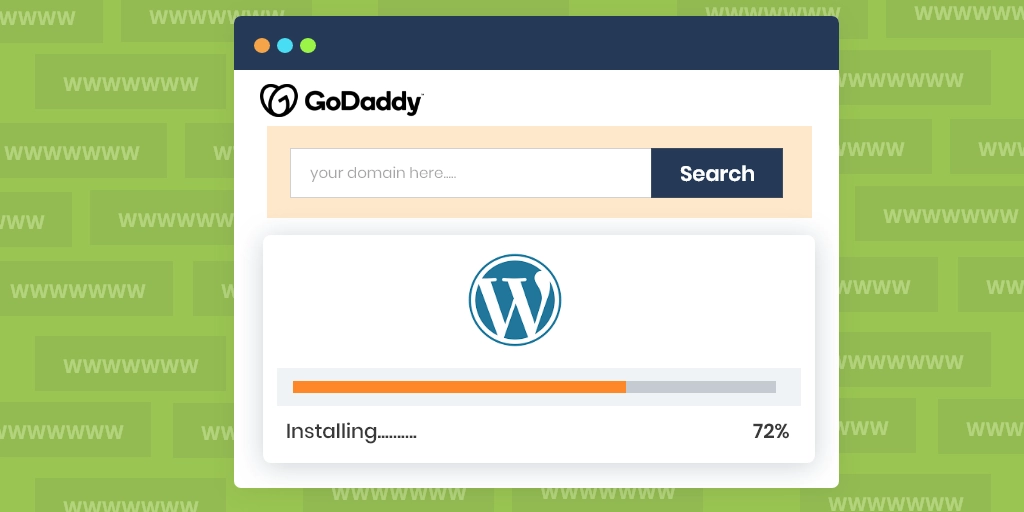
Step 3: Install WordPress on GoDaddy

How to Use WordPress with GoDaddy: Beginner Guide-Install WordPress on GoDaddy

GoDaddy simplifies the installation process significantly.

Option 1: One-Click Installation

  1. Log into your GoDaddy account
  2. Navigate to your hosting dashboard
  3. Choose “Install WordPress”
  4. Select your domain
  5. Follow the setup prompts

Option 2: Manual Installation (Advanced)

  • Download WordPress from its official site
  • Upload files via FTP
  • Create a database
  • Connect everything manually

For most users, the one-click method is faster and avoids unnecessary complexity.
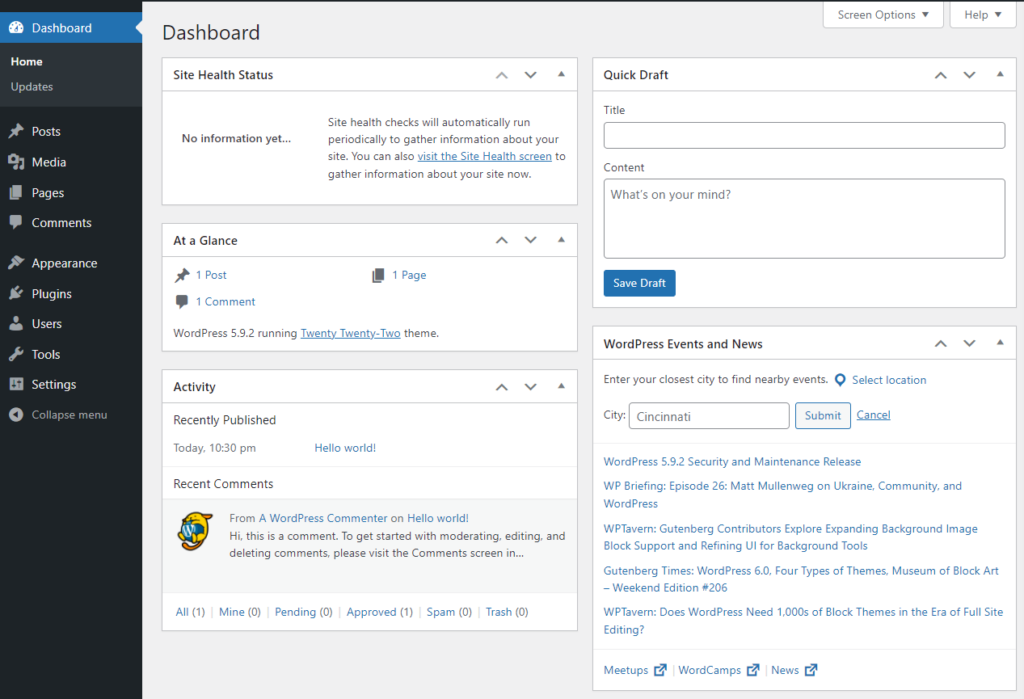
Step 4: Access Your WordPress Dashboard

How to Use WordPress with GoDaddy: Beginner Guide-Access Your WordPress Dashboard

After installation, you’ll receive a login URL like:

yourdomain.com/wp-admin

This is where you control everything:

  • Pages and posts
  • Themes and design
  • Plugins and features
  • Settings and customization

The dashboard is designed to be user-friendly, even if you have no coding experience.

Step 5: Choose and Customize a Theme

Themes define how your website looks and feels.

Where to find themes:

  • WordPress theme directory (free)
  • Premium marketplaces
  • Custom-designed themes

What to look for:

  • Clean and modern layout
  • Khả năng tương thích với thiết bị di động
  • Fast loading speed
  • Compatibility with plugins

Once installed, you can customize:

  • Màu sắc
  • Phông chữ
  • Layout structure
  • Header and footer

This is where design starts to shape user experience and brand perception.

Step 6: Install Essential Plugins

Plugins extend WordPress functionality. Think of them as apps for your website.

Common plugin categories:

  • SEO tools (optimize for search engines)
  • Security plugins (protect your site)
  • Performance tools (speed optimization)
  • Page builders (drag-and-drop design)
  • Backup solutions

Popular plugin examples:

  • SEO plugins for keyword optimization
  • Cache plugins for faster load times
  • Contact form plugins for lead generation

Be careful not to install too many plugins, as this can slow down your website.
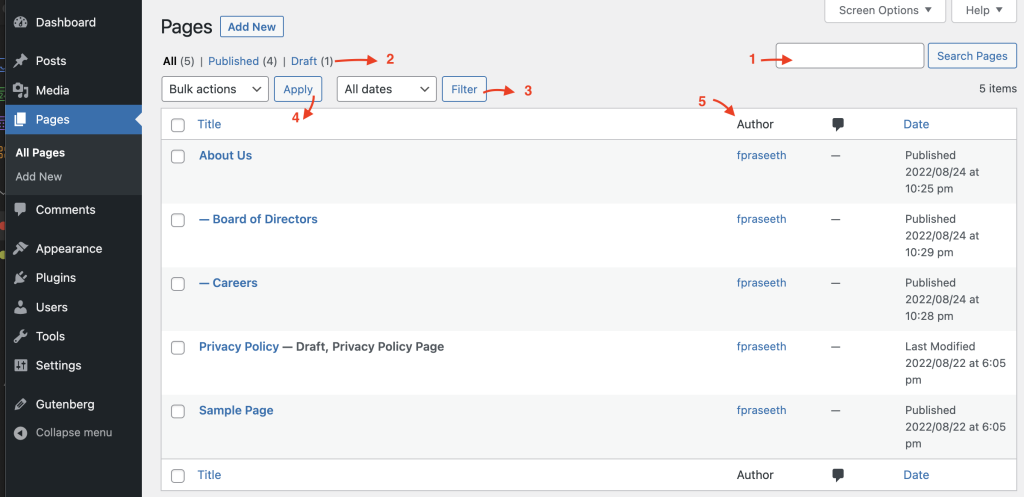
Step 7: Create Pages and Content

How to Use WordPress with GoDaddy: Beginner Guide-Create Pages and Content

Now comes the most important part—building your actual website content.

Essential pages:

  • Trang chủ
  • About
  • Services or Products
  • Contact
  • Chính sách bảo mật

Content tips:

  • Keep text clear and easy to read
  • Use headings to organize information
  • Add images to improve engagement
  • Focus on user intent and clarity

WordPress allows you to create both static pages and blog posts, making it suitable for almost any type of website.

Step 8: Set Up Navigation and Structure

A well-structured website improves usability and conversions.

Navigation best practices:

  • Keep menu items simple and clear
  • Limit top-level items (5–7 max)
  • Use dropdowns for subcategories
  • Ensure mobile-friendly navigation

You can manage menus directly in the WordPress dashboard under Appearance settings.

Step 9: Optimize Performance and Speed

Website speed plays a crucial role in user experience and SEO.

Ways to improve performance:

  • Use lightweight themes
  • Compress images
  • Enable caching
  • Choose fast hosting
  • Avoid excessive plugins

GoDaddy’s managed hosting often includes performance enhancements, but additional optimization is still important.

Step 10: Secure Your Website

Security should never be overlooked.

Basic security measures:

  • Use strong passwords
  • Enable SSL (HTTPS)
  • Keep WordPress and plugins updated
  • Install security plugins
  • Perform regular backups

GoDaddy typically provides SSL certificates and basic protection features, especially on managed plans.

Step 11: Launch Your Website

Trước khi phát sóng, hãy kiểm tra:

  • All pages are complete
  • Links are working
  • Mobile responsiveness is good
  • Loading speed is acceptable
  • Forms and contact features function properly

Once everything is ready, your WordPress site on GoDaddy is ready for visitors.

Những lỗi thường gặp cần tránh

When learning how to use WordPress with GoDaddy, many beginners encounter similar issues:

Overcomplicating the setup

Start simple. You don’t need advanced features right away.

Ignoring design consistency

Inconsistent fonts, colors, and spacing reduce professionalism.

Installing too many plugins

This can slow down your site and create conflicts.

Neglecting mobile optimization

Most users browse on mobile devices—your site must perform well on smaller screens.

Why This Setup Is So Popular

Using WordPress with GoDaddy is popular because it balances simplicity and flexibility.

Ưu điểm chính:

  • Easy setup process
  • Scalable as your business grows
  • Large ecosystem of themes and plugins
  • No coding required for most use cases

It allows beginners to start quickly while still offering room to expand later.

Phần kết luận

Understanding how to use WordPress with GoDaddy is one of the most practical skills for building a website today. By combining a reliable hosting provider with a flexible CMS, you can create anything from a simple blog to a full-scale business site.

The process involves:

  • Setting up a domain and hosting
  • Installing WordPress
  • Customizing design and functionality
  • Creating structured content
  • Optimizing for performance and security

With the right approach, even beginners can launch a professional-looking website without technical complexity.

FAQ

No, you don’t need any coding experience. WordPress provides a user-friendly dashboard, and GoDaddy offers one-click installation, making it easy for beginners to build and manage a website.

Managed WordPress hosting is usually the best option for beginners. It simplifies setup, improves performance, and includes automatic updates and security features.

With GoDaddy’s one-click installation, you can set up WordPress in just a few minutes. However, customizing your site and adding content may take additional time.

Yes, you can connect an existing domain to your GoDaddy hosting and install WordPress on it, even if the domain was purchased elsewhere.

You can improve speed by using a lightweight theme, optimizing images, enabling caching, limiting plugins, and choosing a performance-optimized hosting plan.


Giao hàng toàn cầu

AIRSANG Cung cấp các giải pháp thiết kế website, nhận diện thương hiệu và thương mại điện tử tiết kiệm chi phí. Từ Shopify và WordPress đến hình ảnh sản phẩm Amazon, Chúng tôi giúp các thương hiệu toàn cầu xây dựng, nâng tầm và phát triển hoạt động kinh doanh trực tuyến của họ.

Thiết kế và xây dựng trang web WordPress hoặc trang web doanh nghiệp cho bạn, kèm theo hệ thống thương mại điện tử đầy đủ.
Yêu cầu đặc biệt hoặc báo giá riêng

Yêu cầu đặc biệt hoặc báo giá riêng

Giá gốc là: $2.00.Giá hiện tại là: $1.00.

Sẵn sàng để biến đổi doanh nghiệp của bạn?

Đặt lịch hẹn để tìm hiểu thêm về cách công ty tiếp thị kỹ thuật số của chúng tôi có thể giúp doanh nghiệp của bạn phát triển lên một tầm cao mới.