













การแนะนำ
If you’re planning to build a website, combining วordpress with GoDaddy is one of the most accessible and popular ways to get started. WordPress powers a large portion of the internet thanks to its flexibility and ease of use, while GoDaddy provides domain registration and hosting services that make launching a website straightforward—even for beginners.
This guide explains how to use WordPress with GoDaddy in a clear, educational way. Whether you’re building a business site, blog, or eCommerce store, you’ll learn how everything fits together—from domain setup to site management—without diving into complex technical details.
What Does It Mean to Use WordPress with GoDaddy?
Before getting started, it’s important to understand how these two work together.
- วordpress is a content management system (CMS) that lets you design, manage, and publish website content.
- GoDaddy provides:
- Domain names (your website address)
- Hosting (where your website files live)
- Optional tools like email and security features
When you use WordPress with GoDaddy, you’re essentially installing WordPress on GoDaddy’s hosting environment and using it to build your website.
Step 1: Register a Domain with GoDaddy

Your domain is your website’s identity online (like yourbrand.com).
Key considerations when choosing a domain:
- Keep it short and easy to remember
- Avoid numbers or hyphens
- Match your brand name if possible
- Prefer common extensions like
.com
Once you purchase a domain through GoDaddy, it will automatically connect to your hosting if both are under the same account.
Step 2: Choose a Hosting Plan
To run WordPress, you need hosting. GoDaddy offers several options, but for beginners, these are the most common:
Shared Hosting
- Budget-friendly
- Suitable for small websites or blogs
Managed WordPress Hosting
- Optimized specifically for WordPress
- Includes automatic updates, backups, and better performance
VPS or Dedicated Hosting
- More control and power
- Suitable for large-scale or high-traffic websites
For most users learning how to use WordPress with GoDaddy, managed WordPress hosting is the easiest option.
Step 3: Install WordPress on GoDaddy
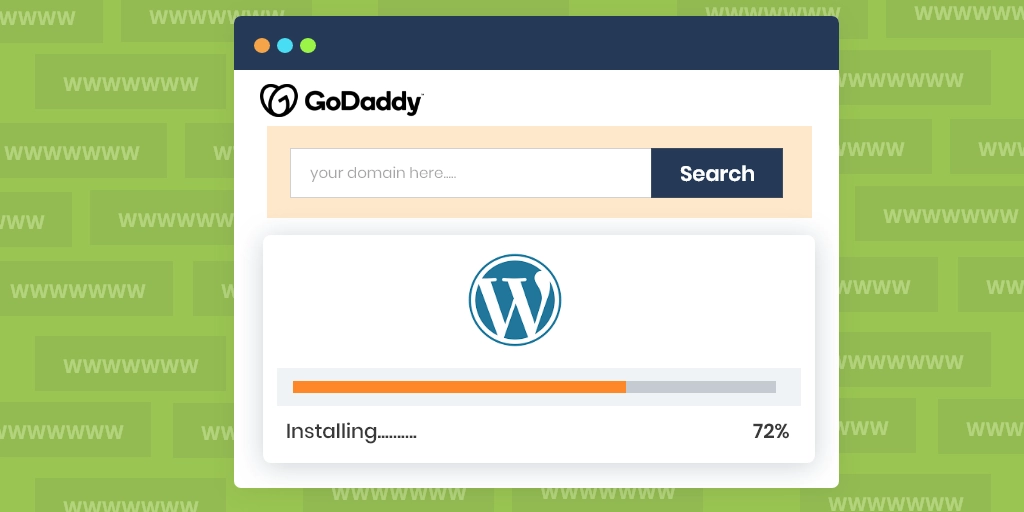
GoDaddy simplifies the installation process significantly.
Option 1: One-Click Installation
- Log into your GoDaddy account
- Navigate to your hosting dashboard
- Choose “Install WordPress”
- Select your domain
- Follow the setup prompts
Option 2: Manual Installation (Advanced)
- Download WordPress from its official site
- อัปโหลดไฟล์ผ่าน FTP
- Create a database
- Connect everything manually
For most users, the one-click method is faster and avoids unnecessary complexity.
Step 4: Access Your WordPress Dashboard
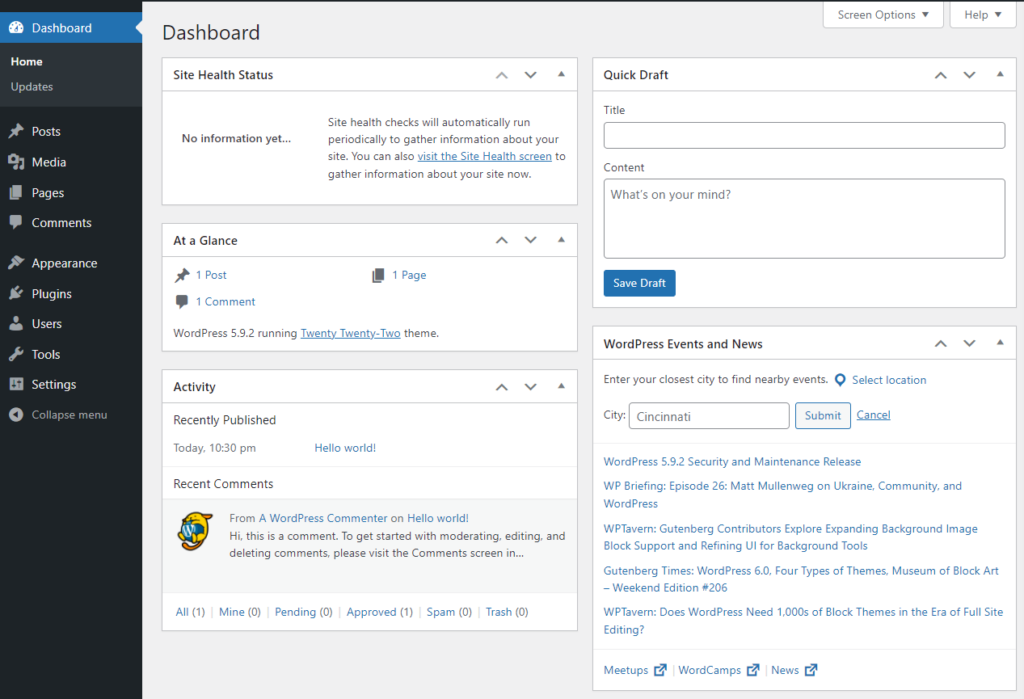
After installation, you’ll receive a login URL like:
yourdomain.com/wp-admin
This is where you control everything:
- Pages and posts
- Themes and design
- Plugins and features
- Settings and customization
The dashboard is designed to be user-friendly, even if you have no coding experience.
Step 5: Choose and Customize a Theme
Themes define how your website looks and feels.
Where to find themes:
- WordPress theme directory (free)
- Premium marketplaces
- Custom-designed themes
What to look for:
- Clean and modern layout
- การตอบสนองต่ออุปกรณ์เคลื่อนที่
- Fast loading speed
- Compatibility with plugins
Once installed, you can customize:
- สี
- แบบอักษร
- Layout structure
- Header and footer
This is where design starts to shape user experience and brand perception.
Step 6: Install Essential Plugins
Plugins extend WordPress functionality. Think of them as apps for your website.
Common plugin categories:
- SEO tools (optimize for search engines)
- Security plugins (protect your site)
- Performance tools (speed optimization)
- Page builders (drag-and-drop design)
- Backup solutions
Popular plugin examples:
- SEO plugins for keyword optimization
- Cache plugins for faster load times
- Contact form plugins for lead generation
Be careful not to install too many plugins, as this can slow down your website.
Step 7: Create Pages and Content
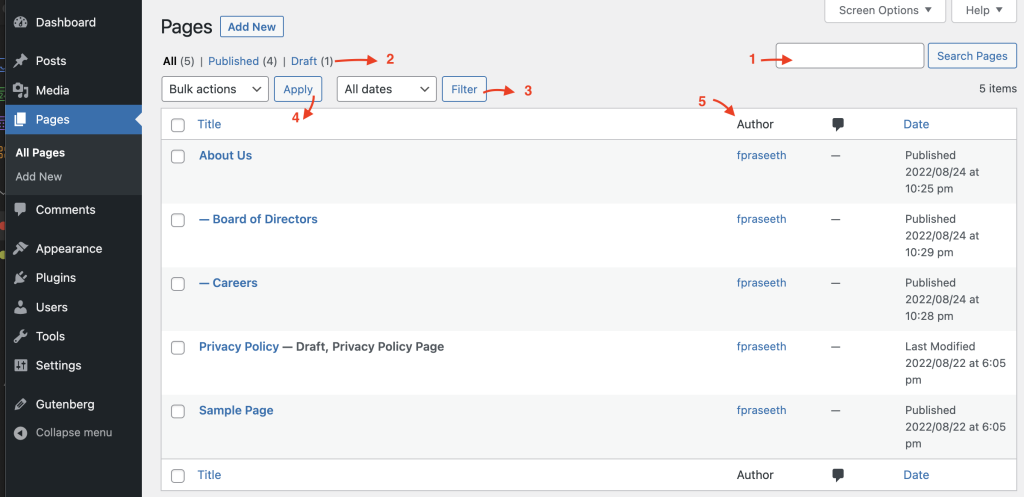
Now comes the most important part—building your actual website content.
Essential pages:
- หน้าแรก
- เกี่ยวกับ
- Services or Products
- ติดต่อ
- นโยบายความเป็นส่วนตัว
Content tips:
- Keep text clear and easy to read
- Use headings to organize information
- Add images to improve engagement
- Focus on user intent and clarity
WordPress allows you to create both static pages and blog posts, making it suitable for almost any type of website.
Step 8: Set Up Navigation and Structure
A well-structured website improves usability and conversions.
Navigation best practices:
- Keep menu items simple and clear
- Limit top-level items (5–7 max)
- Use dropdowns for subcategories
- Ensure mobile-friendly navigation
You can manage menus directly in the WordPress dashboard under Appearance settings.
Step 9: Optimize Performance and Speed
Website speed plays a crucial role in user experience and SEO.
Ways to improve performance:
- Use lightweight themes
- Compress images
- Enable caching
- Choose fast hosting
- Avoid excessive plugins
GoDaddy’s managed hosting often includes performance enhancements, but additional optimization is still important.
Step 10: Secure Your Website
Security should never be overlooked.
Basic security measures:
- Use strong passwords
- Enable SSL (HTTPS)
- Keep WordPress and plugins updated
- Install security plugins
- Perform regular backups
GoDaddy typically provides SSL certificates and basic protection features, especially on managed plans.
Step 11: Launch Your Website
ก่อนเริ่มใช้งานจริง โปรดตรวจสอบสิ่งต่อไปนี้:
- All pages are complete
- Links are working
- Mobile responsiveness is good
- Loading speed is acceptable
- Forms and contact features function properly
Once everything is ready, your WordPress site on GoDaddy is ready for visitors.
ข้อผิดพลาดทั่วไปที่ควรหลีกเลี่ยง
When learning how to use WordPress with GoDaddy, many beginners encounter similar issues:
Overcomplicating the setup
Start simple. You don’t need advanced features right away.
Ignoring design consistency
Inconsistent fonts, colors, and spacing reduce professionalism.
Installing too many plugins
This can slow down your site and create conflicts.
Neglecting mobile optimization
Most users browse on mobile devices—your site must perform well on smaller screens.
Why This Setup Is So Popular
Using WordPress with GoDaddy is popular because it balances simplicity and flexibility.
ข้อได้เปรียบที่สำคัญ:
- Easy setup process
- Scalable as your business grows
- Large ecosystem of themes and plugins
- No coding required for most use cases
It allows beginners to start quickly while still offering room to expand later.
บทสรุป
Understanding how to use วordpress with GoDaddy is one of the most practical skills for building a website today. By combining a reliable hosting provider with a flexible CMS, you can create anything from a simple blog to a full-scale business site.
The process involves:
- Setting up a domain and hosting
- การติดตั้ง WordPress
- Customizing design and functionality
- Creating structured content
- Optimizing for performance and security
With the right approach, even beginners can launch a professional-looking website without technical complexity.
คำถามที่พบบ่อย
No, you don’t need any coding experience. WordPress provides a user-friendly dashboard, and GoDaddy offers one-click installation, making it easy for beginners to build and manage a website.
Managed WordPress hosting is usually the best option for beginners. It simplifies setup, improves performance, and includes automatic updates and security features.
With GoDaddy’s one-click installation, you can set up WordPress in just a few minutes. However, customizing your site and adding content may take additional time.
Yes, you can connect an existing domain to your GoDaddy hosting and install WordPress on it, even if the domain was purchased elsewhere.
You can improve speed by using a lightweight theme, optimizing images, enabling caching, limiting plugins, and choosing a performance-optimized hosting plan.


ออกแบบและสร้างเว็บไซต์ WordPress หรือเว็บไซต์องค์กรพร้อมระบบอีคอมเมิร์ซครบวงจรสำหรับคุณ.
ช่วงราคา: $200.00 ถึง $2,500.00custom-requirements-or-special-quotations
ราคาเดิมคือ: $2.00.$1.00ราคาปัจจุบันคือ: $1.00. การใช้ปลั๊กอิน 50 ตัวมากเกินไปสำหรับร้านค้าออนไลน์ที่ใช้ WordPress หรือไม่?
การเข้าใจผลกระทบที่แท้จริงต่อประสิทธิภาพ การมีปลั๊กอิน 50 ตัวบนเว็บไซต์อีคอมเมิร์ซ WordPress ไม่ใช่ปัญหาโดยอัตโนมัติ จริงๆ แล้ว จำนวนเพียงอย่างเดียวแทบจะไม่สามารถกำหนดประสิทธิภาพได้....

ภาพหลักสำหรับการออกแบบอุปกรณ์กายภาพบำบัดที่บ้านของ Amazon (อธิบายรายละเอียด)
บทนำ: การสร้างภาพลักษณ์ที่น่าเชื่อถือสำหรับอุปกรณ์บำบัดที่บ้านบน Amazon เมื่อออกแบบภาพหลักสำหรับอุปกรณ์บำบัดที่บ้านบน Amazon สิ่งสำคัญอันดับแรกของเราคือ...

ภาพหลักสำหรับการแปลงลิปสติกเป็นสินค้าสำหรับ Amazon
บทนำ: การออกแบบภาพหลักลิปสติกที่ขายได้บน Amazon เมื่อเราออกแบบภาพหลักสำหรับลิปสติกบน Amazon ความรับผิดชอบของเราไม่ได้จำกัดอยู่แค่...

แฮกเกอร์ขโมยอีเมลผู้ดูแลระบบ WordPress ได้อย่างไร (และวิธีป้องกัน)
มาเริ่มกันด้วยความจริงที่ไม่น่าสบายใจ: อีเมลแอดมิน WordPress ของคุณอาจเปิดเผยต่อสาธารณะมากกว่าที่คุณคิด และแฮกเกอร์? พวกเขาชอบมาก สำหรับพวกเขา...

อะไรทำให้รองพื้นชนิดเหลวของ Amazon (ภาพหลัก) ขายดี?
บทนำ การออกแบบภาพหลักสำหรับรองพื้นชนิดเหลวบน Amazon ไม่ใช่แค่การทำให้ผลิตภัณฑ์ดูสวยงามเท่านั้น บน Amazon ภาพหลักและ...

การออกแบบภาพหลัก Amazon ที่มีประสิทธิภาพสำหรับตลับกรอง
บทนำ การออกแบบภาพหลักสำหรับ Amazon ไม่ใช่แค่การทำให้สินค้าดูน่าดึงดูดเท่านั้น แต่ยังเกี่ยวกับความชัดเจน ความน่าเชื่อถือ และความเข้าใจได้ในทันที โดยเฉพาะอย่างยิ่งสำหรับ...

การโจมตีแบบ Replay Attack บน WordPress: ภัยคุกคามจริงหรือแค่เรื่องที่ถูกพูดเกินจริง?
ก่อนอื่นขอชี้แจงให้ชัดเจนก่อน การโจมตีแบบ Replay Attack นั้นดูไม่น่ากลัว มันไม่ได้ทำลายรหัสผ่าน มันไม่ได้แทรกโค้ดที่เป็นอันตรายพร้อมข้อความแฮ็กเกอร์สีเขียวกระจัดกระจายไปทั่ว มันแนบเนียนกว่า...

วิธีคัดลอกหน้าเว็บ WordPress โดยไม่ทำให้ระบบเสียหาย
ยอมรับกันเถอะ บางครั้งคุณอาจไม่อยากสร้างหน้าเว็บใหม่ คุณแค่อยากได้หน้าเว็บเดิม...แต่แตกต่างไปเล็กน้อย รูปแบบเหมือนเดิม บล็อกเหมือนเดิม การตั้งค่าเหมือนเดิม เพราะ...

เปรียบเทียบธีม WordPress สำหรับสัตว์เลี้ยง 5 แบบ
บทนำ การเลือกธีม WordPress ที่เหมาะสมสำหรับธุรกิจเกี่ยวกับสัตว์เลี้ยงนั้นไม่ใช่แค่เรื่องของการออกแบบเท่านั้น แต่ยังส่งผลโดยตรงต่อการใช้งาน ความสามารถในการขยายขนาด และการเติบโตของธุรกิจในระยะยาว การดูแลสัตว์เลี้ยงและ...

เปรียบเทียบธีมอีคอมเมิร์ซชุดว่ายน้ำ 5 แบบ
บทนำ การเลือกธีมที่เหมาะสมสำหรับร้านค้าอิสระที่จำหน่ายชุดว่ายน้ำหรือชุดชั้นในนั้นไม่ใช่แค่การตัดสินใจด้านภาพลักษณ์เท่านั้น แต่ยังส่งผลโดยตรงต่ออัตราการเปลี่ยนลูกค้าให้เป็นผู้ซื้อ ความสามารถในการขยายธุรกิจ และความยั่งยืนในระยะยาว...

วิธีปิดการแสดงความคิดเห็นใน WordPress (โดยไม่ต้องเสียสติ)
มาพูดถึงระบบแสดงความคิดเห็นของ WordPress กันดีกว่า ในทางทฤษฎีแล้ว ความคิดเห็นนั้นยอดเยี่ยมมาก มันช่วยกระตุ้นการสนทนา สร้างชุมชน และทำให้เว็บไซต์ของคุณดูมีชีวิตชีวา แต่ในความเป็นจริงแล้ว มันมักจะเป็นเหมือนแม่เหล็กดึงดูด...

ข้อผิดพลาด WordPress 500: เมื่อเว็บไซต์ของคุณเกิดอาการผิดปกติ
เว็บไซต์ WordPress ของคุณยังใช้งานได้ปกติดีเมื่อสักครู่ คุณรีเฟรชหน้าเว็บ แล้วจู่ๆ ก็เกิดข้อผิดพลาด 500 Internal Server Error ขึ้นมา ไม่มีคำอธิบาย ไม่มีคำขอโทษ มีเพียงข้อความที่เย็นชาและสับสนซึ่งโดยพื้นฐานแล้ว...

การสร้างเว็บไซต์ WordPress ที่ปรับขนาดได้สำหรับแบรนด์ที่ขับเคลื่อนด้วยวิทยาศาสตร์: โครงการ AminoUSA
บทนำ ในยุคดิจิทัลปัจจุบัน เว็บไซต์เป็นมากกว่าแค่สถานที่สำหรับแสดงรายการสินค้า สำหรับแบรนด์ที่ขับเคลื่อนด้วยวิทยาศาสตร์ซึ่งดำเนินงานในอุตสาหกรรมที่มีการควบคุมหรือเน้นการวิจัย...

สร้างร้านค้า Shopify ที่ปรับขนาดได้สำหรับแบรนด์ใบมีดระดับโลก: โครงการ CoolKatana
บทนำ ในธุรกิจอีคอมเมิร์ซข้ามพรมแดน เว็บไซต์ Shopify เป็นมากกว่าแค่หน้าร้าน สำหรับแบรนด์ที่ดำเนินธุรกิจในกลุ่มเฉพาะหรือกลุ่มที่ขับเคลื่อนด้วยวัฒนธรรม เว็บไซต์ต้องทำมากกว่านั้น...

การออกแบบร้านค้า Shopify ที่มีอัตราการแปลงสูงสำหรับขายการ์ดโปเกมอน
บทนำ ในโลกของอีคอมเมิร์ซสินค้าสะสม โดยเฉพาะอย่างยิ่งในตลาดเกมการ์ดโปเกมอน (TCG) เว็บไซต์จะต้องทำมากกว่าแค่แสดงรายการสินค้า...

ดีไซน์ Shopify ที่เพิ่มยอดขายสำหรับแบรนด์อิฐสั่งทำพิเศษ
บทนำ ในสภาพแวดล้อมการแข่งขันอีคอมเมิร์ซในปัจจุบัน โดยเฉพาะอย่างยิ่งในตลาดของขวัญส่วนบุคคลและของสะสม เว็บไซต์ Shopify ต้องทำมากกว่าแค่แสดงสินค้า...

วิธีติดต่อฝ่ายสนับสนุนของ Shopify: คู่มือที่ง่ายและไม่ยุ่งยาก
การบริหารร้านค้า Shopify ควรเป็นเรื่องที่น่าตื่นเต้น ไม่ใช่เรื่องที่ทำให้สับสน เมื่อมีคำถามหรือปัญหาเกิดขึ้น Shopify มีช่องทางการสนับสนุนหลายช่องทาง ขึ้นอยู่กับสถานการณ์...

วิธีปิดใช้งานร้านค้า Shopify: คู่มือที่ชัดเจนและใช้งานได้จริง
การปิดใช้งานร้านค้า Shopify นั้นไม่ซับซ้อน แต่ก็มีผลกระทบหลายอย่างที่ผู้ขายหลายรายมองข้ามไป คู่มือนี้จะอธิบายขั้นตอนอย่างละเอียดและเข้าใจง่าย...