













Введение
If you’re planning to build a website, combining WordPress with GoDaddy is one of the most accessible and popular ways to get started. WordPress powers a large portion of the internet thanks to its flexibility and ease of use, while GoDaddy provides domain registration and hosting services that make launching a website straightforward—even for beginners.
This guide explains how to use WordPress with GoDaddy in a clear, educational way. Whether you’re building a business site, blog, or eCommerce store, you’ll learn how everything fits together—from domain setup to site management—without diving into complex technical details.
What Does It Mean to Use WordPress with GoDaddy?
Before getting started, it’s important to understand how these two work together.
- WordPress is a content management system (CMS) that lets you design, manage, and publish website content.
- GoDaddy provides:
- Domain names (your website address)
- Hosting (where your website files live)
- Optional tools like email and security features
When you use WordPress with GoDaddy, you’re essentially installing WordPress on GoDaddy’s hosting environment and using it to build your website.
Step 1: Register a Domain with GoDaddy

Your domain is your website’s identity online (like yourbrand.com).
Key considerations when choosing a domain:
- Keep it short and easy to remember
- Avoid numbers or hyphens
- Match your brand name if possible
- Prefer common extensions like
.com
Once you purchase a domain through GoDaddy, it will automatically connect to your hosting if both are under the same account.
Step 2: Choose a Hosting Plan
To run WordPress, you need hosting. GoDaddy offers several options, but for beginners, these are the most common:
Shared Hosting
- Budget-friendly
- Suitable for small websites or blogs
Managed WordPress Hosting
- Optimized specifically for WordPress
- Includes automatic updates, backups, and better performance
VPS or Dedicated Hosting
- More control and power
- Suitable for large-scale or high-traffic websites
For most users learning how to use WordPress with GoDaddy, managed WordPress hosting is the easiest option.
Step 3: Install WordPress on GoDaddy
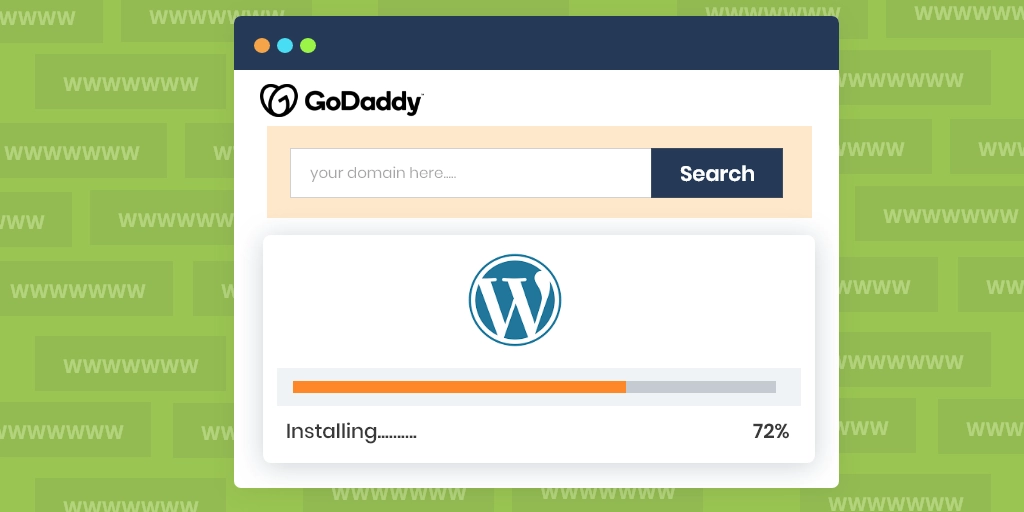
GoDaddy simplifies the installation process significantly.
Option 1: One-Click Installation
- Log into your GoDaddy account
- Navigate to your hosting dashboard
- Choose “Install WordPress”
- Select your domain
- Follow the setup prompts
Option 2: Manual Installation (Advanced)
- Download WordPress from its official site
- Загрузка файлов через FTP
- Create a database
- Connect everything manually
For most users, the one-click method is faster and avoids unnecessary complexity.
Step 4: Access Your WordPress Dashboard
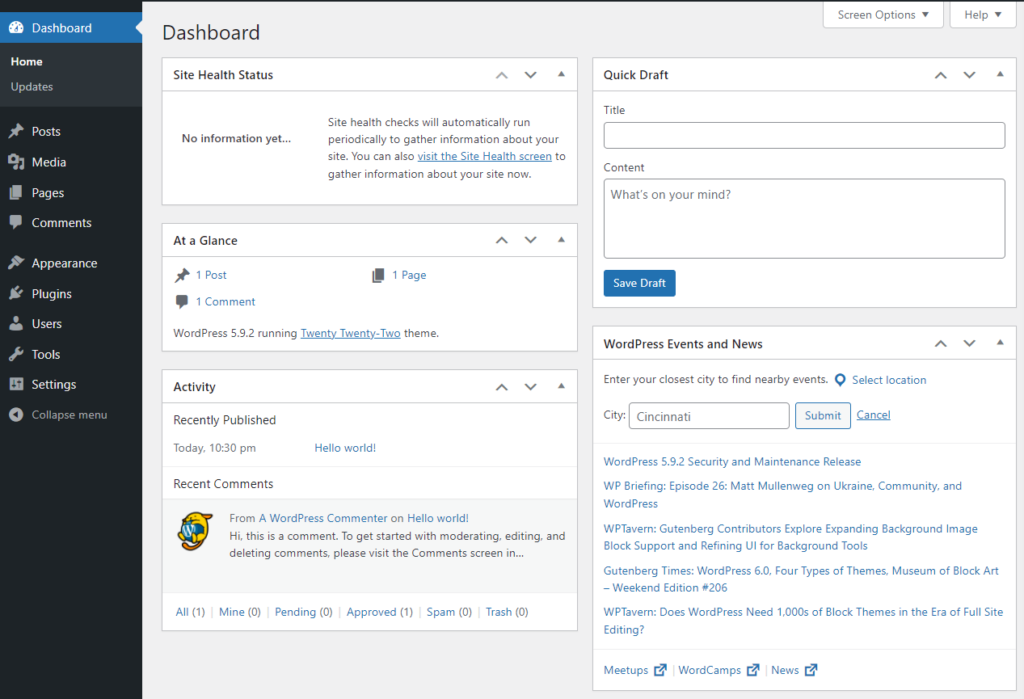
After installation, you’ll receive a login URL like:
yourdomain.com/wp-admin
This is where you control everything:
- Pages and posts
- Themes and design
- Plugins and features
- Settings and customization
The dashboard is designed to be user-friendly, even if you have no coding experience.
Step 5: Choose and Customize a Theme
Themes define how your website looks and feels.
Where to find themes:
- WordPress theme directory (free)
- Premium marketplaces
- Custom-designed themes
What to look for:
- Clean and modern layout
- Адаптивность для мобильных устройств
- Fast loading speed
- Compatibility with plugins
Once installed, you can customize:
- Цвета
- Шрифты
- Layout structure
- Header and footer
This is where design starts to shape user experience and brand perception.
Step 6: Install Essential Plugins
Plugins extend WordPress functionality. Think of them as apps for your website.
Common plugin categories:
- SEO-инструменты (optimize for search engines)
- Security plugins (protect your site)
- Performance tools (speed optimization)
- Page builders (drag-and-drop design)
- Backup solutions
Popular plugin examples:
- SEO plugins for keyword optimization
- Cache plugins for faster load times
- Contact form plugins for lead generation
Be careful not to install too many plugins, as this can slow down your website.
Step 7: Create Pages and Content
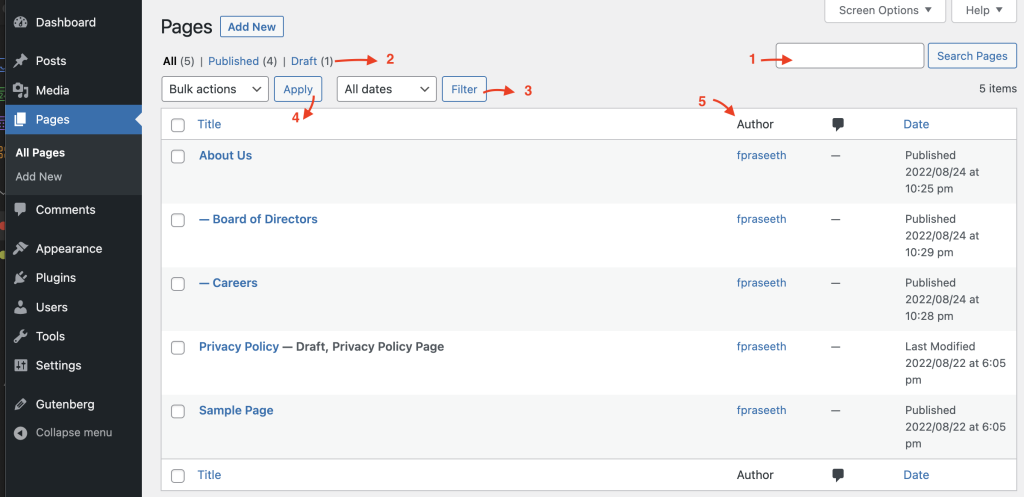
Now comes the most important part—building your actual website content.
Essential pages:
- Главная
- About
- Services or Products
- Contact
- Политика конфиденциальности
Content tips:
- Keep text clear and easy to read
- Use headings to organize information
- Add images to improve engagement
- Focus on user intent and clarity
WordPress allows you to create both static pages and blog posts, making it suitable for almost any type of website.
Step 8: Set Up Navigation and Structure
A well-structured website improves usability and conversions.
Navigation best practices:
- Keep menu items simple and clear
- Limit top-level items (5–7 max)
- Use dropdowns for subcategories
- Ensure mobile-friendly navigation
You can manage menus directly in the WordPress dashboard under Appearance settings.
Step 9: Optimize Performance and Speed
Website speed plays a crucial role in user experience and SEO.
Ways to improve performance:
- Use lightweight themes
- Compress images
- Enable caching
- Choose fast hosting
- Avoid excessive plugins
GoDaddy’s managed hosting often includes performance enhancements, but additional optimization is still important.
Step 10: Secure Your Website
Security should never be overlooked.
Basic security measures:
- Use strong passwords
- Enable SSL (HTTPS)
- Keep WordPress and plugins updated
- Install security plugins
- Perform regular backups
GoDaddy typically provides SSL certificates and basic protection features, especially on managed plans.
Step 11: Launch Your Website
Перед запуском проверьте следующее:
- All pages are complete
- Links are working
- Mobile responsiveness is good
- Loading speed is acceptable
- Forms and contact features function properly
Once everything is ready, your WordPress site on GoDaddy is ready for visitors.
Распространенные ошибки, которых следует избегать
When learning how to use WordPress with GoDaddy, many beginners encounter similar issues:
Overcomplicating the setup
Start simple. You don’t need advanced features right away.
Ignoring design consistency
Inconsistent fonts, colors, and spacing reduce professionalism.
Installing too many plugins
This can slow down your site and create conflicts.
Neglecting mobile optimization
Most users browse on mobile devices—your site must perform well on smaller screens.
Why This Setup Is So Popular
Using WordPress with GoDaddy is popular because it balances simplicity and flexibility.
Основные преимущества:
- Easy setup process
- Scalable as your business grows
- Large ecosystem of themes and plugins
- No coding required for most use cases
It allows beginners to start quickly while still offering room to expand later.
Заключение
Understanding how to use WordPress with GoDaddy is one of the most practical skills for building a website today. By combining a reliable hosting provider with a flexible CMS, you can create anything from a simple blog to a full-scale business site.
The process involves:
- Setting up a domain and hosting
- Installing WordPress
- Customizing design and functionality
- Creating structured content
- Optimizing for performance and security
With the right approach, even beginners can launch a professional-looking website without technical complexity.
Часто задаваемые вопросы
No, you don’t need any coding experience. WordPress provides a user-friendly dashboard, and GoDaddy offers one-click installation, making it easy for beginners to build and manage a website.
Managed WordPress hosting is usually the best option for beginners. It simplifies setup, improves performance, and includes automatic updates and security features.
With GoDaddy’s one-click installation, you can set up WordPress in just a few minutes. However, customizing your site and adding content may take additional time.
Yes, you can connect an existing domain to your GoDaddy hosting and install WordPress on it, even if the domain was purchased elsewhere.
You can improve speed by using a lightweight theme, optimizing images, enabling caching, limiting plugins, and choosing a performance-optimized hosting plan.


Спроектируем и создадим для вас WordPress-сайт или корпоративный сайт с полной системой электронной коммерции.
Ценовой диапазон: от $200.00 до $2,500.00custom-requirements-or-special-quotations
Первоначальная цена составляла: $2.00.$1.00Текущая цена: $1.00. Не слишком ли много 50 плагинов для интернет-магазина на WordPress?
Понимание реального влияния на производительность Наличие 50 плагинов на сайте электронной коммерции WordPress не является автоматической проблемой. На самом деле, само по себе их количество редко определяет производительность.....

Дизайн главного изображения для домашнего физиотерапевтического устройства Amazon: пояснения.
Введение: Создание достоверного изображения для домашних терапевтических приборов на Amazon При разработке главного изображения для домашнего терапевтического прибора на Amazon мы в первую очередь...

Дизайн основного изображения для конвертации помады на Amazon.
Введение: Разработка главного образа помады, которая продается на Amazon Когда мы разрабатываем главный образ для помады Amazon, наша ответственность выходит далеко за рамки...

Как хакеры крадут электронные письма администраторов WordPress (и как им это предотвратить)
Начнем с неприятной истины: ваша электронная почта администратора WordPress, вероятно, гораздо более публична, чем вы думаете. А хакеры? Им это нравится. Для них ваш...

Что делает основное изображение жидкой тональной основы Amazon конвертируемым?
Введение. Разработка дизайна основного изображения для жидкой тональной основы на Amazon — это не просто создание красивого внешнего вида продукта. На Amazon основное изображение и...

Разработка эффективного основного изображения Amazon для фильтрующих картриджей
Введение. Разработка основного изображения для Amazon — это не просто создание привлекательного внешнего вида товара. Речь идёт о ясности, доверии и мгновенном понимании, особенно для...

Повторные атаки на WordPress: реальная угроза или преувеличенный миф?
Давайте сначала кое-что проясним. Атаки повторного воспроизведения не выглядят страшно. Они не взламывают пароли. Они не внедряют вредоносный код с зелёным хакерским текстом, разлетающимся повсюду. Они действуют коварно...

Как скопировать страницы WordPress, ничего не сломав
Давайте посмотрим правде в глаза. Иногда вам не хочется создавать новую страницу. Вам нужна та же самая страница… но немного другая. Тот же макет. Те же блоки. Те же настройки. Потому что….

Сравнение пяти тем WordPress для сайтов о домашних животных
Введение. Выбор подходящей темы WordPress для сайтов, посвященных домашним животным, — это не просто решение, связанное с дизайном; оно напрямую влияет на удобство использования, масштабируемость и долгосрочный рост бизнеса. Уход за домашними животными и...

Сравнение пяти тем оформления для интернет-магазинов купальников
Введение. Выбор правильной тематики для независимого магазина купальников или нижнего белья — это не просто визуальное решение, оно напрямую влияет на коэффициент конверсии, масштабируемость и долгосрочную перспективу...

Как отключить комментарии в WordPress (не сойдя с ума)
Давайте поговорим о комментариях в WordPress. В теории комментарии — это здорово. Они стимулируют дискуссии. Они создают сообщество. Они делают ваш сайт “живым”. А на практике? Зачастую они притягивают...

Ошибка WordPress 500: когда ваш сайт начинает паниковать
Ваш сайт WordPress ещё минуту назад работал нормально. Вы обновили страницу. И вдруг — бац 💥 — ошибка 500 Internal Server Error. Никаких объяснений. Никаких извинений. Просто холодное, непонятное сообщение, которое, по сути...

Создание масштабируемого веб-сайта на WordPress для научно-ориентированного бренда: проект AminoUSA
Введение. В современном цифровом пространстве веб-сайт — это больше, чем просто место для размещения информации о товарах. Для научно-ориентированных брендов, работающих в регулируемых или научно-исследовательских отраслях, это….

Создание масштабируемого магазина Shopify для глобального бренда ножей: проект CoolKatana
Введение. В трансграничной электронной коммерции веб-сайт Shopify — это больше, чем просто витрина магазина. Для брендов, работающих в нишевых, ориентированных на культуру категориях, веб-сайт должен делать гораздо больше, чем...

Разработка высокоэффективного магазина Shopify для карточек Pokémon.
Введение. В мире электронной коммерции коллекционных товаров, особенно на рынке коллекционных карточных игр Pokémon, веб-сайт должен делать больше, чем просто перечислять товары...

Высокоэффективный дизайн Shopify для индивидуального бренда стационарной торговой точки.
Введение. В условиях современной конкурентной среды электронной коммерции, особенно в сегменте персонализированных подарков и коллекционных товаров, веб-сайт на платформе Shopify должен делать гораздо больше, чем просто отображать товары. Он...

Как связаться со службой поддержки Shopify: простое и понятное руководство
Управление магазином Shopify должно приносить удовольствие, а не путаницу. Когда возникают вопросы или проблемы замедляют вашу работу, Shopify предлагает несколько вариантов поддержки в зависимости от ситуации...

Как деактивировать магазин Shopify: понятное и практичное руководство
Деактивация магазина Shopify — несложная процедура, но она влечет за собой последствия, которые многие продавцы упускают из виду. В этом руководстве процесс описан простым и понятным языком...