













Introdução
If you’re planning to build a website, combining WordPress with GoDaddy is one of the most accessible and popular ways to get started. WordPress powers a large portion of the internet thanks to its flexibility and ease of use, while GoDaddy provides domain registration and hosting services that make launching a website straightforward—even for beginners.
This guide explains how to use WordPress with GoDaddy in a clear, educational way. Whether you’re building a business site, blog, or eCommerce store, you’ll learn how everything fits together—from domain setup to site management—without diving into complex technical details.
What Does It Mean to Use WordPress with GoDaddy?
Before getting started, it’s important to understand how these two work together.
- WordPress is a content management system (CMS) that lets you design, manage, and publish website content.
- GoDaddy provides:
- Domain names (your website address)
- Hosting (where your website files live)
- Optional tools like email and security features
When you use WordPress with GoDaddy, you’re essentially installing WordPress on GoDaddy’s hosting environment and using it to build your website.
Step 1: Register a Domain with GoDaddy
Your domain is your website’s identity online (like yourbrand.com).
Key considerations when choosing a domain:
- Keep it short and easy to remember
- Avoid numbers or hyphens
- Match your brand name if possible
- Prefer common extensions like
.com
Once you purchase a domain through GoDaddy, it will automatically connect to your hosting if both are under the same account.
Step 2: Choose a Hosting Plan
To run WordPress, you need hosting. GoDaddy offers several options, but for beginners, these are the most common:
Shared Hosting
- Budget-friendly
- Suitable for small websites or blogs
Managed WordPress Hosting
- Optimized specifically for WordPress
- Includes automatic updates, backups, and better performance
VPS or Dedicated Hosting
- More control and power
- Suitable for large-scale or high-traffic websites
For most users learning how to use WordPress with GoDaddy, managed WordPress hosting is the easiest option.
Step 3: Install WordPress on GoDaddy
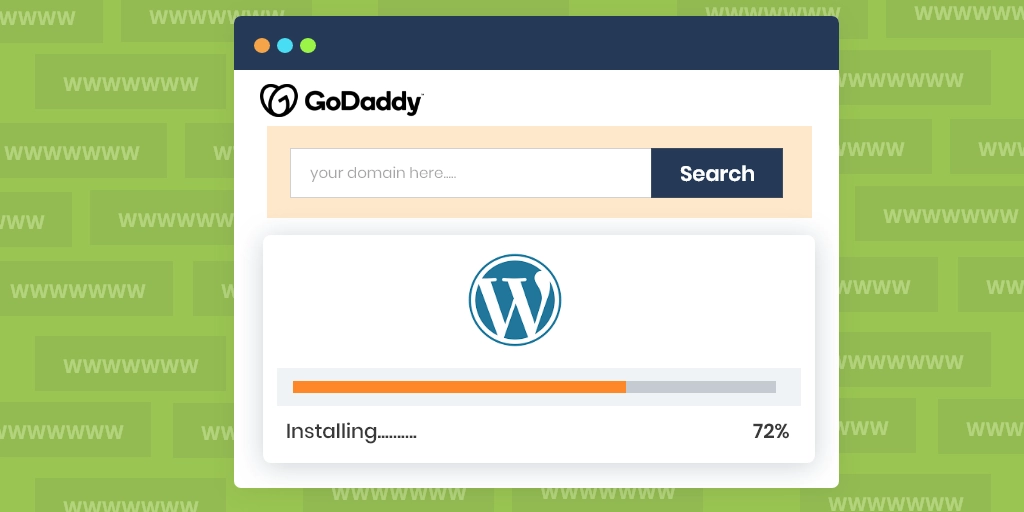
GoDaddy simplifies the installation process significantly.
Option 1: One-Click Installation
- Log into your GoDaddy account
- Navigate to your hosting dashboard
- Choose “Install WordPress”
- Select your domain
- Follow the setup prompts
Option 2: Manual Installation (Advanced)
- Download WordPress from its official site
- Upload files via FTP
- Create a database
- Connect everything manually
For most users, the one-click method is faster and avoids unnecessary complexity.
Step 4: Access Your WordPress Dashboard
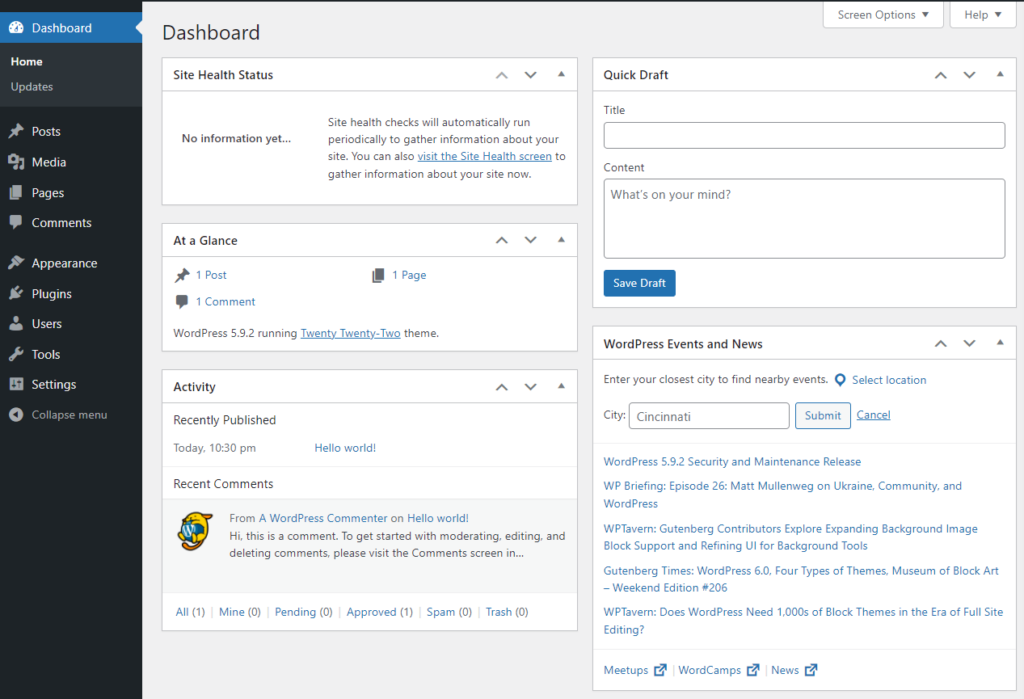
After installation, you’ll receive a login URL like:
seu domínio.com/wp-admin
This is where you control everything:
- Pages and posts
- Themes and design
- Plugins and features
- Settings and customization
The dashboard is designed to be user-friendly, even if you have no coding experience.
Step 5: Choose and Customize a Theme
Themes define how your website looks and feels.
Where to find themes:
- WordPress theme directory (free)
- Premium marketplaces
- Custom-designed themes
What to look for:
- Clean and modern layout
- Responsividade em dispositivos móveis
- Velocidade de carregamento rápida
- Compatibility with plugins
Once installed, you can customize:
- Cores
- Fontes
- Layout structure
- Header and footer
This is where design starts to shape user experience and brand perception.
Step 6: Install Essential Plugins
Plugins extend WordPress functionality. Think of them as apps for your website.
Common plugin categories:
- ferramentas de SEO (optimize for search engines)
- Plugins de segurança (protect your site)
- Performance tools (speed optimization)
- Page builders (drag-and-drop design)
- Backup solutions
Popular plugin examples:
- SEO plugins for keyword optimization
- Cache plugins for faster load times
- Contact form plugins for lead generation
Be careful not to install too many plugins, as this can slow down your website.
Step 7: Create Pages and Content
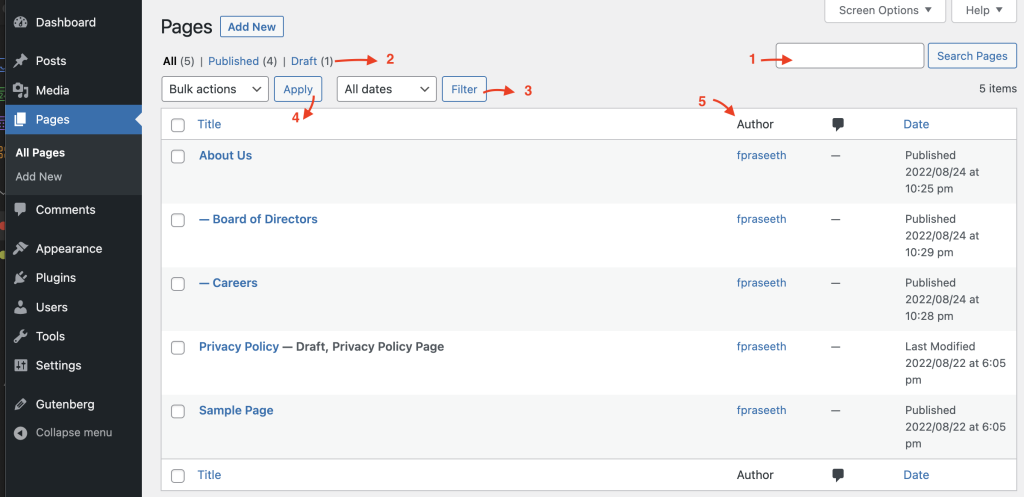
Now comes the most important part—building your actual website content.
Essential pages:
- Início
- Sobre
- Services or Products
- Contato
- Política de privacidade
Content tips:
- Keep text clear and easy to read
- Use headings to organize information
- Add images to improve engagement
- Focus on user intent and clarity
WordPress allows you to create both static pages and blog posts, making it suitable for almost any type of website.
Step 8: Set Up Navigation and Structure
A well-structured website improves usability and conversions.
Navigation best practices:
- Keep menu items simple and clear
- Limit top-level items (5–7 max)
- Use dropdowns for subcategories
- Ensure mobile-friendly navigation
You can manage menus directly in the WordPress dashboard under Appearance settings.
Step 9: Optimize Performance and Speed
Website speed plays a crucial role in user experience and SEO.
Ways to improve performance:
- Use lightweight themes
- Compress images
- Enable caching
- Choose fast hosting
- Avoid excessive plugins
GoDaddy’s managed hosting often includes performance enhancements, but additional optimization is still important.
Step 10: Secure Your Website
Security should never be overlooked.
Basic security measures:
- Use senhas fortes
- Enable SSL (HTTPS)
- Keep WordPress and plugins updated
- Install security plugins
- Perform regular backups
GoDaddy typically provides SSL certificates and basic protection features, especially on managed plans.
Step 11: Launch Your Website
Antes de publicar, verifique:
- All pages are complete
- Links are working
- Mobile responsiveness is good
- Loading speed is acceptable
- Forms and contact features function properly
Once everything is ready, your WordPress site on GoDaddy is ready for visitors.
Erros comuns a evitar
When learning how to use WordPress with GoDaddy, many beginners encounter similar issues:
Overcomplicating the setup
Start simple. You don’t need advanced features right away.
Ignoring design consistency
Inconsistent fonts, colors, and spacing reduce professionalism.
Installing too many plugins
This can slow down your site and create conflicts.
Neglecting mobile optimization
Most users browse on mobile devices—your site must perform well on smaller screens.
Why This Setup Is So Popular
Using WordPress with GoDaddy is popular because it balances simplicity and flexibility.
Principais vantagens:
- Easy setup process
- Scalable as your business grows
- Large ecosystem of themes and plugins
- No coding required for most use cases
It allows beginners to start quickly while still offering room to expand later.
Conclusão
Understanding how to use WordPress with GoDaddy is one of the most practical skills for building a website today. By combining a reliable hosting provider with a flexible CMS, you can create anything from a simple blog to a full-scale business site.
The process involves:
- Setting up a domain and hosting
- Installing WordPress
- Customizing design and functionality
- Creating structured content
- Optimizing for performance and security
With the right approach, even beginners can launch a professional-looking website without technical complexity.
Perguntas frequentes
No, you don’t need any coding experience. WordPress provides a user-friendly dashboard, and GoDaddy offers one-click installation, making it easy for beginners to build and manage a website.
Managed WordPress hosting is usually the best option for beginners. It simplifies setup, improves performance, and includes automatic updates and security features.
With GoDaddy’s one-click installation, you can set up WordPress in just a few minutes. However, customizing your site and adding content may take additional time.
Yes, you can connect an existing domain to your GoDaddy hosting and install WordPress on it, even if the domain was purchased elsewhere.
You can improve speed by using a lightweight theme, optimizing images, enabling caching, limiting plugins, and choosing a performance-optimized hosting plan.


Conceber e construir um sítio Web WordPress ou um sítio empresarial com um sistema de comércio eletrónico completo para si.
Faixa de preço: $200.00 a $2,500.00custom-requirements-or-special-quotations
O preço original era: $2.00.$1.00O preço atual é: $1.00. 50 plugins são demais para uma loja virtual WordPress?
Entendendo o Impacto Real no Desempenho Ter 50 plugins em um site de eCommerce WordPress não é automaticamente um problema. Na verdade, o número por si só raramente determina o desempenho....

Explicação do design da imagem principal para o dispositivo de fisioterapia doméstica da Amazon
Introdução: Construindo uma imagem confiável para dispositivos de terapia doméstica na Amazon Ao projetar a imagem principal de um dispositivo de terapia doméstica na Amazon, nosso principal...

Design da imagem principal para conversão de batom da Amazon
Introdução: Conceber uma imagem principal de batom que vende na Amazon Quando concebemos uma imagem principal para um batom da Amazon, a nossa responsabilidade vai muito além...

Como os hackers roubam e-mails de administradores do WordPress (e como impedi-los)
Vamos começar com uma verdade incómoda: o seu e-mail de administrador do WordPress é provavelmente muito mais público do que pensa e os hackers? Eles adoram isso. Para eles, o seu...

O que faz uma base líquida da Amazon converter a imagem principal?
Introdução: Criar uma imagem principal para a base líquida da Amazon não se resume apenas a deixar o produto bonito. Na Amazon, a imagem principal e...

Como projetar uma imagem principal eficaz para cartuchos de filtro Amazon
Introdução: Criar uma imagem principal para a Amazon nunca se resume apenas a tornar um produto atraente. Trata-se de clareza, confiança e compreensão imediata — especialmente para...

Ataques de repetição no WordPress: ameaça real ou mito exagerado?
Vamos esclarecer uma coisa primeiro. Ataques de repetição não parecem assustadores. Eles não quebram senhas. Eles não injetam código malicioso com texto verde de hacker voando por toda parte. Eles são sorrateiros...

Como duplicar páginas do WordPress sem danificar nada
Vamos ser sinceros. Às vezes você não quer criar uma página nova. Você só quer a mesma página… mas um pouco diferente. Mesmo layout. Mesmos blocos. Mesmas configurações. Porque….

Comparativo de cinco temas WordPress para animais de estimação
Introdução Escolher o tema WordPress certo para o seu negócio de animais de estimação é mais do que uma decisão de design — afeta diretamente a usabilidade, a escalabilidade e o crescimento a longo prazo. Cuidados com animais de estimação e...

Comparando cinco temas de e-commerce de moda praia
Introdução: Escolher o tema certo para uma loja independente de moda praia ou lingerie não é apenas uma decisão visual — afeta diretamente as taxas de conversão, a escalabilidade e o sucesso a longo prazo...

Como desativar os comentários no WordPress (sem enlouquecer)
Vamos falar sobre os comentários do WordPress. Em teoria, os comentários são ótimos. Eles incentivam a discussão, constroem comunidade e dão vida ao seu site. Na prática? Muitas vezes, eles atraem...

Erro 500 do WordPress: Quando seu site decide entrar em pânico
Seu site WordPress estava funcionando perfeitamente até um minuto atrás. Você atualizou a página. E de repente — bum 💥 — Erro Interno do Servidor 500. Sem explicação. Sem pedido de desculpas. Apenas uma mensagem fria e confusa que basicamente...

Criando um site WordPress escalável para uma marca voltada para a ciência: o projeto AminoUSA
Introdução No cenário digital atual, um website é mais do que um lugar para listar produtos. Para marcas com foco em ciência que atuam em setores regulamentados ou voltados para pesquisa, um...

Construindo uma loja Shopify escalável para uma marca global de lâminas: O Projeto CoolKatana
Introdução No comércio eletrônico internacional, um site Shopify é muito mais do que uma vitrine. Para marcas que atuam em nichos de mercado e categorias culturais específicas, o site precisa fazer muito mais do que...

Criando uma loja Shopify de alta conversão para cartas Pokémon.
Introdução No mundo do comércio eletrônico de itens colecionáveis, especialmente no mercado do Pokémon Trading Card Game (TCG), um site precisa fazer mais do que simplesmente listar produtos...

Design Shopify de alta conversão para uma marca de tijolos personalizada.
Introdução No cenário competitivo do comércio eletrônico atual, especialmente no segmento de presentes personalizados e itens colecionáveis, um site Shopify precisa fazer muito mais do que simplesmente exibir produtos. Ele...

Como entrar em contato com o suporte da Shopify: um guia simples e sem complicações.
Gerir uma loja Shopify deve ser uma experiência empolgante, não confusa. Quando surgem dúvidas ou problemas que atrapalham o seu trabalho, a Shopify oferece diversas opções de suporte, dependendo da situação.

Como desativar uma loja Shopify: um guia claro e prático
Desativar uma loja Shopify não é complicado, mas acarreta consequências que muitos lojistas ignoram. Este guia explica o processo de forma simples e didática...