Giới thiệu
Learning how to clone WordPress page content can save a huge amount of time when you manage a website. Instead of rebuilding a page from zero, you can duplicate an existing layout, keep the same structure, and then replace the text, images, links, or product information. This is especially useful for service pages, landing pages, product pages, location pages, blog layouts, and campaign pages.
However, cloning a WordPress page is not always the same as copying and pasting text. A WordPress page may include blocks, images, page templates, SEO settings, featured images, custom fields, shortcodes, design settings, and plugin-generated content. If you only copy the visible text, the new page may look different from the original page.
This guide explains how to clone a WordPress page in a simple, beginner-friendly way. You will learn why cloning is useful, when to use it, which methods are available, and what to check before publishing the copied page.
What Does It Mean to Clone a WordPress Page?
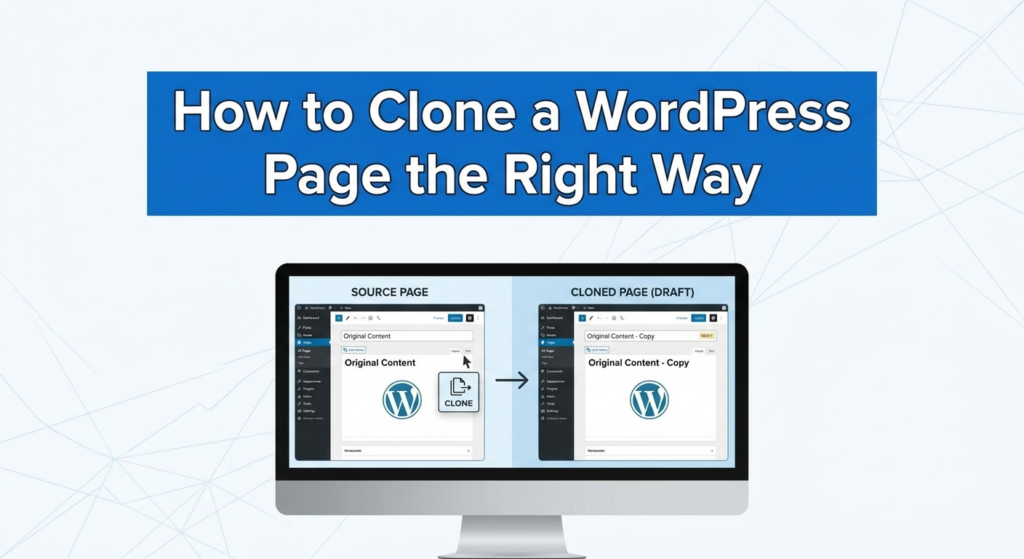
To clone a WordPress page means to create a new page based on an existing one. The copied page usually keeps the original layout, content structure, images, blocks, and design settings. After cloning, you can edit the new version without changing the original page.
For example, imagine you already have a well-designed “Web Design Services” page. Now you want to create a similar page for “Shopify Store Design.” Instead of starting from a blank page, you can clone the first page, change the title, rewrite the content, update the images, adjust the SEO fields, and publish it as a new page.
This process helps you keep a consistent design across your website. It also reduces mistakes because you are working from a layout that already works.
Why You Might Need to Clone a WordPress Page
There are many practical reasons to clone a WordPress page. The most common reason is speed. If you already have a page layout that looks good, duplicating it is faster than recreating every section manually.
Another reason is consistency. A website looks more professional when similar pages follow the same visual system. Service pages, product category pages, landing pages, and contact pages often share repeated sections. Cloning allows you to reuse spacing, headings, buttons, image placements, and call-to-action areas.
Cloning is also helpful for testing. You may want to redesign a page without touching the live version. By cloning the page first, you can safely experiment with the copied version. Once the new version is ready, you can publish it or replace the old one.
It is also useful for seasonal campaigns. For example, a Black Friday landing page can be cloned and adjusted for Christmas, New Year, or summer promotions. You keep the structure and update the offer.
Important Things to Know Before Cloning
Before you clone a WordPress page, you should understand what may or may not be copied. Basic page content usually copies easily. This includes headings, paragraphs, images, buttons, lists, and layout blocks.
However, some extra settings may depend on your theme, page builder, or plugins. SEO titles, meta descriptions, schema settings, custom fields, featured images, forms, popups, product data, and template conditions may not always transfer perfectly.
You should also avoid publishing a cloned page without editing it. If two pages have almost the same content, search engines may see them as duplicate content. That can weaken your SEO performance. After cloning, always rewrite the title, headings, body content, meta description, URL slug, image alt text, and internal links.
You should also check whether the cloned page uses forms or buttons. A copied contact form may still send messages to the same inbox, which is fine in many cases. But a copied checkout button, booking link, or campaign form may need different settings.
Method 1: Clone a Page Manually in the WordPress Editor
The simplest way to clone a WordPress page is to copy the content manually from one page to another. This method works best for basic pages built with the WordPress block editor.
First, go to your WordPress dashboard. Open Pages, then choose the page you want to copy. Once the page opens in the editor, select the content area. You can copy all visible blocks and paste them into a new page.
In the block editor, you can often click inside the content area, select the blocks, copy them, and paste them into a new draft. This method is simple and does not require a plugin.
You can also switch to the code editor view if you want to copy the page’s block markup. In WordPress, the block editor stores content with HTML and block comments. Copying from the code editor can preserve more structure than copying only visible text.
After pasting the content into a new page, add a new title, update the URL slug, and save the page as a draft. Preview it before publishing. Make sure the layout, images, buttons, and spacing look correct on desktop and mobile.
The advantage of this method is that it does not require installing anything. The downside is that it may not copy everything. Page templates, SEO settings, featured images, and custom plugin data may need to be added again manually.
Method 2: Use a WordPress Duplicate Page Plugin
For most users, using a plugin is the easiest way to clone a WordPress page. A duplicate page plugin adds a cloning option directly inside the WordPress dashboard. You can usually go to Trang, hover over a page, and click a button such as “Clone,” “Duplicate,” or “Copy to a new draft.”
This method is much faster than manual copying. It is especially useful if you often create similar pages. Many duplicate page plugins can copy the content, title, featured image, template, post type, page order, and other settings.
The general process is simple. Go to Plugins, click Add New, search for a duplicate page plugin, install it, and activate it. After activation, return to the Pages list. When you hover over a page, you should see a new option that allows you to clone it.
Once the clone is created, WordPress usually saves it as a draft. This is good because it gives you time to edit the new page before making it public. Open the draft, change the title, rewrite the content, update the images, adjust SEO settings, and then preview the page.
A plugin is the best choice for beginners, content teams, and business owners who want a simple process. The main thing to remember is to use a trusted plugin, keep it updated, and avoid installing multiple plugins that perform the same function.
Method 3: Clone a Page Inside a Page Builder
Many WordPress websites use page builders such as Elementor, Divi, Beaver Builder, or WPBakery. If your page was created with a page builder, the best cloning method may be inside that builder.
Page builders often have their own template systems. For example, you may be able to save a page as a template, then insert that template into a new page. This is very useful because it keeps the design structure, section spacing, column layout, responsive settings, and widget styling.
The process depends on the builder, but the idea is similar. Open the original page in the builder. Save the full page or specific sections as a template. Then create a new page and insert that template. After that, replace the text, images, links, and settings.
This method is ideal when your page design is more complex. If your layout includes custom sections, sliders, tabs, accordions, product grids, icons, or responsive settings, a builder template may preserve the design better than copying content manually.
The important point is to check the mobile version after cloning. Some builder settings may look correct on desktop but need adjustment on tablet or mobile. Always preview the new page across screen sizes before publishing.
Method 4: Clone a Page With Custom Code
Some advanced users prefer to add a custom duplicate function to WordPress. This can create a “Duplicate” link in the page list and generate a copied draft.
This method gives more control, but it is not the best choice for beginners. Editing theme files, especially functions.php, can break a website if the code has an error. If you choose this method, you should use a child theme or a safe code management plugin. You should also create a full backup before making changes.
A custom cloning function usually works by getting the original page ID, copying the page content and settings, creating a new draft, and assigning the copied information to the new page. Some versions can also copy taxonomy terms, custom fields, and metadata.
This approach may be useful for developers or advanced site managers who want a lightweight solution without adding another plugin. But for most business websites, a trusted plugin or page builder template is safer and easier.
Manual Copying vs Plugin Cloning
Manual copying and plugin cloning both work, but they serve different needs.
Manual copying is best when the page is simple. If you only need to copy headings, text, images, and basic blocks, manual copying is quick enough. It also avoids adding another plugin to your site.
Plugin cloning is better when you want a more complete copy. It can save time by copying more settings with one click. This is useful for larger websites, repeated landing pages, or teams that publish content often.
If you use a page builder, the best option may be the builder’s own template feature. This keeps your design system organized and makes future updates easier.
In general, choose the method based on the complexity of your page. The more design settings and plugin data your page has, the more careful you should be.
What to Edit After Cloning a WordPress Page
Cloning is only the first step. The real work begins after the new draft is created.
Start with the page title. Give the cloned page a unique title that matches its new purpose. Then update the URL slug. A clear, keyword-friendly URL helps users and search engines understand the page.
Next, rewrite the main content. Do not leave large sections identical to the original page. Even if the layout stays the same, the message should be different. Change headings, paragraphs, calls to action, image captions, FAQs, and button text where needed.
Then check the images. Replace images that do not match the new page. Update image alt text so it describes the new content. This improves accessibility and helps search engines understand the page.
After that, review all links. Internal links should point to the right pages. Buttons should lead to the correct forms, products, booking pages, or contact pages. External links should still be relevant.
Finally, update SEO settings. Write a unique SEO title and meta description. If you use an SEO plugin, check the focus keyword, canonical URL, social preview, and schema settings.
SEO Tips for Cloned WordPress Pages
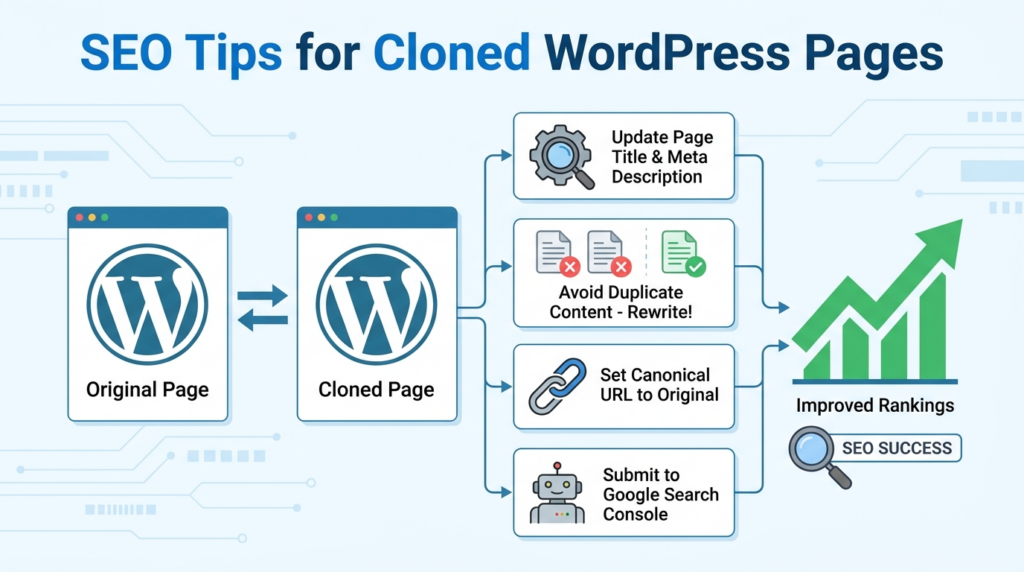
Cloned pages can be helpful for SEO when used correctly. They allow you to build consistent page structures around different topics, services, or locations. But if you publish copied pages with very similar content, they can create duplicate content problems.
To avoid this, make every cloned page unique. Use a different title, different main heading, different body content, and different meta description. Make sure each page has a clear purpose.
For example, a cloned service page for “WordPress Maintenance” should not simply repeat the same content as a page for “WordPress Website Design.” The design layout can be similar, but the topic, examples, benefits, and calls to action should match the specific service.
You should also avoid cloning pages just to create thin content. A page should offer real value. Add useful explanations, clear visuals, helpful FAQs, and relevant internal links.
Another good practice is to check the canonical URL. A canonical URL tells search engines which version of a page is the main one. If a cloned page accidentally keeps the original page’s canonical URL, search engines may ignore the new page. Check this setting inside your SEO plugin before publishing.
Những lỗi thường gặp cần tránh
One common mistake is forgetting to change the page URL. If the cloned page keeps a confusing slug, it may look unprofessional and hurt SEO clarity.
Another mistake is publishing the page too quickly. Always preview the cloned page first. Check desktop, tablet, and mobile views. A cloned layout may break if the new content is longer than the original content.
A third mistake is forgetting to update forms and buttons. A copied form may still have the wrong label, redirect, or confirmation message. A copied button may send users to the wrong product or service page.
You should also check menus and breadcrumbs. If the cloned page belongs to a different section of your website, make sure it appears in the right navigation structure.
Finally, do not keep duplicate meta descriptions. Search engines may not penalize every duplicate meta description directly, but unique metadata helps improve clarity and click-through rates.
Best Practices for Cloning Pages Safely
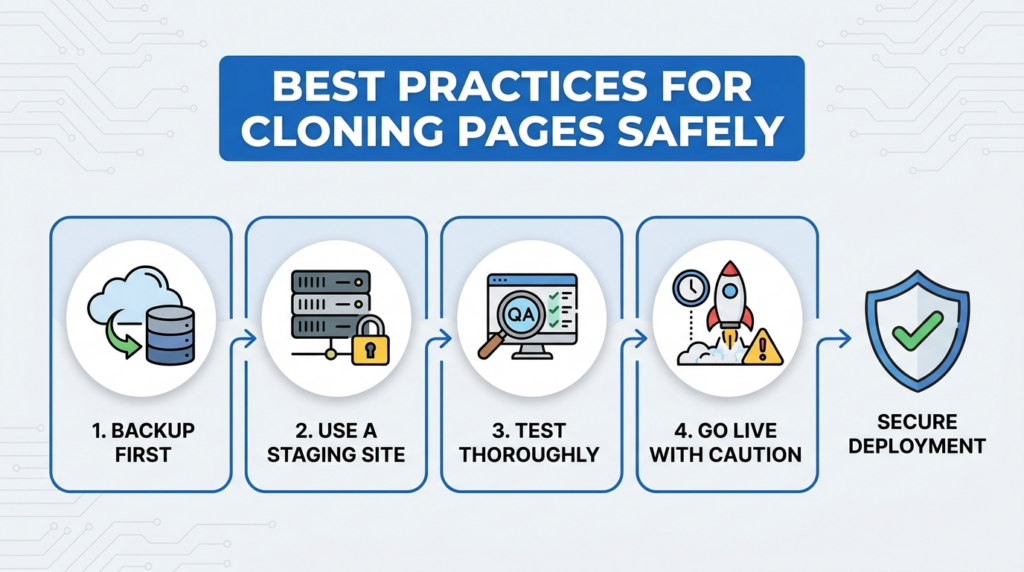
Before cloning important pages, make sure your site has a recent backup. This is especially important if you plan to use custom code or edit theme files.
Keep cloned pages as drafts until they are fully reviewed. This prevents unfinished copies from appearing publicly.
Use a clear naming system. For example, add “Draft,” “Copy,” or the new page topic to the cloned page title while editing. This helps you avoid confusing the original page with the duplicate.
Clean up unused cloned pages. If you create test copies and no longer need them, move them to trash. Too many unused drafts can make the dashboard messy.
Also, document your process if you work with a team. Decide who can clone pages, who reviews them, and what checklist must be completed before publishing.
When You Should Not Clone a Page
Cloning is useful, but it is not always the right solution. If the original page has outdated design, poor structure, slow-loading sections, or weak content, cloning it may repeat the same problems.
In that case, it may be better to rebuild the page with a cleaner layout. A cloned page saves time only when the original page is worth reusing.
You should also avoid cloning pages that contain outdated offers, old pricing, expired promotions, or temporary campaign details unless you carefully update everything.
For important pages such as checkout pages, account pages, membership pages, or custom WooCommerce pages, be extra careful. These pages may rely on shortcodes, templates, or plugin settings. Cloning them without understanding their function can cause errors.
Final Checklist Before Publishing
Before publishing a cloned WordPress page, review the following items:
Check the page title, URL slug, headings, text, images, image alt text, buttons, forms, internal links, SEO title, meta description, canonical URL, featured image, mobile layout, and page template.
Also preview the page in a new tab. Click every important link. Submit a test form if needed. Make sure the page looks intentional, not like a copied draft.
Once everything is correct, you can publish the page with more confidence.
Phần kết luận
Understanding how to clone WordPress page content can make website management faster, easier, and more consistent. You can clone a page manually, use a duplicate page plugin, save layouts through a page builder, or create a custom code-based solution if you have advanced experience.
For most users, a plugin or page builder template is the safest and most efficient choice. Manual copying works well for simple pages, while custom code should only be used with backups and technical confidence.
The most important rule is to treat cloning as a starting point, not a finished result. After cloning, always update the title, URL, content, images, links, SEO settings, and mobile layout. When done correctly, cloning a WordPress page helps you build new pages faster while keeping your website organized, professional, and easy to manage.
Câu hỏi thường gặp
1. What is the easiest way to clone a WordPress page?
The easiest way is to use a WordPress duplicate page plugin. After installation, you can usually clone a page directly from the Pages list with one click, then edit the new draft before publishing.
2. Can I clone a WordPress page without a plugin?
Yes. You can manually copy the page content from the WordPress editor and paste it into a new page. This works well for simple pages, but it may not copy templates, SEO settings, featured images, or custom fields.
3. Will cloning a WordPress page hurt SEO?
Cloning itself does not hurt SEO. Problems happen when the copied page is published with the same title, text, meta description, or URL structure. Always rewrite the content and update SEO settings before publishing.
4. What should I update after cloning a WordPress page?
You should update the page title, URL slug, headings, body content, images, alt text, internal links, buttons, SEO title, meta description, and mobile layout.
5. Can I clone a page built with Elementor or another page builder?
Yes. Many page builders allow you to save a page or section as a template, then reuse it on a new page. This is often better than manual copying because it preserves the design layout more accurately.
6. What is the difference between cloning and copying a WordPress page?
Copying often means manually duplicating visible content, such as text and images. Cloning usually creates a fuller duplicate that may include layout, template settings, featured images, and other page data, depending on the method used.