












Introdução
Se você executar um WordPress website, you probably spend most of your time thinking about design, content, traffic, plugins, and conversions. But one quiet security issue often gets ignored: direct file access. In simple terms, direct access happens when someone opens a file or private URL by typing or pasting the link directly into a browser, without going through the page, login system, checkout process, or membership rules you intended.
This matters because WordPress often stores media files, PDFs, ZIP files, documents, exports, and downloadable products inside public folders. Many site owners assume that if they do not place a file visibly on a public page, visitors cannot reach it. That assumption can be dangerous. If someone has the full file URL, they may still open it directly.
Learning how to prevent direct access WordPress files is not only a developer topic. It is also a basic website management skill for bloggers, store owners, course creators, membership sites, agencies, and businesses that store private files online. You do not need to lock down your entire website. You need to understand which files should stay public, which files require protection, and which method fits your hosting setup.
This guide explains the topic in a beginner-friendly way. You will learn what direct access means, why it can become a risk, which WordPress files and folders deserve attention, and how to use server rules, protected folders, plugins, and careful testing to reduce exposure.
What Direct Access Means in WordPress
Direct access means someone reaches a file or page directly through its URL instead of passing through WordPress permission checks. For example, imagine you upload a private PDF to your media library and place it inside a members-only post. The post may require login, but the actual PDF file may still live in a public uploads folder.
If a logged-in member copies that PDF link and shares it with someone else, the second person may be able to open the PDF without logging in. That is direct access.
This does not only apply to PDFs. It can affect ZIP files, invoices, digital downloads, course files, backups, spreadsheets, private images, export files, and documents stored inside WordPress directories.
However, not every file should be blocked. WordPress needs public access to many files to display your website correctly. Theme images, CSS files, JavaScript files, icons, and normal public media assets should remain available. If you block too much, your layout may break, images may disappear, and your site may stop working properly.
The goal is not to hide everything. The goal is to protect the right files.
Why Preventing Direct Access Matters
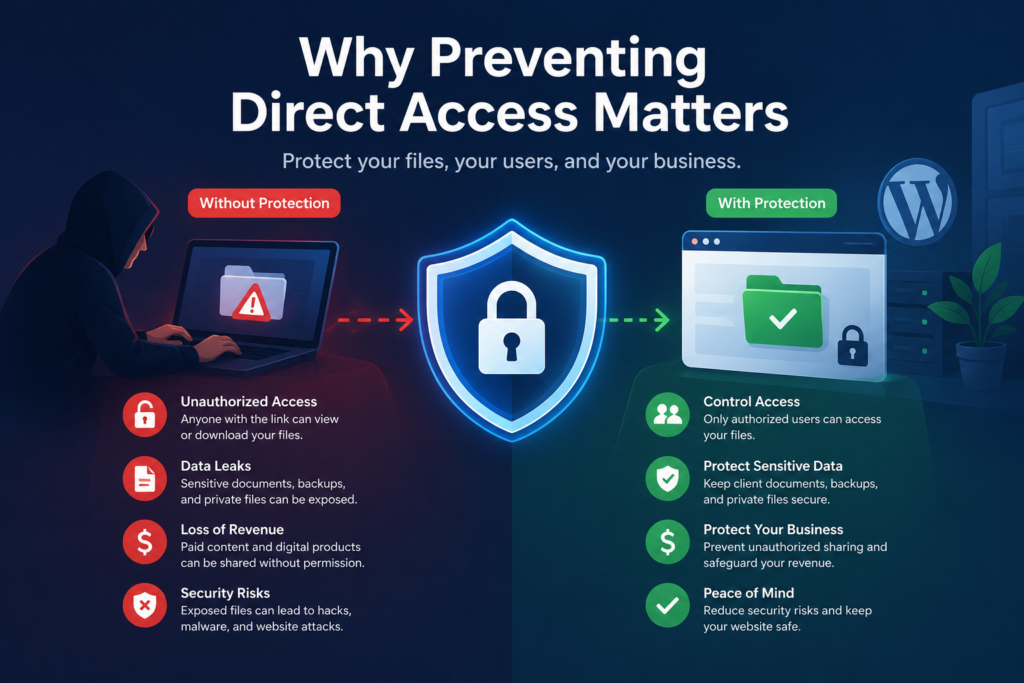
Direct access protection matters because many website owners confuse “not visible” with “not accessible.” These are not the same thing.
A file can be hidden from your navigation menu but still accessible by URL. A download can be placed on a private page but still open directly from the uploads folder. A document can be removed from a page but remain on the server. A backup file can sit unnoticed in a directory and become a serious security problem.
For business websites, this can expose private resources. For e-commerce sites, it can leak paid digital products. For course websites, it can allow unpaid users to download lessons. For agencies and service providers, it can expose client documents. For membership websites, it can weaken the value of paid access.
Direct access protection also improves your overall security posture. It does not replace strong passwords, two-factor authentication, updates, backups, or security monitoring. But it adds another important layer. A strong WordPress security setup usually combines multiple small protections rather than relying on one single solution.
Files You Should Consider Protecting
Before changing server rules or installing plugins, identify the files that actually need protection. This step prevents accidental damage to your site.
Private Downloads
These include eBooks, templates, software files, ZIP packages, worksheets, paid PDFs, gated resources, and course materials. If users should pay, subscribe, or log in before downloading them, you should not leave them openly accessible through a direct URL.
Client Documents
If you upload proposals, contracts, reports, design previews, invoices, or confidential documents for clients, you should treat them carefully. Even when a file is not linked publicly, the direct URL may still work.
Backups and Exports
Backup files, database exports, CSV files, and old migration packages should never sit in a public folder. These files can contain sensitive information. If you use backup plugins, check where backup archives are stored and whether public access is blocked.
Configuration Files
Some WordPress configuration files contain critical information. For example, wp-config.php stores database connection details and authentication keys. It should never be served publicly through a browser.
Admin and Login Areas
Direct access can also describe bots or unwanted visitors repeatedly hitting login-related URLs such as wp-login.php ou /wp-admin/. You may not want to block these completely for everyone, but you can limit exposure with stronger access controls.
Start With a File Access Audit
Before you add rules, run a simple audit.
First, list the files that should not be public. Include premium downloads, private documents, backups, and internal files. Then find where those files live. Many WordPress uploads appear under /wp-content/uploads/, often organized by year and month.
Next, open a private or incognito browser window. Paste the file URL into the address bar. If the file opens without login, payment, or permission, it is directly accessible.
Then group sensitive files into a dedicated folder whenever possible. For example, instead of scattering paid PDFs across different monthly upload folders, place them in a protected downloads folder. This makes access rules cleaner and easier to manage.
This planning step matters because messy file organization creates messy security rules. A clean folder structure makes direct access prevention easier, safer, and more reliable.
How to Prevent Direct Access WordPress Core Files
Some sensitive files should be protected at the server level. If your site runs on Apache hosting, you can often use .htaccess rules. If your site runs on Nginx, you usually need server configuration rules, which may require help from your hosting provider.
Protecting wp-config.php
O wp-config.php file is one of the most important files in a WordPress installation. It contains database credentials and security keys. While many hosting environments already prevent public reading of this file, adding an extra rule can provide another safety layer.
On Apache servers, site owners commonly add a rule to deny browser access to wp-config.php. The idea is simple: WordPress can still use the file internally, but visitors cannot load it directly in a browser.
You should always download a backup copy of .htaccess before editing it. A small syntax mistake can trigger a server error. If something breaks, restore the previous file immediately.
Protecting .htaccess
O .htaccess file itself should not be publicly viewable. It may contain redirects, access rules, security directives, and other server instructions. Many servers already hide it, but you should still confirm that direct access does not reveal anything.
Be Careful With Broad Blocking
Do not block entire WordPress folders without understanding the result. For example, blocking all of /wp-content/ can break your images, themes, plugins, and front-end assets. Blocking all of /wp-includes/ may also cause unexpected problems.
A safer approach is to block specific files or specific private folders.
How to Restrict Direct Access to Uploads
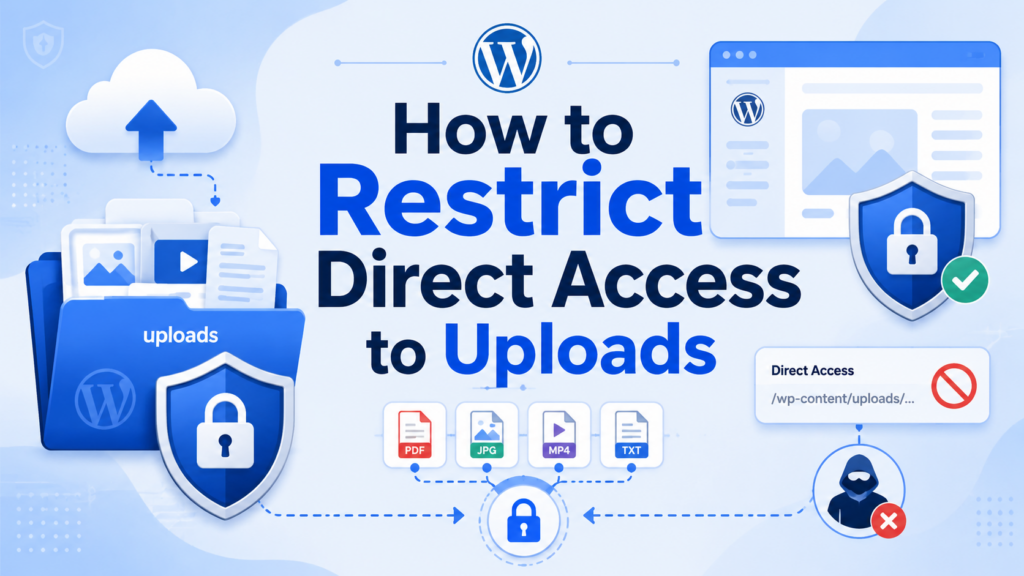
Most WordPress media files live inside /wp-content/uploads/. This folder usually needs to stay public because your website uses it for images and media. Blocking the whole uploads directory is usually a bad idea.
Instead, create a dedicated folder for sensitive files, such as:
/wp-content/uploads/protected-downloads/
Then place private files inside that folder only. On Apache hosting, you can add an .htaccess file inside the protected folder to deny public access. This means visitors cannot open files directly from that folder.
However, blocking direct access is only half the solution. You still need a controlled way to deliver files to approved users. For example, a membership plugin, download manager, or e-commerce plugin can check whether a user has permission before serving the file.
This approach works well because the real file location stays protected, while authorized users can still download files through a controlled process.
Use Plugins When Server Rules Feel Risky
Not every WordPress site owner feels comfortable editing server files. That is completely understandable. One wrong character in .htaccess can cause errors. If you prefer a safer interface, use a reputable plugin that manages protected downloads or file access permissions.
A good plugin may help you:
- Hide the real file URL.
- Generate protected download links.
- Restrict downloads by user role.
- Require login before access.
- Create expiring links.
- Track download activity.
- Protect files without manual server editing.
Plugins are especially useful for membership websites, online courses, WooCommerce digital products, gated content, and private client portals.
Still, plugins are not magic. You should choose one carefully, keep it updated, and test protected links from a logged-out browser. Also, avoid installing several plugins that control the same file access behavior because overlapping rules can create conflicts.
Limit Access to wp-admin and Login URLs
Another part of direct access protection involves the WordPress admin area. Bots often target wp-login.php e /wp-admin/ because these are common entry points.
You can reduce unwanted access in several ways.
One option is to limit admin access by IP address. This works best when you have a static IP address. If your IP changes often, this method can lock you out.
Another option is HTTP authentication, which adds a server-level username and password before visitors reach the WordPress login screen. This creates an extra barrier for bots.
You can also use a security plugin to limit login attempts, add two-factor authentication, or change the login URL. These steps do not replace file protection, but they support the same goal: reducing unnecessary direct access to sensitive areas.
For most site owners, the best approach combines strong passwords, two-factor authentication, login attempt limits, and careful admin access rules.
Test Your Direct Access Rules Carefully
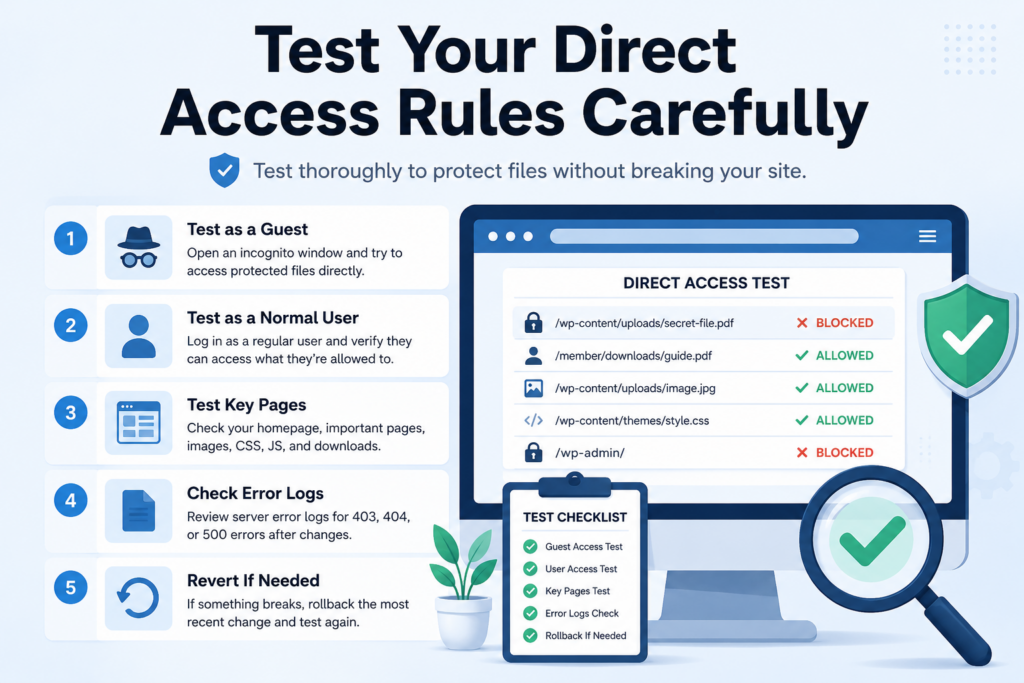
Testing is one of the most important steps. Do not add rules and assume everything works.
Start with an incognito window. Try opening a protected file directly. If the protection works, you should see a 403 error, a login page, or another controlled response.
Then log in as a normal user, not an administrator. Check whether approved users can still access the files they should be able to access. This matters because a rule that blocks everyone may protect the file but break the user experience.
Next, visit your homepage, product pages, blog posts, checkout pages, account pages, and other important sections. Make sure images, fonts, scripts, and styles still load correctly.
Also check your server error logs. If you suddenly see many 403 or 500 errors, one of your rules may be too broad.
If something breaks, reverse the most recent change first. Restore your backup copy, clear cache, and test again. Do not add more rules until you understand which one caused the problem.
Erros comuns a evitar
The first mistake is blocking too much. Some beginners try to protect everything under /wp-content/, but that folder contains public assets your website needs.
The second mistake is protecting a page but not the file behind it. A private page does not always make an uploaded file private. You must check the file URL directly.
The third mistake is leaving backups in public folders. Backup archives and database exports should be stored securely, downloaded locally when needed, or placed in a protected location.
The fourth mistake is forgetting old files. Removing a link from a page does not always delete the file from the server. If a file should no longer be available, remove it or protect it.
The fifth mistake is skipping backups before editing rules. Always keep a rollback option.
Best Practices for Long-Term Protection
To prevent direct access WordPress issues over time, build a repeatable workflow.
Create a dedicated folder for protected files. Avoid mixing private downloads with regular image uploads. Use clear naming, but do not include sensitive personal details in file names.
Review your media library regularly. Delete files you no longer need. Move private files into protected storage. Check whether old exports, invoices, or temporary files remain accessible.
Use plugins when permissions need to change by user role, purchase status, membership level, or login state. Server rules are useful for blocking access, but WordPress plugins are often better for controlled delivery.
Keep your website updated. Outdated plugins and themes can create security holes that direct access rules cannot solve.
Finally, document your setup. Write down which folders are protected, which plugin handles downloads, and how to restore rules if something breaks. This helps future maintenance and reduces confusion.
Conclusão
Understanding how to prevent direct access WordPress files helps you protect private downloads, sensitive documents, configuration files, and admin areas from unnecessary exposure. Direct access usually happens when someone opens a file URL directly instead of going through the permission system you intended.
The safest approach starts with an audit. Identify which files need protection, organize them into dedicated folders, and avoid blocking public assets your site needs. Use server rules for critical files and private folders when you understand your hosting setup. Use plugins when you need easier management, member-based permissions, protected download links, or user-friendly controls.
Most importantly, test every change. A strong setup should block unauthorized visitors while still allowing approved users to access the right files. With careful planning, backups, controlled access rules, and regular reviews, you can make your WordPress site safer without breaking the user experience.
Perguntas frequentes
1. What does direct access mean in WordPress?
Direct access means someone can open a file or URL directly in the browser without going through your intended permission system. For example, a private PDF may still be accessible if someone has its full file link.
2. Why should I prevent direct access WordPress files?
You should prevent direct access WordPress files to protect private downloads, client documents, backups, paid content, and sensitive media. Without protection, users may share or open files without login, payment, or permission.
3. Are WordPress media uploads private by default?
No. Most files uploaded to the WordPress Media Library are publicly accessible by default. Even if a file is not shown on a page, it may still be reachable through its direct URL.
4. What types of files should I protect in WordPress?
You should protect private PDFs, ZIP files, digital products, course materials, invoices, client documents, database exports, backup files, and any content that should only be available to approved users.
5. Can I block the entire uploads folder?
Usually, you should not block the entire uploads folder because WordPress uses it for public images, videos, and other media. A better method is to create a separate protected folder for private files.
6. What is the safest way to prevent direct file access?
The safest method is to combine a clear file structure, server-level access rules, reliable security or download-protection plugins, and careful testing. Always back up your site before changing .htaccess, Nginx rules, or file permissions.


Conceber e construir um sítio Web WordPress ou um sítio empresarial com um sistema de comércio eletrónico completo para si.
Faixa de preço: $200.00 a $2,500.00custom-requirements-or-special-quotations
O preço original era: $2.00.$1.00O preço atual é: $1.00. 50 plugins são demais para uma loja virtual WordPress?
Entendendo o Impacto Real no Desempenho Ter 50 plugins em um site de eCommerce WordPress não é automaticamente um problema. Na verdade, o número por si só raramente determina o desempenho....

Explicação do design da imagem principal para o dispositivo de fisioterapia doméstica da Amazon
Introdução: Construindo uma imagem confiável para dispositivos de terapia doméstica na Amazon Ao projetar a imagem principal de um dispositivo de terapia doméstica na Amazon, nosso principal...

Design da imagem principal para conversão de batom da Amazon
Introdução: Conceber uma imagem principal de batom que vende na Amazon Quando concebemos uma imagem principal para um batom da Amazon, a nossa responsabilidade vai muito além...

Como os hackers roubam e-mails de administradores do WordPress (e como impedi-los)
Vamos começar com uma verdade incómoda: o seu e-mail de administrador do WordPress é provavelmente muito mais público do que pensa e os hackers? Eles adoram isso. Para eles, o seu...

O que faz uma base líquida da Amazon converter a imagem principal?
Introdução: Criar uma imagem principal para a base líquida da Amazon não se resume apenas a deixar o produto bonito. Na Amazon, a imagem principal e...

Como projetar uma imagem principal eficaz para cartuchos de filtro Amazon
Introdução: Criar uma imagem principal para a Amazon nunca se resume apenas a tornar um produto atraente. Trata-se de clareza, confiança e compreensão imediata — especialmente para...

Ataques de repetição no WordPress: ameaça real ou mito exagerado?
Vamos esclarecer uma coisa primeiro. Ataques de repetição não parecem assustadores. Eles não quebram senhas. Eles não injetam código malicioso com texto verde de hacker voando por toda parte. Eles são sorrateiros...

Como duplicar páginas do WordPress sem danificar nada
Vamos ser sinceros. Às vezes você não quer criar uma página nova. Você só quer a mesma página… mas um pouco diferente. Mesmo layout. Mesmos blocos. Mesmas configurações. Porque….

Comparativo de cinco temas WordPress para animais de estimação
Introdução Escolher o tema WordPress certo para o seu negócio de animais de estimação é mais do que uma decisão de design — afeta diretamente a usabilidade, a escalabilidade e o crescimento a longo prazo. Cuidados com animais de estimação e...

Comparando cinco temas de e-commerce de moda praia
Introdução: Escolher o tema certo para uma loja independente de moda praia ou lingerie não é apenas uma decisão visual — afeta diretamente as taxas de conversão, a escalabilidade e o sucesso a longo prazo...

Como desativar os comentários no WordPress (sem enlouquecer)
Vamos falar sobre os comentários do WordPress. Em teoria, os comentários são ótimos. Eles incentivam a discussão, constroem comunidade e dão vida ao seu site. Na prática? Muitas vezes, eles atraem...

Erro 500 do WordPress: Quando seu site decide entrar em pânico
Seu site WordPress estava funcionando perfeitamente até um minuto atrás. Você atualizou a página. E de repente — bum 💥 — Erro Interno do Servidor 500. Sem explicação. Sem pedido de desculpas. Apenas uma mensagem fria e confusa que basicamente...

Criando um site WordPress escalável para uma marca voltada para a ciência: o projeto AminoUSA
Introdução No cenário digital atual, um website é mais do que um lugar para listar produtos. Para marcas com foco em ciência que atuam em setores regulamentados ou voltados para pesquisa, um...

Construindo uma loja Shopify escalável para uma marca global de lâminas: O Projeto CoolKatana
Introdução No comércio eletrônico internacional, um site Shopify é muito mais do que uma vitrine. Para marcas que atuam em nichos de mercado e categorias culturais específicas, o site precisa fazer muito mais do que...

Criando uma loja Shopify de alta conversão para cartas Pokémon.
Introdução No mundo do comércio eletrônico de itens colecionáveis, especialmente no mercado do Pokémon Trading Card Game (TCG), um site precisa fazer mais do que simplesmente listar produtos...

Design Shopify de alta conversão para uma marca de tijolos personalizada.
Introdução No cenário competitivo do comércio eletrônico atual, especialmente no segmento de presentes personalizados e itens colecionáveis, um site Shopify precisa fazer muito mais do que simplesmente exibir produtos. Ele...

Como entrar em contato com o suporte da Shopify: um guia simples e sem complicações.
Gerir uma loja Shopify deve ser uma experiência empolgante, não confusa. Quando surgem dúvidas ou problemas que atrapalham o seu trabalho, a Shopify oferece diversas opções de suporte, dependendo da situação.

Como desativar uma loja Shopify: um guia claro e prático
Desativar uma loja Shopify não é complicado, mas acarreta consequências que muitos lojistas ignoram. Este guia explica o processo de forma simples e didática...