











لا توجد منتجات في سلة التسوق.

إذا كنت تدير ووردبريس عند إنشاء موقع إلكتروني، ربما تقضي معظم وقتك في التفكير في التصميم والمحتوى وحركة المرور والإضافات ومعدلات التحويل. لكن ثمة مشكلة أمنية خفية غالبًا ما يتم تجاهلها: الوصول المباشر إلى الملفات. ببساطة، يحدث الوصول المباشر عندما يفتح شخص ما ملفًا أو رابطًا خاصًا بكتابة الرابط أو لصقه مباشرةً في المتصفح، دون المرور بالصفحة أو نظام تسجيل الدخول أو عملية الدفع أو قواعد العضوية التي حددتها.
هذا الأمر مهم لأن ووردبريس غالبًا ما يخزن ملفات الوسائط وملفات PDF وملفات ZIP والمستندات والملفات المصدرة والمنتجات القابلة للتنزيل داخل مجلدات عامة. يفترض العديد من أصحاب المواقع أنه إذا لم يضعوا ملفًا بشكل واضح على صفحة عامة، فلن يتمكن الزوار من الوصول إليه. هذا الافتراض قد يكون خطيرًا. فإذا كان لدى شخص ما رابط الملف الكامل، فقد يتمكن من فتحه مباشرةً.
إنّ تعلّم كيفية منع الوصول المباشر إلى ملفات ووردبريس ليس حكرًا على المطورين، بل هو أيضًا مهارة أساسية لإدارة المواقع الإلكترونية للمدونين، وأصحاب المتاجر، ومنشئي الدورات التدريبية، ومواقع العضوية، والوكالات، والشركات التي تخزن ملفات خاصة عبر الإنترنت. لا داعي لتأمين موقعك بالكامل، بل يكفي فهم أيّ الملفات يجب أن تبقى عامة، وأيّها يتطلب حماية، وأيّ طريقة تناسب إعدادات استضافتك.
يشرح هذا الدليل الموضوع بطريقة سهلة الفهم للمبتدئين. ستتعلم معنى الوصول المباشر، ولماذا قد يُشكل خطراً، وما هي ملفات ومجلدات ووردبريس التي تستحق الاهتمام، وكيفية استخدام قواعد الخادم، والمجلدات المحمية، والإضافات، والاختبار الدقيق لتقليل المخاطر.
يعني الوصول المباشر إمكانية الوصول إلى ملف أو صفحة مباشرةً عبر عنوان URL الخاص بها، دون المرور عبر إجراءات التحقق من أذونات ووردبريس. على سبيل المثال، تخيل أنك قمت بتحميل ملف PDF خاص إلى مكتبة الوسائط الخاصة بك ووضعته داخل منشور مخصص للأعضاء فقط. قد يتطلب المنشور تسجيل الدخول، ولكن قد يظل ملف PDF نفسه موجودًا في مجلد التحميلات العامة.
إذا قام عضو مسجل الدخول بنسخ رابط ملف PDF هذا ومشاركته مع شخص آخر، فقد يتمكن الشخص الثاني من فتح ملف PDF دون تسجيل الدخول. هذا هو الوصول المباشر.
لا يقتصر هذا الأمر على ملفات PDF فقط، بل يمكن أن يؤثر على ملفات ZIP والفواتير والتنزيلات الرقمية وملفات الدورات التدريبية والنسخ الاحتياطية وجداول البيانات والصور الخاصة وملفات التصدير والمستندات المخزنة داخل مجلدات ووردبريس.
مع ذلك، لا ينبغي حظر جميع الملفات. يحتاج ووردبريس إلى إمكانية الوصول العام إلى العديد من الملفات لعرض موقعك الإلكتروني بشكل صحيح. يجب أن تظل صور القالب، وملفات CSS، وملفات JavaScript، والأيقونات، وأصول الوسائط العامة العادية متاحة. إذا حظرت الكثير من الملفات، فقد يتعطل تصميم موقعك، وقد تختفي الصور، وقد يتوقف الموقع عن العمل بشكل صحيح.
ليس الهدف إخفاء كل شيء، بل حماية الملفات المهمة.
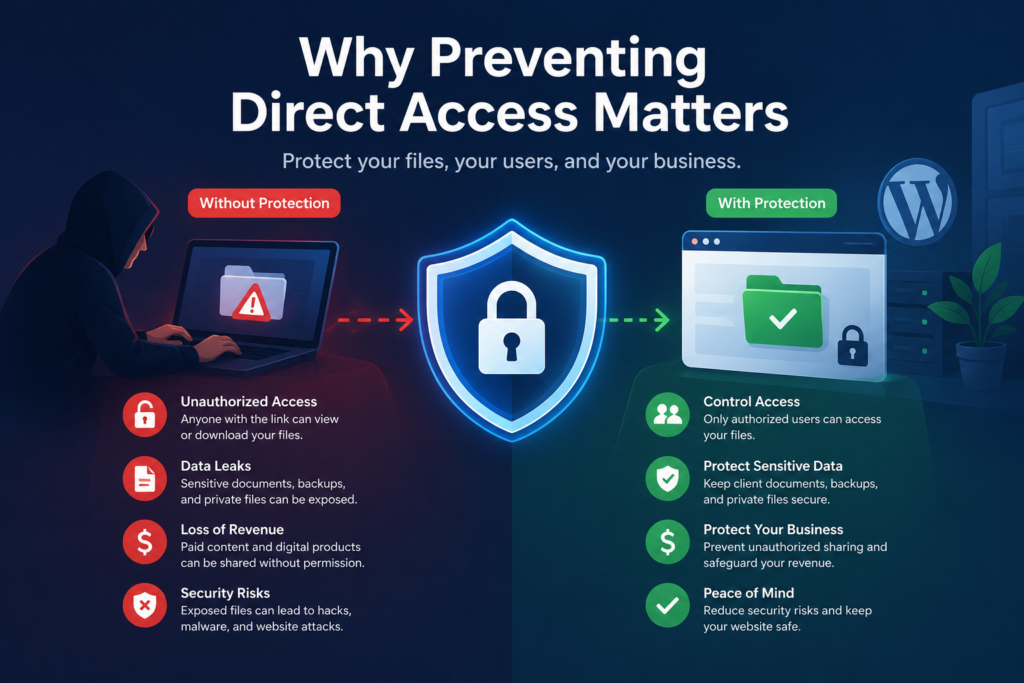
تُعد حماية الوصول المباشر أمراً بالغ الأهمية لأن العديد من أصحاب المواقع الإلكترونية يخلطون بين "غير مرئي" و"غير قابل للوصول". فهما ليسا الشيء نفسه.
يمكن إخفاء ملف من قائمة التصفح مع إمكانية الوصول إليه عبر عنوان URL. يمكن وضع ملف قابل للتنزيل على صفحة خاصة مع إمكانية فتحه مباشرةً من مجلد التحميلات. يمكن حذف مستند من صفحة مع بقائه على الخادم. قد يبقى ملف النسخ الاحتياطي دون أن يُلاحظ في دليل ما، مما قد يُشكل مشكلة أمنية خطيرة.
بالنسبة لمواقع الشركات، قد يؤدي ذلك إلى كشف موارد خاصة. أما بالنسبة لمواقع التجارة الإلكترونية، فقد يؤدي إلى تسريب منتجات رقمية مدفوعة. وبالنسبة لمواقع الدورات التدريبية، فقد يسمح للمستخدمين غير المشتركين بتحميل الدروس. وبالنسبة للوكالات ومقدمي الخدمات، فقد يؤدي إلى كشف وثائق العملاء. أما بالنسبة لمواقع العضوية، فقد يؤدي إلى إضعاف قيمة الاشتراك المدفوع.
تُحسّن حماية الوصول المباشر أيضًا من مستوى أمان موقعك بشكل عام. وهي لا تُغني عن كلمات المرور القوية، أو المصادقة الثنائية، أو التحديثات، أو النسخ الاحتياطية، أو مراقبة الأمان، ولكنها تُضيف طبقة أمان إضافية مهمة. عادةً ما يجمع نظام أمان ووردبريس القوي بين عدة وسائل حماية صغيرة بدلاً من الاعتماد على حل واحد فقط.
قبل تغيير قواعد الخادم أو تثبيت الإضافات، حدد الملفات التي تحتاج فعلاً إلى الحماية. هذه الخطوة تمنع حدوث أضرار غير مقصودة لموقعك.
تشمل هذه المواد الكتب الإلكترونية، والقوالب، وملفات البرامج، وحزم ZIP، وأوراق العمل، وملفات PDF المدفوعة، والموارد المحجوبة، ومواد الدورات التدريبية. إذا كان على المستخدمين الدفع أو الاشتراك أو تسجيل الدخول قبل تنزيلها، فلا ينبغي إتاحة الوصول إليها بشكل مباشر عبر رابط URL.
إذا قمت بتحميل مقترحات أو عقود أو تقارير أو معاينات تصميم أو فواتير أو مستندات سرية للعملاء، فيجب عليك التعامل معها بحرص. حتى لو لم يكن الملف مرتبطًا علنًا، فقد يظل الرابط المباشر يعمل.
يجب عدم وضع ملفات النسخ الاحتياطي، وتصدير قواعد البيانات، وملفات CSV، وحزم الترحيل القديمة في مجلد عام. قد تحتوي هذه الملفات على معلومات حساسة. إذا كنت تستخدم إضافات النسخ الاحتياطي، فتحقق من مكان تخزين أرشيفات النسخ الاحتياطي وما إذا كان الوصول العام إليها محظورًا.
تحتوي بعض ملفات إعداد ووردبريس على معلومات بالغة الأهمية. على سبيل المثال،, ملف wp-config.php يخزن هذا النظام تفاصيل الاتصال بقاعدة البيانات ومفاتيح المصادقة. ولا ينبغي عرضه علنًا عبر متصفح الإنترنت.
يمكن أن يصف الوصول المباشر أيضًا البرامج الآلية أو الزوار غير المرغوب فيهم الذين يقومون بالوصول المتكرر إلى عناوين URL المتعلقة بتسجيل الدخول، مثل: wp-login.php أو /wp-admin/. قد لا ترغب في حظر هذه الخدمات تمامًا للجميع، ولكن يمكنك الحد من التعرض لها من خلال ضوابط وصول أقوى.
قبل إضافة القواعد، قم بإجراء تدقيق بسيط.
أولاً، حدد الملفات التي لا ينبغي أن تكون عامة. يشمل ذلك التنزيلات المدفوعة، والمستندات الخاصة، والنسخ الاحتياطية، والملفات الداخلية. ثم ابحث عن مكان وجود هذه الملفات. تظهر العديد من عمليات تحميل ووردبريس تحت /wp-content/uploads/, وغالباً ما يتم تنظيمها حسب السنة والشهر.
بعد ذلك، افتح نافذة متصفح خاصة أو متخفية. الصق رابط الملف في شريط العناوين. إذا فُتح الملف دون تسجيل دخول أو دفع أو إذن، فهذا يعني أنه متاح مباشرةً.
ثم قم بتجميع الملفات الحساسة في مجلد مخصص كلما أمكن ذلك. على سبيل المثال، بدلاً من توزيع ملفات PDF المدفوعة على مجلدات التحميل الشهرية المختلفة، ضعها في مجلد تنزيلات محمي. هذا يجعل قواعد الوصول أكثر وضوحًا وأسهل في الإدارة.
تُعدّ هذه الخطوة التخطيطية مهمة لأنّ تنظيم الملفات غير المنظم يُؤدي إلى قواعد أمان غير منظمة. يُسهّل هيكل المجلدات المنظم منع الوصول المباشر، ويجعله أكثر أمانًا وموثوقية.
يجب حماية بعض الملفات الحساسة على مستوى الخادم. إذا كان موقعك يعمل على استضافة أباتشي، فيمكنك غالبًا استخدام .ملف .htaccess القواعد. إذا كان موقعك يعمل على Nginx، فستحتاج عادةً إلى قواعد تكوين الخادم، والتي قد تتطلب مساعدة من مزود خدمة الاستضافة الخاص بك.
ال ملف wp-config.php يُعدّ ملف `.org.uk/.org/10 ...
في خوادم أباتشي، يضيف مالكو المواقع عادةً قاعدة لمنع وصول المتصفح إلى ملف wp-config.php. الفكرة بسيطة: لا يزال بإمكان ووردبريس استخدام الملف داخليًا، لكن الزوار لا يستطيعون تحميله مباشرة في المتصفح.
يجب عليك دائمًا تنزيل نسخة احتياطية من .ملف .htaccess قبل تعديله. قد يتسبب خطأ بسيط في بناء الجملة في حدوث خطأ في الخادم. في حال حدوث أي خلل، استعد الملف السابق فورًا.
ال .ملف .htaccess يجب ألا يكون الملف نفسه قابلاً للعرض العام. قد يحتوي على عمليات إعادة توجيه، وقواعد وصول، وتوجيهات أمنية، وتعليمات أخرى للخادم. العديد من الخوادم تخفيه بالفعل، ولكن مع ذلك، يجب عليك التأكد من أن الوصول المباشر إليه لا يكشف أي شيء.
لا تقم بحظر مجلدات ووردبريس بأكملها دون فهم النتيجة. على سبيل المثال، حظر جميع /wp-content/ قد يؤدي ذلك إلى تعطيل صورك، وقوالبك، وإضافاتك، وموارد واجهة المستخدم. حظر جميع /wp-includes/ وقد يتسبب ذلك أيضاً في مشاكل غير متوقعة.
يتمثل النهج الأكثر أمانًا في حظر ملفات معينة أو مجلدات خاصة معينة.
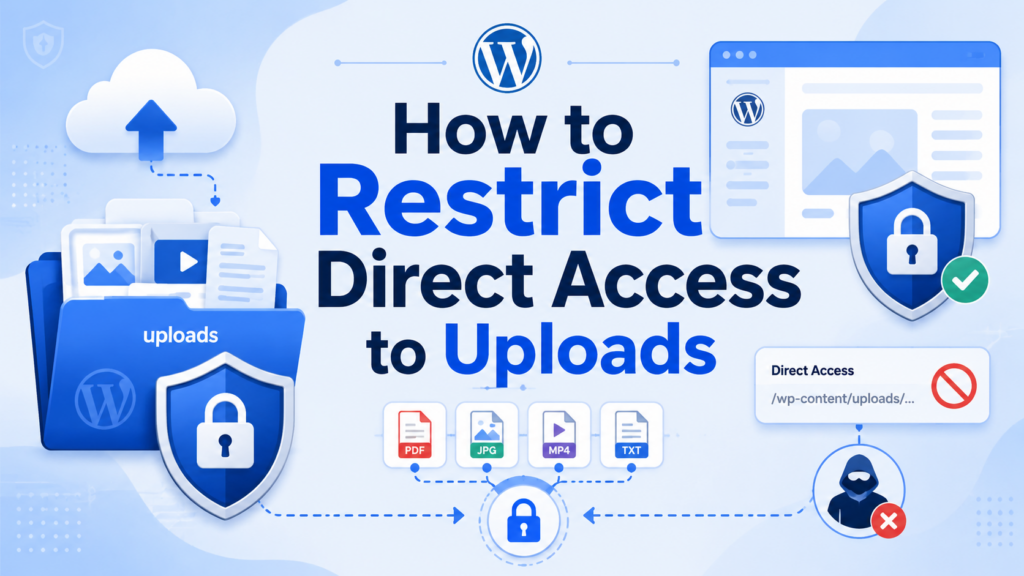
توجد معظم ملفات الوسائط في ووردبريس داخل /wp-content/uploads/. عادةً ما يجب أن يبقى هذا المجلد عامًا لأن موقعك الإلكتروني يستخدمه للصور والوسائط. حظر مجلد التحميلات بالكامل فكرة سيئة في أغلب الأحيان.
بدلاً من ذلك، أنشئ مجلداً مخصصاً للملفات الحساسة، مثل:
/wp-content/uploads/protected-downloads/
ثم ضع الملفات الخاصة داخل هذا المجلد فقط. على استضافة أباتشي، يمكنك إضافة .ملف .htaccess يُوضع الملف داخل المجلد المحمي لمنع الوصول العام إليه. هذا يعني أن الزوار لا يستطيعون فتح الملفات مباشرةً من ذلك المجلد.
مع ذلك، فإن حظر الوصول المباشر ليس سوى نصف الحل. ما زلت بحاجة إلى طريقة مُحكمة لإيصال الملفات إلى المستخدمين المُصرّح لهم. على سبيل المثال، يمكن لمكوّن إضافي خاص بالعضوية، أو مدير تنزيل، أو مكوّن إضافي للتجارة الإلكترونية، التحقق من امتلاك المستخدم للإذن قبل تقديم الملف.
هذا النهج فعال لأن موقع الملف الحقيقي يظل محميًا، بينما لا يزال بإمكان المستخدمين المصرح لهم تنزيل الملفات من خلال عملية خاضعة للرقابة.
لا يشعر جميع أصحاب مواقع ووردبريس بالراحة عند تعديل ملفات الخادم. وهذا أمر مفهوم تمامًا. حرف واحد خاطئ في .ملف .htaccess قد يتسبب ذلك في حدوث أخطاء. إذا كنت تفضل واجهة أكثر أمانًا، فاستخدم إضافة موثوقة لإدارة التنزيلات المحمية أو أذونات الوصول إلى الملفات.
قد تساعدك إضافة جيدة:
تُعد الإضافات مفيدة بشكل خاص لمواقع العضوية، والدورات التدريبية عبر الإنترنت، ومنتجات WooCommerce الرقمية، والمحتوى المقيد، وبوابات العملاء الخاصة.
مع ذلك، لا تُعدّ الإضافات حلاً سحرياً. لذا، عليك اختيار إضافة بعناية، وتحديثها باستمرار، واختبار الروابط المحمية من متصفح غير مُسجّل الدخول. كما يُنصح بتجنّب تثبيت العديد من الإضافات التي تتحكّم في سلوك الوصول إلى الملفات نفسه، لأنّ تداخل القواعد قد يُسبّب تعارضات.
يتضمن جزء آخر من حماية الوصول المباشر منطقة إدارة ووردبريس. غالبًا ما تستهدفها برامج الروبوت. wp-login.php و /wp-admin/ لأن هذه نقاط دخول شائعة.
يمكنك الحد من الوصول غير المرغوب فيه بعدة طرق.
أحد الخيارات هو تقييد وصول المسؤول حسب عنوان IP. يُعدّ هذا الخيار الأمثل عند استخدام عنوان IP ثابت. أما إذا كان عنوان IP الخاص بك يتغير باستمرار، فقد يؤدي ذلك إلى حظر حسابك.
خيار آخر هو مصادقة HTTP، التي تضيف اسم مستخدم وكلمة مرور على مستوى الخادم قبل أن يصل الزوار إلى شاشة تسجيل الدخول في ووردبريس. وهذا يخلق حاجزًا إضافيًا أمام برامج الروبوت.
يمكنك أيضًا استخدام إضافة أمان للحد من محاولات تسجيل الدخول، أو إضافة المصادقة الثنائية، أو تغيير رابط تسجيل الدخول. هذه الخطوات لا تغني عن حماية الملفات، ولكنها تدعم الهدف نفسه: الحد من الوصول المباشر غير الضروري إلى المناطق الحساسة.
بالنسبة لمعظم أصحاب المواقع، فإن أفضل نهج يجمع بين كلمات المرور القوية، والمصادقة الثنائية، وحدود محاولات تسجيل الدخول، وقواعد الوصول الإداري الدقيقة.
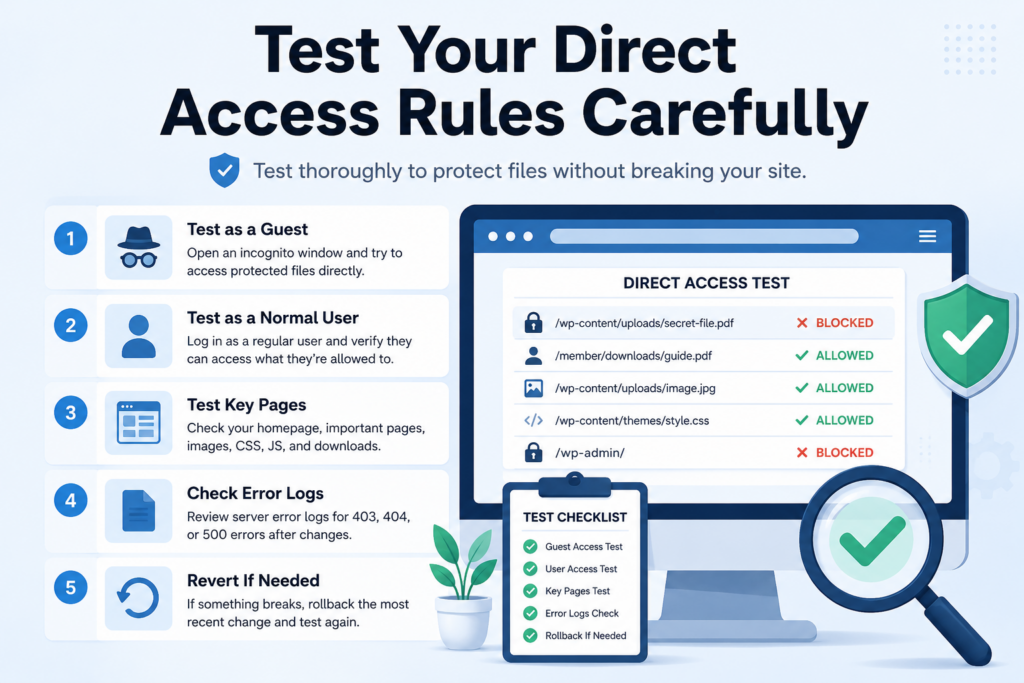
يُعدّ الاختبار من أهم الخطوات. لا تُضِف قواعد وتفترض أن كل شيء يعمل.
ابدأ بنافذة التصفح الخفي. حاول فتح ملف محمي مباشرةً. إذا نجحت الحماية، فسترى خطأ 403، أو صفحة تسجيل دخول، أو استجابة أخرى مُتحكَّم بها.
ثم سجّل الدخول كمستخدم عادي، وليس كمسؤول. تحقق مما إذا كان بإمكان المستخدمين المعتمدين الوصول إلى الملفات التي من المفترض أن يتمكنوا من الوصول إليها. هذا الأمر مهم لأن قاعدة تمنع الجميع قد تحمي الملف ولكنها تُؤثر سلبًا على تجربة المستخدم.
بعد ذلك، تفضل بزيارة صفحتك الرئيسية، وصفحات المنتجات، ومقالات المدونة، وصفحات الدفع، وصفحات الحساب، والأقسام المهمة الأخرى. تأكد من أن الصور والخطوط والبرامج النصية والأنماط لا تزال تُحمّل بشكل صحيح.
تحقق أيضًا من سجلات أخطاء الخادم. إذا لاحظت فجأةً ظهور العديد من أخطاء 403 أو 500، فقد تكون إحدى قواعدك واسعة النطاق للغاية.
إذا حدث خلل ما، فقم أولاً بإلغاء آخر تغيير. ثم استعد نسخة احتياطية، وامسح ذاكرة التخزين المؤقت، وأعد الاختبار. لا تُضف قواعد جديدة حتى تتأكد من القاعدة التي تسببت في المشكلة.
الخطأ الأول هو الإفراط في الحماية. يحاول بعض المبتدئين حماية كل شيء تحت... /wp-content/, لكن هذا المجلد يحتوي على أصول عامة يحتاجها موقعك الإلكتروني.
الخطأ الثاني هو حماية الصفحة دون حماية الملف الموجود خلفها. فحماية الصفحة لا تعني بالضرورة حماية الملف المرفوع. يجب عليك التحقق من رابط الملف مباشرةً.
الخطأ الثالث هو ترك النسخ الاحتياطية في مجلدات عامة. يجب تخزين أرشيفات النسخ الاحتياطية وتصدير قواعد البيانات بشكل آمن، وتنزيلها محليًا عند الحاجة، أو وضعها في مكان محمي.
الخطأ الرابع هو نسيان الملفات القديمة. إزالة رابط من صفحة ما لا يعني بالضرورة حذف الملف من الخادم. إذا لم يعد من المفترض أن يكون الملف متاحًا، فاحذفه أو احمِه.
الخطأ الخامس هو تخطي النسخ الاحتياطية قبل تعديل القواعد. احتفظ دائمًا بخيار التراجع.
لتجنب مشاكل الوصول المباشر إلى ووردبريس بمرور الوقت، قم بإنشاء سير عمل قابل للتكرار.
أنشئ مجلدًا مخصصًا للملفات المحمية. تجنب خلط التنزيلات الخاصة مع تحميلات الصور العادية. استخدم أسماءً واضحة، ولكن لا تُضمّن معلومات شخصية حساسة في أسماء الملفات.
راجع مكتبة الوسائط الخاصة بك بانتظام. احذف الملفات التي لم تعد بحاجة إليها. انقل الملفات الخاصة إلى وحدة تخزين محمية. تحقق مما إذا كانت عمليات التصدير القديمة أو الفواتير أو الملفات المؤقتة لا تزال متاحة.
استخدم الإضافات عندما تحتاج إلى تغيير الصلاحيات بناءً على دور المستخدم، أو حالة الشراء، أو مستوى العضوية، أو حالة تسجيل الدخول. تُعد قواعد الخادم مفيدة لحظر الوصول، ولكن إضافات ووردبريس غالبًا ما تكون أفضل للتحكم في عملية الوصول.
حافظ على تحديث موقعك الإلكتروني. قد تتسبب الإضافات والقوالب القديمة في ثغرات أمنية لا تستطيع قواعد الوصول المباشر معالجتها.
وأخيرًا، وثّق إعداداتك. دوّن المجلدات المحمية، والإضافة المسؤولة عن التنزيلات، وكيفية استعادة القواعد في حال حدوث أي خلل. هذا يُسهّل الصيانة المستقبلية ويُقلّل من الارتباك.
فهم كيفية منع الوصول المباشر ووردبريس تساعدك ميزة الملفات على حماية التنزيلات الخاصة، والمستندات الحساسة، وملفات الإعدادات، ومناطق الإدارة من الوصول غير الضروري. يحدث الوصول المباشر عادةً عندما يفتح شخص ما رابط ملف مباشرةً بدلاً من المرور عبر نظام الأذونات الذي صممته.
تبدأ الطريقة الأكثر أمانًا بمراجعة شاملة. حدد الملفات التي تحتاج إلى حماية، ونظمها في مجلدات مخصصة، وتجنب حجب الموارد العامة التي يحتاجها موقعك. استخدم قواعد الخادم للملفات الهامة والمجلدات الخاصة عندما تفهم إعدادات الاستضافة لديك. استخدم الإضافات عندما تحتاج إلى إدارة أسهل، أو صلاحيات خاصة بالأعضاء، أو روابط تنزيل محمية، أو أدوات تحكم سهلة الاستخدام.
الأهم من ذلك كله، اختبر كل تغيير. يجب أن يمنع الإعداد القوي الزوار غير المصرح لهم مع السماح للمستخدمين المعتمدين بالوصول إلى الملفات المناسبة. من خلال التخطيط الدقيق، والنسخ الاحتياطية، وقواعد الوصول المُحكمة، والمراجعات الدورية، يمكنك جعل موقع ووردبريس الخاص بك أكثر أمانًا دون التأثير سلبًا على تجربة المستخدم.
يعني الوصول المباشر إمكانية فتح ملف أو رابط مباشرةً في المتصفح دون المرور بنظام الأذونات الذي حددته. على سبيل المثال، قد يظل ملف PDF خاص متاحًا إذا كان لدى شخص ما رابط الملف الكامل.
يجب عليك منع الوصول المباشر إلى ملفات ووردبريس لحماية التنزيلات الخاصة، ومستندات العملاء، والنسخ الاحتياطية، والمحتوى المدفوع، والوسائط الحساسة. فبدون الحماية، قد يشارك المستخدمون الملفات أو يفتحونها دون تسجيل دخول أو دفع أو إذن.
لا. معظم الملفات التي يتم تحميلها إلى مكتبة وسائط ووردبريس متاحة للعامة بشكل افتراضي. حتى لو لم يظهر الملف على صفحة ما، فقد يظل بالإمكان الوصول إليه عبر رابطه المباشر.
يجب عليك حماية ملفات PDF الخاصة، وملفات ZIP، والمنتجات الرقمية، ومواد الدورة التدريبية، والفواتير، ومستندات العملاء، وتصدير قواعد البيانات، وملفات النسخ الاحتياطي، وأي محتوى يجب أن يكون متاحًا فقط للمستخدمين المعتمدين.
عادةً، لا ينبغي حظر مجلد التحميلات بالكامل لأن ووردبريس يستخدمه للصور والفيديوهات والوسائط الأخرى العامة. والأفضل إنشاء مجلد محمي منفصل للملفات الخاصة.
الطريقة الأكثر أمانًا هي الجمع بين بنية ملفات واضحة، وقواعد وصول على مستوى الخادم، وإضافات أمان أو حماية تنزيل موثوقة، واختبار دقيق. احرص دائمًا على عمل نسخة احتياطية لموقعك قبل إجراء أي تغييرات. .ملف .htaccess, ، قواعد Nginx، أو أذونات الملفات.


















