












Introduction
In today’s rapidly evolving digital landscape, establishing a presence on the internet is no longer a luxury reserved for massive corporations or highly skilled computer programmers. Whether you are launching a personal blog, a portfolio, a small business storefront, or a multinational corporate hub, the foundation of your digital identity starts with a website. If you have spent any amount of time researching how to build one, you have undoubtedly encountered a ubiquitous name: WordPress.
Powering over forty percent of all the websites on the internet, this platform is an absolute titan in the digital space. However, for a complete beginner, the sheer scale and capability of this platform can feel incredibly overwhelming. You might be staring at your screen wondering about the fundamental mechanics of it all. Specifically, the most critical question remains: how to use wordpress software efficiently, securely, and effectively?
This comprehensive guide is designed to demystify the technology. We will strip away the complex developer jargon and approach this topic from a popular science and educational perspective. By breaking down the software into logical, digestible components, we will explore the underlying architecture of the platform, how its various parts interact, and how you can harness its power to build your own digital empire from scratch.
1. Demystifying the Core: What Exactly is WordPress?
Before we can dive into the operational steps of how to use wordpress software, we must first define what it actually is from a technical standpoint. At its very core, WordPress is a Content Management System (CMS). But what does that mean in practical terms?
Imagine the early days of the internet. If you wanted to publish a simple article with a photograph, you had to write raw HTML (HyperText Markup Language) and CSS (Cascading Style Sheets). You had to manually tell the web browser exactly where the text should go, what color it should be, and how the image should be aligned. Every time you wanted to update a single word, you had to edit the code directly.
A Content Management System fundamentally revolutionizes this process. You can think of WordPress as a highly sophisticated, visual “wrapper” or interface that sits on top of complex database architecture (specifically MySQL) and server-side scripting languages (specifically PHP). It translates your visual commands—like clicking a “Publish” button or typing in a text box—into the complex code required to render a web page. It manages the database where all your text is stored, and it manages the files where all your images are kept.
The Great Divide: .com vs. .org
This is the very first, and arguably the most common, stumbling block for beginners. When you search for the software, you will find two different domains, and understanding the difference is crucial.
- WordPress.com: This is a hosted service. It functions similarly to platforms like Blogger, Medium, or Squarespace. You simply create an account, and you can start writing. However, because the company is hosting it for you, your freedom is severely restricted. You cannot upload custom themes or plugins unless you pay for highly expensive premium tiers, and you do not truly own the underlying asset.
- WordPress.org: This is the true home of the open-source software. This is where you can download the actual software files completely for free. You take these files and install them on your own server. This method is called “self-hosting.” When you self-host, you have absolute, 100% control over every single pixel and line of code on your website.
For the purposes of this educational guide, when we discuss how to use wordpress software, we are exclusively referring to the self-hosted, open-source version found at the .org domain, as this is the industry standard for professional web development.
2. Setting Up the Digital Real Estate: Domains and Hosting
You cannot install this software on your local computer’s desktop and expect the world to be able to visit it. The software requires a permanent, always-online environment to function. This requires two fundamental pieces of digital infrastructure.
The Domain Name
Your domain name is your digital street address (for example, www.yourwebsite.com). Without a domain name, computers would only be able to find your website using a string of complex numbers known as an IP address (like 192.168.1.1). The domain name acts as a human-readable shortcut. You purchase these through domain registrars, paying an annual fee to maintain ownership of that specific sequence of letters.
The Web Hosting Server
If the domain is your street address, your web hosting is the physical plot of land where your house is built. A web host is a company that owns massive, high-powered computers (servers) stored in climate-controlled data centers that are connected to the internet 24/7. When you buy a hosting plan, you are renting a small slice of their server’s hard drive and processing power.
This is where the actual software installation happens. Modern web hosting companies have made this process incredibly streamlined. In the past, you had to manually create databases and upload thousands of files via File Transfer Protocol (FTP). Today, almost all reputable web hosts offer a “One-Click Installation” feature. You simply click a button, tell the host what you want your username and password to be, and their automated systems install and configure the software on your server space within seconds.
3. The Command Center: Navigating the Dashboard
Once the software is successfully installed on your hosting server, you will log into your website’s “backend.” You typically access this by typing /wp-admin at the end of your domain name. This brings you to the Dashboard.
Understanding the Dashboard is the most critical step in learning how to use wordpress software. The Dashboard is the private control room where all the creation, deletion, configuration, and management of your website takes place. The general public never sees this area; they only see the “frontend” of your website.
Let’s dissect the anatomy of the Dashboard:
- The Left-Hand Navigation Menu: This is your primary toolkit. It is a vertical black bar containing all the vital operational categories. Here you will find tabs for Posts, Pages, Media, Comments, Appearance, Plugins, Users, Tools, and Settings. As you add more features to your site, this menu will expand.
- The Top Admin Bar: This horizontal bar sits at the very top of your screen. It provides quick-access shortcuts to create a new post, review pending comments, or instantly toggle between viewing the backend Dashboard and the frontend public view of your website.
- The Main Workspace: The large central area of the screen changes depending on what you have clicked in the left-hand menu. It might display your site’s visitor statistics, a list of your published articles, or the complex settings of a specific security tool.
Treat the Dashboard as the operating system of your website. Every toggle you switch and every word you type here is instantly translated into the public-facing version of your digital property.
4. The Architecture of Content: Posts vs. Pages
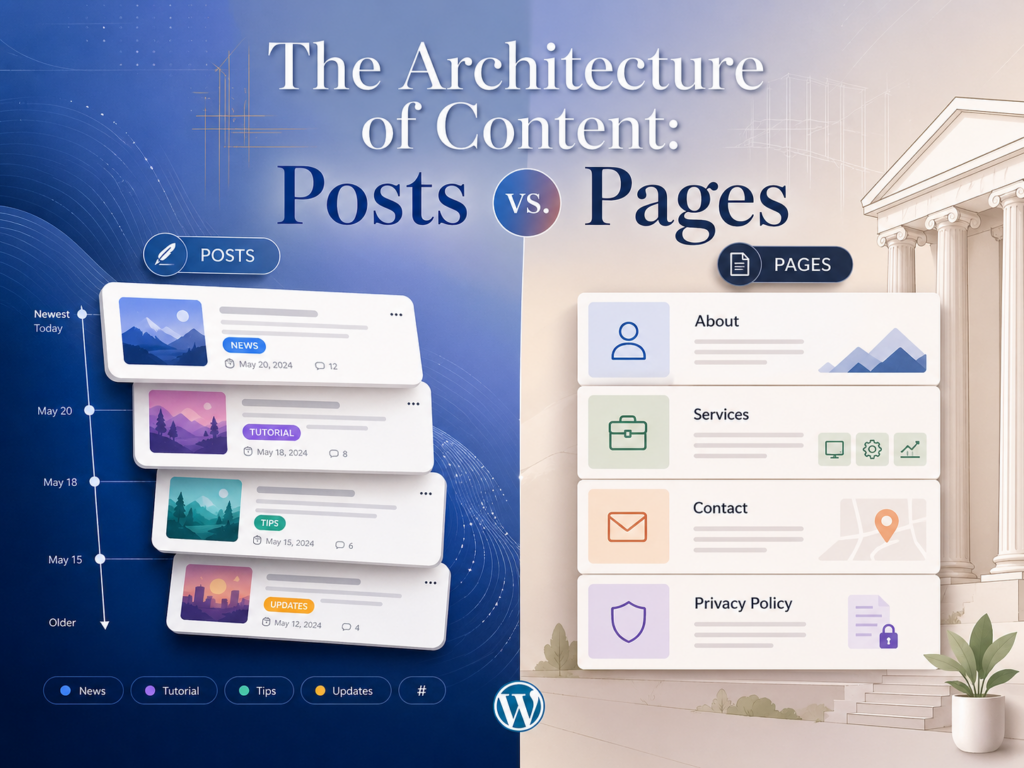
As a Content Management System, the software is designed primarily to handle text, images, and video. However, it organizes this content into two very distinct architectural structures. Failing to understand the difference between these two structures is a common novice mistake.
Posts (Dynamic Content)
Posts are the lifeblood of a blog or a news outlet. They are characterized by their dynamic, chronological nature.
- Time-Stamped: Every post is stamped with a publication date and time. By default, the software displays your newest posts at the top of your blog page, pushing older posts further down.
- Social and Interactive: Posts typically include an author byline, social sharing buttons, and a comment section at the bottom, encouraging dialogue with your readership.
- Organization: Because a website might have thousands of posts over its lifespan, the software uses Categories and Tags to keep them organized. Categories act as broad table-of-contents (e.g., “Technology,” “Health,” “Finance”), while tags are highly specific index keywords (e.g., “smartphone review,” “cardio workout,” “stock market trends”).
Pages (Static Content)
Pages, on the other hand, are the foundational pillars of your website’s architecture. They are static, timeless entities.
- Timelessness: Pages do not have publication dates displayed, nor are they organized chronologically. They exist permanently in your website’s navigation menus.
- Structural Role: You use Pages for information that rarely changes. Standard examples include your “About Us” page, “Contact Information,” “Privacy Policy,” “Terms of Service,” or the static “Home” page that greets visitors when they type in your main domain name.
- Hierarchy: Pages can be organized hierarchically. You can have a “Services” parent page, and beneath it, “Consulting” and “Design” as child pages.
By strategically combining dynamic Posts for ongoing updates and static Pages for foundational information, you create a logically structured website that is easy for visitors to navigate.
5. The Visual Layer: Dressing Your Site with Themes
One of the most brilliant engineering aspects of this platform is the strict separation of content and presentation. Your written words, images, and database entries represent your content. The visual design—the colors, the layout, the fonts—represents the presentation.
In the ecosystem of this platform, the presentation layer is controlled entirely by Themes. This means you can write hundreds of articles, and then instantly change the entire look and feel of your website with a single click by activating a new Theme, without ever losing a single word of your content. It is the equivalent of changing your clothes without changing the person wearing them.
To manage this, you navigate to Appearance > Themes in your Dashboard. You have access to the official repository, which contains thousands of free themes.
When deciding how to visually present your site, keep these scientific principles of web design in mind:
- Code Weight and Speed: A visually stunning theme with heavy, complex code will load slowly. In the modern internet, a delay of just three seconds can cause half of your visitors to leave. Always prioritize lightweight, speed-optimized themes.
- Responsive Design: Over sixty percent of global web traffic comes from mobile devices. Your theme must be inherently “responsive,” meaning the code automatically detects the screen size of the user (whether it’s a massive desktop monitor or a tiny smartphone) and magically rearranges the layout to fit perfectly.
- The Customizer: Most modern themes utilize the built-in Customizer tool, which allows you to change brand colors, upload logos, and adjust typography while watching the changes happen in a real-time preview window before you officially publish them.
6. Expanding Functionality: The Power of Plugins
If Themes are the clothes your website wears, Plugins are the tools and superpowers it wields. Understanding plugins is the most exciting part of learning how to use wordpress software, because it transforms the platform from a simple blogging tool into anything you can imagine.
Plugins are discrete packages of PHP code created by developers around the world. You install them onto your platform just like you would download an app onto your smartphone. They inject new functionality directly into the core software.
The possibilities are virtually limitless:
- E-Commerce: By installing a free plugin called WooCommerce, you can instantly transform your standard website into a fully functional online store, complete with shopping carts, secure credit card processing gateways, and automated shipping calculations.
- Search Engine Optimization (SEO): Plugins like Yoast SEO or Rank Math analyze your written text as you type, giving you real-time feedback on how easily search engines like Google will be able to read and rank your content.
- Security and Performance: You can install firewall plugins to block malicious hackers, and caching plugins that compress your images and code, making your website load at lightning speeds.
A Crucial Warning on Plugin Bloat: It is tempting for beginners to install dozens of plugins to make their site do cool tricks. However, from a computer science perspective, every plugin adds extra code that the server must process. Too many plugins will inevitably slow down your server response times, cause software conflicts where two plugins break each other’s code, and open up vulnerabilities for cyberattacks. The golden rule is minimalism: only install plugins that are absolutely essential to your business goals, and immediately delete any plugin you are no longer actively using.
7. The Modern Canvas: Mastering the Block Editor (Gutenberg)
For the first fifteen years of its existence, the software utilized a “Classic Editor,” which looked and functioned very much like a standard Microsoft Word document. However, the platform recently underwent a massive evolutionary leap to modernize how content is structured on the web, introducing the Block Editor (often referred to by its development codename, Gutenberg).
If you are learning how to use wordpress software today, you must understand the concept of “Blocks.”
Instead of viewing an article as a single, continuous stream of text, the Block Editor breaks every single element of your page down into individual, modular components.
- A paragraph of text is a block.
- A photograph is a block.
- A bulleted list is a block.
- A YouTube video embed is a block.
- A “Buy Now” button is a block.
Why is this modular approach scientifically superior? Because you can manipulate every block independently. You can easily drag and drop a video block above a text block to rearrange your layout. You can change the background color of one specific paragraph block without affecting the rest of the article. You can create complex layouts—like placing a text block and an image block side-by-side in columns—without needing to know a single line of HTML or CSS code. It democratizes complex web design, turning it into a visual, Lego-like building experience.
8. Fundamental Settings and SEO Optimization
Before you begin publishing content to the world, there are deep-level configurations within the software that must be addressed. Navigating to the Settings tab is critical for ensuring your site functions logically and interacts favorably with search engine algorithms.
The Science of Permalinks
Under Settings > Permalinks, you control the URL structure of your website. By default, the software might generate URLs based on database ID numbers, resulting in links that look like www.yourwebsite.com/?p=1045.
From an informational science and SEO perspective, this is a disaster. Search engine web crawlers (the bots that index the internet) cannot understand what that page is about by reading the URL. Furthermore, human beings don’t trust links that look like random code. You must change your Permalink setting to “Post Name.” This forces the software to generate clean, readable URLs based on your title, such as www.yourwebsite.com/my-first-article/. This immediately communicates context to both machines and humans.
Site Identity and Interaction
Under Settings > General, you must define your Site Title and Tagline. This is the metadata that appears in browser tabs and on Google search result pages. It is the absolute core of your digital branding.
Under Settings > Discussion, you must configure how you handle user interaction. The internet is full of automated “bot” scripts that crawl websites leaving spam comments containing malicious links. You should configure the software to hold all comments for manual moderation, ensuring your professional website does not become a dumping ground for automated spam.
9. The Long Game: Security, Maintenance, and Best Practices
Finally, understanding how to use wordpress software requires an acknowledgment that a website is not a “set it and forget it” entity. Because the platform powers such a massive percentage of the global internet, it is inherently a high-value target for cybercriminals. However, maintaining airtight security is highly achievable if you follow basic maintenance protocols.
The Holy Trinity of Updates
The developers behind the open-source project, as well as the independent developers creating themes and plugins, are constantly patching security vulnerabilities and improving code efficiency. Your Dashboard will notify you when updates are available. You must regularly update your Core Software, your Active Theme, and all your Plugins. Running outdated software is the primary reason websites get compromised.
The Fail-Safe: Automated Backups
In the world of computer science, data that doesn’t exist in at least two places essentially doesn’t exist. Servers can fail, updates can clash, and human errors (like accidentally deleting an important page) happen frequently. You must install a reliable backup plugin that automatically copies your entire database and file system to a remote cloud storage location (like Google Drive or Dropbox) every single day. If a catastrophic failure occurs, you can restore your entire website to its previous state with a single click.
Access Control
Never use the default username admin. Hackers use automated scripts that will guess passwords for the admin account thousands of times a second. Create a unique administrator username and utilize a password manager to generate a complex, 16-character alphanumeric password. Implementing Two-Factor Authentication (2FA) via a plugin adds an impenetrable layer of security to your login page.
Conclusion
Navigating the complexities of digital creation becomes entirely manageable once you understand the underlying mechanics of the tools at your disposal. Learning how to use wordpress software is essentially a process of understanding its modular architecture. It begins with securing the foundational real estate of a domain name and web hosting server. From there, the Dashboard acts as your central command center, allowing you to differentiate between dynamic chronological Posts and structural static Pages. By utilizing lightweight Themes to dictate the visual presentation and carefully selecting Plugins to expand functionality, you can build a highly customized digital experience. Furthermore, by mastering the modular Block Editor and adhering to strict protocols regarding SEO permalinks, software updates, and automated database backups, you ensure that your website remains both visible to search engines and securely protected against digital threats. The true power of this open-source platform lies in its immense flexibility, offering a robust foundation that can scale seamlessly alongside your personal or business growth.
FAQ
1. Do I need to know how to code to use WordPress software?
No. While the underlying architecture is built on complex code like PHP, HTML, and CSS, the software provides a highly visual Dashboard and the modular Block Editor (Gutenberg). You can build, design, and manage a professional website using intuitive drag-and-drop mechanics without ever writing a single line of code.
2. What is the core difference between WordPress.com and WordPress.org?
WordPress.com is a hosted service (similar to basic blogging platforms) where the company manages the servers, but your ability to customize your site or install third-party tools is heavily restricted unless you pay for expensive premium tiers. WordPress.org provides the free, open-source software that you install on your own web hosting server, granting you 100% absolute ownership and control over every aspect of your site.
3. Is using WordPress software completely free?
The core WordPress software itself is 100% free and open-source. However, operating a live website requires digital infrastructure. You must pay an annual fee for a domain name (your web address) and a monthly or annual fee for a web hosting server to store your site’s data. Furthermore, while thousands of themes and plugins are free, premium versions with advanced features will cost extra.
4. What is the difference between a Theme and a Plugin?
A Theme acts as the visual layer of your website; it dictates the layout, color schemes, typography, and overall aesthetic design. A Plugin acts as the functional layer; it is a discrete package of code that injects new features into your site, such as an e-commerce shopping cart, a contact form, or advanced security firewalls.
5. When should I create a “Post” versus a “Page”?
Use Posts for dynamic, time-sensitive content like news updates, podcast episodes, or blog articles. Posts are organized chronologically and utilize categories and tags. Use Pages for static, foundational content that rarely changes, such as your “About Us” page, your “Terms of Service,” or your main Homepage.
6. How do I keep my WordPress website secure from cyber threats?
Because of its massive popularity, WordPress is a common target for automated bot attacks. The most scientifically effective way to protect your site is the “Holy Trinity of Updates”: consistently updating your core software, your active theme, and all plugins. Additionally, you should never use “admin” as your username, utilize complex alphanumeric passwords, implement Two-Factor Authentication (2FA), and always maintain automated daily backups.


Design and build a WordPress website or corporate site with a full eCommerce system for you.
Price range: $200.00 through $2,500.00custom-requirements-or-special-quotations
Original price was: $2.00.$1.00Current price is: $1.00. Are 50 Plugins Too Many for a WordPress eCommerce Store?
Understanding the Real Performance Impact Having 50 plugins on a WordPress eCommerce site isn’t automatically a problem. In fact, the number alone rarely determines performance....

Main Image Design for Amazon Home Physiotherapy Device Explained
Introduction: Building a Trustworthy Image for Home Therapy Devices on Amazon When designing the main image for a home therapy device on Amazon, our primary...

Main Image Design for Amazon Lipstick Conversion
Introduction: Designing a Lipstick Main Image That Sells on Amazon When we design a Main image for an Amazon lipstick, our responsibility goes far beyond...

How Hackers Steal WordPress Admin Emails (And How to Stop Them)
Let’s start with an uncomfortable truth: Your WordPress admin email is probably way more public than you think.And hackers? They love that. To them, your...

What Makes an Amazon Liquid Foundation Main Image Convert
Introduction Designing a Main image design for Amazon Liquid foundation is never just about making a product look beautiful. On Amazon, the main image and...

Designing an Effective Amazon Main Image for Filter Cartridges
Introduction Designing a Main image for Amazon is never just about making a product look attractive. It is about clarity, trust, and instant understanding—especially for...

Replay Attacks on WordPress: Real Threat or Overhyped Myth?
Let’s clear something up first. Replay attacks don’t look scary.They don’t smash passwords.They don’t inject evil code with green hacker text flying everywhere. They’re sneaky....

How to Duplicate WordPress Pages Without Breaking Anything
Let’s face it. Sometimes you don’t want to create a new page.You just want the same page… but slightly different. Same layout.Same blocks.Same settings. Because...

Five Pet WordPress Themes Compared
Introduction Choosing the right pet-related WordPress theme is more than a design decision—it directly affects usability, scalability, and long-term business growth. Pet care and pet...

Comparing Five Swimwear eCommerce Themes
Introduction Choosing the right theme for a swimwear or lingerie independent store is not just a visual decision—it directly affects conversion rates, scalability, and long-term...

How to Turn Off Comments in WordPress (Without Losing Your Mind)
Let’s talk about WordPress comments. In theory, comments are great.They encourage discussion.They build community.They make your website feel “alive.” In reality? They’re often a magnet...

WordPress 500 Error: When Your Website Decides to Panic
Your WordPress site was fine a minute ago.You refreshed the page.And suddenly—boom 💥—500 Internal Server Error. No explanation.No apology.Just a cold, confusing message that basically...

Building a Scalable WordPress Website for a Science-Driven Brand: The AminoUSA Project
Introduction In today’s digital landscape, a website is more than a place to list products. For science-driven brands operating in regulated or research-focused industries, a...

Building a Scalable Shopify Store for a Global Blade Brand: The CoolKatana Project
Introduction In cross-border eCommerce, a Shopify website is more than a storefront.For brands operating in niche, culture-driven categories, the website must do far more than...

Designing a High-Conversion Shopify Store for Pokémon Cards
Introduction In the world of collectible eCommerce, especially within the Pokémon Trading Card Game (TCG) market, a website must do more than simply list products....

High-Converting Shopify Design for a Custom Brick Brand
Introduction In today’s competitive eCommerce landscape, especially in the personalized gift and collectible space, a Shopify website must do far more than display products. It...

How to Contact Shopify Support: Simple, Stress-Free Guide
Running a Shopify store should feel exciting—not confusing. When questions pop up or issues slow you down, Shopify offers several support paths depending on what...

How to Deactivate a Shopify Store: A Clear, Practical Guide
Deactivating a Shopify store isn’t complicated, but it does come with consequences many merchants overlook. This guide breaks the process down in a simple, educational...