












If you are learning WordPress development, building websites for clients, or preparing projects before launching them online, having a reliable local development environment is essential.
For Windows users, Laragon has become one of the most popular local server tools thanks to its speed, simplicity, and developer-friendly design. Combined with WordPress, it allows you to build, test, and refine websites locally—without touching a live server.
In this guide, we’ll explain how to install WordPress on Laragon in a clear, beginner-friendly way. Even if you’ve never worked with a local environment before, this article will walk you through the entire process step by step.
What Is Laragon and Why Use It?

Laragon is an all-in-one local development environment designed specifically for Windows. It bundles everything needed to run dynamic websites locally, including:
- Apache or Nginx
- PHP (multiple versions supported)
- MySQL or MariaDB
- Built-in virtual hosts
- Automatic environment configuration
Unlike older tools such as XAMPP or WAMP, Laragon focuses on speed, simplicity, and flexibility. You can create a new WordPress site in minutes, switch PHP versions easily, and keep your system clean.
For developers and designers, Laragon is especially useful when:
- Testing WordPress themes or plugins
- Building client websites offline
- Practicing WordPress development
- Preparing sites before migration to production servers
Why Install WordPress Locally?
Before we dive into how to install WordPress on Laragon, it’s important to understand why local installation matters.
Installing WordPress locally allows you to:
- Experiment safely without breaking a live site
- Develop faster without internet dependency
- Test plugins, themes, and updates risk-free
- Save hosting costs during development
- Work on multiple projects at the same time
For agencies, freelancers, and cross-border teams, local WordPress development is a standard and highly efficient workflow.
System Requirements Before You Start
Before installing WordPress on Laragon, make sure your system meets these basic requirements:
- Windows 10 or later
- Administrator access
- At least 2GB of RAM (4GB+ recommended)
- Enough disk space for projects
Laragon is lightweight, so most modern Windows machines will run it smoothly.
Step 1: Download and Install Laragon
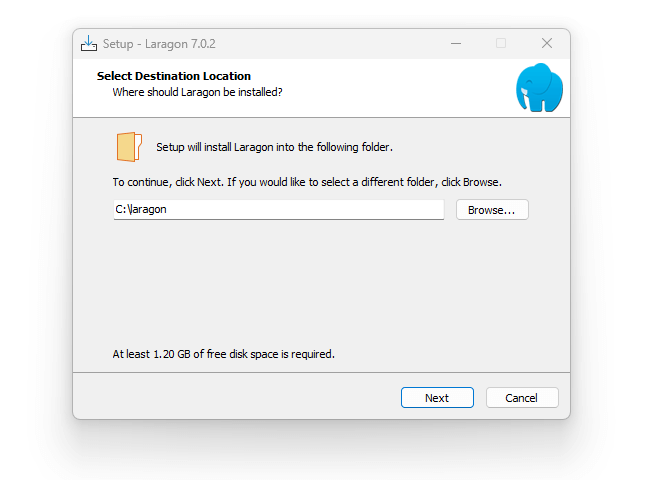
First, download Laragon from its official website. Choose the Full version, which includes all essential components.
Once downloaded:
- Run the installer as administrator
- Choose an installation directory (default is fine)
- Complete the installation process
- Launch Laragon
After opening Laragon, you should see a clean control panel with Start All, Web, and Database options.
Click Start All to run Apache/Nginx and MySQL.
If everything turns green, your local server is ready.
Step 2: Download WordPress
Next, download the latest version of WordPress from its official website.
You will receive a .zip file containing the WordPress core files.
Do not extract it yet—we’ll place it in the correct directory first.
Step 3: Create a Project Folder in Laragon
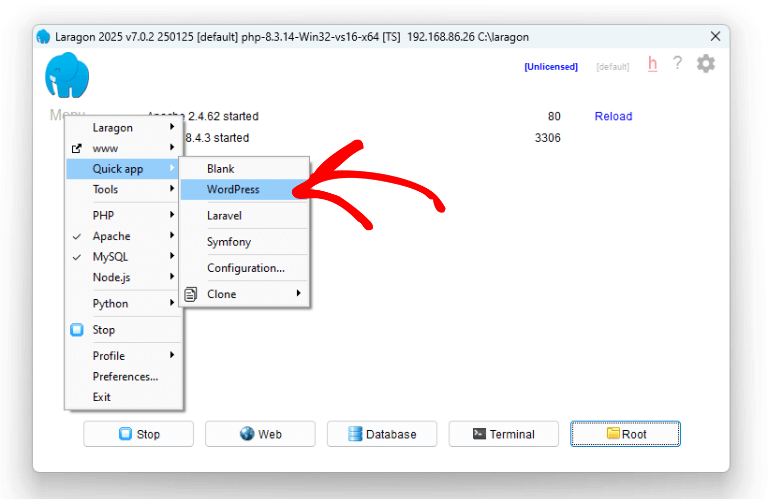
Laragon uses a simple folder structure.
- Navigate to your Laragon installation directory
- Open the
wwwfolder - Create a new folder for your WordPress site
For example:
www/
└── mywordpresssite/
Now extract the WordPress ZIP file into this folder.
After extraction, the folder should contain files like:
- wp-admin
- wp-content
- wp-includes
- wp-config-sample.php
Step 4: Create a Database Using Laragon
WordPress requires a database to store content, settings, and user information.
To create one in Laragon:
- Open Laragon
- Click Database
- Choose phpMyAdmin (or Adminer)
- Log in (default user is usually
rootwith no password) - Click New
- Create a database (for example:
wordpress_local)
You don’t need to create tables manually—WordPress will handle that.
Step 5: Access Your Local WordPress Site
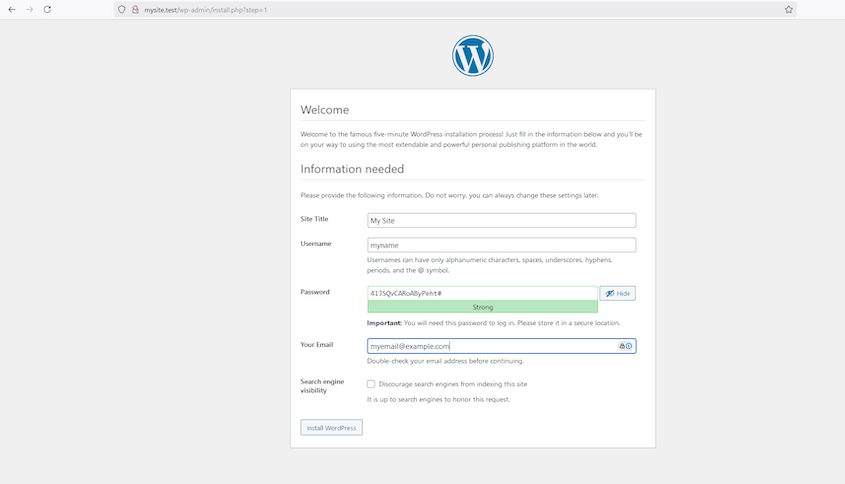
Now it’s time to access your site in the browser.
Laragon automatically creates virtual hosts, so you can simply open:
http://mywordpresssite.test
If configured correctly, you’ll see the WordPress installation screen.
This is one of Laragon’s biggest advantages—you don’t need to mess with hosts files or manual configuration.
Step 6: Run the WordPress Installation Wizard
The WordPress setup wizard will guide you through the final steps.
You’ll need to enter:
- Database Name:
wordpress_local - Username:
root - Password: (leave empty, unless you changed it)
- Database Host:
localhost - Table Prefix:
wp_(default is fine)
Click Submit, then Run the Installation.
Next, set:
- Site Title
- Admin Username
- Admin Password
- Admin Email
Once completed, WordPress will finalize the setup.
Step 7: Log Into Your WordPress Dashboard
After installation, log into your local WordPress admin panel:
http://mywordpresssite.test/wp-admin
You now have a fully functional WordPress site running locally on Laragon.
From here, you can:
- Install themes and plugins
- Design pages
- Develop custom features
- Test layouts and performance
Common Issues and How to Fix Them
Even though Laragon is beginner-friendly, a few issues may occur.
Port Conflicts
If Apache won’t start, another program may be using port 80.
Solution:
- Close conflicting software (Skype, IIS, etc.)
- Or switch to Nginx in Laragon settings
Database Connection Error
Double-check:
- Database name
- Username and password
- MySQL service is running
Site Not Loading
Try:
- Restarting Laragon
- Checking folder names
- Clearing browser cache
Most issues can be resolved in minutes.
Why Laragon Is Ideal for WordPress Development
Compared to other local tools, Laragon offers:
- Faster startup speed
- Clean virtual host management
- Easy PHP version switching
- Portable installation option
- Minimal system clutter
For designers and developers working on multiple WordPress projects, Laragon dramatically improves efficiency.
From Local Development to Live Website
Installing WordPress on Laragon is just the first step.
Once your site is ready, you’ll likely want to:
- Migrate it to a live server
- Optimize performance and SEO
- Design conversion-focused pages
- Prepare it for international markets
This is especially important for cross-border businesses, where website structure, speed, and trust signals directly affect sales.
How AIRSANG Can Help
Learning how to install WordPress on Laragon gives you full control over your development workflow—but turning a local site into a high-performing, revenue-driven website is another challenge.
At AIRSANG, we specialize in:
- Cross-border website design and development
- WordPress and Shopify solutions
- Conversion-focused layouts
- Brand-level visual and UX strategy
- Preparing websites for global markets
Whether you’re building from scratch, migrating from local to live, or redesigning for better conversions, our team can help you move faster and avoid costly mistakes.
If you’re working on a WordPress project and want professional support—from structure to design to launch—AIRSANG is here to help.


Design and build a WordPress website or corporate site with a full eCommerce system for you.
Price range: $200.00 through $2,500.00Custom requirements or special quotations
Original price was: $2.00.$1.00Current price is: $1.00. Are 50 Plugins Too Many for a WordPress eCommerce Store?
Understanding the Real Performance Impact Having 50 plugins on a WordPress eCommerce site isn’t automatically a problem. In fact, the number alone rarely determines performance....

Main Image Design for Amazon Lipstick Conversion
Introduction: Designing a Lipstick Main Image That Sells on Amazon When we design a Main image for an Amazon lipstick, our responsibility goes far beyond...

How Hackers Steal WordPress Admin Emails (And How to Stop Them)
Let’s start with an uncomfortable truth: Your WordPress admin email is probably way more public than you think.And hackers? They love that. To them, your...

What Makes an Amazon Liquid Foundation Main Image Convert
Introduction Designing a Main image design for Amazon Liquid foundation is never just about making a product look beautiful. On Amazon, the main image and...

Designing an Effective Amazon Main Image for Filter Cartridges
Introduction Designing a Main image for Amazon is never just about making a product look attractive. It is about clarity, trust, and instant understanding—especially for...

Replay Attacks on WordPress: Real Threat or Overhyped Myth?
Let’s clear something up first. Replay attacks don’t look scary.They don’t smash passwords.They don’t inject evil code with green hacker text flying everywhere. They’re sneaky....

How to Duplicate WordPress Pages Without Breaking Anything
Let’s face it. Sometimes you don’t want to create a new page.You just want the same page… but slightly different. Same layout.Same blocks.Same settings. Because...

Five Pet WordPress Themes Compared
Introduction Choosing the right pet-related WordPress theme is more than a design decision—it directly affects usability, scalability, and long-term business growth. Pet care and pet...

Comparing Five Swimwear eCommerce Themes
Introduction Choosing the right theme for a swimwear or lingerie independent store is not just a visual decision—it directly affects conversion rates, scalability, and long-term...

How to Turn Off Comments in WordPress (Without Losing Your Mind)
Let’s talk about WordPress comments. In theory, comments are great.They encourage discussion.They build community.They make your website feel “alive.” In reality? They’re often a magnet...

WordPress 500 Error: When Your Website Decides to Panic
Your WordPress site was fine a minute ago.You refreshed the page.And suddenly—boom 💥—500 Internal Server Error. No explanation.No apology.Just a cold, confusing message that basically...

How to Contact Shopify Support: Simple, Stress-Free Guide
Running a Shopify store should feel exciting—not confusing. When questions pop up or issues slow you down, Shopify offers several support paths depending on what...

How to Deactivate a Shopify Store: A Clear, Practical Guide
Deactivating a Shopify store isn’t complicated, but it does come with consequences many merchants overlook. This guide breaks the process down in a simple, educational...
Five Shoe Store Themes Compared
Introduction Choosing the right theme for a footwear-focused independent store is not just a visual decision—it directly affects scalability, daily operations, and long-term conversion performance....

Shopify vs Etsy: The Ultimate Online Selling Showdown
Introduction: Two Platforms Walk Into a Bar… If Shopify and Etsy were people, Etsy would be that charming friend who already has a booth at...

Is Your Shopify or WordPress Site Hacked? Here’s What to Do
Introduction: The Digital Equivalent of Waking Up to a Broken Window Imagine waking up, grabbing your morning coffee, opening your laptop… and discovering your website...

How to Start a Shopify Store Without Losing Your Mind
Starting a Shopify store sounds glamorous. You picture yourself sipping coffee at noon, checking sales notifications, and casually telling friends,“Yeah, my store did pretty well...

Is Shopify Legit? A Clear Guide for New Online Sellers
If you’re researching eCommerce platforms, chances are you’ve typed one very specific question into Google: is Shopify legit? That question is completely reasonable. Launching an...