












Building a website used to feel like something only developers could do. You had to understand hosting, servers, code, design rules, security, and search engine optimization before you could even publish a simple homepage. Today, WordPress has changed that experience. It gives beginners, small businesses, bloggers, creators, and online store owners a flexible way to build a professional website without starting from zero.
Still, WordPress can feel confusing at first because it is not just one button that magically creates a finished website. You need a domain name, hosting, a theme, pages, plugins, content, and a basic plan for SEO and maintenance. The good news is that each step becomes much easier once you understand what it does.
This guide explains how to build WordPress websites in a simple, educational way. Instead of treating WordPress like a technical maze, we will break it down like building a house. Your domain is the address. Your hosting is the land. WordPress is the structure. Your theme controls the visual style. Your plugins add extra functions. Your content turns the empty space into something useful for visitors.
Why WordPress Is Still a Popular Website Platform
WordPress is popular because it gives users a high level of control. Unlike many closed website builders, WordPress allows you to own your website files, content, design structure, and long-term growth path. This matters because a website is not only a digital brochure. For many businesses, it becomes a marketing tool, a sales channel, a publishing platform, or a brand asset.
Another reason people choose WordPress is flexibility. You can use it for a personal blog, a service-based business website, a portfolio, a restaurant website, a nonprofit site, or a full eCommerce store. You are not locked into one fixed layout or limited to one small set of features.
WordPress also has a large ecosystem of themes and plugins. Themes help control how your site looks. Plugins help add features like contact forms, SEO settings, image optimization, security protection, analytics, online payments, booking systems, and more.
For beginners, this flexibility can feel like too much at first. The key is to avoid installing too many tools too early. Start with the basics, build a clean foundation, and add features only when your website actually needs them.
Step 1: Decide the Purpose of Your Website
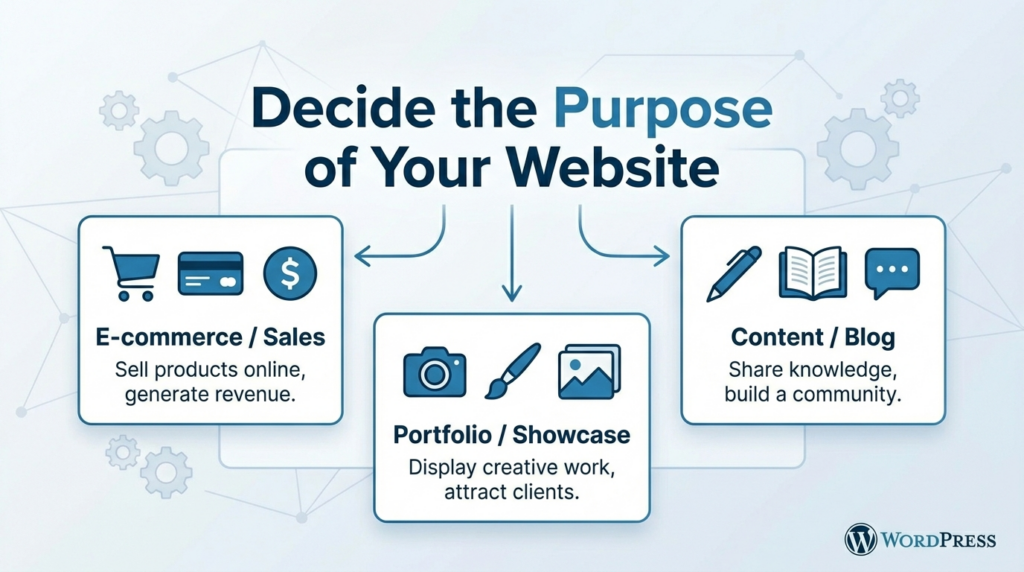
Before choosing colors, templates, or plugins, define the purpose of your website. A website without a clear purpose often becomes messy because every page tries to do too many things.
Ask yourself what the website should accomplish. Is it meant to introduce a company? Sell products? Collect leads? Publish articles? Display a portfolio? Help customers book a service? Build trust for a personal brand?
Once you understand the goal, it becomes easier to decide what pages you need. A basic business website may need a homepage, about page, service pages, blog, contact page, and privacy policy. An online store may also need product pages, collection pages, cart, checkout, shipping information, return policy, and FAQ pages.
This planning step is important because design should support the website’s purpose. A beautiful website that does not guide visitors toward the next action will not perform well.
Step 2: Choose a Domain Name
Your domain name is the web address people type into their browser. It should be easy to remember, easy to spell, and closely connected to your brand or topic.
A strong domain name is usually short and clear. Avoid names that are too long, full of hyphens, or easy to mistype. If you are building a business website, using your brand name is often the best choice. If you are building a content website, you may include a keyword that helps people understand the topic.
The domain extension also matters. Many U.S. businesses still prefer “.com” because it feels familiar and trustworthy. However, other extensions can also work if they fit the project. The most important thing is that the domain looks professional and does not confuse visitors.
Step 3: Select Reliable Web Hosting
Hosting is where your website files are stored. When someone visits your domain, the hosting server delivers your website to their browser. Good hosting affects speed, security, stability, and the overall management experience.
There are different types of hosting. Shared hosting is usually cheaper, but it can be slower or more limited if many websites share the same server resources. Managed WordPress hosting is designed specifically for WordPress and often includes easier setup, automatic updates, backups, caching, and security tools. VPS hosting gives more control and resources, but it usually requires more technical knowledge.
For beginners, managed WordPress hosting is often the easiest path because it removes many technical tasks. The goal is not just to find the cheapest hosting. The goal is to choose hosting that keeps your website fast, secure, and easy to manage.
Step 4: Install WordPress
Many hosting companies now offer one-click WordPress installation. This means you can install WordPress from your hosting dashboard without manually uploading files or creating a database yourself.
The usual process is simple. You log in to your hosting account, find the WordPress installer, choose your domain, create an admin username and password, and start the installation. After the setup is complete, you can usually access your dashboard by visiting yourdomain.com/wp-admin.
There is also a manual installation method, but most beginners do not need it. Manual installation involves downloading WordPress, uploading files through FTP, creating a database, editing configuration files, and completing the setup in the browser. It offers more control, but it is not necessary for a standard beginner website.
Step 5: Configure Basic WordPress Settings
After installing WordPress, do not jump straight into design. First, configure the basic settings.
Start with your site title and tagline. These help define your website identity. You can adjust them inside the WordPress dashboard under Settings. Then check your timezone, date format, and language settings so your website displays the correct information.
Next, update your permalink structure. Permalinks are the URLs of your pages and posts. A clean URL is easier for visitors and search engines to understand. For most websites, the “Post name” structure is a good option because it creates readable URLs based on the page or post title.
For example, a clean URL like “/about-us/” looks better than a random URL with numbers and symbols. This small setting can make your website feel more professional from the beginning.
Step 6: Choose a Theme or Website Kit
A WordPress theme controls the basic design style of your website. It affects layouts, typography, colors, headers, footers, page structures, and sometimes extra features.
Free themes can be enough for simple websites, especially when you are just starting. Premium themes may offer more design options, templates, support, and built-in customization tools. However, more features do not always mean a better website. A heavy theme with too many functions can slow down your site or make editing more confusing.
Many people now use lightweight themes together with visual page builders. This approach gives you a clean foundation and more design freedom. Website kits or template kits can also help speed up the process because they provide pre-designed pages and sections that you can customize.
When choosing a theme, focus on speed, mobile responsiveness, clean design, regular updates, and compatibility with the tools you plan to use. Avoid themes that look impressive in demos but are difficult to edit in real use.
Step 7: Customize Your Website Design
Once your theme is active, you can begin customizing the visual identity of your website. Start with the basics: logo, favicon, colors, fonts, header, footer, and navigation menu.
Your logo helps visitors recognize your brand. Your favicon is the small icon that appears in browser tabs. Your color palette should match the feeling of your brand. For example, a law firm may use dark blue and white for trust and professionalism, while a lifestyle brand may use soft neutral colors for warmth and elegance.
Typography also matters. Choose fonts that are easy to read. Use clear heading styles, comfortable paragraph spacing, and consistent font sizes across the site. A website can look unprofessional quickly if every section uses different fonts, colors, and spacing.
Your navigation menu should be simple. Most visitors should be able to understand where to click within seconds. Common menu items include Home, About, Services, Shop, Blog, Contact, and FAQ. Do not overload the menu with too many links.
Step 8: Create the Core Pages
After the design direction is clear, build the most important pages first.
The homepage should explain who you are, what you offer, why visitors should trust you, and what action they should take next. It should not be only a collection of pretty images. It needs structure, clarity, and strong calls to action.
The about page should tell your story, but it should still focus on the visitor. Instead of only saying who you are, explain why your background, process, or values matter to your audience.
Service pages should clearly describe what you provide, who it is for, what problems it solves, and how people can get started. Product pages should include clear images, descriptions, benefits, specifications, shipping details, and trust elements.
The contact page should be easy to use. Include a contact form, email address, business location if relevant, social links, and any important response-time expectations.
Step 9: Understand Pages vs. Posts
WordPress uses two main content types: pages and posts.
Pages are usually for permanent content. Examples include About, Contact, Services, Privacy Policy, and Homepage. These pages do not depend on publish dates and usually stay in the main navigation.
Posts are usually for blog articles, news updates, guides, announcements, and educational content. Posts can be organized with categories and tags. If you plan to use content marketing or SEO, blog posts can help your website target more search terms and answer customer questions.
Understanding this difference helps keep your website organized. Use pages for core website structure and posts for ongoing content.
Step 10: Add Useful Plugins
Plugins are like apps for your WordPress website. They add features that WordPress does not include by default.
Most websites need only a few essential plugins. A contact form plugin lets visitors send messages. An SEO plugin helps manage page titles, meta descriptions, sitemaps, and content optimization. A security plugin can help protect against common attacks. A caching or performance plugin can improve loading speed. An image optimization plugin can reduce image file sizes.
However, do not install plugins just because they sound interesting. Too many plugins can slow down your site, create conflicts, and make maintenance harder. Choose trusted plugins, keep them updated, and delete anything you do not use.
Step 11: Optimize for SEO
SEO helps search engines understand your website. If you want people to find your pages through Google, you need to build your website with search visibility in mind.
Start with keyword research. Think about what your audience would type when searching for your product, service, or topic. Then use those keywords naturally in your page titles, headings, body text, image alt text, and meta descriptions.
Each important page should have one clear topic. Avoid mixing too many unrelated ideas on one page. Use headings to organize the content. Add internal links between related pages so visitors and search engines can move through your website more easily.
SEO is not only about keywords. Website speed, mobile experience, helpful content, clear structure, and trust signals also matter. A fast, useful, well-organized website has a better chance of performing well over time.
Step 12: Make the Website Mobile-Friendly
Many visitors will view your website on a phone. That means your website should not only look good on desktop. It should also work smoothly on smaller screens.
Check your homepage, menus, buttons, forms, product pages, and blog posts on mobile. Make sure text is readable, images are not too large, buttons are easy to tap, and sections do not feel crowded.
A common beginner mistake is designing only on a desktop screen. Always preview mobile layouts before publishing. A website that looks beautiful on a large monitor but feels broken on a phone will lose visitors quickly.
Step 13: Set Up Analytics
After your site is live, you need a way to understand visitor behavior. Analytics tools can show how people find your website, which pages they visit, how long they stay, and where they leave.
Google Analytics is commonly used for this purpose. Many WordPress users connect it through a plugin such as Site Kit by Google or by adding the tracking code through their theme or page builder settings.
Analytics helps you make better decisions. Instead of guessing which pages matter, you can look at data. If a blog post attracts traffic, you may create more related content. If a service page gets visits but no inquiries, you may improve the copy, layout, or call to action.
Step 14: Maintain Your WordPress Website
Building the website is only the beginning. A WordPress website needs regular maintenance to stay secure and functional.
Keep WordPress core, themes, and plugins updated. Updates often include security fixes, bug repairs, and performance improvements. Before major updates, create a backup so you can restore the site if something breaks.
Backups are essential. Your hosting provider may offer automatic backups, but you can also use a backup plugin. Store backups in a safe location, not only on the same server.
You should also monitor speed and security. Compress large images, remove unused plugins, check broken links, and review forms to make sure they still work. A website that is maintained regularly will usually perform better and create a better visitor experience.
Conclusion
Learning how to build WordPress websites becomes much easier when you treat the process step by step. Start with a clear purpose, choose a strong domain name, select reliable hosting, install WordPress, configure basic settings, and choose a clean theme. Then customize your design, build essential pages, add useful plugins, optimize for SEO, check the mobile experience, connect analytics, and maintain the website over time.
WordPress is powerful because it can grow with your needs. You can begin with a simple website and later add a blog, online store, booking system, membership area, or more advanced features. The most important thing is to build a clean foundation first. A successful WordPress website is not just about looking good. It should be easy to use, easy to update, search-friendly, secure, and built around the needs of real visitors.
FAQ
1: How do I build WordPress websites as a beginner?
To build WordPress websites as a beginner, start by choosing a clear website purpose, buying a domain name, selecting reliable hosting, installing WordPress, choosing a theme, creating core pages, and adding essential plugins. After that, optimize your site for mobile, SEO, speed, and security.
2: Do I need coding skills to build a WordPress website?
No, you do not need coding skills for most WordPress websites. Many themes, templates, and page builders allow you to create pages visually. However, basic knowledge of layout, content structure, SEO, and website management can help you build a cleaner and more professional site.
3: What pages should a WordPress website include?
A basic WordPress website usually includes a homepage, about page, service or product pages, blog page, contact page, privacy policy, and terms page. Business websites may also need FAQ pages, testimonials, case studies, booking pages, or landing pages.
4: Which is better for WordPress: free themes or premium themes?
Free themes can work well for simple websites, especially when they are lightweight and regularly updated. Premium themes usually offer more templates, customization options, and support. The best choice depends on your website goals, design needs, budget, and editing experience.
5: How many plugins should I install on WordPress?
There is no fixed number, but you should only install plugins you truly need. Common plugin types include SEO, security, caching, contact forms, image optimization, and backups. Too many unnecessary plugins can slow down your site or create conflicts.
6: How can I make my WordPress website SEO-friendly?
To make your WordPress website SEO-friendly, use clear page titles, helpful headings, optimized meta descriptions, readable URLs, internal links, image alt text, and useful content. You should also improve site speed, mobile experience, security, and overall page structure.


Design and build a WordPress website or corporate site with a full eCommerce system for you.
Price range: $200.00 through $2,500.00custom-requirements-or-special-quotations
Original price was: $2.00.$1.00Current price is: $1.00. Are 50 Plugins Too Many for a WordPress eCommerce Store?
Understanding the Real Performance Impact Having 50 plugins on a WordPress eCommerce site isn’t automatically a problem. In fact, the number alone rarely determines performance....

Main Image Design for Amazon Home Physiotherapy Device Explained
Introduction: Building a Trustworthy Image for Home Therapy Devices on Amazon When designing the main image for a home therapy device on Amazon, our primary...

Main Image Design for Amazon Lipstick Conversion
Introduction: Designing a Lipstick Main Image That Sells on Amazon When we design a Main image for an Amazon lipstick, our responsibility goes far beyond...

How Hackers Steal WordPress Admin Emails (And How to Stop Them)
Let’s start with an uncomfortable truth: Your WordPress admin email is probably way more public than you think.And hackers? They love that. To them, your...

What Makes an Amazon Liquid Foundation Main Image Convert
Introduction Designing a Main image design for Amazon Liquid foundation is never just about making a product look beautiful. On Amazon, the main image and...

Designing an Effective Amazon Main Image for Filter Cartridges
Introduction Designing a Main image for Amazon is never just about making a product look attractive. It is about clarity, trust, and instant understanding—especially for...

Replay Attacks on WordPress: Real Threat or Overhyped Myth?
Let’s clear something up first. Replay attacks don’t look scary.They don’t smash passwords.They don’t inject evil code with green hacker text flying everywhere. They’re sneaky....

How to Duplicate WordPress Pages Without Breaking Anything
Let’s face it. Sometimes you don’t want to create a new page.You just want the same page… but slightly different. Same layout.Same blocks.Same settings. Because...

Five Pet WordPress Themes Compared
Introduction Choosing the right pet-related WordPress theme is more than a design decision—it directly affects usability, scalability, and long-term business growth. Pet care and pet...

Comparing Five Swimwear eCommerce Themes
Introduction Choosing the right theme for a swimwear or lingerie independent store is not just a visual decision—it directly affects conversion rates, scalability, and long-term...

How to Turn Off Comments in WordPress (Without Losing Your Mind)
Let’s talk about WordPress comments. In theory, comments are great.They encourage discussion.They build community.They make your website feel “alive.” In reality? They’re often a magnet...

WordPress 500 Error: When Your Website Decides to Panic
Your WordPress site was fine a minute ago.You refreshed the page.And suddenly—boom 💥—500 Internal Server Error. No explanation.No apology.Just a cold, confusing message that basically...

Building a Scalable WordPress Website for a Science-Driven Brand: The AminoUSA Project
Introduction In today’s digital landscape, a website is more than a place to list products. For science-driven brands operating in regulated or research-focused industries, a...

Building a Scalable Shopify Store for a Global Blade Brand: The CoolKatana Project
Introduction In cross-border eCommerce, a Shopify website is more than a storefront.For brands operating in niche, culture-driven categories, the website must do far more than...

Designing a High-Conversion Shopify Store for Pokémon Cards
Introduction In the world of collectible eCommerce, especially within the Pokémon Trading Card Game (TCG) market, a website must do more than simply list products....

High-Converting Shopify Design for a Custom Brick Brand
Introduction In today’s competitive eCommerce landscape, especially in the personalized gift and collectible space, a Shopify website must do far more than display products. It...

How to Contact Shopify Support: Simple, Stress-Free Guide
Running a Shopify store should feel exciting—not confusing. When questions pop up or issues slow you down, Shopify offers several support paths depending on what...

How to Deactivate a Shopify Store: A Clear, Practical Guide
Deactivating a Shopify store isn’t complicated, but it does come with consequences many merchants overlook. This guide breaks the process down in a simple, educational...