












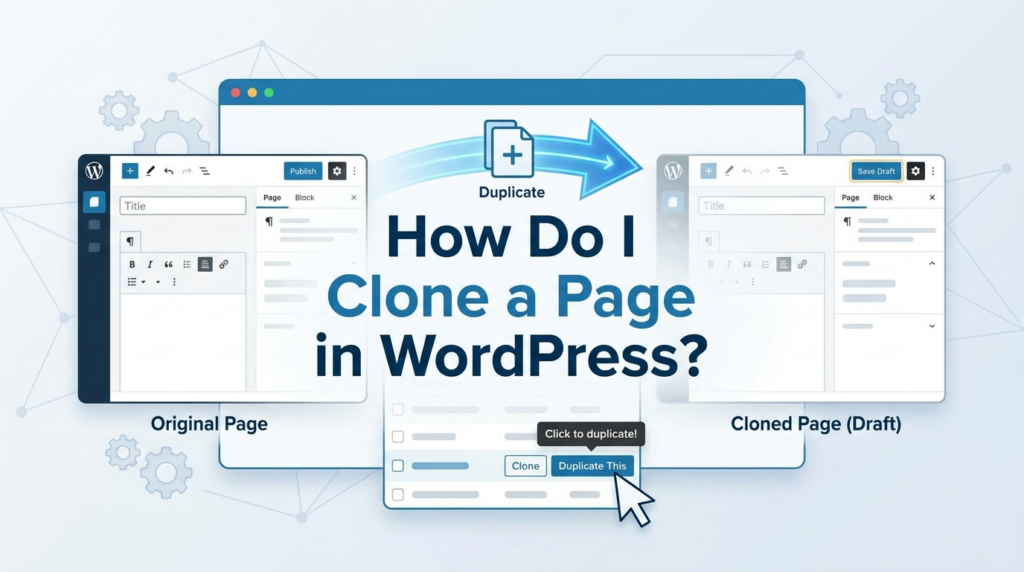
When you manage a WordPress website, you do not always need to build every page from a blank screen. Many websites use repeated layouts: service pages, landing pages, product explanation pages, blog templates, FAQ pages, location pages, and campaign pages. Once you already have a layout that works, cloning that page can save time and keep your design consistent.
So, how do I clone a page in WordPress? The answer depends on how simple or controlled you want the process to be. For most users, the easiest method is to use a WordPress duplication plugin. For users who want fewer plugins, WordPress also allows manual copying, and more advanced users can add custom code to create a clone option inside the dashboard.
This guide explains the concept in a beginner-friendly way and shows when each method makes sense.
What Does It Mean to Clone a WordPress Page?
Cloning a WordPress page means creating a new copy of an existing page. The new copy usually keeps the same content, layout, images, blocks, and sometimes metadata, depending on the method you use.
For example, imagine you already built a clean service page with a hero section, intro text, feature blocks, testimonials, and a call-to-action. Instead of rebuilding the same structure for a new service, you can duplicate the page, rename it, replace the text, update the images, and publish the new version.
This is different from simply copying a few paragraphs. A proper clone helps preserve the structure of the page, which is especially useful when your page includes custom blocks, page builder sections, featured images, SEO settings, or special templates.
Cloudways explains that WordPress pages and posts can be duplicated through plugin-based and manual methods, with plugins usually being the easier choice for most users.
Why Cloning a WordPress Page Is Useful
The biggest benefit is speed. If your website has multiple pages that follow the same structure, cloning removes repetitive work. You do not need to rebuild rows, sections, headings, image placements, buttons, and spacing from scratch.
It also helps with design consistency. A website looks more professional when related pages follow a similar visual system. Cloning an existing page gives you a reliable starting point, so your new page matches the rest of the site.
Cloning is also helpful for testing. You can duplicate a live page, make changes in the cloned draft, test a new headline, adjust a call-to-action, or try a new layout without changing the original page.
Another common use case is translation. If you run a multilingual website, you can clone the original page and replace the text with another language while keeping the same structure. This can make the translation workflow much faster.
Cloudways also notes that duplicate content can create SEO confusion if identical pages appear on multiple URLs, so site owners should manage canonical tags or avoid publishing identical versions unnecessarily.
Method 1: Clone a Page with a WordPress Plugin
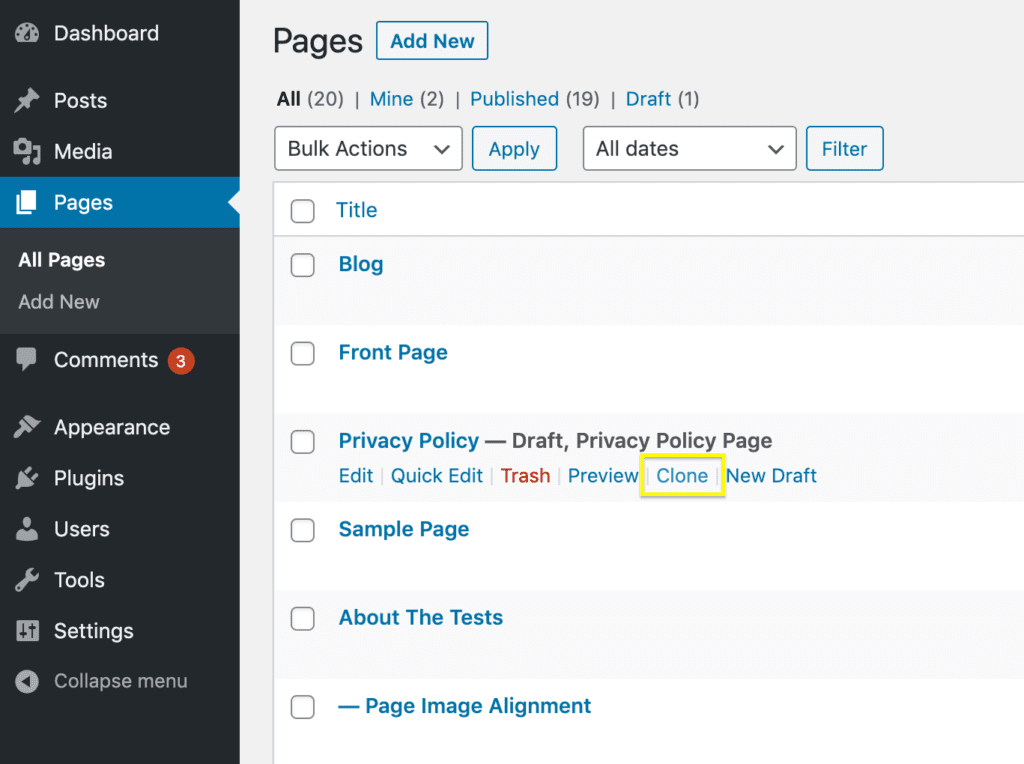
For most beginners, using a plugin is the easiest answer to the question, “how do I clone a page in WordPress?” A plugin adds a duplicate option directly to your WordPress admin area. Once installed, you can usually go to your Pages list, hover over a page, click a duplicate option, and create a new draft.
This method is simple because it can copy more than just visible text. Depending on the plugin, it may also copy page settings, custom fields, SEO data, featured images, templates, and layout information.
A popular example mentioned by Cloudways is the Duplicate Page plugin, which adds a one-click duplication option for pages and posts.
How the Plugin Method Usually Works
First, log in to your WordPress dashboard.
Go to Plugins → Add New.
Search for a page duplication plugin, such as Duplicate Page.
Click Install Now, then activate the plugin.
After activation, check the plugin settings. Many duplication plugins let you choose what status the copied page should have. In most cases, setting cloned pages as Draft is safer because it prevents unfinished copies from being published accidentally.
Next, go to Pages → All Pages.
Hover over the page you want to copy.
Click the duplicate or clone option added by the plugin.
WordPress will create a new copied version of that page. Open the draft, update the title, permalink, content, images, SEO title, meta description, and any other details before publishing.
This workflow is ideal if you clone pages often or manage many similar layouts.
Method 2: Clone a Page Manually in the Block Editor
You can also clone a WordPress page manually without installing a plugin. This method works best for simple pages built with the default WordPress block editor.
Open the page you want to copy.
In the editor, click the three-dot menu in the top-right corner.
Choose the option that lets you copy all blocks or switch to the code editor and copy the page content.
Then create a new page.
Paste the copied content into the new page.
After that, switch back to the visual editor and review the layout.
This method is useful when you only need to copy a page once in a while. However, it has limitations. It may not copy everything connected to the original page. For example, you may still need to manually reset the featured image, page template, categories, SEO settings, custom fields, or page builder data.
Cloudways points out that manually copying content can work for occasional duplication, but plugin or code-based methods are more efficient for repeated page copying.
Method 3: Clone a Page with Custom Code
Advanced users can add a custom clone function to WordPress. This usually involves editing the theme’s functions.php file or adding a custom snippet through a safer code management tool.
This method can add a duplicate link directly inside the Pages or Posts screen. When clicked, WordPress creates a draft copy of the original content.
However, this method is not recommended for beginners unless they understand how WordPress code works. A small mistake in a theme file can break part of the site. Before editing any theme file, always back up the website.
It is also better to use a child theme or a code snippet plugin instead of editing the main theme file directly. If you add code to the main theme, your changes may disappear when the theme updates.
Cloudways describes a manual code-based method that adds a duplicate action to WordPress pages and posts, but it also warns users to back up the website before editing theme files.
Plugin vs. Manual Copying: Which Is Better?
The plugin method is best for most WordPress users. It is faster, easier, and less risky. It is especially helpful for business websites, blogs, landing pages, WooCommerce pages, and client websites.
Manual copying is fine when the page is very simple and you only need a quick copy. For example, if the page only includes basic text and a few images, copying blocks may be enough.
The code method is best for users who want more control and want to avoid installing another plugin. However, this method requires technical confidence and should be handled carefully.
A simple way to decide is this:
Use a plugin if you want speed and convenience.
Use manual copying if you only need to copy one simple page.
Use custom code if you understand WordPress development and want a lightweight admin feature.
What to Check After Cloning a Page
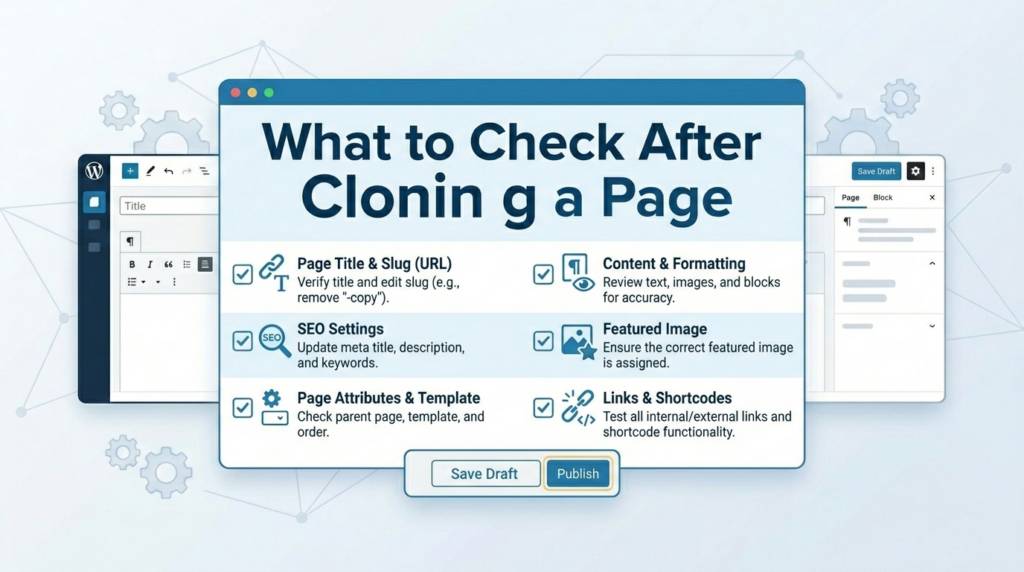
Cloning is only the first step. Before publishing the new page, you should carefully review it.
Start with the page title. A cloned page often keeps the original title, sometimes with words like “copy” or “draft.” Rename it clearly.
Then check the permalink. The URL should match the new page topic. Do not publish a page with a copied or confusing slug.
Next, update the main content. Replace old text, images, product names, service details, pricing, testimonials, and calls-to-action.
Review the SEO title and meta description. If your SEO plugin copied the old metadata, rewrite it for the new page. Search engines should understand that the new page has a different purpose.
Check internal links. A cloned page may still link to the same buttons, forms, products, or sections as the original page. Make sure every link points to the correct destination.
Also check images and alt text. If the visual content changes, update the alt text so it describes the new image accurately.
Finally, preview the page on desktop and mobile. Sometimes cloned pages look correct on desktop but need small adjustments on mobile.
SEO Warning: Do Not Publish Duplicate Content Carelessly
Cloning a page is useful, but publishing several identical pages can create SEO problems. Search engines may not know which page should rank if multiple URLs contain the same or nearly identical content.
That does not mean you should never clone pages. It means you should treat cloning as a starting point, not the final result.
After cloning, rewrite the content so the new page has a unique purpose. Change the heading structure, page copy, images, FAQs, examples, and call-to-action when needed.
If you must keep similar pages live, use canonical tags carefully. A canonical tag tells search engines which version should be treated as the main page. Many SEO plugins allow you to manage canonical URLs without touching code.
Cloudways specifically notes that identical content across URLs can confuse search engines and recommends canonical tags when needed.
Common Mistakes When Cloning WordPress Pages
One common mistake is publishing the cloned page too quickly. A duplicated draft may still include old text, old buttons, old forms, or old SEO settings.
Another mistake is forgetting to change the URL. A page slug should be clean, specific, and related to the new page topic.
Some users also forget to update the featured image. This can affect blog archives, social sharing previews, and page appearance.
A bigger mistake is assuming that every cloning method copies everything. Manual copying may only copy block content, while a plugin may copy more page data. Always inspect the final page before publishing.
If you use a page builder such as Elementor, Divi, or WPBakery, test whether your chosen duplication method preserves the layout properly. Some page builders have their own template-saving or duplication tools, which may work better than a general copy-and-paste method.
Best Practice Workflow for Cloning a WordPress Page
A clean workflow makes cloning safer and more reliable.
First, choose the original page carefully. Start from a page that already has a strong layout and clean structure.
Second, duplicate the page as a draft. Avoid creating a published copy immediately.
Third, rename the page and update the permalink.
Fourth, replace the content section by section. Do not only change the first paragraph. Review the full page from top to bottom.
Fifth, update SEO settings, images, links, forms, and buttons.
Sixth, preview the page on desktop, tablet, and mobile.
Seventh, publish only when the new version is truly unique and complete.
This process helps you use cloning as a productivity tool without creating messy duplicate pages.
Final Thoughts
So, how do I clone a page in WordPress? The easiest way is to use a duplication plugin that adds a one-click clone option inside the WordPress dashboard. This is the best choice for most users because it saves time and reduces the risk of missing important page settings.
You can also copy page content manually through the WordPress editor if the page is simple. For advanced users, custom code can add a built-in clone option, but that approach requires backups and careful handling.
The main idea is simple: cloning a WordPress page helps you reuse a proven layout, speed up content creation, keep your design consistent, and test changes safely. Just remember to update the cloned page fully before publishing, rewrite duplicate content, check SEO settings, and make sure the new page has its own clear purpose.
FAQ
1. How do I clone a page in WordPress?
You can clone a page in WordPress by using a duplication plugin, manually copying the page content, or adding custom code. For most users, a plugin is the easiest and safest option.
2. What is the easiest way to duplicate a WordPress page?
The easiest way is to install a WordPress duplicate page plugin. After activation, you can usually go to Pages → All Pages, hover over the page, and click a clone or duplicate option.
3. Can I clone a WordPress page without a plugin?
Yes. You can open the original page, copy all blocks from the WordPress editor, create a new page, and paste the content. However, this method may not copy SEO settings, featured images, or custom fields.
4. Will cloning a WordPress page hurt SEO?
Cloning itself does not hurt SEO, but publishing multiple pages with the same content can cause duplicate content issues. Always rewrite the copied page and update the title, URL, meta description, and content.
5. Can I duplicate an Elementor page in WordPress?
Yes. Elementor pages can often be duplicated with a WordPress clone plugin or by saving the page as a template inside Elementor. After duplicating, check the layout on desktop and mobile.
6. What should I check after cloning a WordPress page?
Check the page title, URL slug, content, images, internal links, buttons, SEO title, meta description, featured image, and mobile layout before publishing the cloned page.


Design and build a WordPress website or corporate site with a full eCommerce system for you.
Price range: $200.00 through $2,500.00custom-requirements-or-special-quotations
Original price was: $2.00.$1.00Current price is: $1.00. Are 50 Plugins Too Many for a WordPress eCommerce Store?
Understanding the Real Performance Impact Having 50 plugins on a WordPress eCommerce site isn’t automatically a problem. In fact, the number alone rarely determines performance....

Main Image Design for Amazon Home Physiotherapy Device Explained
Introduction: Building a Trustworthy Image for Home Therapy Devices on Amazon When designing the main image for a home therapy device on Amazon, our primary...

Main Image Design for Amazon Lipstick Conversion
Introduction: Designing a Lipstick Main Image That Sells on Amazon When we design a Main image for an Amazon lipstick, our responsibility goes far beyond...

How Hackers Steal WordPress Admin Emails (And How to Stop Them)
Let’s start with an uncomfortable truth: Your WordPress admin email is probably way more public than you think.And hackers? They love that. To them, your...

What Makes an Amazon Liquid Foundation Main Image Convert
Introduction Designing a Main image design for Amazon Liquid foundation is never just about making a product look beautiful. On Amazon, the main image and...

Designing an Effective Amazon Main Image for Filter Cartridges
Introduction Designing a Main image for Amazon is never just about making a product look attractive. It is about clarity, trust, and instant understanding—especially for...

Replay Attacks on WordPress: Real Threat or Overhyped Myth?
Let’s clear something up first. Replay attacks don’t look scary.They don’t smash passwords.They don’t inject evil code with green hacker text flying everywhere. They’re sneaky....

How to Duplicate WordPress Pages Without Breaking Anything
Let’s face it. Sometimes you don’t want to create a new page.You just want the same page… but slightly different. Same layout.Same blocks.Same settings. Because...

Five Pet WordPress Themes Compared
Introduction Choosing the right pet-related WordPress theme is more than a design decision—it directly affects usability, scalability, and long-term business growth. Pet care and pet...

Comparing Five Swimwear eCommerce Themes
Introduction Choosing the right theme for a swimwear or lingerie independent store is not just a visual decision—it directly affects conversion rates, scalability, and long-term...

How to Turn Off Comments in WordPress (Without Losing Your Mind)
Let’s talk about WordPress comments. In theory, comments are great.They encourage discussion.They build community.They make your website feel “alive.” In reality? They’re often a magnet...

WordPress 500 Error: When Your Website Decides to Panic
Your WordPress site was fine a minute ago.You refreshed the page.And suddenly—boom 💥—500 Internal Server Error. No explanation.No apology.Just a cold, confusing message that basically...

Building a Scalable WordPress Website for a Science-Driven Brand: The AminoUSA Project
Introduction In today’s digital landscape, a website is more than a place to list products. For science-driven brands operating in regulated or research-focused industries, a...

Building a Scalable Shopify Store for a Global Blade Brand: The CoolKatana Project
Introduction In cross-border eCommerce, a Shopify website is more than a storefront.For brands operating in niche, culture-driven categories, the website must do far more than...

Designing a High-Conversion Shopify Store for Pokémon Cards
Introduction In the world of collectible eCommerce, especially within the Pokémon Trading Card Game (TCG) market, a website must do more than simply list products....

High-Converting Shopify Design for a Custom Brick Brand
Introduction In today’s competitive eCommerce landscape, especially in the personalized gift and collectible space, a Shopify website must do far more than display products. It...

How to Contact Shopify Support: Simple, Stress-Free Guide
Running a Shopify store should feel exciting—not confusing. When questions pop up or issues slow you down, Shopify offers several support paths depending on what...

How to Deactivate a Shopify Store: A Clear, Practical Guide
Deactivating a Shopify store isn’t complicated, but it does come with consequences many merchants overlook. This guide breaks the process down in a simple, educational...