












If you’ve ever built a WordPress website, you’ve probably faced this situation:
You finish designing a page.
The layout looks great.
The structure works perfectly.
Then you realize—you need another page that looks almost the same.
Instead of starting from scratch, the smarter move is to clone the page.
In this guide, we’ll walk through how to clone a WordPress page, explain why it matters, compare different methods, and help you choose the safest and most efficient approach for your site. Whether you’re a beginner, a business owner, or managing a growing website, this article will give you a clear, practical understanding of page cloning in WordPress.
What Does “Cloning a WordPress Page” Actually Mean?
Before diving into tools and methods, let’s clarify the concept.
When people search for how to clone WordPress page, they usually mean:
- Creating a duplicate copy of an existing page or post
- Keeping the same layout, content, and settings
- Editing the new page without affecting the original
This is different from exporting or migrating content. Cloning is about reusing a proven structure inside the same website.
Why Cloning Pages Is So Useful in WordPress
Cloning pages isn’t just a convenience—it’s a productivity and consistency tool.
1. Save Time on Repetitive Layouts
If your website uses similar page structures—such as:
- Landing pages
- Product detail pages
- Service pages
- Campaign pages
Cloning allows you to reuse layouts instantly instead of rebuilding sections block by block.
2. Maintain Design Consistency
Design consistency builds trust.
When you clone pages, you ensure:
- Fonts remain consistent
- Spacing and alignment stay uniform
- CTA placement follows a proven pattern
This is especially important for conversion-focused pages.
3. Reduce Errors and Misconfigurations
Manually rebuilding pages increases the risk of:
- Missing sections
- Incorrect spacing
- Broken responsive layouts
Cloning minimizes human error by copying a layout that already works.
Native WordPress: Can You Clone Pages Without Plugins?
Out of the box, WordPress does not include a one-click “clone page” button.
However, you do have a few manual options.
Option 1: Copy and Paste Content (Limited Use)
You can:
- Open the original page
- Copy the content
- Paste it into a new page
Limitations:
- Layout blocks may break
- Page builder settings are often lost
- Metadata and custom fields are not copied
This method only works for very simple pages.
Option 2: Use the Block Editor’s “Copy All Blocks”
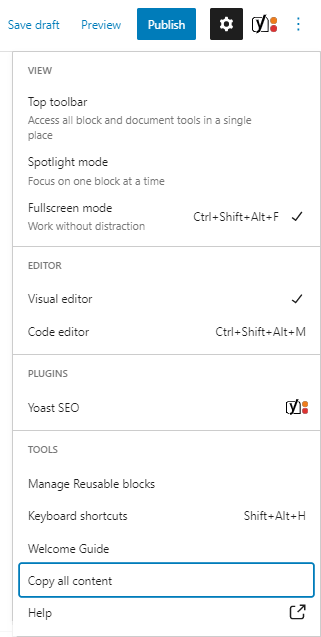
In Gutenberg, you can:
- Select all blocks
- Copy them
- Paste into a new page
This preserves block structure but still does not copy:
- Page settings
- SEO metadata
- Custom fields
- Theme-specific options
For professional websites, this is usually not enough.
The Most Practical Way: Cloning Pages With Plugins
For most users, the easiest and safest way to learn how to clone WordPress page is by using a plugin.
Why Plugins Are Better
A good cloning plugin can:
- Duplicate content and layout
- Copy page settings and metadata
- Preserve custom fields
- Work with popular page builders
Let’s break down how this typically works.
General Workflow: How Page Cloning Plugins Work
While plugins differ slightly, the process is usually the same:
- Install and activate the plugin
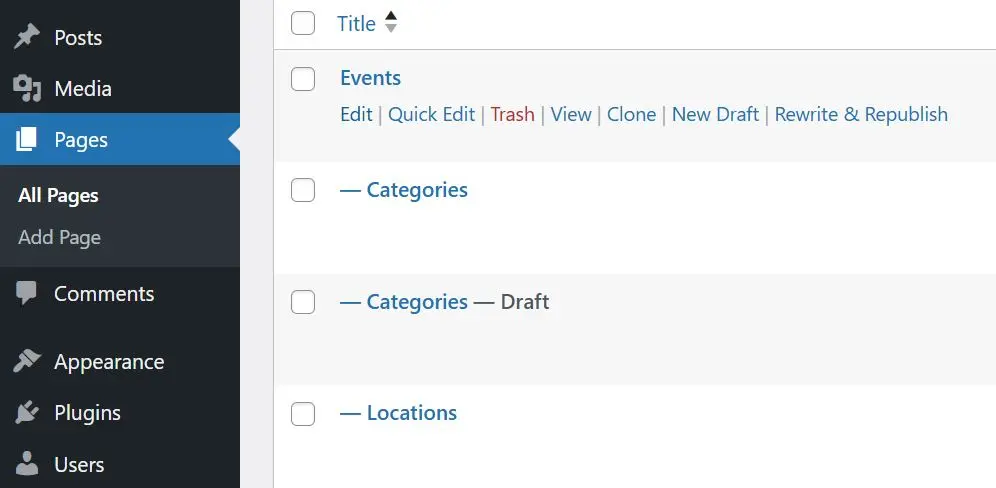
- Go to Pages or Posts in the WordPress dashboard
- Hover over an existing page
- Click Clone, Duplicate, or Copy
- Edit the newly created draft
This approach creates a safe duplicate, leaving the original untouched.
What Gets Copied When You Clone a WordPress Page?
A common question is what exactly gets duplicated.
In most cases, cloning includes:
- Page content
- Layout and structure
- Page builder data
- Custom fields
- Featured image
Depending on the plugin and setup, it may also include:
- SEO title and meta description
- Page templates
- Custom taxonomies
Always test on a staging page first to confirm behavior.
Cloning Pages Built With Page Builders
If you’re using a page builder, cloning becomes even more valuable.
Elementor
Cloning preserves:
- Sections and columns
- Widgets and styles
- Responsive settings
Many Elementor users rely on cloning to build funnel-style landing pages quickly.
Other Builders
Most modern cloning tools support:
- Visual editors
- Theme-specific layouts
- Advanced design settings
The key is choosing a plugin compatible with your builder.
Best Practices When Cloning WordPress Pages
Cloning is powerful—but only when used correctly.
1. Always Update the New Page’s SEO Settings
After cloning, make sure to:
- Change the page title
- Update meta descriptions
- Adjust headings (H1, H2)
Duplicate SEO metadata can hurt search rankings.
2. Check Internal Links
Cloned pages may still link to:
- Old URLs
- Original CTAs
- Previous campaigns
Review all links carefully.
3. Avoid Publishing Exact Duplicates
Search engines dislike duplicate content.
Use cloning as a starting point, not a final version.
Common Mistakes to Avoid
When learning how to clone WordPress page, beginners often make these mistakes:
- Publishing cloned pages without editing
- Forgetting to update tracking codes
- Reusing the same forms unintentionally
- Over-cloning instead of creating templates
Cloning should support strategy—not replace it.
When Should You Use Templates Instead of Cloning?
Cloning is ideal for:
- One-off variations
- Campaign pages
- Quick experiments
Templates are better for:
- Long-term scalability
- Large websites
- Multi-language projects
A professional WordPress setup often uses both.
How Cloning Fits Into Cross-Border Websites
For international or cross-border websites, cloning plays an even bigger role.
You might clone pages to:
- Create localized versions
- Adapt offers for different regions
- Test different currencies or copy styles
However, these sites also require:
- Careful content differentiation
- SEO localization
- Consistent brand presentation
This is where strategy matters more than tools.
Is Cloning Safe for Business Websites?
Yes—if done correctly.
Cloning is safe when:
- You understand what is duplicated
- You edit content before publishing
- You maintain SEO best practices
For business and eCommerce sites, cloning is a standard workflow used by professionals.
Final Thoughts: Cloning Is a Tool, Not a Shortcut
Understanding how to clone WordPress page helps you work faster, stay consistent, and reduce errors—but cloning alone doesn’t guarantee results.
What truly matters is:
- Page structure
- Content clarity
- Conversion-focused design
- Strategic SEO planning
That’s especially true for cross-border and international websites.
How AIRSANG Can Help
At AIRSANG, we work on cross-border websites every day—from brand sites to conversion-focused WordPress builds.
We don’t just clone pages.
We design systems.
Our work focuses on:
- WordPress website design and optimization
- Scalable page structures
- SEO-friendly layouts for global audiences
- Cross-border business growth through smart web design
If you’re building or refining a WordPress site and want it to actually perform—not just look good—AIRSANG can help you do it the right way.
Feel free to reach out if you need professional support with WordPress, page structure, or cross-border website strategy.


Design and build a WordPress website or corporate site with a full eCommerce system for you.
Price range: $200.00 through $2,500.00Custom requirements or special quotations
Original price was: $2.00.$1.00Current price is: $1.00. Are 50 Plugins Too Many for a WordPress eCommerce Store?
Understanding the Real Performance Impact Having 50 plugins on a WordPress eCommerce site isn’t automatically a problem. In fact, the number alone rarely determines performance....

Main Image Design for Amazon Lipstick Conversion
Introduction: Designing a Lipstick Main Image That Sells on Amazon When we design a Main image for an Amazon lipstick, our responsibility goes far beyond...

How Hackers Steal WordPress Admin Emails (And How to Stop Them)
Let’s start with an uncomfortable truth: Your WordPress admin email is probably way more public than you think.And hackers? They love that. To them, your...

What Makes an Amazon Liquid Foundation Main Image Convert
Introduction Designing a Main image design for Amazon Liquid foundation is never just about making a product look beautiful. On Amazon, the main image and...

Designing an Effective Amazon Main Image for Filter Cartridges
Introduction Designing a Main image for Amazon is never just about making a product look attractive. It is about clarity, trust, and instant understanding—especially for...

Replay Attacks on WordPress: Real Threat or Overhyped Myth?
Let’s clear something up first. Replay attacks don’t look scary.They don’t smash passwords.They don’t inject evil code with green hacker text flying everywhere. They’re sneaky....

How to Duplicate WordPress Pages Without Breaking Anything
Let’s face it. Sometimes you don’t want to create a new page.You just want the same page… but slightly different. Same layout.Same blocks.Same settings. Because...

Five Pet WordPress Themes Compared
Introduction Choosing the right pet-related WordPress theme is more than a design decision—it directly affects usability, scalability, and long-term business growth. Pet care and pet...

Comparing Five Swimwear eCommerce Themes
Introduction Choosing the right theme for a swimwear or lingerie independent store is not just a visual decision—it directly affects conversion rates, scalability, and long-term...

How to Turn Off Comments in WordPress (Without Losing Your Mind)
Let’s talk about WordPress comments. In theory, comments are great.They encourage discussion.They build community.They make your website feel “alive.” In reality? They’re often a magnet...

WordPress 500 Error: When Your Website Decides to Panic
Your WordPress site was fine a minute ago.You refreshed the page.And suddenly—boom 💥—500 Internal Server Error. No explanation.No apology.Just a cold, confusing message that basically...

How to Contact Shopify Support: Simple, Stress-Free Guide
Running a Shopify store should feel exciting—not confusing. When questions pop up or issues slow you down, Shopify offers several support paths depending on what...

How to Deactivate a Shopify Store: A Clear, Practical Guide
Deactivating a Shopify store isn’t complicated, but it does come with consequences many merchants overlook. This guide breaks the process down in a simple, educational...
Five Shoe Store Themes Compared
Introduction Choosing the right theme for a footwear-focused independent store is not just a visual decision—it directly affects scalability, daily operations, and long-term conversion performance....

Shopify vs Etsy: The Ultimate Online Selling Showdown
Introduction: Two Platforms Walk Into a Bar… If Shopify and Etsy were people, Etsy would be that charming friend who already has a booth at...

Is Your Shopify or WordPress Site Hacked? Here’s What to Do
Introduction: The Digital Equivalent of Waking Up to a Broken Window Imagine waking up, grabbing your morning coffee, opening your laptop… and discovering your website...

How to Start a Shopify Store Without Losing Your Mind
Starting a Shopify store sounds glamorous. You picture yourself sipping coffee at noon, checking sales notifications, and casually telling friends,“Yeah, my store did pretty well...

Is Shopify Legit? A Clear Guide for New Online Sellers
If you’re researching eCommerce platforms, chances are you’ve typed one very specific question into Google: is Shopify legit? That question is completely reasonable. Launching an...