Comments are one of WordPress’s default features. They were designed to encourage discussion, build community, and increase engagement.
However, for many modern websites—especially business websites, corporate sites, landing pages, and cross-border eCommerce stores—comments are often unnecessary, distracting, or even risky.
If you’ve ever asked yourself:
- Why are people spamming my posts with links?
- Do I really need comments on product pages or service pages?
- How do I turn off comments WordPress-wide without breaking my site?
You’re not alone.
In this guide, we’ll explain how to turn off comments in WordPress, why many professional websites choose to disable them, and how to do it properly depending on your situation—without harming SEO or user experience.
Why Many Websites Turn Off Comments in WordPress

Before jumping into the “how,” it’s important to understand why turning off comments in WordPress is often the right choice.
1. Spam Is a Constant Problem
If your site is publicly accessible, spam comments are almost guaranteed. Bots target WordPress sites because:
- Comment forms are easy entry points
- Links in comments can harm SEO
- Moderation takes time and effort
Even with plugins like Akismet, spam management can quickly become a burden.
2. Comments Don’t Always Match Business Goals
For blogs and communities, comments make sense.
For business websites, they often don’t.
If your site focuses on:
- Services
- Product sales
- Brand presentation
- Lead generation
then open comment sections may distract users from taking action.
3. Comments Can Create Legal and Brand Risks
User-generated content is not always harmless.
Comments can include:
- Offensive language
- False claims
- Copyright violations
- Unverified information
For companies—especially those serving international markets—this can become a compliance or brand image issue.
How WordPress Comments Actually Work
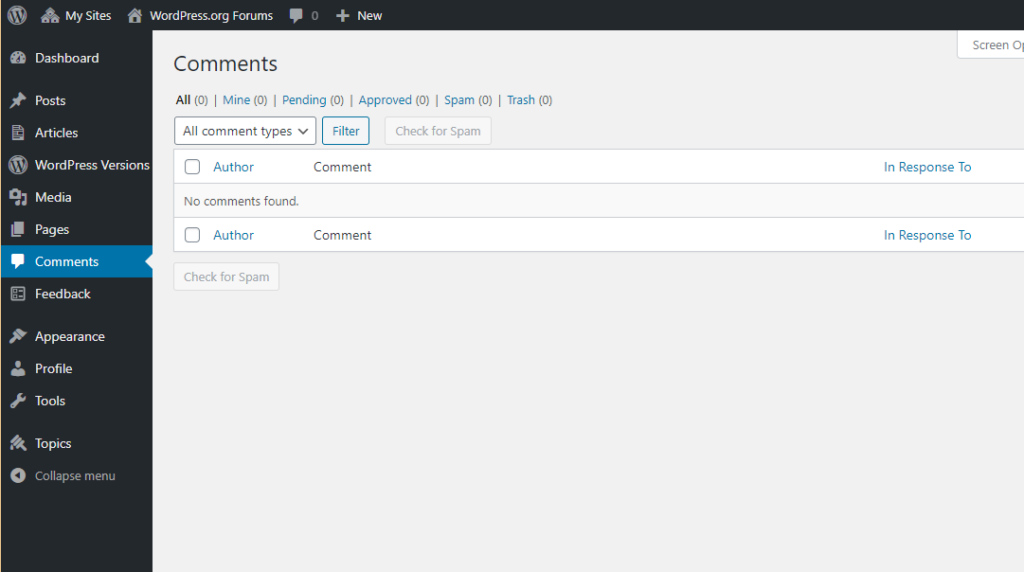
To properly turn off comments WordPress, it helps to understand how WordPress handles them internally.
WordPress comments are controlled at three levels:
- Global (site-wide) settings
- Post type level (posts, pages, products)
- Individual post or page level
Many users disable comments in one place but forget others—leading to confusion when comments still appear.
Method 1: Turn Off Comments Globally in WordPress Settings
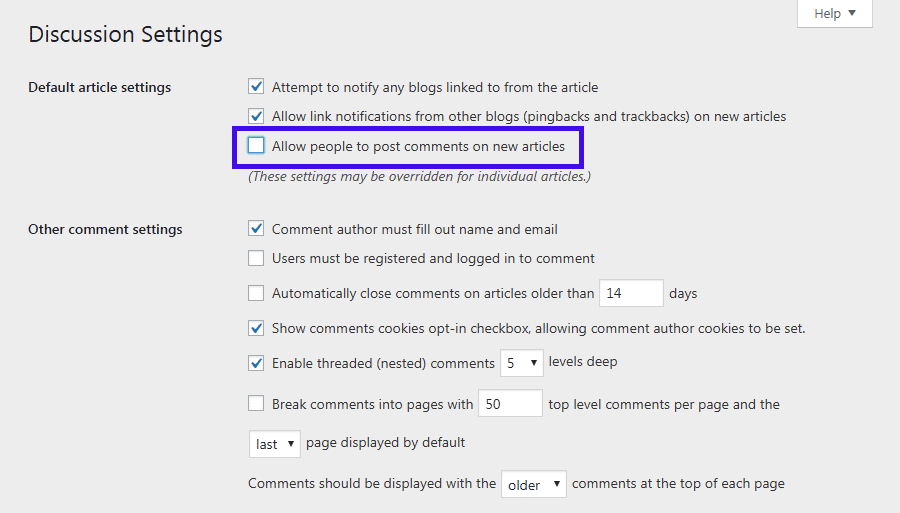
This is the most common starting point.
Step-by-Step
- Log in to your WordPress dashboard
- Go to Settings → Discussion
- Find the option:
“Allow people to submit comments on new posts” - Uncheck this box
- Click Save Changes
What This Does (and Doesn’t Do)
✅ Stops comments on future posts
❌ Does not remove comments from existing posts
This is an important detail many people miss.
Method 2: Turn Off Comments on Existing Posts and Pages
If your site already has content, global settings alone are not enough.
Bulk Disable Comments for Existing Content
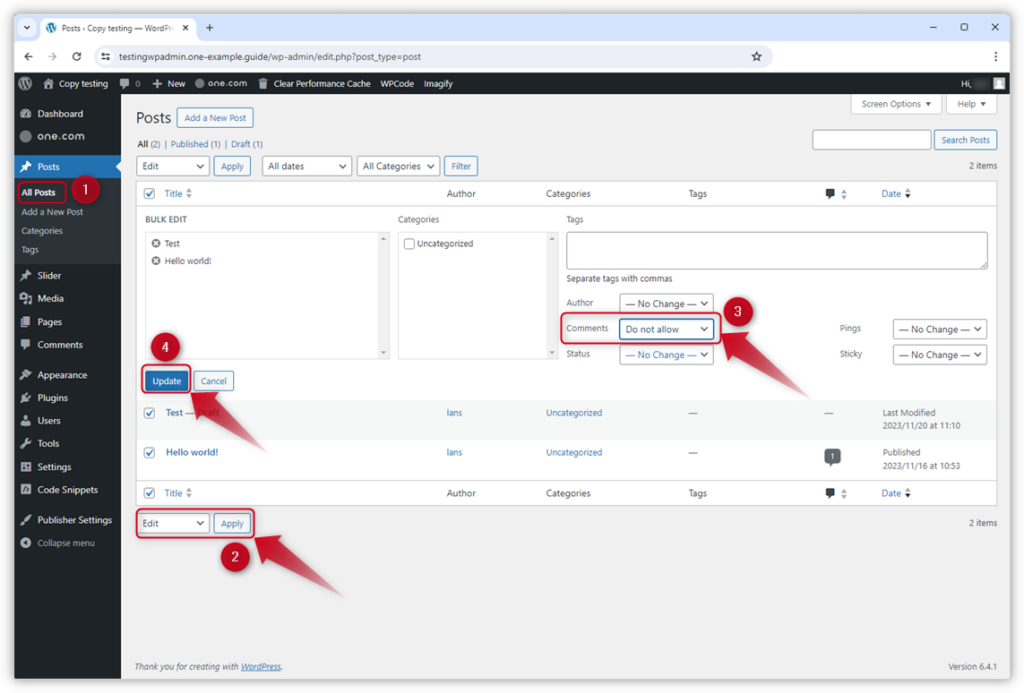
- Go to Posts → All Posts (or Pages → All Pages)
- Select all items (or filter by category)
- Choose Bulk actions → Edit
- Click Apply
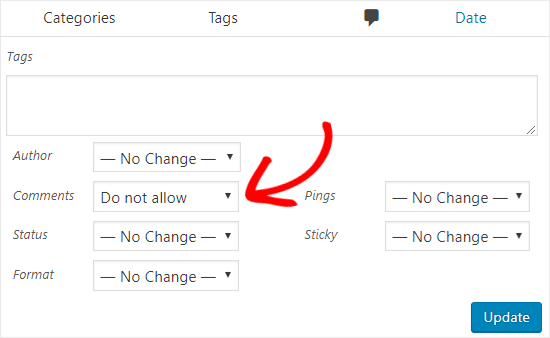
- Set Comments to Do not allow
- Click Update
This method is especially useful when you want to turn off comments WordPress-wide on older blog posts.
Method 3: Disable Comments on Individual Posts or Pages
Sometimes you want selective control.
How to Do It
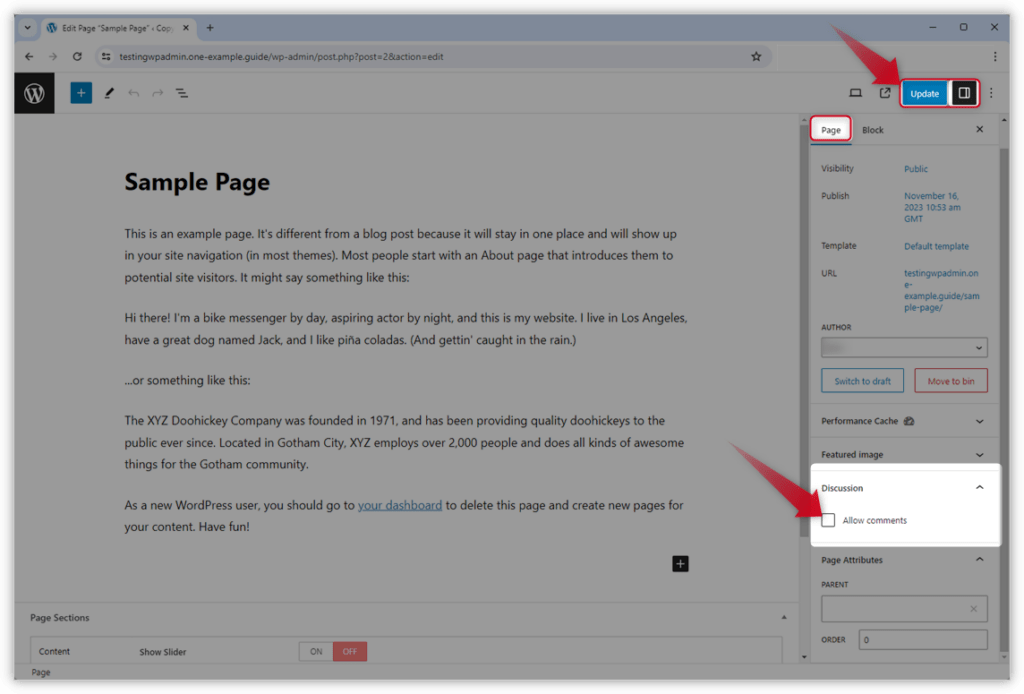
- Edit a post or page
- Scroll to the Discussion panel
- If you don’t see it, enable it via Screen Options
- Uncheck Allow comments
- Update the post
This is useful for:
- Landing pages
- Service pages
- Legal pages (Privacy Policy, Terms)
Method 4: Turn Off Comments on Pages Only (But Keep Them on Posts)
Many business websites want:
- ❌ No comments on pages
- ✅ Comments allowed on blog posts
How to Do This
WordPress treats posts and pages differently.
Steps:
- Go to Pages → All Pages
- Bulk edit all pages
- Set Comments → Do not allow
- Save changes
This setup works well for corporate and service-based websites.
Method 5: Disable Comments on WooCommerce Products
If you’re running an online store, product comments (reviews) require special consideration.
Important Distinction
- Product comments = Reviews
- Disabling comments may also disable reviews
To manage this properly:
- Go to WooCommerce → Settings → Products
- Open the Reviews tab
- Uncheck Enable product reviews
- Save changes
For cross-border stores, many brands prefer controlled reviews rather than open comment systems.
Method 6: Remove Comment Forms and Comment Links from Themes
Sometimes comments are disabled, but:
- “Leave a Reply” still shows
- Comment counts still appear
This is a theme-level issue.
Common Solutions
- Check theme settings (especially in premium themes)
- Disable comments in theme options
- Remove comment-related widgets
- Use a child theme to hide comment templates if needed
This ensures a clean, professional layout.
Method 7: Use a Plugin to Turn Off Comments WordPress-Wide
If you want a fast, foolproof solution, plugins can help.
Popular options include:
- Disable Comments
- WPCode (custom logic)
Plugin Advantages
- One-click global control
- Supports custom post types
- Automatically removes comment UI
For large or complex sites, this is often the safest approach.
Common Mistakes When Turning Off Comments in WordPress
❌ Only Changing One Setting
Many users disable comments in Settings → Discussion but forget existing posts.
❌ Ignoring Theme-Level Comment Output
Some themes still display comment placeholders even when comments are disabled.
❌ Forgetting SEO and UX Context
Removing comments doesn’t harm SEO by itself—but broken layouts or empty sections can.
Does Turning Off Comments Hurt SEO?
Short answer: No—if done correctly.
Search engines care about:
- Content quality
- Page structure
- User experience
Comments can help SEO only if they add real value.
Spam or low-quality comments can actually hurt rankings.
For business-focused sites, turning off comments WordPress-style often improves clarity and conversion.
When You Should Keep Comments Enabled
There are still valid cases where comments make sense:
- Educational blogs
- Thought leadership content
- Community-driven platforms
The key is intentional design, not default settings.
Best Practices for Cross-Border Websites
For international and cross-border websites, we usually recommend:
- Turn off comments on pages and products
- Use structured contact forms instead
- Centralize communication (email, CRM, WhatsApp, forms)
- Maintain brand control and compliance
This approach reduces risk while improving conversion flow.
Final Thoughts
Learning how to turn off comments WordPress is not just a technical task—it’s a strategic decision.
A well-designed website should guide users toward action, not confusion.
At AIRSANG, we specialize in cross-border website design, WordPress architecture, and conversion-focused layouts. Whether you’re building a brand site, a service website, or an international eCommerce store, we help structure your site so every feature—including comments—serves a clear purpose.
If you’re unsure whether comments fit your website strategy, or you want professional help optimizing your WordPress site for global audiences, AIRSANG is here to help.