












Introduction
If your WordPress website is not showing the latest updates, loading old content, or behaving inconsistently, the issue is often related to caching. Learning how to clear cache in WordPress is one of the simplest yet most important maintenance skills for any website owner.
Caching improves speed and performance, but it can also store outdated versions of your pages. In this guide, we’ll break down what cache is, why it matters, and how to clear it using different methods including plugins, browsers, hosting panels, and CDN services.
What Is Cache in WordPress?
Cache is a temporary storage system that saves copies of your website’s files so they load faster for visitors. Instead of generating a page from scratch every time someone visits your site, WordPress can serve a pre-built version.
There are several layers of caching:
- Browser cache: Stored on the user’s device
- WordPress plugin cache: Managed by caching plugins
- Server/hosting cache: Controlled by your hosting provider
- CDN cache: Stored on global servers (like Cloudflare)
Each layer improves performance, but each one can also hold outdated content.
Why Clearing Cache in WordPress Is Important
Clearing cache ensures your visitors always see the most up-to-date version of your website. Without clearing it, you might experience issues such as:
- Changes not appearing after updates
- Broken layouts after theme or plugin changes
- Old images or text still showing
- Login or admin panel glitches
- Inconsistent page speed or behavior
For website owners, especially those running eCommerce or content-heavy sites, understanding how to clear cache in WordPress ensures smooth updates and better user experience.
Types of Cache You Need to Clear
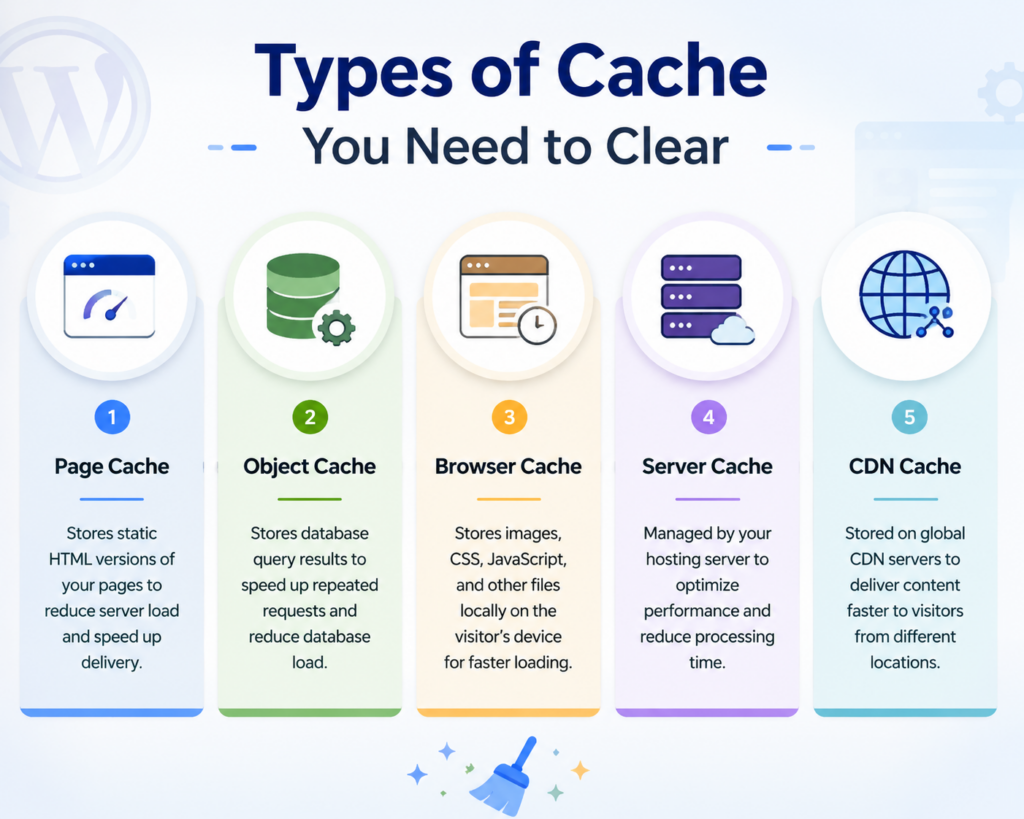
Before clearing cache, it helps to understand where it exists.
1. Page Cache
Stores static HTML versions of your pages to reduce server load.
2. Object Cache
Stores database query results to speed up repeated requests.
3. Browser Cache
Stores images, CSS, and JavaScript files locally on the visitor’s device.
4. Server Cache
Managed at hosting level to optimize performance.
5. CDN Cache
Stored across global servers to deliver content faster worldwide.
Each type may need to be cleared depending on the issue you are facing.
How to Clear Cache in WordPress Using Plugins
Most WordPress websites use caching plugins. These plugins make it easy to clear cache directly from the dashboard.
1. Clear Cache Using WP Rocket
WP Rocket is one of the most popular premium caching plugins.
Steps:
- Log in to your WordPress dashboard
- Go to Settings → WP Rocket
- Click the “Clear Cache” button
- Wait for confirmation message
You can also enable automatic cache clearing after updates.
2. Clear Cache Using W3 Total Cache
W3 Total Cache is a powerful free plugin with advanced options.
Steps:
- Go to Performance in your dashboard
- Click Dashboard
- Select “Empty All Caches”
- Confirm the action
This clears page cache, object cache, and database cache together.
3. Clear Cache Using LiteSpeed Cache
If your hosting uses LiteSpeed servers, this plugin is commonly pre-installed.
Steps:
- Go to LiteSpeed Cache in the dashboard
- Click “Toolbox”
- Select “Purge All”
You can also clear specific pages or images if needed.
4. Clear Cache Using WP Super Cache
This is another widely used plugin for beginners.
Steps:
- Go to Settings → WP Super Cache
- Open the Easy tab
- Click “Delete Cache”
It removes all stored cached pages instantly.
How to Clear Browser Cache
Sometimes the issue is not WordPress but your own browser showing an outdated version of the site.
For Google Chrome:
- Open Chrome settings
- Go to Privacy and Security
- Click Clear browsing data
- Select “Cached images and files”
- Click Clear data
For Firefox:
- Go to Settings
- Click Privacy & Security
- Under Cookies and Site Data, click Clear Data
For Safari:
- Open Preferences
- Go to Advanced
- Enable “Develop menu”
- Click Develop → Empty Caches
After clearing browser cache, refresh your site to see changes.
How to Clear Server Cache in WordPress Hosting
Many hosting providers include built-in caching systems to improve speed. If you are using managed WordPress hosting, this is very common.
1. Bluehost
- Log into cPanel or WordPress dashboard
- Look for Performance → Cache
- Click Clear Cache
2. SiteGround
- Go to Site Tools
- Click Speed → Caching
- Select Flush Cache
3. Hostinger
- Go to hPanel
- Open Advanced → Cache Manager
- Click Clear Cache
Server-level cache is powerful, so clearing it often resolves deep issues quickly.
How to Clear CDN Cache (Cloudflare Example)
A CDN like Cloudflare stores copies of your website globally to improve loading speed. Sometimes updates don’t show until you clear CDN cache.
Steps for Cloudflare:
- Log into Cloudflare dashboard
- Select your website
- Go to Caching section
- Click “Purge Everything”
You can also purge individual URLs if only specific pages are outdated.
When Should You Clear Cache in WordPress?
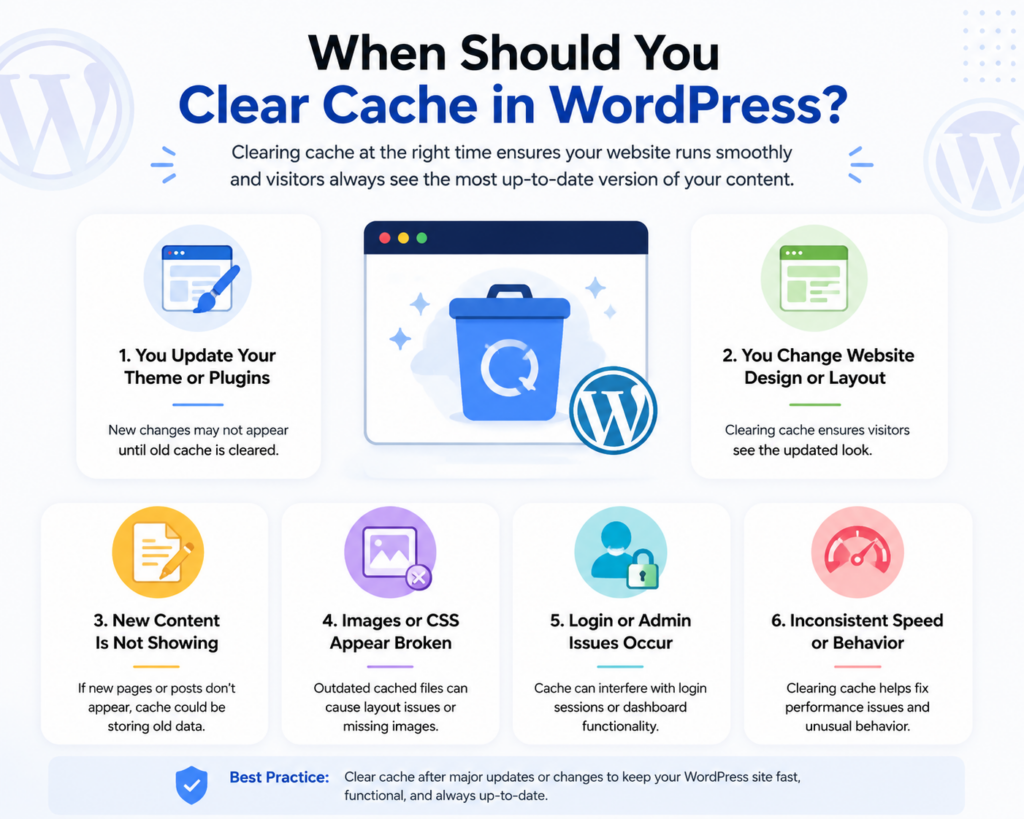
You don’t need to clear cache constantly. Do it when:
- You update your theme or plugins
- You change website design or layout
- New content is not showing
- Images or CSS appear broken
- You fix bugs or update settings
In general, clearing cache after major updates ensures everything loads correctly.
Common Problems After Clearing Cache
Sometimes clearing cache may temporarily cause issues such as:
- Slightly slower first page load
- Layout shifts before cache rebuilds
- Temporary login refresh required
These are normal and resolve automatically once cache is rebuilt.
Best Practices for Managing WordPress Cache
To avoid problems in the future, follow these best practices:
1. Use Only One Caching Plugin
Running multiple caching plugins can cause conflicts.
2. Enable Automatic Cache Clearing
Most plugins allow automatic cache purge after updates.
3. Combine With a CDN
CDN + caching improves global performance significantly.
4. Test Changes in Incognito Mode
This helps you see the real updated version of your site.
5. Schedule Regular Maintenance
Clear cache periodically if your site updates frequently.
Troubleshooting Cache Issues
If clearing cache doesn’t fix the issue:
- Try disabling plugins one by one
- Check theme conflicts
- Clear CDN + server + browser cache together
- Update WordPress core, themes, and plugins
- Contact hosting support if needed
In many cases, issues come from multiple caching layers stacking together.
Final Thoughts
Understanding how to clear cache in WordPress is essential for keeping your website running smoothly and ensuring visitors always see the latest version of your content. Whether you’re using caching plugins, CDN services, or hosting-level optimization, each layer plays an important role in performance.
By regularly managing and clearing cache when necessary, you can prevent display errors, improve user experience, and maintain a fast, reliable WordPress website.
FAQ
1. What does clearing cache in WordPress do?
Clearing cache removes stored temporary files so your website can load the most updated version of pages, images, and scripts.
2. How often should I clear WordPress cache?
You should clear cache whenever you make major updates, such as changing themes, plugins, or website content.
3. Why are my WordPress changes not showing up?
This usually happens because cached files are still being displayed. Clearing cache forces the site to load the latest version.
4. Do I need to clear browser cache as well?
Yes, sometimes your browser stores old versions of your site. Clearing browser cache ensures you see the latest updates.
5. What is the easiest way to clear cache in WordPress?
The easiest method is using a caching plugin like WP Rocket, LiteSpeed Cache, or W3 Total Cache and clicking “Clear Cache” or “Purge All.”
6. Can clearing cache affect my website?
No, it will not delete your content. It only removes temporary files and may slightly slow the first load as cache rebuilds.


Design and build a WordPress website or corporate site with a full eCommerce system for you.
Price range: $200.00 through $2,500.00custom-requirements-or-special-quotations
Original price was: $2.00.$1.00Current price is: $1.00. Are 50 Plugins Too Many for a WordPress eCommerce Store?
Understanding the Real Performance Impact Having 50 plugins on a WordPress eCommerce site isn’t automatically a problem. In fact, the number alone rarely determines performance....

Main Image Design for Amazon Home Physiotherapy Device Explained
Introduction: Building a Trustworthy Image for Home Therapy Devices on Amazon When designing the main image for a home therapy device on Amazon, our primary...

Main Image Design for Amazon Lipstick Conversion
Introduction: Designing a Lipstick Main Image That Sells on Amazon When we design a Main image for an Amazon lipstick, our responsibility goes far beyond...

How Hackers Steal WordPress Admin Emails (And How to Stop Them)
Let’s start with an uncomfortable truth: Your WordPress admin email is probably way more public than you think.And hackers? They love that. To them, your...

What Makes an Amazon Liquid Foundation Main Image Convert
Introduction Designing a Main image design for Amazon Liquid foundation is never just about making a product look beautiful. On Amazon, the main image and...

Designing an Effective Amazon Main Image for Filter Cartridges
Introduction Designing a Main image for Amazon is never just about making a product look attractive. It is about clarity, trust, and instant understanding—especially for...

Replay Attacks on WordPress: Real Threat or Overhyped Myth?
Let’s clear something up first. Replay attacks don’t look scary.They don’t smash passwords.They don’t inject evil code with green hacker text flying everywhere. They’re sneaky....

How to Duplicate WordPress Pages Without Breaking Anything
Let’s face it. Sometimes you don’t want to create a new page.You just want the same page… but slightly different. Same layout.Same blocks.Same settings. Because...

Five Pet WordPress Themes Compared
Introduction Choosing the right pet-related WordPress theme is more than a design decision—it directly affects usability, scalability, and long-term business growth. Pet care and pet...

Comparing Five Swimwear eCommerce Themes
Introduction Choosing the right theme for a swimwear or lingerie independent store is not just a visual decision—it directly affects conversion rates, scalability, and long-term...

How to Turn Off Comments in WordPress (Without Losing Your Mind)
Let’s talk about WordPress comments. In theory, comments are great.They encourage discussion.They build community.They make your website feel “alive.” In reality? They’re often a magnet...

WordPress 500 Error: When Your Website Decides to Panic
Your WordPress site was fine a minute ago.You refreshed the page.And suddenly—boom 💥—500 Internal Server Error. No explanation.No apology.Just a cold, confusing message that basically...

Building a Scalable WordPress Website for a Science-Driven Brand: The AminoUSA Project
Introduction In today’s digital landscape, a website is more than a place to list products. For science-driven brands operating in regulated or research-focused industries, a...

Building a Scalable Shopify Store for a Global Blade Brand: The CoolKatana Project
Introduction In cross-border eCommerce, a Shopify website is more than a storefront.For brands operating in niche, culture-driven categories, the website must do far more than...

Designing a High-Conversion Shopify Store for Pokémon Cards
Introduction In the world of collectible eCommerce, especially within the Pokémon Trading Card Game (TCG) market, a website must do more than simply list products....

High-Converting Shopify Design for a Custom Brick Brand
Introduction In today’s competitive eCommerce landscape, especially in the personalized gift and collectible space, a Shopify website must do far more than display products. It...

How to Contact Shopify Support: Simple, Stress-Free Guide
Running a Shopify store should feel exciting—not confusing. When questions pop up or issues slow you down, Shopify offers several support paths depending on what...

How to Deactivate a Shopify Store: A Clear, Practical Guide
Deactivating a Shopify store isn’t complicated, but it does come with consequences many merchants overlook. This guide breaks the process down in a simple, educational...