If you’ve ever edited a WordPress theme and suddenly realized something went wrong, you’re not alone.
A layout breaks. Text disappears. Colors change unexpectedly. And the first question that comes to mind is simple:
Can I undo a theme editor change in WordPress?
The short answer is yes — but the method depends on how and where the change was made.
In this guide, we’ll walk through every practical way to undo theme editor changes in WordPress, from built-in revision tools to backups and recovery strategies. This article is written for beginners, business owners, and anyone managing a WordPress site without wanting to break it.
Our focus keyword throughout this guide is:
how to undo theme editor change wordpress
Understanding the WordPress Theme Editor (Before Undoing Anything)
Before you can undo changes, it helps to understand what the WordPress theme editor actually is.
In WordPress, the “theme editor” can refer to different editing systems, depending on:
Your WordPress version
Your active theme
Whether you’re using block themes, classic themes, or page builders
Common places where theme-related changes happen include:
The Site Editor (Full Site Editing)
The Block Editor (Gutenberg)
The Customizer
The Theme File Editor (PHP/CSS)
Page builders like Elementor or others
Each of these has different undo capabilities.
Method 1: Undo Changes Using WordPress Revisions (Fastest Option)
If you’re editing content or templates using the Block Editor, WordPress automatically saves revisions.
What Are Revisions?
Revisions are snapshots of your content saved over time. They allow you to roll back to an earlier version.
This works for:
Páginas
Postagens
Templates
Template parts (headers, footers, etc.)
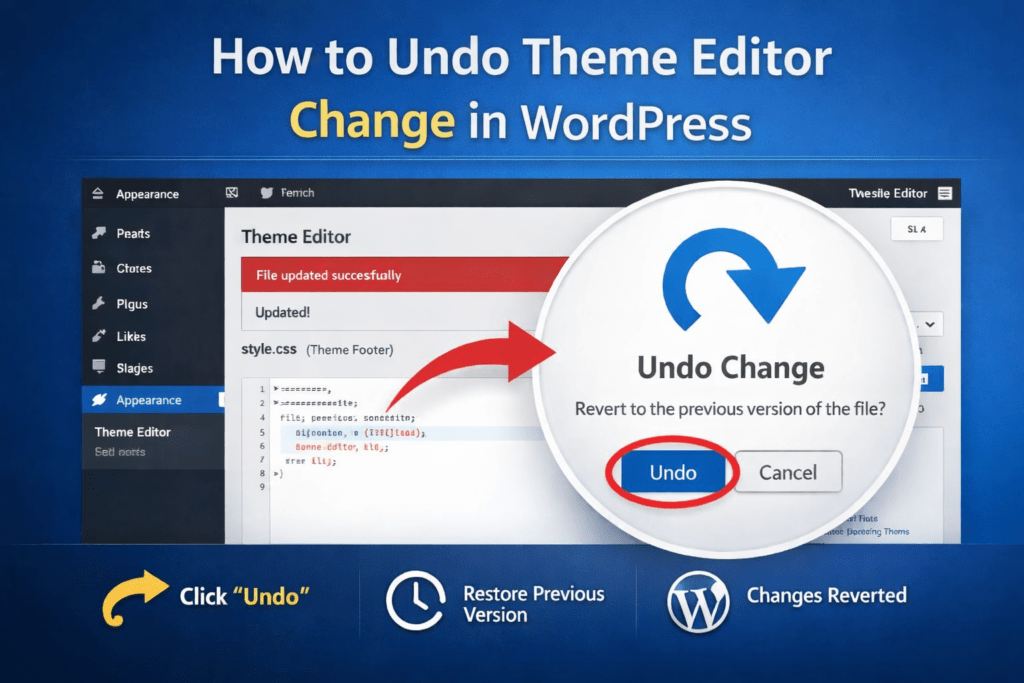
How to Undo Theme Editor Changes with Revisions
Open the page or template you edited
Click “Settings” (top right)
Find Revisions
Browse older versions
Restore the version that worked
This is one of the safest answers to how to undo theme editor change wordpress when you’re working inside Gutenberg.
Importante: Revisions only exist if:
The content was saved
Revisions are not disabled on your site
Method 2: Use Undo & Redo While Editing (Ctrl + Z)
Sometimes the simplest solution works best.
While editing in the WordPress editor:
Undo:Ctrl + Z (Windows) / Cmd + Z (Mac)
Redo:Ctrl + Shift + Z / Cmd + Shift + Z
This only works before you refresh or close the editor.
If you’ve already saved or exited the page, this method will no longer help.
Method 3: Revert Theme Template Changes in the Site Editor
If you’re using a block-based theme, WordPress offers a full Site Editor for:
Headers
Footers
Layout templates
Global styles
Undoing Template Changes
Go to Appearance → Editor
Open Templates or Template Parts
Select the edited template
Click Revisions
Restaurar versão anterior
This is a key method for undoing global layout mistakes, which are common when learning Full Site Editing.
Method 4: Reset Styles in Global Styles Panel
Many users accidentally break their site by changing fonts, colors, or spacing globally.
How to Undo Global Style Changes
Go to Appearance → Editor
Open Styles
Click the three-dot menu
Choose Reset to defaults
This instantly restores your theme’s original styling.
If your site suddenly looks “off,” this is often the fix.
Method 5: Restore Theme Files (Advanced Users)
If you edited theme files directly using:
Appearance → Theme File Editor
Custom CSS
funções.php
Undoing becomes more technical.
If You Still Have the Original Code
Manually revert the file to its previous version
Save changes carefully
If You Don’t Remember What Changed
This is where many users get stuck.
At this point, the best solution is restoring a backup.
Method 6: Restore a Backup (Safest Universal Solution)
Backups are the ultimate safety net.
If your host or plugin provides backups, you can:
Restore the entire site
Or selectively restore files and database
Common backup sources:
Hosting provider backups
WordPress backup plugins
Server snapshots
If you’re asking “how to undo theme editor change wordpress after everything broke”, backups are often the only reliable answer.
Method 7: Reinstall the Theme (When Files Are Corrupted)
If your theme files are heavily modified:
Download a fresh copy of the theme
Delete the current theme (without deleting content)
Reinstall the theme
Reapply safe customizations
This works best if:
You didn’t heavily customize the theme files
Or customizations were minimal
Why Undoing Theme Changes Often Goes Wrong
Many WordPress issues happen because users:
Edit live sites without staging
Modify theme files directly
Don’t understand global vs page-level changes
Don’t use backups
This is especially common for business websites, cross-border eCommerce sites, and brand sites, where one small layout change can impact conversions.
Best Practices to Avoid Needing to Undo Changes
If you manage a WordPress site regularly, follow these rules:
Use staging environments
Rely on child themes
Avoid editing core theme files
Use revision-friendly editors
Always keep backups
Prevention is easier than recovery.
When You Should Stop Undoing and Ask for Help
If:
The site layout is completely broken
The header/footer disappeared
CSS conflicts appear everywhere
Theme updates overwrite changes
It’s time to stop experimenting and get professional support.
Final Thoughts: Undo Is Easy — Strategy Is Hard
Learning how to undo theme editor change wordpress is essential for anyone running a WordPress site.
But undoing mistakes is only a temporary solution.
O que realmente importa é:
A clean theme structure
Scalable design
Safe customization
Layouts focados em conversão
Como a AIRSANG pode ajudar
Em AIRSANG, we specialize in cross-border WordPress and eCommerce website design, helping brands build stable, scalable, and conversion-driven websites from the ground up.
Instead of constantly undoing broken edits, we help you:
Design WordPress themes the right way
Customize safely without breaking updates
Optimize layouts for global audiences
Build websites that support long-term growth
If you’re tired of fixing theme editor mistakes and want a site that just works — AIRSANG está aqui para ajudar.
AIRSANG Oferece design de sites com excelente custo-benefício, identidade visual de marca e soluções de e-commerce. De Shopify e WordPress a imagens de produtos Amazon, Ajudamos marcas globais a construir, aprimorar e expandir seus negócios online.
Entendendo o Impacto Real no Desempenho Ter 50 plugins em um site de eCommerce WordPress não é automaticamente um problema. Na verdade, o número por si só raramente determina o desempenho....
Introdução: Conceber uma imagem principal de batom que vende na Amazon Quando concebemos uma imagem principal para um batom da Amazon, a nossa responsabilidade vai muito além...
Vamos começar com uma verdade incómoda: o seu e-mail de administrador do WordPress é provavelmente muito mais público do que pensa e os hackers? Eles adoram isso. Para eles, o seu...
Introdução: Criar uma imagem principal para a base líquida da Amazon não se resume apenas a deixar o produto bonito. Na Amazon, a imagem principal e...
Introdução: Criar uma imagem principal para a Amazon nunca se resume apenas a tornar um produto atraente. Trata-se de clareza, confiança e compreensão imediata — especialmente para...
Vamos esclarecer uma coisa primeiro. Ataques de repetição não parecem assustadores. Eles não quebram senhas. Eles não injetam código malicioso com texto verde de hacker voando por toda parte. Eles são sorrateiros...
Vamos ser sinceros. Às vezes você não quer criar uma página nova. Você só quer a mesma página… mas um pouco diferente. Mesmo layout. Mesmos blocos. Mesmas configurações. Porque….
Introdução Escolher o tema WordPress certo para o seu negócio de animais de estimação é mais do que uma decisão de design — afeta diretamente a usabilidade, a escalabilidade e o crescimento a longo prazo. Cuidados com animais de estimação e...
Introdução: Escolher o tema certo para uma loja independente de moda praia ou lingerie não é apenas uma decisão visual — afeta diretamente as taxas de conversão, a escalabilidade e o sucesso a longo prazo...
Vamos falar sobre os comentários do WordPress. Em teoria, os comentários são ótimos. Eles incentivam a discussão, constroem comunidade e dão vida ao seu site. Na prática? Muitas vezes, eles atraem...
Seu site WordPress estava funcionando perfeitamente até um minuto atrás. Você atualizou a página. E de repente — bum 💥 — Erro Interno do Servidor 500. Sem explicação. Sem pedido de desculpas. Apenas uma mensagem fria e confusa que basicamente...
Gerir uma loja Shopify deve ser uma experiência empolgante, não confusa. Quando surgem dúvidas ou problemas que atrapalham o seu trabalho, a Shopify oferece diversas opções de suporte, dependendo da situação.
Desativar uma loja Shopify não é complicado, mas acarreta consequências que muitos lojistas ignoram. Este guia explica o processo de forma simples e didática...
Introdução: Escolher o tema certo para uma loja independente focada em calçados não é apenas uma decisão visual — afeta diretamente a escalabilidade, as operações diárias e o desempenho de conversão a longo prazo.
Introdução: O Equivalente Digital de Acordar com uma Janela Quebrada Imagine acordar, pegar seu café da manhã, abrir seu laptop… e descobrir seu site….
Abrir uma loja na Shopify parece glamoroso. Você se imagina tomando um café ao meio-dia, checando as notificações de vendas e dizendo casualmente aos amigos: "É, minha loja foi muito bem...".
Se você está pesquisando plataformas de e-commerce, provavelmente já digitou uma pergunta muito específica no Google: a Shopify é confiável? Essa pergunta é totalmente razoável. Lançar uma...