If you are new to WordPress, one of the first tools you’ll interact with is the default WordPress editor. Whether you’re writing blog posts, building pages, or managing content for a business website, understanding how this editor works is essential.
In this guide, we’ll walk you through how to use the default WordPress editor step by step, explain its core features in plain language, and show you how to create clean, structured, and professional content—without touching a single line of code.
This article is designed for beginners, non-technical users, and business owners who want to confidently manage their WordPress websites.
What Is the Default WordPress Editor?
The default WordPress editor is the built-in content editing tool that comes with every WordPress installation. Since WordPress 5.0, this editor is known as the Block Editor (also called Gutenberg).
Instead of one large text box like older editors, the default WordPress editor uses blocks. Each piece of content—paragraphs, images, headings, videos, buttons—is added and managed as an individual block.
This block-based system gives users more flexibility and visual control, making content creation easier and more intuitive.
Why WordPress Uses a Block Editor
Before blocks existed, WordPress relied on a classic text editor that felt similar to Microsoft Word. While simple, it limited layout control and required plugins or custom code for advanced designs.
The default WordPress editor solves this by:
- Separating content into manageable blocks
- Allowing visual layout control without coding
- Making pages easier to edit and reorganize
- Reducing reliance on third-party plugins
For most users, especially beginners, this editor strikes a good balance between simplicity and power.
Accessing the Default WordPress Editor
To start using the default WordPress editor:
- Log in to your WordPress dashboard
- Go to Posts → Add New (for blog posts)
- Or go to Pages → Add New (for static pages)
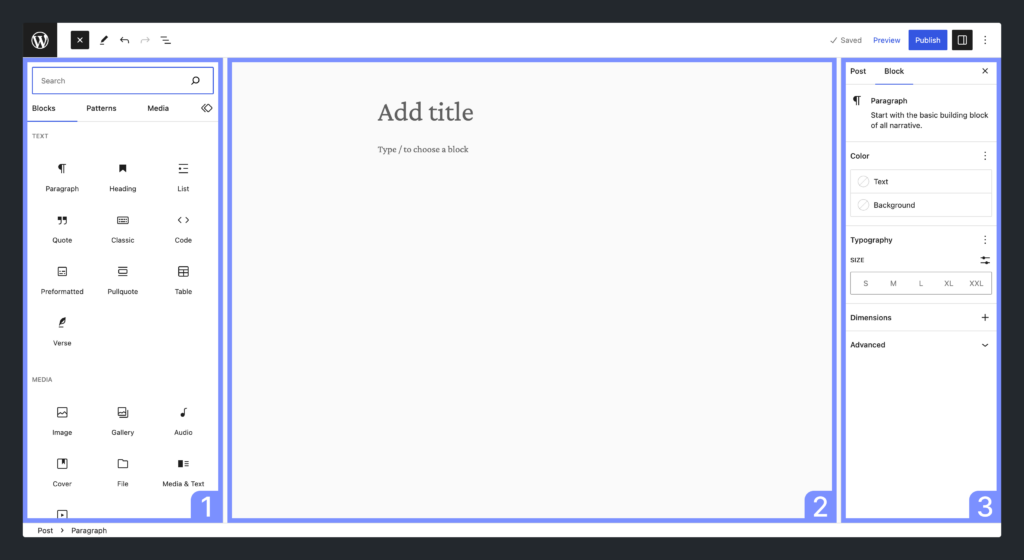
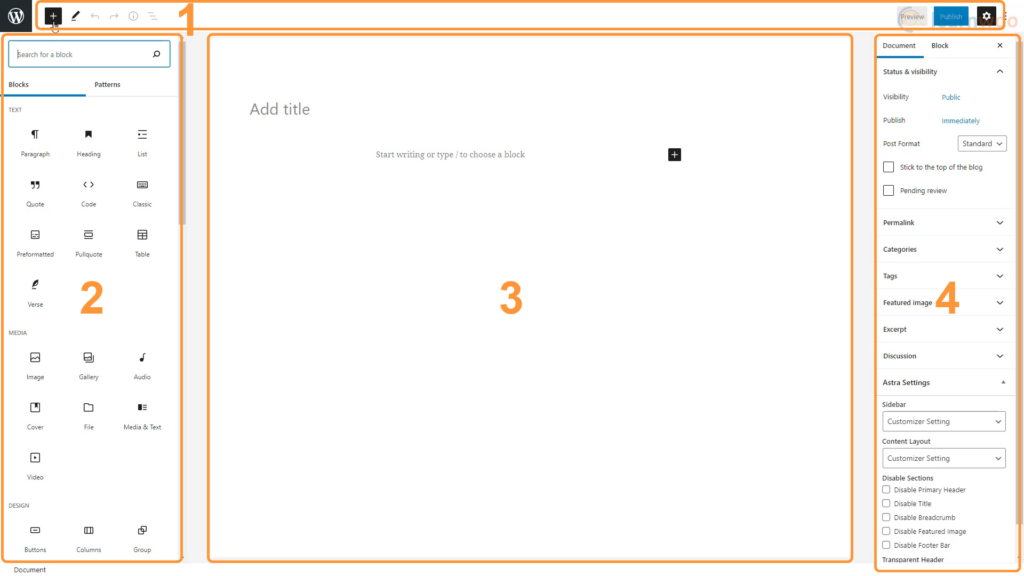
Once opened, you’ll see a clean interface with a title field at the top and a large content area below—this is the block editor workspace.
Understanding the Editor Layout
Before creating content, it helps to understand the main areas of the editor.
1. Title Field
At the top, you’ll enter the title of your post or page. This title is important for both readers and SEO.
2. Content Area
This is where blocks are added. Each time you click or press “Enter,” WordPress creates a new block.
3. Block Toolbar
When you click on a block, a small toolbar appears above it. This toolbar changes depending on the block type.
4. Settings Sidebar
On the right side, you’ll find settings for the selected block and the overall page or post.
What Are Blocks in WordPress?
Blocks are the foundation of the default WordPress editor. Each block serves a specific purpose.
Common block types include:
- Paragraph
- Heading
- Image
- List
- Quote
- Button
- Video
- Spacer
- Columns
Instead of formatting everything inside one editor box, WordPress lets you build content piece by piece.
How to Add a New Block
There are several easy ways to add blocks:
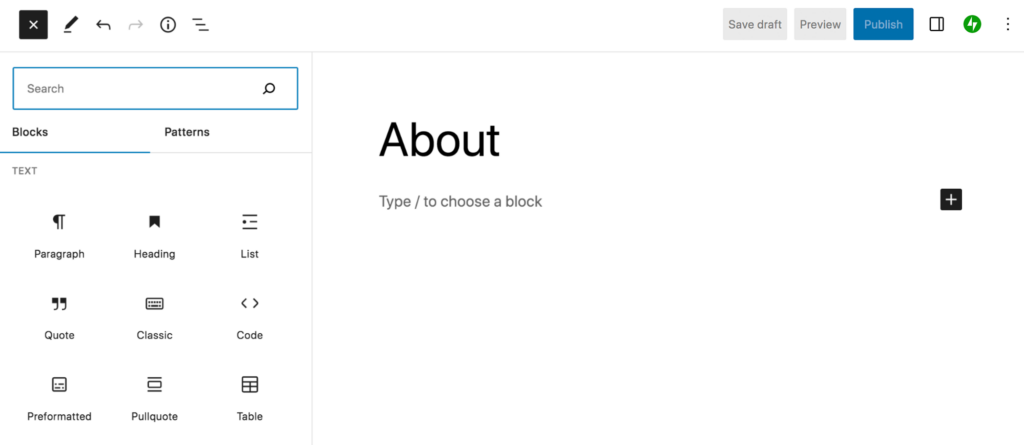
- Click the “+” button in the editor
- Press Enter to create a new paragraph block
- Type “/” followed by a block name (for example:
/image)
This makes content creation fast and intuitive—even for beginners.
Using Paragraph and Heading Blocks
Paragraph Blocks
Paragraph blocks are used for regular text. Simply start typing, and WordPress automatically creates one.
You can adjust text alignment, bold, italic, links, and more using the block toolbar.
Heading Blocks
Headings help structure your content and improve readability and SEO.
Best practices:
- Use H1 only for the page title
- Use H2 for main sections
- Use H3 for sub-sections
Clear heading structure makes your content easier to scan and understand.
Adding and Editing Images
Images play a big role in content engagement.
To add an image:
- Insert an Image block
- Upload a new image or select one from the Media Library
You can:
- Resize images
- Align them left, center, or right
- Add alt text for accessibility and SEO
Well-optimized images improve both user experience and search performance.
Creating Lists and Structured Content
Lists are perfect for instructions, features, and key points.
WordPress supports:
- Bullet lists
- Numbered lists
Lists improve readability and help readers quickly understand important information.
Using Columns for Simple Layouts
The Columns block allows you to place content side by side.
Common use cases:
- Text + image layouts
- Feature comparisons
- Call-to-action sections
This is one of the most powerful features of the default WordPress editor—no page builder required.
Embedding Media and External Content
You can easily embed content from platforms like:
- YouTube
- Vimeo
- Twitter (X)
Just paste the link into a block, and WordPress automatically converts it into an embedded display.
Saving, Previewing, and Publishing
Before publishing:
- Click Preview to see how the page looks on desktop or mobile
- Click Save Draft if you’re not ready
When ready:
- Click Publish to make your content live
WordPress also allows scheduling posts for future dates.
Common Beginner Mistakes to Avoid
When learning how to use the default WordPress editor, beginners often make these mistakes:
- Using too many different fonts or styles
- Ignoring heading hierarchy
- Forgetting to add alt text to images
- Overloading pages with unnecessary blocks
Keeping layouts clean and structured leads to better results.
When the Default Editor Is Enough—and When It Isn’t
For many websites, the default WordPress editor is more than enough.
It works well for:
- Blogs
- Business websites
- Landing pages
- Content-driven sites
However, for highly customized layouts, advanced animations, or complex eCommerce experiences, professional design support or advanced tools may be needed.
Why Understanding the Default Editor Matters for Business Websites
For business owners, knowing how to use the default WordPress editor means:
- Faster content updates
- Lower maintenance costs
- Better SEO control
- More flexibility without developers
This is especially important for cross-border businesses, where content often needs frequent updates, localization, and optimization.
Final Thoughts: Build Smarter with the Default WordPress Editor
Learning how to use the default WordPress editor gives you real control over your website. You don’t need technical knowledge to create professional, structured, and search-friendly content.
That said, knowing the tool is only part of the equation.
At AIRSANG, we specialize in cross-border website design and WordPress solutions. We help global brands build scalable WordPress websites that balance clean structure, strong visuals, and conversion-focused layouts—while still remaining easy to manage using the default editor.
If you want a WordPress website that looks professional, performs well globally, and stays easy to update, AIRSANG is here to help.