Introduction
If you’re building a website for the first time, one of the most essential skills you need is understanding how to create a web page in WordPress. Whether you’re launching a business site, a personal portfolio, or an eCommerce store, pages are the foundation of your website’s structure.
Unlike blog posts, which are typically used for time-based content, WordPress pages are designed for static, evergreen information—such as your homepage, about page, services page, or contact page. Learning how to create and manage these pages effectively will help you build a professional, user-friendly website that meets your goals.
In this guide, we’ll walk through everything you need to know—from creating your first page to organizing, customizing, and optimizing it for better performance.
What Is a WordPress Page?
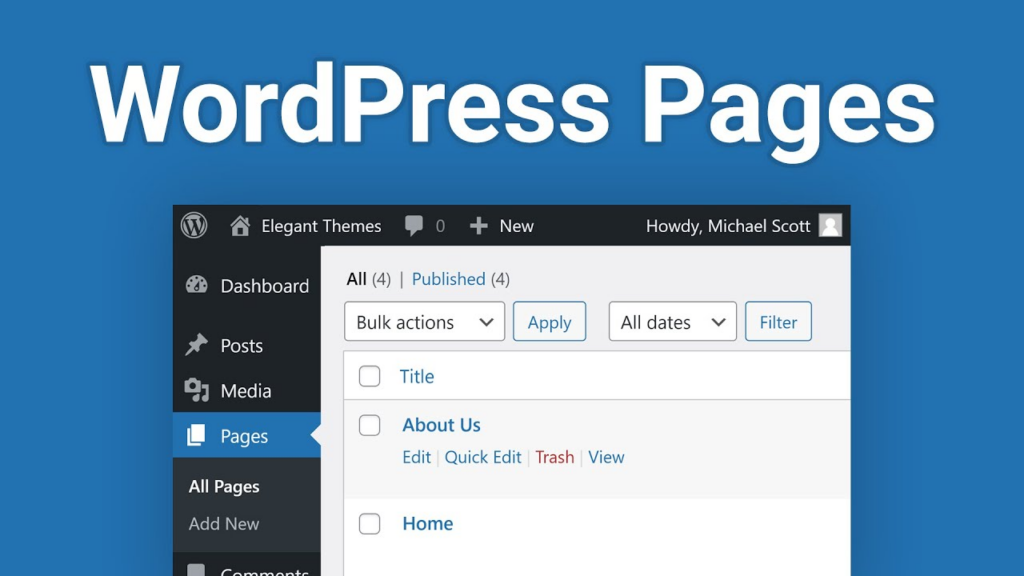
Before diving into the process, it’s important to understand what a page actually is in WordPress.
A WordPress page is a type of content used for static information. Unlike posts, pages don’t appear in your blog feed and aren’t organized by categories or tags. Instead, they’re typically used for core website sections such as:
- Accueil
- À propos de nous
- Services
- Contact
- FAQ
- Politique de confidentialité
Pages are designed to stay relevant over time, making them ideal for presenting key information about your business or brand.
Why Pages Matter for Your Website
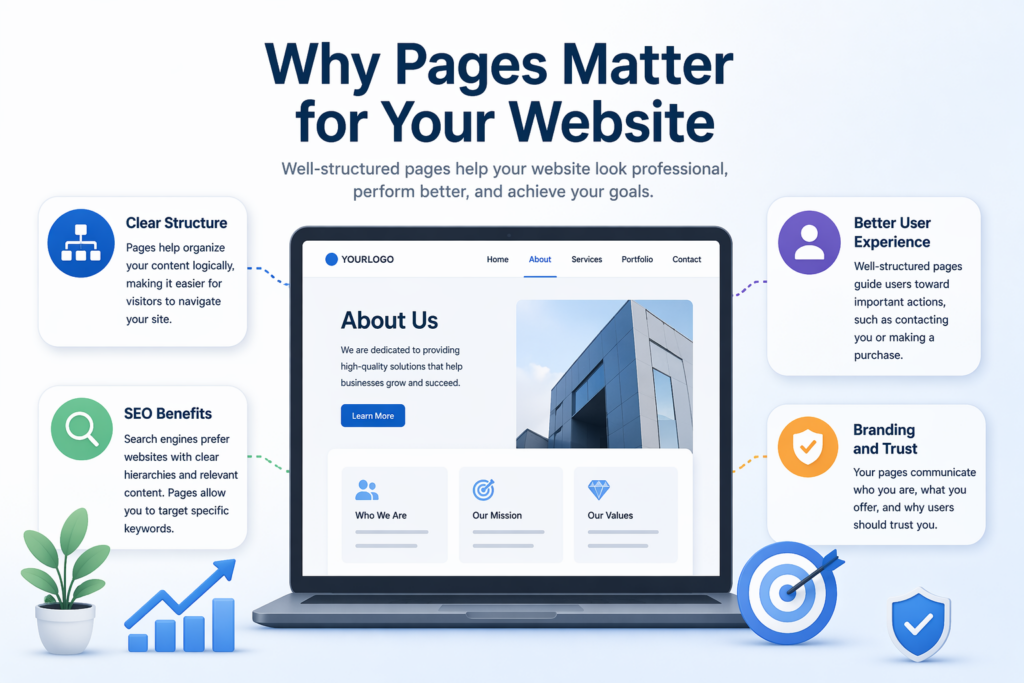
Understanding how to create a web page in WordPress is more than just a technical skill—it directly impacts your website’s usability and effectiveness.
Here’s why pages are important:
1. Clear Structure
Pages help organize your content logically, making it easier for visitors to navigate your site.
2. Better User Experience
Well-structured pages guide users toward important actions, such as contacting you or making a purchase.
3. SEO Benefits
Search engines prefer websites with clear hierarchies and relevant content. Pages allow you to target specific keywords and improve your visibility.
4. Branding and Trust
Your pages communicate who you are, what you offer, and why users should trust you.
How to Create a Web Page in WordPress
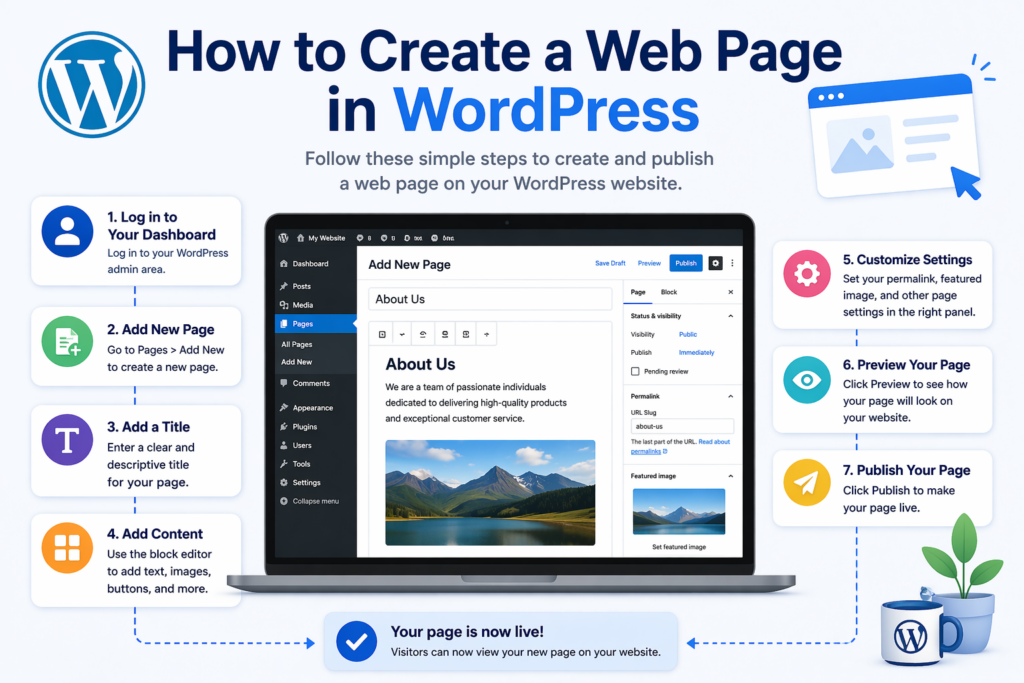
Now let’s get into the practical steps.
Step 1: Log in to Your WordPress Dashboard
To begin, log in to your WordPress admin panel. This is usually accessible by adding /wp-admin to your domain.
Once logged in, you’ll see the dashboard, where you can manage all aspects of your website.
Step 2: Go to Pages → Add New
From the left-hand menu:
- Click Pages
- Then click Add New
This will open the WordPress page editor.
Step 3: Add a Page Title
At the top of the editor, you’ll see a field where you can enter your page title.
Your title should be:
- Clear and descriptive
- Relevant to your content
- Optimized for search engines
Par exemple:
- “About Our Company”
- “Web Design Services”
- “Contact Us Today”
Step 4: Add Content Using the Block Editor
WordPress uses the Gutenberg block editor, which allows you to build pages using blocks.
Common blocks include:
- Paragraph (text)
- Heading (H1, H2, H3)
- Image
- Bouton
- Colonnes
- Vidéo
You can add a block by clicking the “+” icon and selecting the type of content you want.
This system makes it easy to design layouts without needing coding skills.
Step 5: Customize Page Settings
On the right-hand side, you’ll find page settings:
Permalink (URL)
Edit the page URL to make it clean and SEO-friendly.
Exemple:
yourdomain.com/web-design-services
Featured Image
Set an image that represents your page.
Page Attributes
You can assign a parent page to create a hierarchy (useful for larger websites).
Step 6: Preview Your Page
Before publishing, click Preview to see how your page looks on:
- Desktop
- Tablet
- Mobile
This step helps ensure your layout and content display correctly across devices.
Step 7: Publish Your Page
Once you’re satisfied:
- Click Publish
Your page is now live on your website.
How to Edit an Existing Page
To update a page:
- Aller aux pages → Toutes les pages
- Hover over the page you want to edit
- Click Edit
You can then modify content, update images, or improve layout as needed.
How to Organize Pages in WordPress
As your website grows, organization becomes crucial.
Use Parent and Child Pages
You can create a hierarchy:
- Parent Page (e.g., Services)
- Child Pages (e.g., Web Design, SEO, Branding)
This improves navigation and SEO.
Add Pages to Navigation Menu
To make your pages accessible:
- Go to Appearance → Menus
- Select your menu
- Add pages from the list
- Arrange them in your preferred order
- Enregistrer les modifications
Using Page Builders for Advanced Design
While the default editor is powerful, many users prefer page builders for more flexibility.
Parmi les options populaires, on trouve :
- Élémentaire
- WPBakery
- Divi
These tools allow you to:
- Drag and drop elements
- Create complex layouts
- Design visually without coding
They’re especially useful for landing pages and high-conversion designs.
Best Practices for Creating Effective Pages
Knowing how to create a web page in WordPress is just the beginning. To make your pages truly effective, follow these best practices:
1. Keep It Simple
Avoid clutter. Focus on clarity and readability.
2. Use Clear Headings
Break content into sections using H2 and H3 headings.
3. Optimize for Mobile
Ensure your page looks good on all devices.
4. Include Call-to-Actions (CTA)
Guide users toward actions like:
- Contacting you
- Signing up
- Making a purchase
5. Use High-Quality Images
Visuals improve engagement and professionalism.
Erreurs courantes à éviter
When learning how to create a web page in WordPress, beginners often make these mistakes:
- Overloading pages with too much text
- Ignorer l'optimisation mobile
- Using unclear navigation
- Not optimizing URLs
- Forgetting to preview before publishing
Avoiding these issues will significantly improve your site’s performance.
When to Use Pages vs Posts
A common question is: when should you use a page instead of a post?
Use pages for:
- Static content
- Core website sections
Utiliser posts for:
- Blog articles
- News updates
- Time-sensitive content
Understanding this distinction helps you structure your website properly.
Expanding Your Website with More Pages
As your business grows, you can create additional pages such as:
- Le portefeuille
- Testimonials
- Études de cas
- Service Details
Each page should have a clear purpose and support your overall goals.
Conclusion
Learning how to create a web page in WordPress is a fundamental step in building a successful website. From adding a new page and customizing its content to organizing your site structure and optimizing for user experience, each step plays a role in creating a professional online presence.
By following the process outlined in this guide, you can confidently create pages that are not only visually appealing but also functional, user-friendly, and optimized for search engines.
If you’re planning to build or improve your website, mastering page creation is the first step toward achieving your online goals.
FAQ
To create a web page in WordPress, go to your dashboard, click “Pages,” then “Add New.” Add a title, insert content using the block editor, and click “Publish” to make it live.
A WordPress page is used for static content like “About” or “Contact,” while posts are for blog content and are organized by categories and tags.
Yes, WordPress allows you to create pages without coding by using the built-in block editor or page builders like Elementor.
Go to “Pages” in your dashboard, select the page you want to edit, make your changes, and click “Update” to save them.
Go to “Appearance” → “Menus,” select your menu, add the page, arrange its position, and save the changes.