











Giỏ hàng hiện không có sản phẩm nào.

If you’re building a website for the first time, one of the most essential skills you need is understanding how to create a web page in WordPress. Whether you’re launching a business site, a personal portfolio, or an eCommerce store, pages are the foundation of your website’s structure.
Unlike blog posts, which are typically used for time-based content, WordPress pages are designed for static, evergreen information—such as your homepage, about page, services page, or contact page. Learning how to create and manage these pages effectively will help you build a professional, user-friendly website that meets your goals.
In this guide, we’ll walk through everything you need to know—from creating your first page to organizing, customizing, and optimizing it for better performance.
Before diving into the process, it’s important to understand what a page actually is in WordPress.
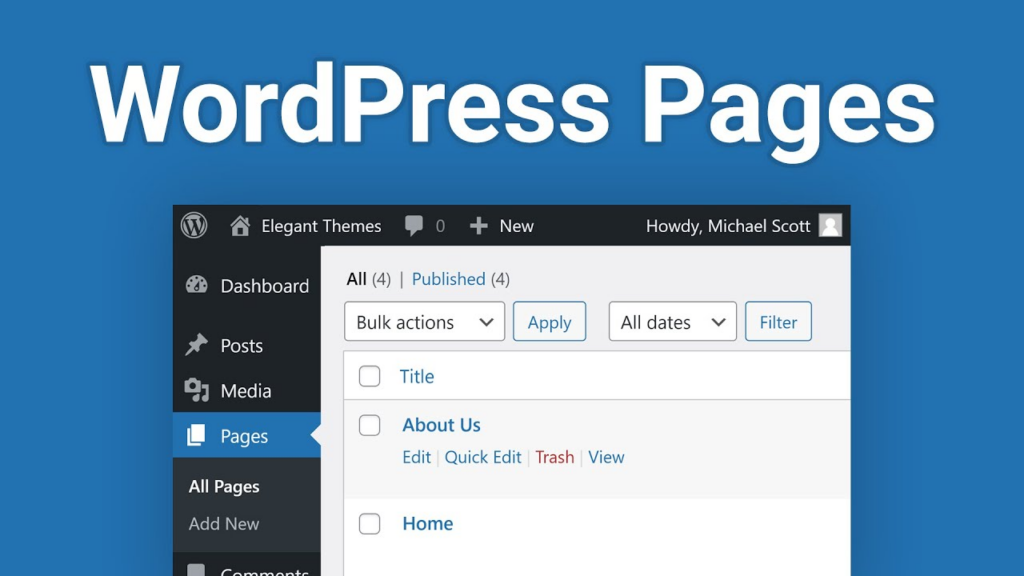
A WordPress page is a type of content used for static information. Unlike posts, pages don’t appear in your blog feed and aren’t organized by categories or tags. Instead, they’re typically used for core website sections such as:
Pages are designed to stay relevant over time, making them ideal for presenting key information about your business or brand.
Understanding how to create a web page in WordPress is more than just a technical skill—it directly impacts your website’s usability and effectiveness.
Here’s why pages are important:
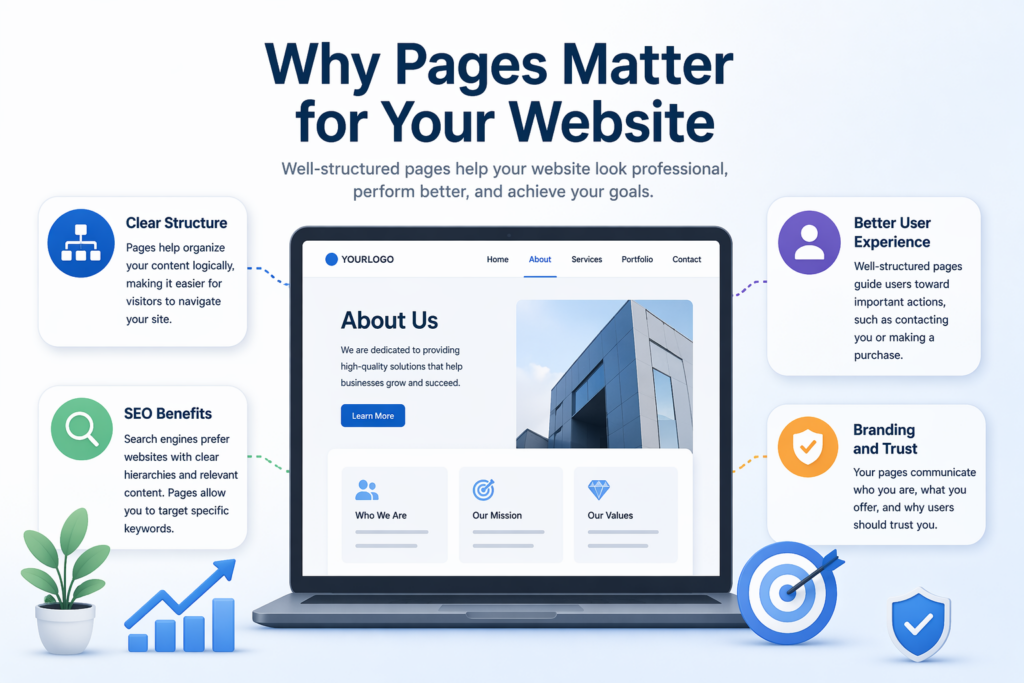
Pages help organize your content logically, making it easier for visitors to navigate your site.
Well-structured pages guide users toward important actions, such as contacting you or making a purchase.
Search engines prefer websites with clear hierarchies and relevant content. Pages allow you to target specific keywords and improve your visibility.
Your pages communicate who you are, what you offer, and why users should trust you.
Now let’s get into the practical steps.
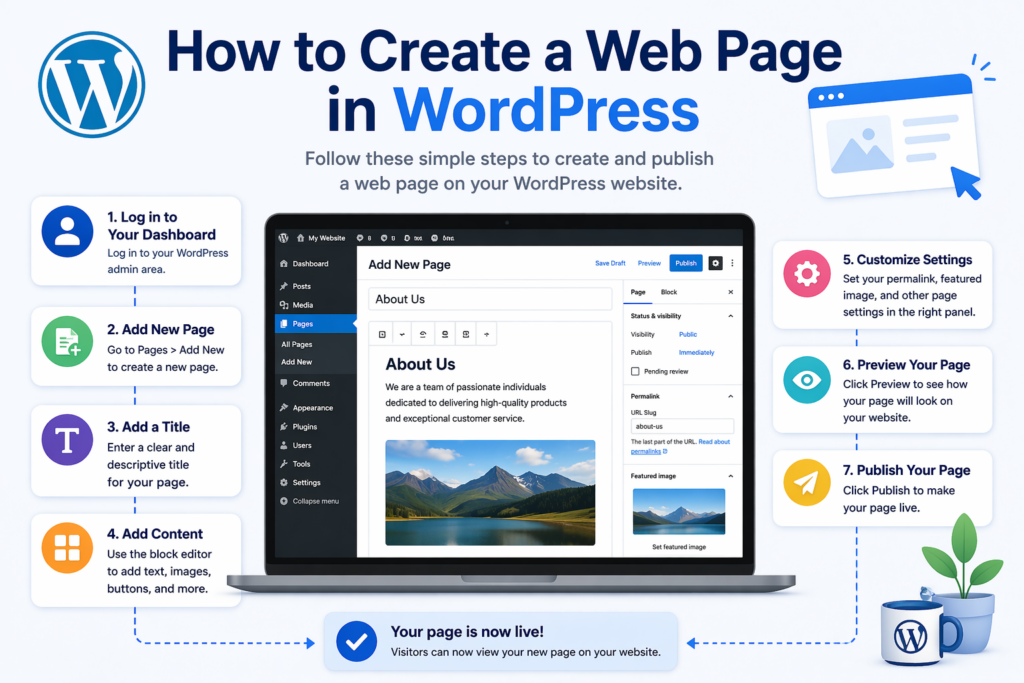
To begin, log in to your WordPress admin panel. This is usually accessible by adding /wp-admin to your domain.
Once logged in, you’ll see the dashboard, where you can manage all aspects of your website.
From the left-hand menu:
This will open the WordPress page editor.
At the top of the editor, you’ll see a field where you can enter your page title.
Your title should be:
Ví dụ:
WordPress uses the Gutenberg block editor, which allows you to build pages using blocks.
Common blocks include:
You can add a block by clicking the “+” icon and selecting the type of content you want.
This system makes it easy to design layouts without needing coding skills.
On the right-hand side, you’ll find page settings:
Edit the page URL to make it clean and SEO-friendly.
Ví dụ:
yourdomain.com/web-design-servicesSet an image that represents your page.
You can assign a parent page to create a hierarchy (useful for larger websites).
Before publishing, click Preview to see how your page looks on:
This step helps ensure your layout and content display correctly across devices.
Once you’re satisfied:
Your page is now live on your website.
To update a page:
You can then modify content, update images, or improve layout as needed.
As your website grows, organization becomes crucial.
You can create a hierarchy:
This improves navigation and SEO.
To make your pages accessible:
While the default editor is powerful, many users prefer page builders for more flexibility.
Các lựa chọn phổ biến bao gồm:
These tools allow you to:
They’re especially useful for landing pages and high-conversion designs.
Knowing how to create a web page in WordPress is just the beginning. To make your pages truly effective, follow these best practices:
Avoid clutter. Focus on clarity and readability.
Break content into sections using H2 and H3 headings.
Ensure your page looks good on all devices.
Guide users toward actions like:
Visuals improve engagement and professionalism.
When learning how to create a web page in WordPress, beginners often make these mistakes:
Avoiding these issues will significantly improve your site’s performance.
A common question is: when should you use a page instead of a post?
Use pages for:
Sử dụng posts for:
Understanding this distinction helps you structure your website properly.
As your business grows, you can create additional pages such as:
Each page should have a clear purpose and support your overall goals.
Learning how to create a web page in WordPress is a fundamental step in building a successful website. From adding a new page and customizing its content to organizing your site structure and optimizing for user experience, each step plays a role in creating a professional online presence.
By following the process outlined in this guide, you can confidently create pages that are not only visually appealing but also functional, user-friendly, and optimized for search engines.
If you’re planning to build or improve your website, mastering page creation is the first step toward achieving your online goals.
To create a web page in WordPress, go to your dashboard, click “Pages,” then “Add New.” Add a title, insert content using the block editor, and click “Publish” to make it live.
A WordPress page is used for static content like “About” or “Contact,” while posts are for blog content and are organized by categories and tags.
Yes, WordPress allows you to create pages without coding by using the built-in block editor or page builders like Elementor.
Go to “Pages” in your dashboard, select the page you want to edit, make your changes, and click “Update” to save them.
Go to “Appearance” → “Menus,” select your menu, add the page, arrange its position, and save the changes.


















