












การแนะนำ
If you’re building a website for the first time, one of the most essential skills you need is understanding how to create a web page in วordpress. Whether you’re launching a business site, a personal portfolio, or an eCommerce store, pages are the foundation of your website’s structure.
Unlike blog posts, which are typically used for time-based content, WordPress pages are designed for static, evergreen information—such as your homepage, about page, services page, or contact page. Learning how to create and manage these pages effectively will help you build a professional, user-friendly website that meets your goals.
In this guide, we’ll walk through everything you need to know—from creating your first page to organizing, customizing, and optimizing it for better performance.
What Is a WordPress Page?
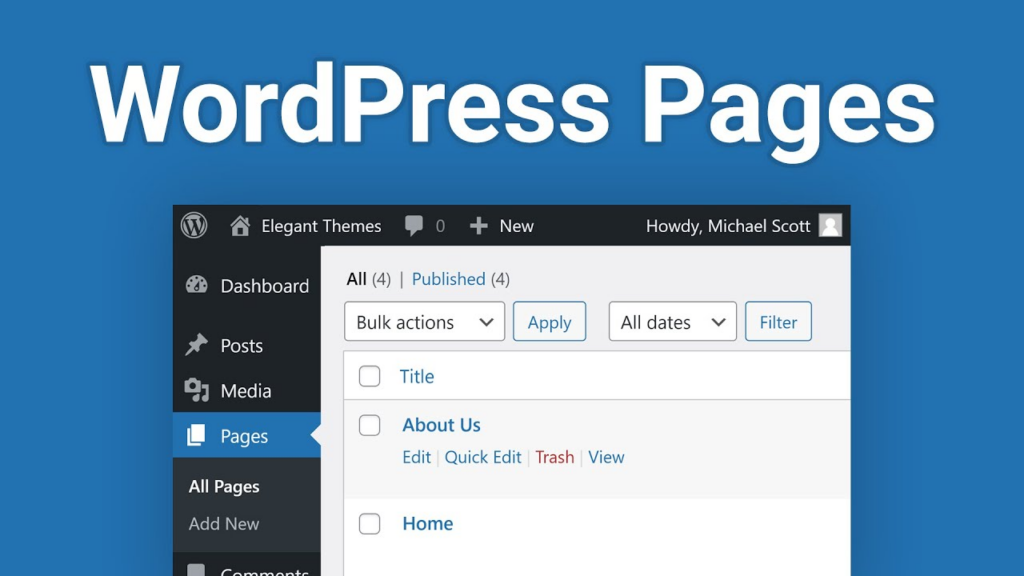
Before diving into the process, it’s important to understand what a page actually is in WordPress.
A WordPress page is a type of content used for static information. Unlike posts, pages don’t appear in your blog feed and aren’t organized by categories or tags. Instead, they’re typically used for core website sections such as:
- หน้าแรก
- เกี่ยวกับเรา
- บริการ
- ติดต่อ
- คำถามที่พบบ่อย
- นโยบายความเป็นส่วนตัว
Pages are designed to stay relevant over time, making them ideal for presenting key information about your business or brand.
Why Pages Matter for Your Website
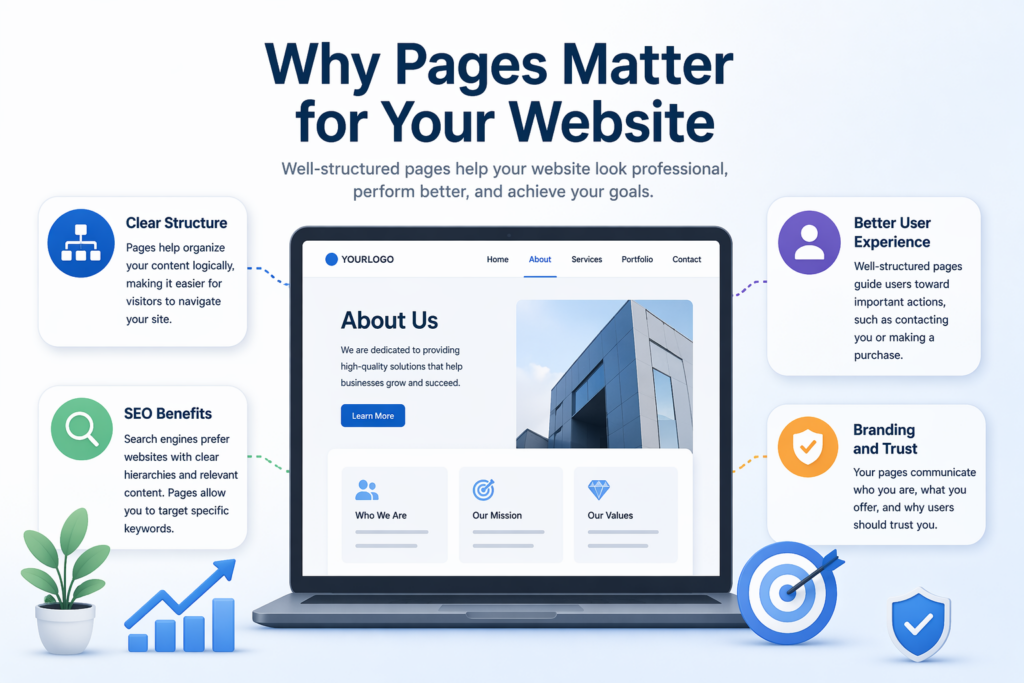
Understanding how to create a web page in WordPress is more than just a technical skill—it directly impacts your website’s usability and effectiveness.
Here’s why pages are important:
1. Clear Structure
Pages help organize your content logically, making it easier for visitors to navigate your site.
2. Better User Experience
Well-structured pages guide users toward important actions, such as contacting you or making a purchase.
3. ประโยชน์ของ SEO
Search engines prefer websites with clear hierarchies and relevant content. Pages allow you to target specific keywords and improve your visibility.
4. Branding and Trust
Your pages communicate who you are, what you offer, and why users should trust you.
How to Create a Web Page in WordPress
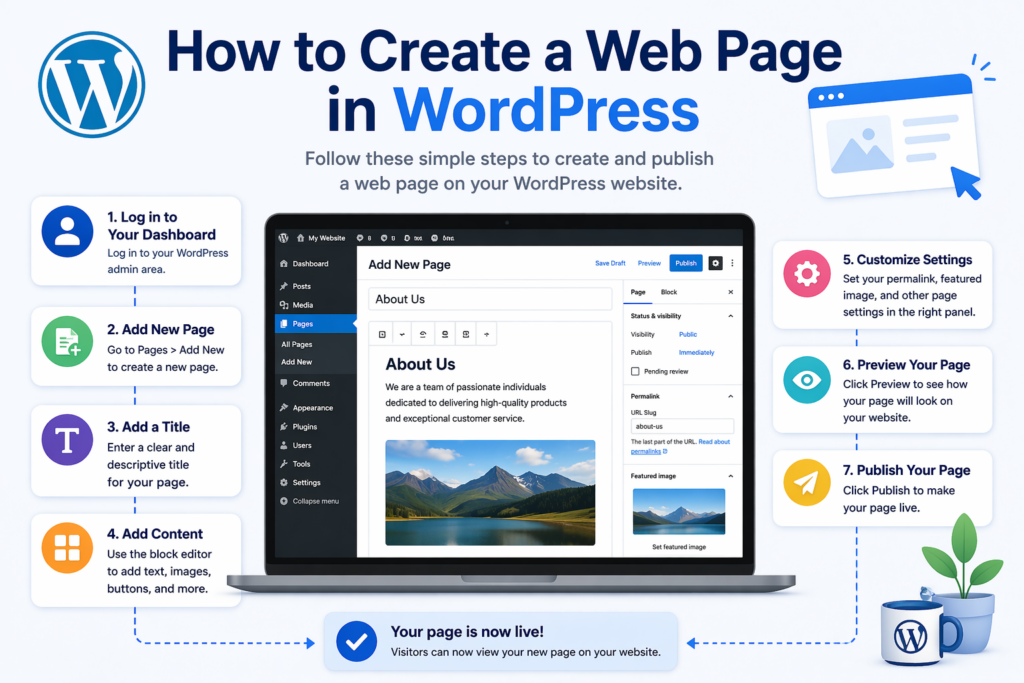
Now let’s get into the practical steps.
Step 1: Log in to Your WordPress Dashboard
To begin, log in to your WordPress admin panel. This is usually accessible by adding /wp-admin to your domain.
Once logged in, you’ll see the dashboard, where you can manage all aspects of your website.
Step 2: Go to Pages → Add New
From the left-hand menu:
- Click Pages
- Then click Add New
This will open the WordPress page editor.
Step 3: Add a Page Title
At the top of the editor, you’ll see a field where you can enter your page title.
Your title should be:
- Clear and descriptive
- Relevant to your content
- Optimized for search engines
ตัวอย่างเช่น:
- “About Our Company”
- “Web Design Services”
- “Contact Us Today”
Step 4: Add Content Using the Block Editor
WordPress uses the Gutenberg block editor, which allows you to build pages using blocks.
Common blocks include:
- Paragraph (text)
- Heading (H1, H2, H3)
- ภาพ
- ปุ่ม
- คอลัมน์
- วิดีโอ
You can add a block by clicking the “+” icon and selecting the type of content you want.
This system makes it easy to design layouts without needing coding skills.
Step 5: Customize Page Settings
On the right-hand side, you’ll find page settings:
Permalink (URL)
Edit the page URL to make it clean and SEO-friendly.
ตัวอย่าง:
yourdomain.com/web-design-services
Featured Image
Set an image that represents your page.
Page Attributes
You can assign a parent page to create a hierarchy (useful for larger websites).
Step 6: Preview Your Page
Before publishing, click Preview to see how your page looks on:
- Desktop
- Tablet
- Mobile
This step helps ensure your layout and content display correctly across devices.
Step 7: Publish Your Page
Once you’re satisfied:
- Click Publish
Your page is now live on your website.
How to Edit an Existing Page
To update a page:
- ไปที่หน้าต่างๆ → ทุกหน้า
- Hover over the page you want to edit
- Click Edit
You can then modify content, update images, or improve layout as needed.
How to Organize Pages in WordPress
As your website grows, organization becomes crucial.
Use Parent and Child Pages
You can create a hierarchy:
- Parent Page (e.g., Services)
- Child Pages (e.g., Web Design, SEO, Branding)
This improves navigation and SEO.
Add Pages to Navigation Menu
To make your pages accessible:
- Go to Appearance → Menus
- Select your menu
- Add pages from the list
- Arrange them in your preferred order
- บันทึกการเปลี่ยนแปลง
Using Page Builders for Advanced Design
While the default editor is powerful, many users prefer page builders for more flexibility.
ตัวเลือกยอดนิยม ได้แก่:
- เอเลเมนเตอร์
- ดับเบิลยูพีเบเกอรี่
- ดิวิ
These tools allow you to:
- Drag and drop elements
- Create complex layouts
- Design visually without coding
They’re especially useful for landing pages and high-conversion designs.
Best Practices for Creating Effective Pages
Knowing how to create a web page in WordPress is just the beginning. To make your pages truly effective, follow these best practices:
1. Keep It Simple
Avoid clutter. Focus on clarity and readability.
2. Use Clear Headings
Break content into sections using H2 and H3 headings.
3. Optimize for Mobile
Ensure your page looks good on all devices.
4. Include Call-to-Actions (CTA)
Guide users toward actions like:
- Contacting you
- Signing up
- Making a purchase
5. Use High-Quality Images
Visuals improve engagement and professionalism.
ข้อผิดพลาดทั่วไปที่ควรหลีกเลี่ยง
When learning how to create a web page in WordPress, beginners often make these mistakes:
- Overloading pages with too much text
- Ignoring mobile optimization
- Using unclear navigation
- Not optimizing URLs
- Forgetting to preview before publishing
Avoiding these issues will significantly improve your site’s performance.
When to Use Pages vs Posts
A common question is: when should you use a page instead of a post?
Use pages for:
- Static content
- Core website sections
ใช้ posts for:
- Blog articles
- News updates
- Time-sensitive content
Understanding this distinction helps you structure your website properly.
Expanding Your Website with More Pages
As your business grows, you can create additional pages such as:
- พอร์ตโฟลิโอ
- Testimonials
- กรณีศึกษา
- Service Details
Each page should have a clear purpose and support your overall goals.
บทสรุป
Learning how to create a web page in วordpress is a fundamental step in building a successful website. From adding a new page and customizing its content to organizing your site structure and optimizing for user experience, each step plays a role in creating a professional online presence.
By following the process outlined in this guide, you can confidently create pages that are not only visually appealing but also functional, user-friendly, and optimized for search engines.
If you’re planning to build or improve your website, mastering page creation is the first step toward achieving your online goals.
คำถามที่พบบ่อย
To create a web page in WordPress, go to your dashboard, click “Pages,” then “Add New.” Add a title, insert content using the block editor, and click “Publish” to make it live.
A WordPress page is used for static content like “About” or “Contact,” while posts are for blog content and are organized by categories and tags.
Yes, WordPress allows you to create pages without coding by using the built-in block editor or page builders like Elementor.
Go to “Pages” in your dashboard, select the page you want to edit, make your changes, and click “Update” to save them.
Go to “Appearance” → “Menus,” select your menu, add the page, arrange its position, and save the changes.


ออกแบบและสร้างเว็บไซต์ WordPress หรือเว็บไซต์องค์กรพร้อมระบบอีคอมเมิร์ซครบวงจรสำหรับคุณ.
ช่วงราคา: $200.00 ถึง $2,500.00custom-requirements-or-special-quotations
ราคาเดิมคือ: $2.00.$1.00ราคาปัจจุบันคือ: $1.00. การใช้ปลั๊กอิน 50 ตัวมากเกินไปสำหรับร้านค้าออนไลน์ที่ใช้ WordPress หรือไม่?
การเข้าใจผลกระทบที่แท้จริงต่อประสิทธิภาพ การมีปลั๊กอิน 50 ตัวบนเว็บไซต์อีคอมเมิร์ซ WordPress ไม่ใช่ปัญหาโดยอัตโนมัติ จริงๆ แล้ว จำนวนเพียงอย่างเดียวแทบจะไม่สามารถกำหนดประสิทธิภาพได้....

ภาพหลักสำหรับการออกแบบอุปกรณ์กายภาพบำบัดที่บ้านของ Amazon (อธิบายรายละเอียด)
บทนำ: การสร้างภาพลักษณ์ที่น่าเชื่อถือสำหรับอุปกรณ์บำบัดที่บ้านบน Amazon เมื่อออกแบบภาพหลักสำหรับอุปกรณ์บำบัดที่บ้านบน Amazon สิ่งสำคัญอันดับแรกของเราคือ...

ภาพหลักสำหรับการแปลงลิปสติกเป็นสินค้าสำหรับ Amazon
บทนำ: การออกแบบภาพหลักลิปสติกที่ขายได้บน Amazon เมื่อเราออกแบบภาพหลักสำหรับลิปสติกบน Amazon ความรับผิดชอบของเราไม่ได้จำกัดอยู่แค่...

แฮกเกอร์ขโมยอีเมลผู้ดูแลระบบ WordPress ได้อย่างไร (และวิธีป้องกัน)
มาเริ่มกันด้วยความจริงที่ไม่น่าสบายใจ: อีเมลแอดมิน WordPress ของคุณอาจเปิดเผยต่อสาธารณะมากกว่าที่คุณคิด และแฮกเกอร์? พวกเขาชอบมาก สำหรับพวกเขา...

อะไรทำให้รองพื้นชนิดเหลวของ Amazon (ภาพหลัก) ขายดี?
บทนำ การออกแบบภาพหลักสำหรับรองพื้นชนิดเหลวบน Amazon ไม่ใช่แค่การทำให้ผลิตภัณฑ์ดูสวยงามเท่านั้น บน Amazon ภาพหลักและ...

การออกแบบภาพหลัก Amazon ที่มีประสิทธิภาพสำหรับตลับกรอง
บทนำ การออกแบบภาพหลักสำหรับ Amazon ไม่ใช่แค่การทำให้สินค้าดูน่าดึงดูดเท่านั้น แต่ยังเกี่ยวกับความชัดเจน ความน่าเชื่อถือ และความเข้าใจได้ในทันที โดยเฉพาะอย่างยิ่งสำหรับ...

การโจมตีแบบ Replay Attack บน WordPress: ภัยคุกคามจริงหรือแค่เรื่องที่ถูกพูดเกินจริง?
ก่อนอื่นขอชี้แจงให้ชัดเจนก่อน การโจมตีแบบ Replay Attack นั้นดูไม่น่ากลัว มันไม่ได้ทำลายรหัสผ่าน มันไม่ได้แทรกโค้ดที่เป็นอันตรายพร้อมข้อความแฮ็กเกอร์สีเขียวกระจัดกระจายไปทั่ว มันแนบเนียนกว่า...

วิธีคัดลอกหน้าเว็บ WordPress โดยไม่ทำให้ระบบเสียหาย
ยอมรับกันเถอะ บางครั้งคุณอาจไม่อยากสร้างหน้าเว็บใหม่ คุณแค่อยากได้หน้าเว็บเดิม...แต่แตกต่างไปเล็กน้อย รูปแบบเหมือนเดิม บล็อกเหมือนเดิม การตั้งค่าเหมือนเดิม เพราะ...

เปรียบเทียบธีม WordPress สำหรับสัตว์เลี้ยง 5 แบบ
บทนำ การเลือกธีม WordPress ที่เหมาะสมสำหรับธุรกิจเกี่ยวกับสัตว์เลี้ยงนั้นไม่ใช่แค่เรื่องของการออกแบบเท่านั้น แต่ยังส่งผลโดยตรงต่อการใช้งาน ความสามารถในการขยายขนาด และการเติบโตของธุรกิจในระยะยาว การดูแลสัตว์เลี้ยงและ...

เปรียบเทียบธีมอีคอมเมิร์ซชุดว่ายน้ำ 5 แบบ
บทนำ การเลือกธีมที่เหมาะสมสำหรับร้านค้าอิสระที่จำหน่ายชุดว่ายน้ำหรือชุดชั้นในนั้นไม่ใช่แค่การตัดสินใจด้านภาพลักษณ์เท่านั้น แต่ยังส่งผลโดยตรงต่ออัตราการเปลี่ยนลูกค้าให้เป็นผู้ซื้อ ความสามารถในการขยายธุรกิจ และความยั่งยืนในระยะยาว...

วิธีปิดการแสดงความคิดเห็นใน WordPress (โดยไม่ต้องเสียสติ)
มาพูดถึงระบบแสดงความคิดเห็นของ WordPress กันดีกว่า ในทางทฤษฎีแล้ว ความคิดเห็นนั้นยอดเยี่ยมมาก มันช่วยกระตุ้นการสนทนา สร้างชุมชน และทำให้เว็บไซต์ของคุณดูมีชีวิตชีวา แต่ในความเป็นจริงแล้ว มันมักจะเป็นเหมือนแม่เหล็กดึงดูด...

ข้อผิดพลาด WordPress 500: เมื่อเว็บไซต์ของคุณเกิดอาการผิดปกติ
เว็บไซต์ WordPress ของคุณยังใช้งานได้ปกติดีเมื่อสักครู่ คุณรีเฟรชหน้าเว็บ แล้วจู่ๆ ก็เกิดข้อผิดพลาด 500 Internal Server Error ขึ้นมา ไม่มีคำอธิบาย ไม่มีคำขอโทษ มีเพียงข้อความที่เย็นชาและสับสนซึ่งโดยพื้นฐานแล้ว...

การสร้างเว็บไซต์ WordPress ที่ปรับขนาดได้สำหรับแบรนด์ที่ขับเคลื่อนด้วยวิทยาศาสตร์: โครงการ AminoUSA
บทนำ ในยุคดิจิทัลปัจจุบัน เว็บไซต์เป็นมากกว่าแค่สถานที่สำหรับแสดงรายการสินค้า สำหรับแบรนด์ที่ขับเคลื่อนด้วยวิทยาศาสตร์ซึ่งดำเนินงานในอุตสาหกรรมที่มีการควบคุมหรือเน้นการวิจัย...

สร้างร้านค้า Shopify ที่ปรับขนาดได้สำหรับแบรนด์ใบมีดระดับโลก: โครงการ CoolKatana
บทนำ ในธุรกิจอีคอมเมิร์ซข้ามพรมแดน เว็บไซต์ Shopify เป็นมากกว่าแค่หน้าร้าน สำหรับแบรนด์ที่ดำเนินธุรกิจในกลุ่มเฉพาะหรือกลุ่มที่ขับเคลื่อนด้วยวัฒนธรรม เว็บไซต์ต้องทำมากกว่านั้น...

การออกแบบร้านค้า Shopify ที่มีอัตราการแปลงสูงสำหรับขายการ์ดโปเกมอน
บทนำ ในโลกของอีคอมเมิร์ซสินค้าสะสม โดยเฉพาะอย่างยิ่งในตลาดเกมการ์ดโปเกมอน (TCG) เว็บไซต์จะต้องทำมากกว่าแค่แสดงรายการสินค้า...

ดีไซน์ Shopify ที่เพิ่มยอดขายสำหรับแบรนด์อิฐสั่งทำพิเศษ
บทนำ ในสภาพแวดล้อมการแข่งขันอีคอมเมิร์ซในปัจจุบัน โดยเฉพาะอย่างยิ่งในตลาดของขวัญส่วนบุคคลและของสะสม เว็บไซต์ Shopify ต้องทำมากกว่าแค่แสดงสินค้า...

วิธีติดต่อฝ่ายสนับสนุนของ Shopify: คู่มือที่ง่ายและไม่ยุ่งยาก
การบริหารร้านค้า Shopify ควรเป็นเรื่องที่น่าตื่นเต้น ไม่ใช่เรื่องที่ทำให้สับสน เมื่อมีคำถามหรือปัญหาเกิดขึ้น Shopify มีช่องทางการสนับสนุนหลายช่องทาง ขึ้นอยู่กับสถานการณ์...

วิธีปิดใช้งานร้านค้า Shopify: คู่มือที่ชัดเจนและใช้งานได้จริง
การปิดใช้งานร้านค้า Shopify นั้นไม่ซับซ้อน แต่ก็มีผลกระทบหลายอย่างที่ผู้ขายหลายรายมองข้ามไป คู่มือนี้จะอธิบายขั้นตอนอย่างละเอียดและเข้าใจง่าย...