If you’ve ever edited a WordPress theme and suddenly realized something went wrong, you’re not alone.
A layout breaks. Text disappears. Colors change unexpectedly. And the first question that comes to mind is simple:
Can I undo a theme editor change in WordPress?
The short answer is yes — but the method depends on how and where the change was made.
In this guide, we’ll walk through every practical way to undo theme editor changes in WordPress, from built-in revision tools to backups and recovery strategies. This article is written for beginners, business owners, and anyone managing a WordPress site without wanting to break it.
Our focus keyword throughout this guide is:
how to undo theme editor change wordpress
Understanding the WordPress Theme Editor (Before Undoing Anything)
Before you can undo changes, it helps to understand what the WordPress theme editor actually is.
In WordPress, the “theme editor” can refer to different editing systems, depending on:
Your WordPress version
Your active theme
Whether you’re using block themes, classic themes, or page builders
Common places where theme-related changes happen include:
The Site Editor (Full Site Editing)
The Block Editor (Gutenberg)
The Customizer
The Theme File Editor (PHP/CSS)
Page builders like Elementor or others
Each of these has different undo capabilities.
Method 1: Undo Changes Using WordPress Revisions (Fastest Option)
If you’re editing content or templates using the Block Editor, WordPress automatically saves revisions.
What Are Revisions?
Revisions are snapshots of your content saved over time. They allow you to roll back to an earlier version.
This works for:
Seiten
Beiträge
Vorlagen
Template parts (headers, footers, etc.)
How to Undo Theme Editor Changes with Revisions
Open the page or template you edited
Click “Settings” (top right)
Find Revisions
Browse older versions
Restore the version that worked
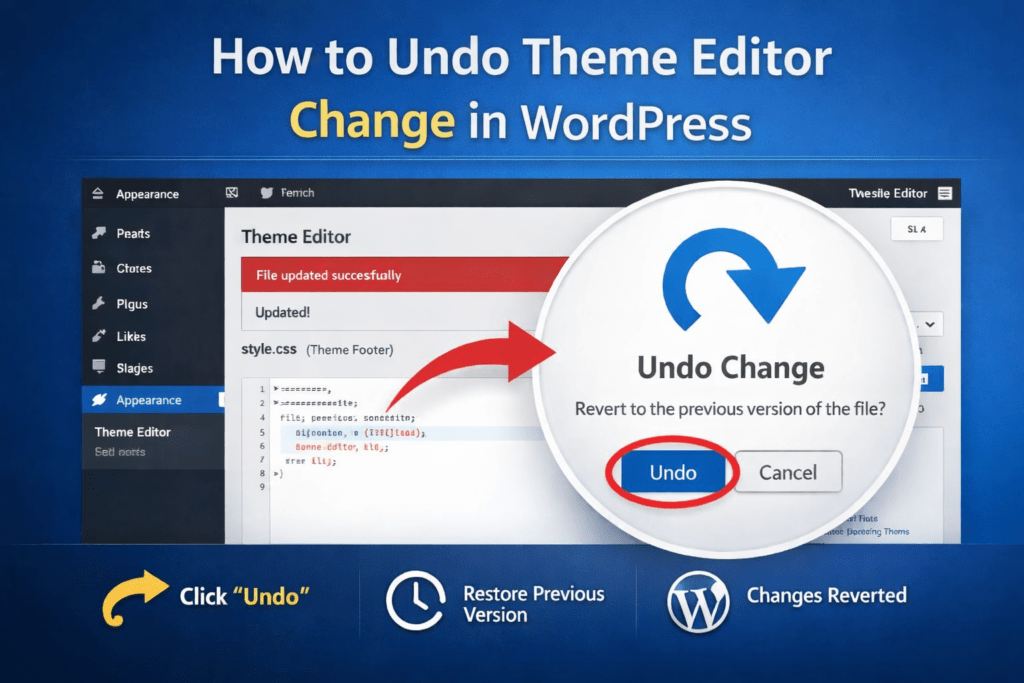
This is one of the safest answers to how to undo theme editor change wordpress when you’re working inside Gutenberg.
Wichtig: Revisions only exist if:
The content was saved
Revisions are not disabled on your site
Method 2: Use Undo & Redo While Editing (Ctrl + Z)
Sometimes the simplest solution works best.
While editing in the WordPress editor:
Undo:Ctrl + Z (Windows) / Cmd + Z (Mac)
Redo:Ctrl + Shift + Z / Cmd + Shift + Z
This only works before you refresh or close the editor.
If you’ve already saved or exited the page, this method will no longer help.
Method 3: Revert Theme Template Changes in the Site Editor
If you’re using a block-based theme, WordPress offers a full Site Editor for:
Headers
Footers
Layout templates
Global styles
Undoing Template Changes
Go to Appearance → Editor
Open Templates or Template Parts
Select the edited template
Click Revisions
Eine frühere Version wiederherstellen
This is a key method for undoing global layout mistakes, which are common when learning Full Site Editing.
Method 4: Reset Styles in Global Styles Panel
Many users accidentally break their site by changing fonts, colors, or spacing globally.
How to Undo Global Style Changes
Go to Appearance → Editor
Open Styles
Click the three-dot menu
Choose Reset to defaults
This instantly restores your theme’s original styling.
If your site suddenly looks “off,” this is often the fix.
Method 5: Restore Theme Files (Advanced Users)
If you edited theme files directly using:
Appearance → Theme File Editor
Custom CSS
functions.php
Undoing becomes more technical.
If You Still Have the Original Code
Manually revert the file to its previous version
Save changes carefully
If You Don’t Remember What Changed
This is where many users get stuck.
At this point, the best solution is restoring a backup.
Method 6: Restore a Backup (Safest Universal Solution)
Backups are the ultimate safety net.
If your host or plugin provides backups, you can:
Restore the entire site
Or selectively restore files and database
Common backup sources:
Hosting provider backups
WordPress backup plugins
Server snapshots
If you’re asking “how to undo theme editor change wordpress after everything broke”, backups are often the only reliable answer.
Method 7: Reinstall the Theme (When Files Are Corrupted)
If your theme files are heavily modified:
Download a fresh copy of the theme
Delete the current theme (without deleting content)
Reinstall the theme
Reapply safe customizations
This works best if:
You didn’t heavily customize the theme files
Or customizations were minimal
Why Undoing Theme Changes Often Goes Wrong
Many WordPress issues happen because users:
Edit live sites without staging
Modify theme files directly
Don’t understand global vs page-level changes
Don’t use backups
This is especially common for business websites, cross-border eCommerce sites, and brand sites, where one small layout change can impact conversions.
Best Practices to Avoid Needing to Undo Changes
If you manage a WordPress site regularly, follow these rules:
Use staging environments
Rely on child themes
Avoid editing core theme files
Use revision-friendly editors
Always keep backups
Prevention is easier than recovery.
When You Should Stop Undoing and Ask for Help
Wenn:
The site layout is completely broken
The header/footer disappeared
CSS conflicts appear everywhere
Theme updates overwrite changes
It’s time to stop experimenting and get professional support.
Final Thoughts: Undo Is Easy — Strategy Is Hard
Learning how to undo theme editor change wordpress is essential for anyone running a WordPress site.
But undoing mistakes is only a temporary solution.
Was wirklich zählt, ist:
A clean theme structure
Scalable design
Safe customization
Konversionsorientierte Layouts
Wie AIRSANG helfen kann
Unter AIRSANG, we specialize in cross-border WordPress and eCommerce website design, helping brands build stable, scalable, and conversion-driven websites from the ground up.
Instead of constantly undoing broken edits, we help you:
Design WordPress themes the right way
Customize safely without breaking updates
Optimize layouts for global audiences
Build websites that support long-term growth
If you’re tired of fixing theme editor mistakes and want a site that just works — AIRSANG ist hier, um zu helfen.
AIRSANG bietet kostengünstiges Webdesign, visuelle Markenidentität und E-Commerce-Lösungen. Von Shopify und WordPress bis hin zu Amazon-Produktbildern, Wir helfen globalen Marken dabei, ihr Online-Geschäft aufzubauen, zu verbessern und auszubauen.
Verstehen der tatsächlichen Auswirkungen auf die Leistung 50 Plugins auf einer WordPress eCommerce-Website sind nicht automatisch ein Problem. In der Tat bestimmt die Anzahl allein selten die Leistung....
Einleitung: Gestaltung eines Lippenstift-Hauptbildes, das sich auf Amazon verkauft Wenn wir ein Hauptbild für einen Amazon-Lippenstift entwerfen, geht unsere Verantwortung weit über...
Beginnen wir mit einer unbequemen Wahrheit: Ihre WordPress-Administrator-E-Mail ist wahrscheinlich weitaus öffentlicher, als Sie denken - und Hacker? Sie lieben das. Für sie ist deine...
Einleitung: Bei der Gestaltung eines Hauptbildes für Amazon Liquid Foundation geht es nicht nur darum, ein Produkt schön aussehen zu lassen. Auf Amazon spielen das Hauptbild und...
Einleitung: Bei der Gestaltung eines Hauptbildes für Amazon geht es nicht nur darum, ein Produkt attraktiv aussehen zu lassen. Es geht um Klarheit, Vertrauen und sofortiges Verständnis – insbesondere für ….
Eines vorweg: Replay-Angriffe sehen nicht bedrohlich aus. Sie knacken keine Passwörter. Sie injizieren keinen Schadcode mit überall herumfliegenden grünen Hacker-Texten. Sie sind heimtückisch….
Seien wir ehrlich: Manchmal möchte man keine neue Seite erstellen. Man möchte einfach dieselbe Seite … nur etwas anders. Gleiches Layout. Gleiche Blöcke. Gleiche Einstellungen. Denn ….
Einleitung Die Wahl des richtigen WordPress-Themes für Haustierbedarf ist mehr als nur eine Designentscheidung – sie beeinflusst direkt Benutzerfreundlichkeit, Skalierbarkeit und langfristiges Unternehmenswachstum. Haustierpflege und Haustiere...
Einleitung Die Wahl des richtigen Themas für ein unabhängiges Bademoden- oder Dessousgeschäft ist nicht nur eine visuelle Entscheidung – sie beeinflusst direkt Konversionsraten, Skalierbarkeit und langfristigen Erfolg...
Sprechen wir über WordPress-Kommentare. Theoretisch sind Kommentare toll. Sie fördern Diskussionen, stärken die Community und lassen die Website lebendig wirken. In der Praxis? Sie sind oft ein Magnet für unerwünschte Besucher….
Ihre WordPress-Seite funktionierte noch vor einer Minute einwandfrei. Sie haben die Seite aktualisiert. Und plötzlich – bumm 💥 – ein interner Serverfehler (500). Keine Erklärung. Keine Entschuldigung. Nur eine kalte, verwirrende Meldung, die im Grunde ….
Einen Shopify-Shop zu betreiben sollte spannend sein – nicht verwirrend. Wenn Fragen auftauchen oder Probleme Sie ausbremsen, bietet Shopify verschiedene Support-Optionen an, je nachdem, was Sie benötigen.
Die Deaktivierung eines Shopify-Shops ist nicht kompliziert, hat aber Konsequenzen, die viele Händler übersehen. Dieser Leitfaden erklärt den Prozess einfach und verständlich.
Einleitung Die Wahl des richtigen Themas für ein unabhängiges Schuhgeschäft ist nicht nur eine visuelle Entscheidung – sie beeinflusst direkt die Skalierbarkeit, den täglichen Betrieb und die langfristige Konversionsrate....
Einleitung: Das digitale Äquivalent zum Aufwachen vor einem zerbrochenen Fenster. Stellen Sie sich vor, Sie wachen auf, schnappen sich Ihren Morgenkaffee, klappen Ihren Laptop auf… und entdecken Ihre Website….
Einen Shopify-Shop zu eröffnen klingt glamourös. Man stellt sich vor, wie man mittags gemütlich Kaffee trinkt, Verkaufsbenachrichtigungen checkt und Freunden beiläufig erzählt: “Ja, mein Shop lief ganz gut …“.
Wenn Sie sich über E-Commerce-Plattformen informieren, haben Sie wahrscheinlich eine ganz bestimmte Frage in Google eingegeben: Ist Shopify seriös? Diese Frage ist absolut berechtigt. Ein Unternehmen zu gründen...