
If you manage a WordPress website, you’ve probably faced this situation: you’ve built a well-structured page with the perfect layout, design blocks, SEO settings, and formatting — and now you need a similar page with only minor changes.
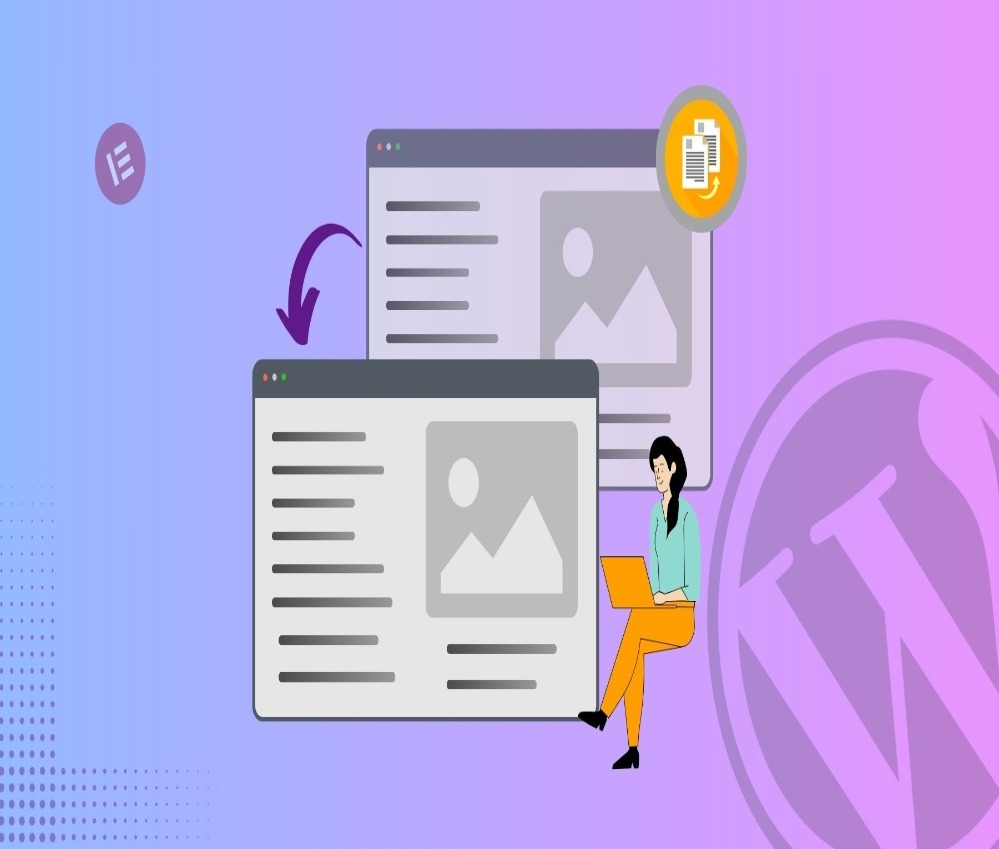
Instead of rebuilding everything from scratch, the smarter solution is to duplicate page in WordPress and reuse the existing structure.
In this guide, we’ll explain what it means to duplicate a page, why it matters, and the safest, most efficient methods to do it. Whether you’re running a blog, a business site, or a cross-border eCommerce store, understanding how to duplicate page in WordPress can dramatically improve your workflow and consistency.
What Does It Mean to Duplicate a Page in WordPress?
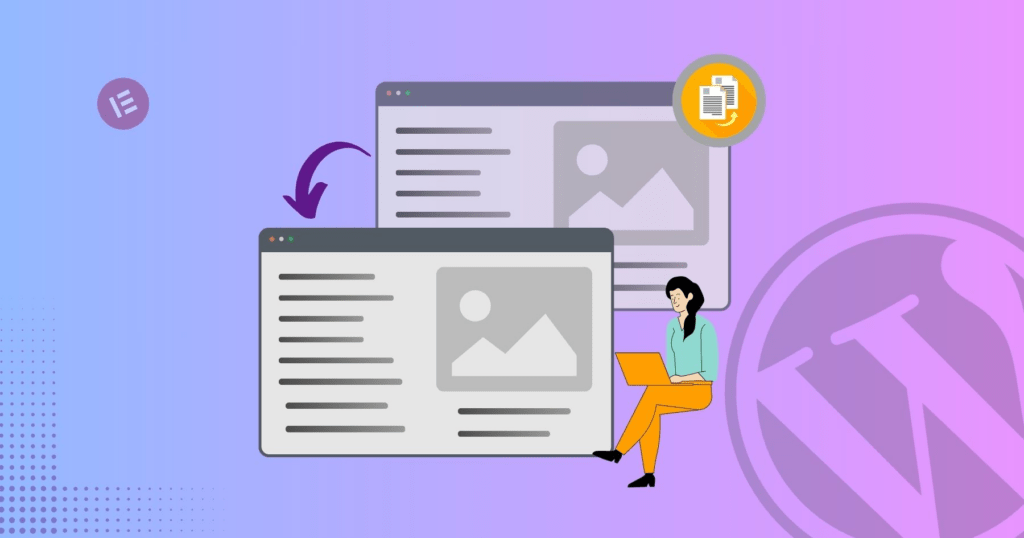
To duplicate page in WordPress means creating an exact copy of an existing page — including its:
- Layout and design blocks
- Text content
- Images and media
- Custom fields
- SEO settings (depending on method)
- Page templates
The duplicated page acts as a draft copy. You can modify it without affecting the original version.
This is especially useful when:
- Creating landing page variations
- Building product pages with similar layouts
- Designing seasonal campaigns
- Testing conversion-focused page variations
- Maintaining design consistency across multiple service pages
Why Duplicating Pages Is Important
Many site owners underestimate how much time is wasted rebuilding pages from scratch. Learning how to properly duplicate page in WordPress helps you:
1. Save Development Time
Instead of reconfiguring blocks, columns, and design elements, you start with a ready-made structure.
2. Maintain Design Consistency
When your website follows a consistent structure, it looks more professional and improves user experience.
3. Reduce Human Error
Manual recreation often leads to spacing issues, inconsistent fonts, broken links, or missing metadata.
4. Speed Up Marketing Campaigns
If you run paid ads, seasonal promotions, or A/B tests, duplicating landing pages is essential.
Method 1: Duplicate Page in WordPress Using a Plugin (Recommended)
The easiest and most reliable way to duplicate page in WordPress is by using a plugin.
Several plugins are designed specifically for this purpose. Popular options include:
- Duplicate Post
- Yoast Duplicate Post
- Post Duplicator
Step-by-Step Process
- Log in to your WordPress dashboard.
- Go to Plugins → Add New.
- Search for a duplication plugin (for example, “Duplicate Post”).
- Install and activate it.
- Navigate to Pages → All Pages.
- Hover over the page you want to copy.
- Click Duplicate or Clone (depending on plugin).
A new draft page will instantly appear.
Why Plugins Are Ideal
- One-click duplication
- Preserves metadata
- Maintains custom templates
- Safe and non-destructive
- Beginner-friendly
For most website owners, using a plugin is the safest solution.
Method 2: Duplicate Page in WordPress Manually (Without Plugin)
If you prefer not to install extra plugins, you can duplicate page in WordPress manually.
Option A: Copy and Paste Content
- Open the page in the WordPress editor.
- Select all content (Ctrl + A).
- Copy it.
- Create a new page.
- Paste the content.
However, this method only copies visible content. It does not copy:
- SEO metadata
- Page template settings
- Custom fields
- Featured image
This makes it less efficient for complex websites.
Option B: Duplicate Using Code (Advanced Users)
Developers can duplicate pages via the WordPress database or using PHP functions.
This approach involves:
- Copying post entries in the database
- Preserving metadata
- Handling taxonomies
- Managing post status
Because this method touches core data, it should only be used by experienced developers. Improper duplication can cause:
- Broken internal links
- SEO conflicts
- Duplicate slug issues
- Database inconsistencies
For most business owners, plugins remain the safer choice.
Duplicate Page vs Duplicate Post: What’s the Difference?
In WordPress, pages and posts are different content types.
Pages are typically used for:
- Homepage
- About page
- Services
- Contact page
- Landing pages
Posts are used for:
- Blog articles
- News updates
- Content marketing
The process to duplicate page in WordPress is similar to duplicating posts, but be sure you’re duplicating the correct content type.
Common Use Cases for Duplicating Pages
Understanding real-world applications helps clarify why duplication matters.
1. Landing Page Variations
If you’re running Google Ads or Facebook Ads, you may want to test multiple headlines. Duplicating a high-performing landing page lets you adjust messaging while keeping layout intact.
2. Multi-Location Service Pages
If your company operates in multiple cities, you can duplicate page in WordPress and adjust location-specific content without redesigning the entire page.
3. eCommerce Product Templates
Many WooCommerce sites use structured product layouts. Duplicating allows you to maintain consistent product presentation.
4. Seasonal Campaigns
Holiday promotions, limited-time offers, or event pages can reuse design structure from previous campaigns.
SEO Considerations When You Duplicate Page in WordPress

Duplicating pages must be handled carefully from an SEO perspective.
1. Change the Slug
WordPress automatically adds a suffix like “-2”. Always edit the URL to match your new page topic.
2. Update Meta Title & Description
If you use SEO plugins like Rank Math or Yoast, ensure metadata is unique.
3. Avoid Publishing Duplicate Content
Duplicated pages should be edited before publishing. Identical live pages may cause SEO conflicts.
4. Check Canonical Tags
Ensure canonical URLs are properly set to avoid indexing confusion.
Duplicate Page in WordPress with Page Builders
Many websites use builders like:
- Elementor
- Divi
- WPBakery
Most page builders include built-in duplication features.
For example:
- Duplicate section
- Duplicate row
- Save as template
- Import template
This is especially helpful when managing visually complex designs.
If you’re using a builder, always check whether it offers native duplication before installing additional plugins.
Potential Risks and How to Avoid Them
Although duplicating pages is safe, common mistakes include:
1. Publishing Without Editing
Always modify duplicated content before publishing.
2. Forgetting Internal Links
Old internal links may still point to the original page.
3. Copying Tracking Scripts
Ensure analytics or conversion scripts are updated if needed.
4. Duplicate Images
If media filenames are identical, make sure alt text is updated.
Best Practices for Efficient Page Duplication
Here are practical tips for professionals:
- Keep original pages as templates
- Use “Draft” status for duplicated versions
- Rename clearly (Example: Landing Page – Version B)
- Create structured naming conventions
- Review SEO before publishing
If you manage multiple client websites, establishing a duplication workflow can significantly improve productivity.
When Should You Not Duplicate a Page?
There are situations where duplication is not recommended:
- When creating entirely new content topics
- When changing site structure
- When redesigning branding
- When migrating to a new theme
In those cases, building from scratch ensures structural integrity.
Duplicate Page in WordPress for Cross-Border eCommerce
For cross-border independent websites, duplication becomes even more valuable.
International sellers often need:
- Multi-language landing pages
- Regional service pages
- Variant product showcases
- Different pricing layouts
- Market-specific messaging
Instead of redesigning for each market, duplicating and localizing is far more efficient.
A structured duplication strategy ensures consistency across:
- Visual hierarchy
- Conversion elements
- Call-to-action placement
- Trust badges
- Layout rhythm
This is especially critical when scaling globally.
Final Thoughts
Learning how to duplicate page in WordPress is more than a technical trick — it’s a productivity strategy.
It helps you:
- Build faster
- Maintain consistency
- Scale marketing campaigns
- Improve operational efficiency
- Reduce design friction
Whether you use a plugin, manual copy method, or builder feature, the key is applying duplication thoughtfully and strategically.
Need Professional Help?
If you’re building or scaling a cross-border independent website and want structured page systems, conversion-optimized landing pages, or scalable design architecture — this is exactly what we specialize in.
From WordPress website design to full cross-border eCommerce site planning, we help brands create structured, high-converting digital experiences.
At AIRSANG, we combine strategy, design logic, and global market understanding to build websites that are not only visually strong — but built for growth.
If you need help duplicating, structuring, or scaling your WordPress website, feel free to reach out.