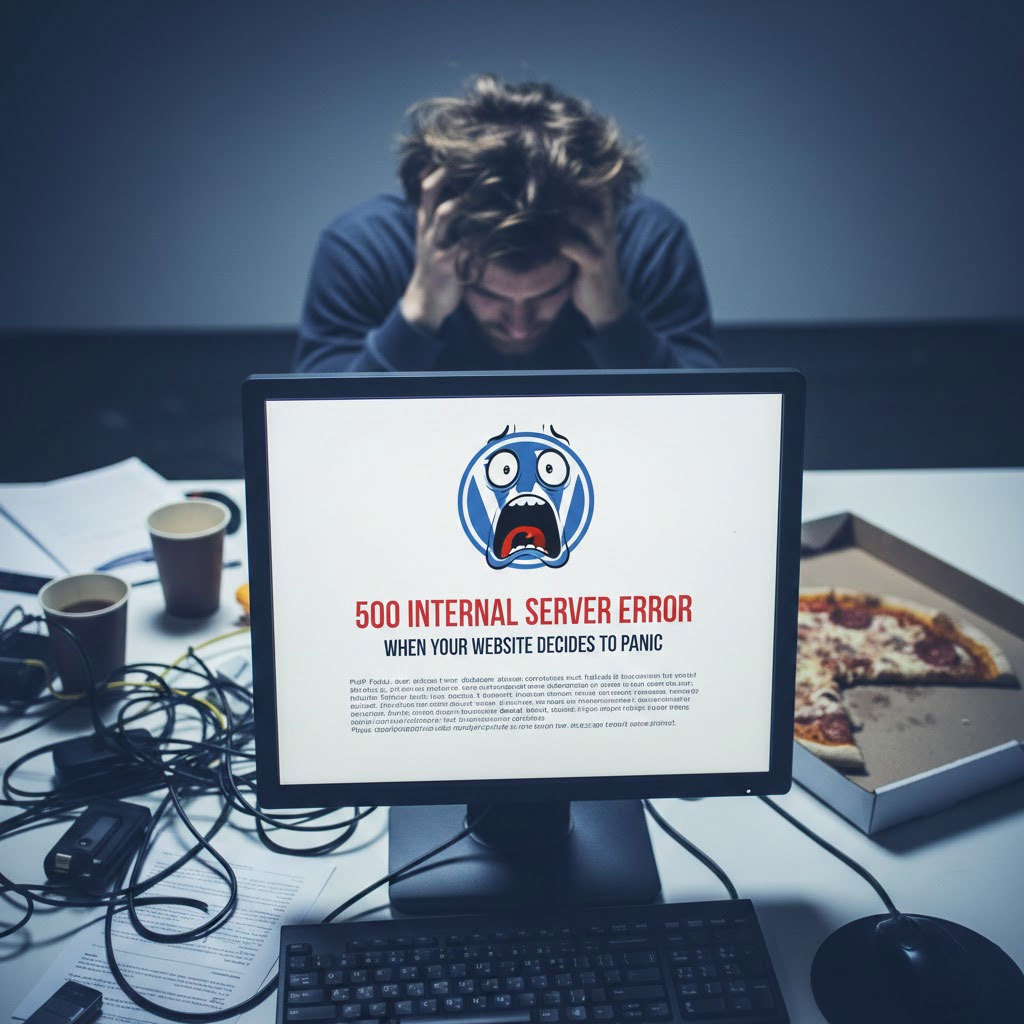
If you run a WordPress website, few things are more frustrating than opening your site and seeing a vague message like “HTTP Error 500” or “500 Internal Server Error.”
No explanation. No clear instructions. Just a broken website.
For business owners—especially those running content sites, brand websites, or cross-border eCommerce stores—this error can mean lost traffic, lost revenue, and damaged trust.
In this guide, we’ll explain what http error 500 WordPress really means, why it happens, how to fix it step by step, and how to prevent it from coming back. You don’t need to be a developer to understand this article—we’ll keep it practical, clear, and beginner-friendly.
What Is HTTP Error 500 in WordPress?
HTTP Error 500 is a server-side error, which means the problem happens on the website’s hosting server—not in the visitor’s browser.
In simple terms:
Your server tried to load the WordPress site, failed internally, and couldn’t explain exactly why.
That’s why the message is so generic.
Depending on your hosting environment, you might see variations such as:
- 500 Internal Server Error
- HTTP 500 Error
- This page isn’t working (HTTP ERROR 500)
- Internal Server Error
All of them point to the same issue: WordPress couldn’t complete a request due to a server problem.
Why HTTP Error 500 Is So Common in WordPress
WordPress is powerful because it’s flexible—but that flexibility also introduces risk.
A typical WordPress site relies on:
- PHP scripts
- Themes
- Plugins
- Server configurations
- Database connections
If any one of these breaks or conflicts, the server may fail silently and return http error 500 WordPress.
This is why the error is common on:
- Newly updated sites
- Heavily customized themes
- Plugin-heavy websites
- Migrated or cloned WordPress installs
Most Common Causes of HTTP Error 500 WordPress
Let’s break down the most frequent reasons behind this error—starting with the ones we see most often in real projects.
1. Corrupted or Misconfigured .htaccess File
The .htaccess file controls how your server handles requests, redirects, and permissions.
If this file becomes corrupted or contains invalid rules, your server may immediately return a 500 error.
Typical causes include:
- Manual edits gone wrong
- Plugin-generated rewrite rules
- Migration or cloning errors
2. Plugin Conflicts or Broken Plugins
Plugins are the number one cause of http error 500 WordPress.
This usually happens when:
- A plugin update is incompatible with your WordPress version
- Two plugins conflict with each other
- A poorly coded plugin triggers fatal PHP errors
Even one faulty plugin can bring down the entire site.
3. Theme Issues
Themes also run PHP code. If your active theme:
- Uses outdated functions
- Has syntax errors
- Isn’t compatible with your PHP version
…it can trigger a server error immediately after activation or update.
4. Exhausted PHP Memory Limit
WordPress scripts need memory to run.
If your site exceeds the server’s allowed memory, WordPress may crash with a 500 error.
This is common on:
- Large WooCommerce stores
- Sites with page builders
- Media-heavy websites
5. Wrong File or Folder Permissions
Servers require specific permissions to read and execute files.
Incorrect permissions can block WordPress from accessing critical files, leading to a 500 error.
6. PHP Version Incompatibility
Running an outdated or overly new PHP version can break compatibility with:
- Older plugins
- Legacy themes
- Custom code snippets
7. Server or Hosting Configuration Issues
Sometimes, the problem isn’t WordPress at all.
Shared hosting limitations, misconfigured firewalls, or server-side outages can all trigger http error 500 WordPress.
How to Fix HTTP Error 500 WordPress (Step by Step)
Now let’s walk through practical fixes, starting from the safest and easiest.
Step 1: Refresh and Clear Cache (Quick Check)
Before diving deep:
- Refresh the page
- Clear your browser cache
- Clear any CDN cache (Cloudflare, etc.)
If the error persists, continue below.
Step 2: Check and Reset the .htaccess File
- Connect to your site using FTP or File Manager
- Locate the
.htaccessfile in the WordPress root directory - Rename it to
.htaccess_old - Try loading your site
If the site loads:
- Go to WordPress Admin → Settings → Permalinks
- Click Save Changes to regenerate a clean
.htaccessfile
Step 3: Disable All Plugins
If you can’t access the WordPress dashboard:
- Go to
/wp-content/ - Rename the
pluginsfolder toplugins_old - Reload the site
If the site works again, the issue is plugin-related.
Then:
- Rename the folder back to
plugins - Reactivate plugins one by one
- Identify the plugin that causes the error
Step 4: Switch to a Default Theme
To rule out theme issues:
- Access
/wp-content/themes/ - Rename your active theme folder
- WordPress will automatically fall back to a default theme
If the site loads, your theme is the problem.
Step 5: Increase PHP Memory Limit
Low memory can silently cause http error 500 WordPress.
You can increase memory by editing wp-config.php:
define('WP_MEMORY_LIMIT', '256M');
If you’re running WooCommerce or Elementor, higher memory is often necessary.
Step 6: Check File and Folder Permissions
Recommended permissions:
- Folders: 755
- Files: 644
Incorrect permissions can be fixed via FTP or hosting file manager.
Step 7: Enable WordPress Debug Mode
To uncover hidden errors, enable debugging in wp-config.php:
define('WP_DEBUG', true);
define('WP_DEBUG_LOG', true);
define('WP_DEBUG_DISPLAY', false);
Then check:
/wp-content/debug.log
This file often reveals the exact cause of the 500 error.
Step 8: Check Server Error Logs
Your hosting panel usually provides error logs.
These logs can show:
- Fatal PHP errors
- Permission issues
- Server limits being exceeded
If you’re unsure how to read them, this is where professional help saves time.
Step 9: Contact Your Hosting Provider
If none of the above works:
- Contact hosting support
- Ask specifically about HTTP 500 server errors
- Request a log review
Good hosts can identify server-side issues quickly.
How to Prevent HTTP Error 500 WordPress in the Future
Fixing the error is one thing—preventing it is even more important.
Here are proven best practices:
1. Avoid Blind Plugin Installations
Only install:
- Actively maintained plugins
- Well-reviewed plugins
- Plugins compatible with your WordPress version
2. Test Updates Before Applying Them Live
For business sites, always:
- Use a staging environment
- Test plugin and theme updates first
3. Keep PHP and WordPress Versions Aligned
Don’t rush into the newest PHP version without checking compatibility.
4. Monitor Server Resources
Track:
- PHP memory usage
- CPU limits
- Disk space
Resource exhaustion is a silent killer.
5. Work With a Proper Website Architecture
Poor site structure, messy code, and random customization increase the risk of fatal errors.
A well-designed WordPress site is more stable, faster, and safer.
When HTTP Error 500 Becomes a Business Problem
For content sites, a 500 error is annoying.
For cross-border businesses, it’s critical.
A single server error can:
- Break ad landing pages
- Kill SEO rankings
- Interrupt checkout flows
- Destroy user trust
That’s why WordPress stability is not just technical—it’s strategic.
How AIRSANG Can Help
At AIRSANG, we specialize in cross-border websites, WordPress development, and conversion-focused site architecture.
We don’t just “fix errors.”
We help brands:
- Diagnose and resolve http error 500 WordPress efficiently
- Build clean, scalable WordPress structures
- Design high-performance websites for global audiences
- Prevent recurring technical issues through proper setup
If your WordPress site is unstable, slow, or blocking your business growth—
we’re already doing exactly the kind of work you need.
Feel free to reach out to AIRSANG if you want your website to be stable, scalable, and built for international growth.