
After a redesign, old URLs must not simply disappear. Visitors may have bookmarked products or followed search results to old articles. A missing page may make them leave. How should you handle 301 redirects when URLs change? Match each old address to the corresponding new content, permanently redirect visitors there, and then open and verify each route.
A 301 is a server response telling browsers and search engines that a page has moved permanently. It does not find the correct destination for you. Wrong targets, loops, and redirecting every old page to the homepage still prevent visitors from finding the information they wanted.
First, Understand When a 301 Is Appropriate
If you move product content from example.com/old-product/ to example.com/new-product/ and retire the old address as an independent page, this is a typical permanent move. Both 301 and 308 indicate permanent redirects; beginners can use the supported 301 option on their existing WordPress site. Google treats server-side 301 and 308 redirects as strong permanent-move signals, as explained in its redirect documentation .
For temporary maintenance followed by restoration of the original URL, do not declare a permanent move. Status codes 302 and 307 indicate temporary redirects. If only the design and content change while the URL stays the same, no additional 301 is needed for that URL.
Check that the new URL works before configuring the redirect. If the destination returns 404 or is unpublished, a correct 301 still cannot deliver the content. Prepare a pilot checklist and switch once the new pages are ready.

What If an Old Page Has No Replacement?
Do not send everything to the homepage merely to make every old URL return 301. A discontinued product may redirect to a genuinely similar replacement when the content and purchasing task match. Without a suitable destination, explain that the item is discontinued or return an appropriate 404/410 instead of sending visitors to an unrelated homepage. Google’s site migration guide also warns that redirecting many old URLs to an irrelevant homepage may be treated as a soft 404.
Step 1: Create a One-to-One URL Mapping
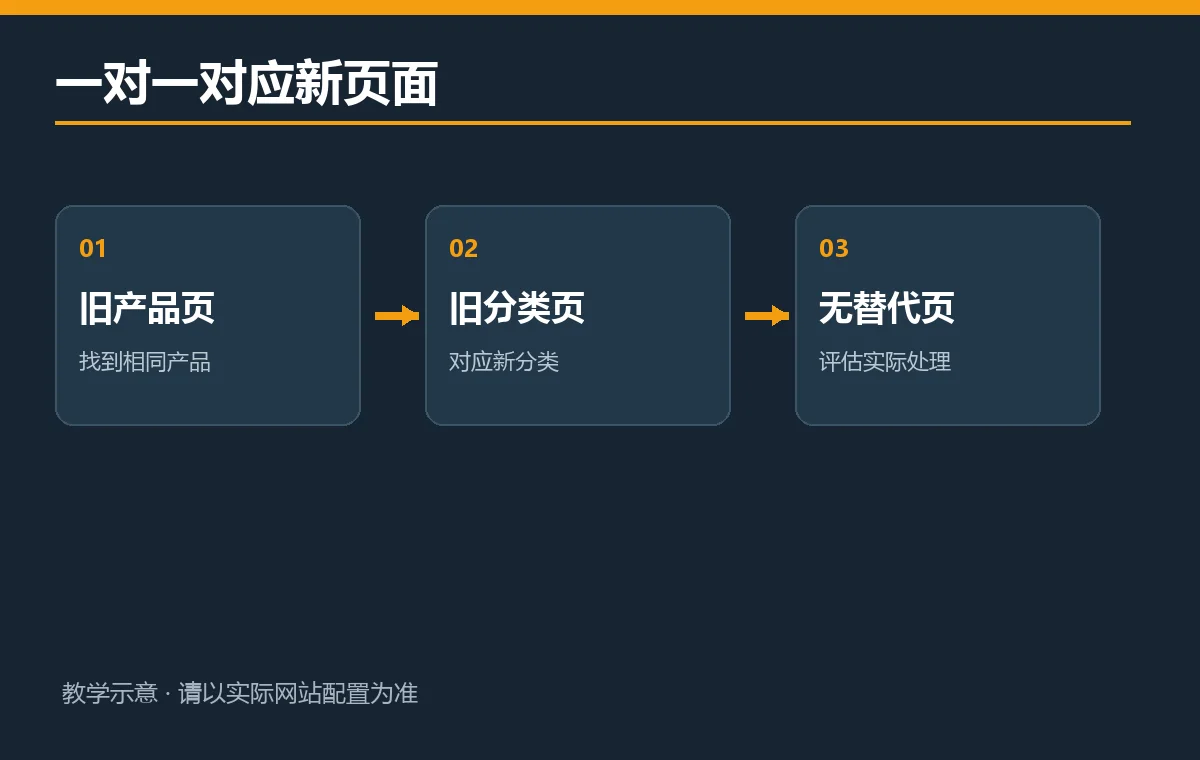
Export the current sitemap, important landing pages, and internal links, then add old URLs still receiving visits or impressions in Search Console. Record at least the old URL, new URL, page purpose, action, and verification result. Do not guess destinations from titles alone. Open the old content to understand the reader’s task, especially when renaming models, merging categories, or redesigning multilingual sites.
| Old URL (Example) | New URL (Example) | Action and Reason |
|---|---|---|
| example.com/old-lamp/ | example.com/desk-lamp/ | The same product was renamed: redirect the old URL to its new product page with 301. |
| example.com/size-help/ | example.com/size-guide/ | The size information moved to a new help page: redirect the old URL with 301. |
| example.com/retired-item/ | No matching new page | Check for a replacement; without a suitable target, do not force a homepage redirect. |
These are teaching examples, not actual AIRSANG client migration records. For a real launch, specify the complete protocol, domain, path, trailing slash, and capitalization. Moving from http to https or changing whether the address includes www can also produce multiple redirects. Verify that the final destination is the intended canonical URL.
- Retain the old URL, destination URL, and page type for individual review.
- Prioritize pages receiving organic search traffic, external links, frequent bookmarks, or advertising visits.
- Record who configured the rules and when they went live so configuration sources can be located quickly.
Step 2: Choose One Manageable Place to Configure Redirects
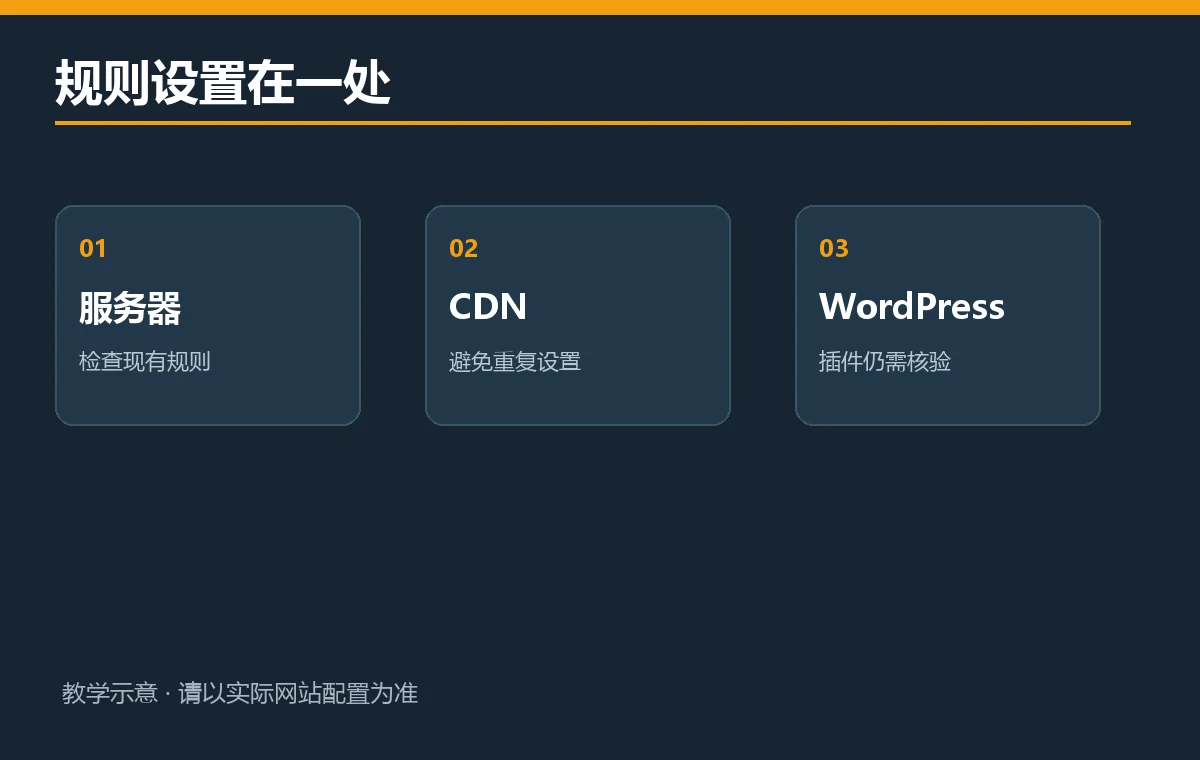
WordPress sites commonly use an existing redirect management feature or server/hosting rules. Ask the maintainer who currently controls redirects to avoid conflicting plugin, server, and CDN targets for the same URL. If tools such as Rank Math manage redirects, verify the installed features and actual configuration. Mentioning a plugin in an article does not mean it is enabled on your site.
Usually, enter the old path and full destination URL and select a permanent redirect. Before saving, check that the old path matches only intended pages, the target contains no typos, and administration, images, and other language pages are unaffected. Pilot one real, low-risk URL before a bulk import.
If a developer configures the web server, provide the complete mapping and request testing in a staging environment first. Nginx, Apache, CDNs, and WordPress use different rule syntax. This article does not offer a supposedly universal configuration to paste into production. Implement code against your actual server version and official documentation, retaining a backup of the previous rules.
Select Permanent and Identify Where the Rule Takes Effect
Opening the new page in a browser does not prove the old URL returns 301. Page scripts, meta refresh, and links saying to visit the new page may take users there without the required permanent server response. Inspect the network status after configuration instead of relying on an address-bar change.
Once one rule works, import the checklist in batches. Save each batch’s rule count, screenshots or export files, test results, and rollback owner. If a category path is wrong, you can undo that batch without guessing when the site broke.
Step 3: Verify Every Old URL Returns 301 and Its Destination Returns 200
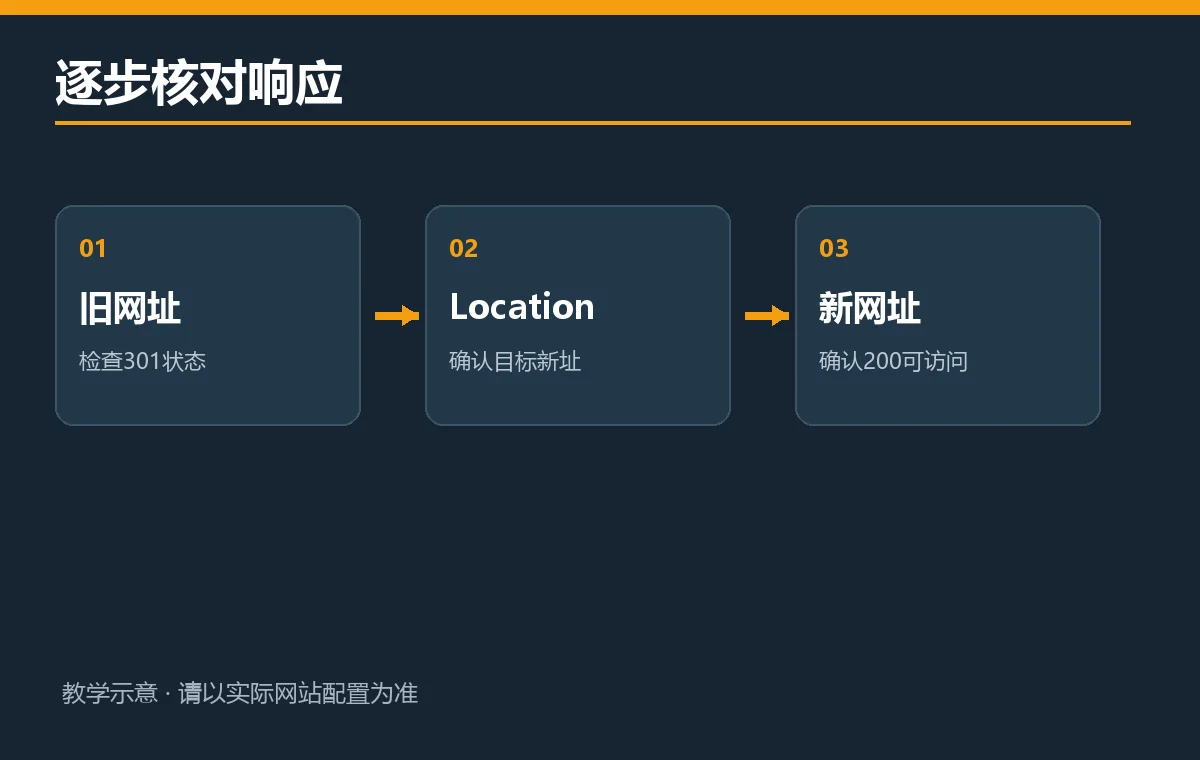
Open the old URL in a private browser window and check that it reaches the correct replacement. Inspect the response in developer tools’ Network panel or a reliable HTTP checker. A normal permanent move typically returns 301 at the old address, with a Location header pointing to the new one, which ultimately returns 200. Status 200 means the page successfully returned content; 404 means the page was not found.
Checking only whether the browser eventually opens a page can miss chains: the old URL redirects to an intermediate address, which redirects again before reaching the new page. A few necessary redirects do not automatically mean failure, but longer chains are harder to maintain and more likely to develop loops during later redesigns. Point directly to the final canonical address whenever possible.
- Open each old URL and record its initial status code and Location header.
- Open the final URL, confirm that its content is the same or genuinely corresponding, and verify a final 200 response.
- Check for redirects back to the old address, self-redirects, wrong language sites, or whole batches landing on the homepage.
- Sample important pages on mobile and desktop, checking images, buttons, and forms.
If developer tools are unfamiliar, ask the developer for a per-URL table showing the old address, status, destination, and destination status rather than simply saying redirects are configured. Scripts can test all URLs in a large migration, but manually open samples of every page template to catch incorrect content matches.
Step 4: Update Internal Links to the New URLs
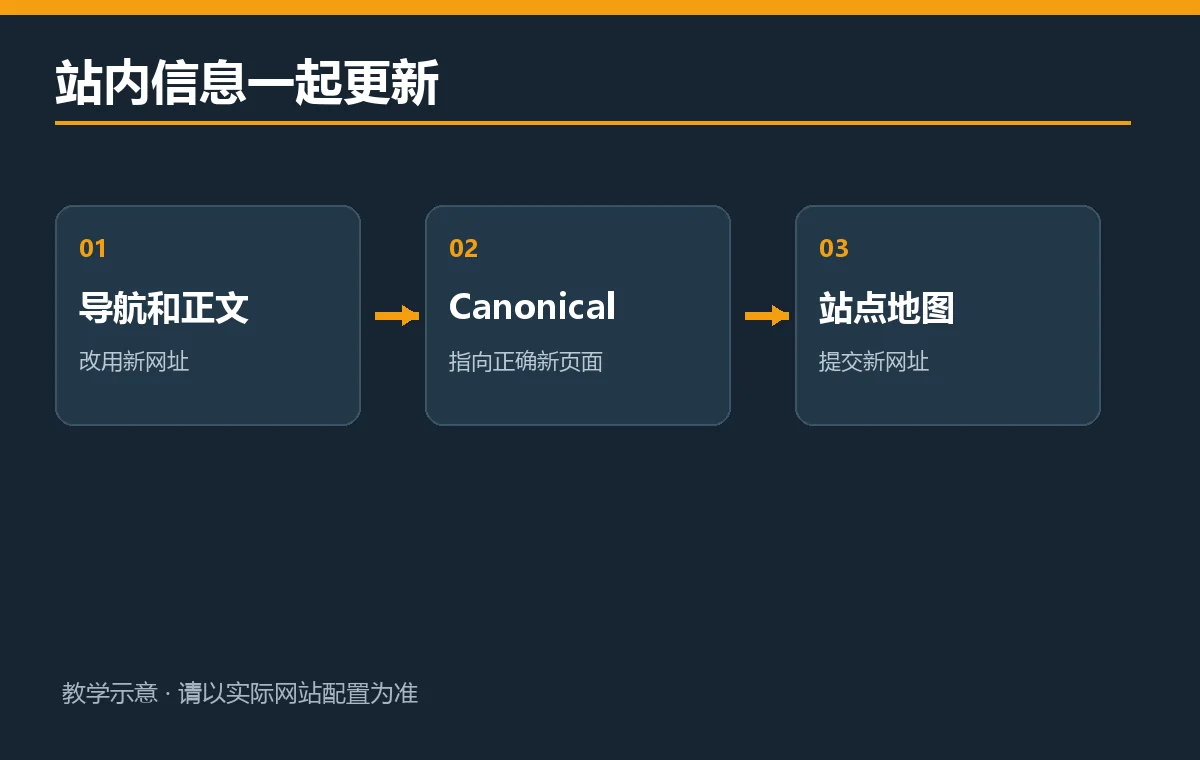
A 301 supports people still using an old address; it should not become the normal route for internal navigation. After configuring redirects, update old URLs in menus, footers, article links, buttons, product recommendations, and email templates wherever possible. Our guide to keeping or removing old homepage sections helps identify which entry points to retain before updating their links.
Check the new pages’ canonical tags too. A canonical tells search engines which URL is the primary version. A new product page still pointing to its old URL creates conflicting migration signals. Normally, a new page should reference its own canonical URL or the correct version under the actual duplicate-content strategy. Do not rewrite every canonical without inspecting source code and platform rules.
Update the XML sitemap so its main list contains the canonical new URLs you still want search engines to discover, then resubmit it or await crawling. Retain old-page redirects: removing URLs from a sitemap does not mean their rules can be deleted immediately. When defining the redesign scope, consult our six-step corporate website project checklist and include URL migration and verification in the delivery plan.
You may not control old links on external sites, so 301 redirects should keep serving those visits. Ask willing key partners to update their links directly to the new addresses. This reduces intermediate redirects but does not replace retaining server-side redirects.
Step 5: Monitor After Launch and Retain Old Rules
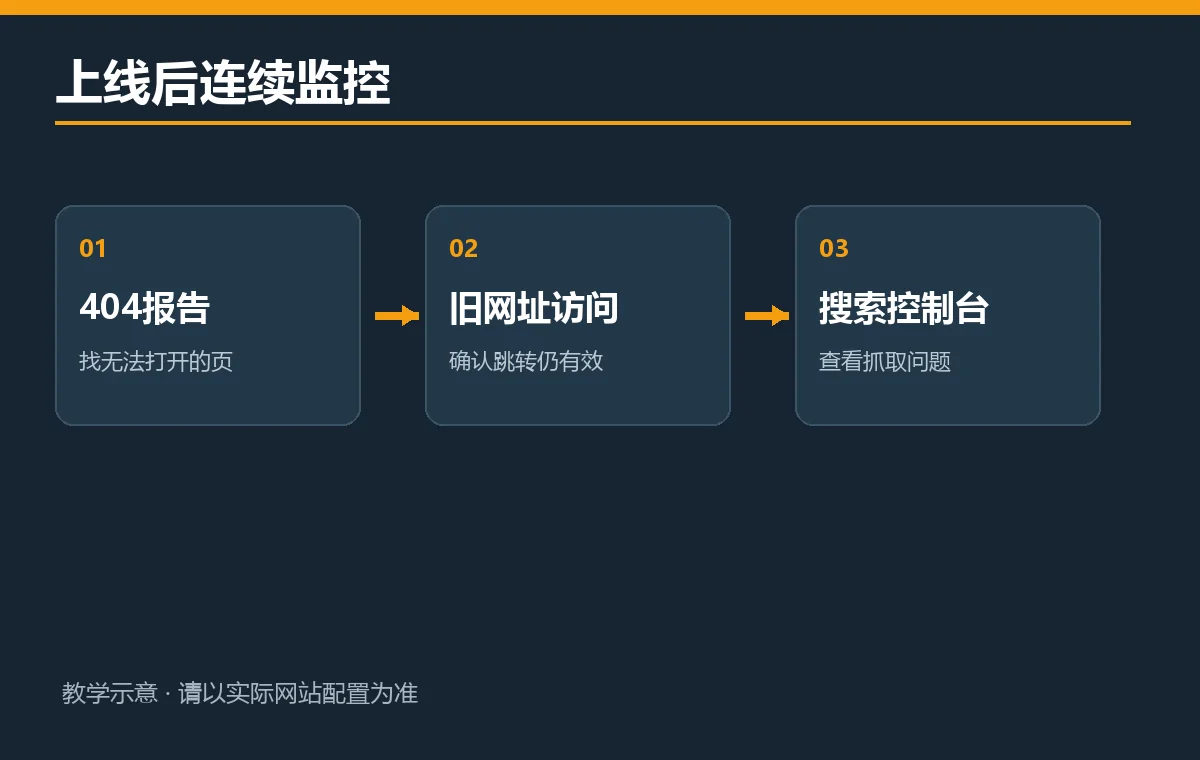
During the first days after migration, monitor old-URL access logs, 404 reports, sitemap processing, and Search Console indexing status. Google Search Console’s Pages report helps identify missing pages, redirected pages, and processing of new pages. Reporting is delayed; an absent same-day update does not prove the migration failed.
Retest samples of recently visited old URLs, especially links in advertisements, social profiles, and customer emails. When an old URL returns 404, first check whether corresponding new content exists before adding a mapping. Do not automatically redirect every 404 to the homepage. If many internal links still use old URLs, fix their sources and sample again.
Google’s site migration guide generally recommends retaining old-URL redirects for at least a year, and longer when users or external links still use those addresses. One year is maintenance guidance, not a promise that rankings will recover after a year. Before redesigning, consult our website redesign pricing scope guide to define responsibility for post-launch monitoring, link repairs, and retaining rules.
Troubleshoot Based on the Symptoms
Old Pages Redirect to the Homepage or Wrong Language
Check whether the mapping sends multiple old paths to a generic destination, then look for duplicate server, WordPress, or CDN rules. Correct them according to the original user’s task: someone seeking sizes should reach size information, not the brand homepage. On multilingual sites, ensure an old Chinese page does not accidentally lead to an English product homepage.
The Browser Reports Too Many Redirects
This usually means two rules point back to each other or HTTP/HTTPS and www/non-www normalization rules conflict. Follow each Location in the request chain instead of repeatedly clearing caches. Disable or correct one conflicting rule, then verify again in a private window and from the command line.
The New Page Works but Search Results Still Show the Old URL
First align the server-side 301, destination 200, new canonical, internal links, and sitemap, then allow search engines time to process them. Saving redirect rules does not instantly update search results. Do not repeatedly change slugs or submit the same incorrect sitemap to hurry display changes; resolve the technical signals first.
To undo an incorrect migration, restore the previous configuration backup so old URLs serve the right content, or correct mistaken destinations to proper one-to-one matches. Record the rollback time, affected URLs, and retest results so another team member does not reimport the old rules. During a formal rollback, also verify that internal links and canonicals match the restored URLs.

Conclusion: Map, Redirect, and Retest
When a redesign changes URLs, permanently redirect each old address that still has corresponding content to its most relevant replacement. Once new pages are live, verify every old address returns 301 and every final destination returns 200. Update internal links, canonical tags, and sitemaps, and continue monitoring 404 and Search Console reports.
For a first migration, pilot three to five important pages to catch mismatches more easily than changing the entire site at once. Confirm where rules take effect, their mapping direction, and the rollback owner before expanding in batches. Do not force old pages without replacements to the homepage. Whether visitors can find the information they originally wanted remains the primary measure of a correct redirect.