












การแนะนำ
If you want to build a website without starting from code, วordpress is one of the most practical places to begin. It works as a content management system, which means you can create pages, publish blog posts, upload images, manage menus, install design themes, and add new functions from a dashboard instead of building every feature by hand. WordPress also supports many types of websites, including business websites, service pages, blogs, portfolios, and online stores.
This beginner guide explains how to make a website on WordPress in a clear, step-by-step way. You will learn what you need before you start, how to choose a theme, which settings matter, what pages to create first, and how to prepare your website for launch. The goal is not just to “get a site online,” but to build a website that feels organized, loads well, supports your goals, and can grow over time.
What WordPress Is and Why People Use It
WordPress is an open-source website platform. In simple terms, “open-source” means the software can be used, improved, and extended by a large community. Instead of hiring a developer for every small update, website owners can log in, edit text, add photos, publish new content, and manage basic settings by themselves.
One major reason WordPress is popular is flexibility. A local business can use it for a simple brochure website. A blogger can use it to publish articles. A restaurant can add menus and booking forms. A store owner can add e-commerce features with WooCommerce. A professional service company can create landing pages, case studies, contact forms, and resource hubs.
WordPress also gives beginners a helpful starting point through themes and plugins. A theme controls the general look of the website, such as layout, typography, spacing, colors, header style, and page structure. Plugins add extra features, such as SEO tools, contact forms, security protection, backups, caching, analytics, and online payments.
Step 1: Decide the Purpose of Your Website
Before you buy hosting or install WordPress, define what your website needs to do. This step sounds simple, but it affects every decision after it.
Ask yourself: Is this website for a business, personal brand, blog, online store, portfolio, course, nonprofit, or local service? Do visitors need to contact you, book an appointment, read articles, request a quote, buy products, download files, or join a mailing list?
A clear purpose prevents your site from becoming messy. For example, a service business usually needs a strong homepage, service pages, trust signals, testimonials, a contact page, and clear calls to action. A blog needs categories, search, author pages, and readable article layouts. An online store needs product pages, cart, checkout, shipping settings, payment methods, and customer account options.
Once you know the goal, write a simple website structure. A beginner business website might include:
Home, About, Services, Blog, Contact, Privacy Policy, and Terms.
You can add more pages later, but starting with a clean structure makes the build easier.
Step 2: Choose a Domain Name
Your domain name is the address people type into their browser to visit your website. A good domain should be easy to spell, short enough to remember, and connected to your brand or topic.
If possible, use a domain that matches your business name. Avoid long strings of words, confusing hyphens, unusual spellings, or numbers that people may forget. If the .com version is available, it is usually a strong choice for U.S. audiences, but other extensions can also work depending on your niche.
Before registering the domain, check whether the same name is available on social media platforms. You do not need perfect matching everywhere, but consistent naming helps people recognize your brand.
Step 3: Select WordPress Hosting
Hosting is where your website files live. Without hosting, your WordPress site cannot be visited online. Many hosting companies offer one-click WordPress installation, which makes setup easier for beginners.
When choosing hosting, look for speed, reliability, support, security, SSL support, backups, and easy WordPress management. Cheap hosting can work for small projects, but poor hosting may cause slow loading, downtime, or technical problems.
There are several common hosting types:
Shared hosting is affordable and beginner-friendly. It works for small websites with light traffic.
Managed WordPress hosting is more expensive, but it usually includes better performance, automatic updates, security tools, and expert support.
VPS hosting gives more control and resources, but it requires more technical knowledge.
For most beginners, shared hosting or managed WordPress hosting is enough. If you are building a business website, choose hosting that can grow with you.
Step 4: Install WordPress
Many hosting dashboards include a WordPress installer. You usually choose your domain, create an admin username, set a strong password, enter your site name, and click install. After installation, you can access your WordPress dashboard by logging in through your admin URL.
During setup, use a strong password and avoid using “admin” as your username. This is a small security habit that can help protect your site.
Some advanced users install WordPress manually by uploading files, creating a database, and connecting WordPress to that database. Beginners usually do not need to do this if the host provides an installer.
Step 5: Add SSL for a Secure Website
An SSL certificate allows your website to load with https, which helps protect data sent between the visitor and the website. It also makes your site look more trustworthy because browsers may warn users when a site is not secure.
Many hosting companies include free SSL certificates. After enabling SSL, check your homepage and key pages to make sure they load correctly with https.
SSL is especially important if your website has contact forms, login pages, customer accounts, or checkout pages. Even if your site is simple, SSL should be part of the basic setup.
Step 6: Choose the Right WordPress Theme
Your theme gives your website its visual foundation. A good theme should look clean, load quickly, work well on mobile devices, and support the type of website you want to build.
Do not choose a theme only because the demo looks beautiful. Demo content often uses perfect images and polished copy. Instead, check whether the theme has the layouts you need, whether it works with your preferred page builder, whether it receives updates, and whether users report problems.
For a business website, choose a theme with strong homepage sections, service layouts, blog templates, and clear navigation options. For an online store, choose a theme that works smoothly with WooCommerce. For a blog, choose a theme that makes articles easy to read.
Keep the design simple at the start. You can customize colors, fonts, logos, headers, and layouts later.
Step 7: Customize Your Site Identity
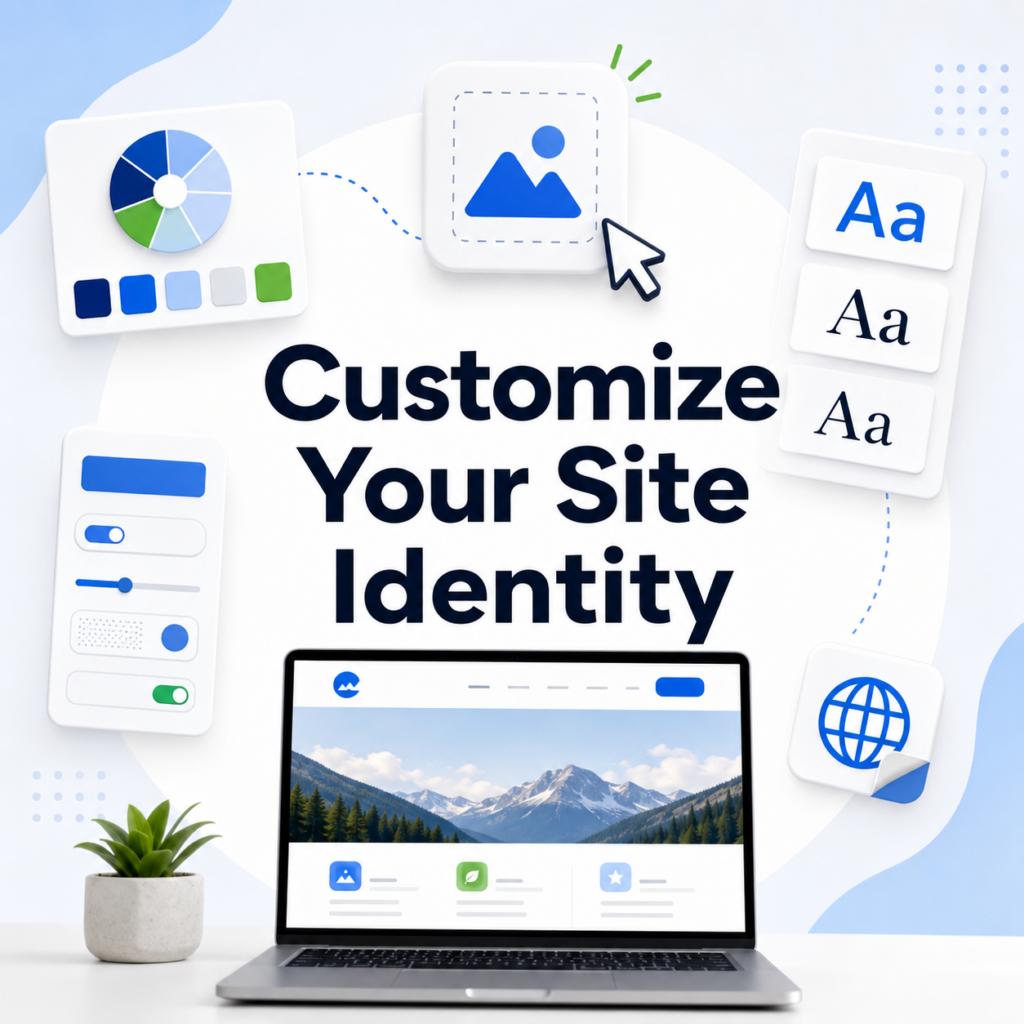
After installing your theme, set up the basic identity of your website. This includes your site title, tagline, logo, favicon, brand colors, and typography.
Your logo should be clear and readable. Your favicon is the small icon shown in browser tabs. It is easy to ignore, but it makes your website feel more complete.
Use colors consistently. Beginners often add too many colors, which makes the site feel unprofessional. Choose one primary color, one secondary color, and a few neutral colors for backgrounds, borders, and text.
Also pay attention to fonts. Use readable font sizes and avoid decorative fonts for body text. Your website should feel easy to scan, especially on mobile.
Step 8: Create the Essential Pages
Most websites need a few core pages before launch.
Your homepage should explain who you are, what you offer, who you help, and what visitors should do next. It should not be a random collection of sections. Give it a clear flow: introduction, benefits, key services or products, proof, and call to action.
Your About page should build trust. Share your story, mission, experience, values, and what makes your business different. It does not need to be overly long, but it should feel human and specific.
Your Services or Products page should explain what you offer in a structured way. Avoid vague claims. Tell visitors what they get, who it is for, and why it matters.
Your Contact page should make communication easy. Include a form, email address, phone number if relevant, business location if needed, and expected response time.
Your Blog page is useful if you plan to publish educational content. Blog posts can help answer customer questions and support SEO.
Also add legal pages such as Privacy Policy and Terms, especially if you collect user data through forms, analytics, cookies, or checkout tools.
Step 9: Install Essential Plugins Carefully
Plugins are powerful, but too many plugins can slow down your website or create conflicts. Install only what you truly need.
A basic WordPress website may need an SEO plugin, contact form plugin, backup plugin, security plugin, caching or performance plugin, image optimization plugin, and analytics plugin.
For SEO, many users choose tools such as Yoast SEO or Rank Math. For security, tools such as Wordfence are commonly used. For backups, UpdraftPlus is a popular option. The original guide also highlights SEO, security, and backup plugins as common essentials for WordPress websites.
Before installing a plugin, check when it was last updated, how many active installations it has, whether it is compatible with your WordPress version, and whether the reviews mention major issues.
Step 10: Configure Important WordPress Settings
WordPress works out of the box, but several settings should be adjusted before launch.
Go to General Settings and confirm your site title, tagline, timezone, language, and admin email.
Then check Permalinks. For most websites, the “Post name” structure is best because it creates cleaner URLs. A page URL like /about-us/ is easier to read than a URL full of numbers and symbols. The source article also recommends using SEO-friendly permalink settings.
Review Discussion settings if your site has comments. If you do not want comments on pages or posts, disable them. If you allow comments, use moderation to reduce spam.
Check Reading settings to choose what your homepage displays. Many business websites use a static homepage instead of showing the latest blog posts.
Step 11: Build Clear Navigation
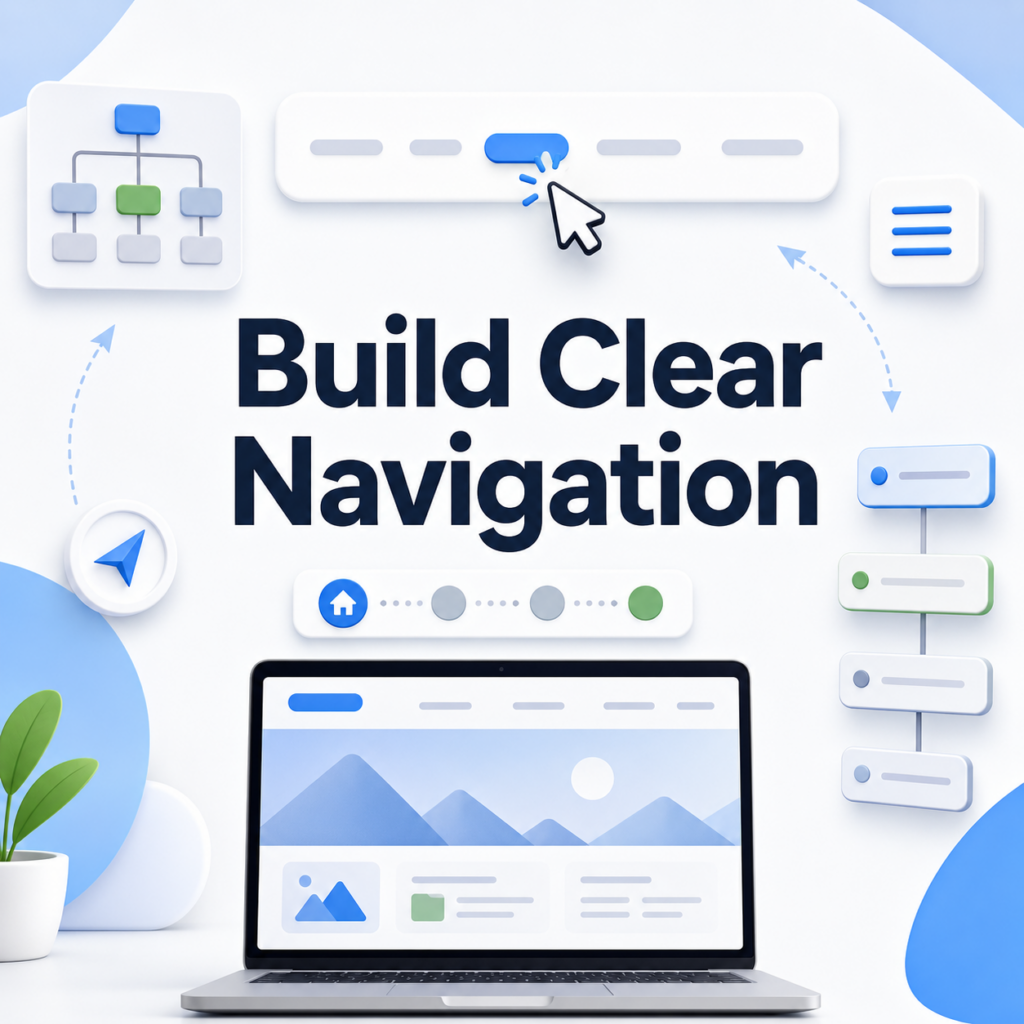
Navigation helps visitors understand where they are and where they can go next. A simple menu is usually better than a crowded one.
Your main navigation might include Home, About, Services, Blog, and Contact. If you sell products, include Shop. If you offer many services, use dropdowns carefully, but avoid making menus too deep.
Add important calls to action in visible places. For example, a service business may use “Get a Quote” or “Book a Consultation.” A store may use “Shop Now.” A newsletter-based site may use “Subscribe.”
Footer navigation is also important. Use it for secondary links such as Privacy Policy, Terms, support pages, social links, and contact details.
Step 12: Make the Website Mobile-Friendly
Many visitors will view your website on a phone. A site that looks good on desktop but breaks on mobile can lose visitors quickly.
Check every key page on a real phone if possible. Make sure text is readable, buttons are easy to tap, images fit the screen, menus open properly, and forms are not frustrating.
Avoid sections that rely on tiny text or complex layouts. Mobile users scan quickly, so your content should be direct and well-spaced.
Mobile responsiveness is one of the core features and requirements often associated with WordPress themes and modern website setup.
Step 13: Add SEO Basics
SEO helps search engines understand your website. It does not guarantee rankings, but it gives your content a better foundation.
Start with keyword-focused page titles. If your page is about local plumbing services, the title should clearly reflect that. Write meta descriptions that summarize each page and encourage clicks.
Use one clear H1 heading per page. Then organize sections with H2 and H3 headings. Add internal links between related pages and posts. Use descriptive image alt text when the image adds meaning.
Create helpful content around real questions your audience asks. For example, a WordPress agency might publish articles about website planning, SEO basics, maintenance, speed, and security. A local service company might answer questions about pricing, process, timelines, and common problems.
Step 14: Improve Speed and Performance
Website speed affects user experience. If pages load slowly, visitors may leave before reading your content.
Start by compressing images before uploading them. Large image files are one of the most common reasons beginner WordPress websites become slow. Use modern image formats when possible.
Install a caching plugin if your host does not already provide caching. Remove plugins you do not use. Choose a lightweight theme. Avoid placing too many animations, sliders, videos, or heavy scripts on one page.
Test your site with tools such as Google PageSpeed Insights. The goal is not always a perfect score, but the report can show what needs attention.
Step 15: Secure and Back Up Your Website
Security should not be saved for later. WordPress websites can become vulnerable when themes, plugins, or the WordPress core are outdated.
Update WordPress, themes, and plugins regularly. Use strong passwords. Add two-factor authentication if possible. Limit admin access to people who truly need it. Delete unused themes and plugins.
Backups are just as important. A backup allows you to restore your website if something breaks, gets hacked, or is accidentally deleted. Store backups somewhere separate from your website hosting when possible.
Step 16: Test Before Launch
Before announcing your website, test it carefully.
Click every menu item. Submit every form. Check all buttons. Review your homepage, key pages, blog posts, and footer links. Test your website on desktop, tablet, and mobile. Read your content out loud to catch awkward wording.
Also check basic SEO settings, page titles, meta descriptions, image alt text, and URLs. Make sure there are no placeholder images, demo text, broken links, or unfinished sections.
If your site includes checkout, test the full purchase flow. If your site includes booking, test the booking process. If your site includes downloads, confirm the files open correctly.
Common WordPress Challenges
WordPress is beginner-friendly, but it still requires care.
Plugin conflicts can happen when two plugins try to control similar features. Slow speed can happen when the site uses large images, weak hosting, or too many scripts. Security risks increase when updates are ignored. Design problems can happen when a theme is customized beyond what it was built to handle. Content can become disorganized if pages, categories, and menus are created without a plan.
The best way to avoid these problems is to keep the site simple, use trusted tools, update regularly, and test changes before making them live. The source article also points out common challenges such as plugin conflicts, security risks, slow speed, content management issues, theme customization problems, and SEO optimization concerns.
บทสรุป
Learning how to make a website on วordpress becomes much easier when you follow a clear process. Start by defining your website goal, then choose a domain, set up hosting, install WordPress, enable SSL, and pick a reliable theme. After that, create your essential pages, install only necessary plugins, configure important settings, build simple navigation, optimize for mobile, add SEO basics, improve speed, secure your site, and test everything before launch.
A strong WordPress website is not just about design. It needs structure, clear content, good performance, security, and room to grow. When each step is handled carefully, WordPress can help beginners and businesses build a professional website that is easy to manage and ready for long-term use.
คำถามที่พบบ่อย
1.What is the easiest way to make a website on WordPress?
The easiest way is to choose a domain name, buy WordPress-friendly hosting, install WordPress, select a responsive theme, create your main pages, install essential plugins, and test the site before launch.
2.Do I need coding skills to build a WordPress website?
No. WordPress allows beginners to build and manage a website using themes, page builders, plugins, and a visual dashboard. Coding can help with advanced customization, but it is not required for a basic website.
3.How much does it cost to make a website on WordPress?
The cost depends on your domain, hosting, theme, plugins, and whether you hire help. A simple WordPress website can be built affordably with basic hosting and free tools, while advanced sites may cost more.
4.Which pages should a new WordPress website include?
Most new websites should include a Home page, About page, Services or Products page, Contact page, Blog page, Privacy Policy, and Terms page. The exact structure depends on your website goal.
5.How can I make my WordPress website SEO-friendly?
Use clean permalinks, write keyword-focused titles, add meta descriptions, organize content with headings, optimize images, create helpful content, and use an SEO plugin such as Yoast SEO or Rank Math.
6.How do I keep my WordPress website safe after launch?
Keep WordPress, themes, and plugins updated. Use strong passwords, enable SSL, install a security plugin, limit admin access, and set up automatic backups so your site can be restored if something goes wrong.


ออกแบบและสร้างเว็บไซต์ WordPress หรือเว็บไซต์องค์กรพร้อมระบบอีคอมเมิร์ซครบวงจรสำหรับคุณ.
ช่วงราคา: $200.00 ถึง $2,500.00custom-requirements-or-special-quotations
ราคาเดิมคือ: $2.00.$1.00ราคาปัจจุบันคือ: $1.00. การใช้ปลั๊กอิน 50 ตัวมากเกินไปสำหรับร้านค้าออนไลน์ที่ใช้ WordPress หรือไม่?
การเข้าใจผลกระทบที่แท้จริงต่อประสิทธิภาพ การมีปลั๊กอิน 50 ตัวบนเว็บไซต์อีคอมเมิร์ซ WordPress ไม่ใช่ปัญหาโดยอัตโนมัติ จริงๆ แล้ว จำนวนเพียงอย่างเดียวแทบจะไม่สามารถกำหนดประสิทธิภาพได้....

ภาพหลักสำหรับการออกแบบอุปกรณ์กายภาพบำบัดที่บ้านของ Amazon (อธิบายรายละเอียด)
บทนำ: การสร้างภาพลักษณ์ที่น่าเชื่อถือสำหรับอุปกรณ์บำบัดที่บ้านบน Amazon เมื่อออกแบบภาพหลักสำหรับอุปกรณ์บำบัดที่บ้านบน Amazon สิ่งสำคัญอันดับแรกของเราคือ...

ภาพหลักสำหรับการแปลงลิปสติกเป็นสินค้าสำหรับ Amazon
บทนำ: การออกแบบภาพหลักลิปสติกที่ขายได้บน Amazon เมื่อเราออกแบบภาพหลักสำหรับลิปสติกบน Amazon ความรับผิดชอบของเราไม่ได้จำกัดอยู่แค่...

แฮกเกอร์ขโมยอีเมลผู้ดูแลระบบ WordPress ได้อย่างไร (และวิธีป้องกัน)
มาเริ่มกันด้วยความจริงที่ไม่น่าสบายใจ: อีเมลแอดมิน WordPress ของคุณอาจเปิดเผยต่อสาธารณะมากกว่าที่คุณคิด และแฮกเกอร์? พวกเขาชอบมาก สำหรับพวกเขา...

อะไรทำให้รองพื้นชนิดเหลวของ Amazon (ภาพหลัก) ขายดี?
บทนำ การออกแบบภาพหลักสำหรับรองพื้นชนิดเหลวบน Amazon ไม่ใช่แค่การทำให้ผลิตภัณฑ์ดูสวยงามเท่านั้น บน Amazon ภาพหลักและ...

การออกแบบภาพหลัก Amazon ที่มีประสิทธิภาพสำหรับตลับกรอง
บทนำ การออกแบบภาพหลักสำหรับ Amazon ไม่ใช่แค่การทำให้สินค้าดูน่าดึงดูดเท่านั้น แต่ยังเกี่ยวกับความชัดเจน ความน่าเชื่อถือ และความเข้าใจได้ในทันที โดยเฉพาะอย่างยิ่งสำหรับ...

การโจมตีแบบ Replay Attack บน WordPress: ภัยคุกคามจริงหรือแค่เรื่องที่ถูกพูดเกินจริง?
ก่อนอื่นขอชี้แจงให้ชัดเจนก่อน การโจมตีแบบ Replay Attack นั้นดูไม่น่ากลัว มันไม่ได้ทำลายรหัสผ่าน มันไม่ได้แทรกโค้ดที่เป็นอันตรายพร้อมข้อความแฮ็กเกอร์สีเขียวกระจัดกระจายไปทั่ว มันแนบเนียนกว่า...

วิธีคัดลอกหน้าเว็บ WordPress โดยไม่ทำให้ระบบเสียหาย
ยอมรับกันเถอะ บางครั้งคุณอาจไม่อยากสร้างหน้าเว็บใหม่ คุณแค่อยากได้หน้าเว็บเดิม...แต่แตกต่างไปเล็กน้อย รูปแบบเหมือนเดิม บล็อกเหมือนเดิม การตั้งค่าเหมือนเดิม เพราะ...

เปรียบเทียบธีม WordPress สำหรับสัตว์เลี้ยง 5 แบบ
บทนำ การเลือกธีม WordPress ที่เหมาะสมสำหรับธุรกิจเกี่ยวกับสัตว์เลี้ยงนั้นไม่ใช่แค่เรื่องของการออกแบบเท่านั้น แต่ยังส่งผลโดยตรงต่อการใช้งาน ความสามารถในการขยายขนาด และการเติบโตของธุรกิจในระยะยาว การดูแลสัตว์เลี้ยงและ...

เปรียบเทียบธีมอีคอมเมิร์ซชุดว่ายน้ำ 5 แบบ
บทนำ การเลือกธีมที่เหมาะสมสำหรับร้านค้าอิสระที่จำหน่ายชุดว่ายน้ำหรือชุดชั้นในนั้นไม่ใช่แค่การตัดสินใจด้านภาพลักษณ์เท่านั้น แต่ยังส่งผลโดยตรงต่ออัตราการเปลี่ยนลูกค้าให้เป็นผู้ซื้อ ความสามารถในการขยายธุรกิจ และความยั่งยืนในระยะยาว...

วิธีปิดการแสดงความคิดเห็นใน WordPress (โดยไม่ต้องเสียสติ)
มาพูดถึงระบบแสดงความคิดเห็นของ WordPress กันดีกว่า ในทางทฤษฎีแล้ว ความคิดเห็นนั้นยอดเยี่ยมมาก มันช่วยกระตุ้นการสนทนา สร้างชุมชน และทำให้เว็บไซต์ของคุณดูมีชีวิตชีวา แต่ในความเป็นจริงแล้ว มันมักจะเป็นเหมือนแม่เหล็กดึงดูด...

ข้อผิดพลาด WordPress 500: เมื่อเว็บไซต์ของคุณเกิดอาการผิดปกติ
เว็บไซต์ WordPress ของคุณยังใช้งานได้ปกติดีเมื่อสักครู่ คุณรีเฟรชหน้าเว็บ แล้วจู่ๆ ก็เกิดข้อผิดพลาด 500 Internal Server Error ขึ้นมา ไม่มีคำอธิบาย ไม่มีคำขอโทษ มีเพียงข้อความที่เย็นชาและสับสนซึ่งโดยพื้นฐานแล้ว...

การสร้างเว็บไซต์ WordPress ที่ปรับขนาดได้สำหรับแบรนด์ที่ขับเคลื่อนด้วยวิทยาศาสตร์: โครงการ AminoUSA
บทนำ ในยุคดิจิทัลปัจจุบัน เว็บไซต์เป็นมากกว่าแค่สถานที่สำหรับแสดงรายการสินค้า สำหรับแบรนด์ที่ขับเคลื่อนด้วยวิทยาศาสตร์ซึ่งดำเนินงานในอุตสาหกรรมที่มีการควบคุมหรือเน้นการวิจัย...

สร้างร้านค้า Shopify ที่ปรับขนาดได้สำหรับแบรนด์ใบมีดระดับโลก: โครงการ CoolKatana
บทนำ ในธุรกิจอีคอมเมิร์ซข้ามพรมแดน เว็บไซต์ Shopify เป็นมากกว่าแค่หน้าร้าน สำหรับแบรนด์ที่ดำเนินธุรกิจในกลุ่มเฉพาะหรือกลุ่มที่ขับเคลื่อนด้วยวัฒนธรรม เว็บไซต์ต้องทำมากกว่านั้น...

การออกแบบร้านค้า Shopify ที่มีอัตราการแปลงสูงสำหรับขายการ์ดโปเกมอน
บทนำ ในโลกของอีคอมเมิร์ซสินค้าสะสม โดยเฉพาะอย่างยิ่งในตลาดเกมการ์ดโปเกมอน (TCG) เว็บไซต์จะต้องทำมากกว่าแค่แสดงรายการสินค้า...

ดีไซน์ Shopify ที่เพิ่มยอดขายสำหรับแบรนด์อิฐสั่งทำพิเศษ
บทนำ ในสภาพแวดล้อมการแข่งขันอีคอมเมิร์ซในปัจจุบัน โดยเฉพาะอย่างยิ่งในตลาดของขวัญส่วนบุคคลและของสะสม เว็บไซต์ Shopify ต้องทำมากกว่าแค่แสดงสินค้า...

วิธีติดต่อฝ่ายสนับสนุนของ Shopify: คู่มือที่ง่ายและไม่ยุ่งยาก
การบริหารร้านค้า Shopify ควรเป็นเรื่องที่น่าตื่นเต้น ไม่ใช่เรื่องที่ทำให้สับสน เมื่อมีคำถามหรือปัญหาเกิดขึ้น Shopify มีช่องทางการสนับสนุนหลายช่องทาง ขึ้นอยู่กับสถานการณ์...

วิธีปิดใช้งานร้านค้า Shopify: คู่มือที่ชัดเจนและใช้งานได้จริง
การปิดใช้งานร้านค้า Shopify นั้นไม่ซับซ้อน แต่ก็มีผลกระทบหลายอย่างที่ผู้ขายหลายรายมองข้ามไป คู่มือนี้จะอธิบายขั้นตอนอย่างละเอียดและเข้าใจง่าย...