












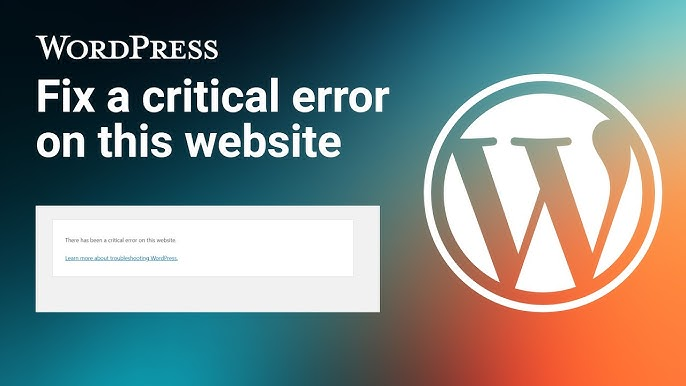
วordpress ระบบนี้ขับเคลื่อนเว็บไซต์หลายล้านแห่งทั่วโลก ตั้งแต่บล็อกส่วนตัวไปจนถึงแพลตฟอร์มอีคอมเมิร์ซขนาดใหญ่ แม้ว่าจะเป็นหนึ่งในระบบเว็บไซต์ที่มีความยืดหยุ่นและใช้งานง่ายที่สุด แต่ผู้ใช้ก็อาจพบกับข้อความทางเทคนิคที่น่าหงุดหงิดอยู่บ้าง.
หนึ่งในข้อผิดพลาดที่พบบ่อยที่สุดคือ:
“เว็บไซต์นี้เกิดข้อผิดพลาดร้ายแรง”
หากคุณเคยเปิดเว็บไซต์ WordPress ของคุณแล้วเห็นข้อความนี้ คุณอาจสงสัยว่าเกิดอะไรขึ้นและจะแก้ไขได้อย่างไร ข่าวดีก็คือโดยปกติแล้วข้อผิดพลาดนี้สามารถแก้ไขได้ และการเข้าใจสาเหตุจะช่วยป้องกันไม่ให้เกิดขึ้นอีกในอนาคต.
ในคู่มือนี้ เราจะอธิบายว่าข้อความ “เกิดข้อผิดพลาดร้ายแรงบนเว็บไซต์นี้ wordpress” หมายความว่าอย่างไร เกิดขึ้นได้อย่างไร และวิธีแก้ไขที่มีประสิทธิภาพที่สุด แม้ว่าคุณจะไม่ใช่นักพัฒนาซอฟต์แวร์ก็ตาม.
ข้อความ “เกิดข้อผิดพลาดร้ายแรงบนเว็บไซต์นี้” หมายความว่าอย่างไร?
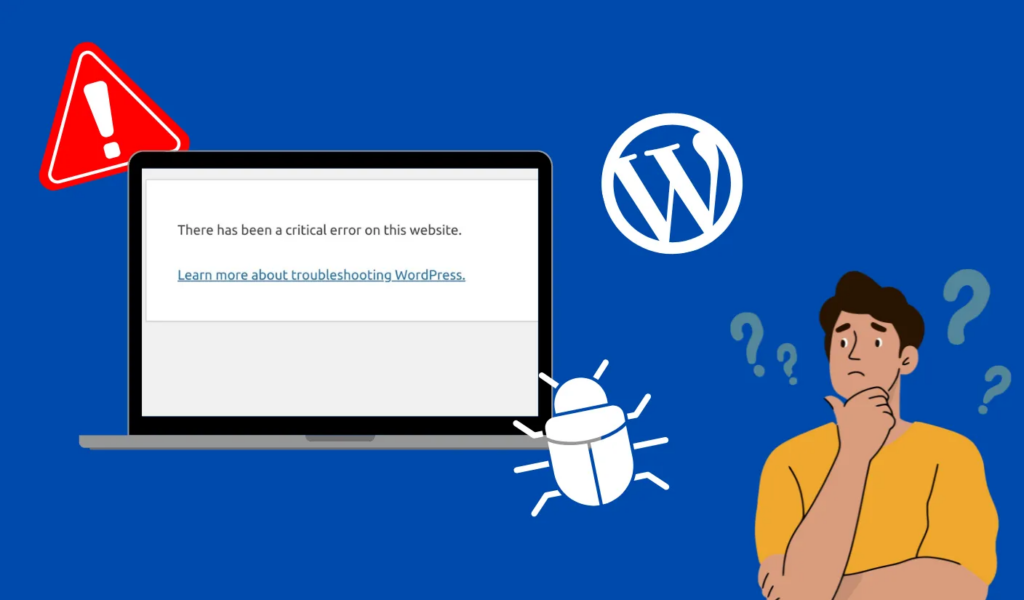
ข้อความ “เกิดข้อผิดพลาดร้ายแรงบนเว็บไซต์นี้ wordpress” จะปรากฏขึ้นเมื่อ WordPress พบข้อผิดพลาด PHP ร้ายแรงที่ทำให้เว็บไซต์ไม่สามารถโหลดได้อย่างถูกต้อง.
แทนที่จะแสดงหน้าจอสีขาวว่างเปล่า (ซึ่งเคยเกิดขึ้นใน WordPress เวอร์ชันเก่า) ตอนนี้ WordPress จะแสดงข้อความนี้เพื่อระบุว่ามีบางอย่างผิดพลาดในระบบ.
ข้อผิดพลาดนี้มักเกิดขึ้นเมื่อ:
- ปลั๊กอินตัวหนึ่งทำให้เกิดความขัดแย้ง
- ธีมนี้มีโค้ดที่ใช้งานไม่ได้
- ไฟล์ WordPress เกิดความเสียหาย
- เกินขีดจำกัดหน่วยความจำของ PHP แล้ว
- การอัปเดตล่าสุดทำให้เกิดปัญหาด้านความเข้ากันได้
เมื่อ WordPress ตรวจพบปัญหาที่ร้ายแรง ระบบจะหยุดการทำงานเพื่อป้องกันความเสียหายเพิ่มเติมต่อเว็บไซต์.
สาเหตุทั่วไปของข้อผิดพลาดร้ายแรงใน WordPress
การเข้าใจสาเหตุที่แท้จริงจะช่วยให้แก้ไขปัญหาได้เร็วขึ้น ด้านล่างนี้คือสาเหตุที่พบบ่อยที่สุดที่ทำให้เกิดข้อผิดพลาดนี้.
1. ความขัดแย้งของปลั๊กอิน
ปลั๊กอินช่วยเพิ่มฟังก์ชันการทำงานของ WordPress แต่ปลั๊กอินที่เขียนโค้ดไม่ดีหรือไม่เข้ากันอาจทำให้เกิดข้อผิดพลาดร้ายแรงได้.
เหตุการณ์นี้มักเกิดขึ้นเมื่อ:
- ปลั๊กอินตัวนี้ล้าสมัยแล้ว
- ปลั๊กอินตัวหนึ่งขัดแย้งกับปลั๊กอินอีกตัวหนึ่ง
- ปลั๊กอินไม่เข้ากันกับเวอร์ชัน WordPress ของคุณ
- ปลั๊กอินนี้ต้องการ PHP เวอร์ชันใหม่กว่า
ตัวอย่างเช่น การติดตั้งปลั๊กอินใหม่หรืออัปเดตปลั๊กอินที่มีอยู่ก่อนที่ข้อผิดพลาดจะปรากฏขึ้น เป็นสัญญาณบ่งชี้ที่ชัดเจนว่าปลั๊กอินนั้นอาจเป็นสาเหตุของปัญหา.
2. ประเด็นหลัก
ธีม WordPress ของคุณเป็นตัวกำหนดรูปลักษณ์และการทำงานของเว็บไซต์ของคุณ.
หากธีมมีโค้ดที่เสียหายหรือขัดแย้งกับการอัปเดตหลักของ WordPress อาจทำให้เกิดข้อผิดพลาดร้ายแรงบนเว็บไซต์ WordPress นี้ได้.
เหตุการณ์นี้มักเกิดขึ้นเมื่อ:
- มีการเพิ่มโค้ดที่กำหนดเองอย่างไม่ถูกต้อง
- ธีมนี้ล้าสมัยแล้ว
- ธีมนี้ไม่สามารถใช้งานร่วมกับ WordPress เวอร์ชันล่าสุดได้
3. ไฟล์หลักของ WordPress เสียหาย
บางครั้งไฟล์ WordPress อาจเสียหายระหว่างการอัปเดตหรือเนื่องจากปัญหาของเซิร์ฟเวอร์.
สิ่งนี้อาจทำให้ระบบล้มเหลวระหว่างการทำงาน ส่งผลให้เกิดข้อความแสดงข้อผิดพลาดร้ายแรง.
4. ปัญหาเรื่องข้อจำกัดด้านหน่วยความจำของ PHP
WordPress ทำงานบนภาษา PHP และแต่ละเว็บไซต์มีข้อจำกัดด้านการจัดสรรหน่วยความจำ.
หากสคริปต์ต้องการหน่วยความจำมากกว่าที่เซิร์ฟเวอร์อนุญาต WordPress อาจหยุดทำงานและแสดงข้อความแสดงข้อผิดพลาดร้ายแรง.
เหตุการณ์นี้อาจเกิดขึ้นได้เมื่อ:
- มีการติดตั้งปลั๊กอินขนาดใหญ่
- มีการใช้ธีมที่ซับซ้อน
- เว็บไซต์นี้รองรับปริมาณการเข้าชมสูง
5. การอัปเดตล้มเหลว
การอัปเดต WordPress ปลั๊กอิน หรือธีมนั้นมีความสำคัญต่อความปลอดภัยและประสิทธิภาพการทำงาน อย่างไรก็ตาม หากการอัปเดตล้มเหลวระหว่างทางเนื่องจากการขัดข้องของเซิร์ฟเวอร์หรือปัญหาความเข้ากันได้ อาจทำให้เว็บไซต์ใช้งานไม่ได้.
สิ่งนี้อาจทำให้ WordPress แสดงข้อความแสดงข้อผิดพลาดร้ายแรงแทนที่จะโหลดเว็บไซต์.
วิธีแก้ไขข้อความ “เกิดข้อผิดพลาดร้ายแรงบนเว็บไซต์นี้” ใน WordPress
โชคดีที่มีขั้นตอนการแก้ไขปัญหาหลายอย่างที่สามารถช่วยแก้ปัญหานี้ได้.
ด้านล่างนี้คือวิธีแก้ปัญหาที่ใช้งานได้จริงที่สุด.
1. ตรวจสอบอีเมลของคุณเพื่อเข้าสู่โหมดกู้คืน
WordPress เวอร์ชันใหม่ๆ จะส่งอีเมลอัตโนมัติไปยังผู้ดูแลระบบเว็บไซต์เมื่อเกิดข้อผิดพลาดร้ายแรง.
อีเมลนี้มักมีเนื้อหาดังต่อไปนี้:
- ปลั๊กอินหรือธีมที่ทำให้เกิดปัญหา
- ลิงก์เข้าสู่ระบบโหมดกู้คืนพิเศษ
- คำแนะนำในการแก้ไขปัญหา
เมื่อใช้โหมดกู้คืน คุณสามารถเข้าสู่ระบบ WordPress ได้แม้ว่าเว็บไซต์จะเสียหาย และสามารถปิดใช้งานปลั๊กอินหรือธีมที่มีปัญหาได้.
2. ปิดใช้งานปลั๊กอินทั้งหมด
หากคุณสงสัยว่าปลั๊กอินขัดแย้งกัน การปิดใช้งานปลั๊กอินมักเป็นวิธีที่เร็วที่สุดในการระบุปัญหา.
คุณสามารถทำได้ผ่าน FTP หรือตัวจัดการไฟล์ของโฮสติ้งของคุณ.
ขั้นตอน:
- เข้าถึงไฟล์เว็บไซต์ของคุณ
- เข้าไปที่โฟลเดอร์ wp-content
- เปลี่ยนชื่อโฟลเดอร์ปลั๊กอินเป็นชื่ออื่น เช่น:
ปลั๊กอินถูกปิดใช้งาน
การดำเนินการนี้จะปิดใช้งานปลั๊กอินทั้งหมดพร้อมกัน.
หากเว็บไซต์กลับมาใช้งานได้อีกครั้ง คุณสามารถเปลี่ยนชื่อโฟลเดอร์กลับเป็นชื่อเดิม และเปิดใช้งานปลั๊กอินทีละตัวเพื่อหาปลั๊กอินที่มีปัญหาได้.
3. เปลี่ยนไปใช้ธีม WordPress เริ่มต้น
หากปัญหาเกิดจากธีมของคุณ การเปลี่ยนไปใช้ธีมเริ่มต้นของ WordPress อาจช่วยได้.
ขั้นตอน:
- ไปที่ wp-content/themes
- เปลี่ยนชื่อโฟลเดอร์ธีมที่ใช้งานอยู่ของคุณ
- WordPress จะเปลี่ยนไปใช้ธีมเริ่มต้นโดยอัตโนมัติ เช่น:
- ยี่สิบยี่สิบเอ็ด
- ยี่สิบยี่สิบสอง
- ยี่สิบยี่สิบสาม
หากเว็บไซต์โหลดได้ตามปกติหลังจากทำการเปลี่ยนแปลงนี้แล้ว แสดงว่าธีมน่าจะเป็นสาเหตุของปัญหา.
4. เปิดใช้งานโหมดดีบักของ WordPress
โหมดดีบักช่วยให้ WordPress แสดงข้อความแสดงข้อผิดพลาดโดยละเอียด ซึ่งจะช่วยให้ทราบถึงต้นตอของปัญหา.
หากต้องการเปิดใช้งาน ให้แก้ไขไฟล์ wp-config.php และเพิ่มบรรทัดต่อไปนี้:
define('WP_DEBUG', true);
define('WP_DEBUG_LOG', true);
define('WP_DEBUG_DISPLAY', true);
หลังจากเปิดใช้งานโหมดดีบักแล้ว โปรดรีโหลดเว็บไซต์ของคุณ.
WordPress อาจแสดงไฟล์หรือปลั๊กอินที่ทำให้เกิดข้อผิดพลาดอย่างแม่นยำ.
เมื่อแก้ไขปัญหาเสร็จแล้ว แนะนำให้ปิดโหมดดีบักอีกครั้ง.
5. เพิ่มขีดจำกัดหน่วยความจำ PHP
หากปัญหาเกิดจากหน่วยความจำไม่เพียงพอ การเพิ่มขีดจำกัดหน่วยความจำของ PHP อาจช่วยแก้ไขได้.
แก้ไขไฟล์ wp-config.php และเพิ่มข้อความต่อไปนี้:
define('WP_MEMORY_LIMIT', '256M');
การทำเช่นนี้จะเพิ่มปริมาณหน่วยความจำที่ WordPress สามารถใช้งานได้.
6. ติดตั้งไฟล์หลักของ WordPress ใหม่
หากไฟล์หลักเสียหาย การติดตั้ง WordPress ใหม่สามารถกู้คืนไฟล์ที่หายไปหรือเสียหายได้.
ขั้นตอน:
- ดาวน์โหลด WordPress เวอร์ชันล่าสุด
- อัปโหลดโฟลเดอร์ wp-admin และ wp-includes
- เปลี่ยนอันที่มีอยู่เดิม
โปรดอย่าเขียนทับโฟลเดอร์ wp-content ซึ่งเป็นที่เก็บธีม ปลั๊กอิน และไฟล์อัปโหลดของคุณ.
7. ติดต่อผู้ให้บริการโฮสติ้งของคุณ
บางครั้งข้อผิดพลาดอาจเกิดจากปัญหาในระดับเซิร์ฟเวอร์ เช่น:
- ปัญหาการกำหนดค่า PHP
- ปัญหาเกี่ยวกับฐานข้อมูล
- ข้อจำกัดของทรัพยากรโฮสติ้ง
ในกรณีเหล่านี้ การติดต่อผู้ให้บริการโฮสติ้งของคุณอาจเป็นสิ่งจำเป็น พวกเขาสามารถตรวจสอบบันทึกเซิร์ฟเวอร์และระบุสาเหตุที่แท้จริงได้.
การป้องกันข้อผิดพลาดร้ายแรงใน WordPress
แม้ว่าจะไม่สามารถหลีกเลี่ยงข้อผิดพลาดได้เสมอไป แต่การปฏิบัติตามแนวทางปฏิบัติที่ดีที่สุดจะช่วยลดความเสี่ยงลงได้อย่างมาก.
อัปเดต WordPress อยู่เสมอ
อัปเดตเป็นประจำ:
- แกนหลักของ WordPress
- ปลั๊กอิน
- ธีม
ช่วยรักษาความเข้ากันได้และความปลอดภัย.
ใช้ปลั๊กอินและธีมที่เชื่อถือได้
ติดตั้งปลั๊กอินและธีมจากผู้พัฒนาที่มีชื่อเสียงหรือจากแหล่งจำหน่ายอย่างเป็นทางการเท่านั้น.
ส่วนขยายที่เขียนโค้ดไม่ดีเป็นหนึ่งในสาเหตุหลักที่ทำให้เกิดข้อผิดพลาดร้ายแรง.
สร้างข้อมูลสำรองเป็นประจำ
การสำรองข้อมูลช่วยให้เว็บไซต์ของคุณสามารถกู้คืนได้อย่างรวดเร็วหากเกิดปัญหาขึ้น.
ผู้ให้บริการโฮสติ้งหลายรายมีบริการสำรองข้อมูลอัตโนมัติ หรือคุณสามารถใช้ปลั๊กอินสำรองข้อมูลได้.
ทดสอบการเปลี่ยนแปลงบนเว็บไซต์ทดสอบ
ก่อนทำการอัปเดตครั้งใหญ่หรือติดตั้งปลั๊กอินใหม่ ควรทดสอบในสภาพแวดล้อมทดสอบก่อน.
วิธีนี้จะช่วยป้องกันปัญหาที่อาจเกิดขึ้นกับเว็บไซต์ของคุณขณะใช้งานจริง.
เหตุใดข้อผิดพลาดนี้จึงสำคัญสำหรับธุรกิจออนไลน์
สำหรับธุรกิจที่ใช้ WordPress ในการจัดการร้านค้าหรือเว็บไซต์บริการ การที่เว็บไซต์ใช้งานไม่ได้อาจหมายถึง:
- การจราจรสูญหาย
- ยอดขายลดลง
- อันดับการค้นหาที่ต่ำลง
- ความไว้วางใจของลูกค้าเสียหาย
เรื่องนี้มีความสำคัญอย่างยิ่งสำหรับเว็บไซต์อีคอมเมิร์ซและเว็บไซต์ระหว่างประเทศ เนื่องจากความเสถียรและประสิทธิภาพส่งผลโดยตรงต่ออัตราการแปลงลูกค้า.
เว็บไซต์ที่ได้รับการออกแบบมาอย่างดีและได้รับการดูแลรักษาอย่างเหมาะสม จะช่วยลดความเสี่ยงของความล้มเหลวทางเทคนิคได้อย่างมาก.
ข้อคิดส่งท้าย
ข้อความ “เกิดข้อผิดพลาดร้ายแรงบนเว็บไซต์นี้ wordpress” อาจดูน่าตกใจ แต่โดยปกติแล้วมักบ่งชี้ถึงปัญหาที่แก้ไขได้ เช่น ความขัดแย้งของปลั๊กอิน ปัญหาเกี่ยวกับธีม หรือข้อจำกัดในการกำหนดค่าเซิร์ฟเวอร์.
ด้วยการระบุสาเหตุที่แท้จริงและปฏิบัติตามขั้นตอนการแก้ไขปัญหาอย่างเป็นระบบ เช่น การปิดใช้งานปลั๊กอิน การเปลี่ยนธีม การเปิดใช้งานโหมดดีบัก หรือการเพิ่มหน่วยความจำ คุณจะสามารถกู้คืนเว็บไซต์ของคุณได้อย่างรวดเร็ว.
การดูแลรักษาเว็บไซต์ WordPress ให้เสถียรนั้นไม่ใช่แค่การแก้ไขข้อผิดพลาดเท่านั้น แต่ยังเกี่ยวข้องกับการออกแบบอย่างรอบคอบ การเพิ่มประสิทธิภาพการทำงาน และโครงสร้างที่ชัดเจน เพื่อให้มั่นใจว่าเว็บไซต์ของคุณทำงานได้อย่างราบรื่นไปพร้อมกับการเติบโตของธุรกิจ.
ที่ AIRSANG, เราเชี่ยวชาญในการช่วยแบรนด์ต่างๆ สร้างเว็บไซต์ระดับมืออาชีพสำหรับตลาดโลก ทีมงานของเรามุ่งเน้นการออกแบบเว็บไซต์ที่ขับเคลื่อนด้วยการแปลงผู้เข้าชมเป็นลูกค้า, ช็อปฟี่ และ วordpress ประสบการณ์ในร้านค้า และโซลูชันอีคอมเมิร์ซข้ามพรมแดนที่ช่วยให้ธุรกิจนำเสนอผลิตภัณฑ์ของตนได้อย่างชัดเจนและมีประสิทธิภาพ.
หากคุณกำลังสร้างหรือปรับปรุงเว็บไซต์ของคุณ และต้องการดีไซน์ที่ทั้งสวยงามและเชื่อถือได้ทางเทคนิค, AIRSANG เราพร้อมให้ความช่วยเหลือ ประสบการณ์ของเราในการออกแบบเว็บไซต์ระดับนานาชาติจะช่วยให้แบรนด์ของคุณโดดเด่น พร้อมทั้งรักษาเสถียรภาพและประสิทธิภาพสูงในการใช้งานออนไลน์.


ออกแบบและสร้างเว็บไซต์ WordPress หรือเว็บไซต์องค์กรพร้อมระบบอีคอมเมิร์ซครบวงจรสำหรับคุณ.
ช่วงราคา: $200.00 ถึง $2,500.00custom-requirements-or-special-quotations
ราคาเดิมคือ: $2.00.$1.00ราคาปัจจุบันคือ: $1.00. การใช้ปลั๊กอิน 50 ตัวมากเกินไปสำหรับร้านค้าออนไลน์ที่ใช้ WordPress หรือไม่?
การเข้าใจผลกระทบที่แท้จริงต่อประสิทธิภาพ การมีปลั๊กอิน 50 ตัวบนเว็บไซต์อีคอมเมิร์ซ WordPress ไม่ใช่ปัญหาโดยอัตโนมัติ จริงๆ แล้ว จำนวนเพียงอย่างเดียวแทบจะไม่สามารถกำหนดประสิทธิภาพได้....

ภาพหลักสำหรับการออกแบบอุปกรณ์กายภาพบำบัดที่บ้านของ Amazon (อธิบายรายละเอียด)
บทนำ: การสร้างภาพลักษณ์ที่น่าเชื่อถือสำหรับอุปกรณ์บำบัดที่บ้านบน Amazon เมื่อออกแบบภาพหลักสำหรับอุปกรณ์บำบัดที่บ้านบน Amazon สิ่งสำคัญอันดับแรกของเราคือ...

ภาพหลักสำหรับการแปลงลิปสติกเป็นสินค้าสำหรับ Amazon
บทนำ: การออกแบบภาพหลักลิปสติกที่ขายได้บน Amazon เมื่อเราออกแบบภาพหลักสำหรับลิปสติกบน Amazon ความรับผิดชอบของเราไม่ได้จำกัดอยู่แค่...

แฮกเกอร์ขโมยอีเมลผู้ดูแลระบบ WordPress ได้อย่างไร (และวิธีป้องกัน)
มาเริ่มกันด้วยความจริงที่ไม่น่าสบายใจ: อีเมลแอดมิน WordPress ของคุณอาจเปิดเผยต่อสาธารณะมากกว่าที่คุณคิด และแฮกเกอร์? พวกเขาชอบมาก สำหรับพวกเขา...

อะไรทำให้รองพื้นชนิดเหลวของ Amazon (ภาพหลัก) ขายดี?
บทนำ การออกแบบภาพหลักสำหรับรองพื้นชนิดเหลวบน Amazon ไม่ใช่แค่การทำให้ผลิตภัณฑ์ดูสวยงามเท่านั้น บน Amazon ภาพหลักและ...

การออกแบบภาพหลัก Amazon ที่มีประสิทธิภาพสำหรับตลับกรอง
บทนำ การออกแบบภาพหลักสำหรับ Amazon ไม่ใช่แค่การทำให้สินค้าดูน่าดึงดูดเท่านั้น แต่ยังเกี่ยวกับความชัดเจน ความน่าเชื่อถือ และความเข้าใจได้ในทันที โดยเฉพาะอย่างยิ่งสำหรับ...

การโจมตีแบบ Replay Attack บน WordPress: ภัยคุกคามจริงหรือแค่เรื่องที่ถูกพูดเกินจริง?
ก่อนอื่นขอชี้แจงให้ชัดเจนก่อน การโจมตีแบบ Replay Attack นั้นดูไม่น่ากลัว มันไม่ได้ทำลายรหัสผ่าน มันไม่ได้แทรกโค้ดที่เป็นอันตรายพร้อมข้อความแฮ็กเกอร์สีเขียวกระจัดกระจายไปทั่ว มันแนบเนียนกว่า...

วิธีคัดลอกหน้าเว็บ WordPress โดยไม่ทำให้ระบบเสียหาย
ยอมรับกันเถอะ บางครั้งคุณอาจไม่อยากสร้างหน้าเว็บใหม่ คุณแค่อยากได้หน้าเว็บเดิม...แต่แตกต่างไปเล็กน้อย รูปแบบเหมือนเดิม บล็อกเหมือนเดิม การตั้งค่าเหมือนเดิม เพราะ...

เปรียบเทียบธีม WordPress สำหรับสัตว์เลี้ยง 5 แบบ
บทนำ การเลือกธีม WordPress ที่เหมาะสมสำหรับธุรกิจเกี่ยวกับสัตว์เลี้ยงนั้นไม่ใช่แค่เรื่องของการออกแบบเท่านั้น แต่ยังส่งผลโดยตรงต่อการใช้งาน ความสามารถในการขยายขนาด และการเติบโตของธุรกิจในระยะยาว การดูแลสัตว์เลี้ยงและ...

เปรียบเทียบธีมอีคอมเมิร์ซชุดว่ายน้ำ 5 แบบ
บทนำ การเลือกธีมที่เหมาะสมสำหรับร้านค้าอิสระที่จำหน่ายชุดว่ายน้ำหรือชุดชั้นในนั้นไม่ใช่แค่การตัดสินใจด้านภาพลักษณ์เท่านั้น แต่ยังส่งผลโดยตรงต่ออัตราการเปลี่ยนลูกค้าให้เป็นผู้ซื้อ ความสามารถในการขยายธุรกิจ และความยั่งยืนในระยะยาว...

วิธีปิดการแสดงความคิดเห็นใน WordPress (โดยไม่ต้องเสียสติ)
มาพูดถึงระบบแสดงความคิดเห็นของ WordPress กันดีกว่า ในทางทฤษฎีแล้ว ความคิดเห็นนั้นยอดเยี่ยมมาก มันช่วยกระตุ้นการสนทนา สร้างชุมชน และทำให้เว็บไซต์ของคุณดูมีชีวิตชีวา แต่ในความเป็นจริงแล้ว มันมักจะเป็นเหมือนแม่เหล็กดึงดูด...

ข้อผิดพลาด WordPress 500: เมื่อเว็บไซต์ของคุณเกิดอาการผิดปกติ
เว็บไซต์ WordPress ของคุณยังใช้งานได้ปกติดีเมื่อสักครู่ คุณรีเฟรชหน้าเว็บ แล้วจู่ๆ ก็เกิดข้อผิดพลาด 500 Internal Server Error ขึ้นมา ไม่มีคำอธิบาย ไม่มีคำขอโทษ มีเพียงข้อความที่เย็นชาและสับสนซึ่งโดยพื้นฐานแล้ว...

การสร้างเว็บไซต์ WordPress ที่ปรับขนาดได้สำหรับแบรนด์ที่ขับเคลื่อนด้วยวิทยาศาสตร์: โครงการ AminoUSA
บทนำ ในยุคดิจิทัลปัจจุบัน เว็บไซต์เป็นมากกว่าแค่สถานที่สำหรับแสดงรายการสินค้า สำหรับแบรนด์ที่ขับเคลื่อนด้วยวิทยาศาสตร์ซึ่งดำเนินงานในอุตสาหกรรมที่มีการควบคุมหรือเน้นการวิจัย...

สร้างร้านค้า Shopify ที่ปรับขนาดได้สำหรับแบรนด์ใบมีดระดับโลก: โครงการ CoolKatana
บทนำ ในธุรกิจอีคอมเมิร์ซข้ามพรมแดน เว็บไซต์ Shopify เป็นมากกว่าแค่หน้าร้าน สำหรับแบรนด์ที่ดำเนินธุรกิจในกลุ่มเฉพาะหรือกลุ่มที่ขับเคลื่อนด้วยวัฒนธรรม เว็บไซต์ต้องทำมากกว่านั้น...

การออกแบบร้านค้า Shopify ที่มีอัตราการแปลงสูงสำหรับขายการ์ดโปเกมอน
บทนำ ในโลกของอีคอมเมิร์ซสินค้าสะสม โดยเฉพาะอย่างยิ่งในตลาดเกมการ์ดโปเกมอน (TCG) เว็บไซต์จะต้องทำมากกว่าแค่แสดงรายการสินค้า...

ดีไซน์ Shopify ที่เพิ่มยอดขายสำหรับแบรนด์อิฐสั่งทำพิเศษ
บทนำ ในสภาพแวดล้อมการแข่งขันอีคอมเมิร์ซในปัจจุบัน โดยเฉพาะอย่างยิ่งในตลาดของขวัญส่วนบุคคลและของสะสม เว็บไซต์ Shopify ต้องทำมากกว่าแค่แสดงสินค้า...

วิธีติดต่อฝ่ายสนับสนุนของ Shopify: คู่มือที่ง่ายและไม่ยุ่งยาก
การบริหารร้านค้า Shopify ควรเป็นเรื่องที่น่าตื่นเต้น ไม่ใช่เรื่องที่ทำให้สับสน เมื่อมีคำถามหรือปัญหาเกิดขึ้น Shopify มีช่องทางการสนับสนุนหลายช่องทาง ขึ้นอยู่กับสถานการณ์...

วิธีปิดใช้งานร้านค้า Shopify: คู่มือที่ชัดเจนและใช้งานได้จริง
การปิดใช้งานร้านค้า Shopify นั้นไม่ซับซ้อน แต่ก็มีผลกระทบหลายอย่างที่ผู้ขายหลายรายมองข้ามไป คู่มือนี้จะอธิบายขั้นตอนอย่างละเอียดและเข้าใจง่าย...