Introduction
If you want your website to feel modern, interactive, and visually engaging, adding animations is one of the most effective strategies. Subtle motion can guide users’ attention, highlight important content, and make your site feel more dynamic—without overwhelming visitors.
In this guide, we’ll walk through how to make cool CSS animations to WordPress, using beginner-friendly methods. Whether you’re running a blog, an eCommerce store, or a business site, you’ll learn how to add animations without needing deep coding knowledge.
What Are CSS Animations and Why They Matter
CSS animations are visual effects created using Cascading Style Sheets (CSS). They allow elements on your website—like text, images, or buttons—to move, fade, scale, or change styles over time.
Why use animations in WordPress?
- Improve user experience: Smooth transitions make navigation feel natural
- Increase engagement: Motion naturally draws attention
- Highlight key elements: Call-to-action buttons or promotions stand out
- Enhance brand perception: A polished interface builds trust
However, balance is key. Overusing animations can slow down your site or distract users. The goal is to enhance—not overwhelm.
Methods to Add CSS Animations in WordPress
There are three main ways to add animations:
- Using plugins (easiest and most popular)
- Using page builders (visual control)
- Writing custom CSS (advanced control)
Let’s explore each method in detail.
Method 1: Add CSS Animations Using a Plugin
For most users, plugins are the easiest way to add animations without coding.
Step 1: Install an Animation Plugin
Search for animation plugins in your WordPress dashboard. Popular options typically include features like:
- Pre-built animation effects (fade, slide, bounce, zoom)
- Scroll-triggered animations
- Delay and duration controls
Install and activate your chosen plugin.
Step 2: Apply Animations to Elements
After activation, you’ll usually see new settings in:
- Post editor
- Page editor
- Block editor sidebar
Select an element (text, image, button), then:
- Choose animation type (e.g., fade-in, slide-up)
- Set animation speed
- Add delay (optional)
Step 3: Preview and Adjust
Always preview your page before publishing. Check:
- Does the animation feel smooth?
- Is it too fast or too slow?
- Does it match your site’s style?
Small tweaks can make a big difference.
Method 2: Use a Page Builder for Visual Animations
If you’re using a page builder like Elementor or similar tools, animation becomes even easier.
Key Features of Page Builder Animations
- Drag-and-drop interface
- Built-in motion effects
- No coding required
- Real-time preview
How to Add Animations with a Page Builder
- Open your page in the builder
- Click on any element (image, heading, section)
- Go to the “Advanced” or “Motion Effects” panel
- Choose an animation style
Common animation types include:
- Fade In
- Slide In (left/right/up/down)
- Zoom In
- Bounce
You can also control:
- Duration
- Delay
- Trigger (on scroll, on hover, etc.)
When to Use Page Builders
- You want full visual control
- You design landing pages or product pages
- You prefer real-time editing
Method 3: Add Custom CSS Animations (Advanced)
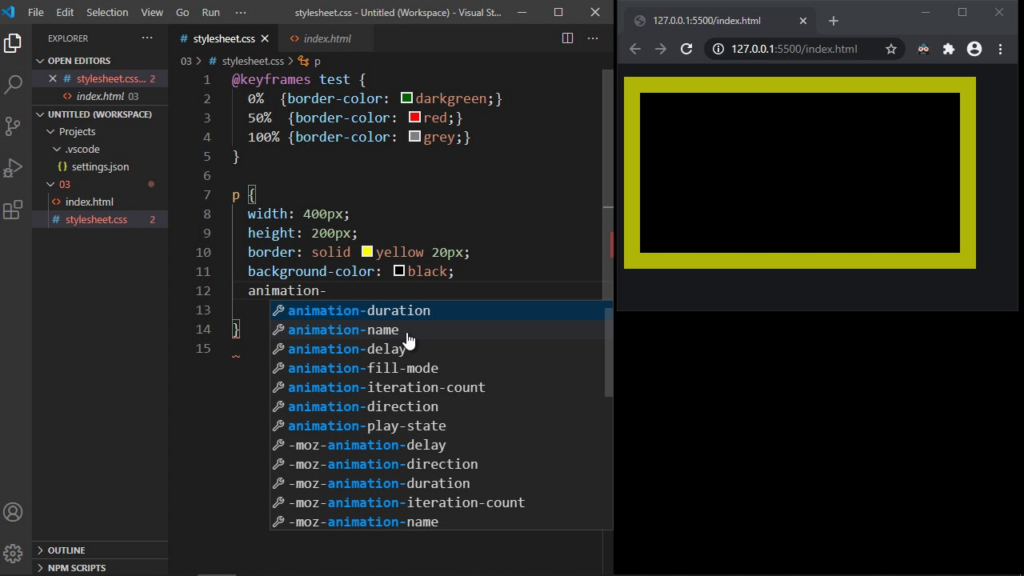
If you want complete control, you can create your own animations using CSS.
Basic CSS Animation Structure
A simple animation includes:
- @keyframes (defines the animation steps)
- animation property (applies the animation to elements)
Example concept:
@keyframes fadeIn {
  from { opacity: 0; }
  to { opacity: 1; }
}.element {
  animation: fadeIn 2s ease-in-out;
}
How to Add Custom CSS in WordPress
You can add CSS in:
- Customizer → Additional CSS
- Theme stylesheet
- Custom CSS plugin
Applying Animation to Elements
To animate a specific element:
- Assign a class in HTML or block editor
- Apply your CSS animation to that class
Benefits of Custom CSS
- Full creative freedom
- Unique animations
- No plugin dependency
Drawbacks
- Requires coding knowledge
- Harder to maintain
- Can break layout if not done properly
Best Practices for CSS Animations
To create effective animations, follow these principles:
1. Keep It Subtle
Avoid excessive movement. Smooth, minimal animations feel more professional.
2. Focus on Purpose
Ask yourself:
- Does this animation guide the user?
- Does it highlight something important?
If not, it may not be necessary.
3. Optimize Performance
Heavy animations can slow down your site.
Tips:
- Avoid too many animations on one page
- Use lightweight CSS instead of JavaScript when possible
- Test page speed after adding animations
4. Make It Mobile-Friendly
Animations should work smoothly on mobile devices.
Check:
- Load speed
- Responsiveness
- Touch interaction
5. Use Consistent Style
Stick to a unified animation style across your site:
- Same speed
- Same motion direction
- Same timing
This improves visual consistency.
Popular Types of CSS Animations
Here are commonly used animation styles:
Fade Animations
- Fade In
- Fade Out
Best for: content appearance, sections
Slide Animations
- Slide from left/right/top/bottom
Best for: menus, banners, transitions
Zoom Animations
- Zoom In
- Zoom Out
Best for: product highlights
Bounce Animations
- Slight bouncing effect
Best for: call-to-action buttons
Hover Animations
- Triggered when user hovers
Best for: buttons, cards, images
When Should You Use Animations?
Animations are most effective in these areas:
- Homepage hero section
- Product highlights
- Call-to-action buttons
- Testimonials
- Feature sections
Avoid overusing animations in:
- Long text blocks
- Navigation menus (unless subtle)
- Critical content areas
Common Mistakes to Avoid
Overloading the Page
Too many animations can:
- Slow down your site
- Distract users
- Reduce conversions
Using Inconsistent Effects
Mixing too many animation styles creates confusion.
Ignoring Accessibility
Some users prefer reduced motion. Consider:
- Keeping animations optional
- Avoiding flashing or rapid movement
Not Testing on Devices
Always test animations on:
- Desktop
- Tablet
- Mobile
Tools That Help with CSS Animations
You can also use external tools to generate animations:
- Animation libraries (pre-built effects)
- CSS generators
- UI animation frameworks
These tools help you create animations faster without coding from scratch.
Final Thoughts
Learning how to make cool CSS animations to WordPress doesn’t require advanced technical skills. Whether you use plugins, page builders, or custom CSS, you can easily enhance your website’s visual appeal and user experience.
The key is to use animations strategically—focusing on clarity, performance, and consistency. When done right, animations can transform a static website into an engaging and memorable experience.
Conclusion
CSS animations are a powerful way to bring life to your WordPress website. By choosing the right method—plugin, builder, or custom code—you can create smooth, modern effects that improve user interaction and highlight important content.
Keep your animations simple, purposeful, and optimized. With the right balance, your site will not only look better but also perform better.
FAQ
You can add CSS animations in WordPress without coding by using animation plugins or page builders. These tools provide ready-made effects that can be applied with just a few clicks.
The easiest way is to use a plugin or a visual page builder. They allow you to add animations like fade, slide, and zoom without writing any CSS code.
Yes, too many animations or poorly optimized effects can impact performance. It’s best to use lightweight animations and avoid overloading your pages.
You can use various animations such as fade-in, slide-in, zoom, bounce, and hover effects. These help improve visual appeal and user engagement.
Basic CSS knowledge is helpful if you want to create custom animations. However, most users can achieve great results using plugins or builders.
Yes, CSS animations can work well on mobile devices if optimized properly. Always test animations on different screen sizes to ensure smooth performance.