











Keine Produkte im Warenkorb.

If you’ve ever asked “how do i backup a wordpress site”, you’re already thinking in the right direction. A WordPress website is made up of multiple moving parts—your database, theme files, plugins, media uploads, and core configuration settings. Losing any of these can break your site or even wipe it entirely.
Backups are essentially your safety net. They allow you to restore your website to a previous working version in case of hacking, server failure, plugin errors, accidental deletion, or hosting issues. The good news is that backing up WordPress is not complicated once you understand the available methods.
This guide breaks everything down in a clear, educational way so you understand not only Wie to back up your WordPress site, but also why each method works, what tools are involved, and how to choose the right approach for your situation.
Before jumping into methods, it’s important to understand what makes up a WordPress site.
A complete WordPress backup includes two main components:
These are stored on your hosting server and include:
This is where your website’s “brain” lives:
A proper backup always includes BOTH parts. Backing up only files or only the database will not fully restore your website.
For most beginners and even intermediate users, plugins are the simplest solution. They automate the entire backup process.
Some widely used options include:
A plugin typically:
For most users asking how do i backup a wordpress site, this is the best starting point.
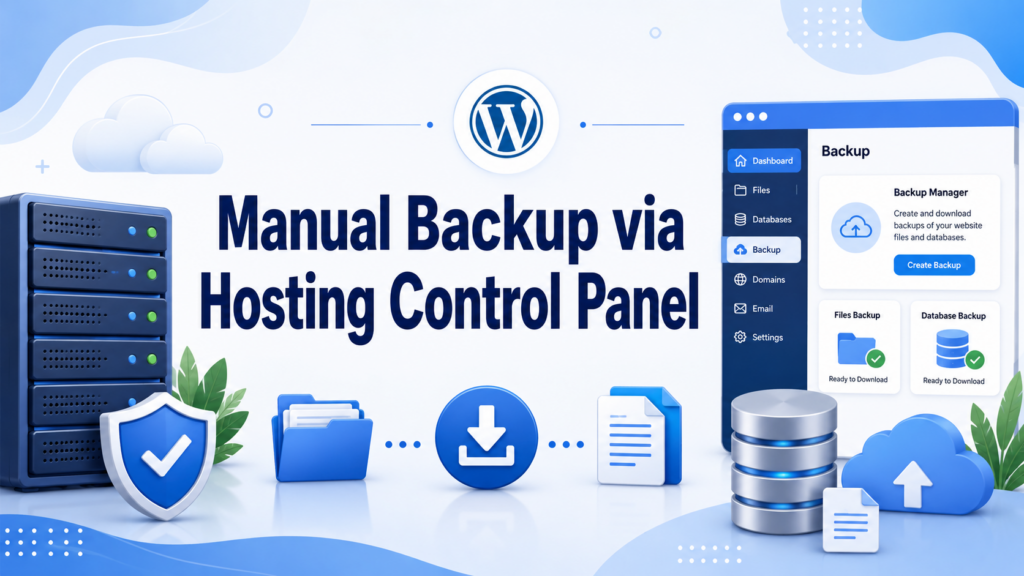
If you want more control or don’t want to rely on plugins, manual backup through hosting is a reliable method.
Most hosting providers offer a control panel like cPanel:
Many modern hosting companies include built-in backup systems.
Instead of manually downloading files, your hosting provider automatically:
Depending on your host, look for:
This method is often the most reliable because:
If your hosting includes this, you should always enable it.
FTP (File Transfer Protocol) is another way to manually download your site files.

Cloud backups are becoming increasingly popular because they store your data off-site.
Backup plugins or hosting tools connect to cloud services and:
The frequency depends on how active your website is.
If you run an eCommerce site, daily backups are essential because order data changes constantly.
Even though backups are simple, many users still make critical mistakes.
This leads to incomplete restoration.
If the server fails, you lose both site and backup.
A backup is useless if it doesn’t restore properly.
Manual backups are often skipped over time.
Keeping multiple versions is important in case corruption happens early unnoticed.
Backing up is only half the process—restoration is equally important.
To ensure your website is always protected, follow these best practices:
Combine plugin + cloud storage or hosting backups.
Manual backups should be a backup option—not your main strategy.
Never rely only on your hosting server.
Maintain at least 3–5 recent backups.
Make sure your backups actually restore correctly.
Backups are critical in situations such as:
Without a backup, recovery becomes expensive and sometimes impossible.
Understanding how do i backup a wordpress site is essential for anyone running a website, whether it’s a blog, business site, or online store. The key takeaway is simple: backups are not optional—they are a core part of website management.
You can use plugins for simplicity, hosting tools for automation, manual methods for full control, or cloud storage for extra security. The best strategy is usually a combination of automated backups and off-site storage.
If you treat backups as a routine habit rather than an emergency action, you’ll always be prepared for unexpected issues—and your WordPress site will stay safe, stable, and recoverable at any time.
You can back up a WordPress site using a backup plugin, your hosting control panel, FTP, or manual database export. The easiest method is using a plugin that automates both files and database backups.
A full WordPress backup includes website files (themes, plugins, media uploads) and the database (posts, pages, users, settings, and comments).
It depends on your site activity. Active blogs or eCommerce sites should be backed up daily, while static sites can be backed up weekly or monthly.
The easiest way is using a WordPress backup plugin like UpdraftPlus or your hosting provider’s built-in backup system, which allows one-click backups and restoration.
Yes. You can restore your site using a plugin, hosting restore tools, or manually uploading files and importing the database. Most plugins offer one-click restore options.
Backups should be stored off-site in cloud storage like Google Drive, Dropbox, or Amazon S3 to avoid data loss if your server fails.


















