












Introduction: Why WordPress Backups Matter More Than You Think
If you’ve ever asked “how do i backup a wordpress site”, you’re already thinking in the right direction. A วordpress website is made up of multiple moving parts—your database, theme files, plugins, media uploads, and core configuration settings. Losing any of these can break your site or even wipe it entirely.
Backups are essentially your safety net. They allow you to restore your website to a previous working version in case of hacking, server failure, plugin errors, accidental deletion, or hosting issues. The good news is that backing up WordPress is not complicated once you understand the available methods.
This guide breaks everything down in a clear, educational way so you understand not only ยังไง to back up your WordPress site, but also why each method works, what tools are involved, and how to choose the right approach for your situation.
Understanding What You’re Actually Backing Up
Before jumping into methods, it’s important to understand what makes up a WordPress site.
A complete WordPress backup includes two main components:
1. Website Files
These are stored on your hosting server and include:
- WordPress core installation files
- Themes (design of your website)
- Plugins (site functionality tools)
- Media uploads (images, videos, PDFs)
- Custom code or CSS modifications
2. WordPress Database
This is where your website’s “brain” lives:
- โพสต์และเพจ
- บัญชีผู้ใช้
- ความคิดเห็น
- การตั้งค่าและการกำหนดค่า
- WooCommerce orders (if applicable)
A proper backup always includes BOTH parts. Backing up only files or only the database will not fully restore your website.
Method 1: Using a WordPress Backup Plugin (Easiest Option)
For most beginners and even intermediate users, plugins are the simplest solution. They automate the entire backup process.
Popular Backup Plugins
Some widely used options include:
- อัพดราฟท์พลัส
- แบ็คอัพบัดดี้
- Duplicator
- Jetpack Backup
How Plugin Backups Work
A plugin typically:
- Packages your files and database
- Compresses them into a downloadable file
- Stores them locally or in cloud storage
- Allows one-click restoration
Step-by-Step Example (General Process)
- Install a backup plugin from the WordPress dashboard
- Activate the plugin
- Go to the backup settings
- Choose what to include (files + database)
- Select storage location (Google Drive, Dropbox, etc.)
- Click “Backup Now”
Why This Method Is Recommended
- No technical skills required
- Automated scheduling available
- การผสานรวมพื้นที่จัดเก็บข้อมูลบนคลาวด์
- One-click restore option
For most users asking how do i backup a wordpress site, this is the best starting point.
Method 2: Manual Backup via Hosting Control Panel (cPanel or Similar)
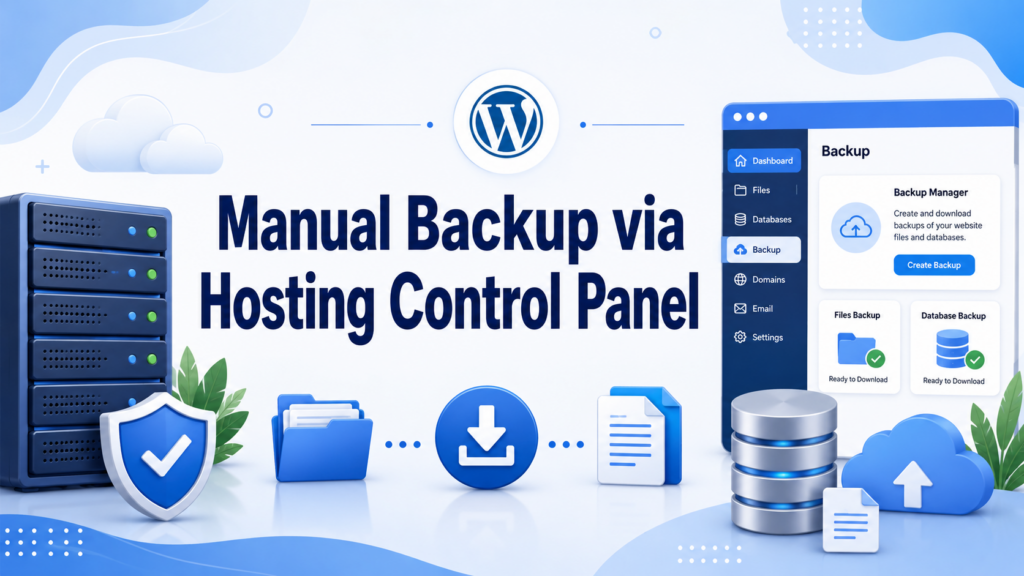
If you want more control or don’t want to rely on plugins, manual backup through hosting is a reliable method.
Step 1: Access File Manager
Most hosting providers offer a control panel like cPanel:
- Log in to your hosting account
- Open “File Manager”
- Navigate to your WordPress directory (usually public_html)
Step 2: Download Website Files
- Select all WordPress files
- Compress them into a ZIP file
- Download to your computer
Step 3: Export the Database
- Open phpMyAdmin in your hosting panel
- เลือกฐานข้อมูล WordPress ของคุณ
- Click “Export”
- Choose “Quick” or “Custom” export
- ดาวน์โหลดไฟล์ SQL
Advantages of Manual Backup
- No plugin dependency
- Full control over files
- Useful for developers
- Works even if WordPress dashboard is broken
Disadvantages
- Slightly technical
- Easy to miss steps
- No automation
Method 3: Backup via Hosting Provider Tools (Managed Hosting)
Many modern hosting companies include built-in backup systems.
What Hosting Backups Usually Offer
- Daily automatic backups
- กู้คืนด้วยการคลิกเพียงครั้งเดียว
- Server-level snapshots
- Off-site storage
วิธีการทำงาน
Instead of manually downloading files, your hosting provider automatically:
- Copies your website daily or weekly
- Stores backups separately from your live site
- Lets you restore from a dashboard button
Where to Find It
Depending on your host, look for:
- “Backups” section
- “Site Tools”
- “Restore points”
- “Snapshots”
Why This Is Powerful
This method is often the most reliable because:
- It runs automatically in the background
- It reduces human error
- It stores backups off-server in many cases
If your hosting includes this, you should always enable it.
Method 4: Backing Up WordPress via FTP (Advanced Users)
FTP (File Transfer Protocol) is another way to manually download your site files.
Tools You Need
- FileZilla (or similar FTP client)
- FTP credentials from your hosting provider
ขั้นตอน
- Connect to your server using FTP credentials
- Navigate to WordPress root directory
- Download all files to your computer
- Export database separately using phpMyAdmin
When to Use FTP Backup
- When cPanel is unavailable
- When you need deeper server access
- When working with custom hosting setups
ข้อจำกัด
- Slower than plugin backups
- Requires technical setup
- Easy to miss hidden files
Method 5: Cloud-Based Backup Solutions

Cloud backups are becoming increasingly popular because they store your data off-site.
Common Storage Options
- กูเกิลไดรฟ์
- Dropbox
- Amazon S3
- OneDrive
How Cloud Backups Work
Backup plugins or hosting tools connect to cloud services and:
- Upload compressed backup files automatically
- Store multiple versions
- Allow restoration from anywhere
Benefits
- Off-site protection (safe from server crashes)
- Scalable storage
- Automatic syncing
- Extra security layer
How Often Should You Back Up a WordPress Site?
The frequency depends on how active your website is.
Recommended Backup Schedule:
- High-traffic sites (daily updates): Daily backups
- Business websites: 2–3 times per week
- Blogs with occasional updates: Weekly backups
- Static sites: Monthly backups
If you run an eCommerce site, daily backups are essential because order data changes constantly.
Common Mistakes People Make When Backing Up WordPress
Even though backups are simple, many users still make critical mistakes.
1. Backing Up Only Files or Only Database
This leads to incomplete restoration.
2. Storing Backups on the Same Server
If the server fails, you lose both site and backup.
3. Not Testing Restores
A backup is useless if it doesn’t restore properly.
4. Forgetting Automated Backups
Manual backups are often skipped over time.
5. Overwriting Old Backups
Keeping multiple versions is important in case corruption happens early unnoticed.
How to Restore a WordPress Backup
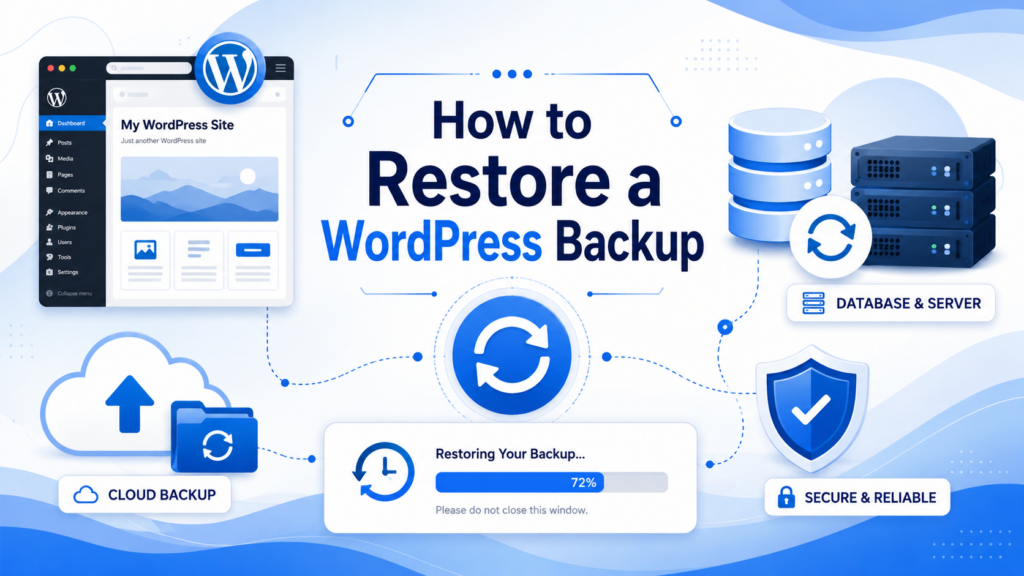
Backing up is only half the process—restoration is equally important.
Using a Plugin
- Go to plugin dashboard
- Select backup file
- Click “Restore”
- Wait for process to complete
Using Manual Method
- Upload files via File Manager or FTP
- นำเข้าฐานข้อมูลผ่าน phpMyAdmin
- Update wp-config.php if needed
Using Hosting Restore
- Open hosting backup section
- Select restore point
- Click “Restore Website”
Best Practices for WordPress Backups
To ensure your website is always protected, follow these best practices:
1. ใช้หลายวิธีในการสำรองข้อมูล
Combine plugin + cloud storage or hosting backups.
2. Automate Everything
Manual backups should be a backup option—not your main strategy.
3. Store Backups Off-Site
Never rely only on your hosting server.
4. Keep Multiple Versions
Maintain at least 3–5 recent backups.
5. Test Regularly
Make sure your backups actually restore correctly.
When You Absolutely Need a Backup
Backups are critical in situations such as:
- Website hack or malware infection
- Plugin or theme crash
- Broken update after WordPress core upgrade
- Accidental deletion of content
- Hosting server failure
- Migration to a new domain or host
Without a backup, recovery becomes expensive and sometimes impossible.
Conclusion: The Smart Way to Protect Your WordPress Site
Understanding how do i backup a wordpress site is essential for anyone running a website, whether it’s a blog, business site, or online store. The key takeaway is simple: backups are not optional—they are a core part of website management.
You can use plugins for simplicity, hosting tools for automation, manual methods for full control, or cloud storage for extra security. The best strategy is usually a combination of automated backups and off-site storage.
If you treat backups as a routine habit rather than an emergency action, you’ll always be prepared for unexpected issues—and your วordpress site will stay safe, stable, and recoverable at any time.
คำถามที่พบบ่อย
1. How do I backup a WordPress site?
You can back up a WordPress site using a backup plugin, your hosting control panel, FTP, or manual database export. The easiest method is using a plugin that automates both files and database backups.
2. What is included in a WordPress backup?
A full WordPress backup includes website files (themes, plugins, media uploads) and the database (posts, pages, users, settings, and comments).
3. How often should I back up my WordPress website?
It depends on your site activity. Active blogs or eCommerce sites should be backed up daily, while static sites can be backed up weekly or monthly.
4. What is the easiest way to back up WordPress?
The easiest way is using a WordPress backup plugin like UpdraftPlus or your hosting provider’s built-in backup system, which allows one-click backups and restoration.
5. Can I restore my WordPress site from a backup?
Yes. You can restore your site using a plugin, hosting restore tools, or manually uploading files and importing the database. Most plugins offer one-click restore options.
6. Where should I store WordPress backups?
Backups should be stored off-site in cloud storage like Google Drive, Dropbox, or Amazon S3 to avoid data loss if your server fails.


ออกแบบและสร้างเว็บไซต์ WordPress หรือเว็บไซต์องค์กรพร้อมระบบอีคอมเมิร์ซครบวงจรสำหรับคุณ.
ช่วงราคา: $200.00 ถึง $2,500.00custom-requirements-or-special-quotations
ราคาเดิมคือ: $2.00.$1.00ราคาปัจจุบันคือ: $1.00. การใช้ปลั๊กอิน 50 ตัวมากเกินไปสำหรับร้านค้าออนไลน์ที่ใช้ WordPress หรือไม่?
การเข้าใจผลกระทบที่แท้จริงต่อประสิทธิภาพ การมีปลั๊กอิน 50 ตัวบนเว็บไซต์อีคอมเมิร์ซ WordPress ไม่ใช่ปัญหาโดยอัตโนมัติ จริงๆ แล้ว จำนวนเพียงอย่างเดียวแทบจะไม่สามารถกำหนดประสิทธิภาพได้....

ภาพหลักสำหรับการออกแบบอุปกรณ์กายภาพบำบัดที่บ้านของ Amazon (อธิบายรายละเอียด)
บทนำ: การสร้างภาพลักษณ์ที่น่าเชื่อถือสำหรับอุปกรณ์บำบัดที่บ้านบน Amazon เมื่อออกแบบภาพหลักสำหรับอุปกรณ์บำบัดที่บ้านบน Amazon สิ่งสำคัญอันดับแรกของเราคือ...

ภาพหลักสำหรับการแปลงลิปสติกเป็นสินค้าสำหรับ Amazon
บทนำ: การออกแบบภาพหลักลิปสติกที่ขายได้บน Amazon เมื่อเราออกแบบภาพหลักสำหรับลิปสติกบน Amazon ความรับผิดชอบของเราไม่ได้จำกัดอยู่แค่...

แฮกเกอร์ขโมยอีเมลผู้ดูแลระบบ WordPress ได้อย่างไร (และวิธีป้องกัน)
มาเริ่มกันด้วยความจริงที่ไม่น่าสบายใจ: อีเมลแอดมิน WordPress ของคุณอาจเปิดเผยต่อสาธารณะมากกว่าที่คุณคิด และแฮกเกอร์? พวกเขาชอบมาก สำหรับพวกเขา...

อะไรทำให้รองพื้นชนิดเหลวของ Amazon (ภาพหลัก) ขายดี?
บทนำ การออกแบบภาพหลักสำหรับรองพื้นชนิดเหลวบน Amazon ไม่ใช่แค่การทำให้ผลิตภัณฑ์ดูสวยงามเท่านั้น บน Amazon ภาพหลักและ...

การออกแบบภาพหลัก Amazon ที่มีประสิทธิภาพสำหรับตลับกรอง
บทนำ การออกแบบภาพหลักสำหรับ Amazon ไม่ใช่แค่การทำให้สินค้าดูน่าดึงดูดเท่านั้น แต่ยังเกี่ยวกับความชัดเจน ความน่าเชื่อถือ และความเข้าใจได้ในทันที โดยเฉพาะอย่างยิ่งสำหรับ...

การโจมตีแบบ Replay Attack บน WordPress: ภัยคุกคามจริงหรือแค่เรื่องที่ถูกพูดเกินจริง?
ก่อนอื่นขอชี้แจงให้ชัดเจนก่อน การโจมตีแบบ Replay Attack นั้นดูไม่น่ากลัว มันไม่ได้ทำลายรหัสผ่าน มันไม่ได้แทรกโค้ดที่เป็นอันตรายพร้อมข้อความแฮ็กเกอร์สีเขียวกระจัดกระจายไปทั่ว มันแนบเนียนกว่า...

วิธีคัดลอกหน้าเว็บ WordPress โดยไม่ทำให้ระบบเสียหาย
ยอมรับกันเถอะ บางครั้งคุณอาจไม่อยากสร้างหน้าเว็บใหม่ คุณแค่อยากได้หน้าเว็บเดิม...แต่แตกต่างไปเล็กน้อย รูปแบบเหมือนเดิม บล็อกเหมือนเดิม การตั้งค่าเหมือนเดิม เพราะ...

เปรียบเทียบธีม WordPress สำหรับสัตว์เลี้ยง 5 แบบ
บทนำ การเลือกธีม WordPress ที่เหมาะสมสำหรับธุรกิจเกี่ยวกับสัตว์เลี้ยงนั้นไม่ใช่แค่เรื่องของการออกแบบเท่านั้น แต่ยังส่งผลโดยตรงต่อการใช้งาน ความสามารถในการขยายขนาด และการเติบโตของธุรกิจในระยะยาว การดูแลสัตว์เลี้ยงและ...

เปรียบเทียบธีมอีคอมเมิร์ซชุดว่ายน้ำ 5 แบบ
บทนำ การเลือกธีมที่เหมาะสมสำหรับร้านค้าอิสระที่จำหน่ายชุดว่ายน้ำหรือชุดชั้นในนั้นไม่ใช่แค่การตัดสินใจด้านภาพลักษณ์เท่านั้น แต่ยังส่งผลโดยตรงต่ออัตราการเปลี่ยนลูกค้าให้เป็นผู้ซื้อ ความสามารถในการขยายธุรกิจ และความยั่งยืนในระยะยาว...

วิธีปิดการแสดงความคิดเห็นใน WordPress (โดยไม่ต้องเสียสติ)
มาพูดถึงระบบแสดงความคิดเห็นของ WordPress กันดีกว่า ในทางทฤษฎีแล้ว ความคิดเห็นนั้นยอดเยี่ยมมาก มันช่วยกระตุ้นการสนทนา สร้างชุมชน และทำให้เว็บไซต์ของคุณดูมีชีวิตชีวา แต่ในความเป็นจริงแล้ว มันมักจะเป็นเหมือนแม่เหล็กดึงดูด...

ข้อผิดพลาด WordPress 500: เมื่อเว็บไซต์ของคุณเกิดอาการผิดปกติ
เว็บไซต์ WordPress ของคุณยังใช้งานได้ปกติดีเมื่อสักครู่ คุณรีเฟรชหน้าเว็บ แล้วจู่ๆ ก็เกิดข้อผิดพลาด 500 Internal Server Error ขึ้นมา ไม่มีคำอธิบาย ไม่มีคำขอโทษ มีเพียงข้อความที่เย็นชาและสับสนซึ่งโดยพื้นฐานแล้ว...

การสร้างเว็บไซต์ WordPress ที่ปรับขนาดได้สำหรับแบรนด์ที่ขับเคลื่อนด้วยวิทยาศาสตร์: โครงการ AminoUSA
บทนำ ในยุคดิจิทัลปัจจุบัน เว็บไซต์เป็นมากกว่าแค่สถานที่สำหรับแสดงรายการสินค้า สำหรับแบรนด์ที่ขับเคลื่อนด้วยวิทยาศาสตร์ซึ่งดำเนินงานในอุตสาหกรรมที่มีการควบคุมหรือเน้นการวิจัย...

สร้างร้านค้า Shopify ที่ปรับขนาดได้สำหรับแบรนด์ใบมีดระดับโลก: โครงการ CoolKatana
บทนำ ในธุรกิจอีคอมเมิร์ซข้ามพรมแดน เว็บไซต์ Shopify เป็นมากกว่าแค่หน้าร้าน สำหรับแบรนด์ที่ดำเนินธุรกิจในกลุ่มเฉพาะหรือกลุ่มที่ขับเคลื่อนด้วยวัฒนธรรม เว็บไซต์ต้องทำมากกว่านั้น...

การออกแบบร้านค้า Shopify ที่มีอัตราการแปลงสูงสำหรับขายการ์ดโปเกมอน
บทนำ ในโลกของอีคอมเมิร์ซสินค้าสะสม โดยเฉพาะอย่างยิ่งในตลาดเกมการ์ดโปเกมอน (TCG) เว็บไซต์จะต้องทำมากกว่าแค่แสดงรายการสินค้า...

ดีไซน์ Shopify ที่เพิ่มยอดขายสำหรับแบรนด์อิฐสั่งทำพิเศษ
บทนำ ในสภาพแวดล้อมการแข่งขันอีคอมเมิร์ซในปัจจุบัน โดยเฉพาะอย่างยิ่งในตลาดของขวัญส่วนบุคคลและของสะสม เว็บไซต์ Shopify ต้องทำมากกว่าแค่แสดงสินค้า...

วิธีติดต่อฝ่ายสนับสนุนของ Shopify: คู่มือที่ง่ายและไม่ยุ่งยาก
การบริหารร้านค้า Shopify ควรเป็นเรื่องที่น่าตื่นเต้น ไม่ใช่เรื่องที่ทำให้สับสน เมื่อมีคำถามหรือปัญหาเกิดขึ้น Shopify มีช่องทางการสนับสนุนหลายช่องทาง ขึ้นอยู่กับสถานการณ์...

วิธีปิดใช้งานร้านค้า Shopify: คู่มือที่ชัดเจนและใช้งานได้จริง
การปิดใช้งานร้านค้า Shopify นั้นไม่ซับซ้อน แต่ก็มีผลกระทบหลายอย่างที่ผู้ขายหลายรายมองข้ามไป คู่มือนี้จะอธิบายขั้นตอนอย่างละเอียดและเข้าใจง่าย...