












การแนะนำ
If you want to learn วordpress, redesign a website, test plugins, or build a new site without touching a live domain, the safest place to begin is your own computer. That is where local WordPress development becomes useful. Instead of renting hosting first, buying a domain immediately, or making risky edits on a public website, you can create a private WordPress site that only runs on your machine.
This process is often called running WordPress on localhost. In simple terms, localhost turns your computer into a small web server. Your browser opens the site just like it would open a normal website, but the files and database stay on your device. Visitors cannot see it, search engines cannot index it, and mistakes do not affect a live business.
For beginners, this is one of the easiest ways to understand how WordPress works. For designers, it creates a safe space to test layouts, page builders, themes, menus, and content structures. For developers, it speeds up plugin testing, troubleshooting, and custom theme work. Once the local version looks right, you can move it to a real hosting environment.
This guide explains how to run a local WordPress site, what tools you need, which setup method to choose, and how to avoid common problems before launching your site online.
What Does “Local WordPress” Mean?
A local WordPress site is a WordPress installation that runs on your own computer instead of a remote hosting server. Normally, a website needs hosting, a domain name, server software, a database, and an internet connection. A local setup gives your computer those same basic parts in a private environment.
WordPress needs three important components to work: a web server, PHP, and a database. The web server handles browser requests. PHP runs the WordPress code. The database stores posts, pages, users, settings, plugin data, and theme options. WordPress officially recommends modern versions such as PHP 8.3 or greater and MariaDB 10.6+ or MySQL 8.0+ for a strong baseline.
When you run WordPress locally, tools like Local, XAMPP, MAMP, WAMP, Docker, or wp-env package those server components for you. You do not need to manually build a full hosting environment from scratch unless you want deeper control.
The result feels like a normal WordPress dashboard. You can install themes, add plugins, write blog posts, create product pages, test forms, adjust menus, and build landing pages. The difference is that everything stays private until you decide to publish it.
Why Run WordPress Locally?
The biggest reason to run WordPress locally is safety. A live website may already have customers, search traffic, leads, or brand trust attached to it. If you install an untested plugin, change a theme file, or update a major setting directly on the live site, one small mistake can break the user experience.
A local site removes that pressure. You can test freely, make changes quickly, and learn through trial and error. If something breaks, you can reset the local site or restore a backup without affecting real visitors.
Local development also saves time. Because the files live on your computer, pages often load faster than they would on a remote test server. You do not need to upload every file through FTP just to check a small change. You can work even when the internet is unstable, which is useful for travel, training, or early-stage planning.
Cost is another benefit. You can start learning WordPress before paying for hosting. This is especially helpful for beginners, students, bloggers, small businesses, and designers who want to build a prototype before committing to a hosting plan.
A local site also improves your workflow. You can create a draft version of a website, review it internally, test speed decisions, check plugin compatibility, and prepare content before the public launch. Once everything is ready, you can migrate the finished site to hosting.
When Should You Use a Local WordPress Site?
A local WordPress setup is useful in many situations. Use it when you want to build a new website from scratch and experiment before publishing. Use it when you want to redesign an existing website without disturbing the current version. Use it when you need to test a new theme, plugin, page builder, checkout process, contact form, or custom function.
It is also useful for learning. If you are new to WordPress, localhost gives you a private training area. You can explore the dashboard, create pages, change settings, install plugins, and understand how WordPress stores content.
Developers often use local sites for custom code. They can test plugins, blocks, templates, child themes, PHP snippets, and WooCommerce adjustments before moving changes to staging or production. WordPress also provides wp-env, a Docker-based local environment for building and testing plugins and themes.
However, local WordPress is not the same as a public website. You should not use it when you need real users to visit, submit forms, make purchases, or access content online. For those cases, you need hosting or at least a staging site on a server.
Choose the Right Local WordPress Tool
There are several ways to run WordPress locally. The best choice depends on your skill level, operating system, and project needs.
Local is one of the most beginner-friendly tools. It gives you a clean interface for creating WordPress sites without manually configuring Apache, Nginx, PHP, or MySQL. You can create multiple sites, switch environments, and manage local projects visually. If your goal is design, content, or general WordPress learning, Local is often the easiest starting point.
XAMPP is another popular option. It works on Windows, macOS, and Linux, and includes Apache, MariaDB, PHP, and related tools. It is flexible and widely documented, but beginners may find it more technical than Local.
MAMP is common among Mac users, though it also has a Windows version. It provides a simple local server stack and works well for users who want a traditional Apache, PHP, and MySQL-style setup.
WAMP is designed for Windows. It is useful if you work only on Windows and want a local server stack with a control panel.
Docker is better for developers who want more consistent environments. It lets you run WordPress inside containers, which makes it easier to match different PHP versions, database versions, and project configurations. wp-env uses Docker and can quickly start a WordPress environment from a project folder. According to the WordPress developer documentation, you can install @wordpress/env, run wp-env start, and access the local dashboard through localhost.
For most beginners, Local is the simplest choice. For users who want traditional server control, XAMPP or MAMP works well. For developers, Docker or wp-env usually offers the cleanest long-term workflow.
Basic Steps to Run a Local WordPress Site
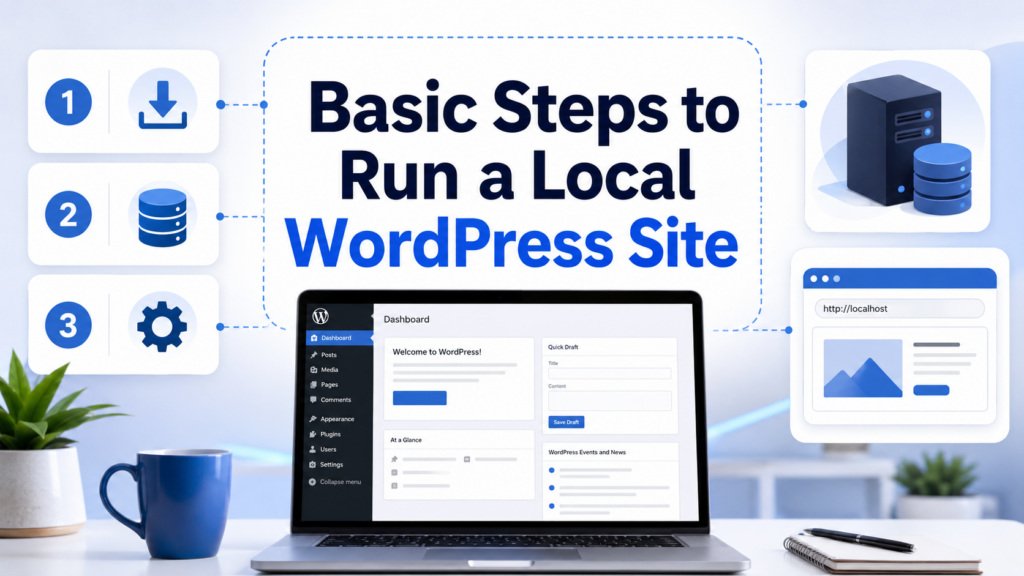
The exact steps depend on the tool you choose, but the general process stays similar.
First, install a local development tool. If you choose Local, download it, install it, and open the app. If you choose XAMPP, install the package and start Apache and MySQL. If you choose MAMP or WAMP, start the local server from the control panel. If you choose wp-env, install Docker and Node.js first, then install the WordPress environment package from the command line.
Second, create a new local site. Most beginner tools ask for a site name, environment type, WordPress username, and password. Keep the login details simple enough to remember, but do not reuse important live passwords.
Third, let the tool create the database and WordPress files. In modern local tools, this step is mostly automatic. With manual tools like XAMPP, you may need to create a database in phpMyAdmin, place WordPress files inside the local web root, and run the WordPress installer in your browser. The official WordPress installation process includes downloading WordPress, creating a database, configuring database details, and running the install script.
Fourth, open the local site in your browser. The address may look like http://localhost, http://localhost:8888, or a custom local domain created by your tool. Then log in to the WordPress dashboard.
Fifth, start building. Install your theme, add plugins, create pages, adjust permalinks, set menus, upload images, and test your layout. Treat the local site like a private workshop.
Important Settings After Installation
After you create your local WordPress site, adjust a few basic settings before serious work begins.
Go to Settings and check the site title and tagline. These can be placeholders during local development, but setting them early helps you preview how the site may appear in the browser and theme templates.
Next, set your permalink structure. Many users prefer post-name URLs because they are cleaner and easier to read. Even though the local URL will change later, the permalink style should match the final website plan.
Then check the reading settings. Decide whether the homepage should show the latest posts or a static page. If you are building a business website, you will likely create a custom homepage and assign it as the front page.
Install only the plugins you actually need. Local development makes experimentation easy, but too many plugins can create confusion. Test one major change at a time so you know what caused a result.
You should also create a simple backup habit. Even though the site is local, you can still lose work through accidental deletion or database resets. Many local tools allow exports, blueprints, or backups. Use them before major changes.
How to Test Themes and Plugins Locally
A local WordPress site is ideal for theme and plugin testing. Before installing anything on a live site, install it locally and check how it behaves.
For themes, test the homepage, blog archive, single post, product page, contact page, mobile menu, header, footer, typography, and responsive layout. Do not judge a theme only by its demo. Add your own content and images to see whether it fits your real website.
For plugins, test both the visible and hidden effects. A form plugin may look fine on the page but fail to send email in a local setup without mail configuration. A page builder may create beautiful sections but add heavy scripts. A WooCommerce plugin may change cart behavior in a way that affects checkout.
Local testing helps you catch these issues early. You can also compare plugin choices before committing. For example, you can test two SEO plugins, two cache plugins, or two gallery plugins in separate local sites and choose the one that works better for your project.
When you update WordPress core, themes, or plugins, test those updates locally first if the live site is important. This is especially valuable for eCommerce, membership sites, multilingual sites, and websites with custom code.
Common Local WordPress Problems
Even a local setup can run into problems. The good news is that most issues have simple causes.
If the site will not open, check whether your local server is running. In XAMPP, MAMP, or WAMP, Apache and MySQL must be started. In Docker or wp-env, the containers must be active.
If you see a database connection error, the database name, username, password, or host may be wrong. In manual setups, check the wp-config.php file. In beginner tools, try restarting the local site.
If the port is already in use, another app may be using the same address. Tools often let you switch ports or restart services. Docker users may need to stop an existing container.
If images or links break after migration, the site URL may still point to the local address. Before going live, replace local URLs with the production domain using a trusted migration tool or database search-replace method.
If emails do not send locally, remember that local sites often do not send email by default. Use a mail testing tool or SMTP setup if you need to test forms.
Moving a Local WordPress Site Online
Once your local site is ready, you can move it to hosting. This step is called migration. You have two main options: use a migration plugin or move files and the database manually.
Migration plugins are easier for most users. They package your WordPress files and database, then help you import them into a live WordPress installation. This works well for small and medium sites.
Manual migration gives you more control. You export the database, upload WordPress files to the server, import the database into the live hosting account, update wp-config.php, replace local URLs with the live domain, and check permalinks.
Before migration, clean up the local site. Remove test pages, unused plugins, placeholder images, draft content, and temporary accounts. Make sure the theme is final, the navigation is clear, and the mobile layout works.
After migration, test the live site carefully. Check the homepage, internal links, forms, images, menus, buttons, checkout pages, login pages, search function, and contact details. Also set up SSL, backups, security, caching, and SEO basics.
บทสรุป
Learning how to run a local วordpress site gives you a safer and more flexible way to build websites. Instead of experimenting on a live domain, you can create a private WordPress environment on your own computer, test themes and plugins, design pages, troubleshoot errors, and prepare content before launch.
For beginners, a tool like Local offers the easiest path. For users who want a traditional local server, XAMPP, MAMP, or WAMP can work well. For developers, Docker and wp-env provide a more controlled workflow. No matter which tool you choose, the basic idea stays the same: create a private server environment, install WordPress, build your site, test everything, and move it online when it is ready.
A local WordPress setup does not replace hosting, but it makes the building process cleaner, safer, and more professional.
คำถามที่พบบ่อย
1: What does it mean to run WordPress locally?
Running WordPress locally means installing WordPress on your own computer instead of a live hosting server. You can build, test, and edit your website privately before publishing it online.
2: Do I need internet to use a local WordPress site?
Not always. Once your local environment is installed, you can work on the site without an internet connection. However, you may need internet access to download WordPress, themes, plugins, or updates.
3: What is the best tool for running WordPress locally?
For beginners, Local is usually the easiest option. XAMPP, MAMP, and WAMP are also common choices. Developers may prefer Docker or wp-env for more control.
4: Can I test themes and plugins on a local WordPress site?
Yes. A local WordPress site is ideal for testing themes, plugins, updates, layouts, and custom settings without affecting a live website.
5: Is a local WordPress site visible to other people?
No. A local WordPress site is private by default and only runs on your computer. Other users cannot access it unless you configure special sharing or tunneling tools.
6: How do I move a local WordPress site online?
You can move it online by using a WordPress migration plugin or by manually transferring the files and database to a hosting server. After migration, update URLs, test links, and check the live site carefully.


ออกแบบและสร้างเว็บไซต์ WordPress หรือเว็บไซต์องค์กรพร้อมระบบอีคอมเมิร์ซครบวงจรสำหรับคุณ.
ช่วงราคา: $200.00 ถึง $2,500.00custom-requirements-or-special-quotations
ราคาเดิมคือ: $2.00.$1.00ราคาปัจจุบันคือ: $1.00. การใช้ปลั๊กอิน 50 ตัวมากเกินไปสำหรับร้านค้าออนไลน์ที่ใช้ WordPress หรือไม่?
การเข้าใจผลกระทบที่แท้จริงต่อประสิทธิภาพ การมีปลั๊กอิน 50 ตัวบนเว็บไซต์อีคอมเมิร์ซ WordPress ไม่ใช่ปัญหาโดยอัตโนมัติ จริงๆ แล้ว จำนวนเพียงอย่างเดียวแทบจะไม่สามารถกำหนดประสิทธิภาพได้....

ภาพหลักสำหรับการออกแบบอุปกรณ์กายภาพบำบัดที่บ้านของ Amazon (อธิบายรายละเอียด)
บทนำ: การสร้างภาพลักษณ์ที่น่าเชื่อถือสำหรับอุปกรณ์บำบัดที่บ้านบน Amazon เมื่อออกแบบภาพหลักสำหรับอุปกรณ์บำบัดที่บ้านบน Amazon สิ่งสำคัญอันดับแรกของเราคือ...

ภาพหลักสำหรับการแปลงลิปสติกเป็นสินค้าสำหรับ Amazon
บทนำ: การออกแบบภาพหลักลิปสติกที่ขายได้บน Amazon เมื่อเราออกแบบภาพหลักสำหรับลิปสติกบน Amazon ความรับผิดชอบของเราไม่ได้จำกัดอยู่แค่...

แฮกเกอร์ขโมยอีเมลผู้ดูแลระบบ WordPress ได้อย่างไร (และวิธีป้องกัน)
มาเริ่มกันด้วยความจริงที่ไม่น่าสบายใจ: อีเมลแอดมิน WordPress ของคุณอาจเปิดเผยต่อสาธารณะมากกว่าที่คุณคิด และแฮกเกอร์? พวกเขาชอบมาก สำหรับพวกเขา...

อะไรทำให้รองพื้นชนิดเหลวของ Amazon (ภาพหลัก) ขายดี?
บทนำ การออกแบบภาพหลักสำหรับรองพื้นชนิดเหลวบน Amazon ไม่ใช่แค่การทำให้ผลิตภัณฑ์ดูสวยงามเท่านั้น บน Amazon ภาพหลักและ...

การออกแบบภาพหลัก Amazon ที่มีประสิทธิภาพสำหรับตลับกรอง
บทนำ การออกแบบภาพหลักสำหรับ Amazon ไม่ใช่แค่การทำให้สินค้าดูน่าดึงดูดเท่านั้น แต่ยังเกี่ยวกับความชัดเจน ความน่าเชื่อถือ และความเข้าใจได้ในทันที โดยเฉพาะอย่างยิ่งสำหรับ...

การโจมตีแบบ Replay Attack บน WordPress: ภัยคุกคามจริงหรือแค่เรื่องที่ถูกพูดเกินจริง?
ก่อนอื่นขอชี้แจงให้ชัดเจนก่อน การโจมตีแบบ Replay Attack นั้นดูไม่น่ากลัว มันไม่ได้ทำลายรหัสผ่าน มันไม่ได้แทรกโค้ดที่เป็นอันตรายพร้อมข้อความแฮ็กเกอร์สีเขียวกระจัดกระจายไปทั่ว มันแนบเนียนกว่า...

วิธีคัดลอกหน้าเว็บ WordPress โดยไม่ทำให้ระบบเสียหาย
ยอมรับกันเถอะ บางครั้งคุณอาจไม่อยากสร้างหน้าเว็บใหม่ คุณแค่อยากได้หน้าเว็บเดิม...แต่แตกต่างไปเล็กน้อย รูปแบบเหมือนเดิม บล็อกเหมือนเดิม การตั้งค่าเหมือนเดิม เพราะ...

เปรียบเทียบธีม WordPress สำหรับสัตว์เลี้ยง 5 แบบ
บทนำ การเลือกธีม WordPress ที่เหมาะสมสำหรับธุรกิจเกี่ยวกับสัตว์เลี้ยงนั้นไม่ใช่แค่เรื่องของการออกแบบเท่านั้น แต่ยังส่งผลโดยตรงต่อการใช้งาน ความสามารถในการขยายขนาด และการเติบโตของธุรกิจในระยะยาว การดูแลสัตว์เลี้ยงและ...

เปรียบเทียบธีมอีคอมเมิร์ซชุดว่ายน้ำ 5 แบบ
บทนำ การเลือกธีมที่เหมาะสมสำหรับร้านค้าอิสระที่จำหน่ายชุดว่ายน้ำหรือชุดชั้นในนั้นไม่ใช่แค่การตัดสินใจด้านภาพลักษณ์เท่านั้น แต่ยังส่งผลโดยตรงต่ออัตราการเปลี่ยนลูกค้าให้เป็นผู้ซื้อ ความสามารถในการขยายธุรกิจ และความยั่งยืนในระยะยาว...

วิธีปิดการแสดงความคิดเห็นใน WordPress (โดยไม่ต้องเสียสติ)
มาพูดถึงระบบแสดงความคิดเห็นของ WordPress กันดีกว่า ในทางทฤษฎีแล้ว ความคิดเห็นนั้นยอดเยี่ยมมาก มันช่วยกระตุ้นการสนทนา สร้างชุมชน และทำให้เว็บไซต์ของคุณดูมีชีวิตชีวา แต่ในความเป็นจริงแล้ว มันมักจะเป็นเหมือนแม่เหล็กดึงดูด...

ข้อผิดพลาด WordPress 500: เมื่อเว็บไซต์ของคุณเกิดอาการผิดปกติ
เว็บไซต์ WordPress ของคุณยังใช้งานได้ปกติดีเมื่อสักครู่ คุณรีเฟรชหน้าเว็บ แล้วจู่ๆ ก็เกิดข้อผิดพลาด 500 Internal Server Error ขึ้นมา ไม่มีคำอธิบาย ไม่มีคำขอโทษ มีเพียงข้อความที่เย็นชาและสับสนซึ่งโดยพื้นฐานแล้ว...

การสร้างเว็บไซต์ WordPress ที่ปรับขนาดได้สำหรับแบรนด์ที่ขับเคลื่อนด้วยวิทยาศาสตร์: โครงการ AminoUSA
บทนำ ในยุคดิจิทัลปัจจุบัน เว็บไซต์เป็นมากกว่าแค่สถานที่สำหรับแสดงรายการสินค้า สำหรับแบรนด์ที่ขับเคลื่อนด้วยวิทยาศาสตร์ซึ่งดำเนินงานในอุตสาหกรรมที่มีการควบคุมหรือเน้นการวิจัย...

สร้างร้านค้า Shopify ที่ปรับขนาดได้สำหรับแบรนด์ใบมีดระดับโลก: โครงการ CoolKatana
บทนำ ในธุรกิจอีคอมเมิร์ซข้ามพรมแดน เว็บไซต์ Shopify เป็นมากกว่าแค่หน้าร้าน สำหรับแบรนด์ที่ดำเนินธุรกิจในกลุ่มเฉพาะหรือกลุ่มที่ขับเคลื่อนด้วยวัฒนธรรม เว็บไซต์ต้องทำมากกว่านั้น...

การออกแบบร้านค้า Shopify ที่มีอัตราการแปลงสูงสำหรับขายการ์ดโปเกมอน
บทนำ ในโลกของอีคอมเมิร์ซสินค้าสะสม โดยเฉพาะอย่างยิ่งในตลาดเกมการ์ดโปเกมอน (TCG) เว็บไซต์จะต้องทำมากกว่าแค่แสดงรายการสินค้า...

ดีไซน์ Shopify ที่เพิ่มยอดขายสำหรับแบรนด์อิฐสั่งทำพิเศษ
บทนำ ในสภาพแวดล้อมการแข่งขันอีคอมเมิร์ซในปัจจุบัน โดยเฉพาะอย่างยิ่งในตลาดของขวัญส่วนบุคคลและของสะสม เว็บไซต์ Shopify ต้องทำมากกว่าแค่แสดงสินค้า...

วิธีติดต่อฝ่ายสนับสนุนของ Shopify: คู่มือที่ง่ายและไม่ยุ่งยาก
การบริหารร้านค้า Shopify ควรเป็นเรื่องที่น่าตื่นเต้น ไม่ใช่เรื่องที่ทำให้สับสน เมื่อมีคำถามหรือปัญหาเกิดขึ้น Shopify มีช่องทางการสนับสนุนหลายช่องทาง ขึ้นอยู่กับสถานการณ์...

วิธีปิดใช้งานร้านค้า Shopify: คู่มือที่ชัดเจนและใช้งานได้จริง
การปิดใช้งานร้านค้า Shopify นั้นไม่ซับซ้อน แต่ก็มีผลกระทบหลายอย่างที่ผู้ขายหลายรายมองข้ามไป คู่มือนี้จะอธิบายขั้นตอนอย่างละเอียดและเข้าใจง่าย...