











Keine Produkte im Warenkorb.

If you have ever uploaded an image to WordPress and wondered why it looked blurry, cropped strangely, or slowed down your post, you are not alone. One of the most common questions new bloggers ask is: what’s the best size for blog post images for WordPress? The answer depends on where the image appears, how your theme displays it, and how much visual quality your readers actually need.
In simple terms, a good WordPress blog image should be large enough to look sharp, small enough to load quickly, and shaped correctly for the space where it appears. A featured image, for example, has a different job from a small thumbnail in a sidebar. A full-width banner needs more pixels than an image placed inside a paragraph. When you understand these differences, your blog looks more professional and performs better.
Image size matters because visuals affect almost every part of a blog post. They influence the first impression, reading experience, page speed, search engine visibility, and social media previews. A beautiful image can make a post feel trustworthy and polished, but an oversized image can make the page load slowly. A poorly cropped image can make your post look unfinished, even if the writing is excellent.
This guide explains the best image sizes for WordPress blog posts in a simple, practical way. You will learn recommended dimensions, file size targets, image formats, compression tips, SEO basics, and how WordPress handles responsive images for mobile and desktop visitors.
Image size is not only a design choice. It affects how your website works.
Large images can slow down your blog because browsers need more time to download them. If a visitor opens your post on a phone with a slower connection, a heavy image may delay the page. That delay can make people leave before they read your content.
Correct image sizing also improves the reading experience. Blog posts are easier to scan when images are clear, well-positioned, and consistent. A properly sized image helps break up long sections of text, explain ideas visually, and keep readers engaged.
Search engines also care about performance. Fast pages are easier to crawl and better for users. When your images are compressed, named clearly, and placed near relevant text, they can support your overall SEO strategy. Good image optimization may also help your visuals appear in image search results.
Social sharing is another reason image size matters. When someone shares your blog post on Facebook, X, LinkedIn, or another platform, the featured image often becomes the preview image. If the dimensions are wrong, the platform may crop the image in an awkward way. A strong preview image can increase clicks, while a weak one can make the post look less appealing.
Mobile responsiveness is just as important. Many readers now visit blogs from phones and tablets. An image that looks perfect on a laptop may look too wide, too small, or badly cropped on a smaller screen. The best WordPress image strategy considers both desktop and mobile visitors from the beginning.
For most WordPress blog posts, the best featured image size is 1200 x 630 pixels.
This size works well because it is wide enough for modern blog layouts and close to the recommended preview size for many social media platforms. It gives your post a clean, professional appearance on archive pages, blog homepages, and social sharing cards.
A featured image is usually the main visual for a post. It may appear at the top of the article, in blog grids, in related post sections, and in social previews. Because it appears in so many places, it should be high quality and carefully cropped.
The 1200 x 630 size uses a wide horizontal shape. This is useful for blog headers and social sharing because it gives enough space for a clear subject, background, and readable composition. If you create custom graphics with text, keep important words and objects near the center so they do not get cut off by different platforms or themes.
You do not always need to upload a much larger image than this. Uploading a 3000-pixel-wide image for a standard blog featured image usually creates unnecessary file weight. Unless your theme specifically requires a larger size, 1200 x 630 pixels is a reliable starting point.
A good file size target for a featured image is usually under 200 KB after compression. If the image has complex details, it may be slightly larger, but the goal should always be to balance clarity and speed.
In-content images are the visuals you place inside the body of a blog post. These may include screenshots, product photos, charts, lifestyle images, tutorials, or examples that support your writing.
For most in-content WordPress images, good sizes include:
| Image Use | Recommended Size |
|---|---|
| Standard content image | 1000 x 600 pixels |
| Larger content image | 1200 x 800 pixels |
| Screenshot or tutorial image | 1200 pixels wide |
| Narrow supporting image | 800 pixels wide |
The best choice depends on your blog layout. If your content area is only 700 or 800 pixels wide, uploading a 2000-pixel-wide image is usually unnecessary. WordPress may generate smaller versions, but the original file still takes storage space and may be used if your theme requests it.
A 1000 x 600 image works well for many general blog posts. It is large enough to look clear on most screens but not so large that it becomes heavy. A 1200 x 800 image is better when you need more detail, such as a tutorial screenshot or a product comparison.
For in-content images, try to keep the file size under 200 KB when possible. Screenshots with text may need careful compression because too much compression can make the text blurry. Photos can often be compressed more aggressively without obvious quality loss.
WordPress uses thumbnails for smaller image placements, such as blog archive cards, sidebars, related posts, widgets, and search result previews.
The default WordPress thumbnail size is often 150 x 150 pixels, usually in a square crop. However, many modern themes use larger thumbnail sizes, such as 300 x 300 pixels, 400 x 300 pixels, or custom ratios for blog cards.
The important thing to remember is that thumbnails should be lightweight. Since they are small and often appear in groups, oversized thumbnails can slow down archive pages. A file size under 50 KB is a good target for small thumbnail images.
If your theme displays blog cards in a wide format, a square thumbnail may not be ideal. In that case, check the theme documentation or settings to see the recommended image ratio. Some themes crop featured images automatically, while others preserve the original shape. Understanding how your theme handles thumbnails can prevent unwanted cropping.
Header images and banner images are usually wider than standard blog images. They may appear across the top of a page, behind a title, or inside a hero section.
A common size for full-width WordPress header images is 1920 x 1080 pixels. This size works well for large desktop screens and gives enough detail for wide layouts.
However, bigger does not always mean better. A 1920 x 1080 banner should be compressed carefully. For many blogs, the file size should stay under 300 KB if possible. If the image contains many colors, gradients, or detailed photography, you may need to test different compression levels.
When designing a header image, avoid placing important text or faces near the edges. Themes often crop banners differently on desktop and mobile. The center area is usually the safest place for the most important visual content.
If your banner uses text, it is often better to add the text with your theme or page builder instead of placing it directly inside the image. Real text is sharper, easier to edit, more accessible, and better for SEO.
Background images are decorative images placed behind content blocks, page sections, or callout areas. They can make a blog look more polished, but they can also become heavy if not optimized.
A typical background image size is 1920 x 1080 pixels or close to that ratio. Since background images often cover large screen areas, they need enough resolution to avoid looking blurry on desktop monitors.
At the same time, background images usually do not need perfect detail. Because text or overlays often sit on top of them, you can compress background images more than regular content images. A target under 300 KB is a practical goal.
For mobile design, background images need extra attention. A wide desktop background may not work well on a vertical phone screen. If your design depends heavily on a background image, consider using a separate mobile crop or choosing an image with a simple center focus.
For social media sharing, 1200 x 630 pixels is one of the safest image sizes for WordPress blog posts.
This size works well for many link preview cards because it provides a wide horizontal layout. It is especially useful for featured images because WordPress SEO plugins often use the featured image as the default social preview image.
When creating a social-friendly blog image, keep the subject clear and the composition simple. Social previews are often small, especially on mobile. If you use text in the image, make it large enough to read at a reduced size. Avoid placing important text too close to the edges.
If you use an SEO plugin, you may be able to upload a separate social image for each post. This is helpful when your blog featured image looks good on your website but does not work perfectly as a social preview.
| Image Type | Recommended Size | File Size Target |
|---|---|---|
| Titelbild | 1200 x 630 px | Under 200 KB |
| In-content image | 1000 x 600 px or 1200 x 800 px | Under 200 KB |
| Thumbnail | 150 x 150 px or theme-specific | Under 50 KB |
| Header/banner image | 1920 x 1080 px | Under 300 KB |
| Background image | 1920 x 1080 px | Under 300 KB |
| Social sharing image | 1200 x 630 px | Under 200 KB |
These sizes are practical starting points, not strict rules. Your theme, layout, and content style may require adjustments.
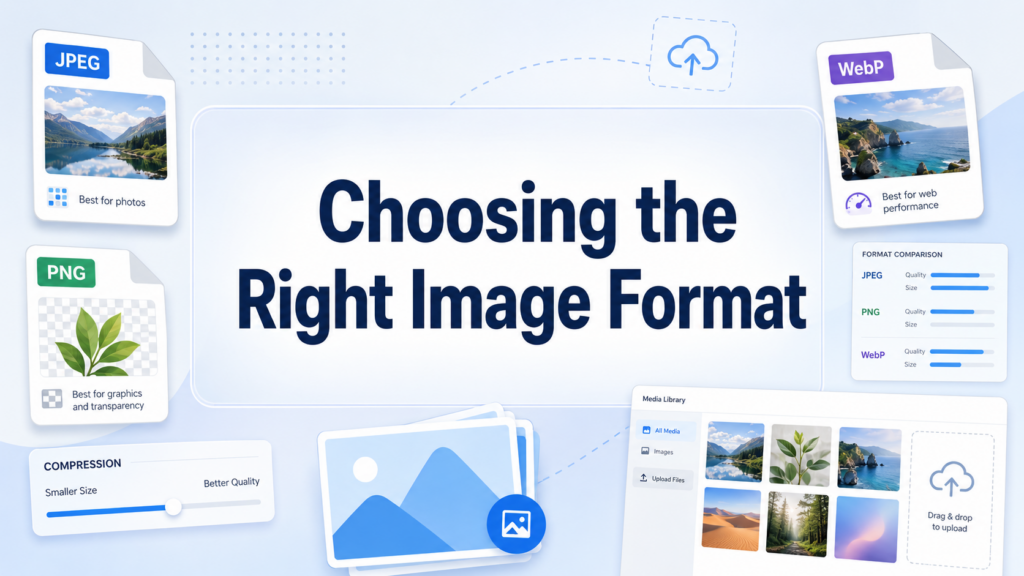
Image format affects both quality and performance.
JPEG is usually best for photographs, lifestyle images, travel images, food photos, and other visuals with many colors. It offers good compression and keeps file sizes manageable.
PNG is useful for graphics that need transparency, such as logos, icons, and interface elements. PNG files can be larger than JPEGs, so they should be used only when needed.
WebP is one of the best choices for modern WordPress websites because it can provide strong quality with smaller file sizes. Many WordPress optimization plugins can convert JPEG and PNG files into WebP automatically.
SVG is useful for simple icons and vector graphics, but it should be used carefully in WordPress because not every setup allows SVG uploads by default. For most blog post photos, SVG is not the right format.
For general blogging, a simple rule works well: use JPEG or WebP for photos, PNG for transparent graphics, and WebP whenever your site supports it properly.
Compression reduces image file size so your pages load faster. There are two main types: lossless and lossy.
Lossless compression reduces file size without removing visible image data. It is useful when you need to preserve sharp details, such as logos or graphics.
Lossy compression removes some image data to create a much smaller file. It is often the best option for blog photos because the visual difference is usually minor when done correctly.
Many WordPress users rely on image optimization plugins to handle compression automatically. Popular options include Smush, ShortPixel, Imagify, Optimole, EWWW Image Optimizer, and TinyPNG. These tools can compress uploads, resize large images, convert files to WebP, and sometimes add lazy loading or CDN delivery.
Before uploading, you can also resize images manually using design tools such as Canva, Photoshop, Affinity Photo, or online image compressors. This gives you more control and prevents your media library from filling up with unnecessarily huge files.
WordPress helps with responsive images automatically. When you upload an image, WordPress creates several versions in different sizes. Browsers can then choose the most appropriate version depending on the visitor’s device and screen width.
This system helps your site avoid sending a large desktop image to a small mobile screen. It improves speed and makes images look cleaner across devices.
However, WordPress can only work well with the image you upload. If the original image is too small, it may look blurry on large screens. If it is too large, it may waste storage and create extra processing work.
The best approach is to upload an image at the largest size you realistically need. For a normal featured image, 1200 x 630 pixels is usually enough. For a full-width banner, 1920 x 1080 pixels may be better. Then let WordPress generate the smaller versions for different layouts.

Image SEO starts before you upload the file.
Rename the file with clear words instead of using a random camera name. For example, wordpress-blog-image-size-guide.jpg is better than IMG_4829.jpg. A descriptive file name gives search engines more context.
Alt text is also important. It should describe the image clearly for accessibility and search engines. If the image supports the topic, you can naturally include the keyword, but do not force it. A good alt text might be: “recommended WordPress blog image size example for featured images.”
Captions can help when an image needs explanation. They are not required for every image, but they are useful for charts, tutorials, screenshots, or examples.
Place images near the text they support. Search engines understand images better when the surrounding content is relevant. A screenshot about image compression should appear near the section that explains compression, not far away in an unrelated part of the post.
Finally, make sure your images load quickly. SEO is not only about keywords. Performance, accessibility, structure, and user experience all work together.
Different WordPress themes handle images differently. Some themes prefer wide featured images. Others use square thumbnails. Some crop images automatically, while others display the full image shape.
Before creating all your blog graphics, check your theme documentation. Look for recommended featured image dimensions, blog card ratios, header image sizes, and mobile behavior.
If your images are being cropped badly, the issue may not be the image itself. It may be the theme’s crop settings or layout style. In that case, you may need to adjust the image ratio, change the focal point, regenerate thumbnails, or update theme settings.
Consistency is important. When all featured images use the same size and style, your blog archive looks cleaner and more professional.
The best answer to what’s the best size for blog post images for WordPress depends on the image’s purpose, but several reliable guidelines make the process much easier. Use 1200 x 630 pixels for featured images and social sharing, 1000 x 600 or 1200 x 800 pixels for in-content images, theme-specific sizes for thumbnails, and 1920 x 1080 pixels for large banners or backgrounds.
Image quality matters, but file size matters too. Most blog images should stay under 200 KB, while banners and backgrounds should usually stay under 300 KB. Choose the right format, compress every image, use descriptive file names, write helpful alt text, and test your posts on both desktop and mobile.
With the right image sizes, your WordPress blog can look sharper, load faster, support SEO, and give readers a smoother experience from the first click to the final paragraph.
The best general size for WordPress blog post images is 1200 x 630 pixels for featured images. For images inside the article, 1000 x 600 pixels oder 1200 x 800 pixels usually works well.
A WordPress featured image is commonly recommended at 1200 x 630 pixels. This size looks good on most themes and also works well for social media previews.
Most WordPress blog images should stay under 200 KB after compression. Large banners or background images can be slightly bigger, but it is better to keep them under 300 KB when possible.
Verwenden JPEG for photos, PNG for graphics with transparent backgrounds, and WebP for better compression and faster loading. WebP is often the best choice if your WordPress site supports it.
Yes. Properly sized and compressed images help pages load faster, improve user experience, and support SEO. Descriptive file names and alt text can also help search engines understand your images.
Yes. WordPress creates multiple image sizes when you upload a file, such as thumbnail, medium, large, and full size. However, you should still upload images at a reasonable size to avoid slow loading and wasted storage.


















