









Introduction
If you’ve ever exported a WordPress site and ended up staring at a ZIP file full of unfamiliar folders and files, you’re not alone. One of the most common questions beginners ask is: where to find website content within exported WordPress zip?
This guide explains exactly what’s inside that export file, where your actual content lives, and how to make sense of everything—even if you’ve never touched WordPress files before. By the end, you’ll clearly understand how WordPress organizes content and how to locate posts, pages, media, and more.
Understanding What “Exporting a WordPress Site” Actually Means
Before diving into the ZIP file itself, it’s important to understand what “exporting” means in WordPress.
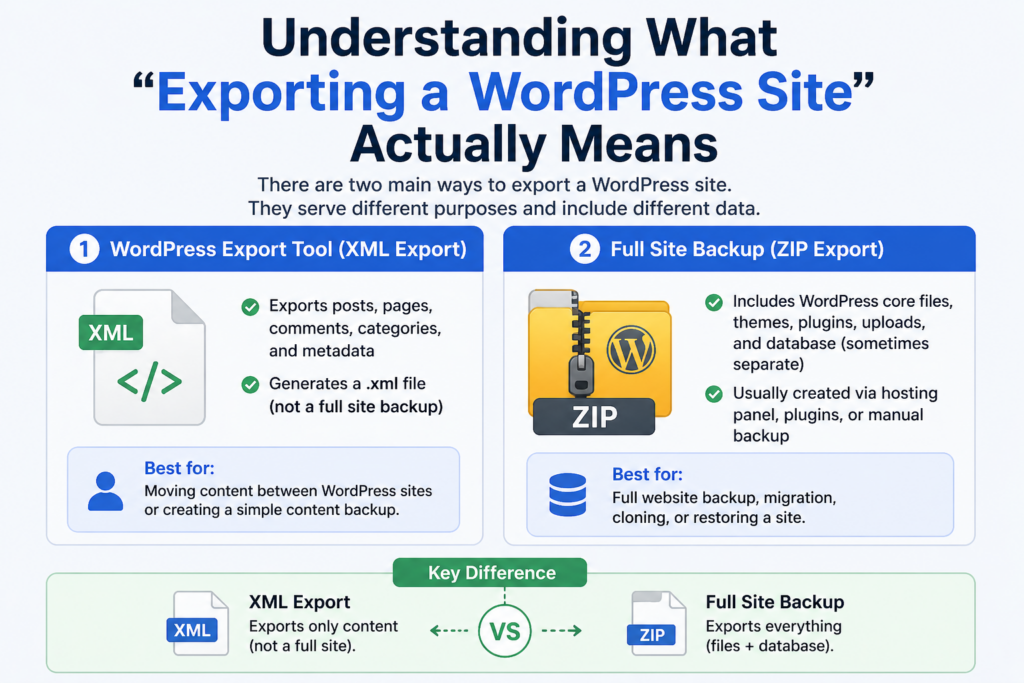
There are two main types of exports:
- WordPress Export Tool (XML Export)
- Exports posts, pages, comments, categories, and metadata
- Generates a
.xmlfile (not a full site backup)
- Full Site Backup (ZIP Export)
- Includes WordPress core files, themes, plugins, uploads, and database (sometimes separate)
- Usually created via hosting panel, plugins, or manual backup
This article focuses on the second type—because that’s where confusion happens when you open a ZIP file and try to locate your content.
What’s Inside an Exported WordPress ZIP File?
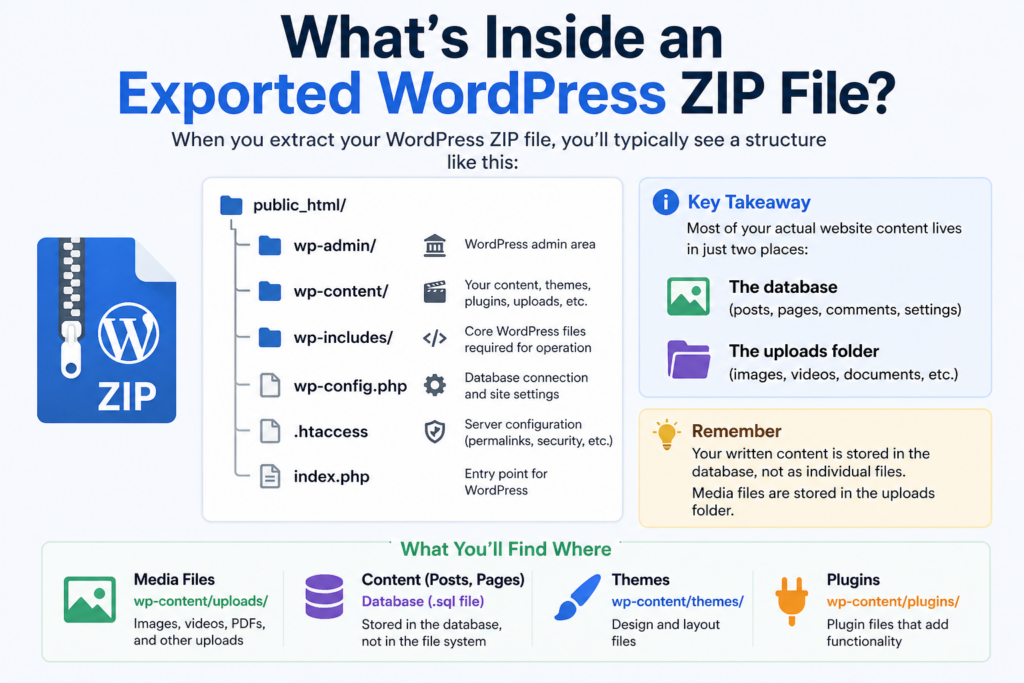
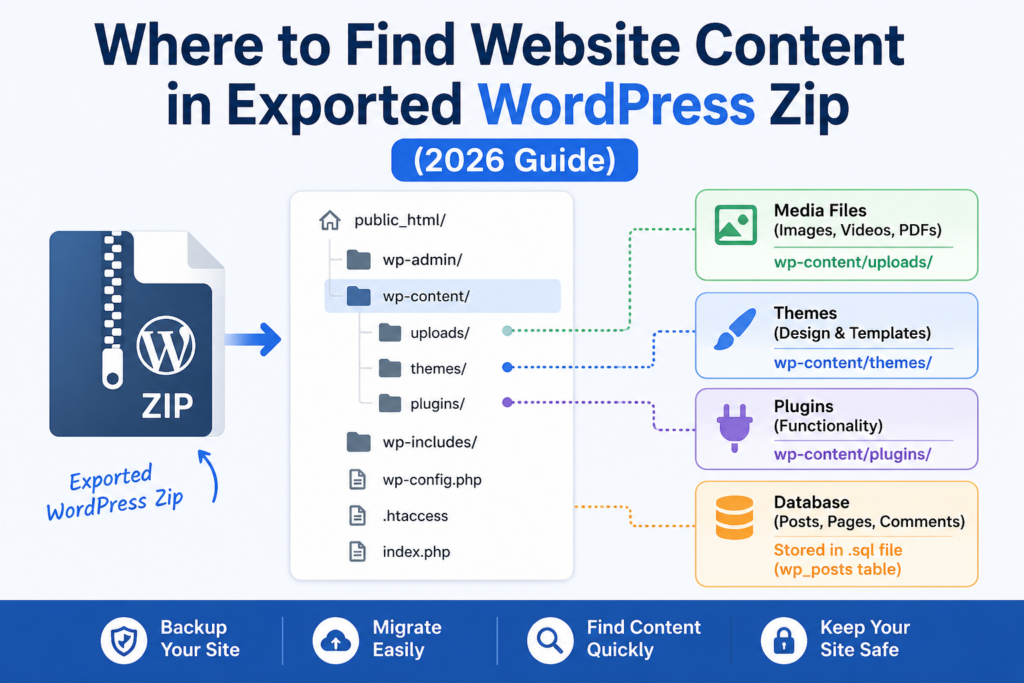
When you extract your WordPress ZIP file, you’ll typically see something like this:
public_html/
│
├── wp-admin/
├── wp-content/
├── wp-includes/
├── wp-config.php
├── .htaccess
At first glance, this structure can feel overwhelming. But here’s the key:
👉 Most of your actual website content lives in just two places:
- The database
- The uploads folder (media files)
Let’s break that down.
Where to Find Website Content Within Exported WordPress ZIP
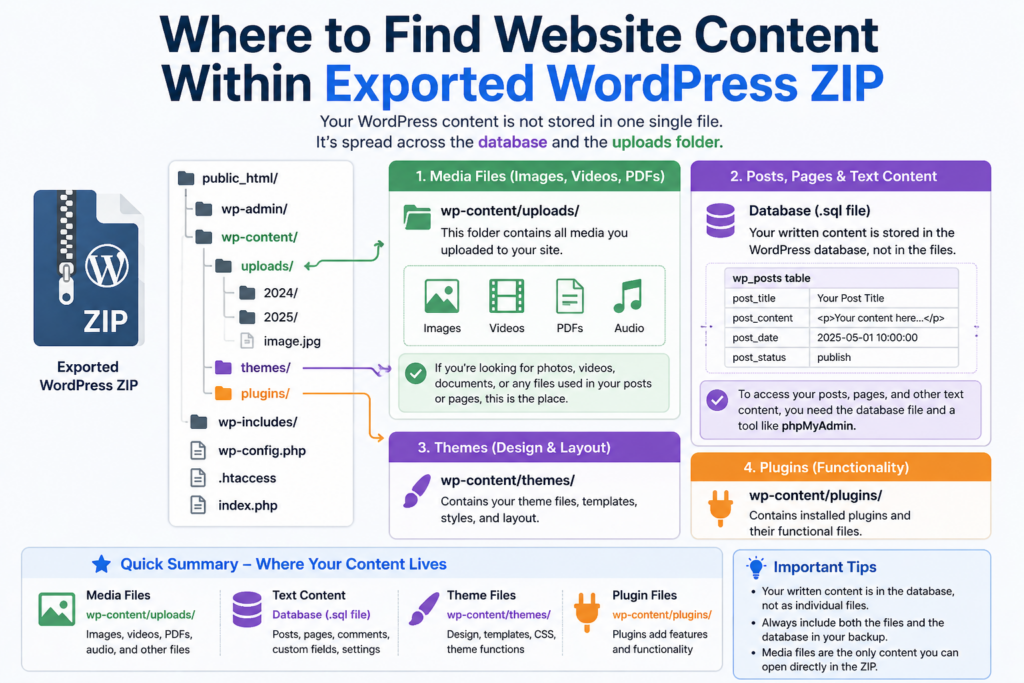
1. Media Files (Images, Videos, PDFs)
Your media content is the easiest to find.
📁 Location:
wp-content/uploads/
Inside this folder, files are organized by year and month:
uploads/
├── 2025/
│   ├── 01/
│   ├── 02/
├── 2026/
✔ What you’ll find here:
- Images used in blog posts and pages
- Product images (WooCommerce)
- PDFs and downloadable files
- Videos (if uploaded directly)
👉 If you’re looking for visual content, this is the exact answer to “where to find website content within exported WordPress zip.”
2. Posts, Pages, and Text Content
Here’s where things get confusing for beginners.
❗ Your written content is NOT stored as files inside the ZIP.
Instead, it lives in the database.
Where Is the Database in the ZIP File?
Depending on how the export was created, the database might appear as:
- A
.sqlfile (common in backups) - A separate download (from hosting)
- Not included at all (if only files were exported)
📁 Example:
database.sql
How WordPress Stores Content in the Database
Inside the database, your content is stored in structured tables.
The most important one is:
wp_posts
This table contains:
- Blog posts
- Pages
- Navigation items
- Revisions
Each row includes:
- Title
- Content (HTML format)
- Date
- Status (published/draft)
👉 This is the true location of your written website content.
How to Open and Read the Database File
If you have a .sql file, you can:
Option 1: Use phpMyAdmin
- Import the
.sqlfile - Browse tables visually
Option 2: Use a Text Editor
- Open
.sqlfile directly - Search for keywords from your posts
Option 3: Use Local Development Tools
- Tools like LocalWP or XAMPP
- Import the database and view content in a working site
Why You Don’t See Content as Files
Unlike static websites, WordPress is a dynamic CMS.
That means:
- Content is stored in a database
- Pages are generated dynamically
- Files (like HTML pages) don’t exist individually
👉 This is why people get confused when searching:
“where to find website content within exported WordPress zip”
The answer is:
- Media → in
/uploads/ - Text content → in the database (
.sqlfile)
What About Themes and Design Content?
Your website design is stored separately from your content.
📁 Location:
wp-content/themes/
Inside:
themes/
├── your-theme-name/
│   ├── style.css
│   ├── functions.php
✔ Contains:
- Layout templates
- Styling (CSS)
- Theme functionality
❗ Important:
This does NOT contain your actual blog content.
What About Plugins?
📁 Location:
wp-content/plugins/
✔ Contains:
- Installed plugins
- Plugin code
❗ Also NOT your content, but may affect how content is displayed.
Special Case: WordPress XML Export
If you used the built-in WordPress export tool, you’ll get a .xml file instead of a ZIP.
This file contains:
- Posts
- Pages
- Comments
- Metadata
You can open it in a text editor and see content structured like:
<item>
  <title>Your Post Title</title>
  <content:encoded><![CDATA[Your content here]]></content:encoded>
</item>
👉 In this case, your content is directly readable—no database needed.
Common Mistakes When Looking for Content
❌ Mistake 1: Searching inside theme files
Content is NOT stored in themes.
❌ Mistake 2: Expecting HTML pages
WordPress does not store pages as .html files.
❌ Mistake 3: Ignoring the database
Most content lives in the database—not in folders.
How to Safely Extract and Review Content
If your goal is to review or reuse content, here’s a simple workflow:
Step 1: Extract the ZIP file
Step 2: Go to:
wp-content/uploads/
→ Download all media assets
Step 3: Locate the database file
- Find
.sql - Import into phpMyAdmin
Step 4: Browse wp_posts
- Copy content
- Reuse or migrate
Advanced Tip: Rebuilding a Site from Export
If you want to fully restore or clone a site:
- Upload all files to a server
- Create a database
- Import
.sql - Update
wp-config.php
Then your site will work exactly as before.
Why Understanding This Matters
Knowing where to find website content within exported WordPress zip is critical for:
- Website migration
- Content backup
- SEO recovery
- Redesign projects
- Client handovers
It saves hours of confusion and prevents data loss.
Quick Summary of Content Locations
| Content Type | Location |
|---|---|
| Images & Media | /wp-content/uploads/ |
| Blog Posts & Pages | Database (wp_posts table) |
| Theme Design | /wp-content/themes/ |
| Plugins | /wp-content/plugins/ |
Final Thoughts
When you export a WordPress site, your content doesn’t sit neatly in one visible file. Instead, it’s split between media folders and a structured database system. Understanding this architecture is the key to navigating any WordPress backup with confidence.
If you remember just one thing, let it be this:
Your images are in the uploads folder, but your actual written content lives inside the database.
Once you grasp that distinction, working with WordPress exports becomes far simpler—and far more powerful.
FAQ
Most website content is stored in two places: media files are in the /wp-content/uploads/ folder, while posts, pages, and text content are stored in the database (.sql file), not as visible files inside the ZIP.
WordPress stores posts and pages in a database, not as individual files. That’s why you won’t find readable text content in folders unless you open the database file.
You can open the .sql file using tools like phpMyAdmin, LocalWP, or a text editor to search for your content inside tables like wp_posts.
All images and media files are stored in the /wp-content/uploads/ directory, usually organized by year and month.
A full ZIP backup may include files and sometimes the database. However, some exports (like XML exports) only include content data, not themes, plugins, or media files.
An XML export contains only content (posts, pages, comments), while a ZIP backup includes the full website structure, such as themes, plugins, uploads, and possibly the database.