











Giỏ hàng hiện không có sản phẩm nào.

If you’ve ever browsed a website and thought, “What WordPress theme is that?”, you’re not alone. Whether you’re building your own site or analyzing competitors, identifying a WordPress theme can give you valuable insights into design, functionality, and user experience.
In this guide, we’ll break down exactly how to find out what WordPress theme a site is using—step by step. This article is written in a clear, educational style so even beginners can follow along while still offering useful depth for more experienced users.
Before diving into the “how,” it’s important to understand the “why.”
Knowing what WordPress theme a website uses can help you:
Instead of guessing or starting from scratch, identifying a theme gives you a shortcut to proven design solutions.

A WordPress theme controls the visual appearance and layout of a website. It defines elements like:
Themes can be free or premium, and many include built-in customization options or integrations with page builders like Elementor or Gutenberg.
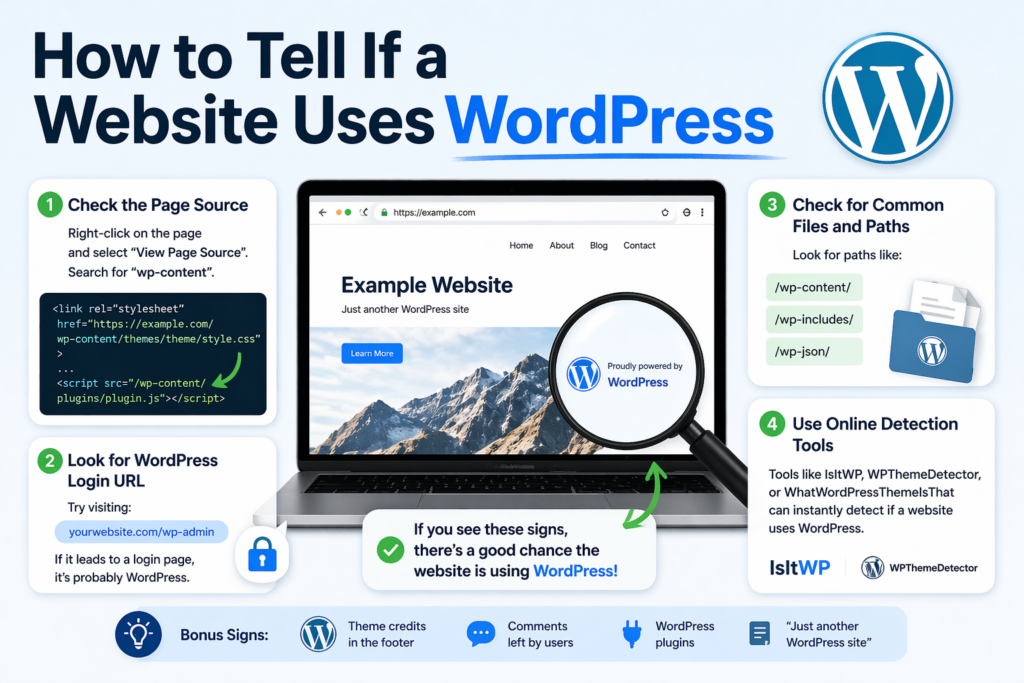
Before asking “what WordPress theme is that?”, you need to confirm whether the website is actually built with WordPress.
Here are a few quick ways:
Right-click on the page and select “View Page Source,” then search for:
wp-content
If you see it, the site is almost certainly using WordPress.
Try visiting:
example.com/wp-admin
If it leads to a login page, that’s a strong indicator.
There are online tools that can instantly tell you what platform a site uses, including WordPress.
The fastest and easiest way to answer “what WordPress theme is that” is by using a theme detector.
You simply paste the website URL into the tool, and it scans the site’s code to identify:

If detection tools don’t work, you can manually find the theme.
wp-content/themes/
You’ll see something like:
wp-content/themes/astra/style.css
In this example, the theme is Astra.
Once you find the theme folder, open:
style.css
At the top, you’ll usually see:
Theme Name: Astra
Author: Brainstorm Force
Version: 4.x
This confirms the exact theme.
Modern browsers offer powerful inspection tools.
/wp-content/themes/
This method is especially useful when source code is cluttered or minimized.
Some websites include theme attribution in the footer.
Ví dụ:
However, many websites remove this, especially premium or custom builds.
Sometimes, you won’t find a clear answer.
Why?
Because the site might be using:
In these cases, the site may not be using a publicly available theme.
Even if you find the theme, the design you see might not fully come from it.
Many WordPress websites use page builders like:
These tools allow designers to create custom layouts independent of the theme.
Two websites can use the same theme but look completely different.
So when asking “what WordPress theme is that?”, remember:
The theme provides the foundation—but builders shape the final look.
Plugins can also influence the appearance and functionality of a website.
Ví dụ:
Many detection tools will also show plugins, giving you a fuller picture of how the site is built.
Not every theme can be identified easily.
Here are common challenges:
Some businesses build themes from scratch.
Developers can rename theme folders, making detection harder.
Optimized sites may hide useful information.
Some sites block detection tools entirely.
If you’re struggling to identify a theme, try these strategies:
Persistence often leads to results.
If you can’t find the exact theme, don’t worry.
Instead, focus on:
You can then search for themes with similar characteristics.
It’s perfectly fine to take inspiration—but avoid copying directly.
Originality always wins in the long run.
When you identify a theme, you may wonder whether to use it.
Choosing the right one depends on your goals and budget.
While identifying themes, you’ll often encounter:
These are widely used because they’re flexible and customizable.
Sometimes, a pre-built theme isn’t enough.
You might consider a custom theme if:
However, custom themes require more time and resources.
If you’ve ever wondered “what WordPress theme is that?”, the good news is that there are multiple ways to find out. From simple online tools to manual code inspection, you can uncover valuable insights about almost any WordPress website.
While not every theme can be identified—especially in the case of custom builds—understanding how themes work and how to detect them gives you a strong advantage. It helps you learn from successful websites, make better design decisions, and build more effective online experiences.
In the end, identifying a theme is just the starting point. What truly matters is how you apply those insights to create a website that looks great, performs well, and delivers real value to your audience.
You can identify a WordPress theme by using online theme detector tools, checking the page source for “wp-content/themes,” or inspecting the website with browser developer tools.
Most theme detector tools are accurate for standard themes, but they may struggle with heavily customized or custom-built themes.
Yes, you can manually check the website’s source code or inspect CSS files to find the theme name, often located in the “style.css” file.
Some websites use custom themes, renamed theme folders, or optimized code that hides theme details, making detection more difficult.
Yes, plugins and page builders can significantly change a website’s design, so the final appearance may not fully reflect the original theme.
Yes, using the same theme is completely legal, but you should avoid copying content or designs directly to maintain originality and avoid copyright issues.


















