












소개
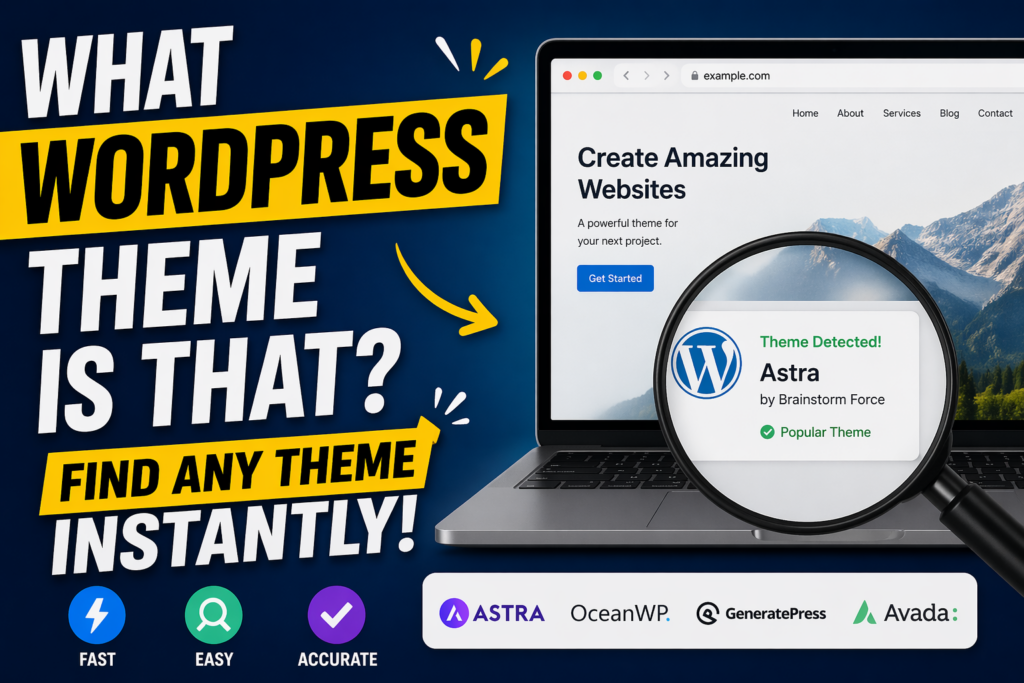
If you’ve ever browsed a website and thought, “What WordPress theme is that?”, you’re not alone. Whether you’re building your own site or analyzing competitors, identifying a WordPress theme can give you valuable insights into design, functionality, and user experience.
In this guide, we’ll break down exactly how to find out what 워드프레스 theme a site is using—step by step. This article is written in a clear, educational style so even beginners can follow along while still offering useful depth for more experienced users.
Why Identifying a WordPress Theme Matters
Before diving into the “how,” it’s important to understand the “why.”
Knowing what WordPress theme a website uses can help you:
- Replicate design styles you admire
- Understand layout structures that improve conversions
- Analyze competitors’ websites more effectively
- Choose the right theme for your own project
- Discover plugins or tools often bundled with themes
Instead of guessing or starting from scratch, identifying a theme gives you a shortcut to proven design solutions.
What Is a WordPress Theme?
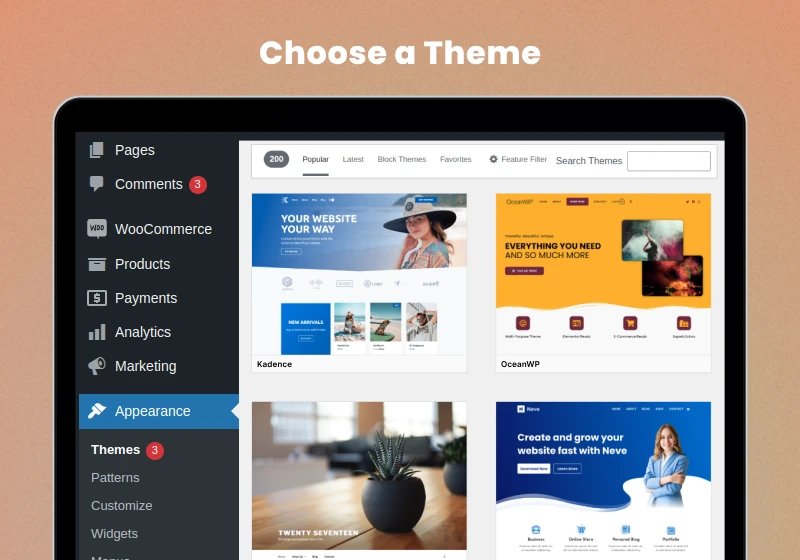
A WordPress theme controls the visual appearance and layout of a website. It defines elements like:
- Typography and font styles
- Colors and spacing
- Page layouts and structure
- Header, footer, and navigation design
- Blog and product page styling
Themes can be free or premium, and many include built-in customization options or integrations with page builders like Elementor or Gutenberg.
How to Tell If a Website Uses WordPress
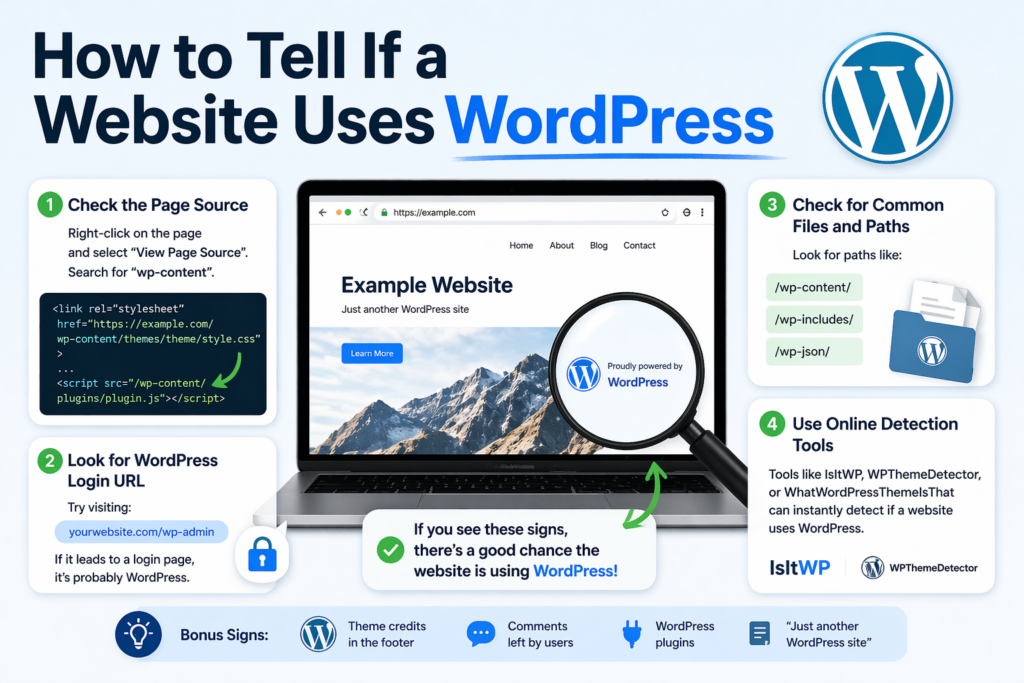
Before asking “what WordPress theme is that?”, you need to confirm whether the website is actually built with WordPress.
Here are a few quick ways:
1. Check the Page Source
Right-click on the page and select “View Page Source,” then search for:
wp-content
If you see it, the site is almost certainly using WordPress.
2. Look for WordPress Login URLs
Try visiting:
example.com/wp-admin
If it leads to a login page, that’s a strong indicator.
3. Use Detection Tools
There are online tools that can instantly tell you what platform a site uses, including WordPress.
Method 1: Use Online Theme Detection Tools
The fastest and easiest way to answer “what WordPress theme is that” is by using a theme detector.
작동 방식
You simply paste the website URL into the tool, and it scans the site’s code to identify:
- 테마 이름
- Theme author
- Plugins used
- Sometimes even customizations
Popular Theme Detector Tools
- What WordPress Theme Is That
- WPThemeDetector
- IsItWP
장점
- Fast and beginner-friendly
- No technical knowledge required
- Often shows plugin information too
단점
- May fail on heavily customized themes
- Can’t always detect custom-built themes
Method 2: Inspect the Website Source Code

If detection tools don’t work, you can manually find the theme.
Step-by-Step Guide
- Right-click on the page
- Click “View Page Source”
- Press Ctrl + F (or Cmd + F)
- Search for:
wp-content/themes/
You’ll see something like:
wp-content/themes/astra/style.css
In this example, the theme is Astra.
Reading the Style.css File
Once you find the theme folder, open:
스타일.css
At the top, you’ll usually see:
Theme Name: Astra
Author: Brainstorm Force
Version: 4.x
This confirms the exact theme.
Method 3: Use Browser Developer Tools
Modern browsers offer powerful inspection tools.
단계
- Right-click → Inspect
- Go to the Elements tab
- Look for CSS or JS files
- Find links containing:
/wp-content/테마/
This method is especially useful when source code is cluttered or minimized.
Method 4: Check Theme Credits in the Footer
Some websites include theme attribution in the footer.
예시:
- “Powered by Astra”
- “Theme by StudioPress”
However, many websites remove this, especially premium or custom builds.
Method 5: Identify Custom or Modified Themes
Sometimes, you won’t find a clear answer.
Why?
Because the site might be using:
- A heavily customized theme
- A child theme
- A completely custom-built theme
How to Recognize This
- Theme name appears generic (e.g., “custom-theme”)
- No public theme matches the design
- Detection tools fail
In these cases, the site may not be using a publicly available theme.
What About Page Builders?
Even if you find the theme, the design you see might not fully come from it.
Many WordPress websites use page builders like:
- 엘레멘터
- WPBakery
- Divi Builder
These tools allow designers to create custom layouts independent of the theme.
Why This Matters
Two websites can use the same theme but look completely different.
So when asking “what WordPress theme is that?”, remember:
The theme provides the foundation—but builders shape the final look.
How Plugins Affect Theme Detection
Plugins can also influence the appearance and functionality of a website.
예를 들어:
- Sliders
- Popups
- E-commerce layouts
- Animations
Many detection tools will also show plugins, giving you a fuller picture of how the site is built.
Limitations of Theme Detection
Not every theme can be identified easily.
Here are common challenges:
1. Custom Development
Some businesses build themes from scratch.
2. Renamed Themes
Developers can rename theme folders, making detection harder.
3. Minified Code
Optimized sites may hide useful information.
4. CDN or Security Layers
Some sites block detection tools entirely.
Tips for Better Results
If you’re struggling to identify a theme, try these strategies:
- Use multiple detection tools
- Check both homepage and inner pages
- Inspect CSS and JS files
- Look for theme-related class names
- Combine manual and automated methods
Persistence often leads to results.
How to Choose a Similar Theme
If you can’t find the exact theme, don’t worry.
Instead, focus on:
1. Layout Structure
- Grid vs. list
- Full-width vs. boxed
2. Design Style
- Minimalist
- Bold and colorful
- Editorial
3. Functionality
- E-commerce support
- Blog features
- Portfolio layouts
You can then search for themes with similar characteristics.
Best Practices When Using Another Theme as Inspiration
It’s perfectly fine to take inspiration—but avoid copying directly.
Do:
- Study layout and UX patterns
- Adapt design to your brand
- Improve usability
Don’t:
- Clone designs pixel-for-pixel
- Copy copyrighted assets
- Misrepresent another brand
Originality always wins in the long run.
Free vs. Premium Themes: What’s the Difference?
When you identify a theme, you may wonder whether to use it.
Free Themes
- 비용 효율적
- Basic features
- 제한된 맞춤 설정
Premium Themes
- Advanced design options
- Better support
- 더 많은 유연성
Choosing the right one depends on your goals and budget.
Common Popular WordPress Themes
While identifying themes, you’ll often encounter:
- Astra
- OceanWP
- Divi
- GeneratePress
- Avada
These are widely used because they’re flexible and customizable.
When You Should Use a Custom Theme
Sometimes, a pre-built theme isn’t enough.
You might consider a custom theme if:
- You need unique branding
- You require specialized features
- You want full control over design
However, custom themes require more time and resources.
마지막으로
If you’ve ever wondered “what WordPress theme is that?”, the good news is that there are multiple ways to find out. From simple online tools to manual code inspection, you can uncover valuable insights about almost any 워드프레스 website.
While not every theme can be identified—especially in the case of custom builds—understanding how themes work and how to detect them gives you a strong advantage. It helps you learn from successful websites, make better design decisions, and build more effective online experiences.
In the end, identifying a theme is just the starting point. What truly matters is how you apply those insights to create a website that looks great, performs well, and delivers real value to your audience.
자주 묻는 질문
You can identify a WordPress theme by using online theme detector tools, checking the page source for “wp-content/themes,” or inspecting the website with browser developer tools.
Most theme detector tools are accurate for standard themes, but they may struggle with heavily customized or custom-built themes.
Yes, you can manually check the website’s source code or inspect CSS files to find the theme name, often located in the “style.css” file.
Some websites use custom themes, renamed theme folders, or optimized code that hides theme details, making detection more difficult.
Yes, plugins and page builders can significantly change a website’s design, so the final appearance may not fully reflect the original theme.
Yes, using the same theme is completely legal, but you should avoid copying content or designs directly to maintain originality and avoid copyright issues.


완전한 전자상거래 시스템을 갖춘 워드프레스 웹사이트 또는 기업 사이트를 디자인하고 구축하세요.
가격 범위: $200.00~$2,500.00custom-requirements-or-special-quotations
원래 가격: $2.00.$1.00현재 가격: $1.00. 워드프레스 전자상거래 쇼핑몰에 플러그인 50개는 너무 많은 걸까요?
실제 성능에 미치는 영향 이해하기 워드프레스 전자상거래 사이트에 50개의 플러그인이 있다고 해서 자동으로 문제가 되는 것은 아닙니다. 사실 그 숫자만으로 성능이 결정되는 경우는 거의 없습니다....

아마존 가정용 물리치료 기기 메인 이미지 디자인 설명
소개 소개: 아마존에서 홈 테라피 기기의 신뢰할 수 있는 이미지 구축 아마존에서 홈 테라피 기기의 기본 이미지를 디자인할 때 기본 ...

아마존 립스틱 전환을 위한 메인 이미지 디자인
소개: 소개: 아마존에서 판매되는 립스틱 메인 이미지 디자인하기 아마존 립스틱의 메인 이미지를 디자인할 때 우리의 책임은 그 이상입니다.

해커들이 워드프레스 관리자 이메일을 훔치는 방법(그리고 이를 막는 방법)
불편한 진실부터 말씀드리자면, 워드프레스 관리자 이메일은 생각보다 훨씬 더 많이 공개되어 있습니다. 그들은 그것을 좋아합니다. 해커에게 여러분의...

아마존 리퀴드 파운데이션 메인 이미지 변환의 특징은 무엇일까요?
서론 아마존 리퀴드 파운데이션의 메인 이미지 디자인은 단순히 제품을 아름답게 보이게 하는 것만이 아닙니다. 아마존에서 메인 이미지와...

필터 카트리지 제품을 위한 효과적인 아마존 메인 이미지 디자인하기
서론 아마존 메인 이미지 디자인은 단순히 제품을 매력적으로 보이게 하는 것만이 아닙니다. 명확성, 신뢰, 그리고 즉각적인 이해를 제공하는 것이 중요합니다. 특히...

워드프레스에 대한 리플레이 공격: 실제 위협인가, 과장된 신화인가?
먼저 한 가지를 분명히 해두죠. 리플레이 공격은 겉보기에 무섭지 않습니다. 비밀번호를 날려버리지도 않고, 초록색 해커 텍스트가 사방에 흩날리는 악성 코드를 주입하지도 않습니다. 그저 교묘하게 이루어질 뿐입니다.

WordPress 페이지를 손상 없이 복제하는 방법
솔직히 말해봅시다. 때로는 새 페이지를 만들고 싶지 않을 때가 있죠. 그냥 기존 페이지를 약간만 다르게 하고 싶을 때가 있어요. 레이아웃도, 블록도, 설정도 그대로요. 왜냐하면...

반려동물 관련 워드프레스 테마 5가지 비교
서론 반려동물 관련 워드프레스 테마를 선택하는 것은 단순한 디자인 결정 이상의 의미를 지닙니다. 사용성, 확장성, 그리고 장기적인 비즈니스 성장에 직접적인 영향을 미치기 때문입니다. 반려동물 관리 및 관련...

수영복 온라인 쇼핑몰 테마 5가지 비교
서론 수영복이나 란제리 독립 매장에 적합한 테마를 선택하는 것은 단순히 시각적인 결정에 그치는 것이 아니라, 전환율, 확장성, 그리고 장기적인 성공에 직접적인 영향을 미칩니다.

워드프레스에서 댓글 기능을 끄는 방법 (정신줄 놓지 않고)
워드프레스 댓글에 대해 이야기해 봅시다. 이론적으로 댓글은 훌륭합니다. 토론을 장려하고, 커뮤니티를 형성하며, 웹사이트에 생동감을 불어넣습니다. 하지만 현실은 어떨까요? 댓글은 종종 문제를 야기하기도 합니다...

워드프레스 500 오류: 웹사이트가 갑자기 오류를 일으킬 때
방금 전까지만 해도 워드프레스 사이트는 아무 문제 없었는데, 페이지를 새로고침하자마자 갑자기 💥 500 내부 서버 오류가 발생했습니다. 아무런 설명도, 사과도 없이 그저 차갑고 혼란스러운 메시지만 남았습니다.

과학 중심 브랜드를 위한 확장 가능한 워드프레스 웹사이트 구축: 아미노USA 프로젝트
서론 오늘날의 디지털 환경에서 웹사이트는 단순히 제품을 나열하는 공간 이상의 의미를 지닙니다. 규제 산업이나 연구 중심 산업에서 활동하는 과학 기반 브랜드에게 웹사이트는 더욱 중요한 역할을 합니다.

글로벌 블레이드 브랜드를 위한 확장 가능한 쇼피파이 스토어 구축: 쿨카타나 프로젝트
서론: 국경을 넘나드는 전자상거래에서 Shopify 웹사이트는 단순한 매장 이상의 의미를 지닙니다. 특정 문화권에서 사업을 운영하는 브랜드의 경우, 웹사이트는 단순한 판매 공간을 넘어 훨씬 더 많은 기능을 수행해야 합니다.

포켓몬 카드 판매를 위한 높은 전환율을 자랑하는 쇼피파이 스토어 디자인하기
서론 수집품 전자상거래, 특히 포켓몬 트레이딩 카드 게임(TCG) 시장에서 웹사이트는 단순히 제품 목록을 나열하는 것 이상의 역할을 해야 합니다.

맞춤형 오프라인 브랜드에 최적화된 전환율 높은 쇼피파이 디자인
서론 오늘날 경쟁이 치열한 전자상거래 환경, 특히 맞춤형 선물 및 수집품 분야에서 Shopify 웹사이트는 단순히 제품을 전시하는 것 이상의 역할을 해야 합니다. ...

Shopify 고객 지원팀에 문의하는 방법: 간단하고 스트레스 없는 가이드
쇼피파이 스토어 운영은 흥미진진해야지 혼란스러워서는 안 됩니다. 궁금한 점이 생기거나 문제가 발생하여 진행이 늦어질 때, 쇼피파이는 상황에 따라 다양한 지원 경로를 제공합니다.

쇼피파이 스토어 비활성화 방법: 명확하고 실용적인 가이드
쇼피파이 스토어를 비활성화하는 것은 복잡하지 않지만, 많은 판매자가 간과하는 몇 가지 결과가 따릅니다. 이 가이드에서는 비활성화 과정을 간단하고 유익하게 설명합니다.