












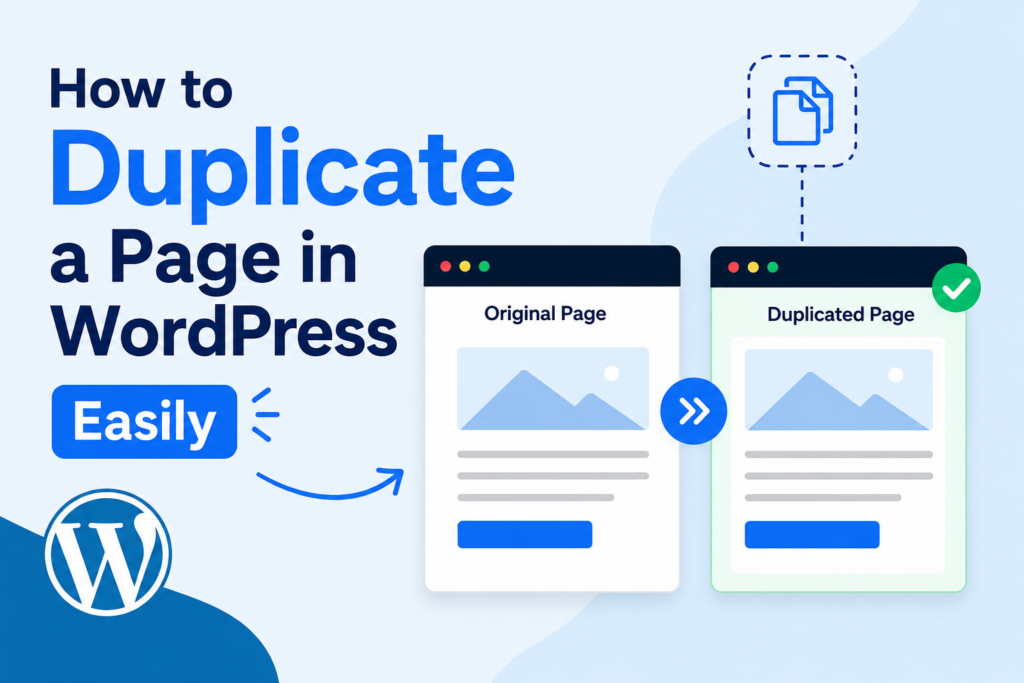
การแนะนำ
If you manage a วordpress website, chances are you have already repeated the same layout, content structure, or design style more than once. Maybe you created a landing page you want to reuse. Maybe you need multiple service pages with a similar format. Or perhaps you want to test a new design without changing the original page.
This is where learning how to duplicate a page in WordPress becomes incredibly useful.
Duplicating a page allows you to create an exact copy of an existing page or post, including its layout, text, images, settings, and sometimes even SEO metadata. Instead of building a new page from scratch, you can save time and maintain design consistency across your website.
In this guide, you will learn:
- What page duplication means in WordPress
- Why duplicating pages is useful
- Different ways to duplicate a WordPress page
- How to duplicate pages manually and with plugins
- Best practices for organizing duplicated content
- Common mistakes to avoid
Whether you are a beginner or an experienced website owner, understanding how to duplicate page in WordPress can make website management faster and more efficient.
What Does It Mean to Duplicate a Page in WordPress?
Duplicating a page in WordPress means creating a copy of an existing page or post. The duplicate version keeps most or all of the original content and formatting.
Depending on the method you use, the duplicated page may include:
- Text content
- รูปภาพ
- Featured images
- เทมเพลตหน้าเว็บ
- SEO settings
- ช่องข้อมูลที่กำหนดเอง
- Elementor or Gutenberg layouts
- เมตาเดตา
- หมวดหมู่และแท็ก
Instead of redesigning everything manually, duplication allows you to use an existing page as a starting point.
For example, imagine you run an online store and want to create multiple promotional pages with the same structure. Instead of rebuilding the layout every time, you can simply duplicate the original page and change the text and images.
This workflow is extremely common for:
- Blog posts
- หน้าบริการ
- หน้า Landing Page
- Product pages
- รูปแบบพอร์ตโฟลิโอ
- Sales funnels
- แคมเปญตามฤดูกาล
Why Duplicating Pages in WordPress Is Useful
Many WordPress users underestimate how much time duplication can save.
Here are some of the biggest advantages.
Faster Website Building
Creating a page from scratch takes time. You need to:
- Add sections
- Adjust spacing
- Insert images
- Configure layouts
- Style buttons
- Set SEO settings
Duplicating a page removes most of this work.
You only need to edit the content you want to change.
Consistent Website Design
Consistency matters in web design.
When all pages follow a similar layout, visitors can navigate your website more easily. Duplicate pages help maintain:
- Typography consistency
- Spacing balance
- Color schemes
- CTA placement
- เอกลักษณ์ของแบรนด์
This is especially useful for business websites and eCommerce stores.
Safer Editing and Testing
Sometimes you may want to redesign a page without affecting the live version.
Duplicating the page lets you:
- Test new layouts
- Experiment with content
- Try different designs
- Preview changes safely
If something goes wrong, the original page remains untouched.
Easier Team Collaboration
If multiple people work on the same website, duplicated pages create smoother workflows.
Designers, marketers, and content editors can work on copied versions without accidentally editing the live page.
How to Duplicate Page in WordPress Using Plugins
The easiest way to duplicate pages in WordPress is by using a plugin.
Plugins automate the process and usually add a “Duplicate” or “Clone” button directly inside the dashboard.
Below are some of the most popular methods.
Method 1: Duplicate Page Plugin
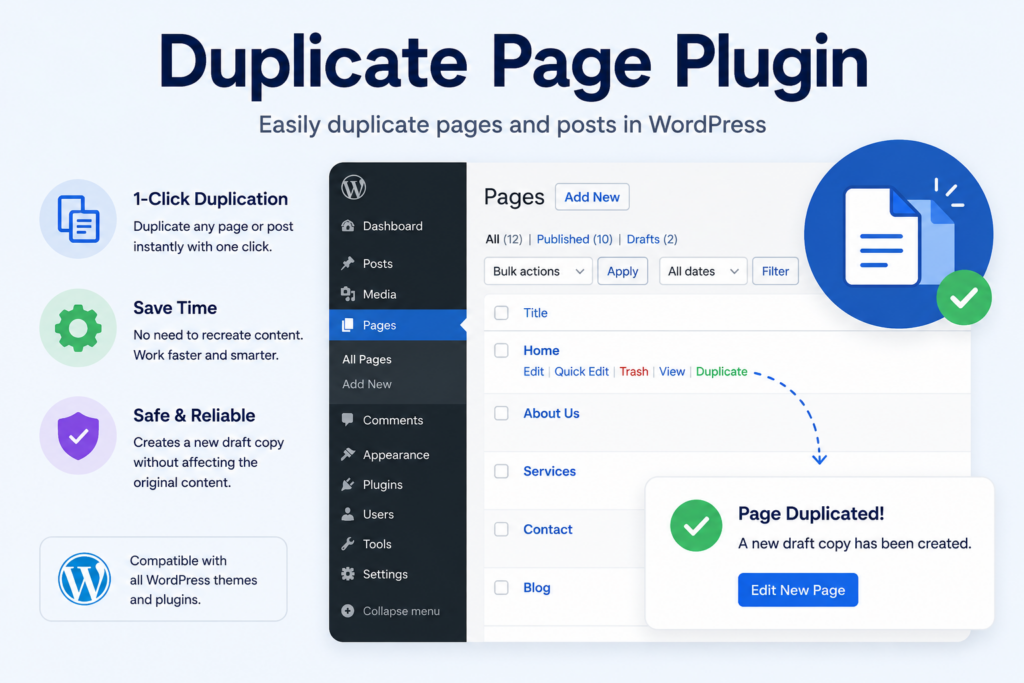
One of the simplest plugins available is Duplicate Page.
It is beginner-friendly and requires very little setup.
Step 1: Install the Plugin
Inside your WordPress dashboard:
- Go to Plugins
- Click Add New
- Search for “Duplicate Page”
- ติดตั้งและเปิดใช้งานปลั๊กอิน
After activation, WordPress automatically adds duplication options to your pages and posts.
Step 2: Duplicate a Page
ไปที่:
- Pages → All Pages
You will now see options like:
- ทำซ้ำสิ่งนี้
- โคลน
- Draft Copy
Click the duplicate option.
WordPress instantly creates a copy of the original page.
Step 3: Edit the New Page
Open the duplicated page and customize:
- Headlines
- รูปภาพ
- SEO descriptions
- Buttons
- URLs
This is much faster than rebuilding the page manually.
Method 2: Duplicate Pages With Elementor
Many WordPress websites use Elementor for page building.
Elementor already includes duplication features.
Duplicate an Entire Page
Inside Elementor:
- Open the page editor
- Click the arrow beside Update
- Save the page as a template
You can then reuse the template on any new page.
Copy Individual Sections
Elementor also allows section duplication.
Right-click any section and choose:
- Duplicate
- สำเนา
- Paste
This is useful for repeating:
- Testimonials
- Pricing tables
- FAQ sections
- Product grids
Method 3: Duplicate Gutenberg Pages
If you use the default Gutenberg editor, duplication is still possible.
Copy All Content Manually
Open the original page.
แล้ว:
- Click the three-dot menu
- Choose Copy all content
- Create a new page
- Paste the content
The layout and blocks will usually remain intact.
Although this method is manual, it works without installing extra plugins.
How to Duplicate a WordPress Page Without Plugins
Some website owners prefer avoiding plugins to keep their website lightweight.
You can still duplicate pages manually.
Manual Copy-and-Paste Method
Step 1: Open the Original Page
Go to the page you want to duplicate.
Switch to code editor mode if necessary.
Step 2: Copy the Content
Select all content and copy it.
ซึ่งรวมถึง:
- Text
- รูปภาพ
- HTML
- Shortcodes
ขั้นตอนที่ 3: สร้างหน้าใหม่
Create a new blank page inside WordPress.
Paste the copied content.
Step 4: Reconfigure Settings
You may need to manually adjust:
- ภาพประกอบ
- SEO settings
- Page template
- Slug
- Categories
- เมตาเดตา
This approach works, but it takes longer than using plugins.
Best Plugins for Duplicating WordPress Pages
Several plugins offer advanced duplication features.
Here are some popular choices.
Yoast โพสต์ซ้ำ
One of the most trusted duplication plugins.
Features include:
- Clone posts and pages
- Rewrite and republish workflows
- User permission controls
- Bulk duplication
It is widely used on professional WordPress websites.
ทำซ้ำหน้า
Ideal for beginners.
Benefits include:
- Simple interface
- Lightweight setup
- Quick duplication
- Compatible with most themes
Post Duplicator
Good for content-heavy websites.
It can duplicate:
- ประเภทโพสต์แบบกำหนดเอง
- เมตาเดตา
- Taxonomies
- แม่แบบ
Common Reasons People Duplicate Pages
Different website owners duplicate pages for different reasons.
Here are some real-world examples.
Creating Landing Pages Faster
Marketers often use the same structure for multiple campaigns.
Duplicating pages helps maintain:
- การสร้างแบรนด์ที่สอดคล้องกัน
- CTA placement
- Design flow
Only the offer or product details need updating.
Building Similar Service Pages
Many businesses provide multiple services with similar layouts.
ตัวอย่างเช่น:
- Web design
- SEO services
- Branding
- การตลาด
Instead of redesigning each page, duplication speeds up production.
Seasonal Promotions
Online stores often create pages for:
- Black Friday
- Christmas sales
- Summer campaigns
- การเปิดตัวผลิตภัณฑ์ใหม่
Duplicating an older campaign page makes setup much faster.
A/B Testing
Website owners frequently test:
- Different headlines
- CTA buttons
- Layout structures
- รูปภาพ
Duplicating pages allows side-by-side comparisons without changing the original.
Things to Check After Duplicating a Page
Duplicating pages is convenient, but there are several details you should always review afterward.
Update the URL Slug
WordPress automatically creates a new URL.
However, duplicated pages often generate messy slugs like:
- /sample-page-copy
- /landing-page-2
Always clean the URL for SEO purposes.
Change SEO Metadata
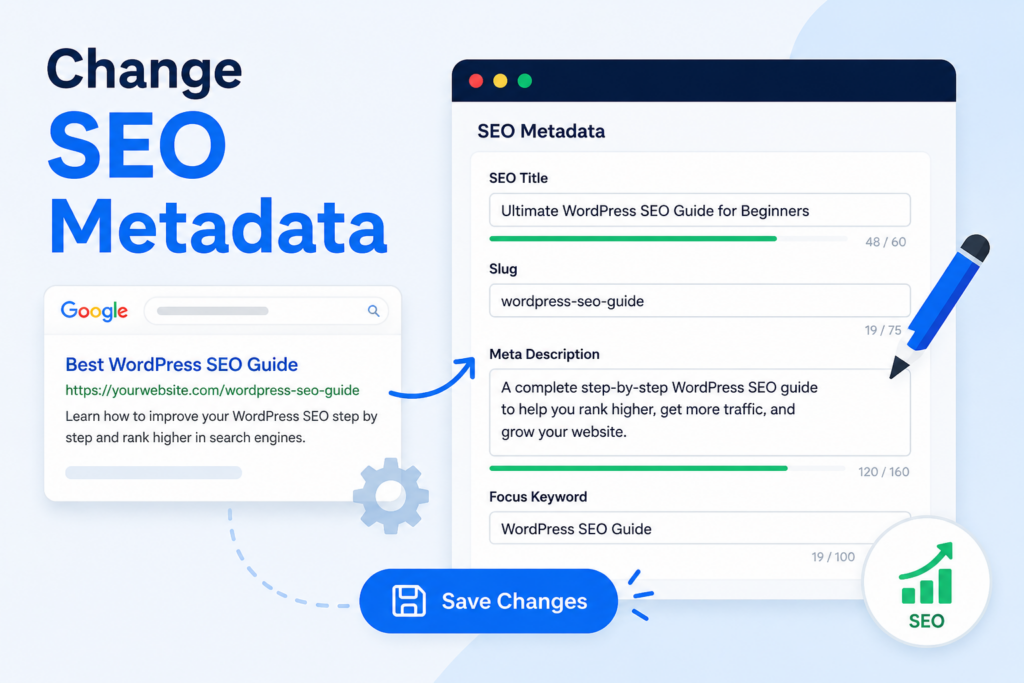
If you use plugins like Yoast SEO or Rank Math, update:
- SEO title
- Meta description
- Focus keyword
Duplicate metadata can confuse search engines.
Replace Placeholder Content
Some duplicated pages still contain old:
- รูปภาพ
- Testimonials
- Buttons
- Product names
- การกำหนดราคา
Double-check everything before publishing.
Check Internal Links
Sometimes duplicated pages still link back to the original content.
Make sure all buttons and navigation links point to the correct pages.
Review Mobile Layout
Even if the desktop version looks perfect, always test the mobile layout after duplication.
Responsive elements may behave differently depending on new content length.
Does Duplicating Pages Hurt SEO?
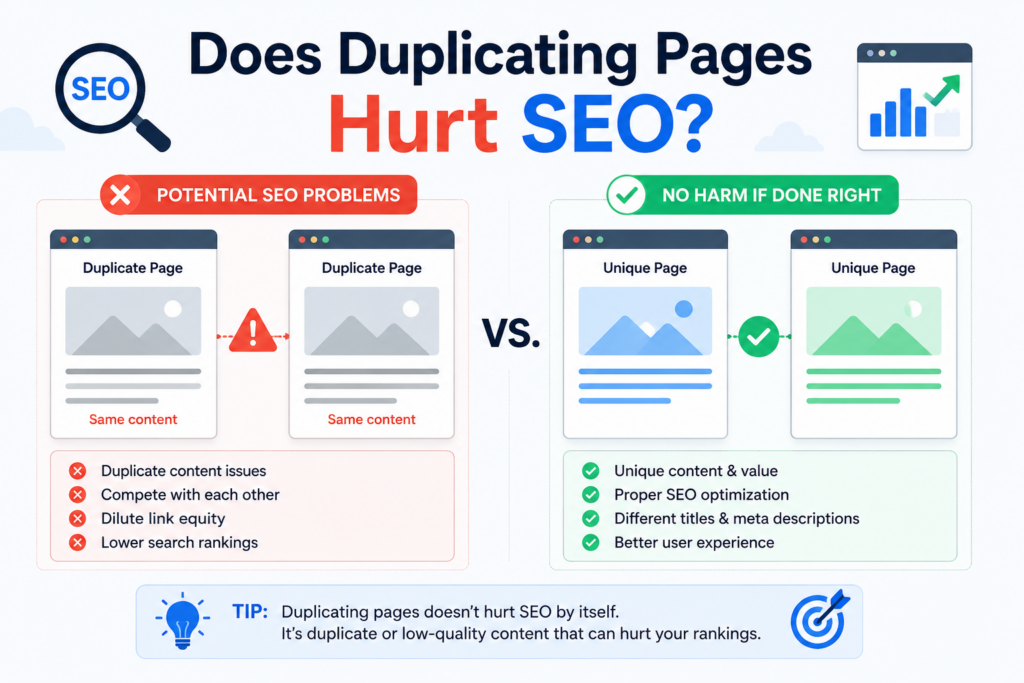
Duplicating pages themselves does not hurt SEO.
However, publishing multiple pages with identical content can create duplicate content issues.
Search engines prefer unique pages.
To avoid SEO problems:
- Rewrite the content
- Use different headlines
- Customize metadata
- Change images
- Add unique value
Duplicated pages should act as templates, not permanent copies.
Duplicate Pages vs Templates
Some users confuse duplicated pages with templates.
There is an important difference.
Duplicated Page
A duplicated page is a full copy of an existing page.
It includes real content.
Template
A template is a reusable design structure.
It may include placeholders rather than completed content.
Templates are better for large websites that need scalable workflows.
Duplicated pages are better for quick edits and fast publishing.
Should You Use Plugins or Manual Methods?
Both approaches work, but the best choice depends on your needs.
Use Plugins If:
- You duplicate pages often
- You want faster workflows
- You use Elementor
- You manage large websites
- You want advanced duplication features
Use Manual Methods If:
- You rarely duplicate pages
- You want fewer plugins installed
- You only need simple copies
- You prefer manual control
For most website owners, plugins are the easiest and most efficient solution.
Tips for Managing Duplicated Content Efficiently
As your website grows, duplicated pages can become difficult to organize.
Here are some practical management tips.
Use Clear Naming Structures
Instead of generic names like:
- Copy 1
- Draft Page
Use structured naming such as:
- Summer Sale Landing Page
- Service Template SEO
- Product Layout Version B
This keeps your dashboard organized.
Store Templates Separately
If you use Elementor or Gutenberg patterns, create dedicated templates instead of endlessly duplicating live pages.
This reduces clutter.
Delete Unused Drafts
Old duplicated drafts can accumulate over time.
Regularly clean unused copies to improve dashboard organization.
Create Staging Versions
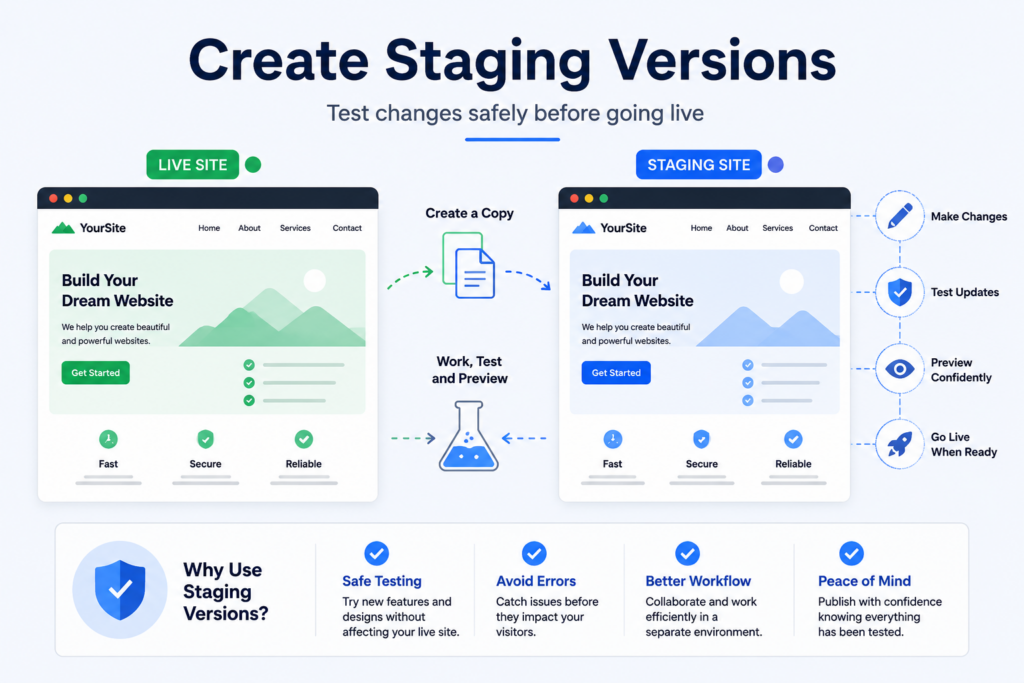
Before redesigning important pages, duplicate them into staging or draft mode.
This prevents accidental public changes.
WordPress Duplication Best Practices
To duplicate pages effectively:
- Always edit duplicated content before publishing
- Update SEO settings
- Test responsiveness
- Rename URLs properly
- Keep your dashboard organized
- Use duplication for efficiency, not content copying
These practices help maintain both performance and SEO quality.
ข้อคิดส่งท้าย
Learning how to duplicate page in วordpress is one of the easiest ways to improve website workflow and save time. Instead of rebuilding layouts manually, duplication allows you to reuse successful designs, maintain consistency, and experiment safely with new ideas.
Whether you use plugins like Duplicate Page and Yoast Duplicate Post or prefer manual copy-and-paste methods, WordPress offers flexible ways to create reusable page structures.
For bloggers, business websites, online stores, and marketers, page duplication can dramatically speed up content production while keeping your website visually consistent and easier to manage.
คำถามที่พบบ่อย
1. ฉันจะคัดลอกหน้าเว็บใน WordPress ได้อย่างไร?
You can duplicate a page in WordPress by using a plugin like Duplicate Page or Yoast Duplicate Post. These tools add a duplicate or clone option directly inside your WordPress dashboard.
2. Can I duplicate a WordPress page without a plugin?
Yes. You can manually copy all content from an existing page and paste it into a new page using the WordPress editor. However, this method may not copy SEO settings, templates, or custom fields.
3. Does duplicating pages hurt SEO?
Duplicating pages itself does not hurt SEO, but publishing multiple pages with identical content can create duplicate content issues. Always update the text, images, URLs, and metadata before publishing.
4. What is the best plugin to duplicate pages in WordPress?
Popular options include Duplicate Page, Yoast Duplicate Post, and Post Duplicator. The best choice depends on your workflow and website needs.
5. Can I duplicate Elementor pages in WordPress?
Yes. Elementor allows you to duplicate entire pages, sections, and templates. You can also save pages as reusable templates for future projects.
6. Why should I duplicate pages instead of creating new ones?
Duplicating pages saves time, keeps your website design consistent, and helps you create landing pages, service pages, or promotional pages more efficiently. It is especially useful for large websites and online stores.


ออกแบบและสร้างเว็บไซต์ WordPress หรือเว็บไซต์องค์กรพร้อมระบบอีคอมเมิร์ซครบวงจรสำหรับคุณ.
ช่วงราคา: $200.00 ถึง $2,500.00custom-requirements-or-special-quotations
ราคาเดิมคือ: $2.00.$1.00ราคาปัจจุบันคือ: $1.00. การใช้ปลั๊กอิน 50 ตัวมากเกินไปสำหรับร้านค้าออนไลน์ที่ใช้ WordPress หรือไม่?
การเข้าใจผลกระทบที่แท้จริงต่อประสิทธิภาพ การมีปลั๊กอิน 50 ตัวบนเว็บไซต์อีคอมเมิร์ซ WordPress ไม่ใช่ปัญหาโดยอัตโนมัติ จริงๆ แล้ว จำนวนเพียงอย่างเดียวแทบจะไม่สามารถกำหนดประสิทธิภาพได้....

ภาพหลักสำหรับการออกแบบอุปกรณ์กายภาพบำบัดที่บ้านของ Amazon (อธิบายรายละเอียด)
บทนำ: การสร้างภาพลักษณ์ที่น่าเชื่อถือสำหรับอุปกรณ์บำบัดที่บ้านบน Amazon เมื่อออกแบบภาพหลักสำหรับอุปกรณ์บำบัดที่บ้านบน Amazon สิ่งสำคัญอันดับแรกของเราคือ...

ภาพหลักสำหรับการแปลงลิปสติกเป็นสินค้าสำหรับ Amazon
บทนำ: การออกแบบภาพหลักลิปสติกที่ขายได้บน Amazon เมื่อเราออกแบบภาพหลักสำหรับลิปสติกบน Amazon ความรับผิดชอบของเราไม่ได้จำกัดอยู่แค่...

แฮกเกอร์ขโมยอีเมลผู้ดูแลระบบ WordPress ได้อย่างไร (และวิธีป้องกัน)
มาเริ่มกันด้วยความจริงที่ไม่น่าสบายใจ: อีเมลแอดมิน WordPress ของคุณอาจเปิดเผยต่อสาธารณะมากกว่าที่คุณคิด และแฮกเกอร์? พวกเขาชอบมาก สำหรับพวกเขา...

อะไรทำให้รองพื้นชนิดเหลวของ Amazon (ภาพหลัก) ขายดี?
บทนำ การออกแบบภาพหลักสำหรับรองพื้นชนิดเหลวบน Amazon ไม่ใช่แค่การทำให้ผลิตภัณฑ์ดูสวยงามเท่านั้น บน Amazon ภาพหลักและ...

การออกแบบภาพหลัก Amazon ที่มีประสิทธิภาพสำหรับตลับกรอง
บทนำ การออกแบบภาพหลักสำหรับ Amazon ไม่ใช่แค่การทำให้สินค้าดูน่าดึงดูดเท่านั้น แต่ยังเกี่ยวกับความชัดเจน ความน่าเชื่อถือ และความเข้าใจได้ในทันที โดยเฉพาะอย่างยิ่งสำหรับ...

การโจมตีแบบ Replay Attack บน WordPress: ภัยคุกคามจริงหรือแค่เรื่องที่ถูกพูดเกินจริง?
ก่อนอื่นขอชี้แจงให้ชัดเจนก่อน การโจมตีแบบ Replay Attack นั้นดูไม่น่ากลัว มันไม่ได้ทำลายรหัสผ่าน มันไม่ได้แทรกโค้ดที่เป็นอันตรายพร้อมข้อความแฮ็กเกอร์สีเขียวกระจัดกระจายไปทั่ว มันแนบเนียนกว่า...

วิธีคัดลอกหน้าเว็บ WordPress โดยไม่ทำให้ระบบเสียหาย
ยอมรับกันเถอะ บางครั้งคุณอาจไม่อยากสร้างหน้าเว็บใหม่ คุณแค่อยากได้หน้าเว็บเดิม...แต่แตกต่างไปเล็กน้อย รูปแบบเหมือนเดิม บล็อกเหมือนเดิม การตั้งค่าเหมือนเดิม เพราะ...

เปรียบเทียบธีม WordPress สำหรับสัตว์เลี้ยง 5 แบบ
บทนำ การเลือกธีม WordPress ที่เหมาะสมสำหรับธุรกิจเกี่ยวกับสัตว์เลี้ยงนั้นไม่ใช่แค่เรื่องของการออกแบบเท่านั้น แต่ยังส่งผลโดยตรงต่อการใช้งาน ความสามารถในการขยายขนาด และการเติบโตของธุรกิจในระยะยาว การดูแลสัตว์เลี้ยงและ...

เปรียบเทียบธีมอีคอมเมิร์ซชุดว่ายน้ำ 5 แบบ
บทนำ การเลือกธีมที่เหมาะสมสำหรับร้านค้าอิสระที่จำหน่ายชุดว่ายน้ำหรือชุดชั้นในนั้นไม่ใช่แค่การตัดสินใจด้านภาพลักษณ์เท่านั้น แต่ยังส่งผลโดยตรงต่ออัตราการเปลี่ยนลูกค้าให้เป็นผู้ซื้อ ความสามารถในการขยายธุรกิจ และความยั่งยืนในระยะยาว...

วิธีปิดการแสดงความคิดเห็นใน WordPress (โดยไม่ต้องเสียสติ)
มาพูดถึงระบบแสดงความคิดเห็นของ WordPress กันดีกว่า ในทางทฤษฎีแล้ว ความคิดเห็นนั้นยอดเยี่ยมมาก มันช่วยกระตุ้นการสนทนา สร้างชุมชน และทำให้เว็บไซต์ของคุณดูมีชีวิตชีวา แต่ในความเป็นจริงแล้ว มันมักจะเป็นเหมือนแม่เหล็กดึงดูด...

ข้อผิดพลาด WordPress 500: เมื่อเว็บไซต์ของคุณเกิดอาการผิดปกติ
เว็บไซต์ WordPress ของคุณยังใช้งานได้ปกติดีเมื่อสักครู่ คุณรีเฟรชหน้าเว็บ แล้วจู่ๆ ก็เกิดข้อผิดพลาด 500 Internal Server Error ขึ้นมา ไม่มีคำอธิบาย ไม่มีคำขอโทษ มีเพียงข้อความที่เย็นชาและสับสนซึ่งโดยพื้นฐานแล้ว...

การสร้างเว็บไซต์ WordPress ที่ปรับขนาดได้สำหรับแบรนด์ที่ขับเคลื่อนด้วยวิทยาศาสตร์: โครงการ AminoUSA
บทนำ ในยุคดิจิทัลปัจจุบัน เว็บไซต์เป็นมากกว่าแค่สถานที่สำหรับแสดงรายการสินค้า สำหรับแบรนด์ที่ขับเคลื่อนด้วยวิทยาศาสตร์ซึ่งดำเนินงานในอุตสาหกรรมที่มีการควบคุมหรือเน้นการวิจัย...

สร้างร้านค้า Shopify ที่ปรับขนาดได้สำหรับแบรนด์ใบมีดระดับโลก: โครงการ CoolKatana
บทนำ ในธุรกิจอีคอมเมิร์ซข้ามพรมแดน เว็บไซต์ Shopify เป็นมากกว่าแค่หน้าร้าน สำหรับแบรนด์ที่ดำเนินธุรกิจในกลุ่มเฉพาะหรือกลุ่มที่ขับเคลื่อนด้วยวัฒนธรรม เว็บไซต์ต้องทำมากกว่านั้น...

การออกแบบร้านค้า Shopify ที่มีอัตราการแปลงสูงสำหรับขายการ์ดโปเกมอน
บทนำ ในโลกของอีคอมเมิร์ซสินค้าสะสม โดยเฉพาะอย่างยิ่งในตลาดเกมการ์ดโปเกมอน (TCG) เว็บไซต์จะต้องทำมากกว่าแค่แสดงรายการสินค้า...

ดีไซน์ Shopify ที่เพิ่มยอดขายสำหรับแบรนด์อิฐสั่งทำพิเศษ
บทนำ ในสภาพแวดล้อมการแข่งขันอีคอมเมิร์ซในปัจจุบัน โดยเฉพาะอย่างยิ่งในตลาดของขวัญส่วนบุคคลและของสะสม เว็บไซต์ Shopify ต้องทำมากกว่าแค่แสดงสินค้า...

วิธีติดต่อฝ่ายสนับสนุนของ Shopify: คู่มือที่ง่ายและไม่ยุ่งยาก
การบริหารร้านค้า Shopify ควรเป็นเรื่องที่น่าตื่นเต้น ไม่ใช่เรื่องที่ทำให้สับสน เมื่อมีคำถามหรือปัญหาเกิดขึ้น Shopify มีช่องทางการสนับสนุนหลายช่องทาง ขึ้นอยู่กับสถานการณ์...

วิธีปิดใช้งานร้านค้า Shopify: คู่มือที่ชัดเจนและใช้งานได้จริง
การปิดใช้งานร้านค้า Shopify นั้นไม่ซับซ้อน แต่ก็มีผลกระทบหลายอย่างที่ผู้ขายหลายรายมองข้ามไป คู่มือนี้จะอธิบายขั้นตอนอย่างละเอียดและเข้าใจง่าย...