การแนะนำ
เรียนรู้วิธีแก้ไขส่วนท้ายเว็บไซต์ใน วordpress การสร้างส่วนท้ายเว็บไซต์ (Footer) เป็นหนึ่งในวิธีที่ง่ายที่สุดที่จะทำให้เว็บไซต์ของคุณดูสมบูรณ์ เป็นมืออาชีพ และมีประโยชน์มากขึ้น ผู้เริ่มต้นหลายคนมักให้ความสำคัญกับหน้าแรก เมนูนำทาง รูปแบบบล็อก และหน้าสินค้า แต่ส่วนท้ายเว็บไซต์มักถูกมองข้าม ซึ่งเป็นความผิดพลาด เพราะส่วนท้ายเว็บไซต์จะปรากฏอยู่ด้านล่างสุดของหน้าเว็บส่วนใหญ่ และมักมีข้อมูลสำคัญ เช่น รายละเอียดการติดต่อ ลิงก์โซเชียลมีเดีย ข้อความลิขสิทธิ์ หน้ากฎหมาย ลิงก์ด่วน แบบฟอร์มสมัครรับจดหมายข่าว หรือรายละเอียดที่ตั้งธุรกิจ.
ส่วนท้ายเว็บไซต์ WordPress ที่ออกแบบมาอย่างดีจะช่วยให้ผู้เข้าชมค้นหาข้อมูลสำคัญได้โดยไม่ต้องค้นหาไปทั่วทั้งเว็บไซต์ นอกจากนี้ยังช่วยสร้างความน่าเชื่อถือ ปรับปรุงการนำทาง เสริมสร้างแบรนด์ และชี้นำผู้ใช้ไปยังการกระทำที่เป็นประโยชน์ ไม่ว่าคุณจะทำบล็อก เว็บไซต์ธุรกิจ ร้านค้าออนไลน์ พอร์ตโฟลิโอ หรือเว็บไซต์ให้บริการ ส่วนท้ายเว็บไซต์ของคุณไม่ควรดูเหมือนเป็นส่วนเสริมที่คิดขึ้นมาทีหลัง.
คู่มือนี้จะอธิบายว่าฟุตเตอร์ของ WordPress คืออะไร ควรใส่ข้อมูลอะไรลงไป และวิธีการแก้ไขที่พบได้บ่อยที่สุด คุณไม่จำเป็นต้องเป็นนักพัฒนาซอฟต์แวร์ก็สามารถทำตามวิธีการส่วนใหญ่ได้ บางวิธีนั้นเหมาะสำหรับผู้เริ่มต้นและไม่ต้องเขียนโค้ด ในขณะที่บางวิธีก็ให้ผู้ใช้ขั้นสูงควบคุมได้มากขึ้น.
ฟุตเตอร์ของ WordPress คืออะไร?
ส่วนท้ายของเว็บไซต์ WordPress คือส่วนล่างสุดของเว็บไซต์ของคุณ โดยปกติจะปรากฏอยู่ทั่วทั้งเว็บไซต์ รวมถึงหน้าแรก บทความในบล็อก หน้าบริการ หน้าสินค้า และหน้าติดต่อ เนื่องจากมีการทำซ้ำในหลายหน้า จึงทำหน้าที่เสมือนพื้นที่ข้อมูลถาวรสำหรับผู้เข้าชมเว็บไซต์ของคุณ.
โดยทั่วไปแล้ว ส่วนท้ายเว็บไซต์มักมีรายละเอียดที่ใช้งานได้จริง เช่น ชื่อธุรกิจของคุณ ข้อความลิขสิทธิ์ ลิงก์ติดต่อ ไอคอนโซเชียลมีเดีย นโยบายความเป็นส่วนตัว ข้อกำหนดในการให้บริการ ลิงก์เมนู หรือแบบฟอร์มสมัครรับจดหมายข่าว บางเว็บไซต์ยังใช้ส่วนท้ายเว็บไซต์เพื่อแสดงแผนที่ รีวิวจากลูกค้า บทความบล็อกล่าสุด ตราสัญลักษณ์ความน่าเชื่อถือ ลิงก์ดาวน์โหลดแอป หรือฟีดโซเชียลต่างๆ ด้วย.
ส่วนท้ายเว็บไซต์มีความสำคัญมาก เพราะผู้เข้าชมมักเลื่อนลงมาด้านล่างเมื่อหาข้อมูลที่ต้องการไม่เจอในเมนูหลัก ตัวอย่างเช่น ผู้ใช้อาจมองหาหน้าติดต่อ นโยบายการคืนสินค้า รายละเอียดการจัดส่ง ที่อยู่บริษัท หรือโปรไฟล์โซเชียลมีเดีย ส่วนท้ายเว็บไซต์ที่ชัดเจนจะช่วยให้ค้นหาข้อมูลเหล่านั้นได้ง่ายขึ้น.
เหตุใดการแก้ไขส่วนท้ายเว็บไซต์ WordPress ของคุณจึงมีความสำคัญ
ส่วนท้ายเว็บไซต์ (footer) มีผลต่อทั้งการออกแบบและการใช้งาน ส่วนท้ายเว็บไซต์แบบเริ่มต้นอาจดูเรียบง่าย ล้าสมัย หรือไม่สอดคล้องกับแบรนด์ของคุณ นอกจากนี้ยังอาจมีข้อความแสดงที่มาของธีมที่ไม่จำเป็น ลิงก์ที่หายไป หรือข้อมูลเก่า การแก้ไขส่วนท้ายเว็บไซต์จะช่วยให้เว็บไซต์ของคุณดูดีขึ้น.
ส่วนท้ายเว็บไซต์ที่ดีมีประโยชน์หลายประการ ช่วยปรับปรุงการนำทางโดยให้ผู้ใช้มีที่เข้าถึงหน้าสำคัญเพิ่มเติม เสริมสร้างความน่าเชื่อถือโดยแสดงลิงก์ทางกฎหมาย รายละเอียดธุรกิจ และหลักฐานทางสังคม นอกจากนี้ยังสามารถกระตุ้นให้เกิดการกระทำผ่านแบบฟอร์มสมัครรับจดหมายข่าว ปุ่มติดต่อ หรือลิงก์โปรโมชั่นได้อีกด้วย.
สำหรับ SEO แล้ว ส่วนท้ายเว็บไซต์ (footer) สามารถช่วยให้ผู้ใช้และเครื่องมือค้นหาเข้าใจโครงสร้างเว็บไซต์ของคุณได้ อย่างไรก็ตาม คุณควรหลีกเลี่ยงการใส่คำหลักหรือลิงก์มากเกินไปในส่วนท้ายเว็บไซต์ ควรออกแบบให้เป็นธรรมชาติ มีประโยชน์ และเป็นระเบียบ.
ควรใส่ข้อมูลอะไรบ้างในส่วนท้ายของเว็บไซต์ WordPress?
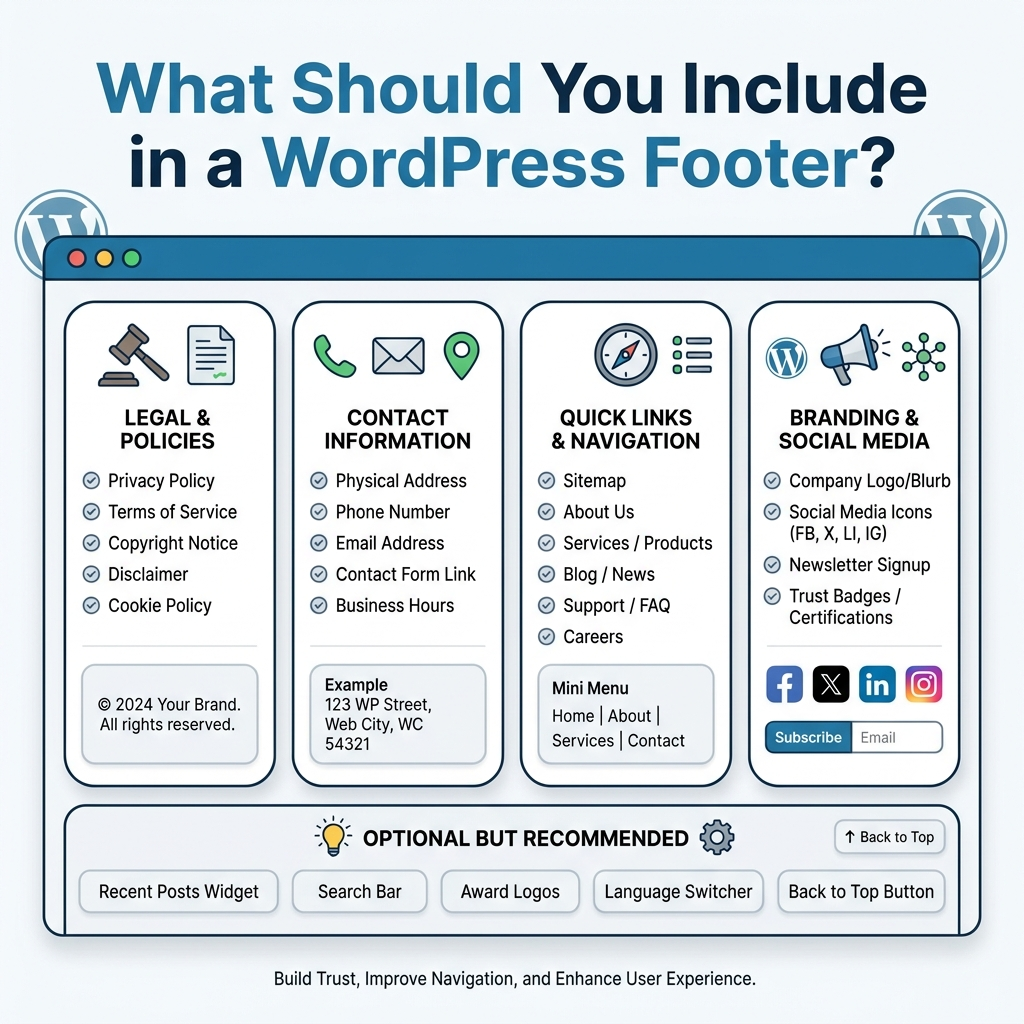
ก่อนที่จะเรียนรู้วิธีแก้ไขส่วนท้ายเว็บไซต์ใน WordPress ให้ตัดสินใจก่อนว่าส่วนท้ายเว็บไซต์ของคุณต้องการอะไร ส่วนท้ายเว็บไซต์ควรมีประโยชน์ แต่ไม่ควรทำให้ดูรก.
ข้อมูลการติดต่อ
หากเว็บไซต์ของคุณเป็นตัวแทนของธุรกิจ ควรใส่ข้อมูลติดต่อพื้นฐาน เช่น ที่อยู่อีเมล หมายเลขโทรศัพท์ ลิงก์ไปยังหน้าติดต่อ หรือที่อยู่สำนักงาน สำหรับธุรกิจในท้องถิ่น การเพิ่มรายละเอียดสถานที่ตั้งจะเป็นประโยชน์อย่างยิ่ง.
ลิงก์หน้าสำคัญ
เว็บไซต์ส่วนใหญ่จะมีลิงก์ในส่วนท้ายเว็บไซต์ไปยังหน้าต่างๆ เช่น เกี่ยวกับเรา ติดต่อเรา บริการ บล็อก คำถามที่พบบ่อย การจัดส่งสินค้า การคืนสินค้า นโยบายความเป็นส่วนตัว และข้อกำหนดในการให้บริการ ลิงก์เหล่านี้ช่วยให้ผู้เข้าชมสามารถไปยังส่วนต่างๆ ของเว็บไซต์ได้ง่ายขึ้น.
ประกาศลิขสิทธิ์
ข้อความลิขสิทธิ์มักพบได้ทั่วไปในส่วนท้ายของเว็บไซต์ โดยปกติจะระบุปีปัจจุบันและชื่อเว็บไซต์หรือชื่อธุรกิจของคุณ ตัวอย่างเช่น:
© 2026 ชื่อธุรกิจของคุณ สงวนลิขสิทธิ์ทุกประการ.
ไอคอนโซเชียลมีเดีย
ไอคอนโซเชียลมีเดียช่วยให้ผู้เข้าชมเชื่อมต่อกับแบรนด์ของคุณบนแพลตฟอร์มต่างๆ เช่น Instagram, Facebook, LinkedIn, YouTube, TikTok หรือ Pinterest ควรใช้สไตล์ไอคอนที่สอดคล้องกับการออกแบบเว็บไซต์ของคุณ.
สมัครรับจดหมายข่าว
หากคุณใช้การตลาดผ่านอีเมล ส่วนท้ายของเว็บไซต์เป็นที่ที่ดีในการเพิ่มแบบฟอร์มลงทะเบียนแบบง่ายๆ ควรทำให้แบบฟอร์มสั้นๆ โดยปกติแล้ว ช่องสำหรับใส่อีเมลและปุ่มเพียงปุ่มเดียวก็เพียงพอแล้ว.
ลิงก์ทางกฎหมาย
ลิงก์นโยบายความเป็นส่วนตัว ข้อกำหนดในการให้บริการ นโยบายคุกกี้ และคำชี้แจงเกี่ยวกับการเข้าถึง มักจะถูกวางไว้ในส่วนท้ายของเว็บไซต์ ลิงก์เหล่านี้มีความสำคัญอย่างยิ่งหากเว็บไซต์ของคุณเก็บรวบรวมข้อมูลผู้ใช้ จำหน่ายผลิตภัณฑ์ หรือใช้เครื่องมือวิเคราะห์ข้อมูล.
เวลาทำการและที่ตั้ง
ร้านอาหาร คลินิก ร้านค้า หน่วยงาน และธุรกิจบริการต่างๆ สามารถใช้ส่วนท้ายเว็บไซต์เพื่อแสดงเวลาทำการและที่ตั้งได้ นอกจากนี้ วิดเจ็ตแผนที่อาจมีประโยชน์ แต่ควรใช้ในกรณีที่ไม่ทำให้หน้าเว็บโหลดช้าลงมากเกินไป.
รีวิวหรือองค์ประกอบความน่าเชื่อถือ
บางเว็บไซต์เพิ่มคำรับรอง คะแนนรีวิว ใบรับรอง ไอคอนการชำระเงิน ตราสัญลักษณ์ความปลอดภัย หรือโลโก้พันธมิตรไว้ในส่วนท้ายของเว็บไซต์ สิ่งเหล่านี้สามารถเพิ่มความน่าเชื่อถือได้หากใช้อย่างเหมาะสม.
วิธีที่ 1: แก้ไขส่วนท้ายเว็บไซต์ผ่านตัวปรับแต่งของ WordPress
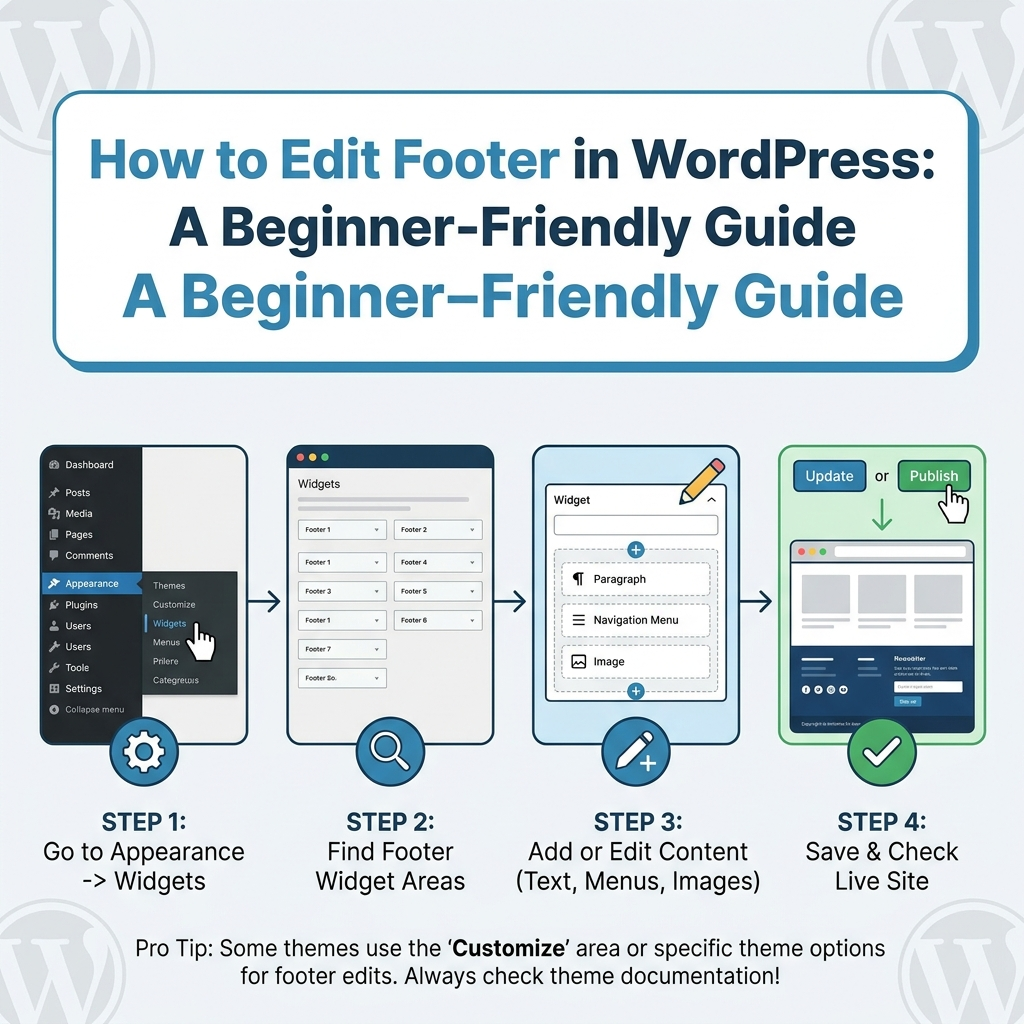
WordPress Customizer เป็นหนึ่งในวิธีที่ง่ายที่สุดในการแก้ไขส่วนท้ายเว็บไซต์ วิธีนี้เหมาะสำหรับผู้เริ่มต้นและไม่จำเป็นต้องเขียนโค้ด.
ในการใช้งาน ให้ล็อกอินเข้าสู่แดชบอร์ด WordPress ของคุณ จากนั้นไปที่:
ลักษณะที่ปรากฏ > ปรับแต่ง
หลังจากนั้น ให้มองหาส่วนที่มีชื่อว่า Footer, Footer Builder, Widgets, Layout หรืออะไรทำนองนั้น ชื่อที่แน่นอนจะขึ้นอยู่กับธีม WordPress ของคุณ.
ธีมหลายๆ ธีมอนุญาตให้คุณแก้ไขคอลัมน์ส่วนท้าย สีพื้นหลัง ข้อความ เนื้อหาลิขสิทธิ์ ลิงก์เมนู และไอคอนโซเชียลได้จากพื้นที่นี้ บางธีมยังมีการแสดงตัวอย่างแบบเรียลไทม์ เพื่อให้คุณสามารถดูการเปลี่ยนแปลงก่อนที่จะเผยแพร่ได้อีกด้วย.
เมื่อแก้ไขเสร็จแล้ว ให้คลิก เผยแพร่ เพื่อบันทึกการเปลี่ยนแปลง.
วิธีนี้เหมาะที่สุดสำหรับผู้ใช้ที่ต้องการเปลี่ยนแปลงส่วนท้ายเว็บไซต์แบบง่ายๆ เช่น เปลี่ยนข้อความ ปรับสี เพิ่มลิงก์ หรือแก้ไขตัวเลือกเค้าโครงที่ธีมมีให้.
อย่างไรก็ตาม ไม่ใช่ทุกธีมที่จะมีตัวควบคุมส่วนท้ายเว็บไซต์เหมือนกัน บางธีมฟรีจะมีข้อจำกัดในการตั้งค่าส่วนท้ายเว็บไซต์ ในขณะที่ธีมแบบเสียเงินมักจะมีตัวเลือกมากกว่า หากคุณไม่พบการตั้งค่าส่วนท้ายเว็บไซต์ในตัวปรับแต่งธีม โปรดตรวจสอบเอกสารประกอบธีมของคุณ.
วิธีที่ 2: แก้ไขวิดเจ็ตส่วนท้ายใน WordPress
ธีม WordPress หลายธีมใช้พื้นที่วิดเจ็ตสำหรับส่วนท้ายเว็บไซต์ วิดเจ็ตคือบล็อกเนื้อหาขนาดเล็กที่คุณสามารถเพิ่ม ลบ หรือจัดเรียงใหม่ได้.
หากต้องการแก้ไขวิดเจ็ตส่วนท้าย ให้ไปที่:
ลักษณะที่ปรากฏ > วิดเจ็ต
คุณอาจเห็นส่วนท้ายเว็บไซต์ เช่น ส่วนท้ายคอลัมน์ 1, ส่วนท้ายคอลัมน์ 2, ส่วนท้ายคอลัมน์ 3 หรือส่วนท้ายแถบด้านข้าง เปิดส่วนท้ายเว็บไซต์ที่คุณต้องการแก้ไข จากนั้นคุณสามารถเพิ่มบล็อกต่างๆ เช่น ข้อความ รูปภาพ เมนู การค้นหา บทความล่าสุด หมวดหมู่ ไอคอนโซเชียล หรือโค้ด HTML ที่กำหนดเองได้.
วิธีนี้มีประโยชน์เมื่อคุณต้องการเพิ่มเนื้อหาที่เป็นประโยชน์โดยไม่ต้องเปลี่ยนแปลงการออกแบบส่วนท้ายโดยรวม ตัวอย่างเช่น คุณสามารถเพิ่มส่วน "เกี่ยวกับเรา" สั้นๆ ในคอลัมน์หนึ่ง เมนูในอีกคอลัมน์หนึ่ง และรายละเอียดการติดต่อในคอลัมน์ที่สามได้.
หลังจากแก้ไขเสร็จแล้ว ให้บันทึกหรืออัปเดตการเปลี่ยนแปลงของคุณ.
วิดเจ็ตส่วนท้ายมีความยืดหยุ่นสูง เพราะคุณสามารถจัดเรียงเนื้อหาใหม่ได้ง่าย นอกจากนี้ยังปลอดภัยกว่าการแก้ไขโค้ดธีม หากคุณทำผิดพลาด คุณสามารถลบหรือปรับแต่งวิดเจ็ตได้ง่ายๆ.
วิธีที่ 3: แก้ไขส่วนท้ายเว็บไซต์ด้วยโปรแกรมแก้ไขเว็บไซต์ของ WordPress
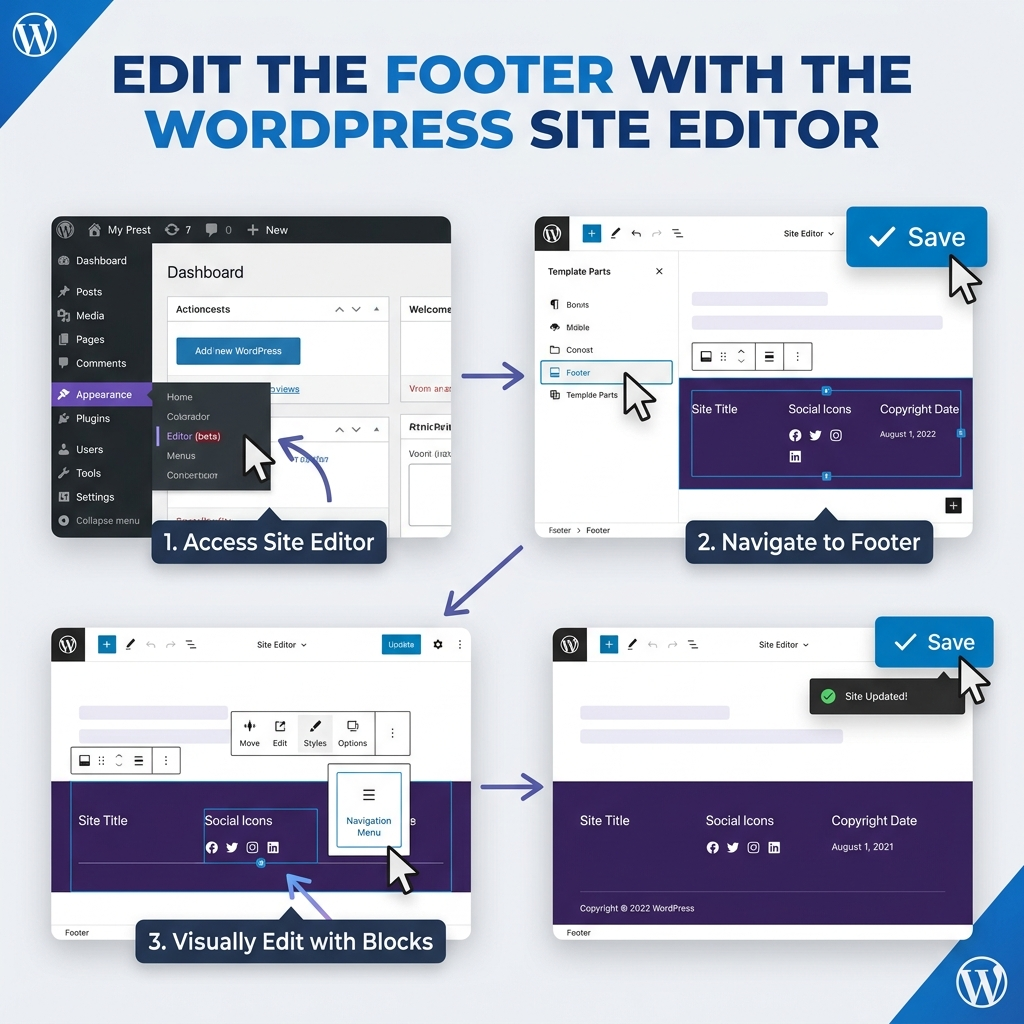
หากเว็บไซต์ของคุณใช้ธีมแบบบล็อก คุณสามารถแก้ไขส่วนท้ายเว็บไซต์ได้ผ่านทางตัวแก้ไขเว็บไซต์ของ WordPress ธีมแบบบล็อกเป็นธีม WordPress รุ่นใหม่กว่าที่ให้การแก้ไขเว็บไซต์อย่างเต็มรูปแบบ.
หากต้องการเข้าใช้งาน โปรดไปที่:
ลักษณะที่ปรากฏ > ตัวแก้ไข
จากนั้น ให้หาหัวข้อเทมเพลตส่วนท้ายเว็บไซต์ คุณอาจเห็นส่วนต่างๆ สำหรับเทมเพลต รูปแบบ ส่วนหัว และส่วนท้ายเว็บไซต์ เปิดส่วนท้ายเว็บไซต์และแก้ไขโดยใช้บล็อกของ WordPress.
คุณสามารถเพิ่มย่อหน้า หัวข้อ ปุ่ม คอลัมน์ เมนูนำทาง ไอคอนโซเชียล รูปภาพ และบล็อกอื่นๆ ได้ ซึ่งจะช่วยให้คุณควบคุมการแสดงผลได้มากกว่าระบบแบบวิดเจ็ตแบบเก่า.
ตัวแก้ไขเว็บไซต์มีประโยชน์สำหรับผู้ใช้ที่ต้องการสร้างส่วนท้ายเว็บไซต์แบบกำหนดเองโดยตรงภายใน WordPress โดยไม่ต้องใช้โปรแกรมสร้างหน้าเว็บจากภบุคคลที่สาม อย่างไรก็ตาม อาจรู้สึกไม่คุ้นเคยหากคุณเคยชินกับการใช้ธีมแบบคลาสสิก.
ก่อนทำการเปลี่ยนแปลงครั้งใหญ่ ควรลองทำซ้ำรูปแบบหรือทดสอบการเปลี่ยนแปลงอย่างระมัดระวัง โดยเฉพาะอย่างยิ่งหากส่วนท้ายเว็บไซต์ (footer) ปรากฏอยู่ทั่วทั้งเว็บไซต์.
วิธีที่ 4: ใช้โปรแกรมสร้างหน้าเว็บหรือโปรแกรมสร้างธีม
โปรแกรมสร้างเว็บไซต์ช่วยให้คุณมีอิสระในการออกแบบมากขึ้น โปรแกรมสร้างเว็บไซต์ยอดนิยม เช่น Elementor, Divi, Beaver Builder และเครื่องมือที่คล้ายกัน มักจะมีฟีเจอร์สร้างธีมรวมอยู่ด้วย ฟีเจอร์เหล่านี้ช่วยให้คุณสร้างส่วนท้ายเว็บไซต์แบบกำหนดเองและนำไปใช้ทั่วทั้งเว็บไซต์ได้.
ตัวอย่างเช่น ในโปรแกรมสร้างธีม คุณสามารถสร้างเทมเพลตส่วนท้ายเว็บไซต์แบบทั่วไปได้ จากนั้นคุณสามารถออกแบบโดยใช้การลากและวางองค์ประกอบต่างๆ คุณสามารถเพิ่มคอลัมน์ เมนู ปุ่ม ไอคอน แบบฟอร์ม โลโก้ รูปภาพ และระยะห่างที่กำหนดเองได้.
วิธีนี้เหมาะอย่างยิ่งหากคุณต้องการฟุตเตอร์ที่มีดีไซน์สวยงามและเข้ากับสไตล์แบรนด์ของคุณ คุณสามารถควบคุมรูปแบบตัวอักษร สีพื้นหลัง ระยะห่างภายใน การจัดวางบนมือถือ เอฟเฟกต์เมื่อวางเมาส์เหนือภาพ และการตอบสนองตามขนาดหน้าจอได้.
โปรแกรมสร้างธีมมีประโยชน์อย่างยิ่งสำหรับเว็บไซต์ธุรกิจ หน้า Landing Page ร้านค้าออนไลน์ และเว็บไซต์แบรนด์ที่ต้องการสไตล์ภาพที่ดูดีขึ้น.
ข้อเสียหลักคือฟีเจอร์บางอย่างของตัวสร้างธีมอาจต้องใช้ปลั๊กอินเวอร์ชันเสียเงิน นอกจากนี้ การใช้ส่วนประกอบของตัวสร้างธีมมากเกินไปอาจส่งผลต่อความเร็วในการโหลดหน้าเว็บหากการออกแบบไม่ได้รับการปรับให้เหมาะสม.
วิธีที่ 5: ใช้ปลั๊กอินสำหรับส่วนท้ายเว็บไซต์
หากธีมของคุณไม่มีตัวเลือกสำหรับส่วนท้ายเว็บไซต์มากพอ ปลั๊กอิน WordPress ก็สามารถช่วยได้ ปลั๊กอินบางตัวเน้นการสร้างส่วนหัวและส่วนท้ายเว็บไซต์ ในขณะที่บางตัวช่วยให้คุณแทรกสคริปต์ ไอคอนโซเชียล แผนที่ หรือโค้ดที่กำหนดเองได้.
หากต้องการติดตั้งปลั๊กอิน ให้ไปที่:
ปลั๊กอิน > เพิ่มใหม่
ค้นหาคำต่างๆ เช่น footer builder, header footer builder, footer code หรือ social icons ก่อนติดตั้งปลั๊กอิน ตรวจสอบรีวิว จำนวนการติดตั้ง ประวัติการอัปเดต และความเข้ากันได้กับเวอร์ชัน WordPress ของคุณ.
ปลั๊กอินส่วนท้ายเว็บไซต์ช่วยให้คุณเพิ่มฟีเจอร์ต่างๆ ได้โดยไม่ต้องแก้ไขไฟล์ธีม ตัวอย่างเช่น คุณอาจใช้ปลั๊กอินเพื่อแทรกสคริปต์วิเคราะห์ข้อมูล เพิ่มไอคอนโซเชียลมีเดีย แสดงแผนที่ หรือสร้างเค้าโครงส่วนท้ายเว็บไซต์แบบกำหนดเองได้.
อย่างไรก็ตาม ควรหลีกเลี่ยงการติดตั้งปลั๊กอินมากเกินไปสำหรับงานเล็กๆ น้อยๆ เพราะแต่ละปลั๊กอินอาจทำให้เว็บไซต์ของคุณมีขนาดใหญ่ขึ้น เลือกใช้เครื่องมือที่น่าเชื่อถือ และลบปลั๊กอินที่คุณไม่ได้ใช้งานแล้ว.
วิธีที่ 6: แก้ไขไฟล์ footer.php
ผู้ใช้ขั้นสูงสามารถแก้ไขส่วนท้ายเว็บไซต์ได้โดยตรงผ่านไฟล์ธีมที่ชื่อว่า footer.php วิธีนี้ให้การควบคุมที่มากขึ้น แต่ก็มีความเสี่ยงมากขึ้นเช่นกัน.
โดยปกติคุณสามารถค้นหาได้โดยไปที่:
ลักษณะที่ปรากฏ > ตัวแก้ไขไฟล์ธีม
จากนั้นให้มองหาไฟล์ footer.php ในไฟล์ธีมของคุณ.
ภายในไฟล์นี้ คุณอาจพบโค้ด HTML, PHP, ฟังก์ชัน WordPress และโค้ดเฉพาะธีม คุณสามารถแก้ไขโครงสร้างส่วนท้ายเว็บไซต์ เพิ่ม HTML แบบกำหนดเอง แทรกสคริปต์ หรือลบข้อความธีมที่ไม่ต้องการได้.
อย่างไรก็ตาม วิธีนี้ไม่แนะนำสำหรับผู้เริ่มต้น ความผิดพลาดเล็กน้อยอาจทำให้โครงสร้างเว็บไซต์ของคุณเสียหายหรือเกิดข้อผิดพลาดได้ นอกจากนี้ หากคุณแก้ไขธีมหลักโดยตรง การเปลี่ยนแปลงของคุณอาจหายไปเมื่อธีมได้รับการอัปเดต.
หากคุณต้องการแก้ไขไฟล์ footer.php ให้ใช้ธีมลูก (child theme) ธีมลูกจะช่วยปกป้องการเปลี่ยนแปลงที่คุณกำหนดเองจากการถูกเขียนทับระหว่างการอัปเดตธีม นอกจากนี้ คุณควรสำรองข้อมูลเว็บไซต์ของคุณก่อนแก้ไขไฟล์ธีมใดๆ ด้วย.
สำหรับผู้ใช้ส่วนใหญ่ วิธีการใช้ Customizer, วิดเจ็ต, ตัวแก้ไขเว็บไซต์, ตัวสร้างหน้าเว็บ หรือปลั๊กอินนั้นปลอดภัยกว่า.
วิธีลบข้อความ “Powered by WordPress” ออกจากส่วนท้ายของเว็บไซต์
ธีมหลายๆ ธีมจะแสดงข้อความแสดงเครดิตในส่วนท้ายเว็บไซต์โดยค่าเริ่มต้น เช่น “Powered by WordPress” หรือชื่อผู้พัฒนาธีม คุณสามารถลบหรือแก้ไขข้อความนี้ได้ผ่านทาง Customizer.
ไปที่:
ลักษณะที่ปรากฏ > ปรับแต่ง > ส่วนท้าย
มองหาตัวเลือกต่างๆ เช่น ข้อความแสดงเครดิตท้ายเว็บไซต์ ข้อความลิขสิทธิ์ แถบท้ายเว็บไซต์ หรือข้อมูลเว็บไซต์.
หากธีมของคุณอนุญาต ให้แทนที่ข้อความเริ่มต้นด้วยข้อความลิขสิทธิ์ของคุณเอง หากไม่มีตัวเลือกนี้ คุณอาจต้องใช้ธีมย่อย โค้ดที่กำหนดเอง หรือเอกสารประกอบธีม.
หลีกเลี่ยงการลบโค้ดที่ไม่เกี่ยวข้องออกจากไฟล์ธีม เว้นแต่คุณจะเข้าใจว่าโค้ดนั้นทำอะไร การใช้การตั้งค่าที่มีมาให้ในตัวจะปลอดภัยกว่าเสมอ.
วิธีทำให้ส่วนท้ายเว็บไซต์ WordPress ของคุณใช้งานได้ดีบนมือถือ
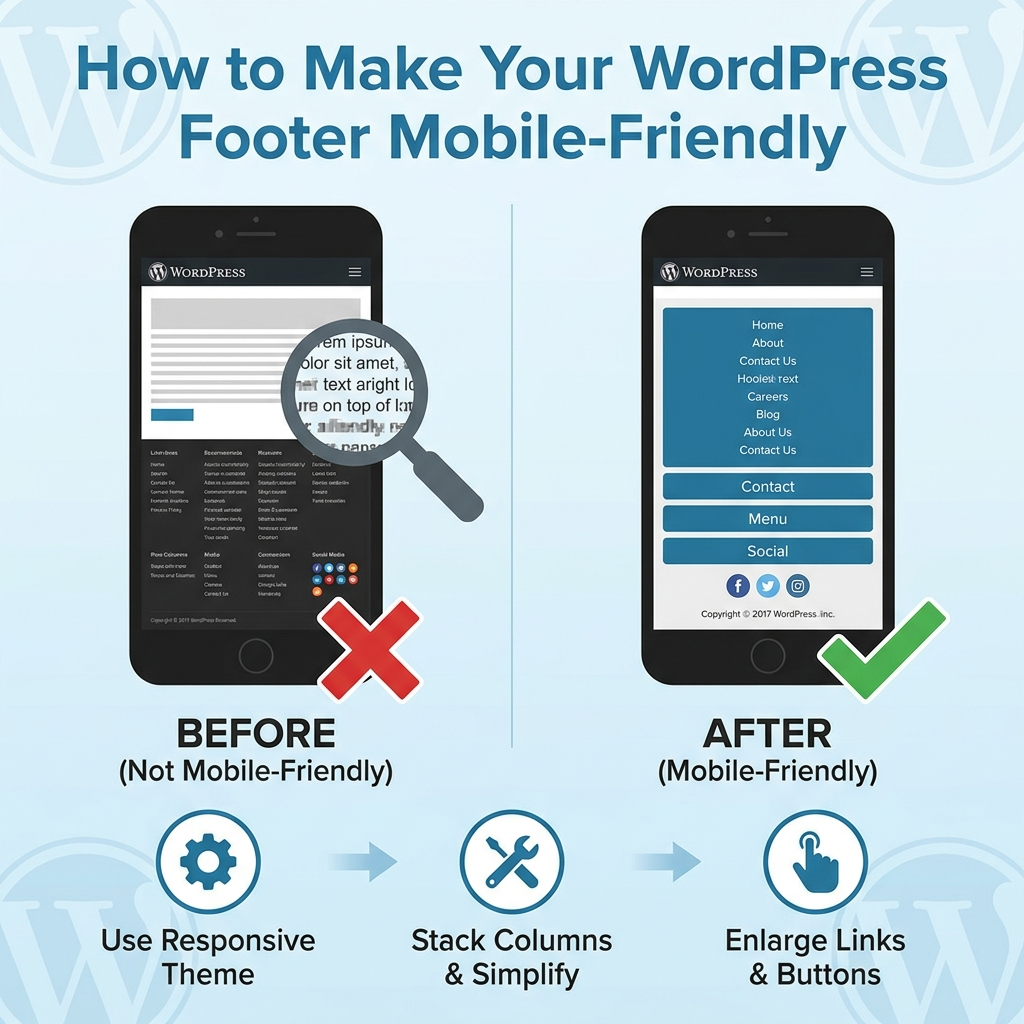
ส่วนท้ายเว็บไซต์อาจดูดีบนคอมพิวเตอร์ตั้งโต๊ะ แต่จะดูรกบนมือถือ เนื่องจากผู้เข้าชมเว็บไซต์จำนวนมากใช้โทรศัพท์มือถือ ดังนั้นส่วนท้ายเว็บไซต์ของคุณจึงควรอ่านง่ายบนหน้าจอขนาดเล็ก.
ลดจำนวนคอลัมน์ในส่วนท้ายเว็บไซต์บนมือถือ ส่วนท้ายเว็บไซต์บนเดสก์ท็อปที่มีสี่คอลัมน์อาจต้องปรับให้เหลือคอลัมน์เดียวบนมือถือ ควรใช้ข้อความสั้นๆ หลีกเลี่ยงแบบอักษรขนาดเล็ก และทำให้ลิงก์แตะได้ง่าย.
หากคุณใช้โปรแกรมสร้างหน้าเว็บ ให้ตรวจสอบตัวอย่างการแสดงผลแบบ Responsive สำหรับเดสก์ท็อป แท็บเล็ต และมือถือ ปรับระยะห่าง การจัดแนว ขนาดตัวอักษร และลำดับคอลัมน์ให้เหมาะสมกับขนาดหน้าจอแต่ละขนาด.
หากคุณใช้ Widget หรือ Site Editor โปรดดูตัวอย่างเว็บไซต์ของคุณบนโทรศัพท์จริง วิธีนี้จะช่วยให้คุณตรวจพบปัญหาที่อาจไม่ปรากฏในตัวอย่างบนเดสก์ท็อปได้.
แนวปฏิบัติที่ดีที่สุดในการออกแบบส่วนท้ายเว็บไซต์
ส่วนท้ายเว็บไซต์ที่ดีควรเรียบง่าย มีประโยชน์ และสอดคล้องกับสไตล์ของเว็บไซต์ของคุณ.
ใช้หัวข้อที่ชัดเจนสำหรับคอลัมน์ส่วนท้าย เช่น คุณสามารถใช้หัวข้อต่างๆ เช่น บริษัท, ฝ่ายสนับสนุน, แหล่งข้อมูล, ติดต่อเรา หรือ ติดตามเรา.
จัดระเบียบรายการลิงก์ อย่าเพิ่มทุกหน้าในเว็บไซต์ของคุณ เลือกเฉพาะหน้าที่ผู้ใช้มีแนวโน้มที่จะต้องการมากที่สุด.
เว้นระยะห่างให้เหมาะสม ส่วนท้ายเว็บไซต์ที่รกเกินไปจะดูไม่เป็นมืออาชีพและทำให้คลิกลิงก์ได้ยากขึ้น.
ใช้สีที่เข้ากันกับแบรนด์ของคุณ ส่วนท้ายเว็บไซต์สามารถใช้พื้นหลังสีเข้ม พื้นหลังสีอ่อน หรือสีแบรนด์ที่ดูไม่ฉูดฉาด แต่ควรให้ความรู้สึกเชื่อมโยงกับส่วนอื่นๆ ของเว็บไซต์ของคุณ.
โปรดอัปเดตปีลิขสิทธิ์ คุณสามารถอัปเดตด้วยตนเองหรือใช้โค้ดแบบไดนามิกหากธีมหรือตัวสร้างเว็บไซต์ของคุณรองรับ.
อย่าใส่ส่วนประกอบขนาดใหญ่เกินไปในส่วนท้ายเว็บไซต์ แผนที่ขนาดใหญ่ ฟีดโซเชียลมากเกินไป หรือสคริปต์จำนวนมากเกินไปอาจทำให้เว็บไซต์ของคุณช้าลง.
ข้อผิดพลาดทั่วไปในการเขียนส่วนท้ายเว็บไซต์ที่ควรหลีกเลี่ยง
ข้อผิดพลาดที่พบบ่อยอย่างหนึ่งคือการปล่อยให้ส่วนท้ายเว็บไซต์ (footer) ของธีมเริ่มต้นไม่เปลี่ยนแปลง ซึ่งอาจทำให้เว็บไซต์ของคุณดูไม่สมบูรณ์.
อีกข้อผิดพลาดหนึ่งคือการใส่ลิงก์มากเกินไป ส่วนท้ายเว็บไซต์ควรช่วยผู้ใช้ ไม่ใช่ทำให้พวกเขาสับสน.
บางเว็บไซต์ใช้ตัวอักษรขนาดเล็กมากในส่วนท้ายของเว็บไซต์ ซึ่งอาจดูสวยงาม แต่ก็อาจทำให้อ่านยากขึ้นได้.
อีกปัญหาหนึ่งคือการจัดวางเลย์เอาต์บนมือถือที่ไม่ดี หากคอลัมน์ส่วนท้ายไม่เรียงซ้อนกันอย่างเหมาะสม ผู้ใช้อาจต้องซูมหรือเลื่อนหน้าจออย่างไม่สะดวก.
คุณควรหลีกเลี่ยงการวางข้อความกระตุ้นการดำเนินการที่สำคัญไว้เฉพาะในส่วนท้ายของหน้าเว็บเท่านั้น ส่วนท้ายของหน้าเว็บมีประโยชน์ แต่ควรเป็นส่วนเสริมของหน้าเว็บ ไม่ใช่มาแทนที่เนื้อหาหลัก.
สุดท้ายนี้ โปรดระมัดระวังในการใช้โค้ดที่เขียนเอง สคริปต์ส่วนท้ายเว็บไซต์อาจส่งผลต่อการติดตาม ประสิทธิภาพ และรูปแบบการจัดวาง ควรเพิ่มเฉพาะโค้ดที่คุณเข้าใจหรือไว้วางใจเท่านั้น.
วิธีที่ดีที่สุดสำหรับผู้เริ่มต้น
สำหรับผู้เริ่มต้นส่วนใหญ่ วิธีที่ง่ายที่สุดคือการใช้ WordPress Customizer หรือวิดเจ็ตส่วนท้ายเว็บไซต์ ตัวเลือกเหล่านี้ปลอดภัย เรียบง่าย และไม่จำเป็นต้องเขียนโค้ด.
หากคุณต้องการควบคุมการออกแบบมากขึ้น ให้ใช้เครื่องมือสร้างหน้าเว็บหรือโปรแกรมแก้ไขเว็บไซต์แบบบล็อก เครื่องมือเหล่านี้ช่วยให้คุณสร้างส่วนท้ายเว็บไซต์ที่ปรับแต่งได้ตามต้องการมากขึ้นด้วยภาพ.
หากคุณต้องการแทรกสคริปต์ติดตามหรือโค้ดที่กำหนดเองเท่านั้น ให้ใช้ปลั๊กอินโค้ดส่วนหัวและส่วนท้ายที่มีความน่าเชื่อถือแทนการแก้ไขไฟล์ footer.php โดยตรง.
การแก้ไขไฟล์ footer.php ควรเป็นทางเลือกสุดท้าย เว้นแต่คุณจะมีความเชี่ยวชาญในการจัดการไฟล์ธีมของ WordPress.
บทสรุป
การเข้าใจวิธีการแก้ไขฟุตเตอร์ใน WordPress จะช่วยให้คุณสร้างเว็บไซต์ที่ดูเป็นมืออาชีพและใช้งานง่ายยิ่งขึ้น ฟุตเตอร์อาจอยู่ด้านล่างสุดของหน้าเว็บ แต่มีบทบาทสำคัญในการนำทาง ความน่าเชื่อถือ การสร้างแบรนด์ และประสบการณ์ของผู้ใช้.
คุณสามารถแก้ไขของคุณได้ วordpress สามารถปรับแต่งส่วนท้ายเว็บไซต์ได้หลายวิธี ผู้เริ่มต้นสามารถใช้ Customizer, วิดเจ็ต หรือ Site Editor ได้ ผู้ใช้ที่ต้องการควบคุมการออกแบบมากขึ้นสามารถใช้ Page Builder หรือปลั๊กอินสำหรับส่วนท้ายเว็บไซต์ได้ ผู้ใช้ขั้นสูงสามารถแก้ไขไฟล์ footer.php ได้ แต่ควรใช้ธีมลูกและสำรองข้อมูลเว็บไซต์ก่อน.
ส่วนท้ายเว็บไซต์ที่ดีควรมีข้อมูลที่เป็นประโยชน์ เช่น รายละเอียดการติดต่อ ลิงก์สำคัญ ข้อความลิขสิทธิ์ หน้ากฎหมาย ไอคอนโซเชียลมีเดีย และองค์ประกอบเพิ่มเติม เช่น แบบฟอร์มสมัครรับจดหมายข่าว หรือรายละเอียดสถานที่ตั้ง ควรออกแบบให้เรียบง่าย ใช้งานง่ายบนมือถือ และสอดคล้องกับส่วนอื่นๆ ของเว็บไซต์ของคุณ.
หากออกแบบได้ดี ส่วนท้ายเว็บไซต์ของคุณจะไม่ใช่แค่ส่วนปิดท้ายเท่านั้น แต่จะกลายเป็นคู่มือที่เป็นประโยชน์ซึ่งช่วยสนับสนุนผู้เข้าชมในทุกหน้าของเว็บไซต์ WordPress ของคุณ.
คำถามที่พบบ่อย
1: ฉันจะแก้ไขส่วนท้ายเว็บไซต์ (footer) ใน WordPress ได้อย่างไร?
คุณสามารถแก้ไขส่วนท้ายเว็บไซต์ (footer) ใน WordPress ได้ผ่านทาง Appearance > Customize, Appearance > Widgets หรือ Appearance > Editor ขึ้นอยู่กับธีมที่คุณใช้ ผู้ใช้บางรายยังสามารถแก้ไขส่วนท้ายเว็บไซต์โดยใช้โปรแกรมสร้างหน้าเว็บหรือปลั๊กอินสำหรับส่วนท้ายเว็บไซต์ได้อีกด้วย.
2. ฉันสามารถแก้ไขส่วนท้ายของเว็บไซต์ WordPress โดยไม่ต้องเขียนโค้ดได้หรือไม่?
ใช่แล้ว ธีม WordPress ส่วนใหญ่ช่วยให้คุณแก้ไขส่วนท้ายเว็บไซต์ได้โดยไม่ต้องเขียนโค้ด ผ่านทาง Customizer, วิดเจ็ต, ตัวแก้ไขบล็อก หรือตัวสร้างหน้าเว็บ วิธีเหล่านี้ปลอดภัยกว่าสำหรับผู้เริ่มต้นมากกว่าการแก้ไขไฟล์ธีม.
3. ฉันจะลบข้อความ “Powered by WordPress” ออกจากส่วนท้ายเว็บไซต์ได้อย่างไร?
ไปที่ Appearance > Customize แล้วมองหาการตั้งค่าส่วนท้าย, ลิขสิทธิ์ หรือข้อมูลเว็บไซต์ หากธีมของคุณรองรับ คุณสามารถแทนที่ข้อความแสดงเครดิตเริ่มต้นด้วยข้อความลิขสิทธิ์ของคุณเองได้.
4. ฉันควรใส่ข้อมูลอะไรลงในฟุตเตอร์ของ WordPress บ้าง?
ส่วนท้ายเว็บไซต์ WordPress ที่ดีมักประกอบด้วยข้อความลิขสิทธิ์ ข้อมูลติดต่อ ลิงก์ไปยังหน้าสำคัญ นโยบายความเป็นส่วนตัว ข้อกำหนดในการให้บริการ ไอคอนโซเชียลมีเดีย และบางครั้งอาจมีแบบฟอร์มสมัครรับจดหมายข่าวด้วย.
5. ฉันสามารถปรับแต่งส่วนท้ายเว็บไซต์ (footer) บนมือถือให้แตกต่างออกไปได้หรือไม่?
ใช่แล้ว ธีม WordPress และโปรแกรมสร้างหน้าเว็บหลายๆ ตัวอนุญาตให้คุณปรับแต่งเค้าโครงส่วนท้ายเว็บไซต์ ระยะห่าง ขนาดตัวอักษร และลำดับคอลัมน์สำหรับอุปกรณ์มือถือได้ ควรดูตัวอย่างส่วนท้ายเว็บไซต์บนเดสก์ท็อป แท็บเล็ต และมือถือเสมอ.
6. การแก้ไขไฟล์ footer.php ปลอดภัยหรือไม่?
การแก้ไขไฟล์ footer.php นั้นทำได้ แต่เหมาะสำหรับผู้ใช้ขั้นสูงมากกว่า ควรใช้ธีมลูก (child theme) และสำรองข้อมูลเว็บไซต์ของคุณก่อนเสมอ เพราะข้อผิดพลาดเล็กน้อยในโค้ดอาจส่งผลต่อเค้าโครงหรือฟังก์ชันการทำงานของเว็บไซต์ของคุณได้.