











Aucun produit dans le panier.

If you’re planning to shut down a website, rebrand your business, or simply start fresh, understanding how to delete a WordPress website properly is extremely important. Many users assume that clicking “delete” inside WordPress is enough—but in reality, a WordPress site can still exist on servers, backups, search engines, and caches long after you think it’s gone.
This guide explains, in a clear and practical way, how to permanently remove a WordPress website from the internet so that it cannot be accessed, indexed, or restored unintentionally.
Before taking action, it’s important to understand that a WordPress website is not a single file. It is made up of multiple components:
So when you want to fully delete a WordPress website, you must remove all of these layers, not just one.
Even if you are sure you want to remove your site, always create a backup first.
You may need it later for:
You can back up your site using:
Once deleted, recovery becomes significantly harder or impossible.
There are two types of WordPress setups, and deletion methods differ:
This is hosted on your own server or hosting provider like Bluehost, SiteGround, etc.
You have full control over deletion.
This is hosted on WordPress’s platform.
Deletion requires account-level removal.
Understanding this distinction is critical before proceeding.
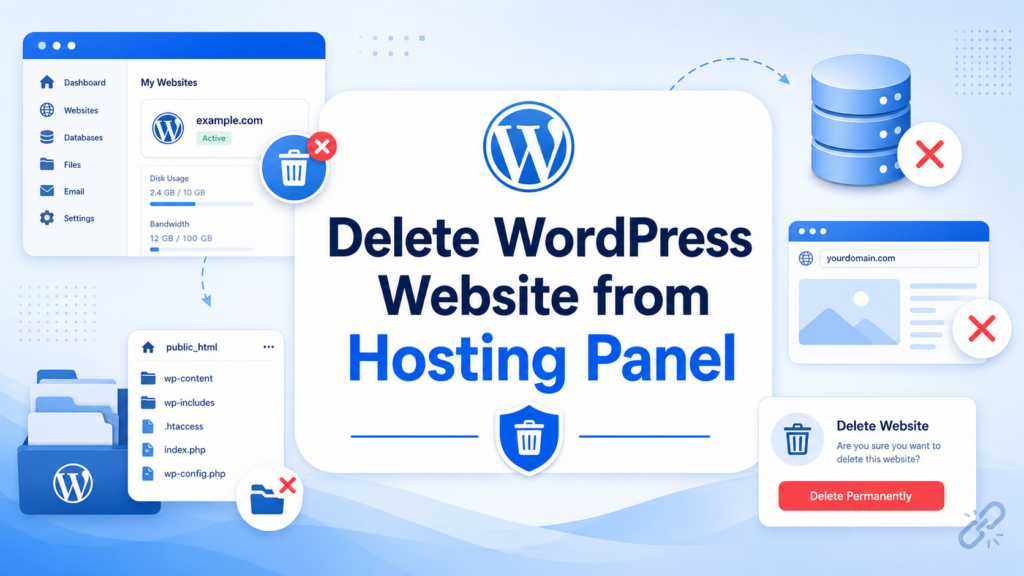
For most self-hosted websites, the cleanest method is through your hosting control panel.
public_html)This removes the core website structure from the server.
However, files alone are not enough—you must also remove the database.
The database contains all your website content.
To remove it:
Once this step is completed, your WordPress site becomes non-functional at its core.
Even after deleting files and database, your domain may still point somewhere.
To fully disconnect:
If you plan to abandon the domain entirely, you can also let it expire, but immediate removal is safer for full shutdown.
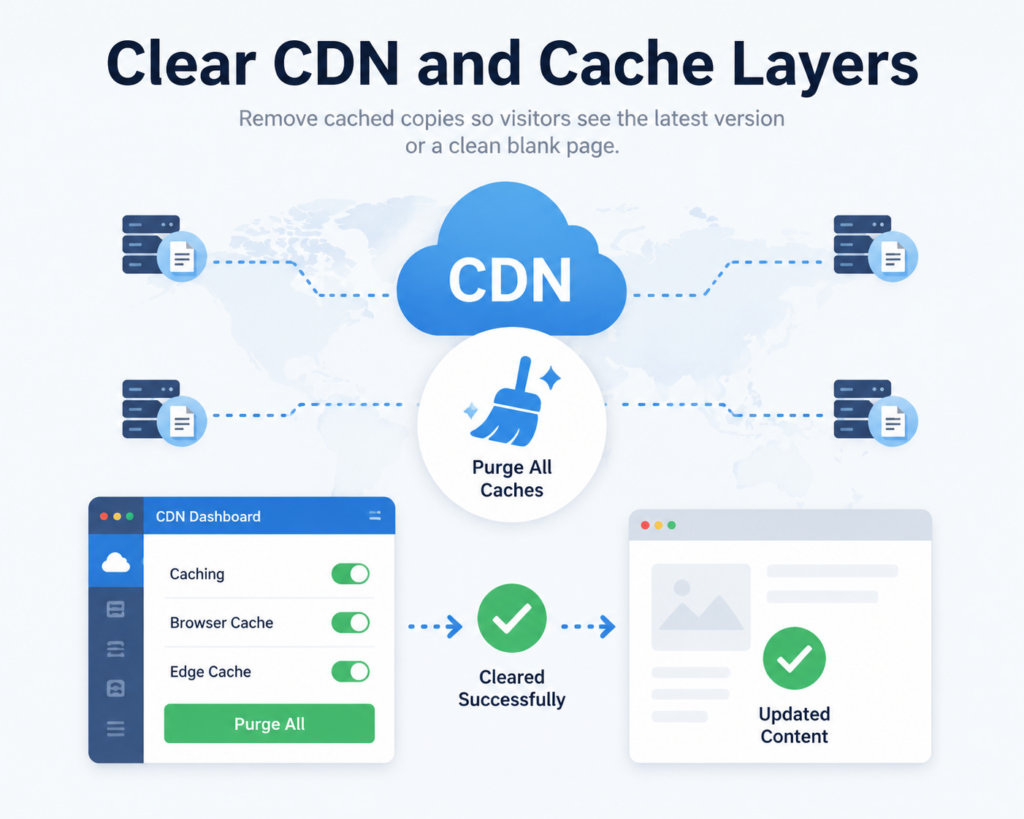
Many websites use CDN services like Cloudflare or hosting-level caching.
These may still display your site even after deletion.
To fix this:
Without this step, users might still see a cached version of your site temporarily.
Even after your website is deleted, Google may still show cached pages.
To fully remove it:
If your site returns 404 errors long enough, it will eventually disappear—but this can take weeks or months.
For faster results, Search Console is strongly recommended.
To ensure your deleted website is not re-indexed, you can:
noindex rule (before deletion if possible)robots.txtHowever, this only works if done before full deletion.
If your website is on WordPress.com, the process is slightly different:
WordPress.com may also allow you to “deactivate” or “hide” a site, but full deletion ensures permanent removal.
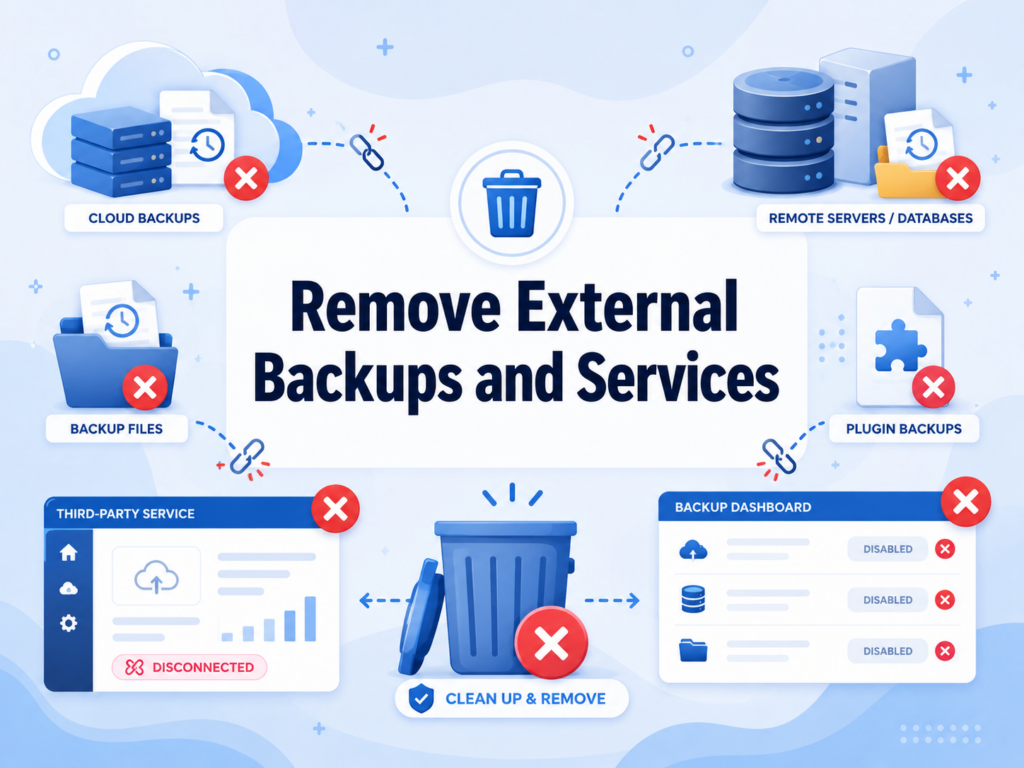
Many users forget this step.
Your website might still exist in:
Make sure to manually delete these copies if you want complete removal.
Some pages may still exist in public archives like:
You can request removal, but not all archived content can be instantly deleted.
This step is optional but useful for privacy-sensitive sites.
After completing all steps, verify:
You can also test using:
Many users make errors that leave traces of their site online:
This leaves backend data stored on the server.
Visitors still see live versions of the site.
Domain may still resolve to hosting IP.
Old versions can be restored unintentionally.
Pages remain visible in Google for weeks.
Avoiding these mistakes ensures complete removal.
Once properly deleted:
In most cases, within a few days to a few weeks, the website disappears completely from public access.
It depends on your actions:
This is why backups are strongly recommended before deletion.
Learning how to delete a WordPress website is not just about removing files—it is about fully clearing every layer that keeps a site alive online. From hosting servers and databases to search engines and cached copies, each part must be properly handled to ensure permanent removal.
When done correctly, your website will no longer be accessible, indexed, or recoverable, giving you a clean slate for future projects or complete digital closure.
1. Can I permanently delete a WordPress website?
Yes. You can permanently delete it by removing all website files, deleting the database, and disconnecting the domain from your hosting provider.
2. Will deleting WordPress from my hosting panel remove everything?
Not always. While it removes core files, you must also delete the database, backups, CDN cache, and domain DNS settings to fully erase the site.
3. How long does it take for a deleted WordPress site to disappear from Google?
It usually takes a few days to several weeks. You can speed it up by using Google Search Console to request URL removal.
4. Can I recover my WordPress website after deleting it?
Only if you have a backup from your hosting provider, plugin, or manual export. Without backups, recovery is usually not possible.
5. Do I need to delete my domain when removing a WordPress site?
No, but you should remove DNS records pointing to your hosting to ensure the website no longer loads online.
6. What is the most commonly forgotten step when deleting WordPress?
Most users forget to clear CDN caches and external backups, which can keep the website accessible even after deletion.


















