












การแนะนำ
If you’re planning to shut down a website, rebrand your business, or simply start fresh, understanding how to delete a WordPress website properly is extremely important. Many users assume that clicking “delete” inside WordPress is enough—but in reality, a วordpress site can still exist on servers, backups, search engines, and caches long after you think it’s gone.
This guide explains, in a clear and practical way, how to permanently remove a WordPress website from the internet so that it cannot be accessed, indexed, or restored unintentionally.
Understanding What “Deleting a WordPress Website” Really Means
Before taking action, it’s important to understand that a WordPress website is not a single file. It is made up of multiple components:
- Website files (themes, plugins, uploads)
- A database (posts, pages, users, settings)
- A hosting server environment
- Domain name records
- CDN copies (like Cloudflare caches)
- Search engine indexes (Google, Bing, etc.)
- External archives (like Wayback Machine)
So when you want to fully delete a WordPress website, you must remove all of these layers, not just one.
Step 1: Backup Your Website Before Deleting Anything
Even if you are sure you want to remove your site, always create a backup first.
You may need it later for:
- Rebuilding a new website
- Recovering lost content
- Legal or business reference
- Migrating to another platform
You can back up your site using:
- Hosting provider backup tools
- WordPress backup plugins
- Manual download via cPanel or FTP
Once deleted, recovery becomes significantly harder or impossible.
Step 2: Decide Your WordPress Type (Important)
There are two types of WordPress setups, and deletion methods differ:
1. Self-Hosted WordPress (WordPress.org)
This is hosted on your own server or hosting provider like Bluehost, SiteGround, etc.
You have full control over deletion.
2. WordPress.com Website
This is hosted on WordPress’s platform.
Deletion requires account-level removal.
Understanding this distinction is critical before proceeding.
Step 3: Delete WordPress Website from Hosting Panel
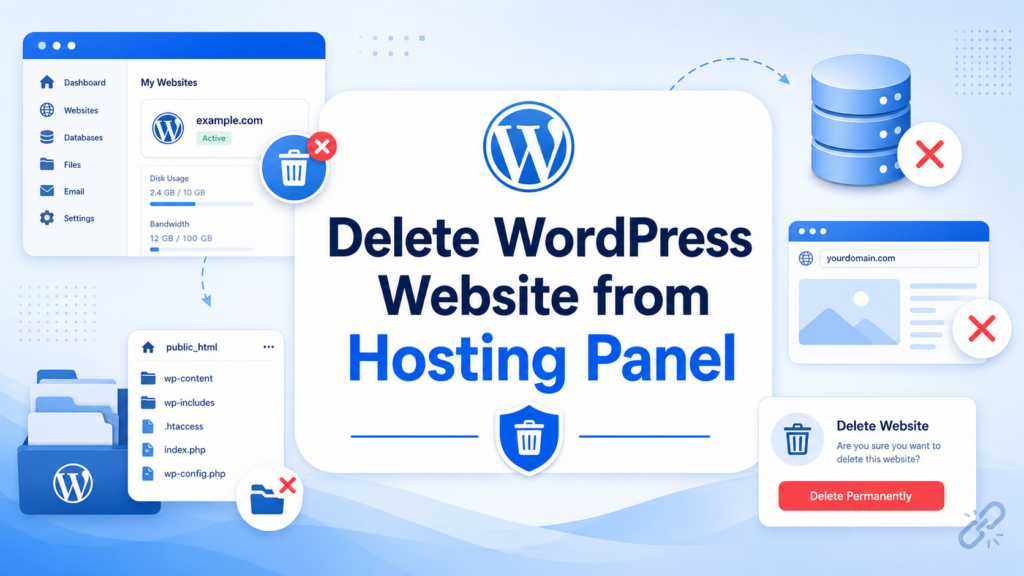
For most self-hosted websites, the cleanest method is through your hosting control panel.
Typical steps include:
- Log into your hosting account
- Open cPanel or hosting dashboard
- Locate File Manager
- Find your WordPress directory (often
public_html) - Delete all WordPress files:
- wp-admin
- เนื้อหา wp
- wp-รวม
- wp-config.php
This removes the core website structure from the server.
However, files alone are not enough—you must also remove the database.
Step 4: Delete the WordPress Database
The database contains all your website content.
To remove it:
- Go to your hosting control panel
- Open MySQL Databases
- Find the database connected to your WordPress site
- Delete the database
- Remove database user permissions
Once this step is completed, your WordPress site becomes non-functional at its core.
Step 5: Remove Domain Connection (DNS Settings)
Even after deleting files and database, your domain may still point somewhere.
To fully disconnect:
- Go to your domain registrar (GoDaddy, Namecheap, etc.)
- Remove or reset DNS records
- Delete A records and CNAME pointing to hosting
- Disable any parked domain settings
If you plan to abandon the domain entirely, you can also let it expire, but immediate removal is safer for full shutdown.
Step 6: Clear CDN and Cache Layers
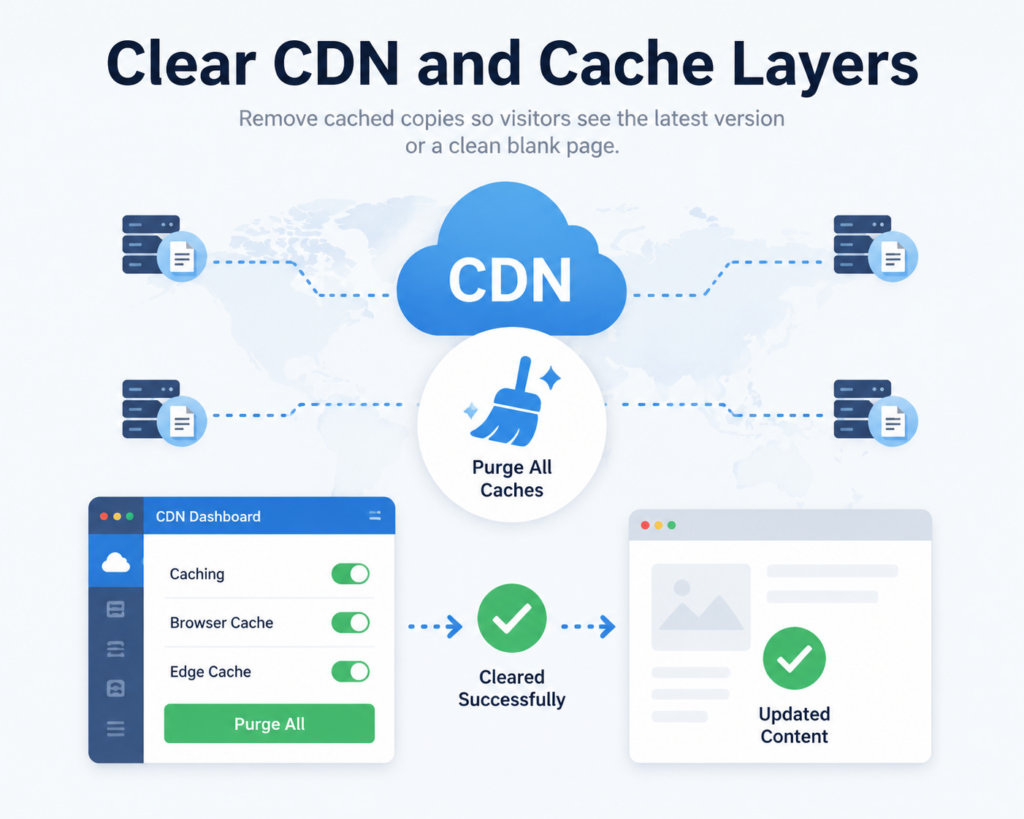
Many websites use CDN services like Cloudflare or hosting-level caching.
These may still display your site even after deletion.
To fix this:
- Purge all CDN cache
- Remove domain from CDN dashboard
- Disable caching rules
- Flush server cache (if available)
Without this step, users might still see a cached version of your site temporarily.
Step 7: Remove Website from Search Engines
Even after your website is deleted, Google may still show cached pages.
To fully remove it:
Option A: Google Search Console
- Verify your domain
- Go to Removals tool
- Request temporary removal of URLs
- Submit “Remove outdated content”
Option B: Let Google naturally deindex it
If your site returns 404 errors long enough, it will eventually disappear—but this can take weeks or months.
For faster results, Search Console is strongly recommended.
Step 8: Block Future Indexing (Optional but Recommended)
To ensure your deleted website is not re-indexed, you can:
- Add a
noindexrule (before deletion if possible) - Block robots via
robots.txt - Remove sitemap submissions
However, this only works if done before full deletion.
Step 9: Delete WordPress.com Site (If Applicable)
If your website is on WordPress.com, the process is slightly different:
- Log into WordPress.com dashboard
- Go to Settings
- Scroll to Delete Site
- Confirm permanent deletion
- Remove domain mapping if connected
WordPress.com may also allow you to “deactivate” or “hide” a site, but full deletion ensures permanent removal.
Step 10: Remove External Backups and Services
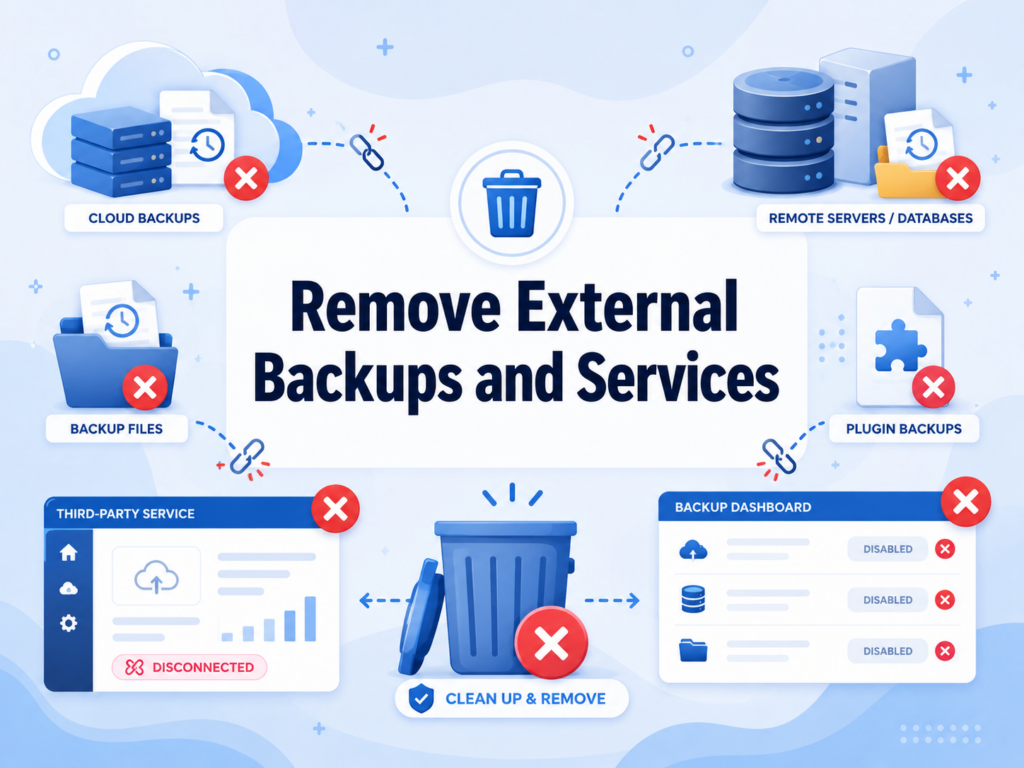
Many users forget this step.
Your website might still exist in:
- การโฮสต์สำรองข้อมูล
- Plugin backups (like UpdraftPlus)
- Email newsletters
- Google Drive or Dropbox backups
- Developer staging environments
Make sure to manually delete these copies if you want complete removal.
Step 11: Check Internet Archives (Optional)
Some pages may still exist in public archives like:
- Wayback Machine (archive.org)
You can request removal, but not all archived content can be instantly deleted.
This step is optional but useful for privacy-sensitive sites.
Step 12: Verify Your Website is Fully Deleted
After completing all steps, verify:
- Domain shows no active site
- Hosting returns error or blank page
- Database no longer exists
- Google search results disappear over time
- CDN shows no cached pages
You can also test using:
- Incognito browser mode
- Mobile network (not cached Wi-Fi)
- Online site checker tools
Common Mistakes When Deleting a WordPress Website
Many users make errors that leave traces of their site online:
1. Deleting files but not database
This leaves backend data stored on the server.
2. Forgetting CDN caches
Visitors still see live versions of the site.
3. Not removing domain DNS
Domain may still resolve to hosting IP.
4. Leaving backups active
Old versions can be restored unintentionally.
5. Ignoring search engine indexing
Pages remain visible in Google for weeks.
Avoiding these mistakes ensures complete removal.
What Happens After You Delete a WordPress Website?
Once properly deleted:
- The website becomes inaccessible
- All content is removed from hosting
- Database is destroyed
- Domain no longer points to content
- Search engines gradually remove results
- Cached versions expire
In most cases, within a few days to a few weeks, the website disappears completely from public access.
Can You Recover a Deleted WordPress Website?
It depends on your actions:
- If backups exist → yes, easily restored
- If hosting retains backups → possible recovery
- If everything is deleted permanently → usually not recoverable
This is why backups are strongly recommended before deletion.
ข้อคิดส่งท้าย
Learning how to delete a วordpress website is not just about removing files—it is about fully clearing every layer that keeps a site alive online. From hosting servers and databases to search engines and cached copies, each part must be properly handled to ensure permanent removal.
When done correctly, your website will no longer be accessible, indexed, or recoverable, giving you a clean slate for future projects or complete digital closure.
คำถามที่พบบ่อย
1. Can I permanently delete a WordPress website?
Yes. You can permanently delete it by removing all website files, deleting the database, and disconnecting the domain from your hosting provider.
2. Will deleting WordPress from my hosting panel remove everything?
Not always. While it removes core files, you must also delete the database, backups, CDN cache, and domain DNS settings to fully erase the site.
3. How long does it take for a deleted WordPress site to disappear from Google?
It usually takes a few days to several weeks. You can speed it up by using Google Search Console to request URL removal.
4. Can I recover my WordPress website after deleting it?
Only if you have a backup from your hosting provider, plugin, or manual export. Without backups, recovery is usually not possible.
5. Do I need to delete my domain when removing a WordPress site?
No, but you should remove DNS records pointing to your hosting to ensure the website no longer loads online.
6. What is the most commonly forgotten step when deleting WordPress?
Most users forget to clear CDN caches and external backups, which can keep the website accessible even after deletion.


ออกแบบและสร้างเว็บไซต์ WordPress หรือเว็บไซต์องค์กรพร้อมระบบอีคอมเมิร์ซครบวงจรสำหรับคุณ.
ช่วงราคา: $200.00 ถึง $2,500.00custom-requirements-or-special-quotations
ราคาเดิมคือ: $2.00.$1.00ราคาปัจจุบันคือ: $1.00. การใช้ปลั๊กอิน 50 ตัวมากเกินไปสำหรับร้านค้าออนไลน์ที่ใช้ WordPress หรือไม่?
การเข้าใจผลกระทบที่แท้จริงต่อประสิทธิภาพ การมีปลั๊กอิน 50 ตัวบนเว็บไซต์อีคอมเมิร์ซ WordPress ไม่ใช่ปัญหาโดยอัตโนมัติ จริงๆ แล้ว จำนวนเพียงอย่างเดียวแทบจะไม่สามารถกำหนดประสิทธิภาพได้....

ภาพหลักสำหรับการออกแบบอุปกรณ์กายภาพบำบัดที่บ้านของ Amazon (อธิบายรายละเอียด)
บทนำ: การสร้างภาพลักษณ์ที่น่าเชื่อถือสำหรับอุปกรณ์บำบัดที่บ้านบน Amazon เมื่อออกแบบภาพหลักสำหรับอุปกรณ์บำบัดที่บ้านบน Amazon สิ่งสำคัญอันดับแรกของเราคือ...

ภาพหลักสำหรับการแปลงลิปสติกเป็นสินค้าสำหรับ Amazon
บทนำ: การออกแบบภาพหลักลิปสติกที่ขายได้บน Amazon เมื่อเราออกแบบภาพหลักสำหรับลิปสติกบน Amazon ความรับผิดชอบของเราไม่ได้จำกัดอยู่แค่...

แฮกเกอร์ขโมยอีเมลผู้ดูแลระบบ WordPress ได้อย่างไร (และวิธีป้องกัน)
มาเริ่มกันด้วยความจริงที่ไม่น่าสบายใจ: อีเมลแอดมิน WordPress ของคุณอาจเปิดเผยต่อสาธารณะมากกว่าที่คุณคิด และแฮกเกอร์? พวกเขาชอบมาก สำหรับพวกเขา...

อะไรทำให้รองพื้นชนิดเหลวของ Amazon (ภาพหลัก) ขายดี?
บทนำ การออกแบบภาพหลักสำหรับรองพื้นชนิดเหลวบน Amazon ไม่ใช่แค่การทำให้ผลิตภัณฑ์ดูสวยงามเท่านั้น บน Amazon ภาพหลักและ...

การออกแบบภาพหลัก Amazon ที่มีประสิทธิภาพสำหรับตลับกรอง
บทนำ การออกแบบภาพหลักสำหรับ Amazon ไม่ใช่แค่การทำให้สินค้าดูน่าดึงดูดเท่านั้น แต่ยังเกี่ยวกับความชัดเจน ความน่าเชื่อถือ และความเข้าใจได้ในทันที โดยเฉพาะอย่างยิ่งสำหรับ...

การโจมตีแบบ Replay Attack บน WordPress: ภัยคุกคามจริงหรือแค่เรื่องที่ถูกพูดเกินจริง?
ก่อนอื่นขอชี้แจงให้ชัดเจนก่อน การโจมตีแบบ Replay Attack นั้นดูไม่น่ากลัว มันไม่ได้ทำลายรหัสผ่าน มันไม่ได้แทรกโค้ดที่เป็นอันตรายพร้อมข้อความแฮ็กเกอร์สีเขียวกระจัดกระจายไปทั่ว มันแนบเนียนกว่า...

วิธีคัดลอกหน้าเว็บ WordPress โดยไม่ทำให้ระบบเสียหาย
ยอมรับกันเถอะ บางครั้งคุณอาจไม่อยากสร้างหน้าเว็บใหม่ คุณแค่อยากได้หน้าเว็บเดิม...แต่แตกต่างไปเล็กน้อย รูปแบบเหมือนเดิม บล็อกเหมือนเดิม การตั้งค่าเหมือนเดิม เพราะ...

เปรียบเทียบธีม WordPress สำหรับสัตว์เลี้ยง 5 แบบ
บทนำ การเลือกธีม WordPress ที่เหมาะสมสำหรับธุรกิจเกี่ยวกับสัตว์เลี้ยงนั้นไม่ใช่แค่เรื่องของการออกแบบเท่านั้น แต่ยังส่งผลโดยตรงต่อการใช้งาน ความสามารถในการขยายขนาด และการเติบโตของธุรกิจในระยะยาว การดูแลสัตว์เลี้ยงและ...

เปรียบเทียบธีมอีคอมเมิร์ซชุดว่ายน้ำ 5 แบบ
บทนำ การเลือกธีมที่เหมาะสมสำหรับร้านค้าอิสระที่จำหน่ายชุดว่ายน้ำหรือชุดชั้นในนั้นไม่ใช่แค่การตัดสินใจด้านภาพลักษณ์เท่านั้น แต่ยังส่งผลโดยตรงต่ออัตราการเปลี่ยนลูกค้าให้เป็นผู้ซื้อ ความสามารถในการขยายธุรกิจ และความยั่งยืนในระยะยาว...

วิธีปิดการแสดงความคิดเห็นใน WordPress (โดยไม่ต้องเสียสติ)
มาพูดถึงระบบแสดงความคิดเห็นของ WordPress กันดีกว่า ในทางทฤษฎีแล้ว ความคิดเห็นนั้นยอดเยี่ยมมาก มันช่วยกระตุ้นการสนทนา สร้างชุมชน และทำให้เว็บไซต์ของคุณดูมีชีวิตชีวา แต่ในความเป็นจริงแล้ว มันมักจะเป็นเหมือนแม่เหล็กดึงดูด...

ข้อผิดพลาด WordPress 500: เมื่อเว็บไซต์ของคุณเกิดอาการผิดปกติ
เว็บไซต์ WordPress ของคุณยังใช้งานได้ปกติดีเมื่อสักครู่ คุณรีเฟรชหน้าเว็บ แล้วจู่ๆ ก็เกิดข้อผิดพลาด 500 Internal Server Error ขึ้นมา ไม่มีคำอธิบาย ไม่มีคำขอโทษ มีเพียงข้อความที่เย็นชาและสับสนซึ่งโดยพื้นฐานแล้ว...

การสร้างเว็บไซต์ WordPress ที่ปรับขนาดได้สำหรับแบรนด์ที่ขับเคลื่อนด้วยวิทยาศาสตร์: โครงการ AminoUSA
บทนำ ในยุคดิจิทัลปัจจุบัน เว็บไซต์เป็นมากกว่าแค่สถานที่สำหรับแสดงรายการสินค้า สำหรับแบรนด์ที่ขับเคลื่อนด้วยวิทยาศาสตร์ซึ่งดำเนินงานในอุตสาหกรรมที่มีการควบคุมหรือเน้นการวิจัย...

สร้างร้านค้า Shopify ที่ปรับขนาดได้สำหรับแบรนด์ใบมีดระดับโลก: โครงการ CoolKatana
บทนำ ในธุรกิจอีคอมเมิร์ซข้ามพรมแดน เว็บไซต์ Shopify เป็นมากกว่าแค่หน้าร้าน สำหรับแบรนด์ที่ดำเนินธุรกิจในกลุ่มเฉพาะหรือกลุ่มที่ขับเคลื่อนด้วยวัฒนธรรม เว็บไซต์ต้องทำมากกว่านั้น...

การออกแบบร้านค้า Shopify ที่มีอัตราการแปลงสูงสำหรับขายการ์ดโปเกมอน
บทนำ ในโลกของอีคอมเมิร์ซสินค้าสะสม โดยเฉพาะอย่างยิ่งในตลาดเกมการ์ดโปเกมอน (TCG) เว็บไซต์จะต้องทำมากกว่าแค่แสดงรายการสินค้า...

ดีไซน์ Shopify ที่เพิ่มยอดขายสำหรับแบรนด์อิฐสั่งทำพิเศษ
บทนำ ในสภาพแวดล้อมการแข่งขันอีคอมเมิร์ซในปัจจุบัน โดยเฉพาะอย่างยิ่งในตลาดของขวัญส่วนบุคคลและของสะสม เว็บไซต์ Shopify ต้องทำมากกว่าแค่แสดงสินค้า...

วิธีติดต่อฝ่ายสนับสนุนของ Shopify: คู่มือที่ง่ายและไม่ยุ่งยาก
การบริหารร้านค้า Shopify ควรเป็นเรื่องที่น่าตื่นเต้น ไม่ใช่เรื่องที่ทำให้สับสน เมื่อมีคำถามหรือปัญหาเกิดขึ้น Shopify มีช่องทางการสนับสนุนหลายช่องทาง ขึ้นอยู่กับสถานการณ์...

วิธีปิดใช้งานร้านค้า Shopify: คู่มือที่ชัดเจนและใช้งานได้จริง
การปิดใช้งานร้านค้า Shopify นั้นไม่ซับซ้อน แต่ก็มีผลกระทบหลายอย่างที่ผู้ขายหลายรายมองข้ามไป คู่มือนี้จะอธิบายขั้นตอนอย่างละเอียดและเข้าใจง่าย...