











لا توجد منتجات في سلة التسوق.

If you’ve ever asked yourself “how do you backup ووردبريس site”, you’re already thinking in the right direction. Backups are one of the most important parts of running a WordPress website, yet they are often ignored until something goes wrong. Whether it’s a plugin conflict, a hacking attempt, a server crash, or a simple human mistake, losing your website data can happen unexpectedly.
This guide explains WordPress backups in a clear, practical way so beginners can understand exactly how they work, why they matter, and how to set them up correctly without technical confusion.
A WordPress website is made up of multiple moving parts—your database, themes, plugins, media files, and custom settings. If any of these components are lost or damaged, your entire site can break or disappear.
When people search how do you backup WordPress site, they are usually reacting to one of these risks:
Without a backup, recovery can be expensive, time-consuming, or even impossible. With a backup, restoring your site can take just a few minutes.
Think of backups as an insurance policy for your website. You hope you never need them—but when you do, they become invaluable.
Before learning how to backup a site, it’s important to understand what you are actually saving.
A complete WordPress backup usually includes two key parts:
These include:
Your database contains all dynamic content, such as:
When people ask how do you backup WordPress site, the correct answer is always: you must back up both files and database together. Missing one part means your backup is incomplete.
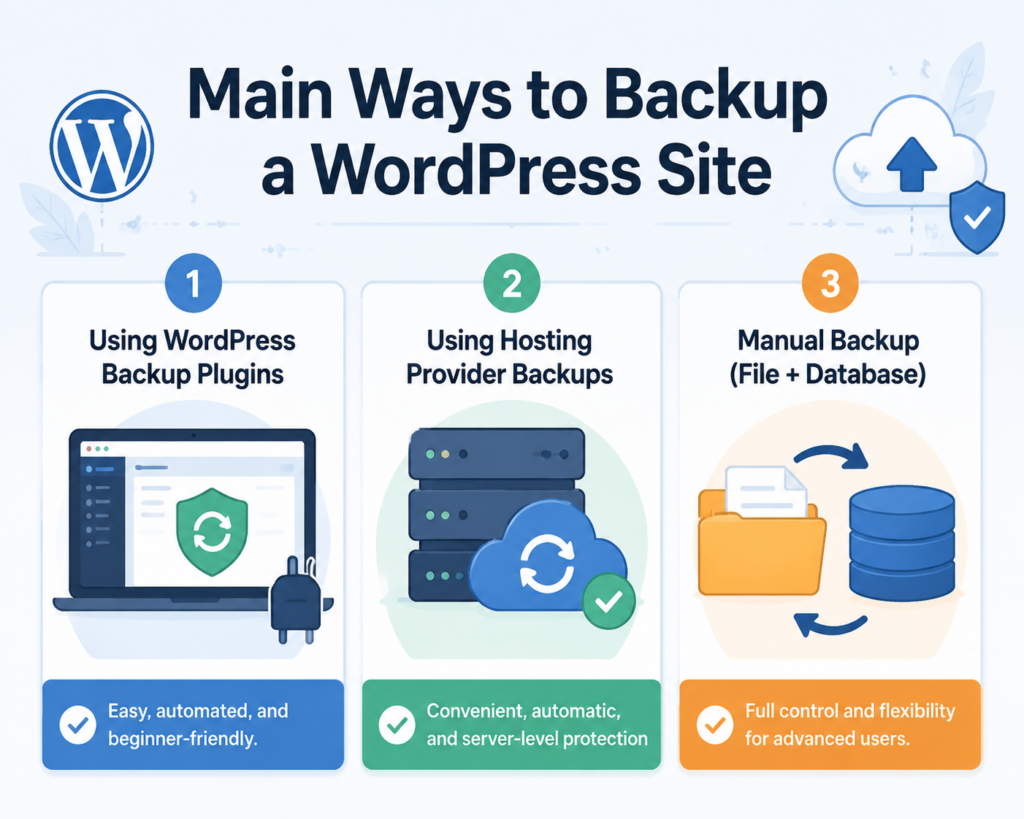
There is no single method to back up WordPress. Instead, there are several reliable approaches depending on your experience level and hosting setup.
The three most common methods are:
Each method has advantages depending on how much control or automation you want.
For most beginners searching how do you backup WordPress site, plugins are the simplest solution.
Backup plugins automate the entire process. You can schedule backups, store them remotely, and restore your site with just a click.
Most plugins follow this simple workflow:
Still, for most website owners, plugins are the best answer to how do you backup WordPress site without technical complexity.
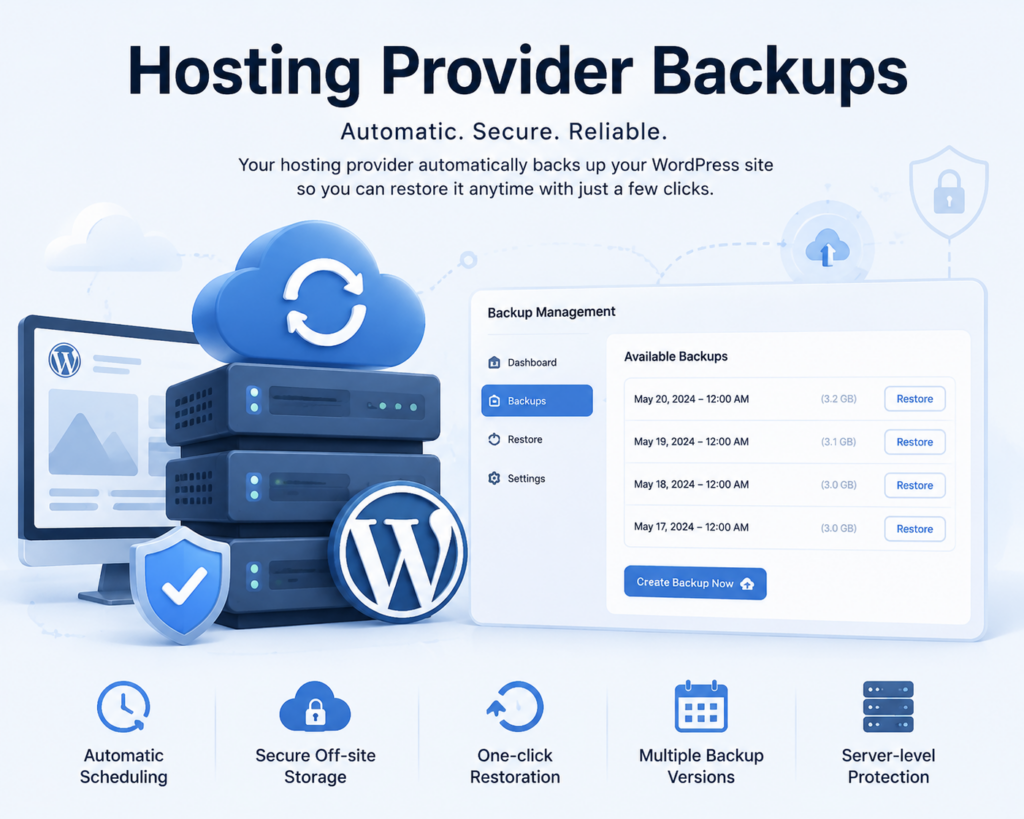
Many modern hosting providers now include built-in backup systems. These are often automatic and require almost no setup.
Your hosting provider automatically copies your entire website at scheduled intervals. If something goes wrong, you can restore a previous version directly from your hosting dashboard.
If you’re asking how do you backup WordPress site with minimal effort, hosting backups are one of the most effortless solutions available.
Manual backups are the most technical method, but they give you full control over your website files and database.
This method is useful for developers or advanced users who want direct access to every component.
You can access your files using:
خطوات:
Your database is usually managed through phpMyAdmin.
خطوات:
Never store backups only on your server. Instead, use:
Even though manual backups are powerful, they are not ideal for beginners searching how do you backup WordPress site quickly and safely.
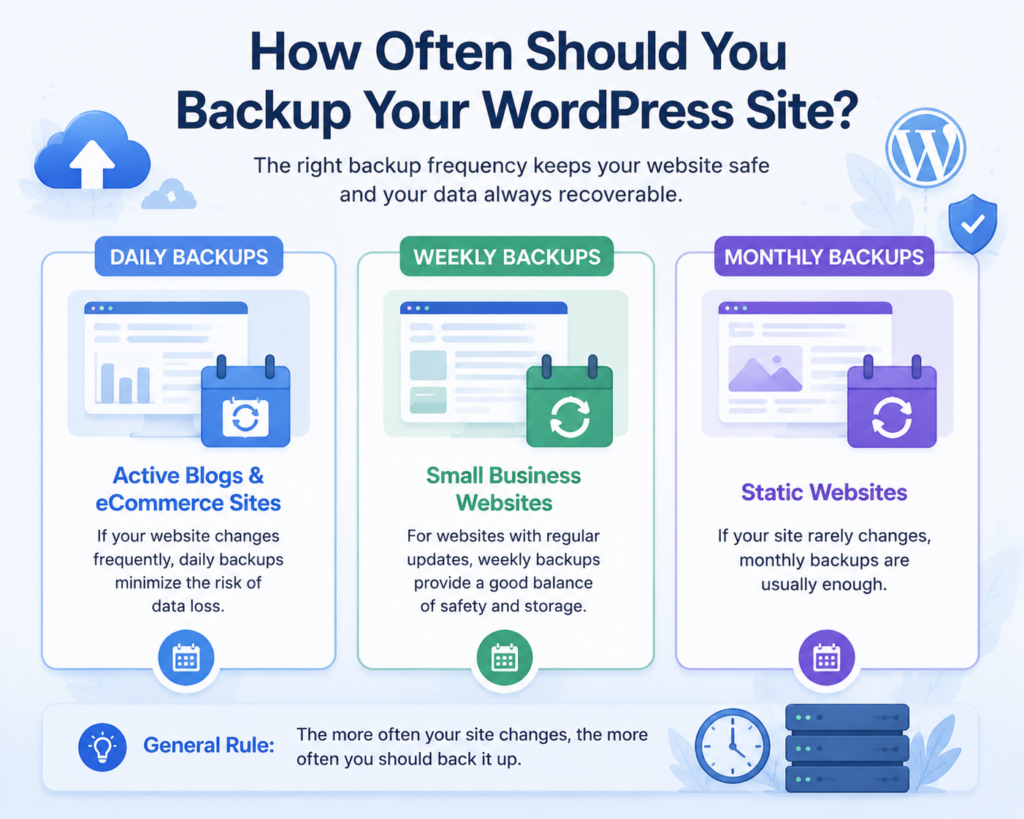
Backup frequency depends on how often your website changes.
Here’s a simple guide:
If you regularly update content, daily backups are strongly recommended.
A good rule is: the more often your site changes, the more often you should back it up.
To make your backup system reliable, follow these best practices:
Never rely on just one backup storage method. Combine:
Manual backups are easy to forget. Automation reduces risk.
Always store several backup versions in case recent changes are corrupted.
A backup is useless if it doesn’t restore properly. Always test recovery.
Backups contain sensitive data. Keep them secure and private.
Many users who search how do you backup WordPress site also make these common mistakes:
This results in incomplete restoration.
If the server fails, both site and backup are lost.
Manual backups are often forgotten.
Many users assume backups work without verifying.
If that file is corrupted, recovery becomes impossible.
Avoiding these mistakes ensures your backup strategy actually works when needed.
Knowing how to backup is important, but restoration is equally critical.
Restoration usually takes just a few minutes if backups are properly maintained.
Understanding how do you backup ووردبريس site is essential for every website owner, whether you run a blog, business site, or online store. Backups protect your content, your design, and your entire digital presence from unexpected failures or attacks.
The safest approach is to combine automated backups with off-site storage and occasional manual backups for extra security. Once your system is set up correctly, you can run your website with confidence knowing that no matter what happens, your data can always be recovered.
The easiest way is to use a WordPress backup plugin like UpdraftPlus or Jetpack. These tools allow you to automate backups and store them in cloud services like Google Drive or Dropbox.
Yes. You can manually back up your WordPress site by downloading your website files via FTP and exporting your database through phpMyAdmin. However, this method requires more technical knowledge.
It depends on your website activity. Active blogs or eCommerce sites should be backed up daily, while smaller sites can be backed up weekly or monthly.
It’s best to store backups in multiple locations such as cloud storage (Google Drive, Dropbox), external hard drives, or off-site servers. Avoid storing backups only on your hosting server.
Without backups, you risk losing your website data due to hacking, server crashes, plugin errors, or accidental deletion. Recovery may be difficult or impossible without a backup.
Yes. Most backup plugins and hosting providers offer one-click restore options. If you used a manual backup, you’ll need to re-upload files and import your database manually.


















