If you run a WordPress website, few messages are more alarming than this one:
“There has been a critical error on this website.”
For many site owners, especially beginners or non-technical business owners, this message feels vague, stressful, and disruptive. Your website suddenly stops working, visitors can’t access pages, and revenue or leads may be lost every minute the issue remains unresolved.
In this guide, we’ll break down what a WordPress critical error really means, why it happens, how to approach fixing it safely, and—most importantly—how to prevent it from happening again. This article is written in a clear, educational way, without diving deep into complex code, so you can understand the problem even if you’re not a developer.
What Is a WordPress Critical Error?
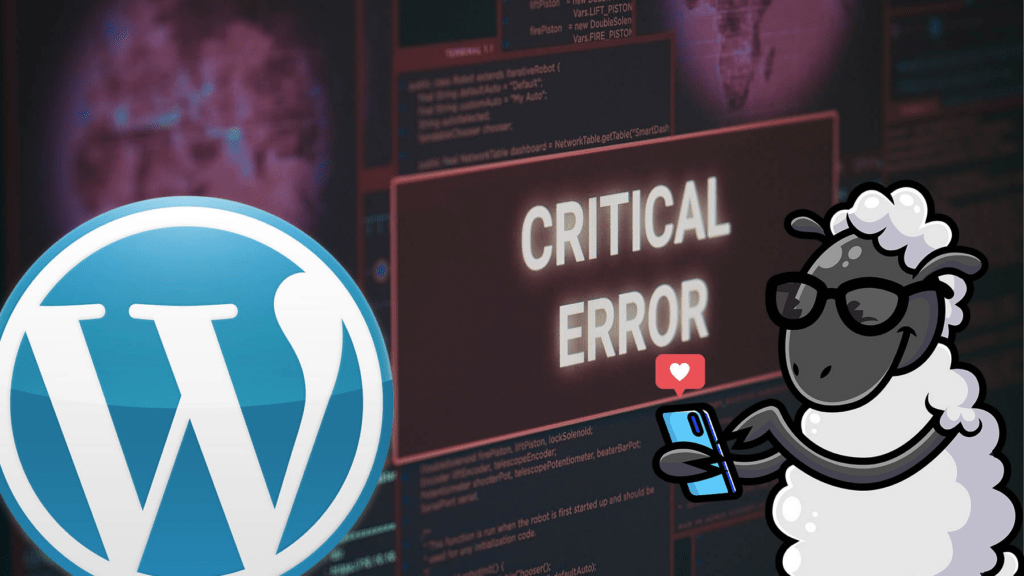
A WordPress critical error is a system-level failure that prevents your site from loading properly. Instead of displaying your homepage or content, WordPress halts execution to protect the site from further damage.
This error usually appears after:
- A plugin or theme update
- A new plugin installation
- A PHP version change
- Server configuration changes
Rather than showing a detailed technical error (as older versions of WordPress did), newer versions display this simplified message for security and user experience reasons.
Why WordPress Shows a “Critical Error” Message
At its core, WordPress is a combination of:
- Core WordPress files
- Themes
- Plugins
- Server environment (PHP, memory, database)
When one of these components conflicts with another, WordPress may be unable to continue running safely. That’s when the critical error message appears.
Think of it as a circuit breaker. Instead of letting the site crash unpredictably, WordPress stops execution and alerts you that something went seriously wrong.
The Most Common Causes of WordPress Critical Errors
1. Plugin Conflicts
Plugins extend WordPress functionality, but not all plugins are created equally.
Common plugin-related issues include:
- Incompatible plugins running together
- Plugins not updated for the current WordPress version
- Poorly coded plugins consuming excessive memory
Even a single plugin update can trigger a WordPress critical error if it conflicts with your theme or server setup.
2. Theme Issues
Themes control how your website looks, but they also include functional code.
A critical error may occur when:
- A theme update introduces incompatible code
- The theme is not compatible with your PHP version
- A child theme references missing parent theme files
This is especially common with heavily customized themes or outdated premium themes.
3. PHP Version Incompatibility
Your server runs WordPress using PHP. If your hosting provider upgrades PHP automatically—or if you manually switch PHP versions—some themes or plugins may stop working.
For example:
- Older plugins may not support newer PHP versions
- Custom functions may rely on deprecated PHP features
This mismatch can instantly cause a WordPress critical error.
4. Exhausted Memory Limit
WordPress has memory limits defined at both the server and application level.
If your site:
- Uses many plugins
- Handles large images
- Runs heavy page builders
It may exceed its memory allocation, causing WordPress to crash and display a critical error.
5. Corrupted Core Files
Although rare, WordPress core files can become corrupted due to:
- Failed updates
- Interrupted file uploads
- Malware infections
When essential core files don’t load correctly, WordPress cannot function.
How WordPress Helps You Diagnose the Error
Modern versions of WordPress include a built-in recovery feature.
If your site encounters a critical error, WordPress often sends an automatic email to the site administrator. This email may include:
- The plugin or theme causing the issue
- A special recovery mode login link
- Basic guidance on how to fix the problem
This recovery mode allows you to log in to the admin panel safely and disable the problematic component.
A Safe, Step-by-Step Way to Approach Fixing a WordPress Critical Error
Important: Always back up your site before making changes.
Step 1: Check the Recovery Email
Look for an email from WordPress with the subject related to a critical error. If available, follow the recovery link to access your dashboard.
Step 2: Disable Recently Changed Plugins
If the error happened after:
- Installing a new plugin
- Updating existing plugins
Disable those plugins first. In many cases, the site will immediately return to normal.
Step 3: Switch to a Default Theme
If plugins aren’t the issue, temporarily switch to a default WordPress theme. This helps determine whether your theme is causing the error.
Step 4: Review PHP Version Settings
Check your hosting control panel to see which PHP version your site is using. If the error appeared after a PHP upgrade, rolling back to a previous stable version often resolves the issue.
Step 5: Restore a Backup (If Needed)
If troubleshooting doesn’t resolve the issue quickly, restoring a recent backup is often the fastest way to get your site online again—especially for business-critical websites.
Why Beginners Often Struggle With WordPress Critical Errors
The biggest challenge is not the error itself—it’s uncertainty.
Many site owners ask:
- “Did I break my site permanently?”
- “Will Google penalize me?”
- “Do I need a developer now?”
The truth is: most WordPress critical errors are fixable and non-destructive, especially when handled correctly.
How to Prevent WordPress Critical Errors in the Future
1. Avoid Updating Everything at Once
Bulk updates increase risk. Update plugins and themes one at a time so you can identify issues immediately.
2. Use Reliable, Actively Maintained Plugins
Avoid plugins that:
- Haven’t been updated in a long time
- Have poor reviews
- Duplicate existing functionality
Quality matters more than quantity.
3. Maintain a Staging Environment
A staging site allows you to test updates safely before pushing them to your live website. This is especially important for business and eCommerce sites.
4. Keep Regular Backups
Daily or weekly backups give you peace of mind. If something goes wrong, recovery is fast and stress-free.
5. Match Hosting Environment to Your Website Needs
Not all hosting setups are equal. A stable PHP version, sufficient memory, and optimized server settings significantly reduce the risk of critical errors.
WordPress Critical Errors and Business Websites
For personal blogs, downtime is frustrating.
For business and cross-border websites, downtime is costly.
A critical error can:
- Interrupt ad campaigns
- Break checkout flows
- Damage user trust
- Affect SEO performance
That’s why prevention, structure, and clarity in website design matter just as much as fixing errors after they happen.
When You Should Ask for Professional Help
You should consider expert help if:
- Errors keep recurring
- Your site supports payments or lead generation
- You’re planning long-term growth or international traffic
A well-designed WordPress site is not just about visuals—it’s about stability, scalability, and clarity.
Final Thoughts: Turning Errors Into Better Websites
A WordPress critical error is not the end of your website. In many cases, it’s a signal that something in your setup needs attention—whether that’s plugins, themes, or overall structure.
Understanding the causes and prevention strategies puts you in control, even if you’re not technical.
How AIRSANG Can Help
At AIRSANG, we specialize in cross-border websites built with WordPress—designed not only to look good, but to run reliably across different markets and user environments.
We focus on:
- Clear, conversion-oriented website design
- Stable WordPress setups for global traffic
- Practical structure that minimizes errors and downtime
If you’re building, redesigning, or maintaining a WordPress site for international audiences—and want fewer surprises like critical errors—we’re happy to help guide you in the right direction.
Sometimes, the best fix isn’t just solving an error—it’s building a site that prevents it in the first place.