Giới thiệu
Backing up a WordPress website isn’t just a technical task—it’s a critical safety net for your entire online business. Whether you’re running an eCommerce store, a service-based website, or a content platform, data loss can happen at any time due to server issues, hacking, plugin conflicts, or human error.
If you’re hosting your website on IONOS, understanding how to properly back up your WordPress site becomes even more important—especially if you’re planning a migration, redesign, or performance upgrade.
In this guide, we’ll break down everything you need to know about how to backup WordPress site IONOS, using simple, practical explanations. Whether you’re a beginner or managing multiple sites, this article will give you a clear, structured approach to protect your data and ensure a smooth workflow.

Why Backing Up Your WordPress Site Matters
Before diving into the “how,” let’s first understand the “why.”
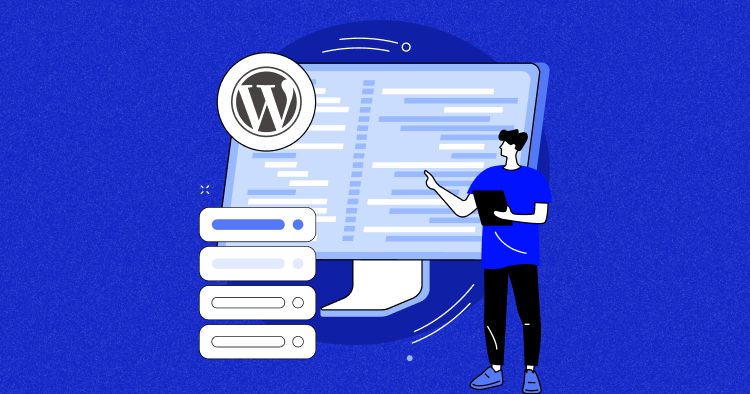
A WordPress website is made up of two core components:
- Files (themes, plugins, media uploads, core files)
- Database (posts, pages, user data, settings)
If either of these gets corrupted or lost, your site can break entirely.
Here are the most common scenarios where backups save you:
- Server crashes or hosting failures
- Malware or hacking attacks
- Plugin/theme conflicts after updates
- Accidental deletions or misconfigurations
- Website migration or redesign
Without a backup, recovery can be time-consuming—or impossible.
Understanding IONOS Hosting and Backup Options
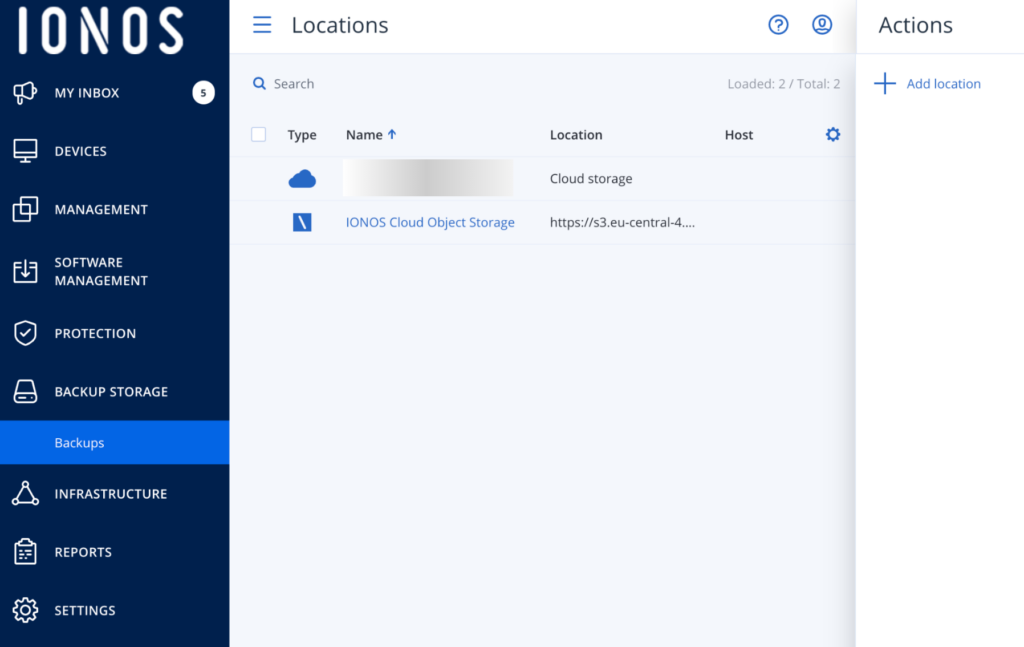
IONOS provides hosting infrastructure with built-in tools, but not all plans include automatic WordPress backups. That’s why you often need to create manual backups or use additional tools.
There are generally three ways to back up a WordPress site on IONOS:
- Manual backup (files + database)
- Backup via plugins
- Hosting-level backup (if available in your plan)
Let’s break each method down.
Method 1: Manual Backup via IONOS (Files + Database)
This is the most complete and reliable method, especially for migration or full-site recovery.
Step 1: Back Up Website Files
Your WordPress files are stored on your server. To download them:
- Log in to your IONOS account
- Access the File Manager or connect via FTP (e.g., FileZilla)
- Navigate to your WordPress root directory (usually
/htdocshoặc/public_html) - Download all files to your local computer
These files include:
- wp-content (themes, plugins, uploads)
- wp-config.php
- core WordPress files
👉 Tip: Always ensure the download is complete and not interrupted.
Step 2: Back Up the Database
Your database stores all dynamic content.
To export it:
- Go to your IONOS dashboard
- Open phpMyAdmin
- Select your WordPress database
- Click Export
- Choose “Quick” export (or “Custom” for advanced options)
- Download the SQL file
Tệp này chứa:
- Posts and pages
- User accounts
- Settings and configurations
When to Use Manual Backups
Manual backups are best when:
- Migrating your website to another host
- Performing major redesigns
- Creating a full snapshot before risky changes
Method 2: Using WordPress Backup Plugins
If you prefer automation, plugins are the easiest solution.
Popular backup plugins include:
- UpdraftPlus
- All-in-One WP Migration
- BackupBuddy
Cách thức hoạt động
Once installed:
- The plugin creates backups of your files and database
- You can store backups in cloud services (Google Drive, Dropbox, etc.)
- You can schedule automatic backups
Advantages
- Thân thiện với người mới bắt đầu
- No need for FTP or database access
- Quick restore options
Hạn chế
- Some features require paid versions
- Large websites may need server optimization
- Less control compared to manual backups
Method 3: IONOS Backup Features (If Available)
Some IONOS hosting plans include automatic backups.
These backups:
- Run daily or periodically
- Can be restored via the dashboard
- Are stored on the hosting server
However, there are limitations:
- Limited retention period
- May not include full WordPress customization
- Not always available on all plans
👉 Recommendation: Never rely on a single backup source. Always keep at least one external backup.
Best Practices for Backing Up WordPress on IONOS
To ensure your backups are reliable, follow these best practices:
1. Use Multiple Backup Methods
Combine:
- Plugin backups
- Manual backups
- Hosting backups
This creates redundancy.
2. Store Backups Offsite
Never store backups only on your server.
Sử dụng:
- Google Drive
- Dropbox
- External hard drives
This protects your data from server failure.
3. Schedule Regular Backups
Recommended frequency:
- Daily (for active eCommerce sites)
- Weekly (for smaller sites)
4. Test Your Backups
A backup is useless if it doesn’t work.
- Try restoring on a staging environment
- Verify files and database integrity
5. Keep Version History
Don’t overwrite old backups.
Maintain:
- Multiple versions
- Different restore points
How to Restore a WordPress Backup on IONOS
Backing up is only half the process—you also need to know how to restore.
Manual Restore Process
- Upload files via FTP
- Import database via phpMyAdmin
- Update wp-config.php (if needed)
- Check domain and URL settings
Plugin-Based Restore
Most plugins offer:
- One-click restore
- Automatic database replacement
- File synchronization
This is the easiest method for beginners.
WordPress Migration: Why Backup Is the First Step
If you’re planning to move your site (e.g., to improve speed or scalability), backups are essential.
Migration involves:
- Transferring files
- Moving databases
- Updating URLs and configurations
Without a proper backup:
- You risk downtime
- Data may be lost
- SEO rankings can drop
A complete backup ensures:
- Safe rollback
- Smooth transition
- Zero data loss
Những lỗi thường gặp cần tránh
Even experienced users make these mistakes:
❌ Relying Only on Hosting Backups
These can fail or be incomplete.
❌ Not Backing Up Before Updates
Plugin or theme updates can break your site.
❌ Ignoring Database Backups
Files alone are not enough.
❌ No Backup Testing
Unverified backups may not restore correctly.
Câu hỏi thường gặp
To manually back up your WordPress site on IONOS, download all website files via FTP or File Manager and export your database using phpMyAdmin. This ensures you have a complete copy of both files and content.
The easiest way is by using a backup plugin like UpdraftPlus or All-in-One WP Migration. These tools automate the process and allow you to store backups in cloud services like Google Drive.
Some IONOS hosting plans include automatic backups, but they may have limitations such as short retention periods. It’s recommended to use additional backup methods for full security.
For active websites, especially eCommerce stores, daily backups are recommended. For smaller or less frequently updated sites, weekly backups may be sufficient.
Advanced Tip: Backup Strategy for eCommerce Sites
If you’re running a Shopify-like WordPress setup (WooCommerce), backups are even more critical.
Why?
- Orders and customer data change frequently
- Losing data impacts revenue directly
Recommended setup:
- Daily automated backups
- Real-time database backups (if possible)
- Cloud storage integration
Phần kết luận
Understanding how to backup WordPress site IONOS is not just a technical skill—it’s a fundamental part of running a secure and scalable online business.
From manual backups to plugin automation and hosting-level solutions, each method plays a role in protecting your data. The key is to build a reliable system that combines multiple approaches, stores backups safely, and ensures you can restore your site anytime.
Need Help with Website Design or Migration?
If you’re planning to:
- Redesign your website
- Migrate to a faster hosting environment
- Improve conversion and user experience
This is exactly what we specialize in.
Tại AIRSANG, we focus on cross-border eCommerce website design and high-conversion page structures. From visual design to user journey optimization, we help brands build websites that not only look premium—but also perform.
If you need help with WordPress backups, migration, or full-site redesign, feel free to reach out.