












การแนะนำ
If you have ever reached the bottom of your website and asked, “How do I edit the footer in WordPress?” you are asking a very common วordpress question. The footer looks like a small part of the page, but it appears across many areas of a site and often holds important information that visitors expect to find quickly.
A WordPress footer may include a copyright line, contact details, policy links, social media icons, newsletter forms, navigation menus, business disclaimers, or a short brand introduction. It is also the place where many themes show default text such as “Powered by WordPress.” For a personal blog, that may be acceptable. For a business website, online store, or professional portfolio, you usually want the footer to match your own brand and guide visitors to the right next step.
The important thing to understand is that WordPress does not offer only one footer editing path. Your method depends on your theme type, editor, plugins, and whether you want to change the footer sitewide or only on one page. This guide explains the main options in a simple, educational way so you can choose the method that fits your website.
What Is the WordPress Footer?
The footer is the bottom section of a WordPress website. It usually appears after the main content and is repeated across posts, pages, product pages, archives, and other templates. Because it sits at the end of the page, many beginners ignore it. However, users often scroll there when they cannot find contact information, support links, policies, or secondary navigation in the header.
Think of the footer as a quiet information center. It does not need to repeat your full homepage, but it should help visitors complete common actions. A clean footer might include your logo, a short description, contact link, Privacy Policy, Terms of Service, FAQ, social links, sitemap, newsletter signup, and copyright notice.
A useful footer can also make the website feel more trustworthy. Outdated links, missing legal pages, or generic theme credits can make a site feel unfinished. A well-edited footer gives visitors confidence that the site is active, organized, and easier to use.
First, Check How Your Website Is Built
Before you edit anything, identify what controls your footer. If you use a modern block theme, you may see Appearance > Editor in the WordPress dashboard. In this setup, the footer is usually a template part. A template part is a reusable layout section, such as a header or footer, that can appear across multiple templates. When you update that footer template part, the change can apply to all pages using it.
If you use a classic theme, your dashboard may show Appearance > Customize, Appearance > Widgets, and Appearance > Menus. Classic themes often manage the footer through the Customizer, widget areas, menu locations, or theme options.
If your homepage or landing pages were built with a visual builder, the footer may be controlled inside that builder instead of the theme. This is common for sales pages, webinar pages, and campaign pages. Knowing your setup saves time because you will not waste effort searching in the wrong area.
Method 1: Edit the Footer With the Site Editor
For many newer WordPress sites, the Site Editor is the best place to start. Go to Appearance > Editor from your dashboard. Then look for Patterns, Template Parts, or a Footer area. The exact labels can vary depending on your WordPress version and active theme.
Open the footer template part and click into the design. You can usually edit text, update links, add blocks, remove blocks, change columns, adjust spacing, choose colors, and reorganize the layout visually. For example, you might add a Navigation block for footer links, a Social Icons block for profile links, a Paragraph block for a copyright notice, and a Columns block to organize several footer sections.
This method is powerful because it can update the footer across the whole site. Instead of changing every page manually, you edit the shared footer once. After saving, always preview the result on desktop, tablet, and mobile. Footer columns that look balanced on a wide screen can feel crowded on a phone, so mobile spacing matters.
Method 2: Use the Theme Customizer
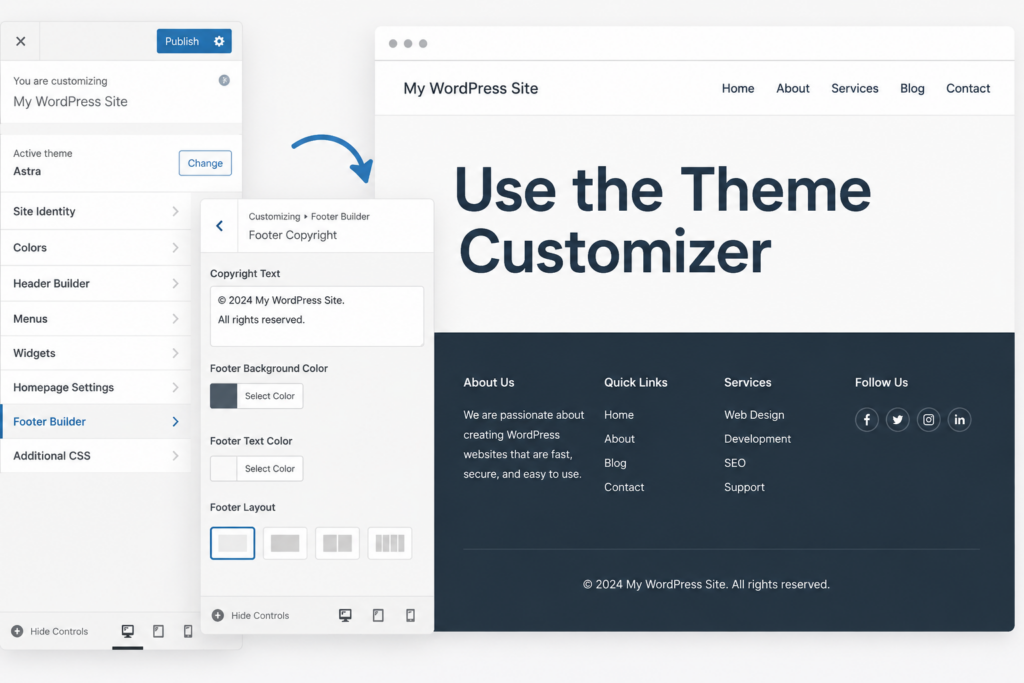
Many classic WordPress themes still use the Customizer for footer settings. Go to Appearance > Customize and look for sections such as Footer, Copyright, Footer Options, Layout, Theme Settings, or Additional CSS. Every theme is different, so the footer control may not always be named clearly.
The Customizer is useful for basic edits. You may be able to change the footer background color, adjust text color, select a column layout, edit copyright text, remove theme credits, or choose which menu appears in the footer. It also provides a preview, so you can see many changes before publishing them.
The main limitation is theme support. Some themes give you detailed footer controls, while others only provide a small copyright field. If your theme does not offer the setting you need, try widgets, menus, the Site Editor, or a page builder instead.
Method 3: Edit Footer Widgets
Footer widgets are common in classic themes. A footer widget area is a content container where you can add blocks or widgets without editing code. Depending on the theme, you may see one footer area, three footer columns, four footer columns, or several named footer sidebars.
Go to Appearance > Widgets and look for a section called Footer, Footer 1, Footer Column, or Footer Sidebar. Open the area and add the content you need. You can use blocks such as Paragraph, Heading, List, Navigation, Social Icons, Search, Latest Posts, or Custom HTML.
This method works well when you want to add helpful information without redesigning the entire footer. For example, one column can introduce your business, another can show important links, and another can list contact details. If your email marketing plugin includes a form block, you can also add a newsletter signup.
After saving, check the live page. Themes display widget areas differently, and too much text can make the footer look uneven. Keep each section short and easy to scan.
Method 4: Add or Change a Footer Menu
A footer menu is a simple way to organize important links that do not need to appear in the main navigation. Common footer menu links include About, Contact, Blog, FAQ, Shipping Policy, Refund Policy, Privacy Policy, Terms of Service, Accessibility, and Sitemap.
In a classic theme, go to Appearance > Menus. Create a new menu and name it something clear, such as Footer Menu. Add the pages, categories, posts, or custom links you want to show. Then save the menu and assign it to a footer location if your theme provides one.
If your theme does not have a footer menu location, you may still be able to display the menu through a footer widget area. Go to Appearance > Widgets, add a Navigation Menu or Navigation block, and choose the menu you created.
Keep the menu focused. A footer packed with too many links can feel messy. Use clear labels and group similar links together so visitors can understand the structure quickly.
Method 5: Edit a Footer on a Landing Page
Sometimes the question “how do i edit the footer in wordpress” applies to only one page. A landing page, sales page, coming soon page, or thank-you page may need a different footer from the rest of the website.
If the page was built with a visual page builder, open that page in the builder interface. Look for footer sections, saved sections, global sections, or page layout settings. Many builders allow you to drag in a predesigned footer section and customize the text, links, colors, columns, images, and mobile spacing.
Landing page footers should usually be simpler than full website footers. They often include a copyright line, privacy link, terms link, disclaimer, or trust badges. The goal is to support the campaign without distracting visitors from the main call to action.
Method 6: Remove or Edit “Powered by WordPress”
Many site owners want to remove the default WordPress or theme credit from the footer. The best approach is to use your theme’s built-in settings. Start with Appearance > Customize and search for Footer, Copyright, Footer Credits, or Theme Options. If the theme allows editing, replace the default text with your own copyright line.
A clean copyright line usually includes the copyright symbol, year, site or business name, and a short rights statement. This small change can make the site look more professional.
If the theme does not provide an option, some users hide the credit with Additional CSS. This may work visually, but it is better to use theme-supported settings when possible. Editing footer.php directly should be done carefully, preferably with a child theme, because changes to parent theme files can be overwritten during updates.
Method 7: Add Code to the Footer
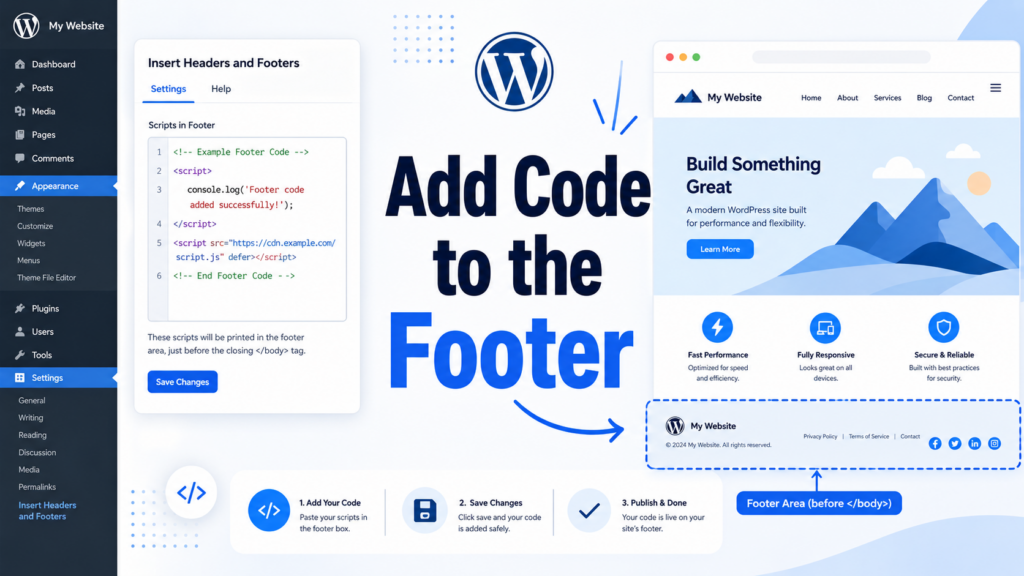
Not every footer edit is visible. Sometimes you need to add analytics code, a tracking pixel, live chat script, verification code, or another script near the bottom of your website.
For most beginners, the safest solution is a header-and-footer script plugin or code snippets plugin. These plugins give you a field where you can paste footer scripts without manually editing theme files. This keeps your code easier to manage and reduces the chance of breaking your layout.
Only add scripts from trusted services. Too many third-party scripts can slow down a site, and unknown code can create security or privacy concerns. After adding code, test your website and make sure pages still load correctly.
Method 8: Hide the Footer When Needed
In special cases, you may want to hide the footer. For example, a focused landing page or coming soon page may look cleaner without the full site footer. Before using CSS, check whether your theme or builder has a page-level option such as Disable Footer, Blank Canvas, Landing Page Layout, or Hide Theme Elements.
Hiding the footer with CSS can work, but it should be used carefully. Removing the footer can also remove useful navigation, legal links, contact details, and trust signals. In many cases, a minimal footer is better than no footer at all.
Best Practices for a Strong Footer
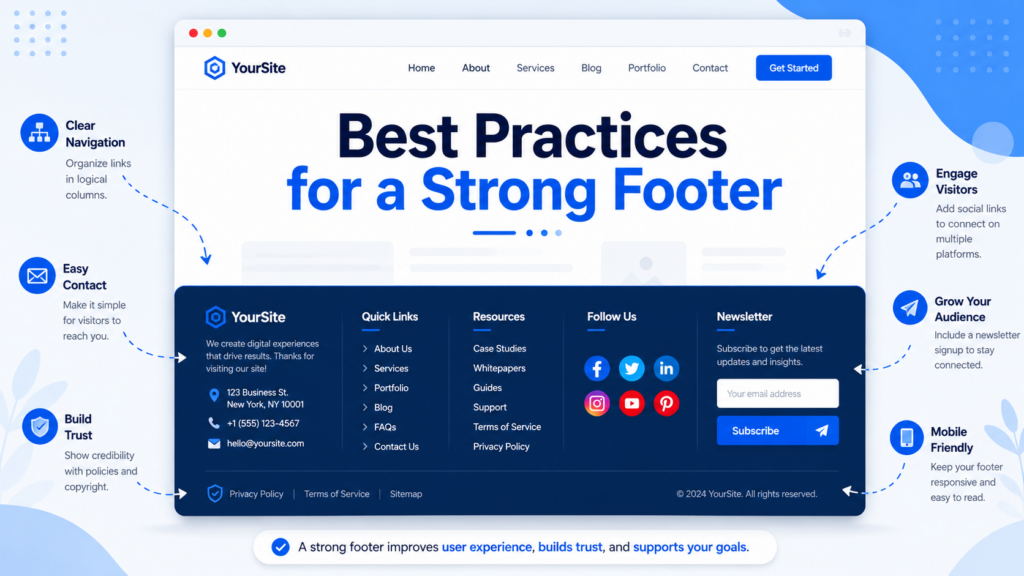
A good footer should be useful, simple, and consistent with the rest of the site. Start with the most important links. Most websites do not need dozens of footer links. Focus on pages that help users trust you, contact you, or continue browsing.
Keep text short. Use columns only when they improve clarity. Make sure the footer is easy to read on mobile devices. Avoid tiny text, low-contrast colors, and crowded link groups.
Also review your footer regularly. Update your copyright year, remove broken links, check contact details, and confirm that policy pages are still correct. Because the footer appears across the website, one outdated detail can be repeated everywhere.
Common Footer Problems
If you edit the footer but do not see the change, clear your browser cache and any caching plugin. Cached pages may show an older version of your site.
If you cannot find footer settings, your theme may not support that method. Check Appearance > Editor, Appearance > Customize, Appearance > Widgets, Appearance > Menus, and your builder settings.
If the footer looks broken on mobile, simplify the layout. Reduce columns, shorten menu labels, shrink large logos, and remove unnecessary text. A clean mobile footer is more useful than a crowded one.
สรุป
So, how do I edit the footer in วordpress? The answer depends on your setup. Block themes often use the Site Editor and footer template parts. Classic themes usually rely on the Customizer, widgets, menus, or theme options. Landing pages may use a separate builder. For credits, scripts, or hidden footers, use theme settings, safe plugin tools, or careful CSS.
The footer is more than a decorative ending. It supports navigation, branding, legal clarity, trust, and user experience. When you choose the right editing method and keep the content clean, your WordPress footer becomes a helpful part of the website instead of an ignored afterthought.
คำถามที่พบบ่อย
1. How do I edit the footer in WordPress?
You can edit the footer in WordPress through the Site Editor, Theme Customizer, Widgets, Menus, or a page builder, depending on your theme and website setup. Modern block themes usually use the Site Editor, while classic themes often use the Customizer or widget areas.
2. Where is the footer located in WordPress?
The footer is the bottom section of your WordPress website. It usually appears across pages, posts, archives, and other templates. You can often find its settings under Appearance > Editor, Appearance > Customize, Appearance > Widgets, or Appearance > Menus.
3. Can I remove “Powered by WordPress” from the footer?
Yes, many WordPress themes allow you to remove or replace “Powered by WordPress” through footer or copyright settings. If your theme does not offer this option, you may need to use a child theme, a plugin, or custom CSS carefully.
4. How do I add links to my WordPress footer?
You can add footer links by creating a footer menu under Appearance > Menus or by adding a Navigation block or widget to a footer widget area. Common footer links include About, Contact, Privacy Policy, Terms of Service, FAQ, and Blog.
5. Can I add custom code to the WordPress footer?
Yes, you can add custom code such as tracking scripts, analytics tags, or live chat scripts to the footer. The safest method for beginners is to use a trusted header-and-footer scripts plugin instead of editing theme files directly.
6. Why are my WordPress footer changes not showing?
Footer changes may not appear immediately because of browser cache, caching plugins, CDN cache, or theme-specific settings. Clear your cache, refresh the page, and make sure you saved or published the footer changes in the correct editor.


ออกแบบและสร้างเว็บไซต์ WordPress หรือเว็บไซต์องค์กรพร้อมระบบอีคอมเมิร์ซครบวงจรสำหรับคุณ.
ช่วงราคา: $200.00 ถึง $2,500.00custom-requirements-or-special-quotations
ราคาเดิมคือ: $2.00.$1.00ราคาปัจจุบันคือ: $1.00. การใช้ปลั๊กอิน 50 ตัวมากเกินไปสำหรับร้านค้าออนไลน์ที่ใช้ WordPress หรือไม่?
การเข้าใจผลกระทบที่แท้จริงต่อประสิทธิภาพ การมีปลั๊กอิน 50 ตัวบนเว็บไซต์อีคอมเมิร์ซ WordPress ไม่ใช่ปัญหาโดยอัตโนมัติ จริงๆ แล้ว จำนวนเพียงอย่างเดียวแทบจะไม่สามารถกำหนดประสิทธิภาพได้....

ภาพหลักสำหรับการออกแบบอุปกรณ์กายภาพบำบัดที่บ้านของ Amazon (อธิบายรายละเอียด)
บทนำ: การสร้างภาพลักษณ์ที่น่าเชื่อถือสำหรับอุปกรณ์บำบัดที่บ้านบน Amazon เมื่อออกแบบภาพหลักสำหรับอุปกรณ์บำบัดที่บ้านบน Amazon สิ่งสำคัญอันดับแรกของเราคือ...

ภาพหลักสำหรับการแปลงลิปสติกเป็นสินค้าสำหรับ Amazon
บทนำ: การออกแบบภาพหลักลิปสติกที่ขายได้บน Amazon เมื่อเราออกแบบภาพหลักสำหรับลิปสติกบน Amazon ความรับผิดชอบของเราไม่ได้จำกัดอยู่แค่...

แฮกเกอร์ขโมยอีเมลผู้ดูแลระบบ WordPress ได้อย่างไร (และวิธีป้องกัน)
มาเริ่มกันด้วยความจริงที่ไม่น่าสบายใจ: อีเมลแอดมิน WordPress ของคุณอาจเปิดเผยต่อสาธารณะมากกว่าที่คุณคิด และแฮกเกอร์? พวกเขาชอบมาก สำหรับพวกเขา...

อะไรทำให้รองพื้นชนิดเหลวของ Amazon (ภาพหลัก) ขายดี?
บทนำ การออกแบบภาพหลักสำหรับรองพื้นชนิดเหลวบน Amazon ไม่ใช่แค่การทำให้ผลิตภัณฑ์ดูสวยงามเท่านั้น บน Amazon ภาพหลักและ...

การออกแบบภาพหลัก Amazon ที่มีประสิทธิภาพสำหรับตลับกรอง
บทนำ การออกแบบภาพหลักสำหรับ Amazon ไม่ใช่แค่การทำให้สินค้าดูน่าดึงดูดเท่านั้น แต่ยังเกี่ยวกับความชัดเจน ความน่าเชื่อถือ และความเข้าใจได้ในทันที โดยเฉพาะอย่างยิ่งสำหรับ...

การโจมตีแบบ Replay Attack บน WordPress: ภัยคุกคามจริงหรือแค่เรื่องที่ถูกพูดเกินจริง?
ก่อนอื่นขอชี้แจงให้ชัดเจนก่อน การโจมตีแบบ Replay Attack นั้นดูไม่น่ากลัว มันไม่ได้ทำลายรหัสผ่าน มันไม่ได้แทรกโค้ดที่เป็นอันตรายพร้อมข้อความแฮ็กเกอร์สีเขียวกระจัดกระจายไปทั่ว มันแนบเนียนกว่า...

วิธีคัดลอกหน้าเว็บ WordPress โดยไม่ทำให้ระบบเสียหาย
ยอมรับกันเถอะ บางครั้งคุณอาจไม่อยากสร้างหน้าเว็บใหม่ คุณแค่อยากได้หน้าเว็บเดิม...แต่แตกต่างไปเล็กน้อย รูปแบบเหมือนเดิม บล็อกเหมือนเดิม การตั้งค่าเหมือนเดิม เพราะ...

เปรียบเทียบธีม WordPress สำหรับสัตว์เลี้ยง 5 แบบ
บทนำ การเลือกธีม WordPress ที่เหมาะสมสำหรับธุรกิจเกี่ยวกับสัตว์เลี้ยงนั้นไม่ใช่แค่เรื่องของการออกแบบเท่านั้น แต่ยังส่งผลโดยตรงต่อการใช้งาน ความสามารถในการขยายขนาด และการเติบโตของธุรกิจในระยะยาว การดูแลสัตว์เลี้ยงและ...

เปรียบเทียบธีมอีคอมเมิร์ซชุดว่ายน้ำ 5 แบบ
บทนำ การเลือกธีมที่เหมาะสมสำหรับร้านค้าอิสระที่จำหน่ายชุดว่ายน้ำหรือชุดชั้นในนั้นไม่ใช่แค่การตัดสินใจด้านภาพลักษณ์เท่านั้น แต่ยังส่งผลโดยตรงต่ออัตราการเปลี่ยนลูกค้าให้เป็นผู้ซื้อ ความสามารถในการขยายธุรกิจ และความยั่งยืนในระยะยาว...

วิธีปิดการแสดงความคิดเห็นใน WordPress (โดยไม่ต้องเสียสติ)
มาพูดถึงระบบแสดงความคิดเห็นของ WordPress กันดีกว่า ในทางทฤษฎีแล้ว ความคิดเห็นนั้นยอดเยี่ยมมาก มันช่วยกระตุ้นการสนทนา สร้างชุมชน และทำให้เว็บไซต์ของคุณดูมีชีวิตชีวา แต่ในความเป็นจริงแล้ว มันมักจะเป็นเหมือนแม่เหล็กดึงดูด...

ข้อผิดพลาด WordPress 500: เมื่อเว็บไซต์ของคุณเกิดอาการผิดปกติ
เว็บไซต์ WordPress ของคุณยังใช้งานได้ปกติดีเมื่อสักครู่ คุณรีเฟรชหน้าเว็บ แล้วจู่ๆ ก็เกิดข้อผิดพลาด 500 Internal Server Error ขึ้นมา ไม่มีคำอธิบาย ไม่มีคำขอโทษ มีเพียงข้อความที่เย็นชาและสับสนซึ่งโดยพื้นฐานแล้ว...

การสร้างเว็บไซต์ WordPress ที่ปรับขนาดได้สำหรับแบรนด์ที่ขับเคลื่อนด้วยวิทยาศาสตร์: โครงการ AminoUSA
บทนำ ในยุคดิจิทัลปัจจุบัน เว็บไซต์เป็นมากกว่าแค่สถานที่สำหรับแสดงรายการสินค้า สำหรับแบรนด์ที่ขับเคลื่อนด้วยวิทยาศาสตร์ซึ่งดำเนินงานในอุตสาหกรรมที่มีการควบคุมหรือเน้นการวิจัย...

สร้างร้านค้า Shopify ที่ปรับขนาดได้สำหรับแบรนด์ใบมีดระดับโลก: โครงการ CoolKatana
บทนำ ในธุรกิจอีคอมเมิร์ซข้ามพรมแดน เว็บไซต์ Shopify เป็นมากกว่าแค่หน้าร้าน สำหรับแบรนด์ที่ดำเนินธุรกิจในกลุ่มเฉพาะหรือกลุ่มที่ขับเคลื่อนด้วยวัฒนธรรม เว็บไซต์ต้องทำมากกว่านั้น...

การออกแบบร้านค้า Shopify ที่มีอัตราการแปลงสูงสำหรับขายการ์ดโปเกมอน
บทนำ ในโลกของอีคอมเมิร์ซสินค้าสะสม โดยเฉพาะอย่างยิ่งในตลาดเกมการ์ดโปเกมอน (TCG) เว็บไซต์จะต้องทำมากกว่าแค่แสดงรายการสินค้า...

ดีไซน์ Shopify ที่เพิ่มยอดขายสำหรับแบรนด์อิฐสั่งทำพิเศษ
บทนำ ในสภาพแวดล้อมการแข่งขันอีคอมเมิร์ซในปัจจุบัน โดยเฉพาะอย่างยิ่งในตลาดของขวัญส่วนบุคคลและของสะสม เว็บไซต์ Shopify ต้องทำมากกว่าแค่แสดงสินค้า...

วิธีติดต่อฝ่ายสนับสนุนของ Shopify: คู่มือที่ง่ายและไม่ยุ่งยาก
การบริหารร้านค้า Shopify ควรเป็นเรื่องที่น่าตื่นเต้น ไม่ใช่เรื่องที่ทำให้สับสน เมื่อมีคำถามหรือปัญหาเกิดขึ้น Shopify มีช่องทางการสนับสนุนหลายช่องทาง ขึ้นอยู่กับสถานการณ์...

วิธีปิดใช้งานร้านค้า Shopify: คู่มือที่ชัดเจนและใช้งานได้จริง
การปิดใช้งานร้านค้า Shopify นั้นไม่ซับซ้อน แต่ก็มีผลกระทบหลายอย่างที่ผู้ขายหลายรายมองข้ามไป คู่มือนี้จะอธิบายขั้นตอนอย่างละเอียดและเข้าใจง่าย...