












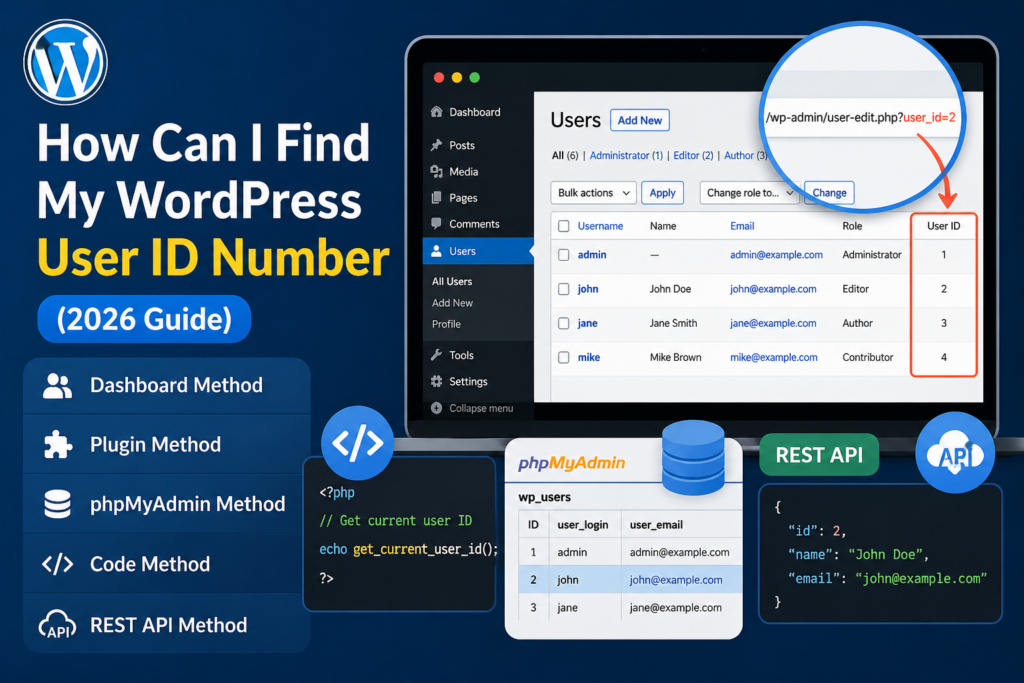
การแนะนำ
If you’ve ever worked with WordPress beyond basic content editing, you’ve probably run into situations where you need a user ID. Maybe you’re customizing a theme, setting up user-specific conditions, integrating plugins, or troubleshooting permissions. At some point, the question naturally comes up: how can I find my WordPress user ID number?
This guide explains everything you need to know in a clear, beginner-friendly way. We’ll walk through what a WordPress user ID is, why it matters, and multiple simple methods to find it—no coding knowledge required.
What Is a WordPress User ID?
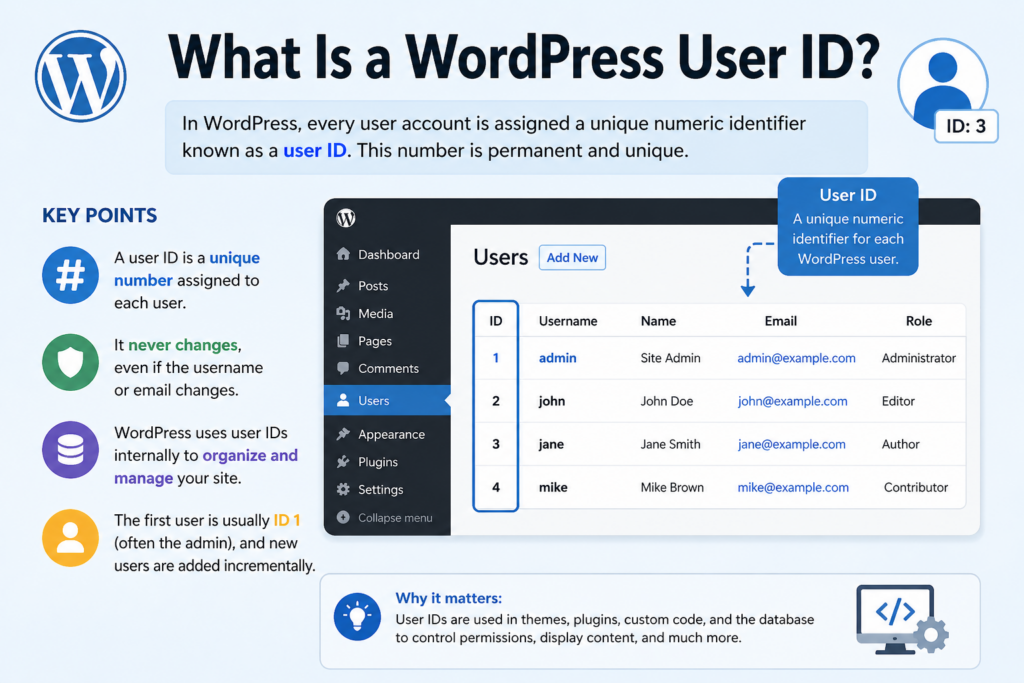
In WordPress, every user account is assigned a unique numeric identifier known as a user ID. This number is created automatically when a new user is registered on your site.
Unlike usernames or display names, which can be changed, the user ID is permanent and unique. WordPress uses this ID internally to:
- Track authorship of posts and pages
- Manage user permissions and roles
- Link users to comments and metadata
- Identify users in the database
ตัวอย่างเช่น:
- Admin user might have ID:
1 - Another user might have ID:
2,3,4, and so on
Even if you change a username or email address, the user ID remains the same.
Why Do You Need to Find Your WordPress User ID?
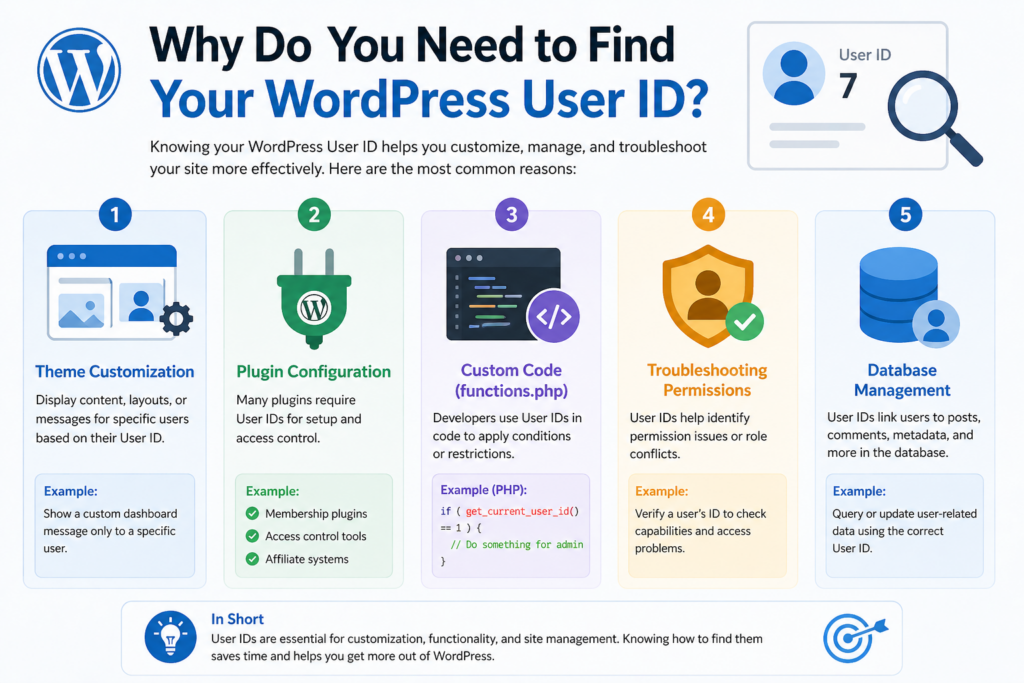
Most beginners don’t need to worry about user IDs right away. However, as your website grows or becomes more customized, knowing your user ID becomes important.
นี่คือตัวอย่างสถานการณ์ทั่วไปบางส่วน:
1. Theme Customization
Some WordPress themes allow you to display content based on a specific user ID. For example:
- Show a custom dashboard message only to a specific user
- Display author-specific layouts
2. Plugin Configuration
Certain plugins require user IDs for setup, such as:
- Membership plugins
- Access control tools
- Affiliate systems
3. Custom Code (Functions.php)
Developers often use user IDs in code snippets like:
if ( get_current_user_id() == 1 ) {
    // Do something for admin
}
4. Troubleshooting Permissions
If a user cannot access certain areas, checking their user ID can help identify conflicts or misconfigurations.
Method 1: Find User ID from the WordPress Dashboard (Easiest Way)
This is the simplest and most beginner-friendly method.
ขั้นตอน:
- Log in to your WordPress admin panel
- Go to Users → All Users
- Hover over the username you want
- Look at the URL in your browser
คุณจะเห็นข้อความประมาณนี้:
/wp-admin/user-edit.php?user_id=3&wp_http_referer=...
👉 The number after user_id= is the user ID.
Why this works:
WordPress uses the user ID in the URL when loading the user edit page.
Method 2: Click Edit and Check the URL
If hovering doesn’t clearly show the link, you can do this:
ขั้นตอน:
- Go to Users → All Users
- Click Edit under a user
- Look at your browser’s address bar
ตัวอย่าง:
https://yoursite.com/wp-admin/user-edit.php?user_id=5
👉 In this case, the user ID is 5.
Method 3: Use a WordPress Plugin (No Code, More Visibility)
If you prefer a cleaner interface, you can install a plugin that displays user IDs directly.
Popular plugin options:
- “Show IDs”
- “Reveal IDs”
- “WP Admin UI Customize”
What these plugins do:
They add an extra column in your dashboard showing:
- รหัสโพสต์
- Page IDs
- User IDs
ขั้นตอน:
- Go to Plugins → Add New
- Search for “Show IDs”
- Install and activate
- Go back to Users → All Users
You’ll now see a User ID column.
Method 4: Find User ID Using phpMyAdmin (Advanced)
If you have access to your hosting panel, you can find user IDs directly in the database.
ขั้นตอน:
- Log in to your hosting control panel (cPanel, CloudPanel, etc.)
- เปิด phpMyAdmin
- เลือกฐานข้อมูล WordPress ของคุณ
- Find the table:
wp_users
(Note: your prefix may not be “wp_”)
- Open the table
You’ll see:
- ID
- user_login
- user_email
👉 The ID column is your WordPress user ID.
When to use this method:
- When dashboard access is broken
- When troubleshooting deeper issues
- When working with migrations
Method 5: Use Code to Display User ID
If you’re comfortable adding small code snippets, this method is useful.
Option A: Show current logged-in user ID
Add this temporarily to your theme:
echo get_current_user_id();
Option B: Show a specific user’s ID
$user = get_user_by('login', 'username');
echo $user->ID;
Where to add this:
- ฟังก์ชัน.php
- Custom plugin
- Temporary debug page
⚠️ Always remove test code after use.
Method 6: Find User ID from Author Archive URL
This method works on many WordPress sites, especially if author archives are enabled.
ขั้นตอน:
- Visit a user’s author page
ตัวอย่าง:
https://yoursite.com/author/john/
- View page source or inspect links
Sometimes you’ll find:
author=3
👉 That number is the user ID.
Method 7: Using REST API (Modern Approach)
If your site supports the WordPress REST API, you can retrieve user data programmatically.
ตัวอย่าง:
https://yoursite.com/wp-json/wp/v2/users
This returns JSON data like:
{
  "id": 3,
  "name": "John Doe"
}
👉 The "id" field is the user ID.
บันทึก:
- Some sites restrict this for security
- May require authentication
ข้อผิดพลาดทั่วไปที่ควรหลีกเลี่ยง
1. Confusing Username with User ID
Your username might be:
john_admin
But your user ID is:
3
They are completely different.
2. Assuming Admin Is Always ID 1
While the first user is usually ID 1, this is not guaranteed.
- Sites with deleted users may skip numbers
- Imports or migrations may change IDs
3. Editing the Database Without Backup
If you use phpMyAdmin, always:
- Backup your database
- Avoid editing user IDs manually
Changing IDs can break relationships between:
- โพสต์
- ความคิดเห็น
- เมตาเดตา
When Should You Use Each Method?
| Situation | Best Method |
|---|---|
| Beginner / quick check | Dashboard hover |
| Frequent use | Plugin |
| No admin access | phpMyAdmin |
| Developer work | Code |
| API integration | REST API |
Security Considerations
User IDs themselves are not sensitive, but exposing them can sometimes:
- Help attackers guess login patterns
- Reveal user structure
To improve security:
- Disable public user listing if not needed
- Limit REST API exposure
- Use strong passwords and roles
Pro Tips for Working with User IDs
1. Combine with User Roles
Instead of targeting just ID:
if ( current_user_can('administrator') ) {
This is more flexible.
2. Use User ID for Personalization
คุณสามารถ:
- Show custom greetings
- Display user-specific content
- Build dashboards
3. Use in Shortcodes
ตัวอย่าง:
add_shortcode('my_user_id', function() {
    return get_current_user_id();
});
Then use:
[my_user_id]
Frequently Asked Questions
Is user ID the same as author ID?
Yes. In most cases, they are the same because WordPress uses user IDs to assign authorship.
Can I change a user ID?
Not safely. It’s technically possible via database edits, but it can break your site.
What happens if I delete a user?
The ID is not reused. WordPress keeps incrementing IDs for new users.
How do I find my own user ID?
ใช้:
- Dashboard hover method
- Or:
echo get_current_user_id();
บทสรุป
Understanding how to find your WordPress user ID number is a small but essential skill that becomes increasingly valuable as your site grows.
Whether you’re customizing layouts, configuring plugins, or troubleshooting access issues, the user ID acts as a reliable internal identifier that WordPress depends on behind the scenes.
The easiest method is checking the URL in the dashboard, while more advanced users can rely on database access, code snippets, or the REST API. By choosing the right approach for your situation, you can quickly locate any user ID and use it effectively in your workflow.
Once you know where to look, finding a WordPress user ID becomes simple, fast, and incredibly useful.
คำถามที่พบบ่อย
1.How can I find my WordPress user ID number quickly?
You can find your WordPress user ID by going to Users → All Users in your dashboard and hovering over a username. The user ID will appear in the URL as user_id=number.
2. Is my WordPress username the same as my user ID?
No, your username and user ID are different. The username is customizable, while the user ID is a unique number assigned by WordPress and cannot be changed easily.
3. Can I find my WordPress user ID without using a plugin?
Yes, you can find it directly in the dashboard URL, through phpMyAdmin, or by using a simple code snippet like get_current_user_id().
4. How do I find a user ID in WordPress using phpMyAdmin?
Log in to phpMyAdmin, open your WordPress database, and check the wp_users table. The “ID” column shows each user’s unique user ID.
5. Why do plugins require a WordPress user ID?
Plugins often use user IDs to manage permissions, assign roles, track activity, or personalize content for specific users on your site.
6. Is it safe to share my WordPress user ID?
Generally, user IDs are not sensitive information. However, exposing them publicly may increase security risks, so it’s best to limit unnecessary exposure.


ออกแบบและสร้างเว็บไซต์ WordPress หรือเว็บไซต์องค์กรพร้อมระบบอีคอมเมิร์ซครบวงจรสำหรับคุณ.
ช่วงราคา: $200.00 ถึง $2,500.00custom-requirements-or-special-quotations
ราคาเดิมคือ: $2.00.$1.00ราคาปัจจุบันคือ: $1.00. การใช้ปลั๊กอิน 50 ตัวมากเกินไปสำหรับร้านค้าออนไลน์ที่ใช้ WordPress หรือไม่?
การเข้าใจผลกระทบที่แท้จริงต่อประสิทธิภาพ การมีปลั๊กอิน 50 ตัวบนเว็บไซต์อีคอมเมิร์ซ WordPress ไม่ใช่ปัญหาโดยอัตโนมัติ จริงๆ แล้ว จำนวนเพียงอย่างเดียวแทบจะไม่สามารถกำหนดประสิทธิภาพได้....

ภาพหลักสำหรับการออกแบบอุปกรณ์กายภาพบำบัดที่บ้านของ Amazon (อธิบายรายละเอียด)
บทนำ: การสร้างภาพลักษณ์ที่น่าเชื่อถือสำหรับอุปกรณ์บำบัดที่บ้านบน Amazon เมื่อออกแบบภาพหลักสำหรับอุปกรณ์บำบัดที่บ้านบน Amazon สิ่งสำคัญอันดับแรกของเราคือ...

ภาพหลักสำหรับการแปลงลิปสติกเป็นสินค้าสำหรับ Amazon
บทนำ: การออกแบบภาพหลักลิปสติกที่ขายได้บน Amazon เมื่อเราออกแบบภาพหลักสำหรับลิปสติกบน Amazon ความรับผิดชอบของเราไม่ได้จำกัดอยู่แค่...

แฮกเกอร์ขโมยอีเมลผู้ดูแลระบบ WordPress ได้อย่างไร (และวิธีป้องกัน)
มาเริ่มกันด้วยความจริงที่ไม่น่าสบายใจ: อีเมลแอดมิน WordPress ของคุณอาจเปิดเผยต่อสาธารณะมากกว่าที่คุณคิด และแฮกเกอร์? พวกเขาชอบมาก สำหรับพวกเขา...

อะไรทำให้รองพื้นชนิดเหลวของ Amazon (ภาพหลัก) ขายดี?
บทนำ การออกแบบภาพหลักสำหรับรองพื้นชนิดเหลวบน Amazon ไม่ใช่แค่การทำให้ผลิตภัณฑ์ดูสวยงามเท่านั้น บน Amazon ภาพหลักและ...

การออกแบบภาพหลัก Amazon ที่มีประสิทธิภาพสำหรับตลับกรอง
บทนำ การออกแบบภาพหลักสำหรับ Amazon ไม่ใช่แค่การทำให้สินค้าดูน่าดึงดูดเท่านั้น แต่ยังเกี่ยวกับความชัดเจน ความน่าเชื่อถือ และความเข้าใจได้ในทันที โดยเฉพาะอย่างยิ่งสำหรับ...

การโจมตีแบบ Replay Attack บน WordPress: ภัยคุกคามจริงหรือแค่เรื่องที่ถูกพูดเกินจริง?
ก่อนอื่นขอชี้แจงให้ชัดเจนก่อน การโจมตีแบบ Replay Attack นั้นดูไม่น่ากลัว มันไม่ได้ทำลายรหัสผ่าน มันไม่ได้แทรกโค้ดที่เป็นอันตรายพร้อมข้อความแฮ็กเกอร์สีเขียวกระจัดกระจายไปทั่ว มันแนบเนียนกว่า...

วิธีคัดลอกหน้าเว็บ WordPress โดยไม่ทำให้ระบบเสียหาย
ยอมรับกันเถอะ บางครั้งคุณอาจไม่อยากสร้างหน้าเว็บใหม่ คุณแค่อยากได้หน้าเว็บเดิม...แต่แตกต่างไปเล็กน้อย รูปแบบเหมือนเดิม บล็อกเหมือนเดิม การตั้งค่าเหมือนเดิม เพราะ...

เปรียบเทียบธีม WordPress สำหรับสัตว์เลี้ยง 5 แบบ
บทนำ การเลือกธีม WordPress ที่เหมาะสมสำหรับธุรกิจเกี่ยวกับสัตว์เลี้ยงนั้นไม่ใช่แค่เรื่องของการออกแบบเท่านั้น แต่ยังส่งผลโดยตรงต่อการใช้งาน ความสามารถในการขยายขนาด และการเติบโตของธุรกิจในระยะยาว การดูแลสัตว์เลี้ยงและ...

เปรียบเทียบธีมอีคอมเมิร์ซชุดว่ายน้ำ 5 แบบ
บทนำ การเลือกธีมที่เหมาะสมสำหรับร้านค้าอิสระที่จำหน่ายชุดว่ายน้ำหรือชุดชั้นในนั้นไม่ใช่แค่การตัดสินใจด้านภาพลักษณ์เท่านั้น แต่ยังส่งผลโดยตรงต่ออัตราการเปลี่ยนลูกค้าให้เป็นผู้ซื้อ ความสามารถในการขยายธุรกิจ และความยั่งยืนในระยะยาว...

วิธีปิดการแสดงความคิดเห็นใน WordPress (โดยไม่ต้องเสียสติ)
มาพูดถึงระบบแสดงความคิดเห็นของ WordPress กันดีกว่า ในทางทฤษฎีแล้ว ความคิดเห็นนั้นยอดเยี่ยมมาก มันช่วยกระตุ้นการสนทนา สร้างชุมชน และทำให้เว็บไซต์ของคุณดูมีชีวิตชีวา แต่ในความเป็นจริงแล้ว มันมักจะเป็นเหมือนแม่เหล็กดึงดูด...

ข้อผิดพลาด WordPress 500: เมื่อเว็บไซต์ของคุณเกิดอาการผิดปกติ
เว็บไซต์ WordPress ของคุณยังใช้งานได้ปกติดีเมื่อสักครู่ คุณรีเฟรชหน้าเว็บ แล้วจู่ๆ ก็เกิดข้อผิดพลาด 500 Internal Server Error ขึ้นมา ไม่มีคำอธิบาย ไม่มีคำขอโทษ มีเพียงข้อความที่เย็นชาและสับสนซึ่งโดยพื้นฐานแล้ว...

การสร้างเว็บไซต์ WordPress ที่ปรับขนาดได้สำหรับแบรนด์ที่ขับเคลื่อนด้วยวิทยาศาสตร์: โครงการ AminoUSA
บทนำ ในยุคดิจิทัลปัจจุบัน เว็บไซต์เป็นมากกว่าแค่สถานที่สำหรับแสดงรายการสินค้า สำหรับแบรนด์ที่ขับเคลื่อนด้วยวิทยาศาสตร์ซึ่งดำเนินงานในอุตสาหกรรมที่มีการควบคุมหรือเน้นการวิจัย...

สร้างร้านค้า Shopify ที่ปรับขนาดได้สำหรับแบรนด์ใบมีดระดับโลก: โครงการ CoolKatana
บทนำ ในธุรกิจอีคอมเมิร์ซข้ามพรมแดน เว็บไซต์ Shopify เป็นมากกว่าแค่หน้าร้าน สำหรับแบรนด์ที่ดำเนินธุรกิจในกลุ่มเฉพาะหรือกลุ่มที่ขับเคลื่อนด้วยวัฒนธรรม เว็บไซต์ต้องทำมากกว่านั้น...

การออกแบบร้านค้า Shopify ที่มีอัตราการแปลงสูงสำหรับขายการ์ดโปเกมอน
บทนำ ในโลกของอีคอมเมิร์ซสินค้าสะสม โดยเฉพาะอย่างยิ่งในตลาดเกมการ์ดโปเกมอน (TCG) เว็บไซต์จะต้องทำมากกว่าแค่แสดงรายการสินค้า...

ดีไซน์ Shopify ที่เพิ่มยอดขายสำหรับแบรนด์อิฐสั่งทำพิเศษ
บทนำ ในสภาพแวดล้อมการแข่งขันอีคอมเมิร์ซในปัจจุบัน โดยเฉพาะอย่างยิ่งในตลาดของขวัญส่วนบุคคลและของสะสม เว็บไซต์ Shopify ต้องทำมากกว่าแค่แสดงสินค้า...

วิธีติดต่อฝ่ายสนับสนุนของ Shopify: คู่มือที่ง่ายและไม่ยุ่งยาก
การบริหารร้านค้า Shopify ควรเป็นเรื่องที่น่าตื่นเต้น ไม่ใช่เรื่องที่ทำให้สับสน เมื่อมีคำถามหรือปัญหาเกิดขึ้น Shopify มีช่องทางการสนับสนุนหลายช่องทาง ขึ้นอยู่กับสถานการณ์...

วิธีปิดใช้งานร้านค้า Shopify: คู่มือที่ชัดเจนและใช้งานได้จริง
การปิดใช้งานร้านค้า Shopify นั้นไม่ซับซ้อน แต่ก็มีผลกระทบหลายอย่างที่ผู้ขายหลายรายมองข้ามไป คู่มือนี้จะอธิบายขั้นตอนอย่างละเอียดและเข้าใจง่าย...