












การแนะนำ
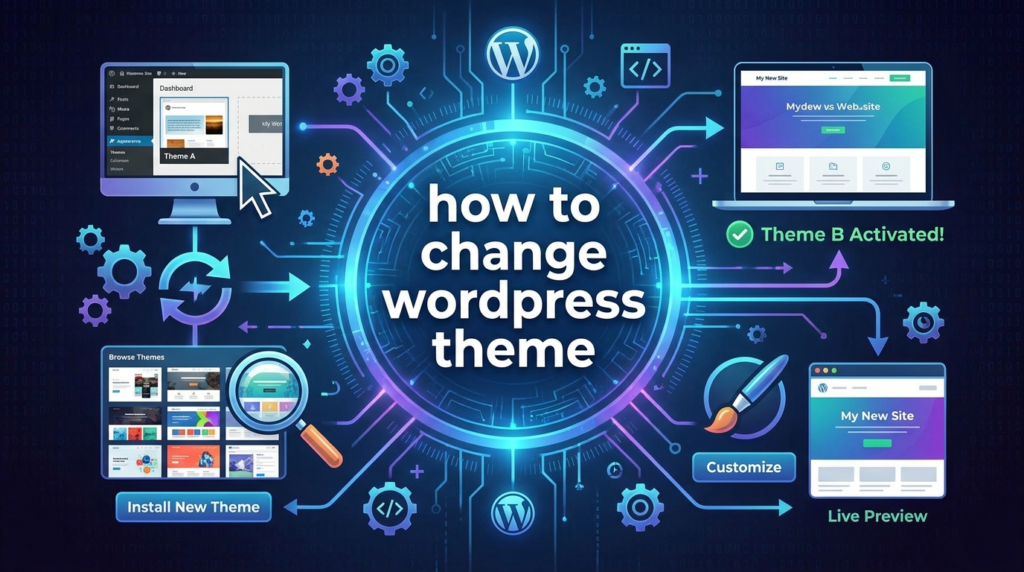
Learning how to change วordpress theme is an important skill for anyone who manages a WordPress website. A theme controls much more than the basic appearance of your site. It affects layout, typography, colors, page structure, header design, footer design, widget areas, mobile responsiveness, and sometimes even performance.
Many website owners think changing a WordPress theme is as simple as clicking “Activate.” Technically, WordPress does make the process easy. You can install a new theme from your dashboard and activate it within minutes. However, if your site already has published pages, plugins, tracking codes, custom widgets, forms, or WooCommerce features, changing themes without preparation can cause layout problems.
A WordPress theme works like the visual framework of your website. Your posts, pages, images, and products usually remain in your database, but the way they appear on the front end can change immediately after switching themes. That is why it is important to understand the right process before making the change.
This guide explains how to change a WordPress theme safely, what to check before switching, how to preview a new design, what to fix afterward, and when a manual theme change may be necessary. The goal is to help beginners understand the process in a simple, practical way.
What Does a WordPress Theme Actually Do?
A WordPress theme is a package of files that controls how your website looks and displays content. It usually includes template files, stylesheets, layout settings, typography controls, and design options.
In simple terms, WordPress stores your content, while the theme decides how that content appears to visitors. For example, the same blog post can look clean and modern in one theme but outdated or crowded in another theme. The content is the same, but the presentation changes.
A theme may control:
Page Layout
Themes decide how wide your content area is, where sidebars appear, how blog posts are displayed, and how archive pages look.
Header and Footer Design
Your navigation menu, logo position, footer columns, social icons, and search bar may all depend on the theme.
Typography and Colors
Fonts, text size, heading style, link color, button color, and spacing are often controlled by theme settings.
Mobile Responsiveness
A good theme should adjust smoothly across desktop, tablet, and mobile screens.
Theme-Specific Features
Some themes include built-in sliders, portfolio layouts, product grids, page templates, or custom widgets. These features may not transfer perfectly when you switch to another theme.
Why You Might Want to Change WordPress Theme
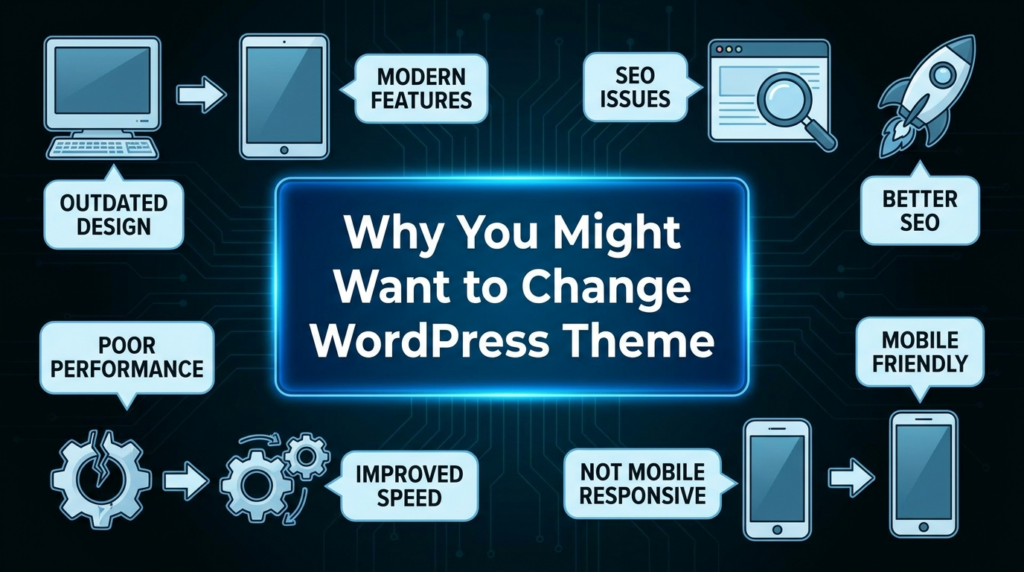
There are many reasons to change a WordPress theme. Sometimes the current theme looks old. Sometimes it is too slow. Sometimes it does not support the features your website now needs.
Your Website Looks Outdated
Design trends change over time. A website that looked modern five years ago may now feel old, crowded, or difficult to use. A new theme can refresh the entire visual identity of the site.
Your Current Theme Is Too Slow
Some themes include too many scripts, animations, or unnecessary features. These can slow down page loading. A lightweight theme can improve the browsing experience, especially on mobile devices.
The Theme Is No Longer Updated
Using an outdated theme can create security and compatibility risks. If a theme developer no longer provides updates, it may not work well with the latest WordPress version, PHP version, or plugins.
You Need Better Design Flexibility
A basic theme may not give you enough control over layouts, headers, product pages, blog pages, or global styling. Switching to a more flexible theme can make future design work easier.
Your Business Direction Has Changed
A personal blog, service website, online store, portfolio, and brand website all need different layouts. If your website goal has changed, your theme may need to change too.
What to Do Before Changing a WordPress Theme
Before you activate a new theme, you should prepare your website carefully. This step can prevent broken layouts, missing widgets, lost tracking codes, and unexpected design issues.
1. Back Up Your Website
Always create a full backup before changing your WordPress theme. A full backup should include your website files and database.
The database stores posts, pages, settings, users, orders, comments, and other important content. Website files include theme files, plugin files, images, and uploads.
If something goes wrong, a backup allows you to restore your site to its previous state.
2. Record Your Current Theme Settings
Some theme settings may not transfer to the new theme. Before switching, check your current settings and save important details.
You may want to record:
- Header layout
- Footer layout
- Color codes
- Font choices
- Menu positions
- Sidebar settings
- Custom CSS
- Homepage structure
- Widget content
Screenshots can be very helpful. Take screenshots of important pages before switching themes so you can compare the old and new layouts.
3. Save Custom Code Snippets
Many WordPress users add custom code to the theme’s ฟังก์ชัน.php file or other theme files. If you change themes, that custom code may disappear because it belongs to the old theme.
Common examples include:
- Tracking codes
- Custom functions
- Shortcodes
- Header scripts
- Footer scripts
- WooCommerce modifications
- Custom PHP snippets
A better practice is to move important snippets into a code management plugin or a child theme. This keeps the code separate from the main theme and reduces the risk of losing it during a theme change.
4. Check Google Analytics and Tracking Codes
If you added Google Analytics, Meta Pixel, Google Tag Manager, or other tracking scripts directly inside your theme files, they may stop working after you switch themes.
Before changing your WordPress theme, confirm where your tracking code is placed. If it is inside the old theme, move it to a plugin or global site settings area before switching.
This helps keep your visitor tracking and conversion tracking active after the new theme goes live.
5. Review Widgets and Sidebars
Different themes use different widget areas. Your old theme may have sidebar areas, footer columns, shop filters, or custom widget sections that do not exist in the new theme.
After switching, some widgets may move to an inactive widget area. They are usually not deleted, but they may no longer appear in the same position.
Before switching, check your widgets under Appearance > Widgets and note what content appears in each area.
6. Test the New Theme in a Staging Site
A staging site is a private copy of your website where you can test changes before applying them to your live website.
This is the safest way to change a WordPress theme. You can activate the new theme, check page layouts, test forms, review menus, adjust design settings, and fix errors without affecting real visitors.
Once everything looks correct, you can push the staging version to the live site.
7. Check Website Speed Before Switching
It is useful to test your current website speed before changing themes. This gives you a baseline for comparison.
After you install the new theme, test again. If the new theme is heavier or poorly optimized, your website may become slower. If the new theme is lightweight and well built, your website may load faster.
How to Change WordPress Theme from the Dashboard
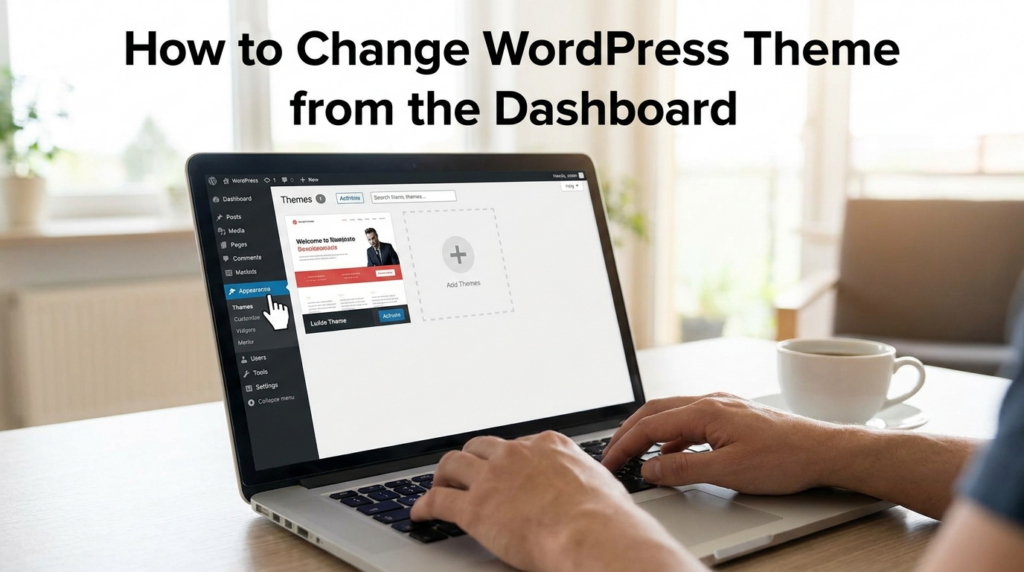
The easiest way to change a WordPress theme is through the WordPress admin dashboard.
Step 1: Enable Maintenance Mode
If you are changing the theme on a live website, consider enabling maintenance mode first. This shows visitors a temporary message while you make changes.
Maintenance mode is useful because theme switching may temporarily affect menus, layout, widgets, and page design. Instead of letting visitors see a broken or unfinished page, you can display a simple maintenance notice.
You can enable maintenance mode with a plugin or through your hosting tools if available.
If you are working on a staging site, you do not need to enable maintenance mode on the live site.
Step 2: Go to Appearance and Themes
Log in to your WordPress dashboard.
Then go to:
Appearance > Themes
This page shows all themes currently installed on your website. Your active theme will be marked clearly.
Step 3: Add a New Theme
Click Add New at the top of the Themes page.
You can search for free themes from the official WordPress theme directory. You can also filter themes by features, layout, subject, or style.
When choosing a theme, do not only look at the demo design. Also consider performance, update history, mobile responsiveness, compatibility with your plugins, and customization options.
Step 4: Install the Theme
When you find a theme you like, hover over it and click Install.
WordPress will download and install the theme files automatically. At this stage, the theme is installed but not active yet. Your website still uses the old theme until you activate the new one.
Step 5: Preview the Theme
Before activating the theme, click Live Preview.
The preview lets you see how your website may look with the new theme. This is helpful, but remember that a preview may not show every issue. Some layout problems only become obvious after full activation and customization.
During preview, check:
- Homepage layout
- Blog page
- Single post page
- Header menu
- Footer layout
- Sidebar position
- Mobile view
- Product pages if using WooCommerce
- แบบฟอร์มติดต่อ
- Buttons and links
Step 6: Activate the New Theme
If the preview looks acceptable, click Activate.
WordPress will immediately switch your website to the new theme. Your content will remain in WordPress, but the design and layout may change based on the new theme’s structure.
What to Check After Changing WordPress Theme
After activation, do not assume the job is finished. This is where many website owners make mistakes. You need to review the site carefully.
Check the Homepage
The homepage is usually the most important page on the website. After switching themes, check whether the layout still works. Some sections may look different because the new theme uses different spacing, widths, or template rules.
Check Menus
ไปที่:
Appearance > Menus
Make sure your main menu is assigned to the correct location. Some themes have different menu positions, such as Primary Menu, Header Menu, Mobile Menu, Footer Menu, or Top Bar Menu.
If the menu does not appear correctly, reassign it to the new theme’s menu location.
Check Widgets
ไปที่:
ลักษณะที่ปรากฏ > วิดเจ็ต
Look for inactive widgets or misplaced footer/sidebar content. Rebuild widget areas if needed.
Check the Header and Footer
Your logo, navigation, search icon, cart icon, social links, and footer columns may need adjustment. Some themes allow you to customize these areas in the WordPress Customizer or site editor.
Check Forms
Test contact forms, newsletter forms, quote request forms, login forms, and checkout forms. Make sure submissions still work.
Check WooCommerce Pages
If your site uses WooCommerce, review:
- Shop page
- Product category pages
- Single product pages
- Cart page
- Checkout page
- My Account page
Theme changes can affect product grids, button styles, image sizes, and checkout layout.
Check Mobile Display
Open your website on a phone or use responsive preview tools. A design that looks good on desktop may not look good on mobile.
ตรวจสอบ:
- Mobile menu
- Button spacing
- Image scaling
- Text size
- Product cards
- Form fields
- Header height
- Footer layout
Re-Add Custom Code and Tracking
If your old theme contained custom code, tracking scripts, or theme-specific settings, restore them carefully.
Do not blindly copy everything. Some old code may not be compatible with the new theme. Add snippets one by one and test the site after each change.
ล้างแคช
If you use a caching plugin, CDN, or server cache, clear all caches after changing themes. Browser cache can also show old styles, so test your website in a private browser window or a different browser.
How to Change WordPress Theme Manually
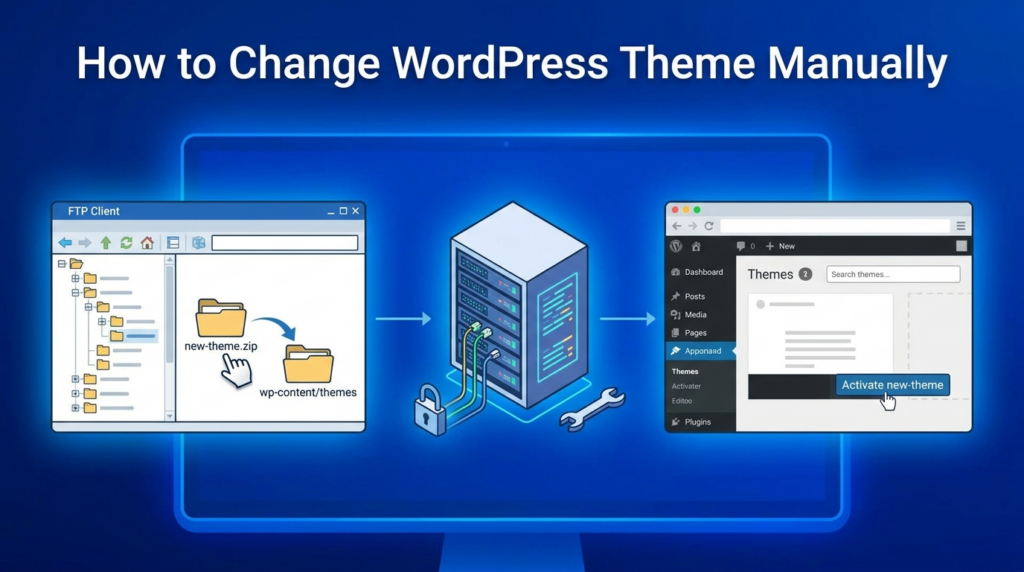
In most cases, the dashboard method is enough. However, sometimes you may not be able to access the WordPress admin area. This can happen after a broken theme update, PHP error, or compatibility issue.
In that case, you may need to change the theme manually through your hosting file manager, FTP, or database.
Manual Method Overview
The manual method usually involves accessing your website files and database directly.
The theme files are stored in:
/wp-content/themes/
Each theme has its own folder. If you upload a new theme manually, the unzipped theme folder should go into this directory.
To activate a theme manually, you may need to update the active theme values in the WordPress database. These values are usually stored in the wp_options table under template และ stylesheet.
This method is more advanced and should be done carefully. A small mistake in the database can break the website. If you are not comfortable with FTP or phpMyAdmin, it is safer to ask your hosting support or a WordPress professional for help.
How to Choose the Right WordPress Theme
Changing a theme is not only about finding a beautiful design. A good WordPress theme should support your website goals.
Choose a Lightweight Theme
A theme with fewer unnecessary features is usually easier to optimize. Avoid themes that include too many built-in sliders, animations, scripts, and design effects that you do not need.
Check Update History
A reliable theme should receive regular updates. Updates help maintain compatibility with WordPress, PHP, and popular plugins.
Check Plugin Compatibility
If you use Elementor, WooCommerce, Contact Form 7, WPForms, Rank Math, Yoast SEO, or other major plugins, make sure the theme works well with them.
Review Mobile Design
Most visitors browse websites on mobile devices. A theme must look clean and usable on smaller screens.
Avoid Nulled Themes
Never use nulled or pirated themes. They may contain hidden malicious code, security risks, or broken update systems. A free theme from the WordPress theme directory or a legitimate premium theme is much safer.
Consider Future Customization
Choose a theme that gives you enough control over layout, typography, colors, spacing, header design, and footer design. This makes it easier to improve your website later without switching themes again.
Common Problems After Changing WordPress Theme
Even when you follow the right steps, you may still notice some issues after switching themes.
The Menu Disappears
This usually means your menu is not assigned to the new theme’s menu location. Reassign it under Appearance > Menus.
The Homepage Looks Different
Your old theme may have used a custom homepage template. You may need to rebuild the homepage layout or choose the correct page template.
Widgets Move or Disappear
Widgets may move to inactive areas because the new theme has different widget zones.
Custom CSS Stops Working
Custom CSS written for the old theme may not match the new theme’s HTML structure. You may need to rewrite some styles.
Product Pages Look Different
WooCommerce templates vary by theme. Product images, tabs, buttons, and related products may need adjustments.
Tracking Codes Stop Working
If tracking scripts were placed inside the old theme files, they may need to be added again using a safer method.
บทสรุป
Changing a วordpress theme can refresh your website design, improve user experience, support better performance, and give your site more flexibility. However, it should not be done carelessly.
Before switching themes, back up your website, save custom code, record important settings, check tracking scripts, review widgets, and test the new theme in a staging environment when possible. After activating the new theme, carefully review your homepage, menus, widgets, forms, mobile layout, WooCommerce pages, custom code, and cache.
The safest way to understand how to change WordPress theme is to treat it as a planned website update rather than a quick design swap. With the right preparation and testing, you can move to a new WordPress theme smoothly while keeping your content, structure, and user experience under control.
คำถามที่พบบ่อย
1. How do I change WordPress theme safely?
To change WordPress theme safely, back up your website first, test the new theme in a staging site, preview the design, then activate it only after checking pages, menus, widgets, forms, and mobile layouts.
2. Will changing my WordPress theme delete my content?
No. Changing a WordPress theme usually does not delete posts, pages, images, or products. However, layouts, widgets, menus, and theme-specific settings may change after activation.
3. Should I back up my site before changing a WordPress theme?
Yes. Always create a full backup before changing your WordPress theme. A backup lets you restore your site if the new theme causes layout issues, errors, or compatibility problems.
4. Can changing a WordPress theme affect SEO?
Yes, it can affect SEO if the new theme changes headings, page structure, loading speed, mobile usability, or schema settings. Always check important pages after switching themes.
5. Why did my menu disappear after switching WordPress themes?
Your menu may disappear because the new theme uses different menu locations. Go to Appearance > Menus and assign your menu to the correct header or primary menu area.
6. What should I check after changing my WordPress theme?
Check your homepage, header, footer, menus, widgets, forms, WooCommerce pages, mobile layout, tracking codes, custom CSS, and site speed after changing your WordPress theme.


ออกแบบและสร้างเว็บไซต์ WordPress หรือเว็บไซต์องค์กรพร้อมระบบอีคอมเมิร์ซครบวงจรสำหรับคุณ.
ช่วงราคา: $200.00 ถึง $2,500.00ข้อกำหนดเฉพาะหรือใบเสนอราคาพิเศษ
ราคาเดิมคือ: $2.00.$1.00ราคาปัจจุบันคือ: $1.00. การใช้ปลั๊กอิน 50 ตัวมากเกินไปสำหรับร้านค้าออนไลน์ที่ใช้ WordPress หรือไม่?
การเข้าใจผลกระทบที่แท้จริงต่อประสิทธิภาพ การมีปลั๊กอิน 50 ตัวบนเว็บไซต์อีคอมเมิร์ซ WordPress ไม่ใช่ปัญหาโดยอัตโนมัติ จริงๆ แล้ว จำนวนเพียงอย่างเดียวแทบจะไม่สามารถกำหนดประสิทธิภาพได้....

ภาพหลักสำหรับการออกแบบอุปกรณ์กายภาพบำบัดที่บ้านของ Amazon (อธิบายรายละเอียด)
บทนำ: การสร้างภาพลักษณ์ที่น่าเชื่อถือสำหรับอุปกรณ์บำบัดที่บ้านบน Amazon เมื่อออกแบบภาพหลักสำหรับอุปกรณ์บำบัดที่บ้านบน Amazon สิ่งสำคัญอันดับแรกของเราคือ...

ภาพหลักสำหรับการแปลงลิปสติกเป็นสินค้าสำหรับ Amazon
บทนำ: การออกแบบภาพหลักลิปสติกที่ขายได้บน Amazon เมื่อเราออกแบบภาพหลักสำหรับลิปสติกบน Amazon ความรับผิดชอบของเราไม่ได้จำกัดอยู่แค่...

แฮกเกอร์ขโมยอีเมลผู้ดูแลระบบ WordPress ได้อย่างไร (และวิธีป้องกัน)
มาเริ่มกันด้วยความจริงที่ไม่น่าสบายใจ: อีเมลแอดมิน WordPress ของคุณอาจเปิดเผยต่อสาธารณะมากกว่าที่คุณคิด และแฮกเกอร์? พวกเขาชอบมาก สำหรับพวกเขา...

อะไรทำให้รองพื้นชนิดเหลวของ Amazon (ภาพหลัก) ขายดี?
บทนำ การออกแบบภาพหลักสำหรับรองพื้นชนิดเหลวบน Amazon ไม่ใช่แค่การทำให้ผลิตภัณฑ์ดูสวยงามเท่านั้น บน Amazon ภาพหลักและ...

การออกแบบภาพหลัก Amazon ที่มีประสิทธิภาพสำหรับตลับกรอง
บทนำ การออกแบบภาพหลักสำหรับ Amazon ไม่ใช่แค่การทำให้สินค้าดูน่าดึงดูดเท่านั้น แต่ยังเกี่ยวกับความชัดเจน ความน่าเชื่อถือ และความเข้าใจได้ในทันที โดยเฉพาะอย่างยิ่งสำหรับ...

การโจมตีแบบ Replay Attack บน WordPress: ภัยคุกคามจริงหรือแค่เรื่องที่ถูกพูดเกินจริง?
ก่อนอื่นขอชี้แจงให้ชัดเจนก่อน การโจมตีแบบ Replay Attack นั้นดูไม่น่ากลัว มันไม่ได้ทำลายรหัสผ่าน มันไม่ได้แทรกโค้ดที่เป็นอันตรายพร้อมข้อความแฮ็กเกอร์สีเขียวกระจัดกระจายไปทั่ว มันแนบเนียนกว่า...

วิธีคัดลอกหน้าเว็บ WordPress โดยไม่ทำให้ระบบเสียหาย
ยอมรับกันเถอะ บางครั้งคุณอาจไม่อยากสร้างหน้าเว็บใหม่ คุณแค่อยากได้หน้าเว็บเดิม...แต่แตกต่างไปเล็กน้อย รูปแบบเหมือนเดิม บล็อกเหมือนเดิม การตั้งค่าเหมือนเดิม เพราะ...

เปรียบเทียบธีม WordPress สำหรับสัตว์เลี้ยง 5 แบบ
บทนำ การเลือกธีม WordPress ที่เหมาะสมสำหรับธุรกิจเกี่ยวกับสัตว์เลี้ยงนั้นไม่ใช่แค่เรื่องของการออกแบบเท่านั้น แต่ยังส่งผลโดยตรงต่อการใช้งาน ความสามารถในการขยายขนาด และการเติบโตของธุรกิจในระยะยาว การดูแลสัตว์เลี้ยงและ...

เปรียบเทียบธีมอีคอมเมิร์ซชุดว่ายน้ำ 5 แบบ
บทนำ การเลือกธีมที่เหมาะสมสำหรับร้านค้าอิสระที่จำหน่ายชุดว่ายน้ำหรือชุดชั้นในนั้นไม่ใช่แค่การตัดสินใจด้านภาพลักษณ์เท่านั้น แต่ยังส่งผลโดยตรงต่ออัตราการเปลี่ยนลูกค้าให้เป็นผู้ซื้อ ความสามารถในการขยายธุรกิจ และความยั่งยืนในระยะยาว...

วิธีปิดการแสดงความคิดเห็นใน WordPress (โดยไม่ต้องเสียสติ)
มาพูดถึงระบบแสดงความคิดเห็นของ WordPress กันดีกว่า ในทางทฤษฎีแล้ว ความคิดเห็นนั้นยอดเยี่ยมมาก มันช่วยกระตุ้นการสนทนา สร้างชุมชน และทำให้เว็บไซต์ของคุณดูมีชีวิตชีวา แต่ในความเป็นจริงแล้ว มันมักจะเป็นเหมือนแม่เหล็กดึงดูด...

ข้อผิดพลาด WordPress 500: เมื่อเว็บไซต์ของคุณเกิดอาการผิดปกติ
เว็บไซต์ WordPress ของคุณยังใช้งานได้ปกติดีเมื่อสักครู่ คุณรีเฟรชหน้าเว็บ แล้วจู่ๆ ก็เกิดข้อผิดพลาด 500 Internal Server Error ขึ้นมา ไม่มีคำอธิบาย ไม่มีคำขอโทษ มีเพียงข้อความที่เย็นชาและสับสนซึ่งโดยพื้นฐานแล้ว...

การสร้างเว็บไซต์ WordPress ที่ปรับขนาดได้สำหรับแบรนด์ที่ขับเคลื่อนด้วยวิทยาศาสตร์: โครงการ AminoUSA
บทนำ ในยุคดิจิทัลปัจจุบัน เว็บไซต์เป็นมากกว่าแค่สถานที่สำหรับแสดงรายการสินค้า สำหรับแบรนด์ที่ขับเคลื่อนด้วยวิทยาศาสตร์ซึ่งดำเนินงานในอุตสาหกรรมที่มีการควบคุมหรือเน้นการวิจัย...

สร้างร้านค้า Shopify ที่ปรับขนาดได้สำหรับแบรนด์ใบมีดระดับโลก: โครงการ CoolKatana
บทนำ ในธุรกิจอีคอมเมิร์ซข้ามพรมแดน เว็บไซต์ Shopify เป็นมากกว่าแค่หน้าร้าน สำหรับแบรนด์ที่ดำเนินธุรกิจในกลุ่มเฉพาะหรือกลุ่มที่ขับเคลื่อนด้วยวัฒนธรรม เว็บไซต์ต้องทำมากกว่านั้น...

การออกแบบร้านค้า Shopify ที่มีอัตราการแปลงสูงสำหรับขายการ์ดโปเกมอน
บทนำ ในโลกของอีคอมเมิร์ซสินค้าสะสม โดยเฉพาะอย่างยิ่งในตลาดเกมการ์ดโปเกมอน (TCG) เว็บไซต์จะต้องทำมากกว่าแค่แสดงรายการสินค้า...

ดีไซน์ Shopify ที่เพิ่มยอดขายสำหรับแบรนด์อิฐสั่งทำพิเศษ
บทนำ ในสภาพแวดล้อมการแข่งขันอีคอมเมิร์ซในปัจจุบัน โดยเฉพาะอย่างยิ่งในตลาดของขวัญส่วนบุคคลและของสะสม เว็บไซต์ Shopify ต้องทำมากกว่าแค่แสดงสินค้า...

วิธีติดต่อฝ่ายสนับสนุนของ Shopify: คู่มือที่ง่ายและไม่ยุ่งยาก
การบริหารร้านค้า Shopify ควรเป็นเรื่องที่น่าตื่นเต้น ไม่ใช่เรื่องที่ทำให้สับสน เมื่อมีคำถามหรือปัญหาเกิดขึ้น Shopify มีช่องทางการสนับสนุนหลายช่องทาง ขึ้นอยู่กับสถานการณ์...

วิธีปิดใช้งานร้านค้า Shopify: คู่มือที่ชัดเจนและใช้งานได้จริง
การปิดใช้งานร้านค้า Shopify นั้นไม่ซับซ้อน แต่ก็มีผลกระทบหลายอย่างที่ผู้ขายหลายรายมองข้ามไป คู่มือนี้จะอธิบายขั้นตอนอย่างละเอียดและเข้าใจง่าย...