











لا توجد منتجات في سلة التسوق.

Learning how to change ووردبريس theme is an important skill for anyone who manages a WordPress website. A theme controls much more than the basic appearance of your site. It affects layout, typography, colors, page structure, header design, footer design, widget areas, mobile responsiveness, and sometimes even performance.
Many website owners think changing a WordPress theme is as simple as clicking “Activate.” Technically, WordPress does make the process easy. You can install a new theme from your dashboard and activate it within minutes. However, if your site already has published pages, plugins, tracking codes, custom widgets, forms, or WooCommerce features, changing themes without preparation can cause layout problems.
A WordPress theme works like the visual framework of your website. Your posts, pages, images, and products usually remain in your database, but the way they appear on the front end can change immediately after switching themes. That is why it is important to understand the right process before making the change.
This guide explains how to change a WordPress theme safely, what to check before switching, how to preview a new design, what to fix afterward, and when a manual theme change may be necessary. The goal is to help beginners understand the process in a simple, practical way.
A WordPress theme is a package of files that controls how your website looks and displays content. It usually includes template files, stylesheets, layout settings, typography controls, and design options.
In simple terms, WordPress stores your content, while the theme decides how that content appears to visitors. For example, the same blog post can look clean and modern in one theme but outdated or crowded in another theme. The content is the same, but the presentation changes.
A theme may control:
Themes decide how wide your content area is, where sidebars appear, how blog posts are displayed, and how archive pages look.
Your navigation menu, logo position, footer columns, social icons, and search bar may all depend on the theme.
Fonts, text size, heading style, link color, button color, and spacing are often controlled by theme settings.
A good theme should adjust smoothly across desktop, tablet, and mobile screens.
Some themes include built-in sliders, portfolio layouts, product grids, page templates, or custom widgets. These features may not transfer perfectly when you switch to another theme.
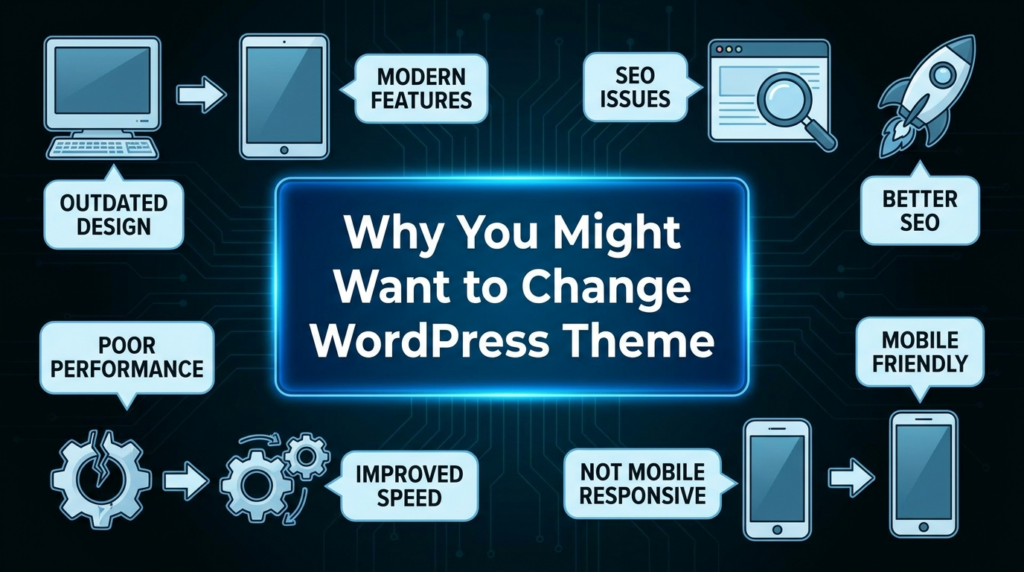
There are many reasons to change a WordPress theme. Sometimes the current theme looks old. Sometimes it is too slow. Sometimes it does not support the features your website now needs.
Design trends change over time. A website that looked modern five years ago may now feel old, crowded, or difficult to use. A new theme can refresh the entire visual identity of the site.
Some themes include too many scripts, animations, or unnecessary features. These can slow down page loading. A lightweight theme can improve the browsing experience, especially on mobile devices.
Using an outdated theme can create security and compatibility risks. If a theme developer no longer provides updates, it may not work well with the latest WordPress version, PHP version, or plugins.
A basic theme may not give you enough control over layouts, headers, product pages, blog pages, or global styling. Switching to a more flexible theme can make future design work easier.
A personal blog, service website, online store, portfolio, and brand website all need different layouts. If your website goal has changed, your theme may need to change too.
Before you activate a new theme, you should prepare your website carefully. This step can prevent broken layouts, missing widgets, lost tracking codes, and unexpected design issues.
Always create a full backup before changing your WordPress theme. A full backup should include your website files and database.
The database stores posts, pages, settings, users, orders, comments, and other important content. Website files include theme files, plugin files, images, and uploads.
If something goes wrong, a backup allows you to restore your site to its previous state.
Some theme settings may not transfer to the new theme. Before switching, check your current settings and save important details.
You may want to record:
Screenshots can be very helpful. Take screenshots of important pages before switching themes so you can compare the old and new layouts.
Many WordPress users add custom code to the theme’s functions.php file or other theme files. If you change themes, that custom code may disappear because it belongs to the old theme.
Common examples include:
A better practice is to move important snippets into a code management plugin or a child theme. This keeps the code separate from the main theme and reduces the risk of losing it during a theme change.
If you added Google Analytics, Meta Pixel, Google Tag Manager, or other tracking scripts directly inside your theme files, they may stop working after you switch themes.
Before changing your WordPress theme, confirm where your tracking code is placed. If it is inside the old theme, move it to a plugin or global site settings area before switching.
This helps keep your visitor tracking and conversion tracking active after the new theme goes live.
Different themes use different widget areas. Your old theme may have sidebar areas, footer columns, shop filters, or custom widget sections that do not exist in the new theme.
After switching, some widgets may move to an inactive widget area. They are usually not deleted, but they may no longer appear in the same position.
Before switching, check your widgets under Appearance > Widgets and note what content appears in each area.
A staging site is a private copy of your website where you can test changes before applying them to your live website.
This is the safest way to change a WordPress theme. You can activate the new theme, check page layouts, test forms, review menus, adjust design settings, and fix errors without affecting real visitors.
Once everything looks correct, you can push the staging version to the live site.
It is useful to test your current website speed before changing themes. This gives you a baseline for comparison.
After you install the new theme, test again. If the new theme is heavier or poorly optimized, your website may become slower. If the new theme is lightweight and well built, your website may load faster.
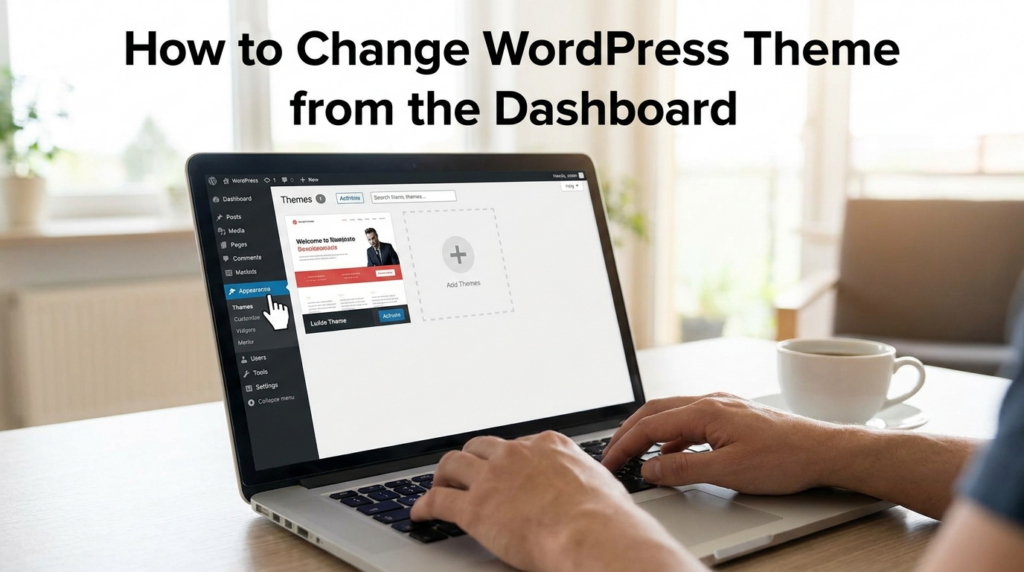
The easiest way to change a WordPress theme is through the WordPress admin dashboard.
If you are changing the theme on a live website, consider enabling maintenance mode first. This shows visitors a temporary message while you make changes.
Maintenance mode is useful because theme switching may temporarily affect menus, layout, widgets, and page design. Instead of letting visitors see a broken or unfinished page, you can display a simple maintenance notice.
You can enable maintenance mode with a plugin or through your hosting tools if available.
If you are working on a staging site, you do not need to enable maintenance mode on the live site.
قم بتسجيل الدخول إلى لوحة تحكم ووردبريس الخاصة بك.
Then go to:
Appearance > Themes
This page shows all themes currently installed on your website. Your active theme will be marked clearly.
Click Add New at the top of the Themes page.
You can search for free themes from the official WordPress theme directory. You can also filter themes by features, layout, subject, or style.
When choosing a theme, do not only look at the demo design. Also consider performance, update history, mobile responsiveness, compatibility with your plugins, and customization options.
When you find a theme you like, hover over it and click Install.
WordPress will download and install the theme files automatically. At this stage, the theme is installed but not active yet. Your website still uses the old theme until you activate the new one.
Before activating the theme, click Live Preview.
The preview lets you see how your website may look with the new theme. This is helpful, but remember that a preview may not show every issue. Some layout problems only become obvious after full activation and customization.
During preview, check:
If the preview looks acceptable, click Activate.
WordPress will immediately switch your website to the new theme. Your content will remain in WordPress, but the design and layout may change based on the new theme’s structure.
After activation, do not assume the job is finished. This is where many website owners make mistakes. You need to review the site carefully.
The homepage is usually the most important page on the website. After switching themes, check whether the layout still works. Some sections may look different because the new theme uses different spacing, widths, or template rules.
انتقل إلى:
Appearance > Menus
Make sure your main menu is assigned to the correct location. Some themes have different menu positions, such as Primary Menu, Header Menu, Mobile Menu, Footer Menu, or Top Bar Menu.
If the menu does not appear correctly, reassign it to the new theme’s menu location.
انتقل إلى:
Appearance > Widgets
Look for inactive widgets or misplaced footer/sidebar content. Rebuild widget areas if needed.
Your logo, navigation, search icon, cart icon, social links, and footer columns may need adjustment. Some themes allow you to customize these areas in the WordPress Customizer or site editor.
Test contact forms, newsletter forms, quote request forms, login forms, and checkout forms. Make sure submissions still work.
If your site uses WooCommerce, review:
Theme changes can affect product grids, button styles, image sizes, and checkout layout.
Open your website on a phone or use responsive preview tools. A design that looks good on desktop may not look good on mobile.
يفحص:
If your old theme contained custom code, tracking scripts, or theme-specific settings, restore them carefully.
Do not blindly copy everything. Some old code may not be compatible with the new theme. Add snippets one by one and test the site after each change.
If you use a caching plugin, CDN, or server cache, clear all caches after changing themes. Browser cache can also show old styles, so test your website in a private browser window or a different browser.
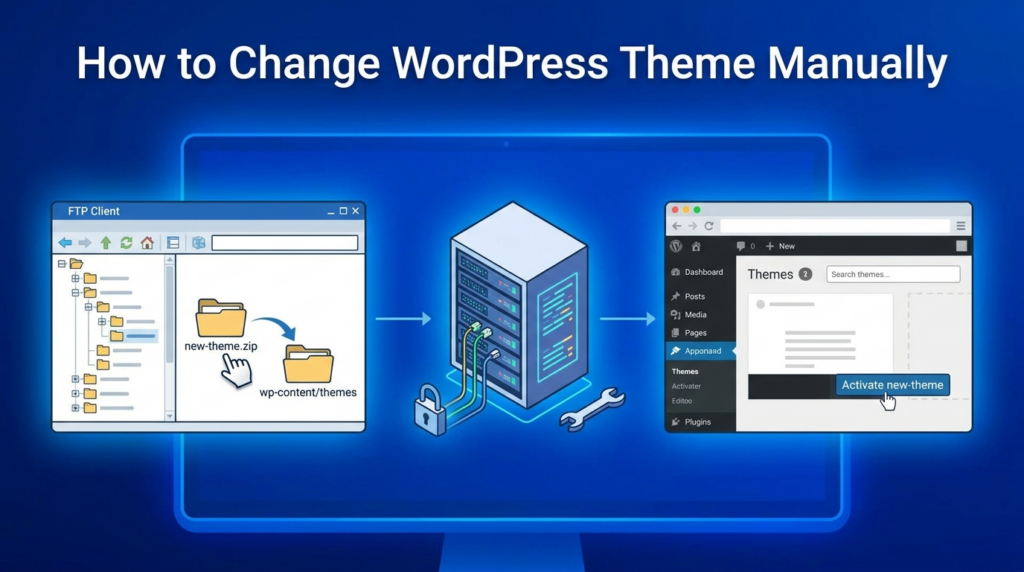
In most cases, the dashboard method is enough. However, sometimes you may not be able to access the WordPress admin area. This can happen after a broken theme update, PHP error, or compatibility issue.
In that case, you may need to change the theme manually through your hosting file manager, FTP, or database.
The manual method usually involves accessing your website files and database directly.
The theme files are stored in:
/wp-content/themes/
Each theme has its own folder. If you upload a new theme manually, the unzipped theme folder should go into this directory.
To activate a theme manually, you may need to update the active theme values in the WordPress database. These values are usually stored in the wp_options table under template و stylesheet.
This method is more advanced and should be done carefully. A small mistake in the database can break the website. If you are not comfortable with FTP or phpMyAdmin, it is safer to ask your hosting support or a WordPress professional for help.
Changing a theme is not only about finding a beautiful design. A good WordPress theme should support your website goals.
A theme with fewer unnecessary features is usually easier to optimize. Avoid themes that include too many built-in sliders, animations, scripts, and design effects that you do not need.
A reliable theme should receive regular updates. Updates help maintain compatibility with WordPress, PHP, and popular plugins.
If you use Elementor, WooCommerce, Contact Form 7, WPForms, Rank Math, Yoast SEO, or other major plugins, make sure the theme works well with them.
Most visitors browse websites on mobile devices. A theme must look clean and usable on smaller screens.
Never use nulled or pirated themes. They may contain hidden malicious code, security risks, or broken update systems. A free theme from the WordPress theme directory or a legitimate premium theme is much safer.
Choose a theme that gives you enough control over layout, typography, colors, spacing, header design, and footer design. This makes it easier to improve your website later without switching themes again.
Even when you follow the right steps, you may still notice some issues after switching themes.
This usually means your menu is not assigned to the new theme’s menu location. Reassign it under Appearance > Menus.
Your old theme may have used a custom homepage template. You may need to rebuild the homepage layout or choose the correct page template.
Widgets may move to inactive areas because the new theme has different widget zones.
Custom CSS written for the old theme may not match the new theme’s HTML structure. You may need to rewrite some styles.
WooCommerce templates vary by theme. Product images, tabs, buttons, and related products may need adjustments.
If tracking scripts were placed inside the old theme files, they may need to be added again using a safer method.
Changing a ووردبريس theme can refresh your website design, improve user experience, support better performance, and give your site more flexibility. However, it should not be done carelessly.
Before switching themes, back up your website, save custom code, record important settings, check tracking scripts, review widgets, and test the new theme in a staging environment when possible. After activating the new theme, carefully review your homepage, menus, widgets, forms, mobile layout, WooCommerce pages, custom code, and cache.
The safest way to understand how to change WordPress theme is to treat it as a planned website update rather than a quick design swap. With the right preparation and testing, you can move to a new WordPress theme smoothly while keeping your content, structure, and user experience under control.
To change WordPress theme safely, back up your website first, test the new theme in a staging site, preview the design, then activate it only after checking pages, menus, widgets, forms, and mobile layouts.
No. Changing a WordPress theme usually does not delete posts, pages, images, or products. However, layouts, widgets, menus, and theme-specific settings may change after activation.
Yes. Always create a full backup before changing your WordPress theme. A backup lets you restore your site if the new theme causes layout issues, errors, or compatibility problems.
Yes, it can affect SEO if the new theme changes headings, page structure, loading speed, mobile usability, or schema settings. Always check important pages after switching themes.
Your menu may disappear because the new theme uses different menu locations. Go to Appearance > Menus and assign your menu to the correct header or primary menu area.
Check your homepage, header, footer, menus, widgets, forms, WooCommerce pages, mobile layout, tracking codes, custom CSS, and site speed after changing your WordPress theme.


















