












Running into a 500 Internal Server Error on your วordpress site can feel like hitting a brick wall. One moment everything is working fine, and the next your site is down with a vague message that doesn’t explain what went wrong. This type of error — often shown as HTTP ERROR 500, Internal Server Error, or simply Error 500 — is not specific to WordPress but is especially common on WordPress sites due to the way WordPress is built and extended with plugins and themes.
In this guide, we’ll break down what the HTTP 500 error means, why it happens, and how you can fix it in a clear, step-by-step way. Whether you’re troubleshooting on your own or preparing to work with a developer, this overview will help you understand the root causes and best solutions for WordPress HTTP Error 500 issues.
What Is a “HTTP Error 500 WordPress” and Why It Matters
When a visitor sees a 500 Internal Server Error, it means something has gone wrong on the server hosting your WordPress site — but the server isn’t giving detailed information about what caused it. This makes the message frustratingly vague.
From a business perspective, a 500 error is more than just annoying. It blocks users from seeing your content, checking out products, logging in, or interacting with your site in any way. If the error lasts long enough, search engines might stop indexing your pages, traffic drops, and visitors lose trust in your site’s reliability.
Common Causes of the HTTP 500 Error in WordPress
Because the HTTP 500 error is a generic server-side message, multiple underlying causes can trigger it. Understanding the most common ones will help you fix the issue more efficiently:
1. Plugin or Theme Conflicts
In WordPress, plugins and themes add functionality and design — but sometimes they clash with each other or with WordPress itself. A newly installed or updated plugin or theme that isn’t compatible with your version of WordPress can easily trigger a 500 error.
2. Corrupted Configuration Files
Files like .htaccess or core WordPress files can become corrupted during updates or modifications. When these control files stop communicating properly with the server, the WordPress site can crash with a 500 error.
3. Insufficient PHP Memory
Every WordPress site has a PHP memory limit — a cap on how much server memory it can use. If your theme or plugins exceed this limit, the server may not have enough memory to process requests, resulting in an HTTP Error 500.
4. Server or Hosting Problems
This error can sometimes be caused by misconfigured servers, outdated software, or even a temporary overload on your hosting account. These problems lie outside WordPress itself but affect WordPress sites the same way they affect any server-based website.
5. Incorrect File Permissions
WordPress relies on specific file and directory permissions so the server knows which files it can read and execute. If these permissions get changed or are incorrect, your server might refuse to run crucial WordPress scripts.
Troubleshooting: How to Fix HTTP Error 500 on WordPress
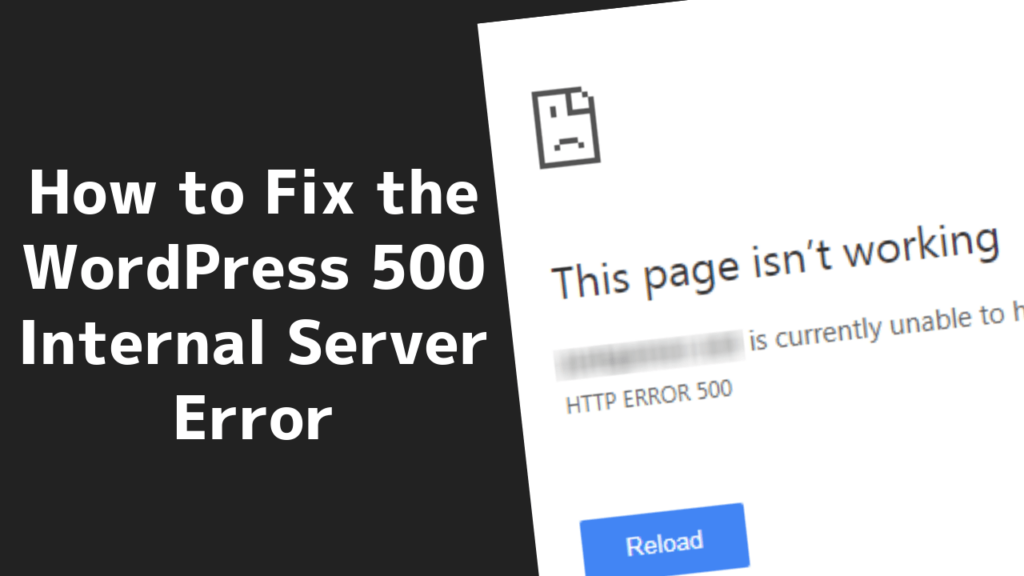
Troubleshooting a 500 Internal Server Error means working through each potential cause methodically. Below is a logical sequence of steps that start with simple checks and move toward more technical fixes.
Step 1: Back Up Your Website
Before doing anything else, ensure you have a complete backup of your WordPress site, including the database and files. This way, if something goes wrong while troubleshooting, you can restore your site to the previous working state.
Step 2: Clear Your Browser Cache
Occasionally, your browser may be displaying an old, cached version of a broken page even after the problem is fixed. Clearing your browser’s cache and refreshing the page can sometimes resolve the error immediately.
Step 3: Disable Plugins
Since plugins are a frequent source of conflicts:
- Log in to your WordPress dashboard (if possible).
- Go to Plugins → Installed Plugins.
- Deactivate all plugins.
- Check your site to see if the error is gone.
If the site starts working again, reactivate plugins one by one until the error reappears. The last plugin activated before the error returned is likely the cause.
If you can’t access the dashboard, use an FTP client or your hosting file manager to rename the ปลั๊กอิน folder inside เนื้อหา wp. This will effectively deactivate all plugins at once.
ขั้นตอนที่ 4: เปลี่ยนไปใช้ธีมเริ่มต้น
If disabling plugins didn’t fix the problem, your active theme might be the culprit. Switching to a default WordPress theme like Twenty Twenty-Three can help you determine whether your current theme is causing the error.
Step 5: Check or Regenerate the .htaccess ไฟล์
เดอะ .htaccess file governs important WordPress server settings. It can become corrupted, especially if your site uses permalink changes or SEO plugins heavily. Renaming .htaccess (for example, to .htaccess_เก่า) temporarily disables it — and if this fixes the error, you can regenerate a fresh version by saving the permalink settings in your dashboard.
Step 6: Increase PHP Memory Limit
You can try increasing your site’s PHP memory limit. To do this, add the following line at the top of your wp-config.php file:
define('WP_MEMORY_LIMIT', '256M');
If adding this line fixes the issue, you’re likely hitting the old memory cap. If not, your host may need to raise the memory limit from the server side.
Step 7: Re-Upload Core WordPress Files
If nothing so far helps, the problem might be corrupted WordPress core files. Download a fresh copy of WordPress, then use FTP to overwrite the wp-admin และ wp-รวม folders on your server with the new versions. This won’t affect your content but can replace broken core files.
Step 8: Contact Your Hosting Provider
If all else fails, your hosting support team can check server logs and settings that you don’t have access to. They can often pinpoint issues like memory limits, PHP configuration problems, or temporary server faults that are beyond your control.
Preventing Future HTTP 500 Errors
Once you’ve resolved the issue, it’s worth taking a few steps to reduce the chance of seeing an HTTP Error 500 again:
- Keep everything updated. Regularly update WordPress core, themes, and plugins to compatible and secure versions.
- Limit excessive plugins. The more plugins you have, the more potential conflict points you introduce.
- Monitor server resources. If your site frequently hits memory or CPU limits, consider upgrading your hosting plan.
- Use staging sites. Before making big changes, test them in a staging environment where errors won’t affect real users.
These practices improve overall site performance and stability, and help prevent critical errors from interrupting your visitors’ experience.
Closing Thoughts
Encountering an HTTP Error 500 WordPress can be stressful — especially when it affects your traffic, sales, or reputation — but the error is almost always fixable with a systematic approach. From simple cache clears and plugin checks to deeper server-level troubleshooting, the methods above will help you diagnose and resolve most causes efficiently.
If you’re running a business-critical วordpress site and want expert help, that’s exactly what we do at AIRSANG. We specialize in cross-border digital experiences and professional website design, helping businesses keep their WordPress sites fast, error-free, and optimized for global audiences. Whether you need troubleshooting support or a custom WordPress build that avoids common problems like HTTP 500 errors, we’re here to assist you — just reach out!


ออกแบบและสร้างเว็บไซต์ WordPress หรือเว็บไซต์องค์กรพร้อมระบบอีคอมเมิร์ซครบวงจรสำหรับคุณ.
ช่วงราคา: $200.00 ถึง $2,500.00custom-requirements-or-special-quotations
ราคาเดิมคือ: $2.00.$1.00ราคาปัจจุบันคือ: $1.00. การใช้ปลั๊กอิน 50 ตัวมากเกินไปสำหรับร้านค้าออนไลน์ที่ใช้ WordPress หรือไม่?
การเข้าใจผลกระทบที่แท้จริงต่อประสิทธิภาพ การมีปลั๊กอิน 50 ตัวบนเว็บไซต์อีคอมเมิร์ซ WordPress ไม่ใช่ปัญหาโดยอัตโนมัติ จริงๆ แล้ว จำนวนเพียงอย่างเดียวแทบจะไม่สามารถกำหนดประสิทธิภาพได้....

ภาพหลักสำหรับการแปลงลิปสติกเป็นสินค้าสำหรับ Amazon
บทนำ: การออกแบบภาพหลักลิปสติกที่ขายได้บน Amazon เมื่อเราออกแบบภาพหลักสำหรับลิปสติกบน Amazon ความรับผิดชอบของเราไม่ได้จำกัดอยู่แค่...

แฮกเกอร์ขโมยอีเมลผู้ดูแลระบบ WordPress ได้อย่างไร (และวิธีป้องกัน)
มาเริ่มกันด้วยความจริงที่ไม่น่าสบายใจ: อีเมลแอดมิน WordPress ของคุณอาจเปิดเผยต่อสาธารณะมากกว่าที่คุณคิด และแฮกเกอร์? พวกเขาชอบมาก สำหรับพวกเขา...

อะไรทำให้รองพื้นชนิดเหลวของ Amazon (ภาพหลัก) ขายดี?
บทนำ การออกแบบภาพหลักสำหรับรองพื้นชนิดเหลวบน Amazon ไม่ใช่แค่การทำให้ผลิตภัณฑ์ดูสวยงามเท่านั้น บน Amazon ภาพหลักและ...

การออกแบบภาพหลัก Amazon ที่มีประสิทธิภาพสำหรับตลับกรอง
บทนำ การออกแบบภาพหลักสำหรับ Amazon ไม่ใช่แค่การทำให้สินค้าดูน่าดึงดูดเท่านั้น แต่ยังเกี่ยวกับความชัดเจน ความน่าเชื่อถือ และความเข้าใจได้ในทันที โดยเฉพาะอย่างยิ่งสำหรับ...

การโจมตีแบบ Replay Attack บน WordPress: ภัยคุกคามจริงหรือแค่เรื่องที่ถูกพูดเกินจริง?
ก่อนอื่นขอชี้แจงให้ชัดเจนก่อน การโจมตีแบบ Replay Attack นั้นดูไม่น่ากลัว มันไม่ได้ทำลายรหัสผ่าน มันไม่ได้แทรกโค้ดที่เป็นอันตรายพร้อมข้อความแฮ็กเกอร์สีเขียวกระจัดกระจายไปทั่ว มันแนบเนียนกว่า...

วิธีคัดลอกหน้าเว็บ WordPress โดยไม่ทำให้ระบบเสียหาย
ยอมรับกันเถอะ บางครั้งคุณอาจไม่อยากสร้างหน้าเว็บใหม่ คุณแค่อยากได้หน้าเว็บเดิม...แต่แตกต่างไปเล็กน้อย รูปแบบเหมือนเดิม บล็อกเหมือนเดิม การตั้งค่าเหมือนเดิม เพราะ...

เปรียบเทียบธีม WordPress สำหรับสัตว์เลี้ยง 5 แบบ
บทนำ การเลือกธีม WordPress ที่เหมาะสมสำหรับธุรกิจเกี่ยวกับสัตว์เลี้ยงนั้นไม่ใช่แค่เรื่องของการออกแบบเท่านั้น แต่ยังส่งผลโดยตรงต่อการใช้งาน ความสามารถในการขยายขนาด และการเติบโตของธุรกิจในระยะยาว การดูแลสัตว์เลี้ยงและ...

เปรียบเทียบธีมอีคอมเมิร์ซชุดว่ายน้ำ 5 แบบ
บทนำ การเลือกธีมที่เหมาะสมสำหรับร้านค้าอิสระที่จำหน่ายชุดว่ายน้ำหรือชุดชั้นในนั้นไม่ใช่แค่การตัดสินใจด้านภาพลักษณ์เท่านั้น แต่ยังส่งผลโดยตรงต่ออัตราการเปลี่ยนลูกค้าให้เป็นผู้ซื้อ ความสามารถในการขยายธุรกิจ และความยั่งยืนในระยะยาว...

วิธีปิดการแสดงความคิดเห็นใน WordPress (โดยไม่ต้องเสียสติ)
มาพูดถึงระบบแสดงความคิดเห็นของ WordPress กันดีกว่า ในทางทฤษฎีแล้ว ความคิดเห็นนั้นยอดเยี่ยมมาก มันช่วยกระตุ้นการสนทนา สร้างชุมชน และทำให้เว็บไซต์ของคุณดูมีชีวิตชีวา แต่ในความเป็นจริงแล้ว มันมักจะเป็นเหมือนแม่เหล็กดึงดูด...

ข้อผิดพลาด WordPress 500: เมื่อเว็บไซต์ของคุณเกิดอาการผิดปกติ
เว็บไซต์ WordPress ของคุณยังใช้งานได้ปกติดีเมื่อสักครู่ คุณรีเฟรชหน้าเว็บ แล้วจู่ๆ ก็เกิดข้อผิดพลาด 500 Internal Server Error ขึ้นมา ไม่มีคำอธิบาย ไม่มีคำขอโทษ มีเพียงข้อความที่เย็นชาและสับสนซึ่งโดยพื้นฐานแล้ว...

วิธีติดต่อฝ่ายสนับสนุนของ Shopify: คู่มือที่ง่ายและไม่ยุ่งยาก
การบริหารร้านค้า Shopify ควรเป็นเรื่องที่น่าตื่นเต้น ไม่ใช่เรื่องที่ทำให้สับสน เมื่อมีคำถามหรือปัญหาเกิดขึ้น Shopify มีช่องทางการสนับสนุนหลายช่องทาง ขึ้นอยู่กับสถานการณ์...

วิธีปิดใช้งานร้านค้า Shopify: คู่มือที่ชัดเจนและใช้งานได้จริง
การปิดใช้งานร้านค้า Shopify นั้นไม่ซับซ้อน แต่ก็มีผลกระทบหลายอย่างที่ผู้ขายหลายรายมองข้ามไป คู่มือนี้จะอธิบายขั้นตอนอย่างละเอียดและเข้าใจง่าย...
เปรียบเทียบธีมร้านขายรองเท้า 5 แบบ
บทนำ การเลือกธีมที่เหมาะสมสำหรับร้านค้าอิสระที่เน้นจำหน่ายรองเท้าไม่ใช่แค่การตัดสินใจด้านภาพลักษณ์เท่านั้น แต่ยังส่งผลโดยตรงต่อความสามารถในการขยายธุรกิจ การดำเนินงานประจำวัน และประสิทธิภาพการแปลงลูกค้าในระยะยาว...

Shopify ปะทะ Etsy: การประลองการขายออนไลน์ครั้งยิ่งใหญ่
บทนำ: สองแพลตฟอร์มเดินเข้าไปในบาร์… ถ้า Shopify และ Etsy เป็นคน Etsy ก็คงเป็นเพื่อนที่น่ารักคนนั้นที่มีบูธอยู่ที่….

เว็บไซต์ Shopify หรือ WordPress ของคุณถูกแฮ็กหรือไม่? นี่คือสิ่งที่คุณควรทำ
บทนำ: เปรียบเสมือนการตื่นขึ้นมาพบกับหน้าต่างที่แตกในโลกดิจิทัล ลองนึกภาพว่าคุณตื่นนอน หยิบกาแฟยามเช้า เปิดแล็ปท็อป… แล้วพบว่าเว็บไซต์ของคุณ….

วิธีเริ่มต้นร้านค้า Shopify โดยไม่เสียสติ
การเริ่มต้นร้านค้าบน Shopify ฟังดูหรูหรา คุณนึกภาพตัวเองกำลังจิบกาแฟตอนเที่ยง ตรวจสอบการแจ้งเตือนยอดขาย และบอกเพื่อน ๆ อย่างสบาย ๆ ว่า “ใช่ ร้านค้าของฉันทำได้ดีทีเดียว...”.

Shopify น่าเชื่อถือหรือไม่? คู่มือฉบับสมบูรณ์สำหรับผู้ขายออนไลน์มือใหม่
หากคุณกำลังค้นหาข้อมูลเกี่ยวกับแพลตฟอร์มอีคอมเมิร์ซ คุณอาจพิมพ์คำถามเฉพาะเจาะจงข้อหนึ่งลงใน Google ว่า Shopify น่าเชื่อถือหรือไม่? คำถามนั้นสมเหตุสมผลอย่างยิ่ง การเปิดตัว...